How we make this list: we compare pricing pages, product documentation and public user reviews. Rankite is independent; if a vendor ever pays for a featured spot, that listing is clearly labeled Partner.
Key takeaways
- Clonezilla and Rescuezilla are completely free and handle full disk cloning well if you can work with bootable media.
- Macrium Reflect and Acronis are the polished paid options for users who want cloning plus full backup suites.
- Samsung Data Migration is the simplest choice, but only works when the target drive is a Samsung SSD.
- EaseUS Disk Copy and AOMEI Backupper sit in the middle: guided, Windows-based cloning with free tiers.
- Always verify the clone by booting from it before you wipe the old drive.
Your laptop drive is getting slow, or it is getting full, or it has started making noises that hard drives should not make. You bought a new SSD. Now comes the part everyone dreads: moving everything, the operating system, the programs, the settings, the files, onto the new drive without reinstalling anything. That is what clone software does. It copies every bit of your old drive to the new one so the computer boots up exactly as before, just faster. The tools differ mainly in how much they hold your hand, what they cost, and whether they also work as full backup programs.
Quick comparison
Is your product missing or out of date?
We review this list regularly. Vendors can request a listing, send updated pricing or ask about featured placement.
The best clone software
Starting priceFree
Free planYes
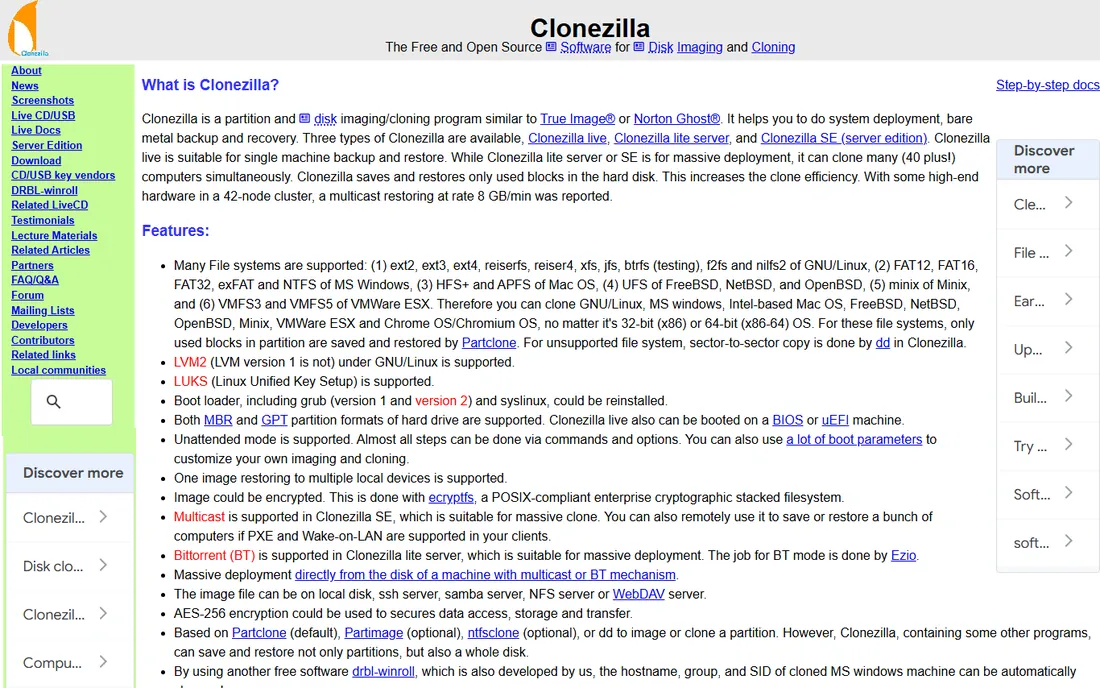
Clonezilla is the tool IT departments have trusted for two decades, and it costs nothing. It clones a single machine's drive to another drive, or saves the whole disk as an image file you can restore later, and the Server edition can push one image to dozens of machines over the network at once. It supports a huge range of file systems, runs from a bootable USB stick without touching your installed system, and the project is actively maintained with regular releases.
The price of free is the interface. Clonezilla's menus are text-based and full of options that assume you know what a partition table is. It is also boot-only: you cannot clone your running Windows system from inside Windows, so you will be creating USB media and changing boot order. For a confident user doing a one-time HDD to SSD upgrade, it is the most capable free option. For everyone else, the learning curve is real.
What we like- Completely free and open source (GPL)
- Handles disk-to-disk and disk-to-image
- Multicast cloning for many machines at once
Watch out for- Text-based interface intimidates beginners
- You must boot from USB or CD
- No scheduling or incremental automation
Starting priceSee website
Free planFree trial
Ask around in tech forums for cloning recommendations and Macrium Reflect comes up more than anything else. It clones disks and partitions from inside Windows with a straightforward wizard, creates compressed disk images for backup, and its Rapid Delta technology makes repeat clones and images dramatically faster by copying only changed blocks. The rescue media builder creates a bootable USB for when Windows will not start, and the interface explains itself.
Macrium retired its old free edition, so current versions are paid with a trial to evaluate. Licensing is per computer with annual update coverage. That makes it harder to recommend for a single one-time migration than the free tools, but easier to recommend as a long-term purchase: you get cloning plus a genuinely good imaging backup program in one package. If you will clone more than once, or want scheduled images as well, this is the Windows user's pick.
What we like- Fast, reliable cloning with a clear interface
- Rapid Delta Clone speeds up repeat jobs
- Rescue media builder included
Watch out for- Windows only
- Paid licenses after the trial
- Overkill if you only need a one-time clone

#3
Acronis Cyber Protect Home Office
Best for: cloning plus full cyber protection suite
Visit acronis.com
Starting priceSee website
Free planFree trial
Acronis Cyber Protect Home Office, the successor to True Image, bundles disk cloning into a much larger package: full disk imaging, file backup, cloud storage, antivirus and ransomware protection. Its cloning is genuinely good, with an active cloning mode that copies your system disk while Windows keeps running, and the interface walks you through source and target selection clearly. If you want one program that handles cloning, backups and security, it is the most complete option here.
You pay for that completeness with an annual subscription, and the program is heavier than a dedicated cloner. Someone who just needs to migrate to an SSD once will find simpler and cheaper tools. But as an ongoing protection strategy, the combination is hard to beat: clone to your new drive today, then let the same program keep nightly images of it. Evaluate the trial before committing to the subscription.
What we like- Cloning inside a complete backup and security suite
- Active disk cloning while you keep working
- Cloud backup options
Watch out for- Subscription pricing
- The suite is heavy if you only want cloning
- Feature list can overwhelm
Starting priceSee website
Free planFree trial
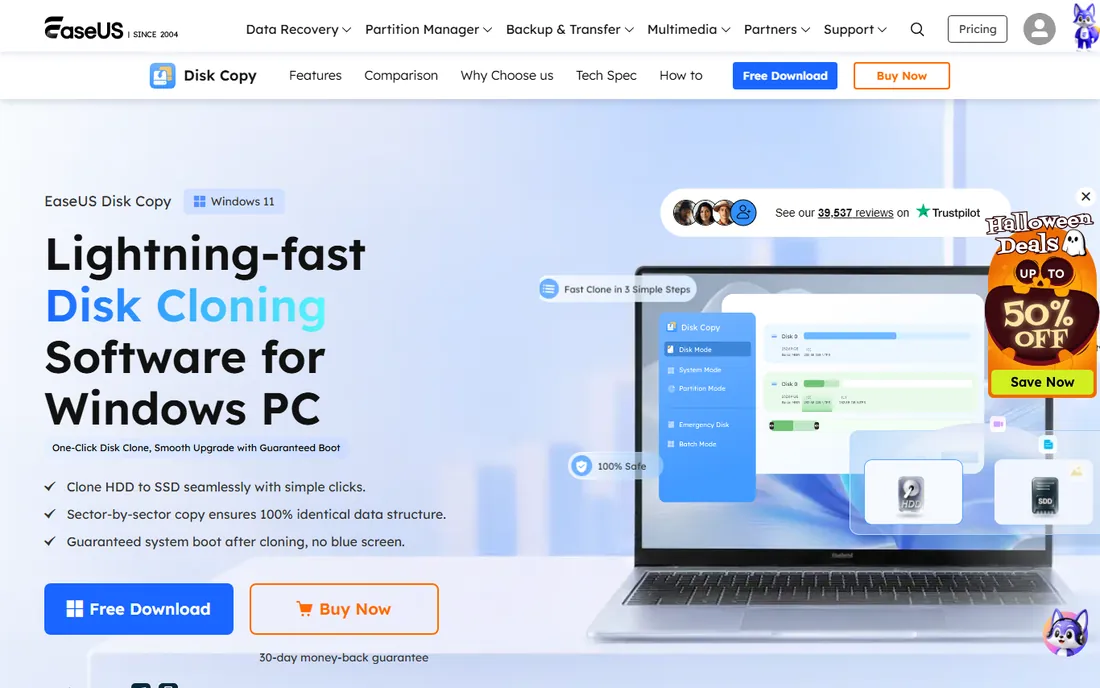
EaseUS Disk Copy is built around one idea: cloning should take three clicks. Choose disk mode to copy everything, partition mode for a single partition, or system clone to move just Windows. It skips over bad sectors instead of failing the whole clone, which matters when you are rescuing data from a dying drive, and it can build WinPE bootable media for cloning a PC that will not boot on its own.
The demo version lets you try the workflow but the free tier is limited, so treat it as a trial with a paid upgrade path. The interface carries the usual EaseUS upsell nudges toward its other products. For a beginner who wants a guided, Windows-based cloning experience and is willing to pay for the full version, it is one of the friendliest options. Budget shoppers should look at the free tools first.
What we like- Simple three-mode workflow (disk, partition, system)
- Handles bad sectors gracefully during cloning
- WinPE bootable media creator
Watch out for- The genuinely free functions are limited
- Upsells appear in the interface
- Full version needed for system migration
Starting priceSee website
Free planYes
AOMEI Backupper's free Standard edition is one of the best deals in this category: it includes disk clone and partition clone alongside system backup, file backup and file sync, all in a clean wizard-driven interface. For a typical SSD upgrade, the free edition is enough. The paid Professional edition adds system clone, universal restore to different hardware, and scheduling, at a modest price.
The usual caveats for freemium software apply: the free version works, but you will see prompts for the paid edition, and a few features are paywalled. Still, compared with tools that charge for basic cloning, AOMEI gives away a lot. If you want a free Windows program that clones today and keeps doing backups afterward, this is the practical choice.
What we like- Free Standard edition includes disk and partition clone
- Also does system backup, file sync and restore
- Clear wizard interface
Watch out for- Some advanced clone features need the paid Professional edition
- Interface promotes paid upgrades
- Windows only
Starting priceFree
Free planYes
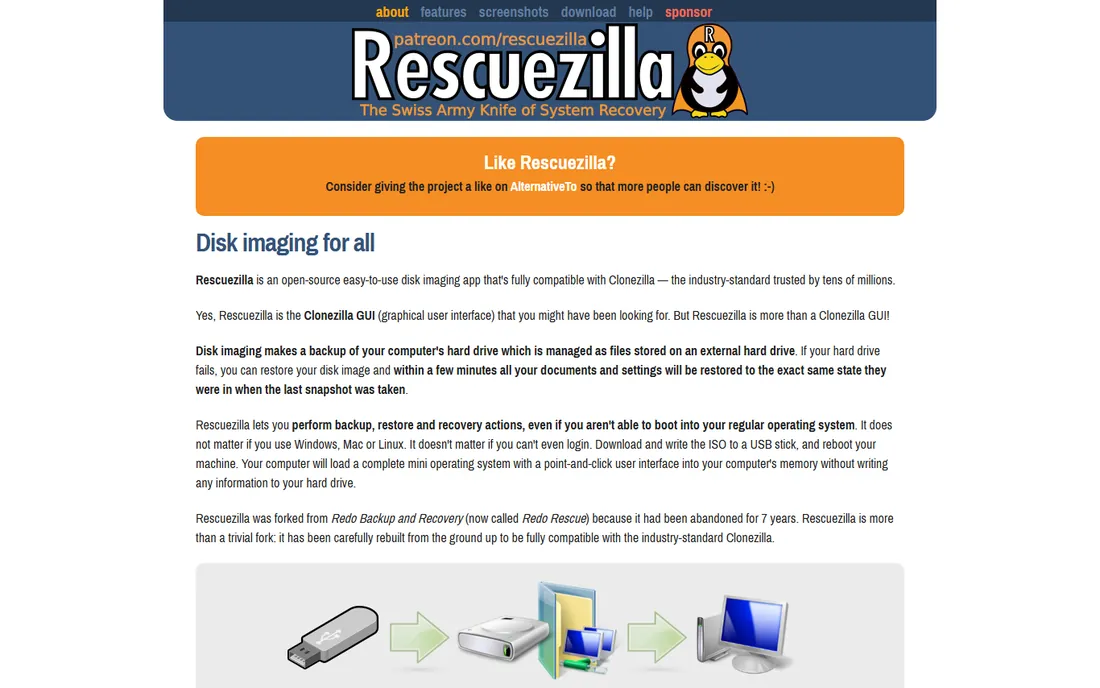
Rescuezilla answers the main complaint about Clonezilla: the interface. It is a free, open-source live USB environment with a proper graphical interface for backup, restore and cloning, and it can even read Clonezilla image files, so the two tools complement each other. Boot from the USB stick, point and click through backup or clone, and reboot into your copied system.
Because it is a smaller community project, it lacks Clonezilla's multicast deployment and enterprise tooling, and like all boot-only tools it requires creating USB media and booting from it. For a home user who wants Clonezilla's power without its text menus, Rescuezilla is the friendlier free path. Keep a copy of the ISO on a USB stick and you have a rescue disk for any machine.
What we like- Completely free and open source
- Graphical interface, unlike Clonezilla
- Compatible with Clonezilla image files
Watch out for- Boot-only, requires USB media
- Smaller project than Clonezilla
- Fewer advanced deployment features
Starting priceFree
Free planYes
If your new drive is a Samsung SSD, stop reading and use this. Samsung Data Migration does exactly one thing, copying your current drive to a Samsung SSD, in three steps: diagnose, select, transfer. It is free, simple, and now integrated into Samsung Magician, the company's drive management software. For the most common upgrade scenario in existence, buying a Samsung SSD to replace a hard drive, nothing is easier.
The limitation is absolute: the destination must be a Samsung SSD. It will not clone to other brands, and it is not a general backup tool. It also only handles Windows system drives. But within its lane it is flawless, and it is the reason many upgrade guides simply say to buy Samsung. Check that your target drive qualifies before you start.
What we like- Free
- Three-step process designed for one job
- Integrated into Samsung Magician
Watch out for- Target drive must be a Samsung SSD
- Cannot clone non-Windows drives
- Limited to basic migration scenarios
Starting priceSee website
Free planFree trial
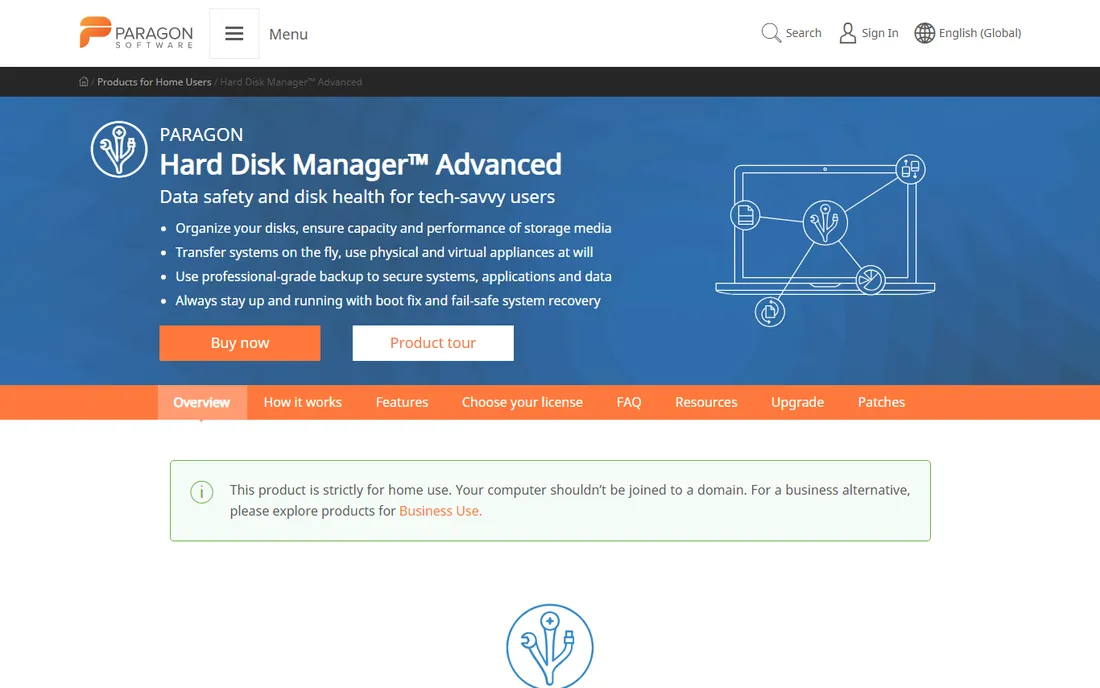
Paragon Hard Disk Manager is the Swiss army knife entry: cloning is one module among partitioning, backup and restore, secure wiping, and OS migration tools. Its migrate-OS wizard is genuinely useful, automatically resizing partitions to fit a smaller SSD, which is the exact scenario that trips up basic cloners. The company has been building disk software for decades, and it shows in the depth of the toolset.
You are buying a suite, not a cloner, so the price reflects that. For someone who regularly repartitions, wipes drives and migrates systems, the bundle makes sense. For a one-time clone, it is more than you need. Consider it when disk management is an ongoing part of your life rather than a one-afternoon job.
What we like- Cloning plus partitioning, backup, wiping and migration in one suite
- Migrate OS to smaller SSD with auto-resizing
- Long development history
Watch out for- Paid software
- The full suite is more than cloners need
- Interface packs in a lot of features
What to look for before you buy
Match the tool to the job, not the feature list. A one-time SSD upgrade needs a simple, reliable cloner; a dying drive needs a tool that tolerates bad sectors; ongoing protection needs imaging with scheduling. Free tools like Clonezilla and Rescuezilla handle one-time clones perfectly. Paid tools like Macrium and Acronis earn their price through imaging, scheduling and support. Paying for features you will use once is the most common mistake in this category.
Check the boot and size details before you start. Confirm the target drive is at least as large as the used space on the source, not just the same nominal size. Decide whether you need to clone from inside Windows or can boot from USB media. If you are moving Windows to a smaller SSD, you need a tool that resizes partitions during the clone, like Paragon, Macrium or AOMEI. And always create rescue or boot media first; you cannot fix a failed clone without a way to boot.
Verify the clone before you wipe anything. The golden rule: boot from the new drive and use the computer for a day before you repurpose or discard the old one. Most cloning failures reveal themselves at first boot, a missing bootloader, a wrong partition layout, and they are trivial to fix while the source drive is intact. Wiping the old drive immediately after cloning is how data loss stories begin.
Frequently asked questions
What is the difference between cloning and imaging a drive?
Cloning copies everything from one drive directly to another drive, producing a ready-to-boot duplicate. Imaging saves the drive's contents as a single compressed file that you store elsewhere and restore later. Clone when you are migrating to a new drive you will use immediately. Image when you want a backup you can restore from after a failure.
Can I clone my drive while Windows is running?
Some tools can. Acronis, Macrium Reflect, EaseUS and AOMEI clone the system disk from inside Windows using volume shadow copy technology. Boot-only tools like Clonezilla and Rescuezilla require restarting from USB media. Live cloning is more convenient; boot cloning avoids any risk of files changing mid-copy. Both produce good results.
How long does cloning a hard drive take?
It depends on how much data is on the drive and the speed of both drives. A half-full 500 GB drive moving to an SSD over USB typically takes one to three hours. Cloning used space only, which most tools do by default, is much faster than sector-by-sector copying. NVMe to NVMe clones on a desktop can finish in under an hour.
Will cloning work if my new SSD is smaller than my old drive?
Yes, as long as the used space on the old drive fits on the new SSD. Most cloning tools resize partitions automatically during the clone. Check the used space in your operating system's disk manager first, and shrink the main partition if needed before cloning. Tools like Paragon, Macrium and AOMEI handle this gracefully.
Is free clone software safe to use?
The reputable free tools here, Clonezilla, Rescuezilla, AOMEI's free edition and Samsung Data Migration, are widely used and safe. Download only from the vendor's official site, never from software aggregator pages that bundle installers with extras. And regardless of the tool, keep a separate backup of your important files before any cloning operation.
Do I need to reinstall Windows after cloning to an SSD?
No, that is the point of cloning. The new drive is an exact copy, so Windows boots with all your programs and settings intact. After booting, verify that TRIM is enabled for the SSD and that the partition alignment is correct; modern cloning tools handle alignment automatically. You may need to reactivate Windows in rare cases where the hardware change triggers it.
How we chose
We looked for tools that real users recommend for real cloning jobs: SSD upgrades, failing-drive rescues and system migrations. We reviewed vendor documentation, long-running community discussions and tutorial coverage, favoring tools with current releases and honest free tiers. We weighted reliability and clarity over feature count, since a cloner that confuses you into wiping the wrong drive has failed regardless of its spec sheet. We did not test the software hands-on, and no vendor paid for placement.
The SSD upgrade is the classic job. Old hard drive, new SSD, one afternoon. If the SSD is Samsung, use Samsung Data Migration and be done in three steps. Otherwise, AOMEI Backupper's free edition or Macrium Reflect's trial will walk you through it from inside Windows, and Clonezilla or Rescuezilla will do it free from a USB stick. Any of these beats reinstalling Windows.
The dying drive rescue is more urgent. Clicking sounds, read errors, SMART warnings. Here you want a tool that tolerates bad sectors, EaseUS Disk Copy skips them rather than aborting, and you want to work from bootable media so the failing drive is not being written to. Clone to a healthy drive first, ask questions later. Do not run disk repair utilities on the only copy of your data.
The fleet refresh belongs to IT. Ten, fifty, five hundred identical machines need one golden image deployed everywhere. That is Clonezilla Server's multicast territory, and it is free. Paid endpoint tools exist for managed environments, but for a school lab or small office refresh, Clonezilla SE remains the standard answer. Build the image once, verify it on one machine, then push it to the rest.
Sources we checked (8)
- https://clonezilla.org/
- https://www.macrium.com/
- https://www.acronis.com/en/
- https://www.easeus.com/disk-copy/index.htm
- https://www.ubackup.com/
- https://rescuezilla.com/
- https://semiconductor.samsung.com/consumer-storage/support/tools/
- https://www.paragon-software.com/home/hdm-windows/
Is your product missing or out of date?
We review this list regularly. Vendors can request a listing, send updated pricing or ask about featured placement.

Shihab Mia · Founder, Rankite
Shihab has spent more than a decade helping SaaS and e-commerce brands grow through search. He writes Rankite's software buying guides from pricing pages, documentation and public user reviews. More about Shihab.
 Clonezilla
 Macrium Reflect
 EaseUS Disk Copy
 AOMEI Backupper
 Rescuezilla
 Samsung Data Migration
 Paragon Hard Disk Manager