How we make this list: we compare pricing pages, product documentation and public user reviews. Rankite is independent; if a vendor ever pays for a featured spot, that listing is clearly labeled Partner.
Key takeaways
- NVIDIA App's ShadowPlay and Xbox Game Bar are free and already on your PC, so try them before installing anything.
- Medal and Outplayed auto-detect kills and wins in supported games, which is the closest thing to a set-and-forget clipper.
- OBS Studio is free and does everything, but it has no automatic highlight detection and a real learning curve.
- Free tiers of Medal, Outplayed, and FBX come with ads, watermarks, or clip limits that the paid tiers remove.
- Instant replay buffers (the last 30 seconds to 10 minutes) matter more than manual recording for catching unexpected moments.
Quick comparison
Is your product missing or out of date?
We review this list regularly. Vendors can request a listing, send updated pricing or ask about featured placement.
The best PC game clipping software, ranked
Starting priceFree
Free planYes
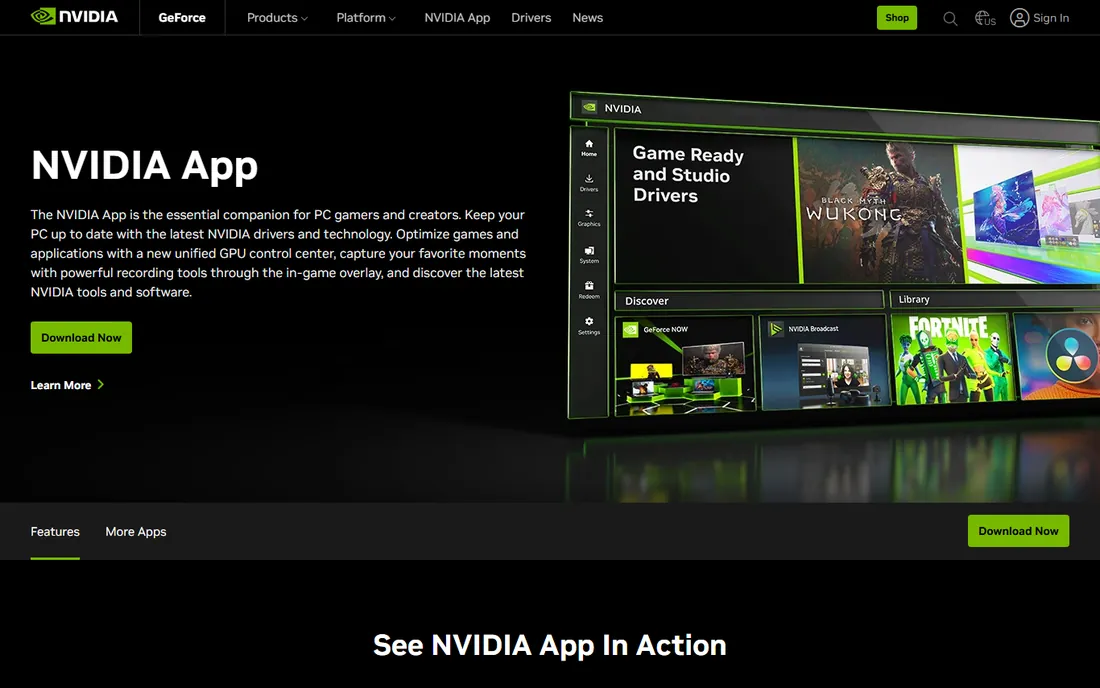
If you own an NVIDIA graphics card, you already own the best free clipper. ShadowPlay, now part of the NVIDIA App, uses the GPU's dedicated encoder, so recording barely touches your frame rate. Alt+F9 records manually, Alt+F10 saves an Instant Replay of the last few minutes, and NVIDIA Highlights auto-captures kills and wins in supported titles.
The newer app versions even added 240 FPS recording on RTX 40 and 50 series cards for buttery slow-motion replays. Setup is close to zero: install the NVIDIA App, enable the in-game overlay, and set your hotkeys.
The obvious limit is the hardware gate. AMD and Intel GPU owners get nothing here. Some users also dislike the NVIDIA account login requirement. But for the majority of PC gamers on GeForce cards, this is the default answer and it costs nothing.
What we like- Hardware-accelerated recording with almost no FPS loss
- Instant Replay saves the last moments on hotkey
- Highlights auto-captures key plays in supported games
Watch out for- Requires an NVIDIA GPU
- Some features need an NVIDIA account login
Starting priceFree
Free planYes
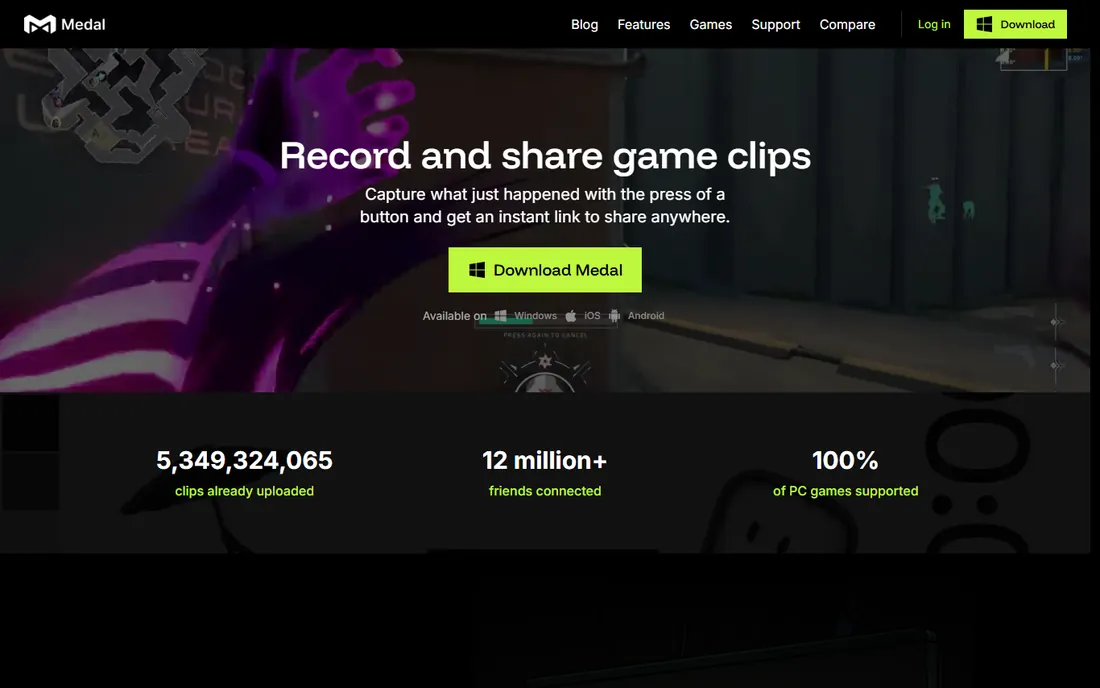
Medal is the social clipper. It keeps a replay buffer running while you play, so pressing F8 after a big moment saves the last 15 seconds to 10 minutes. In supported games like Valorant, Fortnite, CS2, and Roblox, highlights save themselves with no hotkey at all.
Sharing is where Medal pulls ahead. Every clip gets a medal.tv link that plays inline in Discord, and the editor handles trim, text overlays, slow motion, and separate audio tracks for game, mic, and Discord. The mobile app and "Clips You're In" feed make it feel like a social network for plays.
The free tier carries ads, and share links expire after 14 days unless you pay for Premium. There is also no Mac or Linux app. If your whole squad is on Medal, though, the sharing loop is hard to beat.
What we like- Automatic highlight detection in major titles
- Clips get shareable links that play inline in Discord
- Built-in editor with trim, text, and slow-mo
Watch out for- Ads on the free tier
- Quick-share links expire after 14 days without Premium
- Windows only
Starting priceFree
Free planYes
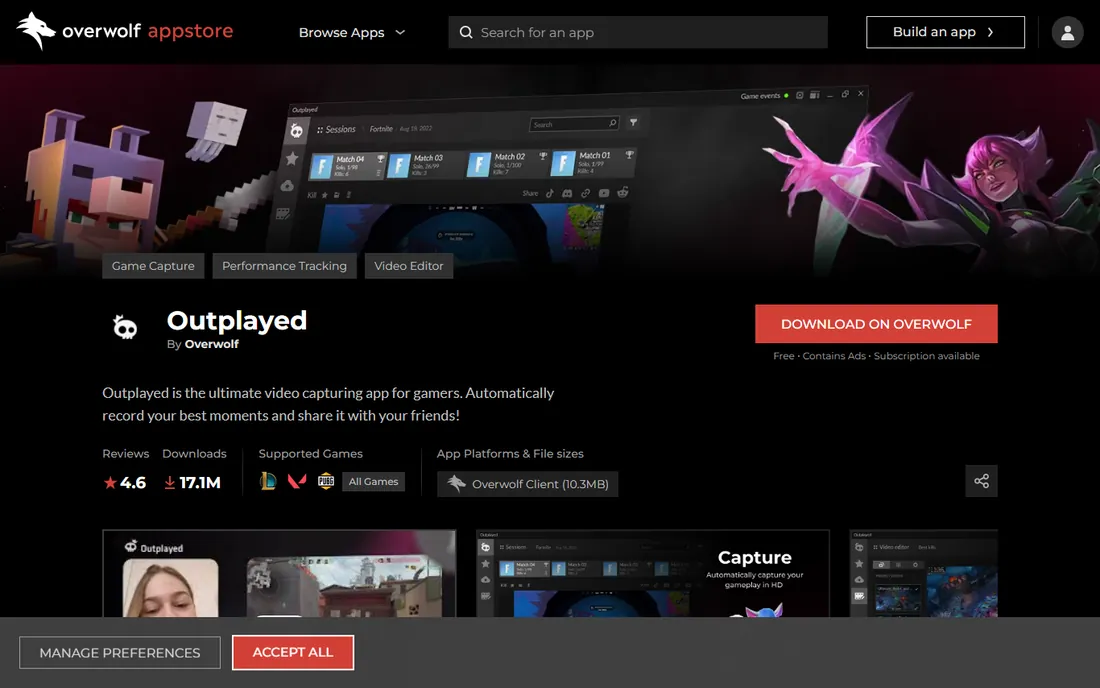
Outplayed wins on game coverage. It detects kills, deaths, assists, and wins as in-game events and bookmarks them on a match timeline, supporting thousands of titles through the Overwolf platform. Each clip captures a window around the event, so you get the setup and the payoff.
After the match, the editor lets you trim clips and push them straight to Discord, YouTube, or TikTok. Manual capture and full-match recording are there too, with configurable resolution and bitrate for weaker PCs.
The price of that coverage is the Overwolf client, which must run in the background and draws mixed feelings about resource use. Free-tier uploads expire after three months, and there is no mobile app. For pure auto-highlight reliability on Windows, it is still the benchmark.
What we like- Detects in-game events across thousands of games
- Timeline bookmarks every highlight
- Exports to MP4 with one-click uploads
Watch out for- Requires the Overwolf platform running
- Free uploads to outplayed.tv expire after 3 months
- No mobile app
Starting priceFree
Free planYes
The best clipper is the one you already have. Xbox Game Bar ships with Windows, opens with Win+G, and Win+Alt+R starts manual recording while Win+Alt+G grabs the last 30 seconds if background recording is enabled. Clips land in your Videos folder, ready to share.
For casual clipping it is genuinely enough. The performance overlay, audio mixer, and Spotify widget are nice bonuses during play. There is nothing to install, no account to create, and no ads.
The limits show up fast for serious use. It cannot record the desktop or File Explorer, some games block it, and quality controls are basic compared to ShadowPlay or OBS. When it throws hardware errors, the fixes are fiddly. Use it as the free baseline, upgrade when you outgrow it.
What we like- Already installed on Windows 10 and 11
- Win+Alt+G grabs the last 30 seconds
- No account or extra software needed
Watch out for- Cannot record the desktop or some apps
- Fewer quality settings than dedicated tools
- Occasional "gaming features unavailable" errors
Starting priceFree
Free planYes
OBS Studio is the power tool. It is free, open source, and does things no clipper on this list can: multi-track audio isolation, scene composition with webcam overlays, custom canvas sizes including vertical 9:16, and streaming to Twitch or YouTube from the same setup.
For clipping specifically, the Replay Buffer feature works like Instant Replay once you enable it, saving the last minutes on hotkey. Combined with hardware encoding, quality can exceed every auto-clipper here.
But OBS never watches the game for you. There is no kill detection, no auto-highlight, and setting up scenes, sources, and encoder settings takes an evening of learning. It is the right tool for creators who edit; it is the wrong tool for someone who just wants clips to appear.
What we like- Completely free and open source with no watermark
- Multi-track audio and scene composition
- Huge plugin ecosystem
Watch out for- No automatic highlight detection
- Real learning curve for scenes and encoders
- Replay buffer needs manual setup
Starting priceFree
Free planYes
SteelSeries Moments is the quiet contender. It lives inside the free SteelSeries GG app and auto-clips in-game events like kills, headshots, and victories in supported games, with manual capture on Alt+S for everything else. The in-app editor trims clips for quick sharing.
Its advantage is simplicity for SteelSeries hardware owners, since GG is probably already installed for a headset or keyboard. GameSense integration means the clipping ties into the same ecosystem as lighting and audio.
Coverage is the weakness. The auto-clip game list is shorter than Outplayed's, and some features remain in early access with quirks like HDR conflicts on Windows 11. It is a good free second option, not the primary pick for most.
What we like- Free inside the SteelSeries GG app
- Auto-clips kills, wins, and headshots in supported titles
- Simple in-app trim and share
Watch out for- Auto-clip covers fewer games than Outplayed
- Works best on SteelSeries-friendly setups
- Windows only
#7
FBX Game Recorder
Best for: Lightweight recording on old PCs
Visit fbx.gg
Starting priceSee website
Free planYes
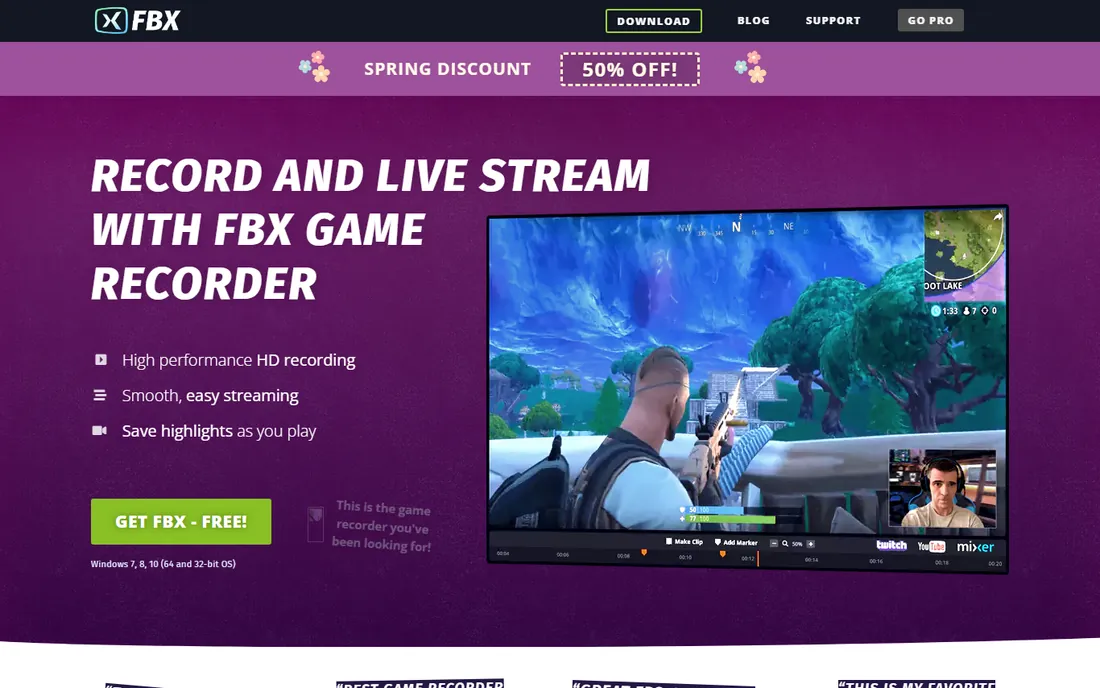
FBX is built for the low-end PC. It records with minimal lag on older hardware using whatever GPU acceleration is available, and it handles web games and desktop capture that some clippers skip. The built-in editor adds GIFs, stickers, captions, and slow motion for quick YouTube-ready clips.
Instant Clips on hotkey and DVR-style continuous recording cover the core clipping workflow. Streaming setup is genuinely fast, with the app adjusting to your bandwidth automatically.
The free version watermarks recordings, and the paid upgrade that removes it is the real product. There is no event-based auto-clipping, and the community is small, so troubleshooting means reading docs rather than watching tutorials. For aging hardware, it is worth the tradeoff.
What we like- Very low performance impact even on old hardware
- Hardware acceleration across NVIDIA, AMD, and Intel
- Built-in editor with GIFs and effects
Watch out for- Free recordings carry a watermark
- No automatic highlight detection
- Smaller community and fewer tutorials
Starting priceSee website
Free planYes
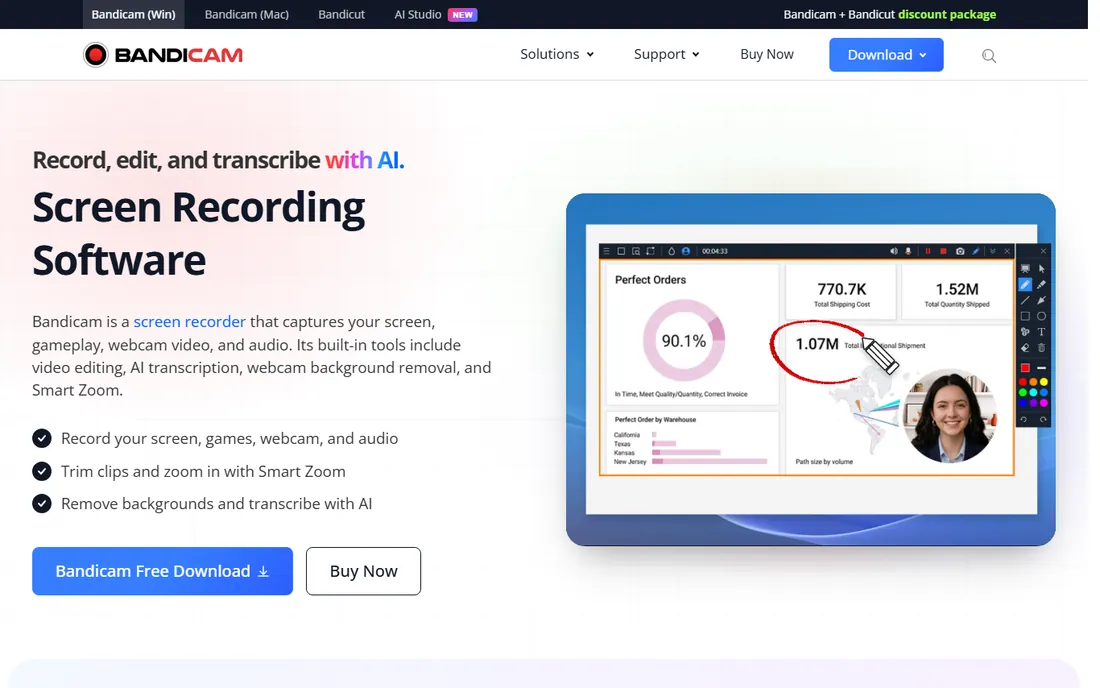
Bandicam is the veteran manual recorder. Its game recording mode hooks DirectX and OpenGL with minimal FPS loss, and it can capture at up to 480 FPS for extreme slow motion. Scheduled recording and auto-complete on file size make it handy for unattended capture.
The interface is old-school but fast to learn: pick game mode, set hotkeys, record. Webcam overlay, real-time drawing, and mouse effects cover tutorial-style content too.
The free version is a trial in practice, with a 10-minute cap and watermark. Paid licenses start affordably with both annual and lifetime options. There is no highlight detection at all, so it suits deliberate recording sessions, not "clip that" moments.
What we like- Tiny performance footprint with hardware acceleration
- Records up to 480 FPS for slow motion
- Scheduled and auto-complete recording modes
Watch out for- Free version caps recordings at 10 minutes with a watermark
- No auto highlight detection
- Windows only
How we chose
We focused on tools that PC gamers actually use to capture and share highlights, checking each vendor's current product page for features, platform support, and pricing. We read documentation, public reviews, and community threads on Reddit and gaming forums about real-world FPS impact and clip reliability. We never claim hands-on testing. We weighted automatic vs manual capture, performance cost while gaming, sharing workflow, and what the free tier actually lets you do.
What actually matters in a clipping app
Instant replay beats manual recording. The moments worth clipping are the ones you did not see coming, so a rolling buffer (ShadowPlay's Instant Replay, Medal's F8, Game Bar's Win+Alt+G) matters more than any record button. Set the buffer length to cover your game's longest plays.
Auto-detection is a spectrum, not a checkbox. Outplayed and Medal detect events in specific supported games, while NVIDIA Highlights only works where developers integrated it. Check your main game's support before choosing, because an auto-clipper that does not know your game is just a manual recorder.
Watch the free-tier strings. Ads, expiring share links, watermarks, and clip length caps are how free clippers monetize. If you clip daily, the paid tier usually pays for itself in saved annoyance within a month.
Clip settings worth changing first
Set your capture resolution to match your monitor, not higher. Recording 4K on a 1080p display wastes disk space and encoder headroom for zero visible gain. Sixty frames per second is the sweet spot for smooth clips that still edit well.
Use hardware encoding (NVENC, AMF, or QuickSync) whenever the app offers it. Software x264 encoding looks slightly better per bit but steals CPU cycles your game wants. On a mid-range PC, the FPS difference is immediately noticeable.
Save clips to an SSD, not the drive your game runs on. Recording and gaming on the same mechanical drive causes stutter in both. A cheap secondary SSD used only for captures is one of the best upgrades a clipping-heavy gamer can make.
Frequently asked questions
Do I need an NVIDIA GPU to clip gameplay?
No. Xbox Game Bar works on any Windows PC, OBS Studio works everywhere, and Medal, Outplayed, and FBX support AMD and Intel GPUs. NVIDIA's ShadowPlay is the only tool here locked to GeForce cards, and it is optional, not required.
Will clipping software lower my FPS?
A little, always. Hardware-accelerated tools like ShadowPlay and Bandicam cost the least, typically single-digit FPS. Software encoding in OBS costs more. If frames matter, enable hardware encoding and keep the replay buffer at a modest length.
What is the difference between clipping and recording?
Recording captures everything from the moment you press record until you stop. Clipping saves a short highlight, either by grabbing the last seconds from a rolling buffer or by auto-detecting an in-game event. Clippers are for highlights; recorders are for full sessions and streams.
Where do my clips get saved?
Most tools default to your Videos folder or a dedicated captures folder, and all of them let you change it. Save to an SSD with plenty of free space. A minute of 1080p60 footage runs roughly 200 to 400MB depending on bitrate.
Can I clip on a laptop?
Yes, with caveats. Gaming laptops handle ShadowPlay, Medal, and Game Bar fine when plugged in. On battery, recording drains power fast and thermal throttling can tank both game and clip quality. Plug in, and keep expectations modest on integrated graphics.
Are free clipping tools safe to install?
The tools on this list from established vendors are safe when downloaded from the official sites linked above. Avoid repackaged downloads from random sites, which sometimes bundle adware. Medal, Outplayed, and FBX show ads in their free tiers, which is their stated business model, not malware.
Sources we checked (8)
- http://www.geforce.com/geforce-experience/shadowplay
- https://medal.tv
- https://www.overwolf.com/app/overwolf-outplayed
- https://www.xbox.com
- https://obsproject.com
- https://steelseries.com/en-gb/gg/download-msi
- https://fbx.gg/
- https://www.bandicam.com
Is your product missing or out of date?
We review this list regularly. Vendors can request a listing, send updated pricing or ask about featured placement.

Shihab Mia · Founder, Rankite
Shihab has spent more than a decade helping SaaS and e-commerce brands grow through search. He writes Rankite's software buying guides from pricing pages, documentation and public user reviews. More about Shihab.
 NVIDIA App (ShadowPlay)
 Medal.tv
 Outplayed by Overwolf
 Xbox Game Bar
 OBS Studio
 SteelSeries Moments
 Bandicam