How we make this list: we compare pricing pages, product documentation and public user reviews. Rankite is independent; if a vendor ever pays for a featured spot, that listing is clearly labeled Partner.
Key takeaways
- Most home users never need to pay. Free editions from AOMEI, EaseUS, MiniTool, Macrorit, DiskGenius, NIUBI and GParted cover resizing, extending, creating, formatting and deleting partitions.
- License scope matters more than features for IT shops. Paragon Community Edition and several free editions are personal or home use only. Macrorit Pro and NIUBI Professional explicitly allow commercial use.
- One-time licenses usually beat subscriptions here. Macrorit Pro costs $39.99 once, NIUBI Professional starts at $39 for 2 PCs, and AOMEI Professional is $49.95 for 2 PCs. You repartition rarely, so a perpetual license is the better deal.
- Paid-only features cluster around the same five tasks: OS migration to SSD, WinPE bootable media, dynamic disk management, BitLocker support and RAID. If none of those apply, stay on the free tier.
Quick comparison
Is your product missing or out of date?
We review this list regularly. Vendors can request a listing, send updated pricing or ask about featured placement.
The best partition software
Starting price$49.95 (Professional, 2 PCs)
Free planYes
AOMEI Partition Assistant Standard is the free starting point most Windows users should try first. It resizes, moves, creates, deletes, formats, merges and clones partitions, converts data disks between MBR and GPT, and includes disk health checks and surface tests. The vendor lists it as free for personal and home use, with one Professional license covering 2 PCs at $49.95.
The Professional edition adds the jobs that justify paying: migrating Windows from an HDD to an SSD, converting a system disk between MBR and GPT, dynamic disk management, WinPE bootable media and BitLocker tools. Operations queue up in a preview list that you review before anything touches the disk. Support is ticket and email based, with a 90-day money-back guarantee on paid licenses.
What we like- Free Standard edition covers core tasks
- Step-by-step wizards for OS migration and cloning
- Sector-level data protection on operations
Watch out for- Advanced conversions and dynamic disk tools need the paid edition
- Upsell prompts toward Professional

#2
MiniTool Partition Wizard
Best for: all-round disk toolkit with extras
Visit minitool.com
Starting priceSee website
Free planYes
MiniTool Partition Wizard is the veteran of this category, on the market since 2009. The free edition handles creating, deleting, formatting, moving and resizing partitions plus disk and partition copying. Paid tiers add file system conversion, OS migration, data recovery, a disk benchmark and a space analyzer that shows what is eating your drive.
Pricing is the weak point here. MiniTool sells Pro, Pro Deluxe, Pro Platinum and Pro Ultimate, mixing annual and perpetual options across tiers. Before buying, open the vendor's own pricing page and confirm which tier covers the feature you need, because the cheapest Pro tier excludes data recovery. For a small business, the perpetual Ultimate license is usually calmer than a yearly renewal.
What we like- Broad feature set including disk benchmark and space analyzer
- Data recovery module in higher tiers
- Long track record since 2009
Watch out for- Pricing tiers are confusing, with Pro, Pro Deluxe, Pro Platinum and Pro Ultimate
- Some features that were free in older versions moved to paid tiers

#3
EaseUS Partition Master
Best for: one-click fixes for full C: drives
Visit easeus.com
Starting priceSee website
Free planYes
EaseUS Partition Master Free is one of the easiest free editions to evaluate because the vendor publishes a full feature comparison table on its own site. The free tier creates, extends, shrinks, resizes, moves, deletes, merges and hides partitions, formats and wipes them, converts data disks between MBR and GPT and NTFS and FAT32, and clones individual partitions. It runs on Windows 11 down to Vista.
The Professional edition targets the two most common paid scenarios: a C: drive that keeps filling up and a move to a new SSD. It adds one-click smart space adjustment, full disk and OS cloning, partition recovery, WinPE bootable media and dynamic disk support. EaseUS sells monthly, yearly and lifetime options, but checkout prices vary by region and promotion, so check the vendor's pricing page directly. The free edition is genuinely enough for routine repartitioning.
What we like- AI-assisted one-click space adjustment
- Clear free vs Pro comparison on the vendor site
- WinPE bootable media in paid tiers
Watch out for- Key features like OS migration and partition recovery are paywalled
- Vendor pricing page buries actual prices behind a checkout flow
Starting priceSee website
Free planYes
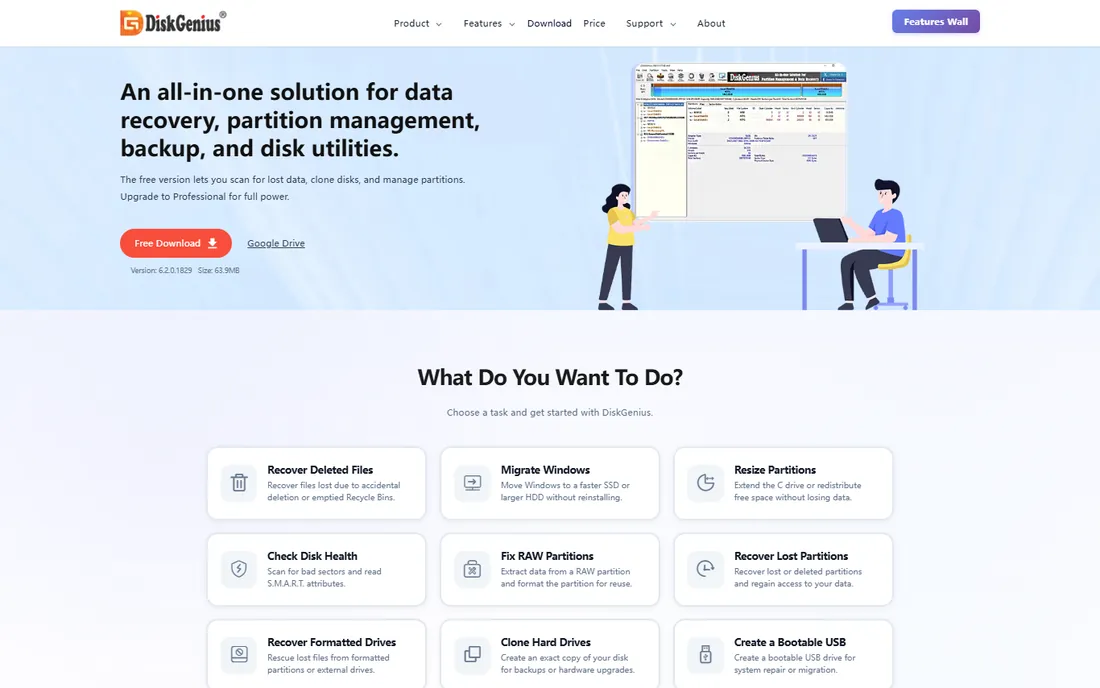
DiskGenius is two products in one: a full partition manager and a data recovery suite, which makes it the pick for technicians who want one tool for both jobs. Partitioning covers resize, extend, split, create, delete, format, hide, copy and erase, plus OS migration to SSD. The recovery side handles deleted files, formatted drives, lost partitions and RAW drives.
The lineup is a free edition, a Standard edition and a Professional edition, sold as one-time purchases per PC, with family and technician licenses above those. The honest catch is the free edition's recovery cap: it scans and previews everything but only recovers files smaller than 64 KB. Buy Standard for partitioning plus basic recovery, and Professional if you need BitLocker, EXT4, RAID reconstruction or the hex editor.
What we like- Combines partitioning with serious data recovery and backup
- Hex editor and RAID tools in Professional
- Sector-level cloning
Watch out for- Interface looks dated and technical
- Free edition limits data recovery to files under 64 KB, which is barely useful

#5
NIUBI Partition Editor
Best for: fast resizes with rollback protection
Visit hdd-tool.com
Starting price$39 (Professional, 2 PCs)
Free planYes
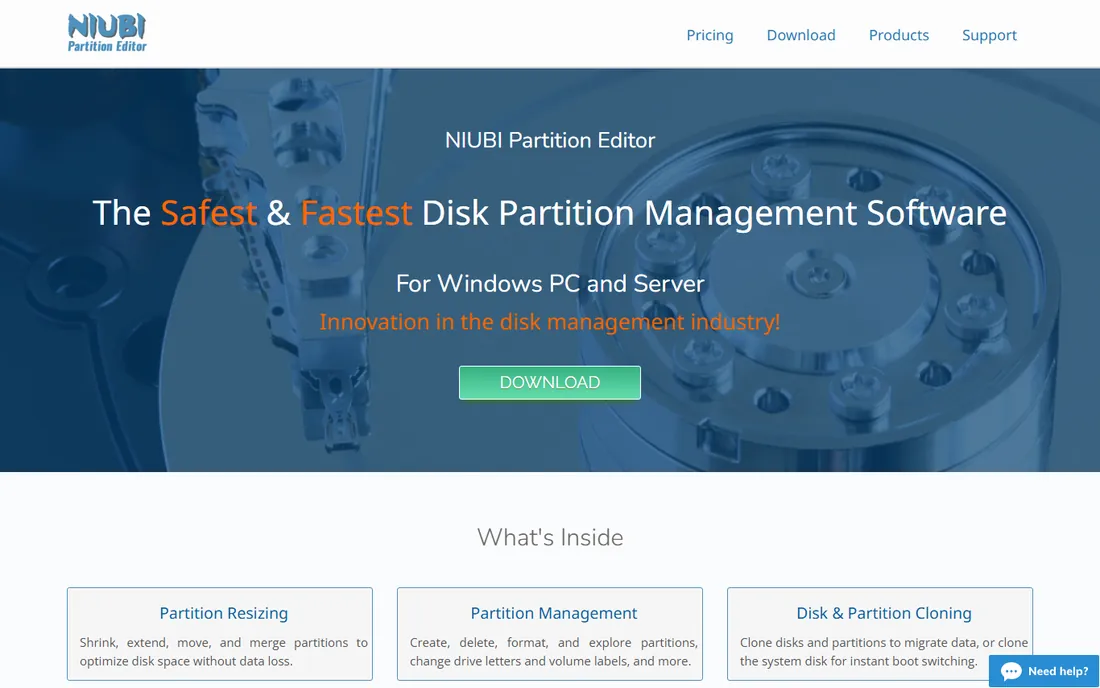
NIUBI Partition Editor is the speed-focused option. Its headline feature is rollback technology that reverts the disk to its previous state if an operation is interrupted, which addresses the fear every buyer has about partition software: a power cut mid-resize.
The lineup is straightforward: a free edition for home users, Professional at $39 for 2 PCs with commercial use and a bootable media builder, then Server, Enterprise and Technician editions. At $39, Professional is one of the cheapest paid entries here, and the commercial-use permission suits independent technicians. The trade-off is vendor size: support is email based and documentation is thinner than AOMEI's or EaseUS's.
What we like- 1-second rollback protection against interrupted operations
- Fast file-moving algorithm
- Free edition covers core resizing for home users
Watch out for- Small vendor with minimal brand recognition
- Website and documentation feel less polished than the big three
Starting priceFree (Community Edition, personal use)
Free planYes
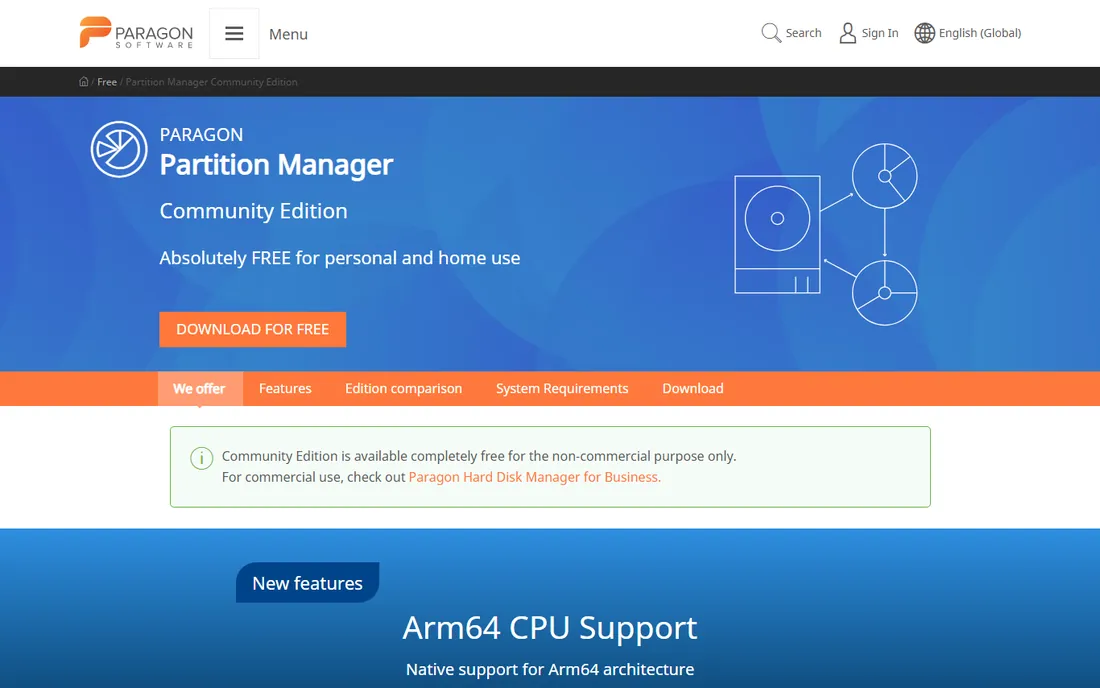
Paragon takes a different approach from everyone else on this list: instead of a limited free edition, it gives away a capable Community Edition for personal and home use. It resizes, moves, creates, deletes, formats and checks partitions, converts between MBR and GPT, manages dynamic disks, undeletes volumes and builds WinPE bootable media. File system support is unusually broad for a free Windows tool, covering NTFS, FAT32, Ext2/3/4, ReiserFS, Linux Swap, HFS+, Btrfs and XFS.
The boundary is licensing, not features. Community Edition is strictly non-commercial; businesses need Paragon Hard Disk Manager for Business. Merging and splitting partitions, OS migration, data wiping and backup are reserved for the paid products. If you run a mixed Windows and Linux setup at home, or keep old Mac-formatted drives around, Paragon's free edition is the strongest no-cost option here.
What we like- Completely free for personal and home use
- Wide file system support including Linux and HFS+
- WinPE bootable disk included
Watch out for- No commercial use allowed on the free edition
- Partition merge and split need the paid Hard Disk Manager

#7
Macrorit Partition Expert
Best for: budget one-time license, portable use
Visit macrorit.com
Starting price$39.99 (Pro, one-time)
Free planYes
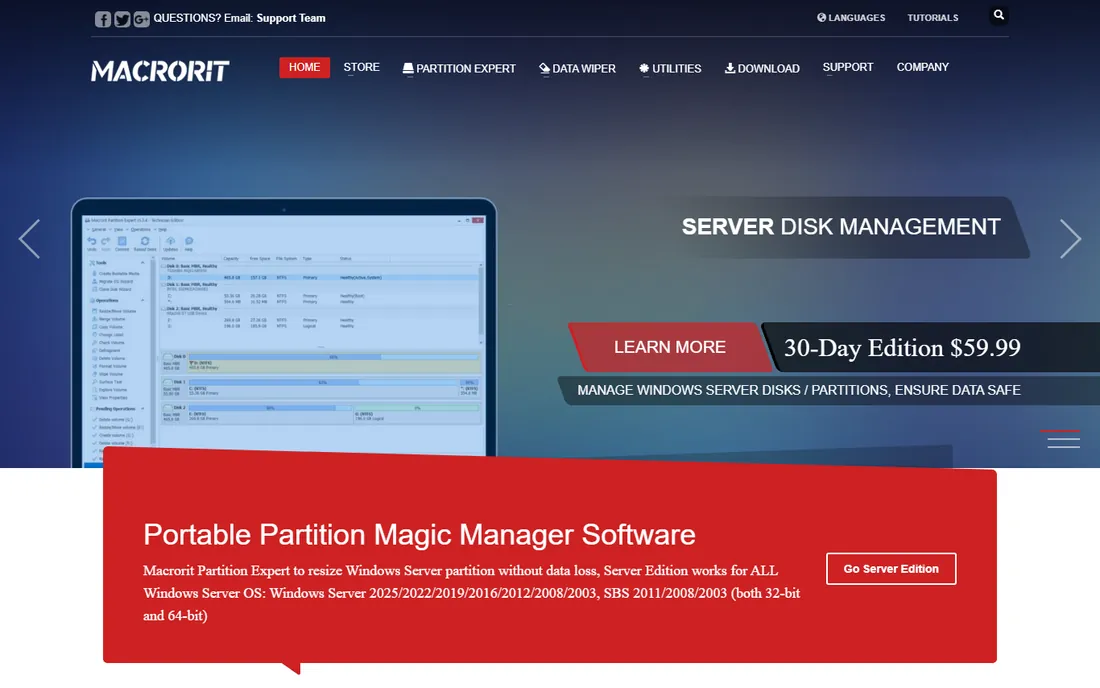
Macrorit Partition Expert is the value play. The free edition covers the standard home-user tasks: shrink, extend, move, format and create partitions on MBR and GPT disks up to 32 TB, with the vendor's signature cancel-at-will and one-second rollback safety features included. The Pro edition costs $39.99 as a one-time purchase and adds commercial use rights, faster data moving, Windows Storage Spaces support and OS migration to SSD.
Two details make Macrorit interesting for technicians. It ships as a portable program that runs without installing anything on the target system, handy when fixing someone else's PC. Pricing is simple: Free, Pro at $39.99, Pro+ with lifetime upgrades at $49.95, then Server and Unlimited tiers, with no subscription anywhere. The honest weakness is breadth: for data recovery or disk benchmarking, the bigger suites offer more.
What we like- Cheapest paid tier among the major tools
- Portable edition runs without installation
- Cancel-at-will technology during operations
Watch out for- Smaller feature set than AOMEI or EaseUS
- Interface and website look dated
Starting priceSee website
Free planYes
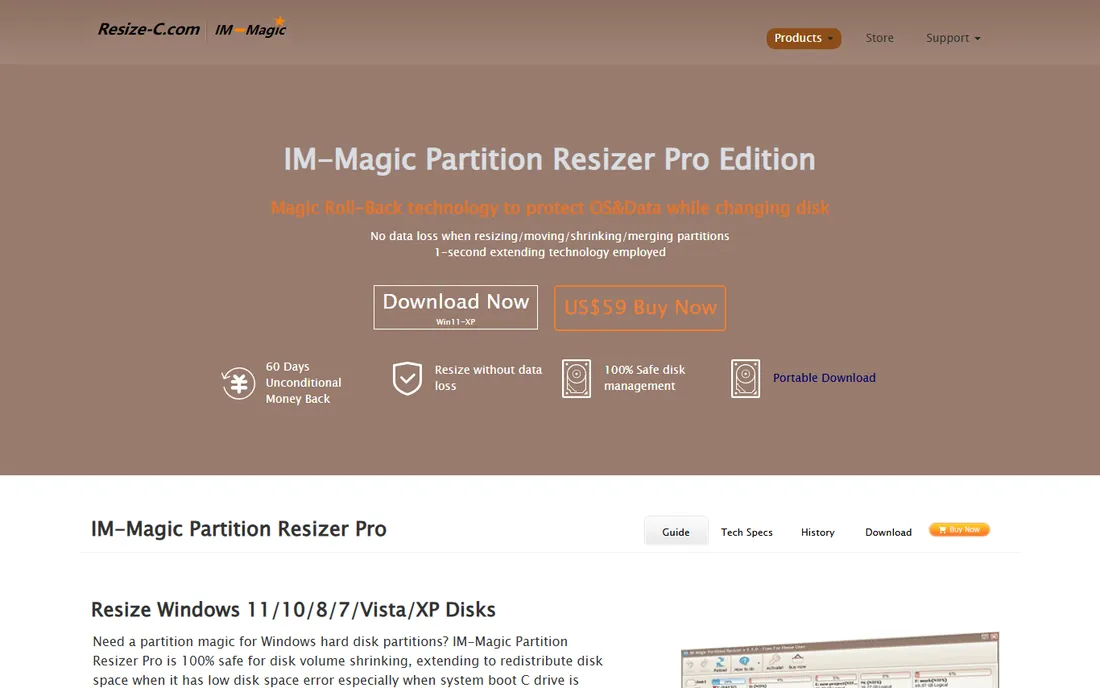
IM-Magic Partition Resizer does one thing and keeps doing it: redistributing disk space when the C: drive runs out. The free edition resizes partitions on the same disk, and the Pro edition adds WinPE operation and a portable edition. System requirements are minimal, a few hundred megabytes of RAM and 100 MB of disk space, so it runs on aging hardware that chokes on heavier suites.
This is a niche pick, not an all-rounder. You will not find data recovery, cloning wizards, BitLocker management or RAID tools here. But if the entire job is making C: bigger without reinstalling Windows, a focused tool with a small footprint has its own appeal. Pricing is not clearly published, so confirm the current Pro price on the vendor site first. For a fleet of older PCs, the low system requirements are the real selling point.
What we like- Focused on the single most common task, extending the system partition
- Lightweight with modest system requirements
- Portable and WinPE support in Pro
Watch out for- Narrow feature set compared with full suites
- Dated website and sparse documentation
- Pricing is hard to confirm on the vendor site
Starting priceFree (open source)
Free planYes
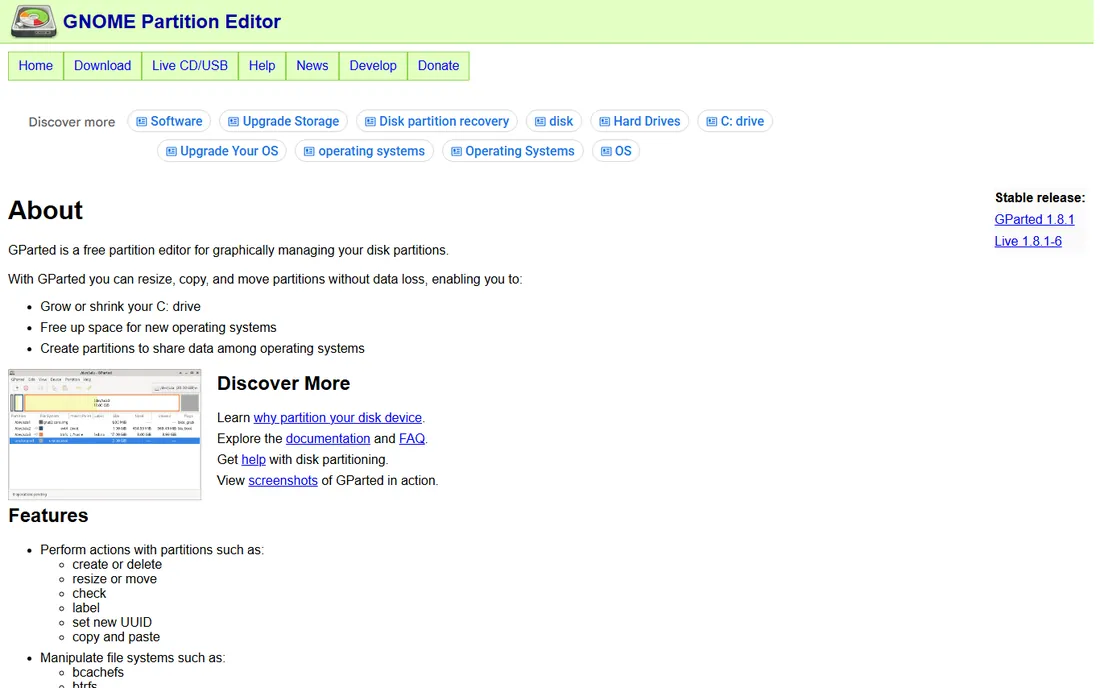
GParted is the open-source answer and the only tool on this list with no paid tier at all. It is distributed under the GNU General Public License, costs nothing, and has no feature gates. It creates, deletes, resizes, moves, checks, labels and copies partitions across an enormous range of file systems: NTFS, FAT16/32, exFAT, ext2/3/4, btrfs, XFS, HFS/HFS+, and more.
The catch is how you run it. There is no Windows installer. You download GParted Live, write it to a USB stick, and boot the PC from it. That makes it operating-system independent, which is exactly what you want when Windows will not boot or when you are partitioning Linux file systems that Windows tools cannot see. The practical pattern is keeping a GParted USB in the toolkit for emergencies and using a friendlier Windows tool day to day. Support comes from community documentation and forums.
What we like- Completely free with no tiers or upsells
- Enormous file system support
- Runs from a live USB on any PC regardless of installed OS
Watch out for- No Windows installer, you boot it from USB
- Interface is functional rather than friendly
- No commercial support channel
How we chose
We started from the tools that consistently appear in technician discussions on Reddit, G2 and Capterra, then checked each vendor's own site for current editions, pricing and free plans. Discontinued products were excluded. We compared what the free editions actually allow, where the paywalls sit, license scope for commercial use, and safety features like rollback and power-off protection. We did not run hands-on benchmarks, so speed claims reflect vendor documentation and independent reviews rather than our own tests.
What to look for before you buy a partition manager
License scope beats the feature list
The first question is who will use it. Several free editions, including Paragon Community Edition, are licensed for personal or home use only. If you are an IT technician, a repair shop or a managed service provider touching client machines, you need a license that explicitly permits commercial use. Macrorit Pro, NIUBI Professional and the server editions of AOMEI and EaseUS are built for that. Using a home-use license on client work is a compliance risk that is easy to avoid for $40.
Match the paid features to your actual job
Paid features fall into a predictable set: OS migration to SSD, WinPE bootable media, dynamic disk management, BitLocker handling and RAID support. Decide which of these you need before comparing prices. If the answer is none, the free edition of any major tool will do. If the answer is migrating 20 office PCs to new SSDs, you want a proper OS migration wizard and a technician or unlimited license, not five individual home licenses.
Safety nets are the real differentiator
Partition operations rewrite the structures your data depends on, so the safety net matters more than the button count. Look for preview-before-apply, so nothing executes until you review it, and for rollback or power-off protection, which NIUBI, Macrorit and EaseUS all advertise. Regardless of the tool, keep a current backup before any partition work.
Free editions: what they actually let you do
Free partition software in 2026 is genuinely capable, but every vendor draws the paywall in a different place. AOMEI, EaseUS, MiniTool, Macrorit and NIUBI all let free users resize, move, create, delete and format partitions on basic disks, which covers extending a full C: drive, splitting a large data partition, or preparing a new disk.
The wall appears at the same five features everywhere: moving a running Windows install to another drive, converting a system disk between MBR and GPT, managing dynamic disks, building WinPE bootable media, and commercial use. DiskGenius caps free data recovery at 64 KB files. GParted has no paywall at all but requires booting from USB, and Paragon gives away a full-featured free edition that forbids commercial use and drops merge and split.
Frequently asked questions
Is free partition software safe to use?
The established free editions from AOMEI, EaseUS, MiniTool, Macrorit, NIUBI, Paragon and the open-source GParted are widely used and safe when downloaded from the vendor's own site. Third-party download portals sometimes bundle adware, so always get the installer from the vendor domain listed in this guide.
Can I extend my C: drive without losing data?
Yes, with any tool on this list. Shrink a neighboring partition to create unallocated space, then extend C: into it. These tools perform that as a non-destructive operation, and most queue it as a pending operation you review before applying. Back up first anyway, because a power failure during a move is the one scenario software cannot fully protect against.
Why is Extend Volume greyed out in Windows Disk Management?
Windows Disk Management can only extend a partition into unallocated space that sits immediately to its right on the disk. If the free space is elsewhere, or inside another partition, the option greys out. Third-party partition tools remove that restriction by moving partitions and merging non-adjacent space, which is the main reason people install them.
Do I need the paid version to move Windows to a new SSD?
In almost every suite here, yes. OS migration and full disk cloning are the most consistently paywalled features across AOMEI, EaseUS, MiniTool, Macrorit and NIUBI. Paragon Community Edition does not include OS migration at all, and GParted can copy partitions from a live USB but will not handle the bootloader fix-ups a dedicated migration wizard does.
Will these tools work on Windows 11 with BitLocker enabled?
Most handle BitLocker partitions for basic operations, but managing or converting encrypted volumes usually requires a paid tier such as DiskGenius Professional or AOMEI Professional. Suspend BitLocker protection before major partition work and keep your 48-digit recovery key accessible, since partition changes can trigger a recovery prompt on the next boot.
Sources we checked (18)
- http://www.disk-partition.com/
- http://www.disk-partition.com/free-partition-manager.html
- https://www.minitool.com
- https://easeus.com/partition-manager/
- https://www.easeus.com/partition-manager/epm-free.html
- https://www.easeus.com/partition-manager/epm-pro.html
- https://www.diskgenius.com/
- https://www.diskgenius.com/partition-management.php
- https://www.hdd-tool.com/?p=585
- https://www.paragon-software.com/free/pm-express/
- https://macrorit.com
- https://macrorit.com/free-partition-manager/price-list.html
- http://www.resize-c.com/pro/
- https://gparted.org/
- https://www.capterra.com/p/159358/MiniTool-Partition-Wizard/pricing/
- https://www.bestbackupreviews.com/reviews/easeus-partition-master-review/
- https://winningpc.com/eassos-diskgenius-professional-coupon-code/
- https://en.wikipedia.org/wiki/MiniTool_Partition_Wizard
Is your product missing or out of date?
We review this list regularly. Vendors can request a listing, send updated pricing or ask about featured placement.

Shihab Mia · Founder, Rankite
Shihab has spent more than a decade helping SaaS and e-commerce brands grow through search. He writes Rankite's software buying guides from pricing pages, documentation and public user reviews. More about Shihab.
 AOMEI Partition Assistant
 DiskGenius
 Paragon Partition Manager
 IM-Magic Partition Resizer
 GParted