How we make this list: we compare pricing pages, product documentation and public user reviews. Ratings come from G2, Capterra or Trustpilot, with the date we checked them.
Key takeaways
- Restream gives the lowest paid entry point here, at $16 per month billed annually, with a free plan that streams to two channels.
- StreamYard costs more, but its browser studio is simpler for interview shows, guest links, and on-screen comments.
- OBS Studio costs nothing and gives the most control, yet it does not multistream on its own, so you need a relay service or plugin.
- Castr and LiveReacting fit always-on and pre-recorded channels better than a weekly live show, while OneStream Live fits scheduled video well at a low price.
- Check destination limits, video quality, and recording caps before you pay, because those limits, not the headline price, decide most upgrades.
Quick comparison
| Tool | Best for | Starting price | Free plan |
|---|
 Restream Restream | Wide multistreaming on a budget | $16 per month (billed annually) | Yes |
 StreamYard StreamYard | Easy browser interviews | $35.99 per month (billed annually) | Yes |
 OBS Studio OBS Studio | Free production control | $0 per month | Yes |
 Castr Castr | Always-on channels and playout | See website | Free trial (7 days) |
 Streamlabs Streamlabs | Gaming streams with alerts and overlays | $27 per month | Yes |
 OneStream Live OneStream Live | Scheduled and pre-recorded streams | $15 per month | Yes |
 LiveReacting LiveReacting | Pre-recorded streams as live | $16 per month (billed annually) | Yes |
 Evmux Evmux | Browser studio with strong recordings | $19 per month (billed annually) | Yes |
Is your product missing or out of date?
We review this list regularly. Vendors can request a listing, send updated pricing or ask about featured placement.
The best multistreaming software
#1Restream
Best for: Wide multistreaming on a budget4.5/5 on
G2 (82 reviews, checked Oct 2026)
Visit restream.io
Starting price$16 per month (billed annually)
Free planYes
Restream suits a creator whose audience is split across YouTube, Facebook, LinkedIn, and Twitch. You send one feed in, and Restream sends it out to your chosen channels. That saves time, and it avoids running a separate stream for each platform. The unified chat helps a solo host answer questions without switching tabs.
The free plan is a useful test, with two channels and Restream branding. Paid plans remove the branding and add more channels, recordings, and guests. The catch is quality and add-ons. If you want full HD from the browser studio, you need the Professional plan, and the webinar and clip extras can raise the monthly total. Start on free, then move up only when the channel count or quality limit gets in your way.
What we like- Streams to many platforms at once
- Unified chat pulls comments into one window
- Browser studio needs no install
Watch out for- Studio output is 720p on lower plans
- Some useful features, such as webinars and clips, cost extra
#2StreamYard
Best for: Easy browser interviews4.8/5 on
G2 (299 reviews, checked Oct 2026)
Visit streamyard.com
Starting price$35.99 per month (billed annually)
Free planYes
If you run interviews, panels, or a weekly show, StreamYard is the easiest tool in this list to learn. Guests click a link and appear on screen, and the host controls layouts, banners, and comments from the browser. There is no encoder setup for a basic show, which matters when a guest has ten minutes and a weak laptop.
The price is higher than Restream for pure multistreaming, and the destination caps are lower. Core covers most solo creators, with full HD, three destinations, and unlimited local recordings. Advanced adds more destinations, 4K local recordings, and webinars. Pick StreamYard when the show itself matters more than reaching thirty platforms at once.
What we like- Guests join from a link with nothing to install
- Clean layouts, banners, and on-screen comments
- Local recordings and AI clips on paid plans
Watch out for- Free plan streams to one destination with branding
- Multistream destinations are capped at three on Core and eight on Advanced
#3OBS Studio
Best for: Free production control4.6/5 on
G2 (138 reviews, checked Oct 2026)
Visit obsproject.com
Starting price$0 per month
Free planYes
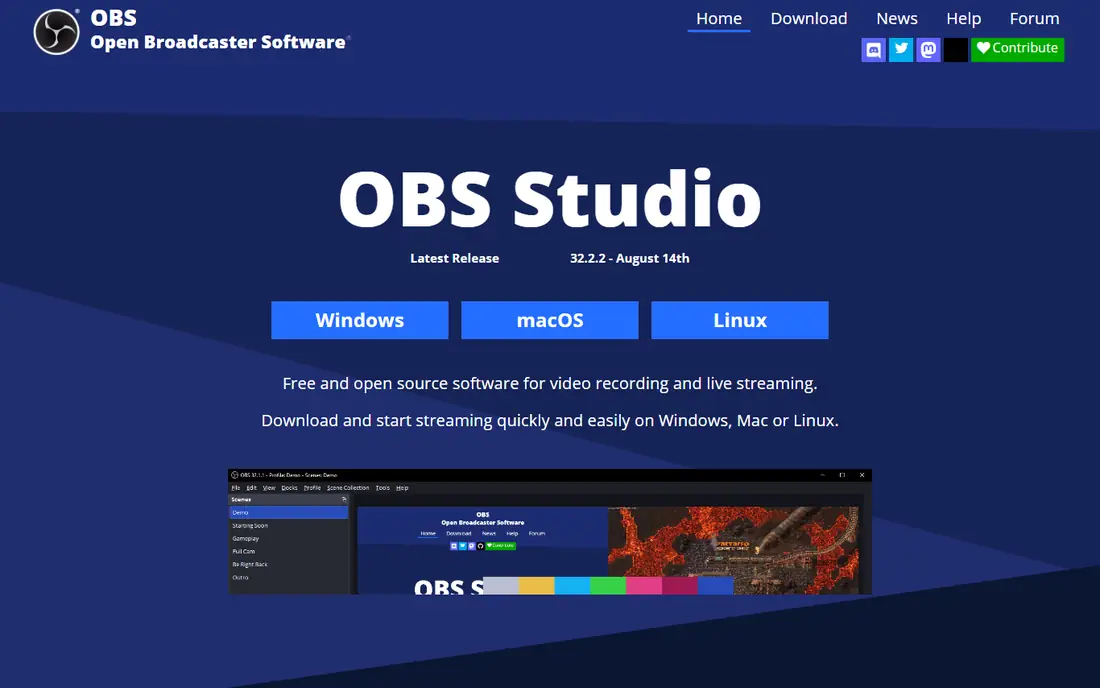
OBS Studio is the free production tool behind many professional-looking streams. You build scenes, mix audio, add sources, and control transitions with far more detail than a browser studio allows. It runs on Windows, Mac, and Linux, and it costs nothing to use for as long as you like.
The trade-off is distribution. OBS Studio on its own streams to one destination. To multistream, pair it with a relay service such as Restream or Castr, or use a plugin. That combination gives you strong production and wide reach, but it adds a second bill and a second place to check when something fails. Use OBS Studio when production quality matters most and you are willing to learn the setup.
What we like- Free and open source with no paid tier
- Deep scene, audio, and source control
- Large plugin and community support
Watch out for- No built-in multistreaming to many platforms
- Setup takes longer than a browser studio
#4Castr
Best for: Always-on channels and playout4.8/5 on
G2 (243 reviews, checked Oct 2026)
Visit castr.com
Starting priceSee website
Free planFree trial (7 days)
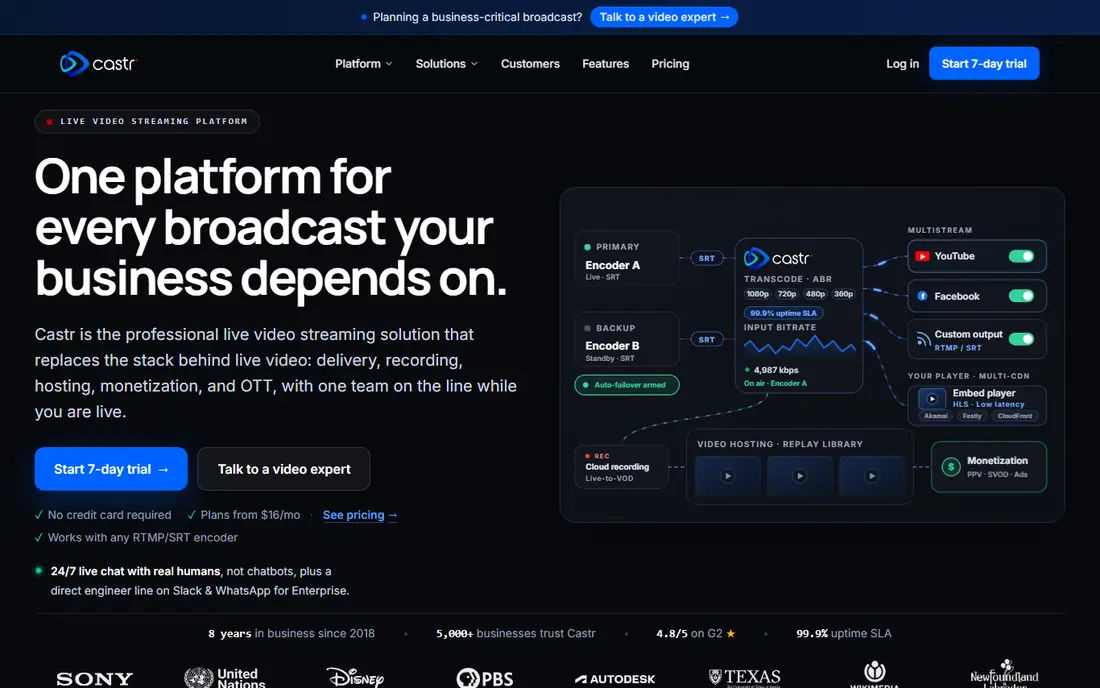
Castr thinks in channels, not single shows. Its playout scheduler arranges recorded videos and live sources into continuous programming, which fits churches, schools, sports producers, and businesses that want an always-on channel. You can embed the player on your own site and sell access behind a paywall on higher plans.
That strength is also the reason to read the pricing page closely. Plans differ by streams, destinations, storage, and bandwidth, and third-party price summaries disagree, so the vendor page is the only safe source for a current figure. Castr is a poor fit if you only need guest interviews in a browser. It is a strong fit when the channel must keep running after you close your laptop.
What we like- TV-style playout from recorded and live sources
- Embeddable player and paywall options
- Multistreaming to many destinations
Watch out for- No permanent free plan, only a trial
- Pricing is capacity based, so the right plan depends on bandwidth and destinations
#5Streamlabs
Best for: Gaming streams with alerts and overlays4.1/5 on
G2 (59 reviews, checked Oct 2026)
Visit streamlabs.com
Starting price$27 per month
Free planYes
Streamlabs Desktop is built for creators who want a polished stream fast. Themes, alerts, chat widgets, and donation tools are built in, so you spend less time assembling plugins. The free version covers basic streaming and recording, plus Dual Output to one horizontal and one vertical destination.
Ultra, at $27 per month, adds expanded multistreaming, the full overlay library, cloud scene backup, and live output editing, which lets you add or remove destinations while live. The app is heavier than OBS Studio, so a lower-spec computer may struggle at high settings. Choose Streamlabs when alerts, overlays, and monetization tools matter as much as the stream itself.
What we like- Built-in alerts, overlays, themes, and tip tools
- Dual Output streams to one horizontal and one vertical destination free
- Multistreaming controls are simple to use
Watch out for- Full multistreaming needs the paid Ultra plan
- Desktop app uses more system resources than OBS Studio
#6OneStream Live
Best for: Scheduled and pre-recorded streams4.6/5 on
G2 (88 reviews, checked Oct 2026)
Visit onestream.live
Starting price$15 per month
Free planYes
OneStream Live is a practical pick for creators who record first and stream later. You upload a video, schedule it, and OneStream Live plays it as a live stream across your connected platforms. That workflow fits course launches, church services, product announcements, and repurposed content.
The Basic plan is low cost, but it caps stream length and destinations, so check those limits against your longest video. Higher plans add more social accounts, longer streams, and more destinations. The free plan lets you test the scheduling flow before you pay. Pick OneStream Live when scheduled video, not a live studio show, is your main use.
What we like- Low entry price with a free plan
- Strong scheduling for pre-recorded video
- Live studio with guests and hosted pages
Watch out for- Stream length and destination limits rise with the plan
- 24/7 streaming is an add-on with its own rules
Starting price$16 per month (billed annually)
Free planYes
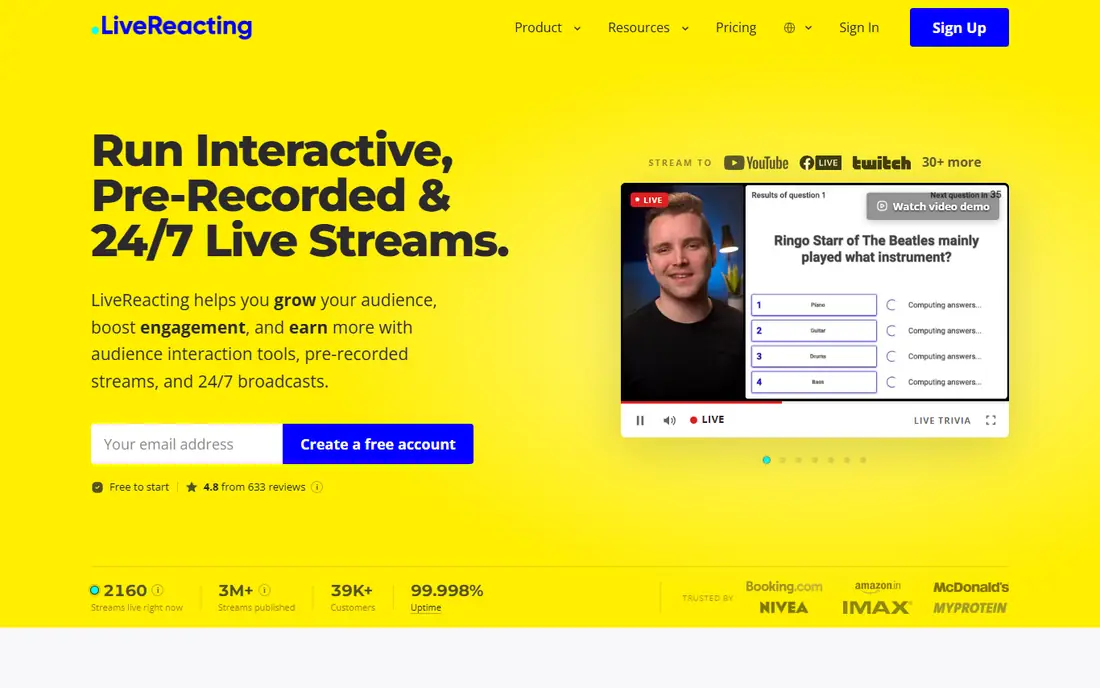
LiveReacting suits a creator who wants a channel that keeps running on its own. You upload videos, build playlists, schedule them, and LiveReacting streams them from the cloud. Interactive overlays run from chat, which helps a pre-recorded stream feel live to viewers who join mid-show.
The free plan gives a limited taste, and paid plans start at $16 per month billed annually for live streaming plans, with a separate 24/7 plan for continuous channels. Read the plan details for stream duration, storage, and destination counts, because those decide the real cost for a busy channel. Use LiveReacting when playlists and cloud playout matter more than a live guest studio.
What we like- Cloud playout runs without keeping your computer on
- Interactive overlays such as polls, quizzes, and giveaways
- Playlists, scheduling, and RTMP destinations
Watch out for- Paid plan prices vary by stream length and credits in older summaries, so confirm the current plan
- Destination rules from platforms still apply to long streams
Starting price$19 per month (billed annually)
Free planYes
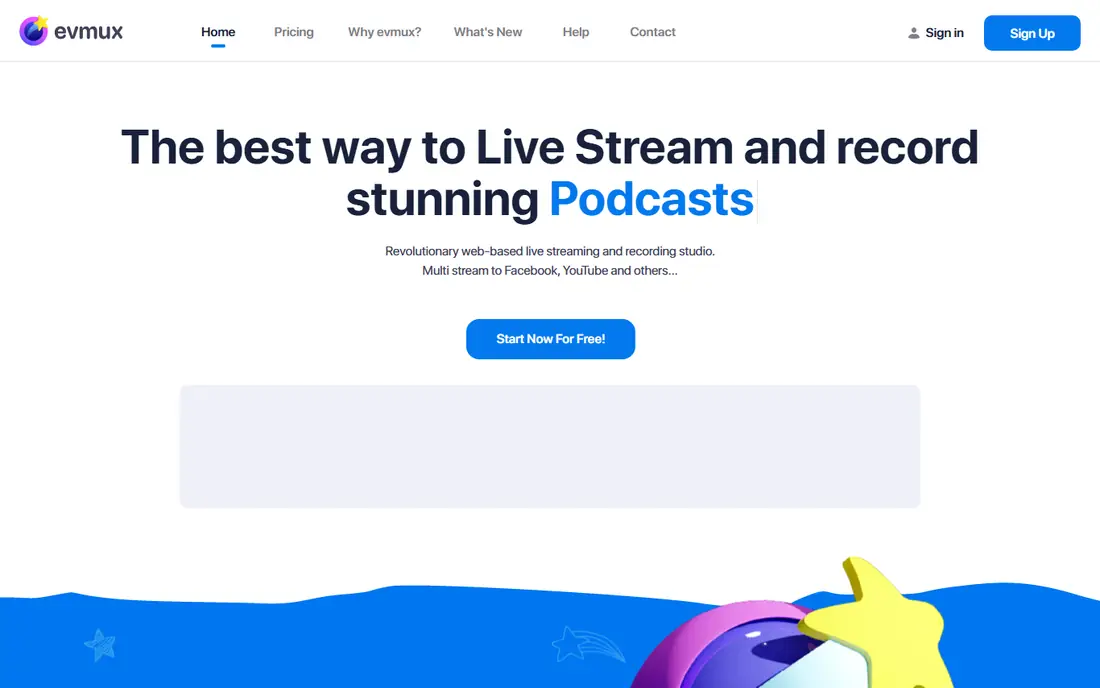
Evmux is a browser studio aimed at interview shows, webinars, and virtual events. Hosts can control guest cameras, microphones, and backgrounds, and local recordings capture each participant separately at high quality. That matters when you edit a show later and need clean audio from each guest.
Multistreaming grows with the plan, from two destinations on the entry plan to nine on Pro, and dual streaming sends horizontal and vertical versions at once. The entry price is fair for a studio with these recording tools, but teams that need many concurrent studios or large storage will pay more. Choose Evmux when recording quality and host control matter more than reaching the widest list of platforms.
What we like- Browser studio with local per-participant recordings
- Multistreaming with dual horizontal and vertical output on higher plans
- Guest controls from the host seat
Watch out for- Higher plans rise steeply in price
- Smaller community and fewer third-party guides than StreamYard or OBS Studio
How we chose
We compared vendor pricing pages, product documentation, and public reviews on G2, Capterra, and Reddit, and we checked each tool for a real multistreaming path, not just a single-destination stream. We favored tools that exist today, serve creators or small teams as well as larger buyers, and cover different needs, from free production to always-on playout. Prices shown are the lowest paid plan found in current public summaries, and where summaries conflicted, we wrote See website instead of picking a disputed figure.
What to check before you pay
Count destinations, not just platforms
A tool may support thirty platforms but allow only three at once on your plan. List the channels you actually stream to each week, then match that count to the plan. Paying for unused destinations is the most common waste in this category.
Check quality, recording, and stream length
Studio quality, local recording quality, storage, and maximum stream length all vary by plan. A 720p cap may be fine for a casual talk show and a problem for a product demo. If you edit shows later, local per-participant recordings matter more than a live-only feed.
Test chat, guests, and scheduling with a real show
Run one full show on a free plan or trial, with a real guest and a real audience, before you commit to a year. Guest links, chat display, and scheduling behave differently under live pressure than they do in a demo video. Confirm that your main platforms accept the stream type you plan to use, especially for long or looping streams.
Frequently asked questions
Do I need a paid plan to multistream?
Not always. Restream, OneStream Live, and LiveReacting offer free plans, and OBS Studio is free, but it needs a relay service or plugin for multistreaming. Free plans usually cap destinations, add branding, or limit quality, so they work for testing and small shows.
What is the cheapest way to multistream?
OBS Studio paired with a low-cost relay is often cheapest for a technical user, while Restream at $16 per month billed annually is the lowest paid all-in-one entry point here. The cheapest option depends on whether you count your setup time, because OBS Studio takes longer to learn.
Can I stream pre-recorded video as if it were live?
Yes, with Restream, OneStream Live, Castr, and LiveReacting, among others. Upload the video, schedule it, and the service plays it to your destinations at the set time. Check platform rules for stream length and looping, because those rules still apply.
Is StreamYard or Restream better for interviews?
StreamYard is usually easier for interviews, thanks to simple guest links, layouts, and on-screen comments. Restream is usually better when reaching many channels at a low price matters more than studio polish. Many creators use OBS Studio for production and Restream for distribution.
Does multistreaming hurt reach on any platform?
Some platforms favor native live video in their feeds, and each platform has its own rules for titles, descriptions, and stream length. Multistreaming does not break those rules by itself, but you should still follow each platform's live policies and check analytics after your first few shows.
Should I use a browser studio or desktop software?
Use a browser studio when you need guests, speed, and low setup. Use desktop software such as OBS Studio or Streamlabs when you need deep scene control, custom audio routing, or advanced overlays. A common setup pairs desktop production with a cloud relay for distribution.
Sources we checked (8)
- https://restream.io/pricing
- https://streamyard.com/pricing
- https://obsproject.com
- https://castr.com
- https://streamlabs.com
- https://onestream.live
- https://livereacting.com/pricing
- https://evmux.com/pricing
Is your product missing or out of date?
We review this list regularly. Vendors can request a listing, send updated pricing or ask about featured placement.

Shihab Mia · Founder, Rankite
Shihab has 5+ years in B2B and SaaS SEO. He writes Rankite's software buying guides from pricing pages, documentation and public user reviews. More about Shihab.