How we make this list: we compare pricing pages, product documentation and public user reviews. Rankite is independent; if a vendor ever pays for a featured spot, that listing is clearly labeled Partner.
Key takeaways
- IrfanView and FastStone Photo Resizer are still the best free desktop picks for Windows users who resize hundreds of photos at once.
- Bulk Resize Photos, Birme, and Squoosh cover quick browser jobs with nothing to install, and Squoosh gives the most control over compression settings.
- Adobe Photoshop is the right call when resizing is one step inside a larger retouching workflow, starting at $9.99 per month on the Photography plan.
- TinyPNG fits web teams best, pairing resizing with automatic compression and an API for build pipelines.
Quick comparison
| Tool | Best for | Starting price | Free plan |
|---|
 Adobe Photoshop Adobe Photoshop | resizing as part of professional photo editing | $9.99/month (Photography plan, billed annually) | Free trial (7 days) |
 IrfanView IrfanView | fast batch resizing on Windows | Free for non-commercial use (commercial license $18 one-time) | Yes |
 Bulk Resize Photos Bulk Resize Photos | resizing without installing anything | Free | Yes |
 XnConvert XnConvert | cross-platform batch conversion and resizing | Free for personal and educational use (business license: See website) | Yes |
 FastStone Photo Resizer FastStone Photo Resizer | simple batch jobs on Windows | Free for home users (commercial license $19.95 one-time) | Yes |
 PhotoScape X PhotoScape X | casual resizing with light editing attached | See website (Pro version sold through app stores) | Yes |
 Birme Birme | quick online batch resizing with zero setup | Free | Yes |
 Squoosh Squoosh | fine control over compression while resizing | Free (open source) | Yes |
 TinyPNG TinyPNG | web teams that need resizing plus an API | $39/year (Web Pro) | Yes (20 images per session, 5 MB each) |
Is your product missing or out of date?
We review this list regularly. Vendors can request a listing, send updated pricing or ask about featured placement.
The best image resizer software
#1
Adobe Photoshop
Best for: resizing as part of professional photo editing
Visit adobe.com
Starting price$9.99/month (Photography plan, billed annually)
Free planFree trial (7 days)
Few buyers shop for Photoshop as a resizer, yet it lands on this list because so many teams already pay for it. Its resampling options, including Preserve Details 2.0, produce cleaner results than most free tools when you enlarge an image rather than shrink one. Actions let you record a resize, sharpen, and export routine once, then replay it across an entire folder without touching each file.
The honest catch is cost and weight. At $9.99 per month on the Photography plan, Photoshop is overkill if your whole job is shrinking product photos to 1,200 pixels wide. It also launches slower and asks more of your machine than any dedicated resizer here. Buy it for the editing suite and treat resizing as a bonus, not the reason you subscribed.
What we like- Precise resampling algorithms
- Actions automate repeat jobs
- Works with Lightroom and Camera Raw
Watch out for- Subscription costs add up if you only resize
- Heavier install than single-purpose tools
Starting priceFree for non-commercial use (commercial license $18 one-time)
Free planYes
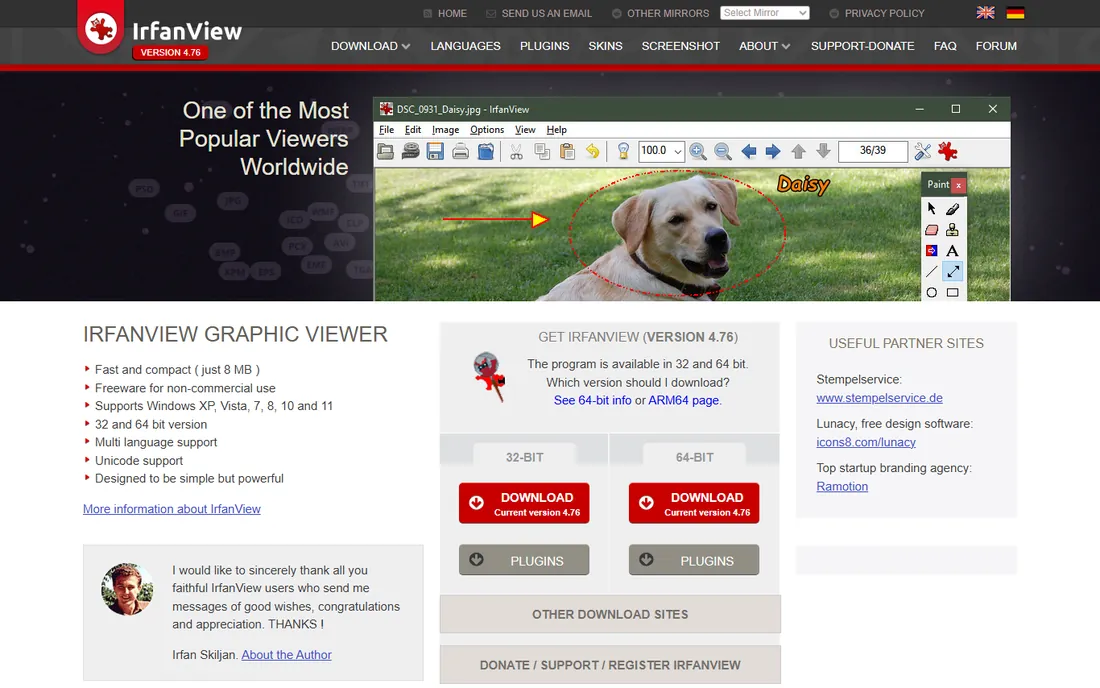
Ask a Windows power user for the best app for resizing photos in bulk and IrfanView comes up constantly. The batch conversion dialog is the star: point it at a folder, set dimensions by pixels or percentage, pick a resample filter, and it chews through thousands of images while you do something else. The whole program installs in seconds and runs fine on old hardware.
What you give up is polish. The interface has barely changed in years, and first-timers sometimes miss that batch mode lives under the File menu. Commercial use requires an $18 license, which is still a bargain. If your team runs Windows and resizes in volume, start here before spending anything.
What we like- Batch conversion dialog handles thousands of files
- Tiny installer under 6 MB
- Supports a huge range of formats
Watch out for- Windows only
- Interface looks dated and takes a session to learn
Starting priceFree
Free planYes
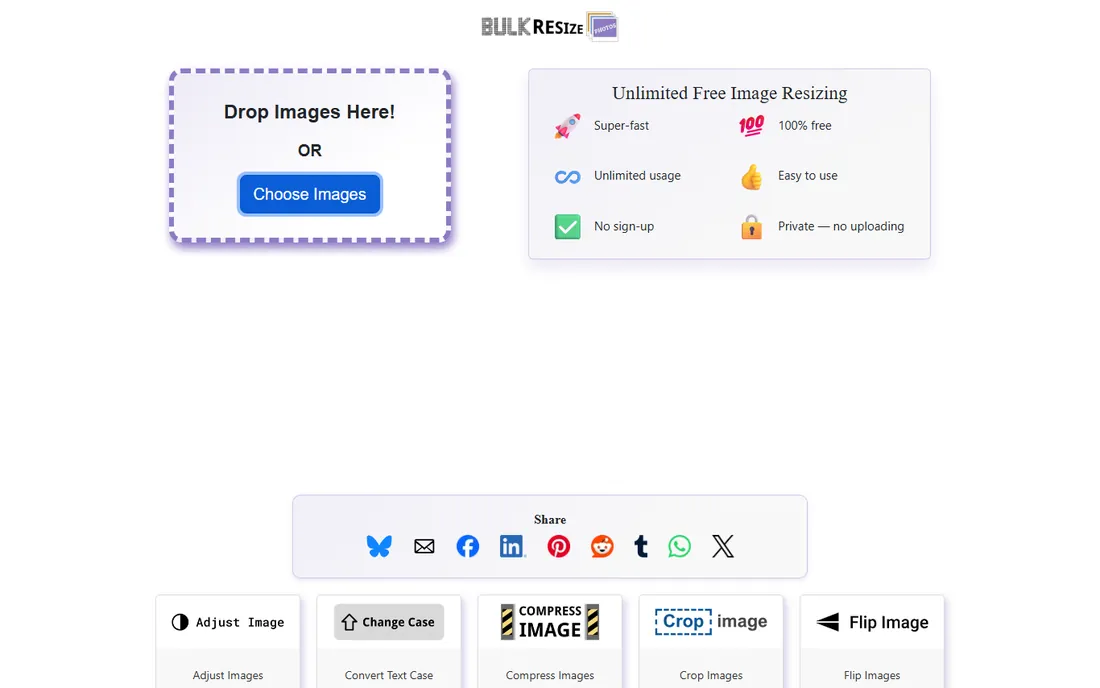
Sometimes the best free app to resize photos is the one you open in ten seconds. Bulk Resize Photos processes images locally in your browser, so files never upload to a server, which matters when you handle client photos. Drag in a batch, set a max width or a scale percentage, and download the results as a zip.
Power users will notice the limits quickly. You cannot pick a resampling algorithm, keep EXIF data selectively, or script the workflow. For a marketer resizing twenty blog images before lunch, none of that matters. Keep it bookmarked for fast jobs and reach for a desktop tool when batches get serious.
What we like- Everything runs in the browser with no upload
- Simple sliders for size and quality
- Works on any device
Watch out for- No advanced resampling controls
- Large batches can strain low-memory phones
#4
XnConvert
Best for: cross-platform batch conversion and resizing
Visit xnview.com
Starting priceFree for personal and educational use (business license: See website)
Free planYes
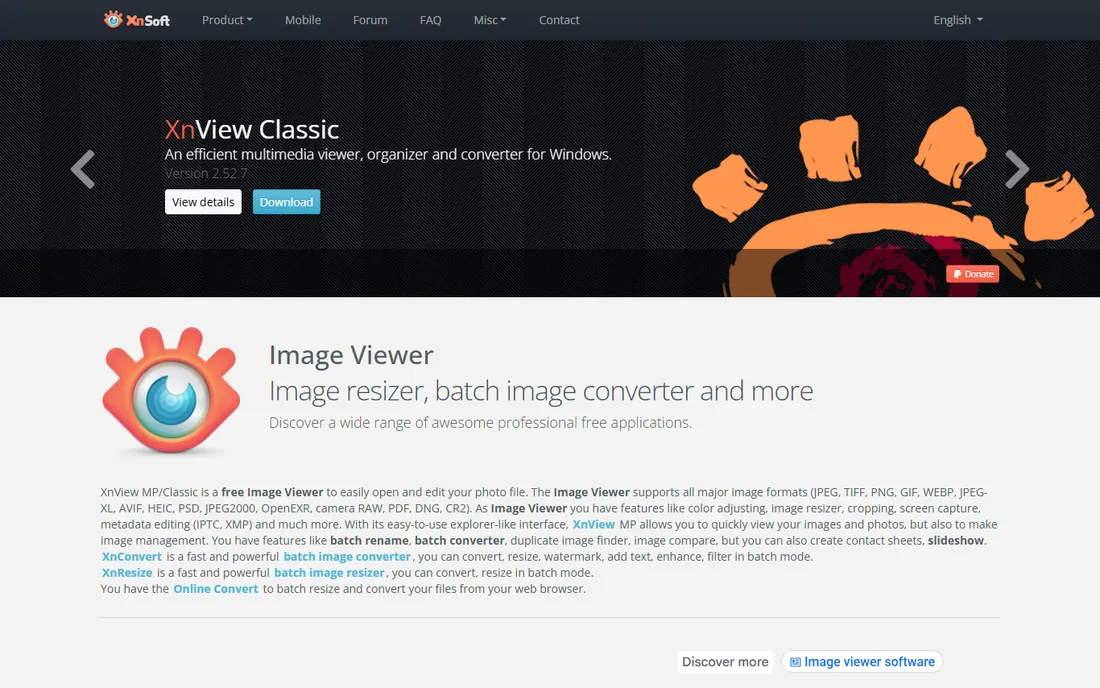
XnConvert is the cross-platform answer to IrfanView. Built by the XnView team, it runs on Windows, Mac, and Linux, and its real strength is chaining operations: resize, add a watermark, adjust levels, strip metadata, and convert formats in one pass. Photographers who deliver client galleries in several sizes can save the whole chain as a preset and reuse it.
The trade-off is a busy interface. Tabs for input, actions, output, and settings crowd a single window, and new users sometimes resize the preview instead of the batch. Business licensing exists but pricing is not spelled out on the site, so companies should contact the vendor. For mixed-OS teams that want one free batch tool everywhere, it is hard to beat.
What we like- Runs on Windows, Mac, and Linux
- Chains resize with 80-plus actions
- Keeps folder structures intact
Watch out for- Business pricing is not published clearly
- Interface packs a lot into small dialogs
Starting priceFree for home users (commercial license $19.95 one-time)
Free planYes
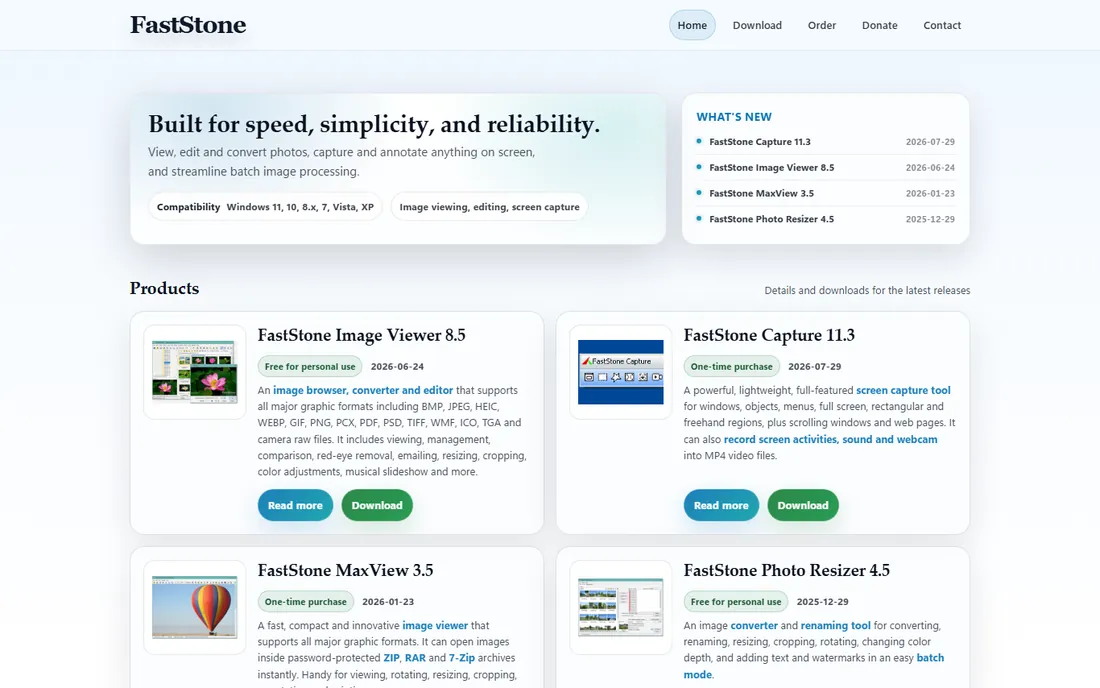
FastStone Photo Resizer does exactly what its name promises and little else, which is why people keep it installed for years. The batch list accepts drag and drop, and one dialog covers resize, rotate, crop, color depth, text overlays, and renaming with sequential numbers. A portable build runs from a USB stick, handy for shared studio machines.
Compared with IrfanView it is friendlier but less deep: fewer format options, fewer filters, no plugin system. The $19.95 commercial license is a one-time payment, so small studios pay once and move on. If your resizing needs fit in one dialog and you run Windows, this is the path of least resistance.
What we like- Drag-and-drop batch list
- Rename, resize, and convert in one run
- Portable version needs no install
Watch out for- Windows only
- No Mac or Linux build
- Development pace is slow
Starting priceSee website (Pro version sold through app stores)
Free planYes
PhotoScape X suits the buyer who resizes photos between other small jobs. One program covers the viewer, editor, collage maker, GIF animator, and batch renamer, so a social media manager can crop, resize, and add text without switching apps. Both Windows and Mac versions exist, which is more than most free desktop resizers offer.
Serious batch work exposes its limits. The batch editor handles resize and rename but lacks the filter choices and action chains of XnConvert or IrfanView. Pro features are sold through the Microsoft Store and Mac App Store, so the price you see depends on your platform. Pick it for approachable all-round editing; pick something else for thousand-file batches.
What we like- Friendly tabbed interface
- Combines resize with collage, GIF, and raw tools
- Mac and Windows builds
Watch out for- Pro pricing varies by store and region
- Batch tools are weaker than dedicated resizers
#7
Birme
Best for: quick online batch resizing with zero setup
Visit birme.net
Starting priceFree
Free planYes
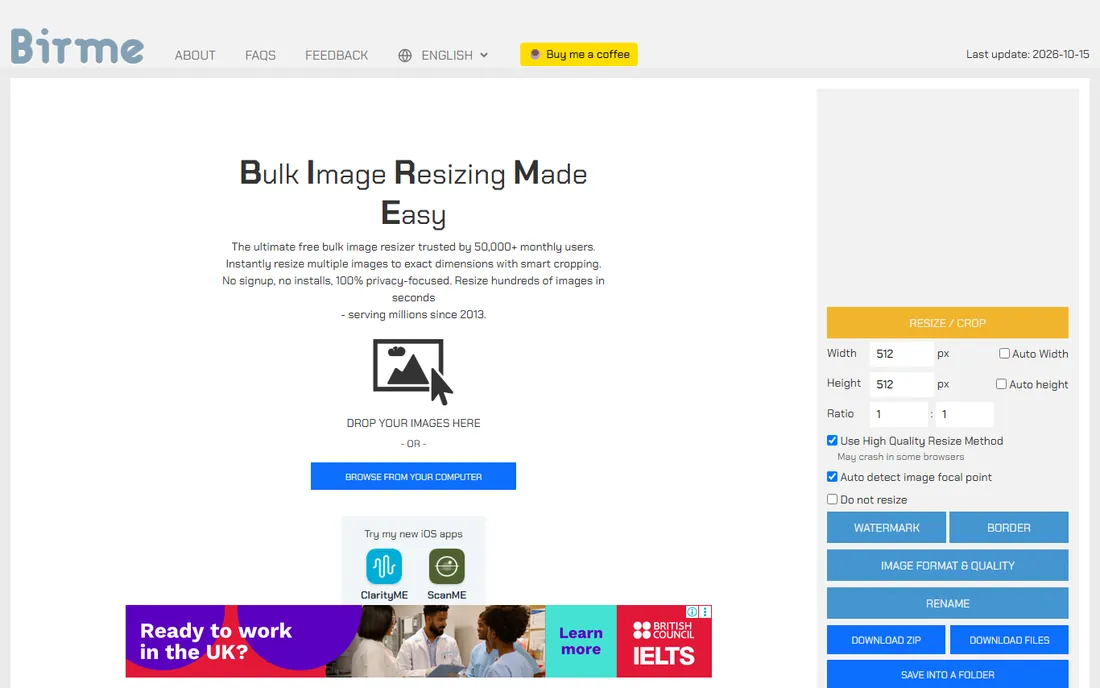
Birme, short for Batch Image Resizing Made Easy, is one of the most practical free web tools in this category. It accepts up to 500 images per session, lets you set exact dimensions or a percentage, and adds borders, cropping, and format conversion before you download the zip. No account, no install, no watermark.
The limits are the usual web-tool ones. Very large source files can choke the browser tab, and you need a decent connection since processing happens client-side in memory. For ecommerce sellers resizing a supplier photo dump or bloggers prepping a week of images, Birme hits the sweet spot between Bulk Resize Photos simplicity and desktop power.
What we like- Batch resize up to 500 images
- Border, crop, and format options included
- No account needed
Watch out for- Max file sizes are modest
- Relies on an internet connection
Starting priceFree (open source)
Free planYes
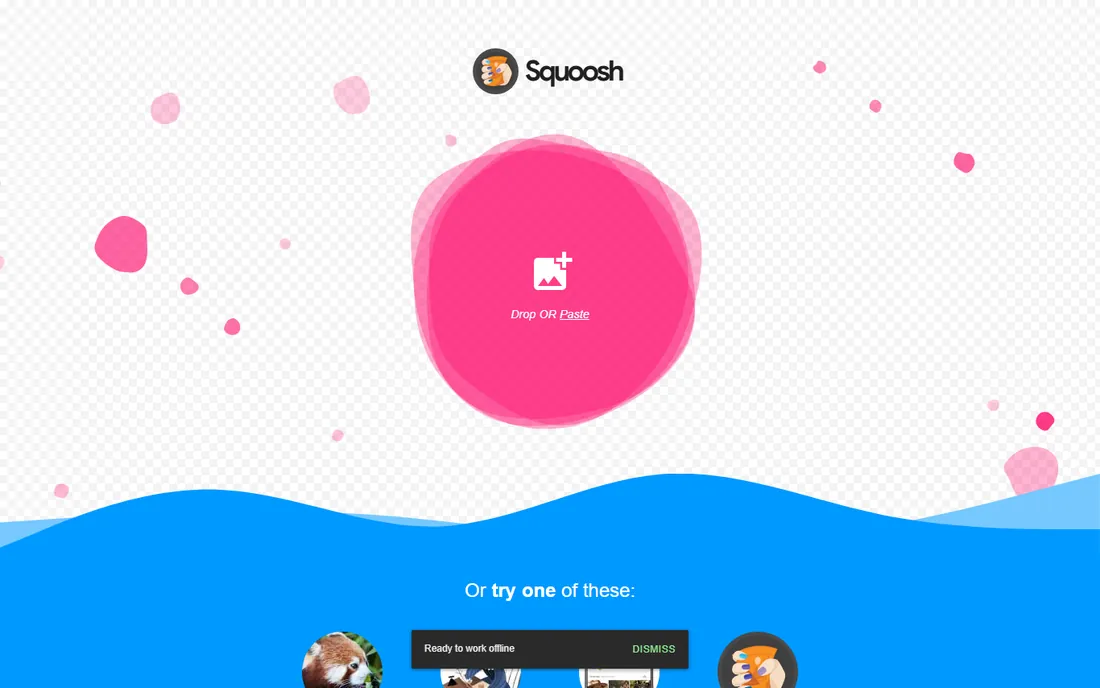
Google's Squoosh takes a different angle: instead of blasting through folders, it helps you squeeze the best quality out of each file. The drag-and-drop interface shows the original and compressed versions side by side with a slider, and you can resize dimensions alongside codec, quality, and palette settings. Support for AVIF and WebP makes it genuinely useful for modern web work.
The catch is the single-file workflow. There is no batch queue, so resizing fifty images means fifty drags. Think of Squoosh as the finishing tool: use a batch resizer for the folder, then run hero images through Squoosh to dial in the smallest file that still looks sharp. As an open-source project it costs nothing and keeps improving.
What we like- Side-by-side quality comparison
- Advanced codecs like AVIF and WebP
- Runs fully offline after load
Watch out for- One image at a time
- No batch queue
Starting price$39/year (Web Pro)
Free planYes (20 images per session, 5 MB each)
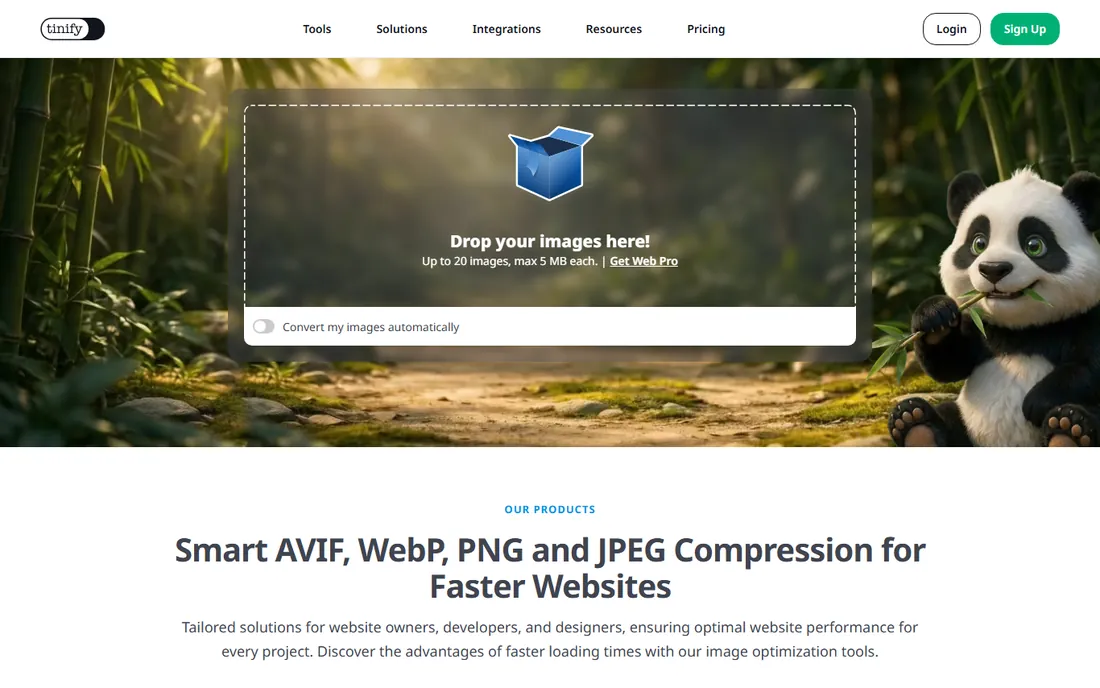
TinyPNG started as a compression service and grew into a full web-image workflow. Drop in PNGs or JPEGs and its smart lossy compression cuts file sizes dramatically with little visible change. The Web Pro plan at $39 per year raises limits, and the Ultra tier at $149 per year adds the developer API with higher quotas, plus plugins for WordPress, Magento, and common build tools.
Resizing itself is straightforward rather than deep: you set dimensions and let the compression do the heavy lifting. Teams that already compress with TinyPNG get resizing in the same step, which simplifies the pipeline. Solo users with small batches may find the free tier enough, since 20 images per session covers most blog posts.
What we like- Smart lossy compression preserves detail
- API and plugins for WordPress, Magento, and build tools
- Also handles WebP and AVIF
Watch out for- Free tier caps file size and session count
- Resizing controls are basic next to desktop tools
How we chose
We started from the tools people actually recommend for resizing work: forum threads, G2 and Capterra reviews, and Reddit discussions from photographers, marketers, and web developers. From that long list we kept products that are actively maintained in 2026, genuinely fit the resizing job, and cover the main buyer situations: free desktop batch tools, browser tools with no install, pro editors, and web pipelines with APIs.
Pricing and plan details come from each vendor's own pricing page, checked in October 2026. Where a vendor does not publish a price clearly, we say so instead of guessing. We did not run lab benchmarks or claim hands-on testing; the rankings reflect documented features, real pricing, honest limits on free tiers, and fit for small and mid-size business buyers.
What to check before you pick a resizer
Start with volume. If you resize a handful of images a week, a browser tool like Bulk Resize Photos or Birme is all you need, and paying for software would be wasted money. If you process hundreds of files regularly, a desktop batch tool such as IrfanView, FastStone, or XnConvert will save hours every month through presets and folder watching.
Next, check what happens to quality. Shrinking is easy; every tool here does it well. Enlarging is where differences show, because the resampling algorithm decides whether edges stay clean or turn mushy. Photoshop and XnConvert give you a choice of algorithms, while simple web tools pick one for you. If you upscale product shots or print work, that choice matters.
Also confirm format support and metadata handling. Some tools strip EXIF data by default, which is good for web privacy but bad if you need copyright fields preserved. Squoosh and TinyPNG focus on web formats like WebP and AVIF, while desktop tools cover TIFF, BMP, and camera raws. Match the tool to the formats you actually ship.
Finally, weigh the license against your team. Free for personal use does not always mean free for business: IrfanView, FastStone, and XnConvert all draw that line differently. A one-time $18 or $19.95 commercial license is cheap insurance compared with a compliance headache later.
Batch resizing vs single images: which workflow fits you
Batch tools and single-image tools solve different problems, and most teams end up using one of each. Batch resizers like IrfanView, FastStone, XnConvert, and Birme optimize for throughput: same dimensions, same format, hundreds of files, minimal clicks. They win when consistency matters more than any single image.
Single-image tools like Squoosh and Photoshop optimize for control. You inspect the result, tweak compression, compare codecs, and accept a slower pace because the image is worth it. Hero banners, product detail shots, and portfolio pieces deserve this treatment.
TinyPNG sits between the two, with enough batch capacity for web teams and compression quality that rivals careful manual work. A practical setup is a batch tool for the daily grind plus Squoosh for the images that carry the page. That combination costs nothing and covers nearly every resizing job a small business faces.
Frequently asked questions
What is the best free app to resize photos?
For desktop batch work on Windows, IrfanView and FastStone Photo Resizer are the strongest free options. In the browser, Bulk Resize Photos and Birme handle quick jobs with no install. The right pick depends on whether you resize in bulk or one image at a time.
Does resizing reduce image quality?
Shrinking an image almost always looks fine because you discard pixels. Enlarging is riskier, since the software invents pixels, and quality depends on the resampling algorithm. Tools like Photoshop and XnConvert let you choose the algorithm, which helps with enlargements.
What size should product photos be for a website?
Most ecommerce themes look sharp with product images between 1,200 and 2,000 pixels on the longest side, compressed to under 300 KB. Export in WebP or AVIF when your platform supports it. Squoosh and TinyPNG make it easy to hit those targets.
Can I resize images without losing EXIF data?
Yes, but check each tool's default behavior first. Some resizers strip metadata automatically, which helps web privacy, while others preserve it. Desktop tools like IrfanView and XnConvert usually offer a keep-or-strip option in their batch dialogs.
Is Photoshop worth it just for resizing?
Rarely. Photoshop's resampling quality is excellent, but $9.99 per month is hard to justify for resizing alone when free tools do the job. It makes sense only if you already use Photoshop for retouching, compositing, or design work.
Sources we checked (9)
- https://www.adobe.com/creativecloud/plans.html
- https://www.irfanview.com
- https://bulkresizephotos.com
- https://www.xnview.com/en/xnconvert
- https://www.faststone.org
- https://x.photoscape.org
- https://birme.net
- https://squoosh.app
- https://tinypng.com
Is your product missing or out of date?
We review this list regularly. Vendors can request a listing, send updated pricing or ask about featured placement.

Shihab Mia · Founder, Rankite
Shihab has spent more than a decade helping SaaS and e-commerce brands grow through search. He writes Rankite's software buying guides from pricing pages, documentation and public user reviews. More about Shihab.