How we make this list: we compare pricing pages, product documentation and public user reviews. Rankite is independent; if a vendor ever pays for a featured spot, that listing is clearly labeled Partner.
Key takeaways
- The fans spin up, the game stutters, and you have no idea which component is cooking. A good monitor answers that in ten seconds.
- HWiNFO is the best monitoring software for anyone who wants every sensor reading on the system, and it is free.
- Core Temp and HWMonitor are the simplest answers when you only care about CPU temperatures.
- MSI Afterburner pairs monitoring with GPU overclocking, which makes it the default for gamers.
- AIDA64 and Argus Monitor are the paid options, worth it for stress testing and fan control respectively.
Quick comparison
Is your product missing or out of date?
We review this list regularly. Vendors can request a listing, send updated pricing or ask about featured placement.
Hardware monitors that tell the truth
Starting priceFree
Free planYes
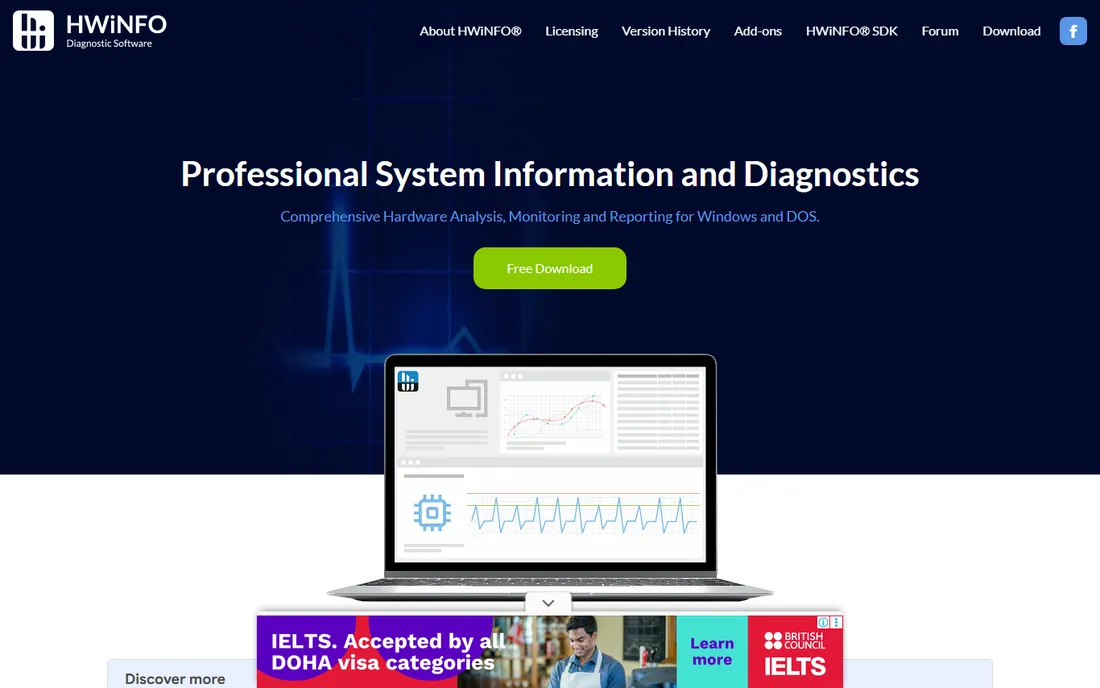
HWiNFO is the tool technicians install first. It reads temperatures, voltages, fan speeds, clock speeds, and power draw from the CPU, GPU, motherboard, drives, and memory, presenting everything in an expandable tree. Customizable sensor panels let you build a dashboard showing exactly the readings you care about, and logging captures data over time for diagnosing intermittent problems.
Beginners may drown in the detail; a modern motherboard can expose hundreds of sensors. But when you need to know precisely what is hot, what is throttling, and what your PSU voltages are doing under load, nothing free comes close. It is the best pc monitoring software for anyone willing to spend twenty minutes learning it.
What we like- Reports every sensor your hardware exposes
- Highly customizable layouts and logging
- Free for personal use
Watch out for- The sheer volume of data intimidates beginners
- The interface is functional, not pretty
Starting priceFree
Free planYes
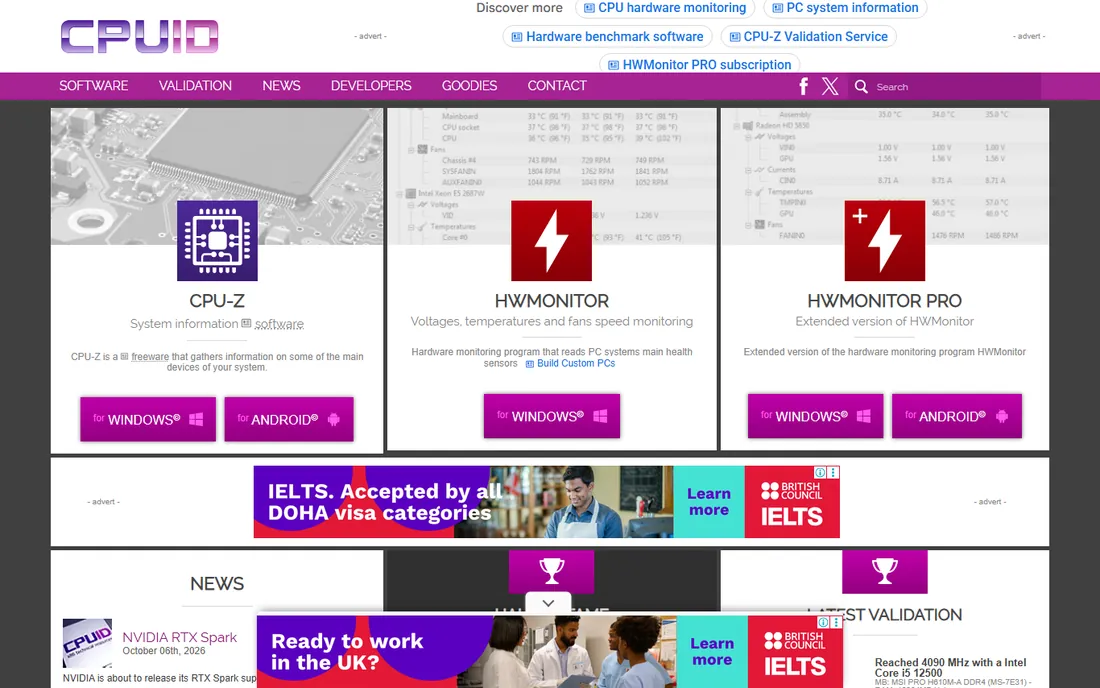
HWMonitor from CPUID (the CPU-Z people) is the simplest competent monitor here. One window lists every component with current, minimum, and maximum values for temperature, voltage, and fan speed. There is nothing to configure and nothing to learn. The portable version runs without installation, which makes it handy on machines you do not own.
The free version does not log data or draw graphs, so diagnosing a crash that happened an hour ago is guesswork. The paid Pro version adds remote monitoring and logging. But for a quick "is my CPU overheating" check, HWMonitor answers in seconds and gets out of the way.
What we like- One window shows everything important
- Tiny download with no install needed
- Trusted CPUID pedigree
Watch out for- No logging or graphing in the free version
- Minimal customization
Starting priceFree
Free planYes
Core Temp does one thing and does it well: it watches your processor. Per-core temperatures sit in the system tray, color-coded so a glance tells you if something is wrong. Logging records temperatures over time, which is exactly what you need when a machine crashes under load and you want to see the thermal history. It supports AMD and Intel chips including the latest generations.
It is CPU-only, so GPU and motherboard sensors need another tool. And the installer historically bundles optional offers, so choose the custom install and decline them. As the best cpu monitoring software for always-on tray display, though, it remains the classic choice.
What we like- Lives in the system tray with per-core temps
- Tiny footprint
- Logs temperatures over time
Watch out for- CPU only, no GPU or motherboard detail
- The installer has bundled offers to decline
Starting priceFree
Free planYes
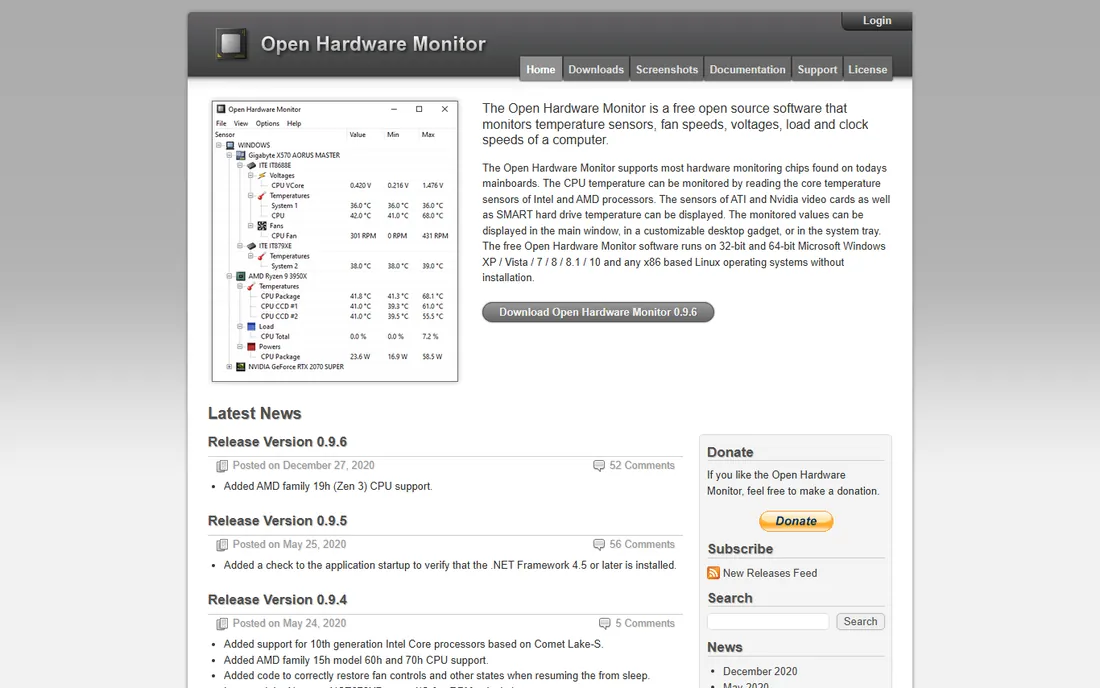
Open Hardware Monitor is the open-source granddaddy of this category. It reads temperature sensors, fan speeds, voltages, load, and clock speeds across CPU, GPU, and drives, with a clean tree view and optional gadget-style desktop display. Being open source, there is no upsell, no account, and no telemetry to worry about.
The honest caveat is pace: active development slowed years ago, so very new motherboards and CPUs may report incomplete sensors. That is exactly why LibreHardwareMonitor exists as its successor. Still, on hardware more than a couple of years old, it works fine and costs nothing.
What we like- Free and open source
- Monitors temps, fans, voltages, and clock speeds
- No install required
Watch out for- Development has slowed
- Newer hardware support lags behind
Starting priceFree
Free planYes
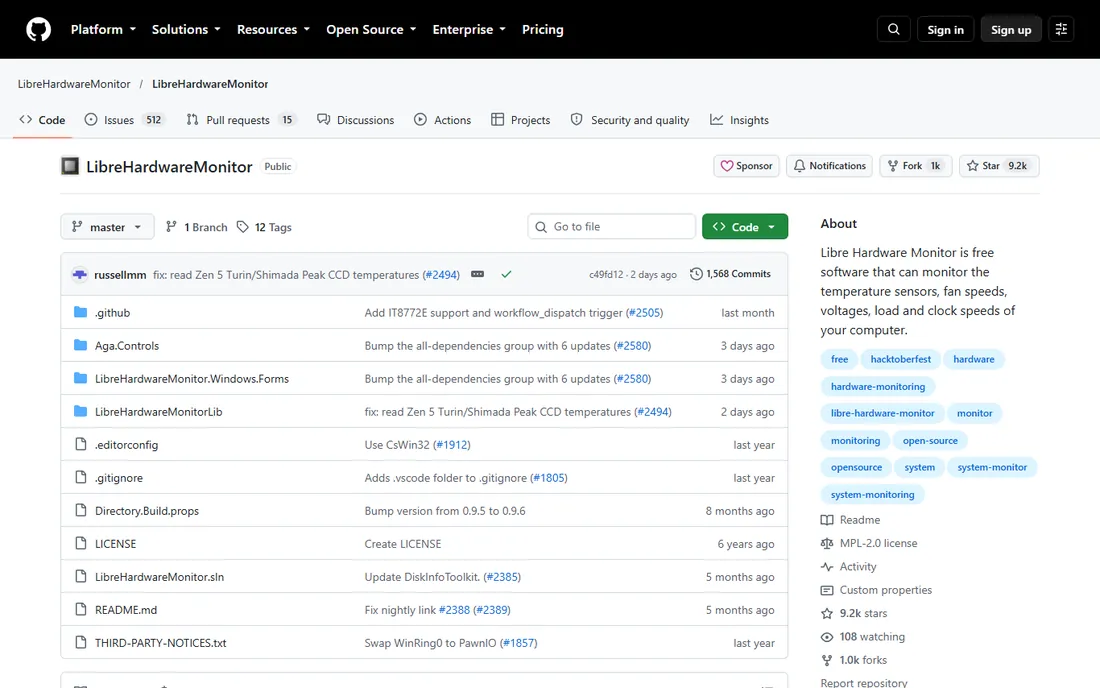
LibreHardwareMonitor picks up where Open Hardware Monitor left off, with active development and support for recent AMD and Intel platforms, newer GPUs, and modern motherboards. The feature set will feel familiar: tree-view sensors, desktop gadgets, and remote web-server monitoring, all free and open source.
It inherits the old interface, which is functional rather than delightful, and as a community project it lacks commercial support. But for anyone who wants open-source monitoring that actually recognizes 2026 hardware, this is the one to install. Many consider it the true current version of the project.
What we like- Actively maintained fork of Open Hardware Monitor
- Supports newer CPUs and motherboards
- Free and open source
Watch out for- Still community-supported, so edge cases linger
- The UI is unchanged from its ancestor
Starting priceFree
Free planYes
MSI Afterburner is famous for overclocking, but its monitoring is why it stays installed. The on-screen display overlays GPU temperature, usage, clock speed, and frame rate while you game, so you can watch thermals in real time without alt-tabbing. Despite the MSI name, it works with any manufacturer's graphics card.
For full-system monitoring it is thinner than HWiNFO; motherboard and drive sensors are not its strength. Pair it with HWiNFO or Core Temp for the complete picture. But for the best pc temp monitoring software during gaming sessions, the overlay alone makes it essential.
What we like- The standard for GPU overclocking and monitoring
- Excellent on-screen display during games
- Works on any brand of card
Watch out for- Focused on GPUs, weaker on full-system sensors
- The interface is dense
Starting priceFree
Free planYes
NZXT CAM is the monitor for people who care how software looks. The dashboard presents CPU and GPU temperatures, load, fan speeds, and network stats in a clean modern interface, with an in-game overlay and a companion mobile app for checking your rig from the couch. If you own NZXT coolers or cases, it also controls lighting and fan curves.
The tradeoff is weight: it runs background services and wants an account for cloud features, which privacy-minded users dislike. Minimalists should stick with HWMonitor or Core Temp. But as a daily-driver dashboard that you might actually enjoy opening, CAM is the most polished free option.
What we like- The prettiest dashboard here
- Good overlay and mobile app
- Controls NZXT hardware lighting and cooling
Watch out for- Requires an account for some features
- Heavier than the minimal tools
Starting priceFree
Free planYes
Speccy answers a different question: what is in this computer, and how hot is it running. One screen summarizes the CPU, RAM, motherboard, graphics, storage, and optical drives, with real-time temperatures alongside. It is the tool you run when someone asks for their specs or when you want a quick thermal sanity check without learning a monitoring suite.
It is not a real-time monitoring tool in the HWiNFO sense; there are no graphs, alerts, or logging to speak of. Updates from Piriform have been slow. But for a fast, free, readable system summary with temperatures attached, Speccy still does the job.
What we like- Instant readable summary of the whole system
- Temperature readings included
- From the CCleaner team
Watch out for- Monitoring is basic, not its main job
- Updates have been infrequent
Starting priceSee website
Free planFree trial
AIDA64 is the professional's diagnostic toolkit. Beyond monitoring, its System Stability Test pushes the CPU, GPU, memory, and drives simultaneously to verify an overclock or a new build is truly stable, while the sensor panel designer builds custom monitoring displays. Hardware reporting is exhaustive enough for inventory and audit work.
You pay for it, which is a real consideration when HWiNFO is free. The trial lets you evaluate fully. Buy AIDA64 when you need stress testing and diagnostics, not just monitoring: for validating overclocks, burn-in testing new builds, or professional hardware reporting, it justifies the price.
What we like- The definitive stability and stress-test suite
- Exhaustive hardware reporting
- Sensor panel designer
Watch out for- Paid software in a mostly free category
- Overkill if you only want temperatures
Starting priceSee website
Free planFree trial
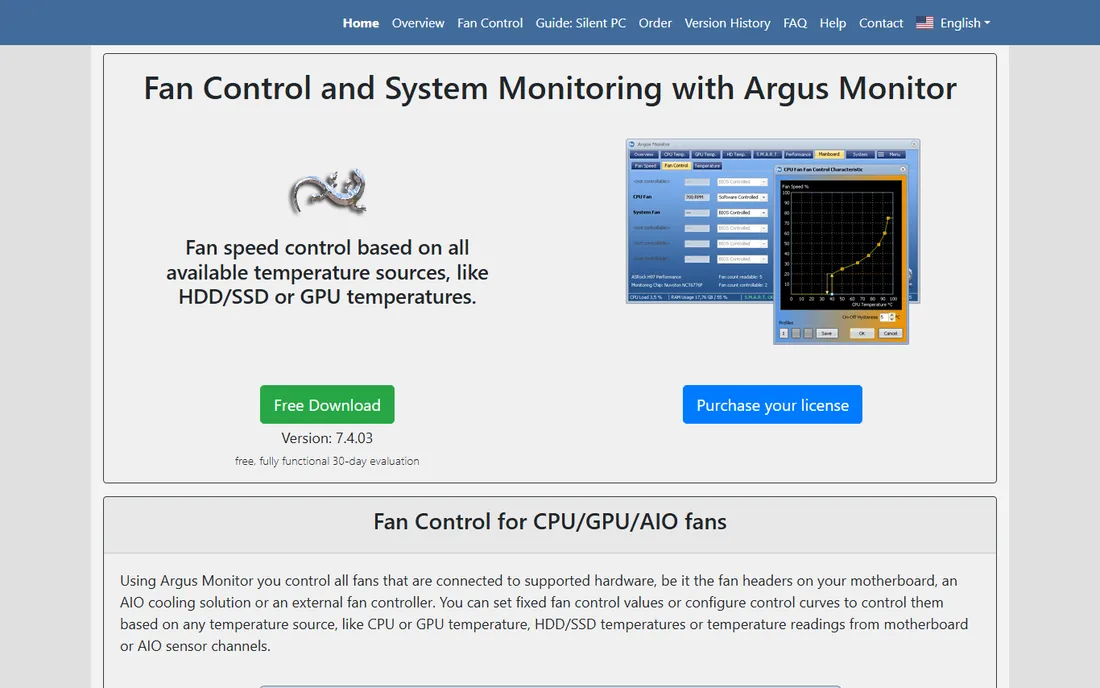
Argus Monitor's killer feature is fan control: it drives your fans from any temperature source in the system, including GPU temperatures that motherboard BIOS fan curves usually ignore. That alone can make a gaming PC dramatically quieter. It also monitors hard drive and SSD health via S.M.A.R.T., watches CPU and GPU temperatures, and benchmarks performance.
It is paid software with a trial, in a category where most tools are free. The interface will not impress anyone. But if your actual problem is noise, or you want GPU-temperature-driven fan curves that the BIOS cannot do, Argus Monitor solves it better than anything else here.
What we like- The best fan-curve control tied to any temperature source
- Monitors drives including SSD health
- Light footprint
Watch out for- Paid license for a focused job
- The interface is dated
Picking the best PC monitoring software for your needs
Start with the question you are asking
"Is my CPU too hot" needs Core Temp or HWMonitor. "Why does my PC crash under load" needs HWiNFO with logging. "How do I make it quieter" needs Argus Monitor. "Is my overclock stable" needs AIDA64. The category looks uniform, but each tool answers a different question best.
Free covers almost everything
Nine of the ten tools here are free or have capable free tiers. Pay only for stress testing (AIDA64) or fan control (Argus Monitor). If a paid tool's pitch does not name a specific job the free tools cannot do, keep your money.
Check sensor support for your hardware
Very new CPUs, GPUs, and motherboards need actively maintained software. HWiNFO, LibreHardwareMonitor, and the vendor tools stay current; older projects may show blank sensors on new platforms. If readings look wrong or missing, try a second tool before assuming hardware failure.
Keep it light for always-on use
Tray tools like Core Temp sip resources. Full dashboards with overlays cost more. On a gaming PC the difference is negligible, but on a laptop, every background service costs battery. Match the tool's weight to how you will actually use it.
Temperature monitoring: what the numbers mean
Knowing the numbers matters more than collecting them. For most desktop CPUs, idle temperatures of 30 to 50C and load temperatures under 85C are normal; sustained readings above 90C under load suggest a cooling problem. GPUs typically run hotter, with 70 to 85C under gaming load being ordinary. These are guidelines, not limits: check your specific chip's rated maximum.
What to watch for is change, not absolute values. A CPU that suddenly idles 15C hotter than last month has a dust, paste, or cooler-mount problem. Logging in HWiNFO or Core Temp turns a vague "it feels slow" into a timestamped thermal history you can act on. And remember that throttling is the real enemy: modern chips protect themselves by slowing down, so the symptom of overheating is often lost performance, not a crash.
How we chose
We reviewed vendor product pages, documentation, and changelogs, plus enthusiast community discussions and public reviews. We weighted sensor accuracy and hardware support over interface polish, verified which projects are actively maintained, and noted pricing honestly in a category where most tools are free. We did no hands-on testing; sensor behavior varies by motherboard, so verify readings against your hardware vendor's specifications.
Frequently asked questions
What is normal CPU temperature?
For most desktop CPUs, 30 to 50C at idle and under 85C under sustained load are normal ranges. Laptops run hotter. Sustained temperatures above 90C under load usually indicate a cooling issue worth investigating, such as dust buildup, dried thermal paste, or a failing cooler.
Which is the best free hardware monitoring software?
HWiNFO is the most capable free option for complete system monitoring. For simpler needs, HWMonitor gives a quick overview, Core Temp handles CPU temperatures in the tray, and LibreHardwareMonitor is the best open-source choice. All four are free.
Can monitoring software damage my hardware?
Monitoring itself is read-only and safe. The risk comes from companion features: overclocking tools like MSI Afterburner and fan-control tools like Argus Monitor change how hardware behaves. Used sensibly they are safe, but aggressive overclocks or stopped fans can cause damage, so change settings gradually.
Why do two programs show different temperatures?
They may read different sensors, use different polling intervals, or apply different offsets. CPUs have multiple thermal sensors, and software chooses which to display. Small differences of a few degrees are normal. Large discrepancies usually mean one tool does not fully support your hardware.
Do I need monitoring software on a new PC?
For a few weeks, yes. New builds can have cooler mounting issues, aggressive fan curves, or airflow problems that only show up under load. Run HWiNFO or Core Temp during your normal workload, confirm temperatures are sane, then keep a tray tool running if you like the reassurance.
Sources we checked (10)
- https://www.hwinfo.com
- https://www.cpuid.com
- https://www.alcpu.com
- https://openhardwaremonitor.org
- https://github.com/LibreHardwareMonitor/LibreHardwareMonitor
- https://www.msi.com
- https://www.nzxt.com
- https://www.ccleaner.com/speccy
- https://www.aida64.com
- https://www.argusmonitor.com
Is your product missing or out of date?
We review this list regularly. Vendors can request a listing, send updated pricing or ask about featured placement.

Shihab Mia · Founder, Rankite
Shihab has spent more than a decade helping SaaS and e-commerce brands grow through search. He writes Rankite's software buying guides from pricing pages, documentation and public user reviews. More about Shihab.
 HWiNFO
 HWMonitor
 Core Temp
 Open Hardware Monitor
 LibreHardwareMonitor
 MSI Afterburner
 NZXT CAM
 Speccy
 AIDA64
 Argus Monitor