How we make this list: we compare pricing pages, product documentation and public user reviews. Rankite is independent; if a vendor ever pays for a featured spot, that listing is clearly labeled Partner.
Key takeaways
- Disk Drill and EaseUS Data Recovery Wizard are the easiest picks for recovering deleted files on Windows and Mac.
- TestDisk and PhotoRec are free, open source and genuinely powerful, but the interface assumes technical comfort.
- R-Studio and DMDE serve technicians who need deep control over damaged file systems.
- HDD Regenerator and SpinRite target bad sectors specifically, which is a different job from file recovery.
- No software fixes a physically dying drive. Clicking or grinding sounds mean stop and call a lab.
Quick comparison
| Tool | Best for | Starting price | Free plan |
|---|
 Disk Drill Disk Drill | Straightforward file recovery on Windows and Mac | See website (paid license; free scanning) | Free scan (recovery limits apply) |
 EaseUS Data Recovery Wizard EaseUS Data Recovery Wizard | Non-technical users who want guided recovery | See website (paid plans; limited free tier) | Yes (limited recovery amount) |
 Stellar Data Recovery Stellar Data Recovery | Polished full-featured recovery on Windows and Mac | See website (tiered paid plans) | Free scan (recovery requires license) |
 R-Studio R-Studio | Technicians and IT staff doing serious recovery | See website (paid license) | Free trial |
 TestDisk and PhotoRec TestDisk and PhotoRec | Technical users who want free, powerful recovery | Free (open source) | Yes |
 HDD Regenerator HDD Regenerator | Attempting bad-sector repair on magnetic drives | See website (paid license) | Free trial |
 SpinRite SpinRite | Low-level drive maintenance and data recovery | See website (paid license) | No |
 DMDE DMDE | Affordable professional-grade recovery | See website (paid; free edition available) | Yes (free edition with limits) |
Is your product missing or out of date?
We review this list regularly. Vendors can request a listing, send updated pricing or ask about featured placement.
The best hard disk repair software
Here is the blunt version: most "hard disk repair software" does not repair disks. It recovers files from disks that are logically damaged, deleted partitions, corrupted file systems, formatted drives. True physical repair happens in clean rooms, not in apps. Once you understand that distinction, these eight tools make sense: file recovery for logical damage, sector tools for bad blocks, and honest limits everywhere else.
Starting priceSee website (paid license; free scanning)
Free planFree scan (recovery limits apply)
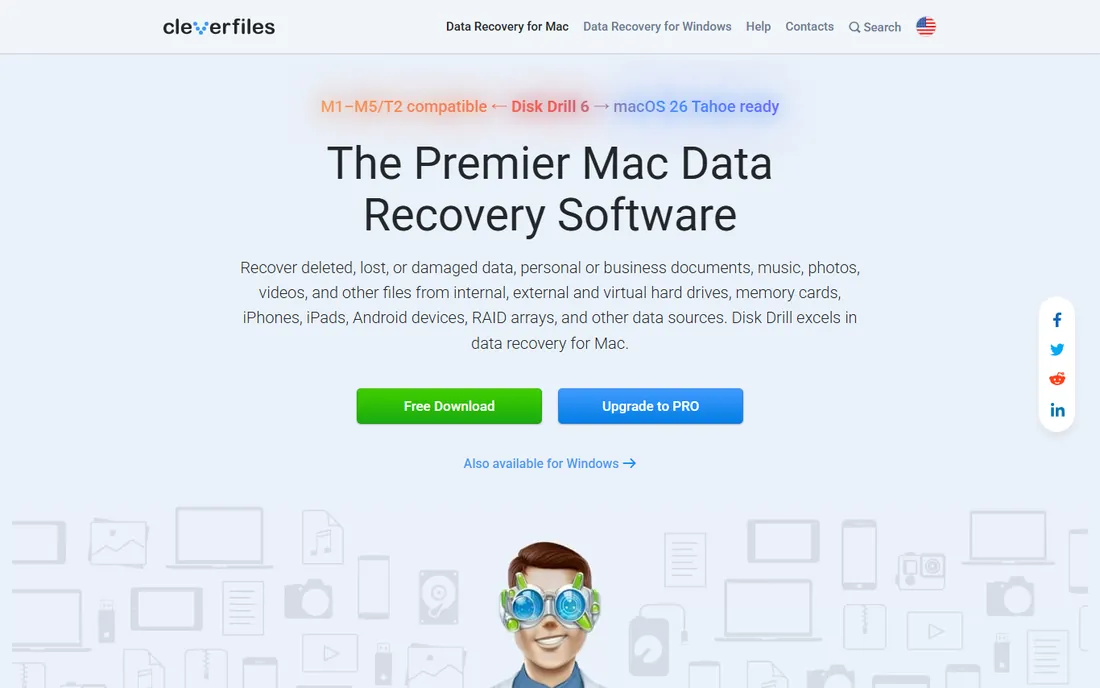
Disk Drill is the consumer-friendly recovery standard: connect the drive, scan, preview what is recoverable, then pay to recover it. The free scan showing your files before you spend money is the honest way to sell recovery software. It handles deleted files, formatted drives and damaged partitions on both Windows and Mac, and the byte-to-byte backup feature images the drive before you work on it.
The free tier's recovery cap means most real jobs need the paid license. Technicians will find the control shallow next to R-Studio or DMDE. But for the common disaster, deleted photos, a formatted SD card, an accidentally wiped partition, Disk Drill is the lowest-stress path.
What we like- Clean interface that non-technical users handle
- Deep scan finds files by signature
- Byte-to-byte backup before recovery
Watch out for- Free tier limits how much you can recover
- The upsell path is persistent
- Not a technician's deep tool
#2
EaseUS Data Recovery Wizard
Best for: Non-technical users who want guided recovery
Visit easeus.com
Starting priceSee website (paid plans; limited free tier)
Free planYes (limited recovery amount)
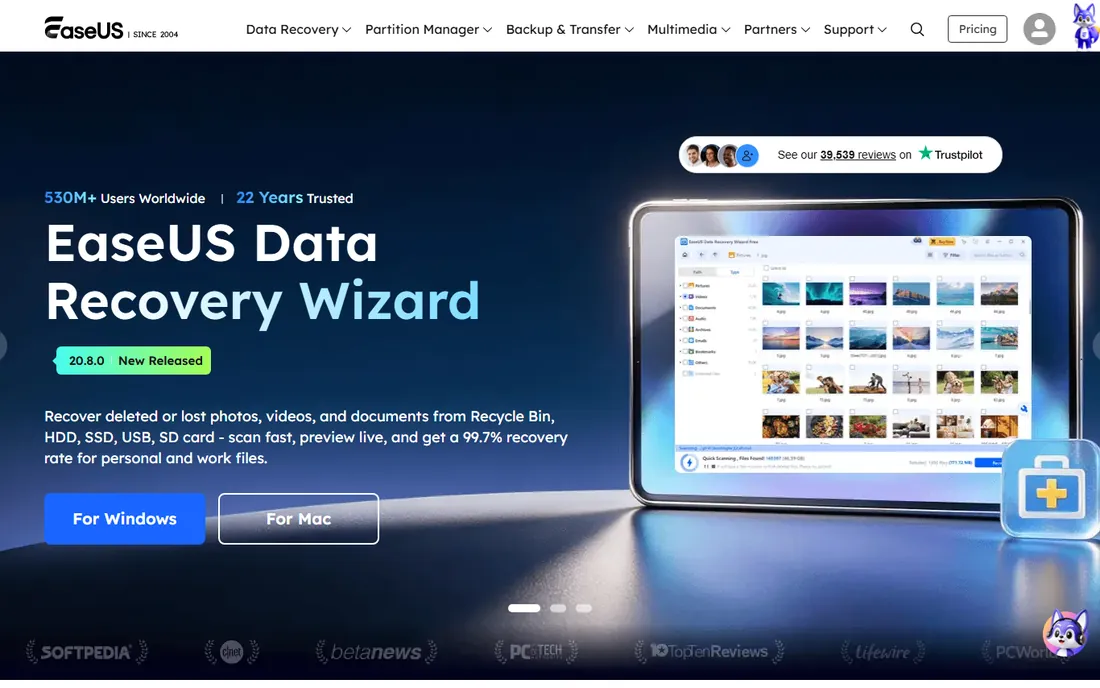
EaseUS Data Recovery Wizard is built for panic moments: launch, pick the drive, scan, recover, with plain-language guidance throughout. It covers deleted files, formatted partitions, lost partitions and RAW drives. The preview function shows recoverable files before you commit, which matters when you are deciding whether the paid version is worth it.
The free tier's recovery allowance is small, enough to test, not to recover a photo library. The upsell pressure is real. And for badly damaged file systems, the specialist tools dig deeper. For straightforward "I deleted it" scenarios, the wizard works.
What we like- Three-step wizard anyone can follow
- Good preview before recovery
- Handles most common data-loss scenarios
Watch out for- Free tier recovers very little
- The interface pushes paid upgrades
- Deep recovery is weaker than specialist tools
#3
Stellar Data Recovery
Best for: Polished full-featured recovery on Windows and Mac
Visit stellarinfo.com
Starting priceSee website (tiered paid plans)
Free planFree scan (recovery requires license)
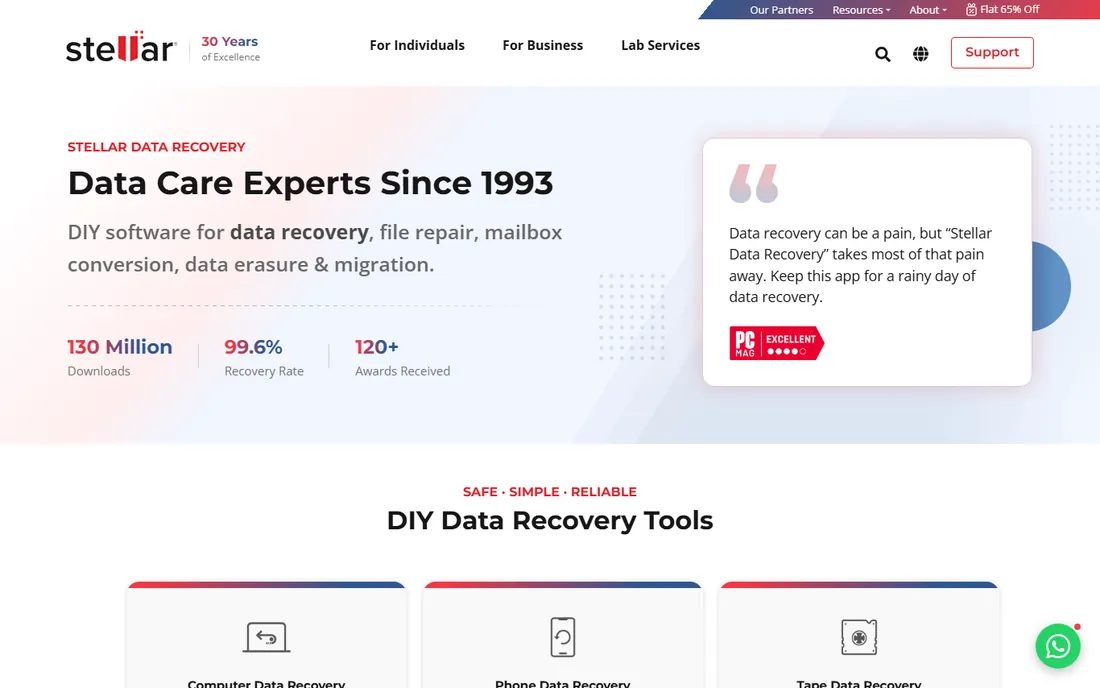
Stellar has been in data recovery for decades, and the software reflects it: deleted files, formatted drives, corrupted partitions, lost volumes, plus email and optical media recovery in higher tiers. The interface is professional without intimidating, and the scan-then-preview workflow lets you verify before paying.
The tiered plans need study: features split across Standard, Professional and Premium, so match the tier to your scenario. Large-drive scans take time. It is a solid mainstream choice sitting between the simple wizards and the technician tools.
What we like- Professional interface with broad scenario coverage
- Recovers from formatted and corrupted drives
- Good optical media and email recovery
Watch out for- Tiered plans complicate buying
- Recovery requires paid license
- The scan can be slow on large drives
#4
R-Studio
Best for: Technicians and IT staff doing serious recovery
Visit r-tt.com
Starting priceSee website (paid license)
Free planFree trial
R-Studio is the technician's recovery environment: it reconstructs RAID arrays, recovers over networks, parses damaged file systems at a low level and gives experts the control they need. IT departments and repair shops run it because it handles the cases the consumer tools cannot: complex RAID failures, severely damaged partitions, forensic needs.
None of that is free or friendly. The price assumes professional use, and beginners will find the interface forbidding. For a single deleted file it is a cannon aimed at a fly. For the shop that recovers data for a living, it is the standard.
What we like- Deep file-system support including RAID reconstruction
- Network recovery across machines
- Hex-level control for experts
Watch out for- The interface assumes expertise
- Overkill and overpriced for one deleted folder
- The learning curve is steep
#5
TestDisk and PhotoRec
Best for: Technical users who want free, powerful recovery
Visit cgsecurity.org
Starting priceFree (open source)
Free planYes
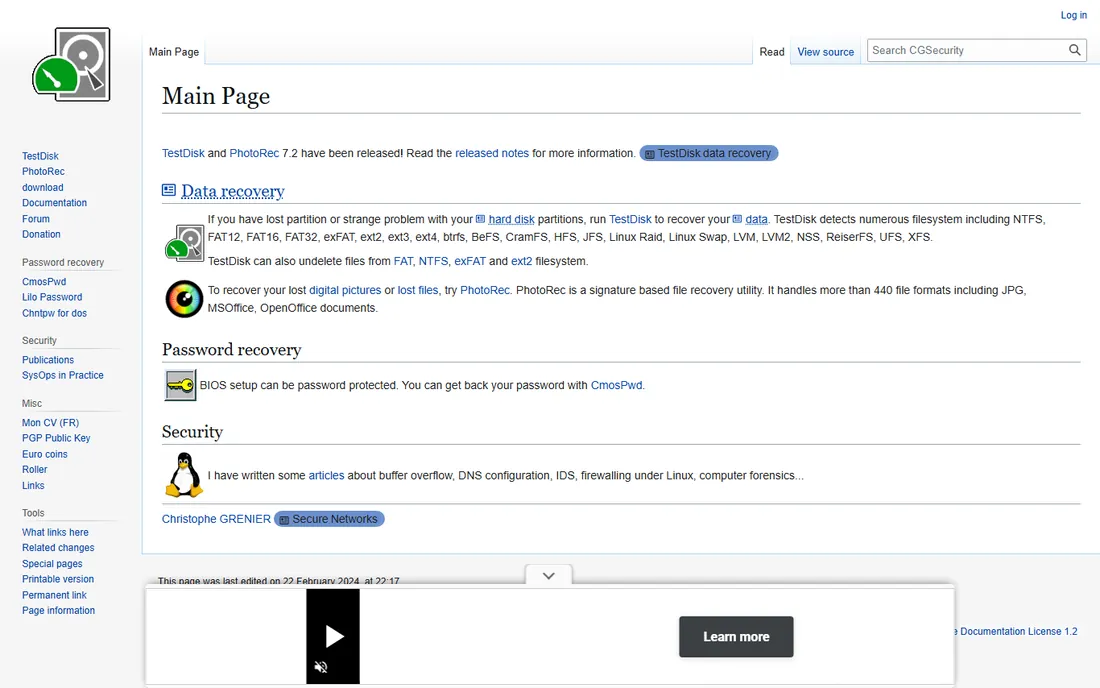
TestDisk and PhotoRec are the open-source legends: TestDisk rebuilds lost partition tables and boot sectors, PhotoRec carves files by signature from formatted or damaged media. They are free, unlimited and genuinely effective, the tools technicians reach for when the budget is zero.
The price is the interface: text menus, technical documentation, no wizard. Mistakes are possible if you do not understand partitions. But for the technical user, this pair recovers what paid tools recover, for nothing. Every IT toolkit should include them.
What we like- Completely free with no recovery limits
- TestDisk rebuilds partition tables
- PhotoRec carves files from damaged media
Watch out for- Text-based interface intimidates
- Documentation assumes knowledge
- No hand-holding or support
#6
HDD Regenerator
Best for: Attempting bad-sector repair on magnetic drives
Visit dposoft.net
Starting priceSee website (paid license)
Free planFree trial
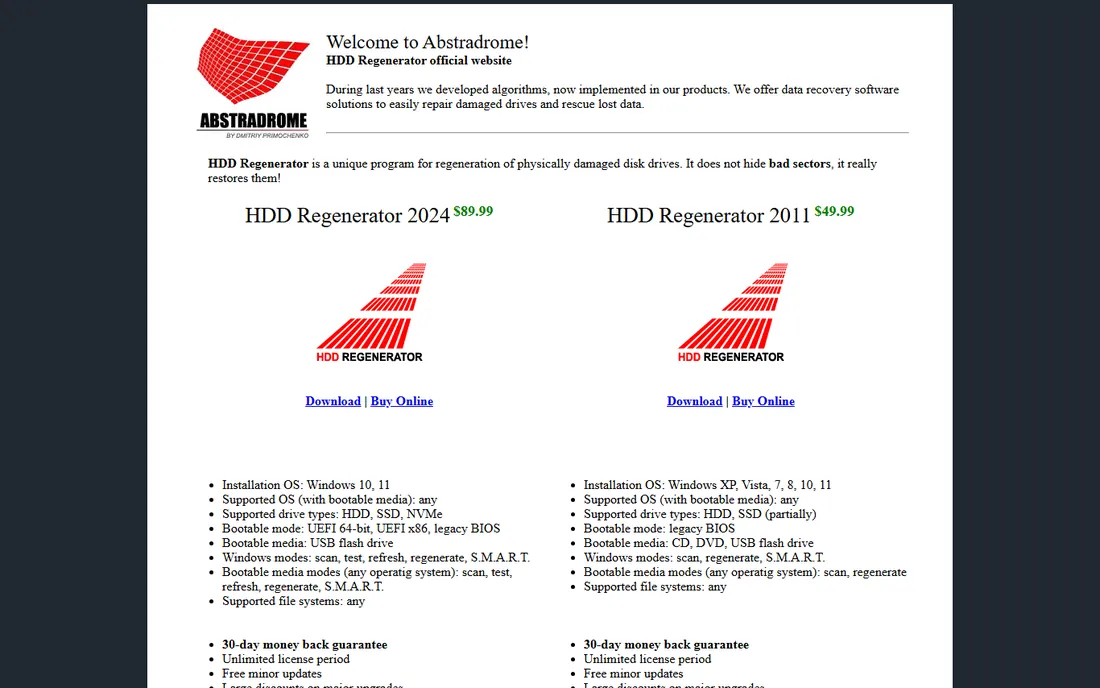
HDD Regenerator does the thing its name says: it attempts to regenerate bad sectors on magnetic hard drives through a special signal process, rather than just marking them bad. When a drive has developed bad sectors but is not physically failing, it can restore readability without data loss. It boots from USB for drives Windows will not touch.
The limits are physics: it cannot fix mechanical failure, and it is irrelevant for SSDs, which handle bad blocks internally. Large drives take a very long time. Use it for the specific case of a HDD with bad sectors and valuable data, after imaging the drive first.
What we like- Targets bad sectors specifically, a job recovery tools skip
- Can restore readability without reformatting
- Bootable for unbootable drives
Watch out for- Only meaningful for magnetic HDDs, not SSDs
- Cannot fix physical damage
- Slow on large drives
#7
SpinRite
Best for: Low-level drive maintenance and data recovery
Visit grc.com
Starting priceSee website (paid license)
Free planNo
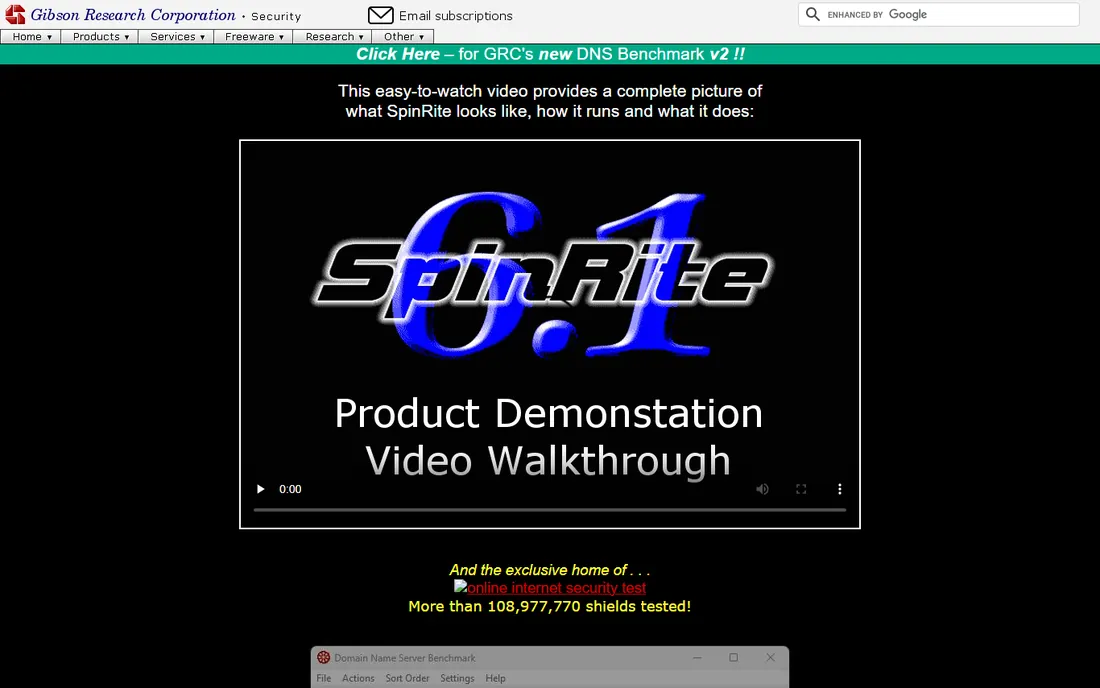
SpinRite, from Gibson Research, has been doing low-level drive work since the 1980s: deep surface scanning, data recovery from marginal sectors, and maintenance passes that refresh magnetic media. Version 6.1 brought it current for modern drives. Its fans are loyal for a reason: it has recovered data nothing else could reach.
It is slow by design, thorough sector work takes hours to days, and it is paid software with no free tier. SSDs benefit less since their controllers manage blocks internally. For magnetic drives with marginal sectors and critical data, it remains a respected last resort before the clean room.
What we like- Legendary low-level recovery and maintenance
- Thorough surface analysis
- One purchase, long history of updates
Watch out for- Paid with no free tier
- The process is extremely slow
- Best on magnetic drives, limited SSD value
#8
DMDE
Best for: Affordable professional-grade recovery
Visit dmde.com
Starting priceSee website (paid; free edition available)
Free planYes (free edition with limits)
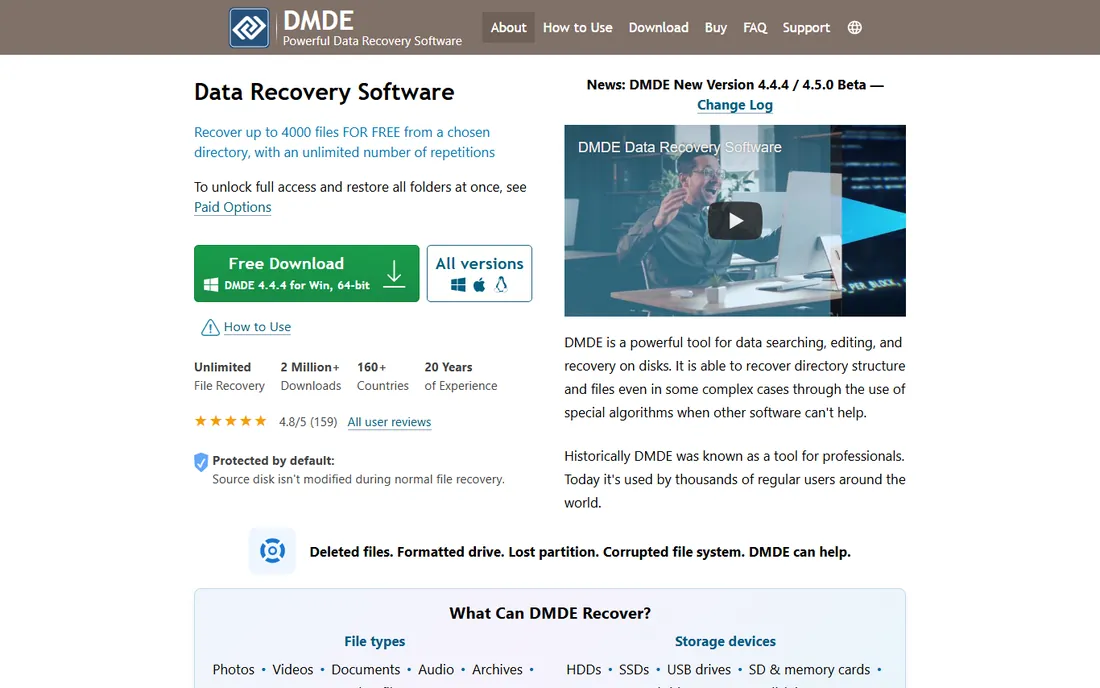
DMDE, DM Disk Editor and Data Recovery, is the value pro tool: partition recovery, file recovery, RAID reconstruction and a full disk editor at a fraction of R-Studio's price. The free edition recovers limited amounts, enough for small jobs and evaluation. Technicians on budgets swear by it.
The interface is functional and the docs assume competence; this is not a wizard product. But the capability per dollar is unmatched in commercial recovery software. For the technically comfortable user who has outgrown the wizards, DMDE is the smart money.
What we like- Professional capabilities at a low price
- Disk editor for experts
- The free edition handles small jobs
Watch out for- The interface is spartan
- Documentation is terse
- The learning curve sits between consumer and pro tools
What to check before you attempt recovery
Check the symptoms first: logical damage (deleted, formatted, corrupted) is software-fixable; physical damage (clicking, grinding, not spinning) is not. Check SMART data if the drive is accessible; reallocated sector counts climbing means the drive is dying regardless of what software reports. Check that you have a destination drive with enough free space; never recover files onto the same damaged drive.
Image the drive before anything else if the data matters: a byte-to-byte copy lets you attempt recovery repeatedly without risking the original. And check the file system: the right tool depends on NTFS, APFS, ext4 or exFAT damage, so confirm compatibility before paying.
How we chose
We started with the searches buyers use: best hard disk repair software, best data recovery software and fix bad sectors. For each candidate we checked the vendor's own site for current editions and pricing, read technician and user reviews, and compared recovery capability, ease of use and honest limits. Where pricing could not be confirmed on the vendor's page, we wrote "See website".
When to stop and call a lab
Software has a hard boundary: it cannot fix hardware. Stop immediately and power down if the drive clicks, beeps, grinds, or spins up and down repeatedly. Stop if the drive is not detected in BIOS at all. Stop if recovery scans show rapidly growing bad sectors. Every minute a physically failing drive runs risks permanent data loss.
Professional labs with clean rooms recover data from mechanically dead drives, typically costing hundreds to thousands of dollars. That is the right call for irreplaceable data on a dead drive. What software cannot do is unbend a crashed head or replace a dead controller; knowing that boundary is the most valuable thing in this article.
Frequently asked questions
Can software really repair a hard disk?
It can repair logical damage: file systems, partition tables, deleted files. It can sometimes refresh marginal sectors. It cannot repair physical damage: dead motors, crashed heads, failed electronics. Match the tool to the damage type.
Which free tool should I try first?
TestDisk and PhotoRec for the technical, DMDE's free edition for small jobs, Disk Drill's free scan to see what is recoverable before paying. Always image the drive first when the data matters.
How do I recover files from a formatted drive?
Stop using the drive immediately to avoid overwriting. Scan with Disk Drill, EaseUS, Stellar or PhotoRec; formatted drives are very recoverable until new data overwrites the old. Recover to a different drive.
What are bad sectors and can they be fixed?
Bad sectors are disk areas that no longer read reliably. Software like HDD Regenerator or SpinRite can sometimes restore marginal sectors on magnetic drives. Growing bad-sector counts mean the drive is failing; replace it after recovering data.
Is it safe to keep using a drive after recovery?
Cautiously. If SMART data is clean and the damage was logical (deletion, corruption), the drive is fine. If there were bad sectors or SMART warnings, treat the drive as untrustworthy: recover the data, replace the drive, and keep backups going forward.
Sources we checked (8)
- https://cleverfiles.com
- https://easeus.com
- https://stellarinfo.com
- https://r-tt.com
- https://cgsecurity.org
- https://dposoft.net
- https://grc.com
- https://dmde.com
Is your product missing or out of date?
We review this list regularly. Vendors can request a listing, send updated pricing or ask about featured placement.

Shihab Mia · Founder, Rankite
Shihab has spent more than a decade helping SaaS and e-commerce brands grow through search. He writes Rankite's software buying guides from pricing pages, documentation and public user reviews. More about Shihab.