How we make this list: we compare pricing pages, product documentation and public user reviews. Rankite is independent; if a vendor ever pays for a featured spot, that listing is clearly labeled Partner.
Key takeaways
- Disk Drill and EaseUS Data Recovery Wizard are the easiest first picks when files were deleted or a partition went missing on a healthy drive.
- DMDE gives you close to professional-grade recovery at a fraction of the big-brand price, but the interface assumes you know what you are doing.
- Recuva is genuinely free and fine for simple undelete jobs, while it falls short on formatted or damaged drives.
- If the drive clicks, smells burnt, or keeps dropping out of Disk Management, stop scanning and talk to a recovery lab like Ontrack instead.
- Free versions always cap how much you can save, so check the limit before you spend three hours on a deep scan.
Quick comparison
Is your product missing or out of date?
We review this list regularly. Vendors can request a listing, send updated pricing or ask about featured placement.
The best data recovery software for external hard drives
Starting priceSee website
Free planFree trial
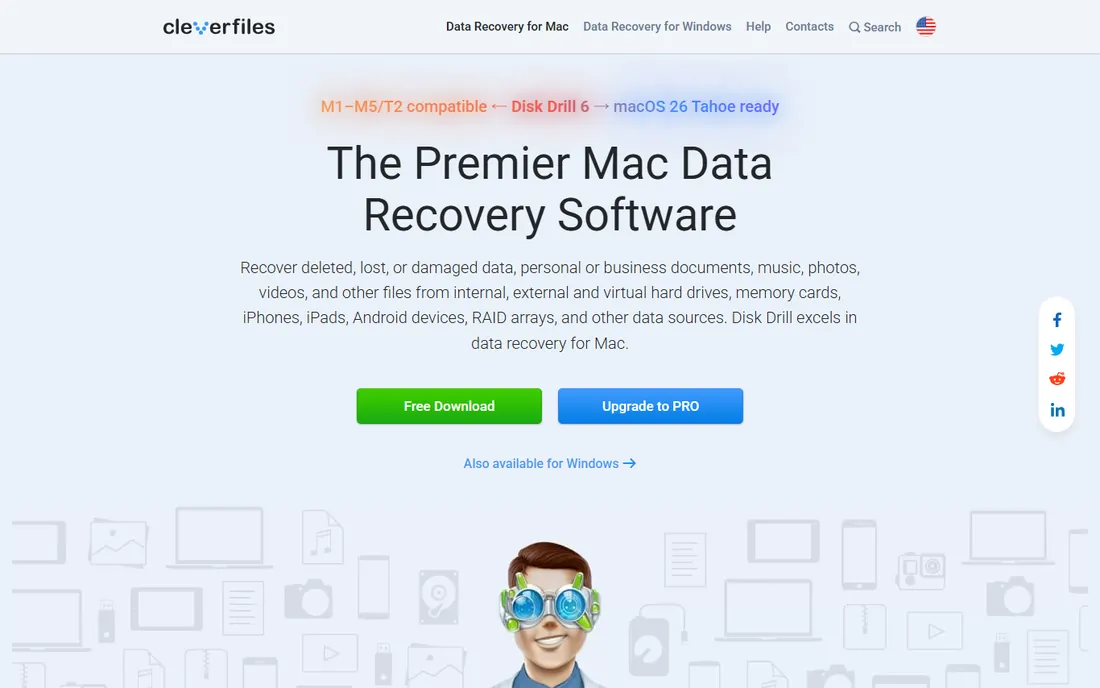
Disk Drill is the friendliest way into data recovery. You plug in the drive, pick it from the device list, and hit scan. The preview pane shows photos, documents, and video frames as they are found, so you can stop the moment you see what you need. It handles external HDDs, SSDs, USB sticks, memory cards, and even phones and RAID volumes.
The standout feature is the free data protection layer. Recovery Vault and Guaranteed Recovery keep a record of deleted files, which makes later recovery almost instant. The catch is that actual file recovery on a drive you have not protected needs the PRO upgrade, which is a one-time purchase rather than a subscription. For a first-timer with a drive that still spins up normally, this is where most people should start.
What we like- Clean interface anyone can use
- Recovers from almost any device type
- Data protection tools prevent future loss
Watch out for- Real recovery requires a paid upgrade
- Deep scans on large drives take a long time

#2
EaseUS Data Recovery Wizard
Best for: Fast deleted-file recovery
Visit easeus.com
Starting priceSee website
Free planYes
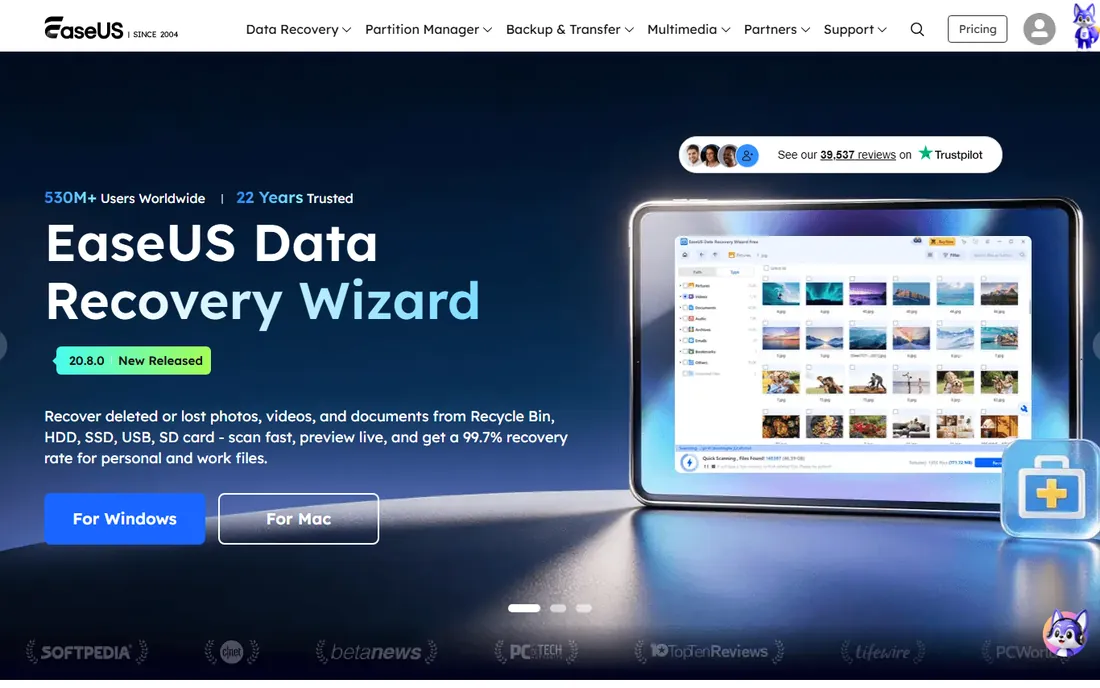
EaseUS has been selling recovery software since 2004, and it shows in how polished the wizard is. The three-step flow (select drive, scan, recover) is about as simple as this category gets. Quick scan usually finds recently deleted files within minutes, and a deeper scan picks up what the quick pass missed. It covers HDDs, SSDs, USB drives, SD cards, and the Recycle Bin.
The free version lets you recover a limited amount of data, which is enough to test whether your files are actually recoverable before you pay. The downside is the constant nudging toward the paid edition inside the app, and the free cap will not cover a serious photo library. It is a solid pick when the drive is healthy and files were simply deleted or the drive was quick-formatted.
What we like- Quick scan finds recently deleted files in minutes
- Free version recovers a limited amount
- 20 years of vendor experience
Watch out for- Free recovery cap is small
- The upsell screens are pushy
Starting priceSee website
Free planYes
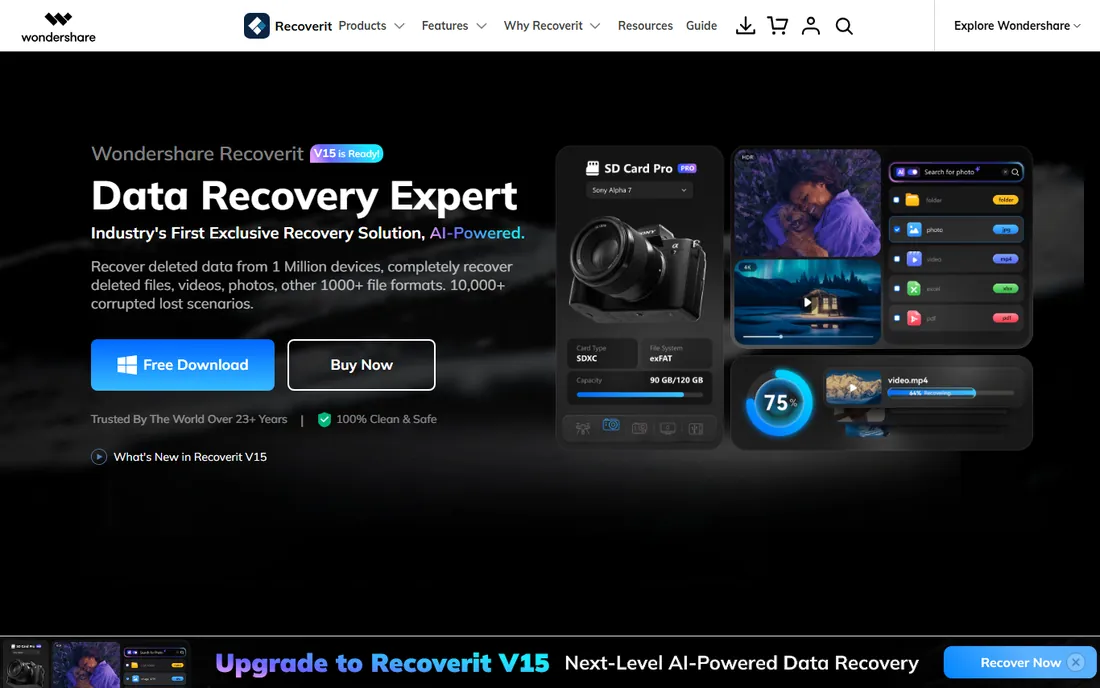
Photographers and videographers end up here because Recoverit is unusually good at piecing together fragmented video files, including 4K and 8K footage where other tools return unplayable files. The patented video recovery technology gathers file fragments across the disk rather than giving up when the file table is gone. That matters on external drives used as camera dump disks.
Beyond media, it handles system crashes through a bootable USB creator, plus remote NAS recovery and Linux file systems. The vendor now leans hard on AI branding, which you should take with a grain of salt. Pricing comes in several editions, so read the plan details before buying. For lost photos and video on an external drive, though, it earns its place on this list.
What we like- Strong at rebuilding fragmented video files
- Works on crashed computers via bootable media
- NAS and Linux recovery included
Watch out for- Pricing tiers are confusing
- AI marketing claims are hard to verify
Starting priceSee website
Free planFree trial
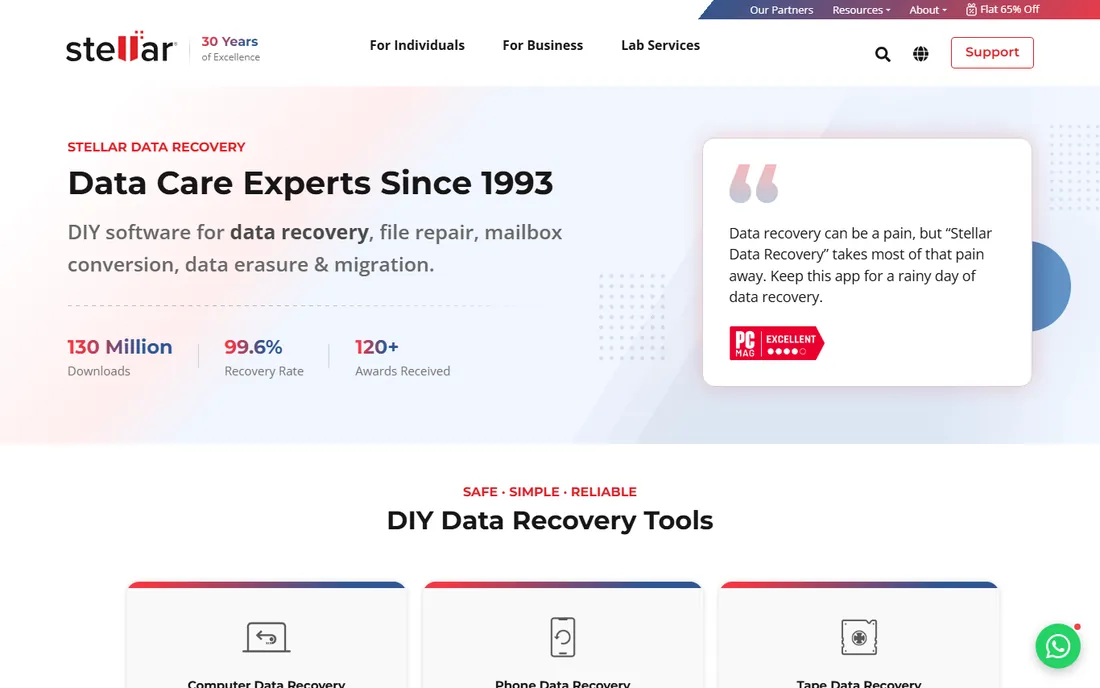
Stellar is one of the oldest names in the business, and its strength is damaged media. Where simpler tools rely on an intact file table, Stellar's deep scan rebuilds files from raw signatures, which helps when a partition is corrupted or the drive was formatted. It also bundles photo and video repair, so recovered files that will not open get a second chance inside the same app.
The product line is split across several editions, and features like RAID recovery and disk imaging only appear in the pricier Toolkit. The standard edition covers the common external-drive scenarios well enough. Expect slower scans than Disk Drill on big drives, but the results on badly damaged file systems are often better.
What we like- Recovers from severely corrupted partitions
- Repairs photos and videos after recovery
- Long track record since 1993
Watch out for- Full feature set requires the expensive Toolkit edition
- Scan speed is average
Starting priceSee website
Free planFree trial
R-Studio is what data recovery professionals reach for when the friendly tools fail. It supports FAT, NTFS, exFAT, HFS+, APFS, Ext2/3/4, and more, and its RAID reconstruction module can rebuild arrays the OS no longer recognizes. The multi-pass disk imaging lets you clone a failing drive sector by sector before you attempt recovery, which is exactly what you should do with a drive that is degrading.
None of that comes with hand-holding. The interface looks like an engineering tool because it is one, and casual users can easily misconfigure a scan. The demo mode only recovers small files, so you will pay for the full license to do real work. If you are comfortable with hex editors and disk structures, or you are recovering a RAID, nothing else on this list gives you this much control.
What we like- Exceptional control over the recovery process
- Rebuilds damaged RAID arrays
- Supports nearly every file system
Watch out for- Interface is intimidating for casual users
- Overkill for a simple undelete
Starting priceSee website
Free planYes
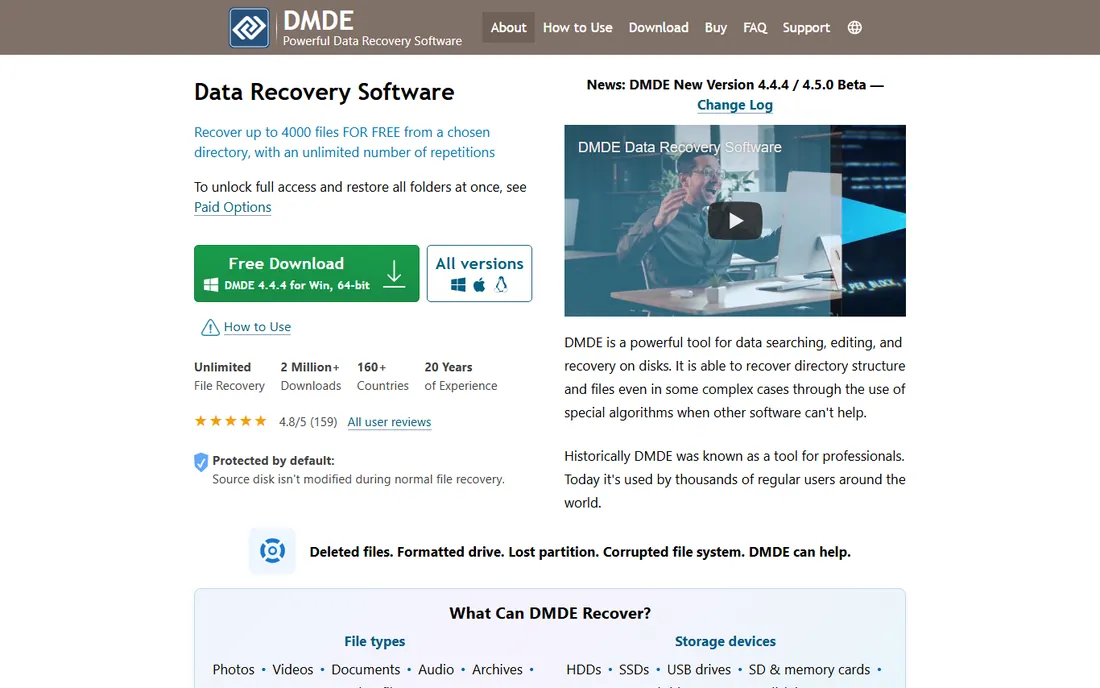
DMDE is the insider pick of recovery forums. Its search algorithms reconstruct directory structures after formatting and partition damage about as well as tools costing five times more. The free version recovers up to 4,000 files from a chosen folder with unlimited repetitions, which is generous enough that many people never need to buy. It is portable, so you can run it from a USB stick without installing anything on the damaged drive's computer.
The tradeoff is the interface, which has barely changed in years and expects you to understand terms like boot sectors and cluster maps. TechRadar and Forbes Advisor both rate it highly for results, not looks. If you are willing to spend an evening learning it, or you are already technical, DMDE delivers the best recovery per dollar on this list.
What we like- Professional-grade algorithms at a low price
- Free version recovers up to 4,000 files
- Portable, no install needed
Watch out for- Dated, technical interface
- Learning curve is real
Starting priceSee website
Free planYes
Recuva is the only tool here that is genuinely free for its core job. Made by the CCleaner team, it runs a wizard that asks what you lost and where, then scans with a standard or deep pass. For recently deleted files on a healthy external drive, it works fine and costs nothing. It even includes a secure overwrite feature for deleting files permanently.
Set your expectations correctly, though. On formatted drives or corrupted partitions, Recuva finds far less than the paid tools above. There is no Mac version, and development has been slow. Still, when the job is "I deleted a folder an hour ago," it is hard to argue with free.
What we like- Completely free core recovery
- Tiny download that runs fast
- Includes secure file deletion
Watch out for- Weak on formatted or heavily damaged drives
- Windows only, no Mac version
Starting priceSee website
Free planFree trial
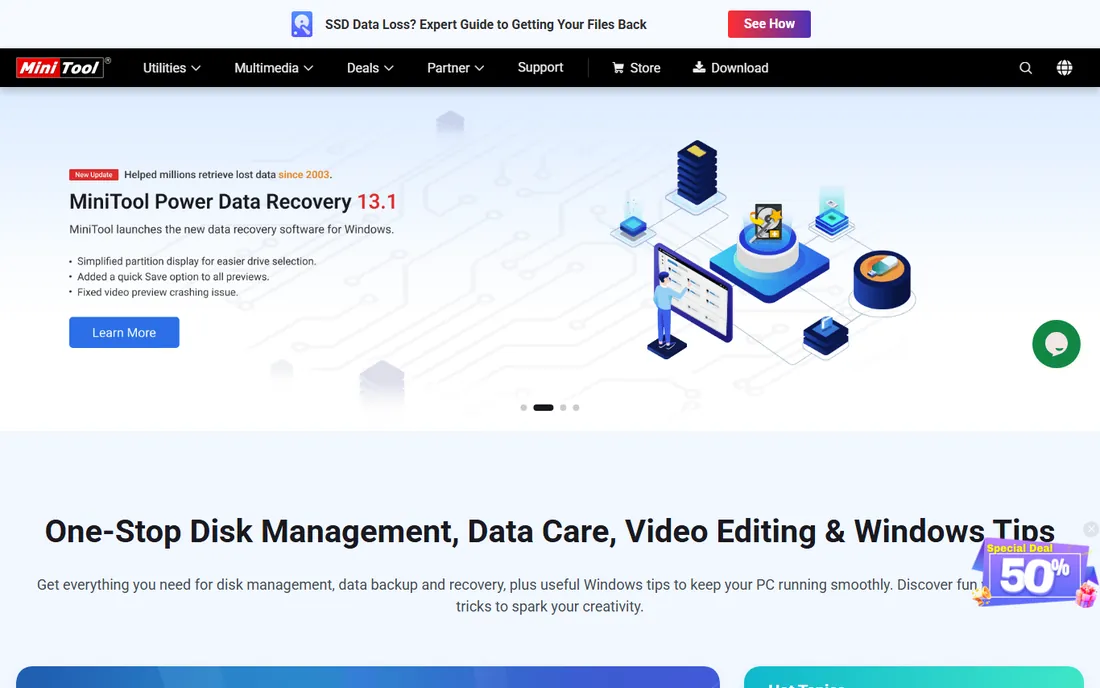
MiniTool's recovery app benefits from the company's long history with partition software. The scan is split into clear stages (deleted files, lost partitions, unallocated space), which helps you understand what it found and why. Lost-partition recovery is a particular strength, which matters for external drives that suddenly show up as raw or unallocated in Disk Management.
The free edition caps how much you can recover, and features like bootable media and RAID recovery require paid tiers. It is Windows-only, so Mac users should look at Disk Drill instead. As a middle-ground option between Recuva and the premium tools, it is a reasonable choice when you want more power than free but a simpler experience than R-Studio.
What we like- Guided interface with clear scan stages
- Handles lost partitions well
- From an established disk tools vendor
Watch out for- Free recovery is capped
- Advanced features sit in higher tiers
Starting priceSee website
Free planFree trial
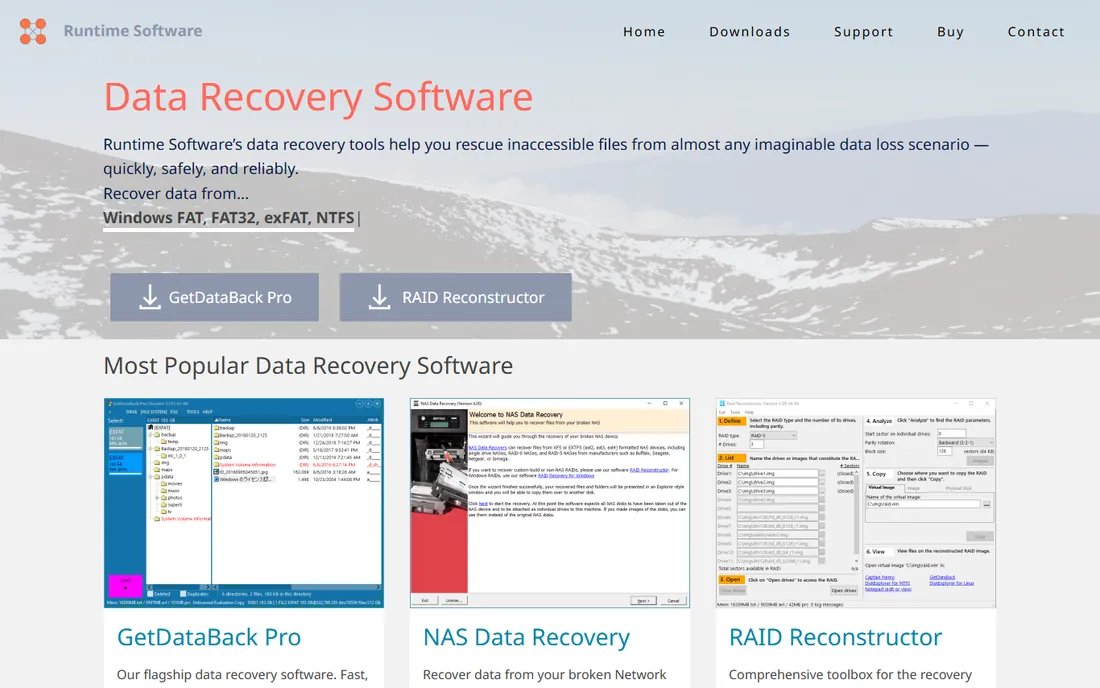
Runtime Software's GetDataBack has a loyal following among technicians because it keeps working when Windows gives up. If your external drive appears in Device Manager but not in File Explorer, or shows as RAW, this is exactly the scenario it was built for. It supports NTFS, FAT, exFAT, and even HFS+ and APFS from a Windows machine, which is handy for cross-platform households.
The interface is functional rather than pretty, and the demo only lets you preview what it can find. The company's tools are widely used by law enforcement and forensic investigators, which says something about reliability. It is not the tool you buy for a quick undelete, but for a drive with a damaged file system, it belongs on the shortlist.
What we like- Reads drives Windows itself cannot mount
- Strong NTFS, FAT, and exFAT recovery
- Trusted by forensic investigators
Watch out for- Dated interface
- Limited appeal outside Windows file systems
Starting priceSee website
Free planFree trial
Ontrack is primarily a data recovery service company with labs around the world, and EasyRecovery is its DIY software arm. The unique value is the escalation path: if the software cannot handle your drive, the same company can take it into a cleanroom. They offer a free evaluation, so you know what a lab recovery would cost before committing.
As pure software, it is competent but not remarkable, and it costs more than most DIY alternatives. The real reason to pick it is risk management. If your external drive holds business data or irreplaceable files and you suspect physical damage, starting with a vendor that can finish the job in a lab is a sensible strategy.
What we like- Software plus a path to professional lab recovery
- Free evaluation of your case
- 40 years in the business
Watch out for- Expensive compared with DIY tools
- Lab service pricing is quoted per case
How we chose
We looked at the vendor's own product pages, pricing pages, and documentation for each tool, plus public reviews on G2, Capterra, Trustpilot, and recovery-focused forums. We weighted external-drive support specifically, since some tools shine on system drives but struggle with USB enclosures. We favored tools with free scans or previews so you can confirm recoverability before paying, and we included both beginner-friendly apps and technician-grade options. No hands-on testing was done; findings reflect published features, pricing, and reviewer consensus.
What to check before you pay for recovery software
Stop using the drive immediately
Every new file written to the drive can overwrite the data you want back. Do not install the recovery software onto the same external drive, and do not save recovered files back onto it. Run the scan from your computer's internal disk or a different drive.
Match the tool to the damage
Deleted files on a healthy drive are the easy case, and almost any tool here handles them. Formatted drives and lost partitions need a tool with strong raw-signature scanning, like Stellar, DMDE, or R-Studio. Clicking sounds, burning smells, or a drive that keeps disconnecting point to physical failure, and no software fixes that.
Read the free tier limits
Free editions differ a lot. Recuva's core recovery is free, DMDE gives you 4,000 files per folder, and most others only preview until you pay. Run the free scan first, preview your actual files, and only then decide whether the paid version is worth it.
Check file system support
Most external drives are NTFS or exFAT, which everything supports. If your drive came from a Mac (HFS+, APFS) or Linux box (Ext4), confirm support before buying. R-Studio and GetDataBack cover the widest range.
When software is not enough
There is a line that DIY tools should not cross. If the drive makes clicking or grinding noises, gets very hot, or is not detected in BIOS or Disk Management at all, repeated scanning can make things worse. Each power-on of a physically failing drive risks more damage to the platters. In those cases, a lab like Ontrack with a cleanroom and donor parts is the safer bet, and the free evaluation tells you the cost upfront. Software recovery is for logical damage: deletion, formatting, corruption, and partition loss. Hardware damage needs hardware tools.
Frequently asked questions
Can I recover files from an external hard drive that is not showing up?
It depends on where it is missing. If the drive appears in Disk Management or Disk Utility but not in File Explorer or Finder, software like R-Studio, GetDataBack, or DMDE can often still read it. If it does not appear anywhere, not even in BIOS, that usually means an electronics or mechanical failure, and software will not help.
Should I use the free version or buy the full version?
Use the free scan or preview first, always. Every reputable tool lets you see what it can find before you pay. If the preview shows your files intact, the paid version is worth it. If the preview shows nothing, or only corrupted fragments, paying rarely improves the outcome.
How long does a deep scan take on a 1TB external drive?
Plan on several hours. A quick scan finishes in minutes, but a full deep scan of a 1TB drive over USB typically takes 4 to 8 hours depending on the drive speed and the tool. Run it overnight and make sure the computer does not sleep mid-scan.
Is it safe to recover files back onto the same external drive?
No. Writing recovered files onto the same drive risks overwriting data that has not been recovered yet. Always save recovered files to a different drive, and only after recovery is complete should you reformat or reuse the original drive.
Do these tools work on SSD external drives?
They work, but with a big caveat. SSDs use TRIM, which permanently erases deleted data blocks, often within minutes. Recovery from SSDs only works if TRIM has not yet run or the drive was disconnected quickly. Act fast and keep the drive unplugged until you are ready to scan.
Sources we checked (10)
- https://www.cleverfiles.com
- https://www.easeus.com
- https://recoverit.wondershare.com
- https://stellarinfo.com/
- https://r-studio.com/
- https://dmde.com
- https://www.ccleaner.com/recuva
- https://www.minitool.com
- https://runtime.org/
- https://ontrack.com/
Is your product missing or out of date?
We review this list regularly. Vendors can request a listing, send updated pricing or ask about featured placement.

Shihab Mia · Founder, Rankite
Shihab has spent more than a decade helping SaaS and e-commerce brands grow through search. He writes Rankite's software buying guides from pricing pages, documentation and public user reviews. More about Shihab.
 Disk Drill
 Wondershare Recoverit
 Stellar Data Recovery
 R-Studio
 DMDE
DMDE Recuva
 MiniTool Power Data Recovery
 GetDataBack Pro
 Ontrack EasyRecovery