How we make this list: we compare pricing pages, product documentation and public user reviews. Ratings come from G2, Capterra or Trustpilot, with the date we checked them.
Key takeaways
- Canva is the easiest starting point for most beginners, with a free plan that covers everyday social posts, flyers, and presentations.
- Adobe Express is the strongest free alternative, with background removal and commercially safe AI features that many free plans withhold.
- Figma is the best free route into interface design, though its free Starter plan limits you to a small number of files.
- Pixlr and Photopea handle photo editing in the browser with no install, and Photopea opens PSD files that other free tools cannot.
- GIMP and Inkscape cost nothing and do professional-grade work, but both need more patience to learn than Canva or Adobe Express.
Quick comparison
| Tool | Best for | Starting price | Free plan |
|---|
 Canva Canva | Beginners who need fast social posts, flyers, and presentations | $18 per month | Yes |
 Adobe Express Adobe Express | Small businesses that want branded content with safe AI images | $9.99 per month | Yes |
 Figma Figma | Beginners learning website and app interface design | $16 per editor per month | Yes |
 VistaCreate VistaCreate | Budget-conscious creators who want templates and scheduling | $10 per month | Yes |
 Pixlr Pixlr | Quick photo edits and AI image tools in the browser | $1.99 per month | Yes |
 Photopea Photopea | Free editing of PSD, AI, and other professional file formats | Free | Yes |
 GIMP GIMP | Free, advanced photo editing on desktop | Free | Yes |
 Inkscape Inkscape | Free vector illustration, logos, and icons | Free | Yes |
Is your product missing or out of date?
We review this list regularly. Vendors can request a listing, send updated pricing or ask about featured placement.
#1Canva
Best for: Beginners who need fast social posts, flyers, and presentations4.7/5 on
G2 (7,678 reviews, checked Oct 2026)
Visit canva.com
Starting price$18 per month
Free planYes
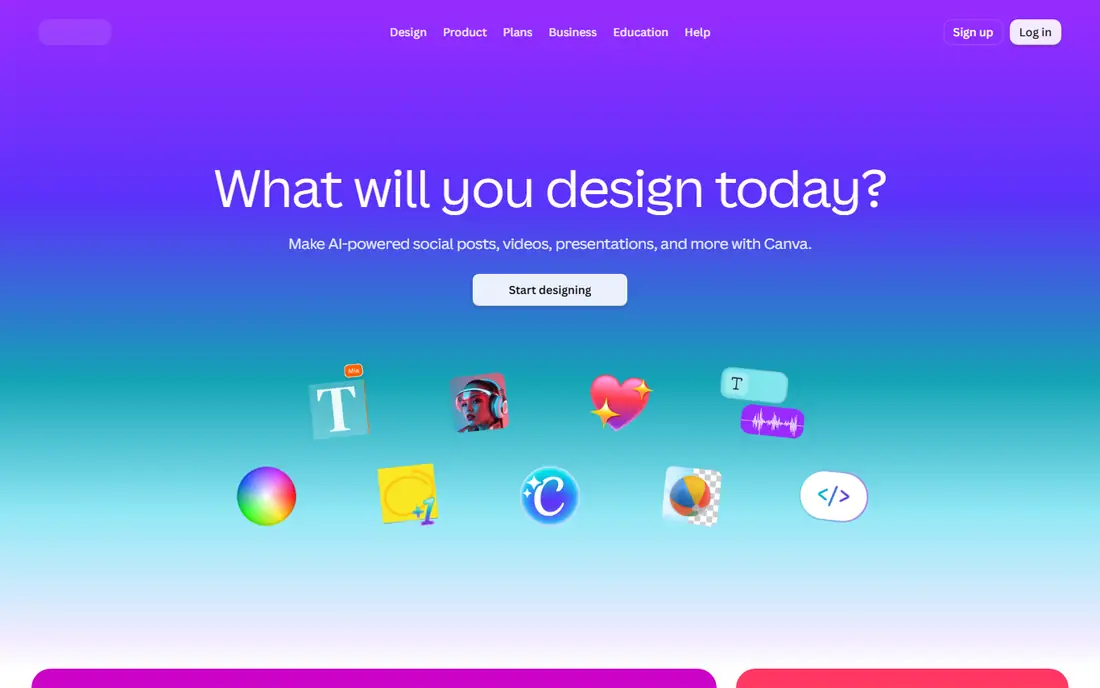
Canva became the default beginner tool for a simple reason: it removes the blank page. You pick a size for Instagram, a flyer, or a presentation, choose a template, swap in your own text and photos, and export. The free plan covers a large template and stock library, so a beginner can publish decent work on day one without paying. The editor runs in a browser and on phones, which helps when you design on the go.
Pro at $18 per month adds the features that matter once you design regularly: a Brand Kit for consistent colors and fonts, one-click background removal, Magic Resize, and a larger stock library. If you design once a month, the free plan will likely do. If you publish weekly for a business, Pro pays for itself in saved time, though you should still check whether Adobe Express covers your needs free first.
What we like- Huge template library
- Drag-and-drop editor
- Works on web and mobile
Watch out for- Brand Kit and background remover need Pro
- Many users pick the same popular templates
- Advanced photo editing is limited
#2Adobe Express
Best for: Small businesses that want branded content with safe AI images4.5/5 on
G2 (855 reviews, checked Oct 2026)
Visit adobe.com
Starting price$9.99 per month
Free planYes
Adobe Express is the closest rival to Canva, and for many beginners it is the better free choice. Its free plan includes background removal, which Canva charges for, and its generative AI features are built to be commercially safe, a point that matters if you use AI images in paid ads or client work. The editor covers social posts, flyers, short videos, and simple photo edits in one place.
Premium at $9.99 per month is also cheaper than Canva Pro, and it opens up Brand Kits, one-click resize for every platform, and the full premium template and asset library. The trade-off is breadth: Canva still offers more templates and a larger community sharing designs. Pick Adobe Express if you value free background removal and Adobe stock, and pick Canva if you want the largest template library.
What we like- Free background removal
- Generative AI designed for commercial use
- Access to Adobe stock assets
Watch out for- Resize and Brand Kit features need Premium
- Template range is smaller than Canva
- Some AI tools are desktop only
#3Figma
Best for: Beginners learning website and app interface design4.7/5 on
G2 (1,593 reviews, checked Oct 2026)
Visit figma.com
Starting price$16 per editor per month
Free planYes
Figma is not a general poster maker, and that focus is its strength. If you want to design a website, an app screen, or a presentation with a modern, clean layout, Figma gives you frames, components, and prototyping in a single canvas. The free Starter plan lets you learn the core skills, and the community library offers UI kits, icons, and wireframes you can study and reuse. Collaboration is live, so a friend or mentor can watch and comment while you work.
The limit to know is file count: the free plan caps how many design files you can keep active, so you will need to archive old work as you learn. Figma also lacks the print templates and photo tools that Canva offers. Use it when your goal is interface design or a design career, and pair it with Canva for everyday marketing graphics.
What we like- Free Starter plan for learning
- Real-time collaboration
- Large community library of UI kits and templates
Watch out for- Free plan limits file numbers
- Not built for print design
- Interface design has its own learning curve
#4VistaCreate
Best for: Budget-conscious creators who want templates and scheduling4.5/5 on
G2 (171 reviews, checked Oct 2026)
Visit create.vista.com
Starting price$10 per month
Free planYes
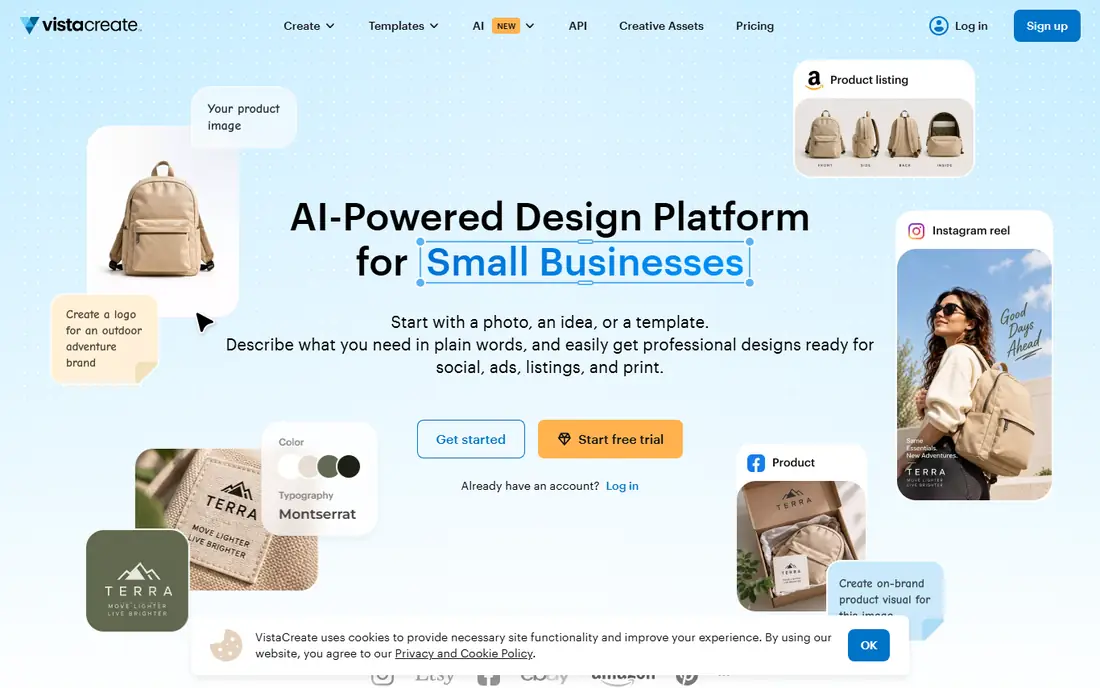
VistaCreate, formerly Crello, is the most direct budget alternative to Canva. Its free plan includes a Brand Kit, which Canva reserves for Pro, plus thousands of templates for social media, web, and print formats. Built-in scheduling lets you post designs without a separate tool, and the Pro plan adds one-click resize, background removal, and the full stock library of photos, videos, and vectors.
The gap is community and polish. Canva has more users sharing templates and tutorials, so finding help for a VistaCreate problem can take longer. The editor itself is friendly, though, and the price is lower than Canva Pro when billed annually. If you publish social content often and want scheduling without paying for a second app, VistaCreate is a smart, cheaper pick.
What we like- Large free template library
- Brand Kit on the free plan
- Social scheduling built in
Watch out for- Pro features such as resize need payment
- Smaller community than Canva
- Print options depend on VistaPrint
#5Pixlr
Best for: Quick photo edits and AI image tools in the browser4.4/5 on
G2 (751 reviews, checked Oct 2026)
Visit pixlr.com
Starting price$1.99 per month
Free planYes
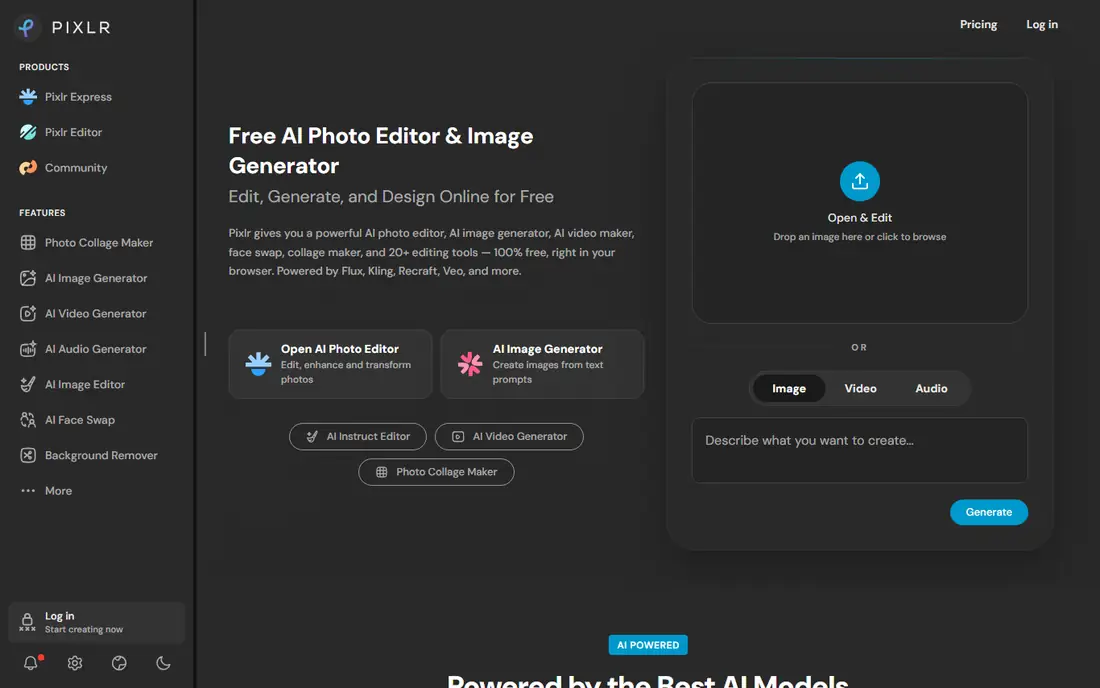
Pixlr is a photo editor first and a design tool second, and that order matters. It opens in your browser, offers layers, masks, filters, and retouching, and now adds AI tools such as background removal, generative fill, image expansion, and text-to-image generation. For a beginner who mainly needs to fix photos, remove a background, or build a collage, Pixlr does the job without installing desktop software or learning a complex program.
The free plan carries ads and limits AI credits, so heavy AI use will push you toward a paid plan starting at $1.99 per month when billed annually. That is still one of the lowest prices in this list. Choose Pixlr when photos are the center of your work, and choose Canva or Adobe Express when templates and text layouts matter more.
What we like- No install needed
- Layers, masks, and retouching tools
- AI background removal and generative fill
Watch out for- Ads on the free plan
- AI credits run out on free use
- Interface can feel busy for first-time users
#6Photopea
Best for: Free editing of PSD, AI, and other professional file formats4.6/5 on
G2 (21 reviews, checked Oct 2026)
Visit photopea.com
Starting priceFree
Free planYes
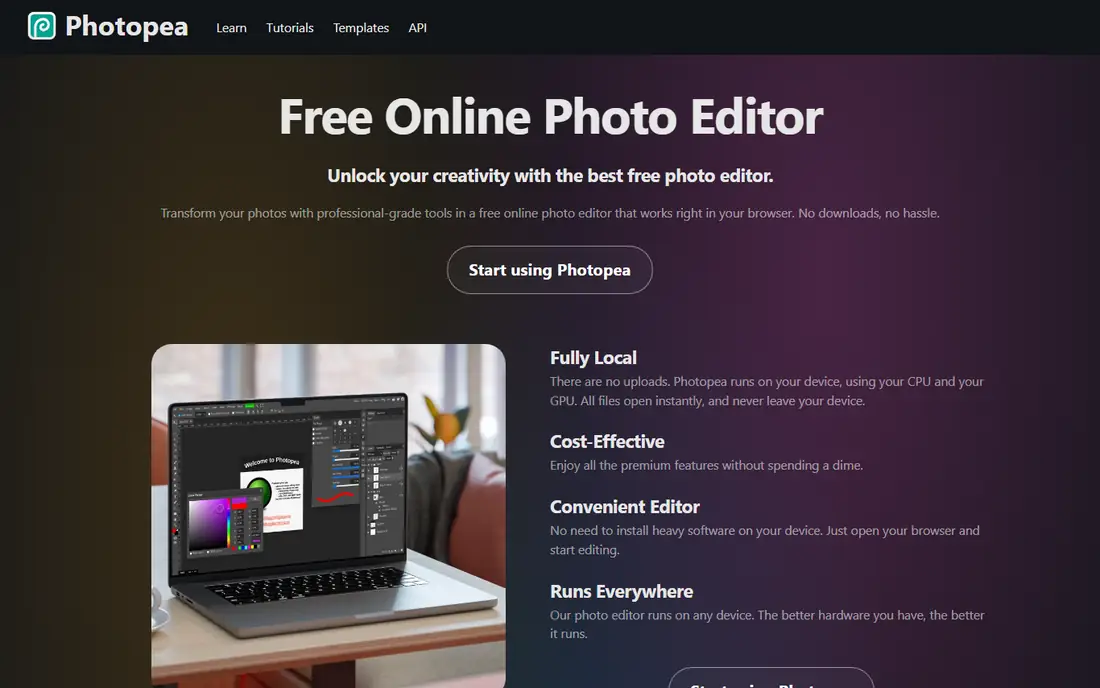
Photopea is the tool beginners discover when a client or colleague sends a PSD file and nothing else will open it. It runs entirely in the browser, yet it supports layers, masks, smart objects, adjustment layers, and a long list of formats including PSD, AI, SVG, and RAW camera files. Files open on your own device rather than uploading to a server, which is a welcome privacy point for client work.
There is no template library and no hand-holding, so Photopea will not teach you design the way Canva does. Its interface mirrors Photoshop, which means tutorials for Photoshop often translate, but also means the first week feels dense. Keep Photopea in your toolkit even if Canva is your daily tool: it is the free answer to the file-format problem that every beginner hits sooner or later.
What we like- Opens and saves PSD files
- Layers, masks, and adjustment layers
- Runs locally in the browser with no uploads
Watch out for- Ads on the free version
- No template library like Canva
- Interface mirrors Photoshop, so beginners need time
#7GIMP
Best for: Free, advanced photo editing on desktop4.3/5 on
G2 (1,484 reviews, checked Oct 2026)
Visit gimp.org
Starting priceFree
Free planYes
GIMP, the GNU Image Manipulation Program, is the free desktop editor that professionals have used for decades. It handles high-quality photo retouching, restoration, compositing, and original artwork, with color management that suits print work. Because it is open source, plugins and scripts extend it in directions no single company would fund, and it runs on Windows, Mac, and Linux at no cost.
The cost is time. GIMP expects you to learn layers, masks, and selection tools properly, and its interface shows its age next to Pixlr or Photopea. Beginners who only need quick social graphics should start elsewhere. Beginners who want a free Photoshop-class editor and are willing to follow tutorials for a few weekends will find GIMP hard to outgrow.
What we like- Completely free and open source
- Deep retouching, compositing, and color tools
- Large plugin and script community
Watch out for- Steep learning curve
- Interface feels dated
- No cloud sync or template library
#8Inkscape
Best for: Free vector illustration, logos, and icons4.4/5 on
G2 (417 reviews, checked Oct 2026)
Visit inkscape.org
Starting priceFree
Free planYes
Inkscape is the vector half of the free design toolkit, and it pairs naturally with GIMP. Where GIMP edits pixels in photos, Inkscape draws shapes, curves, and text that stay sharp at any size, which is exactly what logos, icons, and illustrations need. Its Bezier and spiro curve tools, text handling, and SVG support make it a genuine alternative to paid vector software for many beginners.
Vector drawing is a skill of its own, and Inkscape will not hide that from you. Expect to spend time learning nodes, paths, and fills before your first logo looks polished. That effort pays off, because a vector logo exports cleanly to a website, a business card, and a sign without redrawing. If your goal is a logo or illustration rather than a photo edit, start with Inkscape and keep GIMP for photos.
What we like- Completely free and open source
- Strong Bezier and text tools
- Broad file format support including SVG
Watch out for- Desktop only
- Vector drawing takes practice
- No photo editing or template library
How we chose
We compared pricing pages, product documentation, and public reviews on G2 and Capterra, and we checked each vendor homepage to confirm the product still exists and fits a beginner use case. We favored tools with a usable free plan, a clear learning path, and honest limits, rather than tools that hide their best features behind a trial. Where pricing sources disagreed, we used the most recent vendor-aligned figure and flagged the rest for a check on the pricing page before purchase.
We also separated jobs that beginners often mix up: template design, photo editing, interface design, and vector illustration are different skills, and no single tool leads all four. That is why this list includes both easy template tools and harder free editors. A beginner who knows which job they are doing will pick faster and waste less money.
A practical way to start
Pick one tool for your first project
Do not install all eight tools at once. Pick the one that matches your next real project: Canva or Adobe Express for a social post, Figma for a web page mockup, Pixlr for a photo fix, Inkscape for a logo. Finish that project, export it, and share it. You will learn more from one finished design than from a week of comparing editors.
Learn the three skills that transfer everywhere
Layers, alignment, and export settings matter in every tool on this list. Layers let you move text and images independently. Alignment and spacing make a design look intentional rather than crowded. Export settings decide whether an image looks sharp on a phone, a website, or in print, so check size and format before you publish. Once those three feel natural, switching tools becomes much easier.
Upgrade only when a limit blocks real work
Free plans in this list are generous, and many beginners pay too early. Upgrade when a specific limit blocks you, such as Canva withholding background removal, Figma capping your files, or Pixlr ads slowing you down. Write down the feature you need before you pay, and check that the paid plan actually includes it. That single habit will save more money than any discount code.
Frequently asked questions
What is the best graphic design tool for a complete beginner?
Canva is the safest first choice, because templates, drag-and-drop editing, and a free plan let you publish something good on day one. Adobe Express is a close second, especially if you want free background removal. If you know you want to design interfaces, start with Figma instead, since its skills transfer directly to design jobs.
Can I design professionally with free tools?
Yes, for many jobs. GIMP and Inkscape are free, open-source tools used for professional photo and vector work, and Photopea handles PSD files free in a browser. The gap is usually speed and templates, not quality: paid tools save time with Brand Kits, resize features, and larger libraries, but a skilled beginner can produce professional work free.
Do I need to learn Photoshop or Illustrator to be a designer?
Not to start, and not for every design job. Photoshop and Illustrator remain industry standards in agencies and print shops, and learning them later will help your career. For social media, small business marketing, and personal projects, Canva, Adobe Express, Figma, GIMP, and Inkscape cover the work without a subscription.
What file format should I export for social media?
Export PNG for graphics with text or transparency, and JPG for photos where file size matters. Use the platform size the tool suggests, such as 1080 by 1080 pixels for a square Instagram post, so your image is not cropped or blurred. For a logo you plan to reuse, keep a vector SVG or PDF master in Inkscape or Figma as well.
How do I keep my designs looking consistent?
Set three rules and reuse them: two fonts at most, a small color palette, and consistent spacing around text and images. Canva Pro, Adobe Express Premium, and VistaCreate all offer Brand Kits that store those choices, but you can also keep a simple document with your hex color codes and font names. Consistency comes from repeating choices, not from buying more templates.
Is AI image generation safe for business use?
It depends on the tool and its license terms, so read them before using AI images in ads or client work. Adobe Express promotes commercially safe AI generation, which is one reason it stands out here. For other tools, check whether the plan grants commercial use, keep records of what you generated, and avoid using AI images that mimic a real brand or person.
Sources we checked (9)
- https://www.canva.com
- https://www.adobe.com/express
- https://www.figma.com
- https://create.vista.com
- https://pixlr.com
- https://photopea.com
- https://www.gimp.org
- https://inkscape.org
- https://rankite.com/blog/top-creative-design-software-for-beginners
Is your product missing or out of date?
We review this list regularly. Vendors can request a listing, send updated pricing or ask about featured placement.

Shihab Mia · Founder, Rankite
Shihab has 5+ years in B2B and SaaS SEO. He writes Rankite's software buying guides from pricing pages, documentation and public user reviews. More about Shihab.