How we make this list: we compare pricing pages, product documentation and public user reviews. Ratings come from G2, Capterra or Trustpilot, with the date we checked them.
Key takeaways
- Canva is the default beginner pick, with a genuinely useful free plan and Pro at $18 per month or $144 per year.
- Adobe Express at $9.99 per month is the cheapest premium plan from a major vendor, with commercially safe AI features.
- VistaCreate, Snappa and Desygner all undercut Canva on price, starting between $4.95 and $10 per month billed annually.
- GIMP and Inkscape cost nothing and handle professional-grade photo and vector work, but expect a real learning curve.
- Figma's free Starter plan is enough for learning interface design, with paid plans only needed for teams.
Quick comparison
| Tool | Best for | Starting price | Free plan |
|---|
 Canva Canva | all-round beginner design | $18 per user/month | Yes |
 Adobe Express Adobe Express | quick branded content | $9.99 per month | Yes |
 Figma Figma | learning interface design | $16 per editor/month (billed annually) | Yes |
 VistaCreate VistaCreate | affordable Canva alternative | $10 per month (billed annually) | Yes |
 Snappa Snappa | fast social media graphics | $10 per month (billed annually) | Yes |
 Pixlr Pixlr | browser photo editing | $1.99 per month (billed annually) | Yes |
 PicMonkey PicMonkey | photo-first design and branding | $7.99 per month | Free trial |
 Desygner Desygner | budget all-in-one design | $4.95 per month (billed annually) | Yes |
 GIMP GIMP | free Photoshop alternative | Free | Yes |
 Inkscape Inkscape | free vector illustration | Free | Yes |
Is your product missing or out of date?
We review this list regularly. Vendors can request a listing, send updated pricing or ask about featured placement.
The best creative design software for beginners
Starting price$18 per user/month
Free planYes
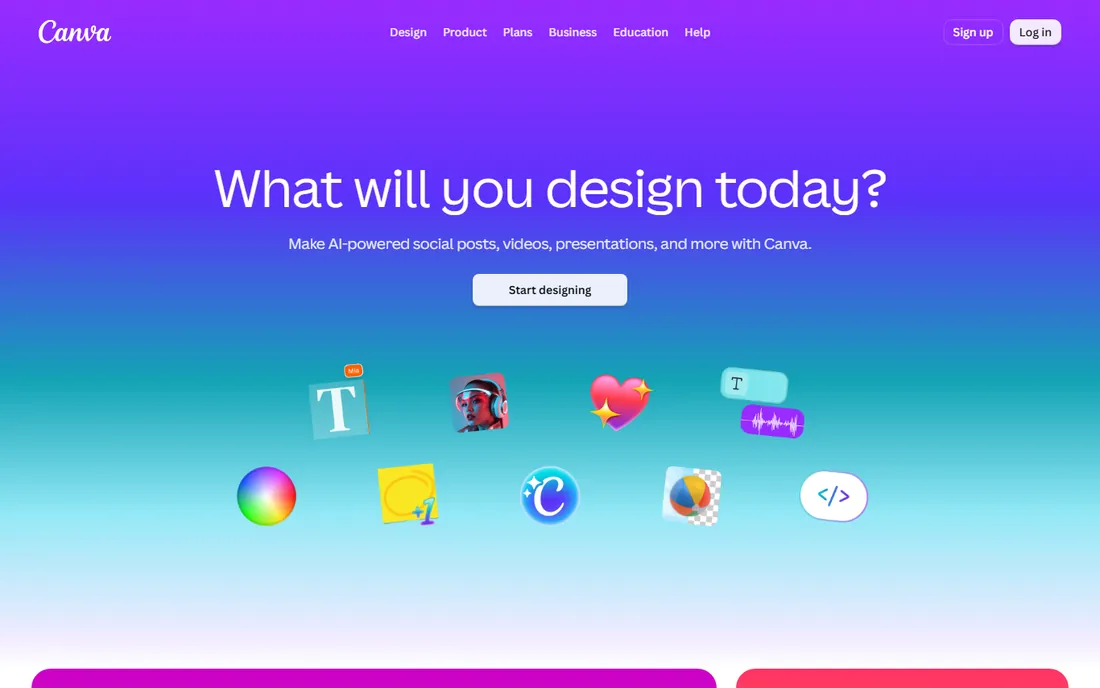
Canva is the reason this category exists in its current form. Its pricing page lists more than 1.6 million templates on the free plan and over 3.6 million templates plus 141 million stock photos, videos and graphics on Pro, according to pricing trackers that checked the page in October 2026. For a beginner, that library matters more than any feature list, because you start from something that already looks good.
The free plan includes the editor, 5GB of storage, one Brand Kit and a monthly AI allowance, which is enough for real work. Pro costs $18 per month or $144 per year and adds background remover, Magic Resize, 100GB of storage and the full premium library. The honest weaknesses are the paywalls on the best features and limited typographic control if you ever move into serious print design. For social posts, presentations and marketing graphics, nothing is easier to start with.
What we like- Huge template and stock library, genuinely useful free plan, easy learning curve
Watch out for- Premium features are paywalled
- Typographic control is thin for print work
Starting price$9.99 per month
Free planYes
Adobe Express is Adobe's answer to Canva, and the family resemblance is deliberate. It is a browser and mobile app for social posts, flyers, videos and presentations, built around templates and one-click editing tools like background removal and image resizing. The differentiator is Adobe's generative AI, which the company describes as commercially safe, a meaningful claim for business use.
The free plan covers the basics. Premium costs $9.99 per month and adds the full template, font and asset libraries plus the complete AI feature set, with a 30-day free trial. Adobe Fonts access alone is worth noting, since typography is where beginner designs usually fall apart.
What we like- Commercially safe generative AI, strong template quality, Adobe Fonts included
Watch out for- Smaller ecosystem than Canva
- Best features need the Premium plan
Starting price$16 per editor/month (billed annually)
Free planYes
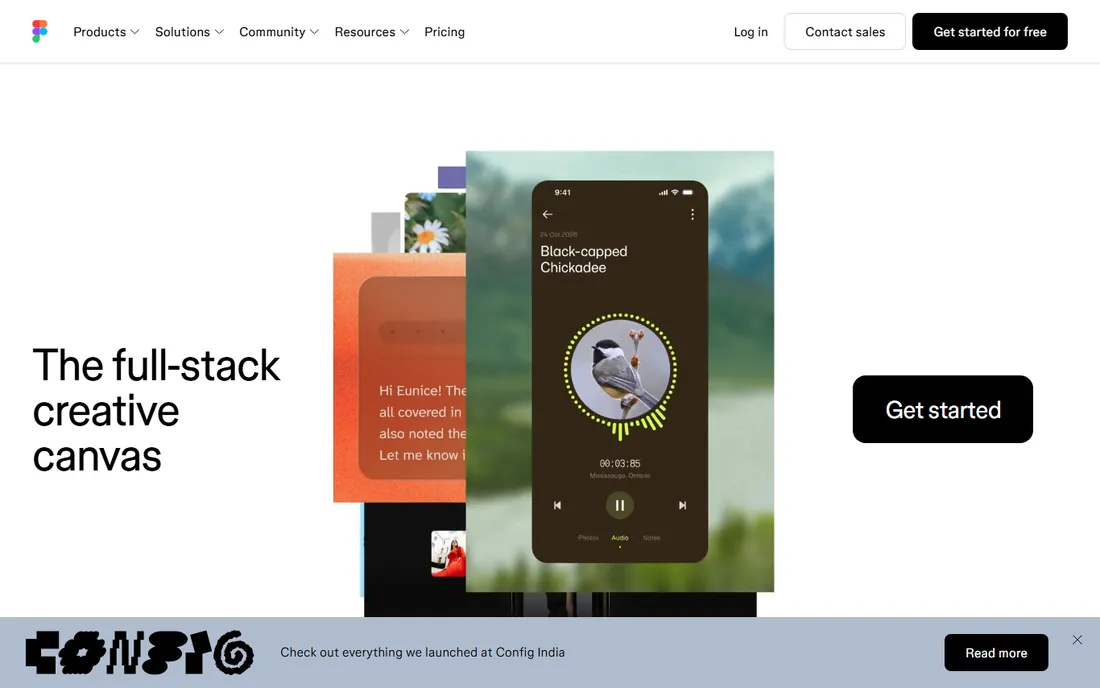
Figma is the professional's tool on this list, but its free Starter plan makes it a legitimate beginner option. It is a collaborative, browser-based canvas for designing interfaces, websites and products, and it is what most professional product teams actually use. Learning it as a beginner means learning the tool you would use on the job.
The Starter plan is free with generous limits for individuals. Paid plans start at $16 per editor per month billed annually, or $20 month to month, and you only need them when you collaborate as a team or need advanced features. The community file library is enormous, full of free templates and UI kits to learn from. The honest catch is scope. Figma is built for interface design, not for whipping up an Instagram post. For that, pair it with one of the template tools on this list.
What we like- Industry-standard UI tool, generous free Starter plan, huge community resources
Watch out for- Overkill for simple social graphics
- Paid seats add up for teams
Starting price$10 per month (billed annually)
Free planYes
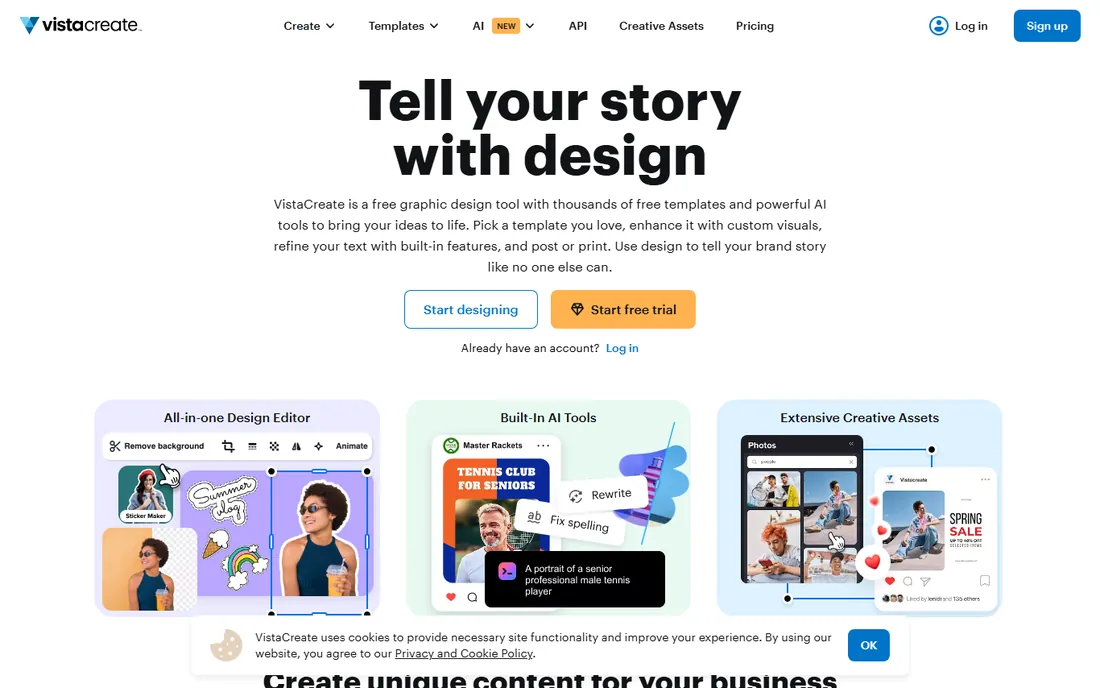
VistaCreate, formerly Crello, is the closest thing to a Canva alternative that stands on its own. It offers more than 200,000 templates, 170 million stock photos, videos and vectors on the Pro plan, and built-in AI tools for image generation, background removal and copywriting. Animation and video features are included, which suits social content.
The pricing undercuts Canva meaningfully. Pro costs $10 per month billed annually or $13 month to month, and it covers up to 10 team seats with no per-seat charge. A 14-day free trial needs no credit card, and the Starter plan is free.
What we like- 200,000+ templates, team seats included in Pro, direct VistaPrint integration
Watch out for- Smaller library than Canva
- Fewer third-party integrations
Starting price$10 per month (billed annually)
Free planYes
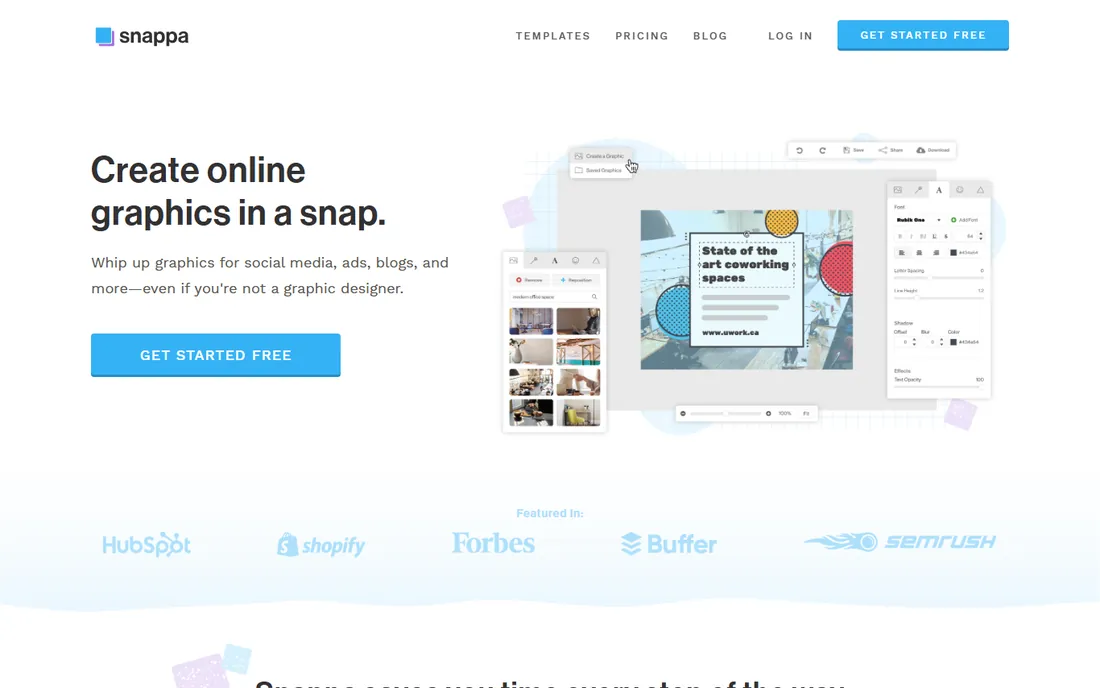
Snappa does one thing and does it fast: social media and marketing graphics. You pick the exact image dimensions for the platform, choose from thousands of templates, drop in text and stock photos, and export. There is no blank-canvas anxiety and no feature maze. For a beginner who needs a Facebook ad or a blog header today, that focus is a feature.
The free Starter plan includes all templates and HD photos but caps you at 3 downloads per month. Pro costs $10 per month billed annually or $15 monthly, and opens up unlimited downloads, background removal, custom fonts and social integrations. A Team plan at $20 per month covers up to 5 users. The limits are clear. There is no animation, no video editing and no print workflow. If your needs stay inside static web graphics, Snappa is one of the fastest tools here.
What we like- Preset image dimensions for every platform, one-click background removal, no learning curve
Watch out for- Free plan limited to 3 downloads per month
- No animation features
Starting price$1.99 per month (billed annually)
Free planYes
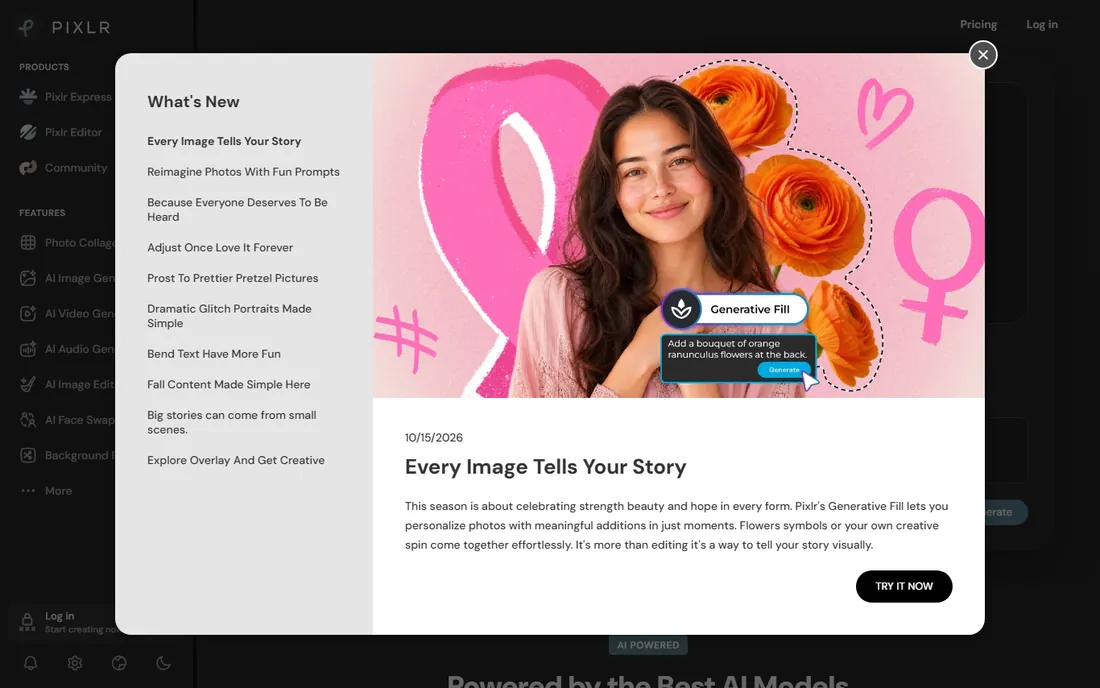
Pixlr is the photo editor of the group, closer to Photoshop than to Canva. It runs entirely in the browser with layers, masks, filters and retouching tools, plus a modern layer of AI features: background removal, generative fill, object removal, upscaling and text-to-image generation. For beginners who want to edit photos rather than assemble templates, this is the natural starting point.
The free version is genuinely capable, though it shows ads and has a daily cap on saves. Paid plans start at $1.99 per month billed annually for Plus, which removes ads and adds AI credits, rising to $7.99 per month for Premium with 1,000 monthly AI credits and the full asset library. Pixlr's own homepage notes that plans start at $1.99 per month. The interface is busier than Canva's, which is the price of real editing power, but anyone who has used Photoshop will feel at home quickly.
What we like- Real layers and masks like Photoshop, AI tools built in, no install needed
Watch out for- Free tier has ads
- Interface is busier than template tools
Starting price$7.99 per month
Free planFree trial
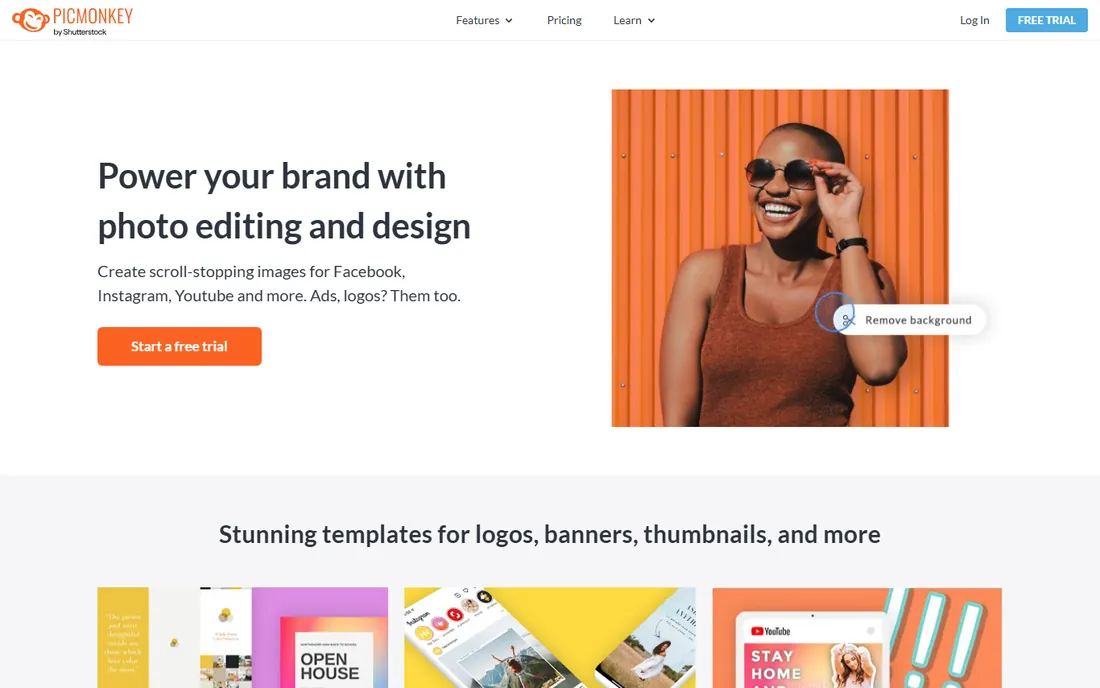
PicMonkey has been around since before Canva, and its photo editing roots still show. It combines photo retouching, touch-up tools and collage making with templates for social posts, logos, invitations and ads. The brand kit features let small businesses stash logos, fonts and colors for consistent designs, and stock photos come from Shutterstock.
The important detail is the pricing model. PicMonkey offers no permanent free plan, only a 7-day free trial. After that, Basic costs $7.99 per month and Pro costs $12.99 per month, with Pro adding background removal, smart resize, unlimited storage and animation tools. That makes it a harder sell as a first tool when Canva and Adobe Express give so much away free. But if photo editing is your priority and you want it wrapped in an easy design tool, the trial is worth the week.
What we like- Strong photo editing and touch-up tools, brand kit features, Shutterstock images
Watch out for- No permanent free plan
- Trial only, then you must subscribe
Starting price$4.95 per month (billed annually)
Free planYes
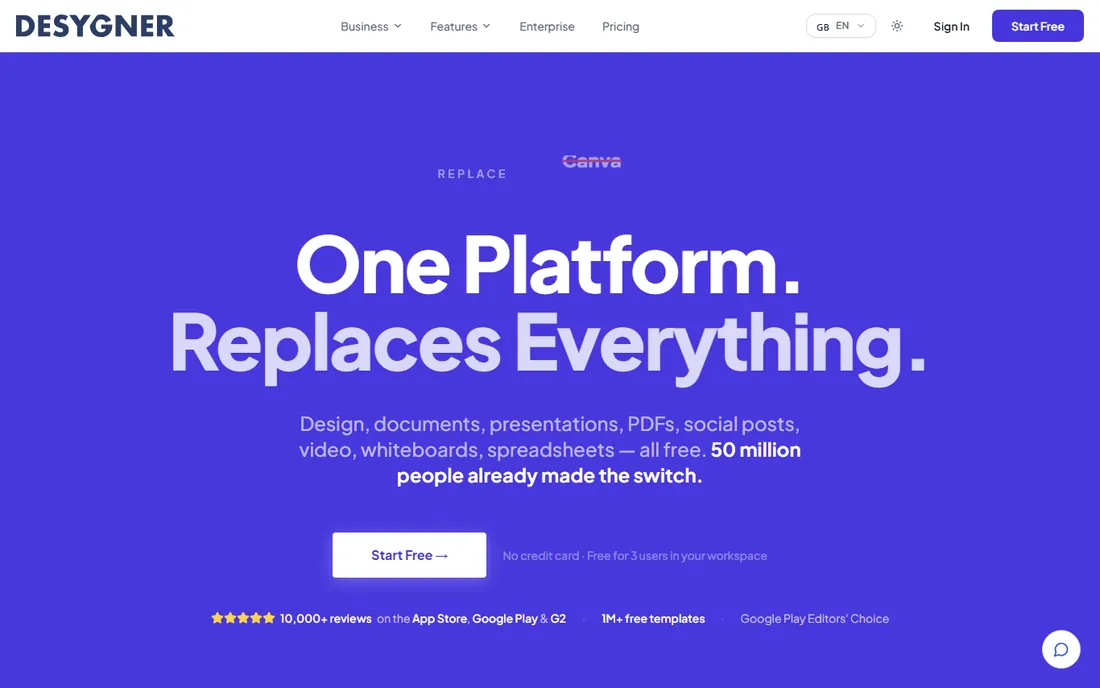
Desygner is the Australian underdog that keeps adding features faster than its price suggests. It covers design, documents, presentations, PDFs, social posts and video in one app, with thousands of free templates on the free plan. The standout features for beginners are real PDF editing, which most competitors lack, and built-in print ordering for business cards, flyers and merchandise.
The pricing is the cheapest here. Pro+ costs $4.95 per month billed annually or $9.95 month to month, adding premium templates, unlimited PDF editing, Shutterstock images and brand kits. The company claims 50 million users. The tradeoff is polish. The template library and editor feel a step behind Canva, and the ecosystem of integrations is smaller. For budget-conscious beginners who also need PDF and print workflows, it punches above its price.
What we like- Cheapest paid plan on this list, real PDF editing, print ordering built in
Watch out for- Smaller template library
- Less polished than Canva
Starting priceFree
Free planYes
GIMP is the free, open source answer to Photoshop, and it has been for decades. The GNU Image Manipulation Program handles photo retouching, image composition and graphic design with layers, masks, filters and color management. It runs on Windows, macOS and Linux, and version 3.2.6 arrived in September 2026, so development is active.
Everything is free, forever, under the GPL. The plugin and script ecosystem is enormous, and the community has produced tutorials for nearly every task. The honest catch is the learning curve. GIMP's interface follows its own logic rather than Photoshop's, and beginners face weeks of learning before they feel fluent. It is not a template tool and will never be as fast as Canva for a quick social post. But for a beginner willing to invest time, it teaches real image editing skills that transfer anywhere.
What we like- Professional-grade raster editing, completely free and open source, huge plugin library
Watch out for- Steep learning curve
- Interface feels dated
Starting priceFree
Free planYes
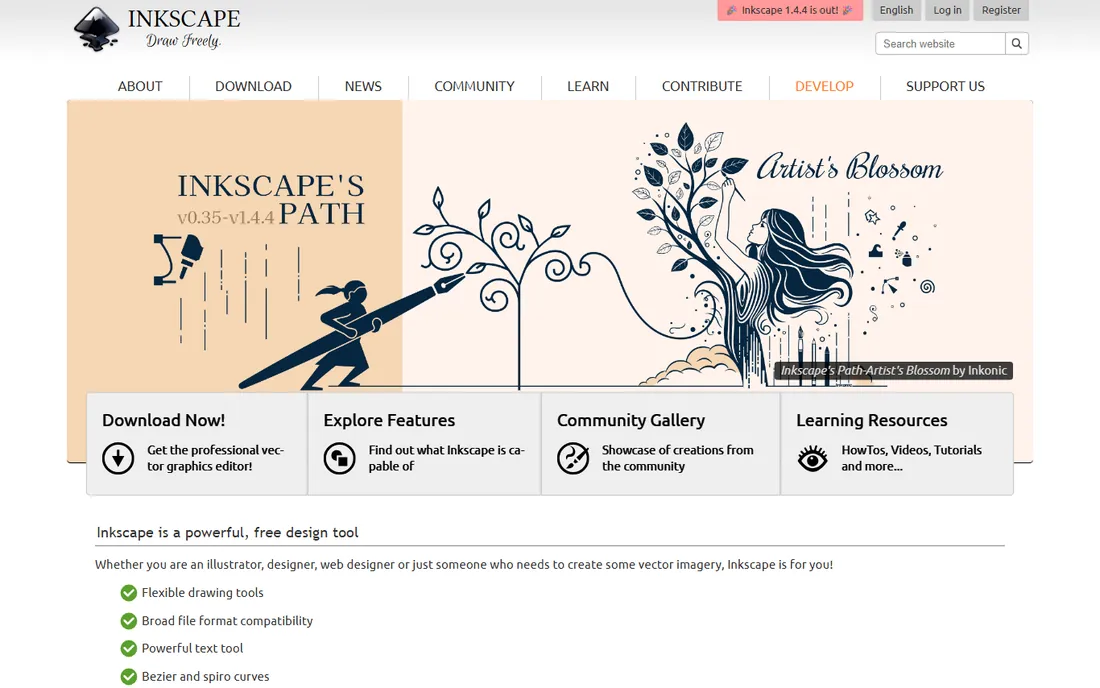
Inkscape is GIMP's vector sibling, and the two are often mentioned in the same breath. Where GIMP edits pixels, Inkscape draws resolution-independent vector graphics: logos, icons, illustrations, diagrams and typography. It uses SVG as its native format and imports and exports AI, EPS and PDF, which makes it practical for real design work.
Like GIMP, it is completely free and open source, maintained by a volunteer community. Version 1.4.4 from May 2026 is the current stable release. For a beginner, Inkscape is the free route to logo design, since vectors scale to any size without losing quality.
What we like- Professional vector editing with SVG, completely free, great for logos
Watch out for- Vector only, no photo editing
- Learning curve for bezier tools
How we chose
We opened every vendor homepage and read the current product and pricing pages. Prices come from the vendors' own pricing pages, checked against October 2026 sources where the vendor page itself could not be rendered. Where a vendor does not publish a price we say so. We compared feature claims with public reviews on G2, Capterra and Trustpilot, and with practitioner discussion on Reddit. We excluded tools that were discontinued or that do not fit the beginner category. No vendor paid for placement and we did not claim hands-on testing.
The right first tool depends on what you will make most often, not on which one has the longest feature list. Answer these questions and the choice gets simple.
What will you design?
Social posts, ads and presentations point to Canva, Adobe Express, VistaCreate or Snappa. Photo editing points to Pixlr, PicMonkey or GIMP. Logos and illustrations point to Inkscape or Figma. Interface and web design points to Figma. Pick the tool whose templates match your actual output.
How much time will you invest in learning?
Template tools like Canva and Snappa produce good results in an afternoon. GIMP and Inkscape take weeks to learn but teach transferable skills. Be honest about the time you have. A powerful tool you never learn is worse than a simple tool you use daily.
Does the free plan cover your needs?
Canva, Adobe Express, Figma, VistaCreate, Snappa, Pixlr, Desygner, GIMP and Inkscape all have free tiers or are completely free. Only PicMonkey requires payment after its trial. Start free everywhere, and only pay when you hit a specific limit like download caps, storage or premium assets.
Will you use designs commercially?
Most tools here allow commercial use of your designs on paid plans, and many allow it on free plans too. Check the license for stock photos and fonts, because those carry separate terms. Adobe Express emphasizes commercially safe AI generation, which matters if clients ask where your images come from.
Do you need to work on mobile?
Canva, Adobe Express, Pixlr, Desygner and VistaCreate all have capable mobile apps. GIMP and Inkscape are desktop only. If you design on a phone or tablet, that filter alone narrows the list.
When free stops being enough
Every free plan on this list has a ceiling, and knowing where it sits saves frustration. Canva's free plan holds back the background remover, Brand Kit controls beyond one kit, and premium stock. Snappa's free plan stops at 3 downloads per month, which runs out fast if you post daily. Pixlr's free tier shows ads and caps daily saves.
The upgrade math is simple. If a paid feature saves you an hour a month, the cheapest plans here pay for themselves. Desygner Pro+ at $4.95 per month billed annually is the lowest financial bar. Pixlr Plus at $1.99 per month is even lower if photo editing is the need. Canva Pro at $18 per month is the premium pick, justified by the library size.
Watch the billing terms. Annual billing cuts the monthly cost significantly: Canva drops from $18 to $12 per month equivalent, VistaCreate from $13 to $10, Snappa from $15 to $10. Monthly billing is fine for testing, but switch to annual once you know the tool fits. And check what happens to your designs if you cancel. Most tools keep your work readable but lock premium elements, so export finished designs in standard formats.
Frequently asked questions
What is the easiest design software for beginners?
Canva. Its template library, drag-and-drop editor and generous free plan mean a complete beginner can produce a decent social post within an hour. Adobe Express and VistaCreate are close alternatives with the same template-first approach.
Is Canva really free?
The free plan is real and useful, with over 1.6 million templates, 5GB of storage and basic AI features. The catch is that premium templates, the background remover and the full stock library need Pro at $18 per month or $144 per year. Many beginners never need to upgrade.
Do I need to pay for stock photos?
Not necessarily. Canva, VistaCreate, Snappa, Pixlr and Desygner all include free stock photos on their free plans. PicMonkey bundles Shutterstock images on paid plans. If you need a specific premium image, most tools sell or include them individually, so check the license before using them in client work.
Can beginners use GIMP or Inkscape instead of paid tools?
Yes, and many do. GIMP handles photo editing and Inkscape handles vector illustration, both free forever. The tradeoff is time. Expect weeks of learning before you work quickly, versus an afternoon with Canva. Beginners on a budget with time to learn get enormous value from the pair.
Which design tool is best for social media?
Canva and Snappa are the most focused on social. Canva has the bigger library and scheduling features, while Snappa is faster for one-off graphics with its preset platform dimensions. VistaCreate adds animation and direct print ordering if you also need physical materials.
Should I learn Figma as a beginner?
If you want to design websites, apps or interfaces, yes. Figma is the industry standard and its free Starter plan is enough to learn on. If you only need marketing graphics, start with Canva instead and come back to Figma when interface work appears.
Sources we checked (10)
- https://www.canva.com/
- https://www.adobe.com/express/
- https://www.figma.com
- https://create.vista.com/
- https://snappa.com/
- https://pixlr.com
- https://picmonkey.com/
- https://desygner.com
- https://www.gimp.org/
- https://inkscape.org/
Is your product missing or out of date?
We review this list regularly. Vendors can request a listing, send updated pricing or ask about featured placement.

Shihab Mia · Founder, Rankite
Shihab has 5+ years in B2B and SaaS SEO. He writes Rankite's software buying guides from pricing pages, documentation and public user reviews. More about Shihab.