How we make this list: we compare pricing pages, product documentation and public user reviews. Rankite is independent; if a vendor ever pays for a featured spot, that listing is clearly labeled Partner.
Key takeaways
- ScreenToGif (free, open source) is the best desktop GIF recorder for Windows: record, edit frame by frame, export.
- Ezgif (free, browser-based) handles every conversion and optimization task without installing anything.
- GIPHY (free) is the fastest path from a video clip to a shareable GIF with captions and stickers.
- Kapwing ($16 per month Pro) is the pick when GIFs are part of a bigger content workflow with video editing.
Quick comparison
| Tool | Best for | Starting price | Free plan |
|---|
 ScreenToGif ScreenToGif | Recording your screen directly to GIF on Windows | Free (open source) | Yes |
 GIPHY GIPHY | Turning video clips into shareable GIFs in seconds | Free | Yes |
 Canva Canva | Designed GIFs with text, branding and templates | See website | Yes (free plan) |
 Adobe Express Adobe Express | Branded GIFs inside the Adobe ecosystem | See website | Yes (free plan) |
 Ezgif Ezgif | Free browser-based GIF editing, conversion and optimization | Free | Yes |
 Kapwing Kapwing | GIFs as part of a video content workflow | $16/month (Pro plan) | Yes (free plan with watermark) |
 GIMP GIMP | Free frame-by-frame animation with full image-editing power | Free (open source) | Yes |
 Instagiffer Instagiffer | Fast, free GIFs from screen capture or video files on desktop | Free | Yes |
Is your product missing or out of date?
We review this list regularly. Vendors can request a listing, send updated pricing or ask about featured placement.
The best GIF maker software
You need a GIF. Maybe it is a product demo looping on a landing page, a bug report that shows instead of tells, or a reaction clip for the team chat. The wrong tool turns a two-minute job into a twenty-minute one: wrong frame rate, giant file size, ugly dithering. The eight below are the tools that get out of the way, split between recorders, editors and design apps.
Eight GIF makers worth your time
#1
ScreenToGif
Best for: Recording your screen directly to GIF on Windows
Visit nicke.tech
Starting priceFree (open source)
Free planYes
ScreenToGif is the enthusiast's choice for a reason: it treats GIF creation as a craft. Record a region of your screen, then step through the frames, delete the dead ones, add text, adjust timing and export an optimized GIF. The editor is the differentiator; most recorders give you a file and no way to fix it.
It is free and open source, actively maintained on GitHub. The one wrinkle is the website move: screentogif.com now redirects to the developer's nicke.tech site, so download from there or GitHub. For tutorial GIFs, bug reports and demos on Windows, nothing free is better.
What we like- Records screen, webcam or sketchboard and exports to GIF with a full frame editor
- Free and open source with active development (version 2.43 released in 2026)
- Precise control over frame rate, cropping and optimization
Watch out for- Windows only
- The old screentogif.com domain now forwards to the developer's site, which confuses first-time downloaders
#2
GIPHY
Best for: Turning video clips into shareable GIFs in seconds
Visit giphy.com
Starting priceFree
Free planYes
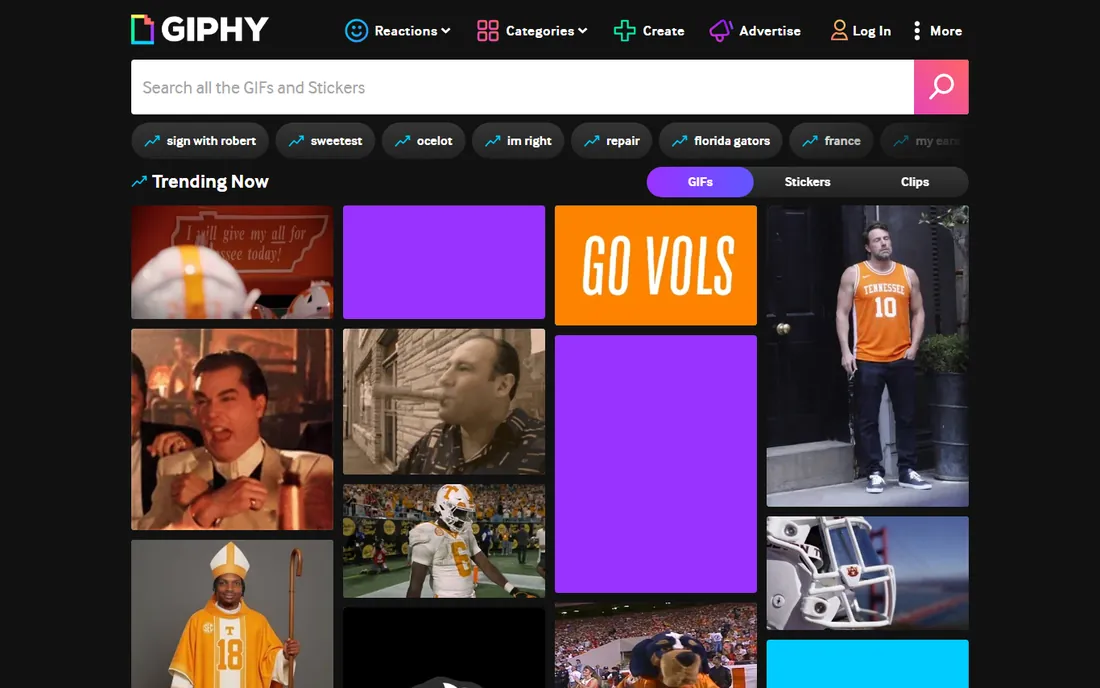
GIPHY's GIF maker is the path of least resistance. Paste a video URL or upload a clip under the length limit, trim the moment, add a caption or sticker, and you have a GIF ready to share or embed. No install, no account friction for basic use, no watermark. For reaction GIFs and social content, it is done before a desktop app finishes launching.
It is not an editor: frame-level control, optimization settings and batch work live elsewhere. And creations upload to GIPHY's ecosystem, which is the point for social sharing but wrong for internal documentation. For fast, fun, public GIFs, start here.
What we like- The fastest path from a video or URL to a finished GIF with captions, stickers and filters
- Massive built-in library when you would rather find than make
- Free with no watermark on creations
Watch out for- Built for sharing and discovery, not precise editing
- Uploads go to GIPHY's platform, which suits public content more than private work files
#3
Canva
Best for: Designed GIFs with text, branding and templates
Visit canva.com
Starting priceSee website
Free planYes (free plan)
Canva treats GIFs as design objects. Start from an animated template, swap in your text and brand colors, and export a GIF that looks designed rather than captured. For marketing teams making social ads, announcements and branded reactions, the template library beats building from scratch every time.
The animation itself is simple: fades, rises and page-style transitions rather than true frame animation. Pricing was not visible on the pricing page during our check, so confirm the current Pro rate. For designed, on-brand GIFs at volume, Canva is the efficient choice.
What we like- Thousands of animated templates make polished GIFs without design skills
- Brand kits keep colors and fonts consistent
- Exports GIFs alongside every other social format
Watch out for- Pricing is not published on the pricing page we could load
- Animation control is template-driven rather than frame-precise
#4
Adobe Express
Best for: Branded GIFs inside the Adobe ecosystem
Visit adobe.com
Starting priceSee website
Free planYes (free plan)
Adobe Express is Adobe's answer to Canva, and the GIF workflow is similar: template, customize, animate, export. The free plan covers genuine creation, while Premium adds the AI features, background removal and stock library. Integration with Creative Cloud libraries matters if your team already lives in Adobe.
Like Canva, it designs GIFs rather than capturing them: no screen recording, no frame editor. Pricing was not shown on the pricing page, only plan names. For teams standardized on Adobe making branded social GIFs, it fits naturally.
What we like- A real free plan for basic creation
- Templates and stock assets with Adobe quality
- Firefly AI features for generating and editing visuals
Watch out for- No prices shown on the pricing page
- Premium features like background removal need the paid plan
#5
Ezgif
Best for: Free browser-based GIF editing, conversion and optimization
Visit ezgif.com
Starting priceFree
Free planYes
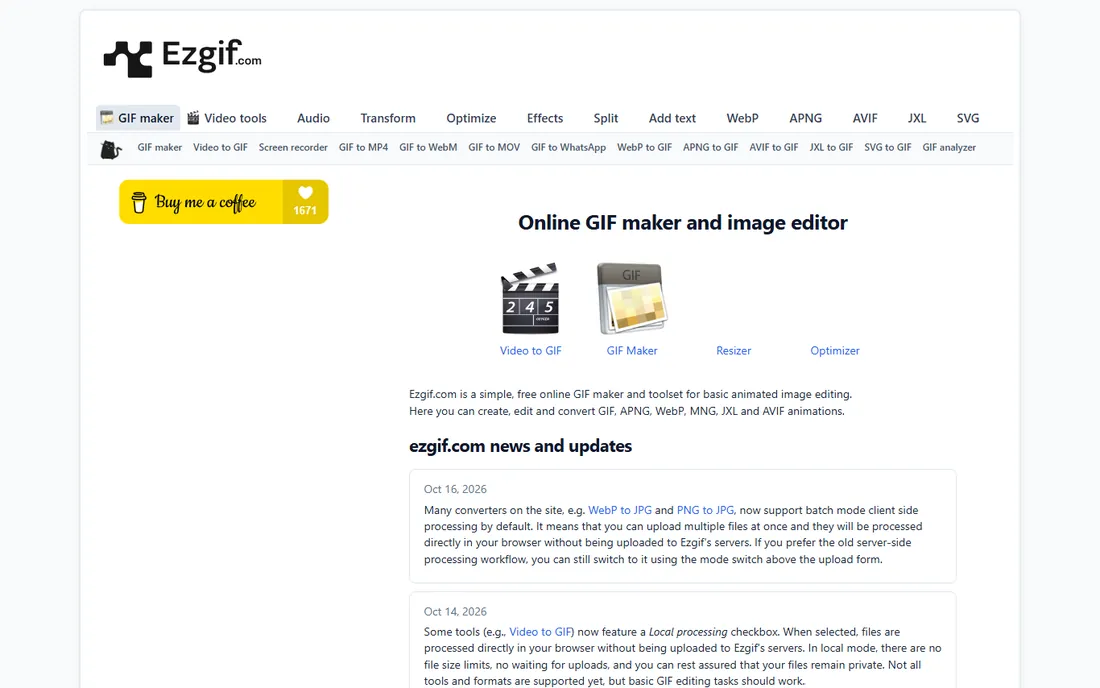
Ezgif is the Swiss army knife of GIFs. Need to shrink a 10MB GIF for Discord? Convert video to GIF? Split a GIF into frames, or build one from images? It does all of it free in the browser, and the 2026 addition of local in-browser processing removes the old privacy complaint for basic tasks. No account, no watermark, no install.
The design is function over form, and heavy files still hit limits on server processing. But as a utility, it is unmatched: bookmark it next to whatever creator you use, because every GIF workflow eventually needs optimization or conversion.
What we like- Completely free with an enormous toolset: maker, splitter, optimizer, resizer, video-to-GIF and format converters
- New local-processing mode keeps files private in the browser
- Actively developed with 2026 updates
Watch out for- The utilitarian interface shows its age
- Free service with upload limits on server-side processing
Starting price$16/month (Pro plan)
Free planYes (free plan with watermark)
Kapwing earns its place when GIFs are outputs, not the whole job. Edit the video, add subtitles, then export the highlight as a GIF, all in one browser tab. Content teams use it to turn podcasts, webinars and streams into clips and GIFs without switching apps. The pricing is public: free with watermark, Pro $16 per month, Business $50.
For pure GIF creation it is heavier than needed, and the free watermark rules out professional use. But if your GIFs come from video content you already edit, Kapwing collapses two tools into one.
What we like- Full video editor that exports GIFs, so memes, clips and promos share one workflow
- Auto-subtitles and smart tools speed up content
- Pro at $16 per month removes watermarks and adds 4K export
Watch out for- The free plan watermarks exports
- Overkill if you only ever make simple GIFs
#7
GIMP
Best for: Free frame-by-frame animation with full image-editing power
Visit gimp.org
Starting priceFree (open source)
Free planYes
GIMP is the craftsman's GIF tool. Open frames as layers, edit each one with the full power of a Photoshop-class editor, set frame timings, and export an optimized GIF. For animated logos, pixel art and hand-tweaked loops, the control is total. It is free, open source and runs everywhere.
Nobody chooses GIMP for speed. Recording a screen or converting a clip is faster in every other tool here. Choose GIMP when the GIF itself is the artwork and each frame deserves attention, not when you need a quick capture.
What we like- Complete control: every frame is a layer you can paint, filter and transform
- Free and open source with no limits
- Huge plugin ecosystem for animation effects
Watch out for- The learning curve is real
- Making GIFs this way is slow compared with recorders
#8
Instagiffer
Best for: Fast, free GIFs from screen capture or video files on desktop
Visit instagiffer.com
Starting priceFree
Free planYes
Instagiffer is the simple free desktop option. Capture your screen or drop in a video, trim, add text and effects, and export a clean GIF with no watermark. It has been around since 2013 doing exactly this, and the workflow remains one of the easiest for beginners.
It shows its age next to ScreenToGif: less active development, a dated site, thinner editing. But it runs on Windows and Mac, costs nothing, and makes good GIFs with minimal learning. For occasional GIF needs on a Mac, where ScreenToGif does not run, it is the free pick.
What we like- Free with no watermark
- Captures screen or converts video files with text, effects and quality controls
- Simple enough for total beginners
Watch out for- Development pace is slow and the site looks dated
- Fewer features than ScreenToGif's editor
What to check before you make GIFs
File size decides whether your GIF works. A 15MB GIF on a landing page loads slowly and eats mobile data; aim under 1-2MB for web use. Ezgif's optimizer and target-size compressor exist for exactly this: shrink dimensions, drop frames and reduce colors until the file fits. ScreenToGif's export settings do the same at creation time.
Second, match the tool to the source. Screen recordings become GIFs best in ScreenToGif or Instagiffer. Video clips go fastest through GIPHY or Ezgif. Designed graphics belong in Canva or Adobe Express. Hand-drawn animation belongs in GIMP. Using a video converter for screen capture, or a designer for a bug report, wastes time.
Third, check the loop. A GIF that stutters at the loop point looks broken. Trim so the last frame flows into the first, or use a bounce (ping-pong) loop for back-and-forth motion. This single detail separates professional GIFs from amateur ones.
How we chose
We started with the searches buyers actually run: GIF maker software, create GIF from video, screen to GIF recorder. For each candidate we opened the vendor's homepage, read the pricing page, and confirmed the free tier's real terms. We compared creation features against public reviews and practitioner discussion, kept tools that are actively available in 2026 (including ScreenToGif's move to nicke.tech), and favored distinct strengths over duplicates. Where a price could not be verified on the vendor's own page, we wrote "See website" instead of guessing.
GIF vs video: when the loop loses
GIFs are beloved and technically terrible: no sound, 256 colors, huge files. For many jobs, a looping muted MP4 or WebM does the same work at a tenth the size with better quality. Social platforms increasingly prefer video; web performance guides recommend replacing GIFs with video.
So when is GIF still right? Email, where video support is unreliable. Chat apps and forums with native GIF support. Simple animations where the format's universality beats efficiency. Documentation where a looping clip embeds anywhere an image does. Everywhere else, consider exporting the same capture as MP4: ScreenToGif, Ezgif and Kapwing all do it. Use GIF where the ecosystem demands it, video where quality and size matter.
Frequently asked questions
What is the best free GIF maker?
ScreenToGif for recording on Windows, Ezgif for browser-based editing and conversion, GIPHY for quick video-to-GIF. All three are free with no watermark on the basics.
How do I make a GIF from a video?
Upload the clip to GIPHY or Ezgif's video-to-GIF tool, trim the section, and export. For screen recordings, use ScreenToGif (Windows) or Instagiffer (Windows/Mac) to capture directly to GIF.
How do I make a GIF file smaller?
Reduce dimensions, lower the frame rate, and cut frames with Ezgif's optimizer or ScreenToGif's export settings. Ezgif's target-size compressor can hit specific limits like 256KB for Discord automatically.
Can I make GIFs on a Mac for free?
Yes. Instagiffer runs on Mac, GIPHY and Ezgif work in any browser, and Canva and Adobe Express have free plans. ScreenToGif is Windows-only.
Do free GIF makers add watermarks?
The dedicated free tools here (ScreenToGif, Ezgif, GIPHY, GIMP, Instagiffer) do not watermark. Kapwing's free plan does watermark exports; the $16 per month Pro plan removes it.
Sources we checked (8)
- https://nicke.tech/
- https://giphy.com/
- https://www.canva.com/
- https://www.adobe.com/express/pricing
- https://ezgif.com/
- https://www.kapwing.com/pricing
- https://www.gimp.org/
- https://instagiffer.com/
Is your product missing or out of date?
We review this list regularly. Vendors can request a listing, send updated pricing or ask about featured placement.

Shihab Mia · Founder, Rankite
Shihab has spent more than a decade helping SaaS and e-commerce brands grow through search. He writes Rankite's software buying guides from pricing pages, documentation and public user reviews. More about Shihab.