How we make this list: we compare pricing pages, product documentation and public user reviews. Ratings come from G2, Capterra or Trustpilot, with the date we checked them.
Key takeaways
- DaVinci Resolve gives beginners the most room to grow, with a full free editor, color tools, and audio tools, and no watermark on free exports.
- CapCut and Clipchamp are the fastest routes to finished social videos, with templates, auto-captions, and simple timelines.
- iMovie is the easiest first editor if you already use a Mac, iPhone, or iPad, but it is not available on Windows or Android.
- OpenShot, Shotcut, and Kdenlive are free and open source, so you never face a subscription, though their interfaces feel less polished than commercial apps.
- Lightworks and VSDC suit beginners who want a more traditional desktop editor, but both have limits or learning curves to check before you commit to a long project.
Quick comparison
| Tool | Best for | Starting price | Free plan |
|---|
 CapCut CapCut | Short social videos and captions | See website | Yes |
 DaVinci Resolve DaVinci Resolve | Growing from beginner to serious editor | Free | Yes |
 Clipchamp Clipchamp | Quick browser edits on Windows | Free | Yes |
 iMovie iMovie | First edits on Apple devices | Free | Yes |
 OpenShot OpenShot | Very simple desktop edits | Free | Yes |
 Shotcut Shotcut | Free editing on modest computers | Free | Yes |
 Kdenlive Kdenlive | Free multi-track editing | Free | Yes |
 Lightworks Lightworks | Traditional timeline editing | Free | Yes |
 VSDC Video Editor VSDC Video Editor | Windows users who want detail | Free | Yes |
Is your product missing or out of date?
We review this list regularly. Vendors can request a listing, send updated pricing or ask about featured placement.
The best free video editing apps for beginners
Starting priceSee website
Free planYes
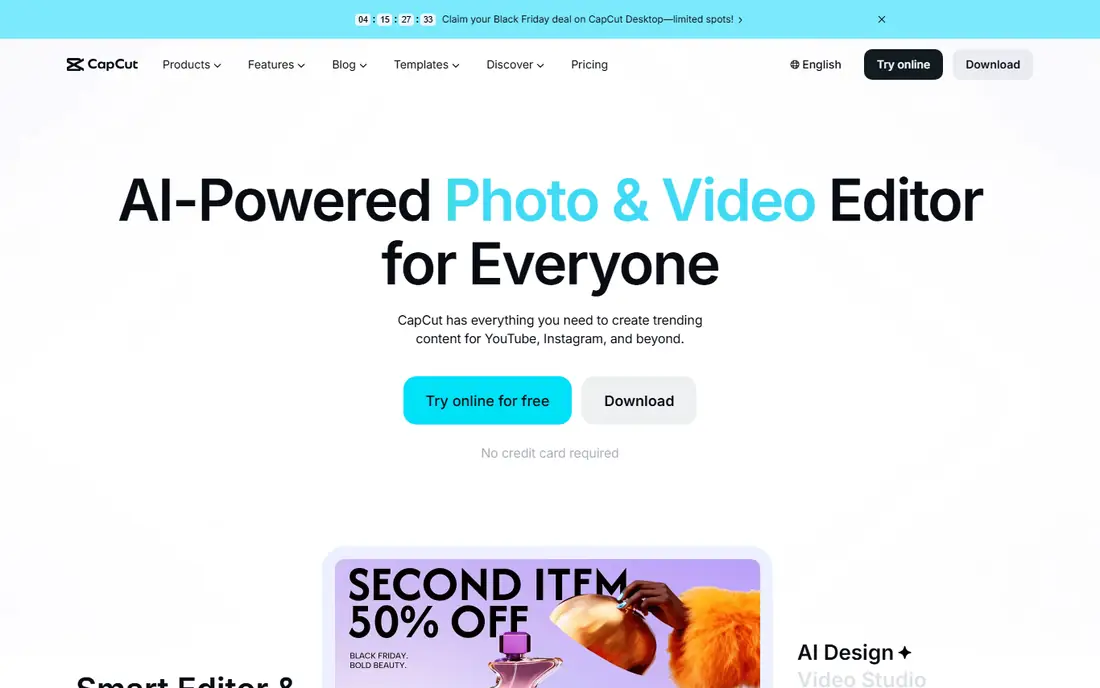
CapCut is the obvious starting point if your videos live on TikTok, Instagram Reels, or YouTube Shorts. You open a template or a blank timeline, drop in clips, add captions, and export a vertical video in minutes. The auto-caption tool saves a lot of manual typing, and the effects library is broad enough that a first video can look current without much effort.
The catch is that the free plan is not the whole product. Premium templates, some effects, and higher-resolution exports require a paid plan, and the exact price can differ depending on whether you pay on the web or inside an app store. That matters less if you publish at 1080p and use standard tools. If you plan to edit longer YouTube videos, a desktop editor further down this list will give you more control for no monthly cost.
What we like- Large template and effects library
- Fast auto-captions
- Works on mobile, desktop, and web
Watch out for- Some features and 4K export sit behind paid plans
- Prices vary by platform and region
Starting priceFree
Free planYes
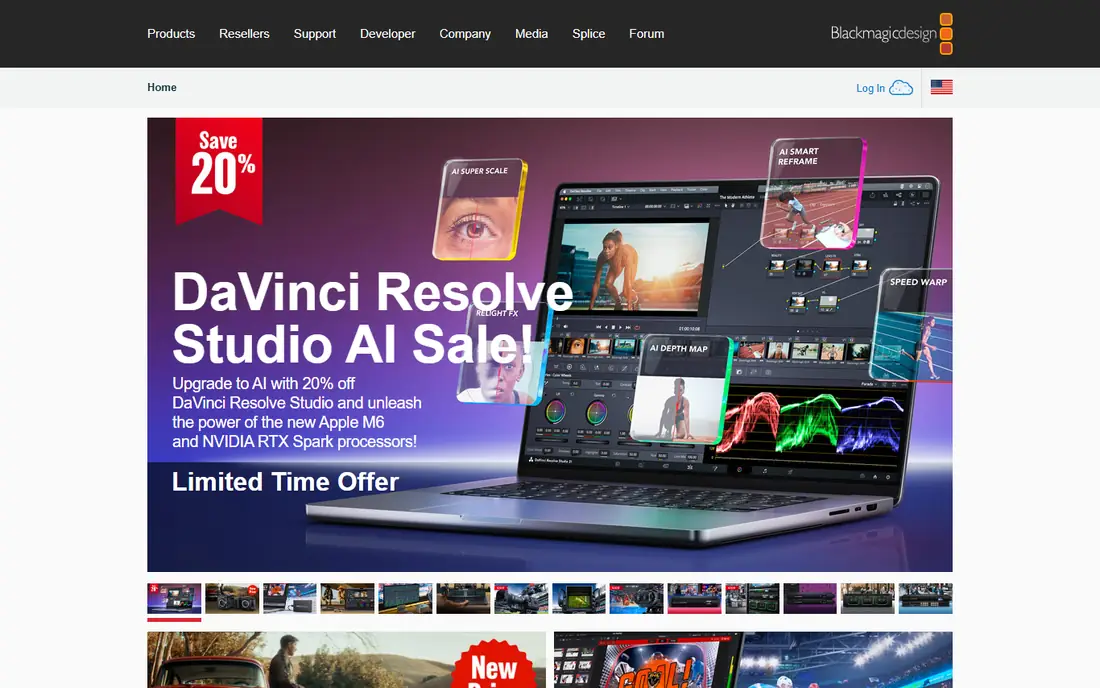
DaVinci Resolve is a professional editor with a genuinely useful free version, not a trial dressed up as a free plan. The free edition covers editing, color grading, effects, and audio, and exports up to Ultra HD at 60 frames per second. For a beginner, that means you can learn real editing habits, such as organizing media, trimming on the timeline, and grading color, without hitting a paywall after a week.
The honest downside is weight. Resolve runs best on a reasonably modern computer with enough memory and graphics power, and its many pages can confuse a first-time user. Start with the Edit page only, and ignore the Fusion and Fairlight pages until you need them. If your computer struggles, Shotcut or OpenShot will feel lighter. If it runs well, Resolve is the one free editor you may never outgrow, with Studio available as a one-time purchase of 295 dollars when you need its extra tools.
What we like- Full editing, color, effects, and audio pages
- No watermark on free exports
- One-time Studio upgrade available
Watch out for- Demanding on older computers
- The full interface can feel large at first
#3Clipchamp
Best for: Quick browser edits on Windows4.1/5 on
G2 (49 reviews, checked Oct 2026)
Visit clipchamp.com
Starting priceFree
Free planYes
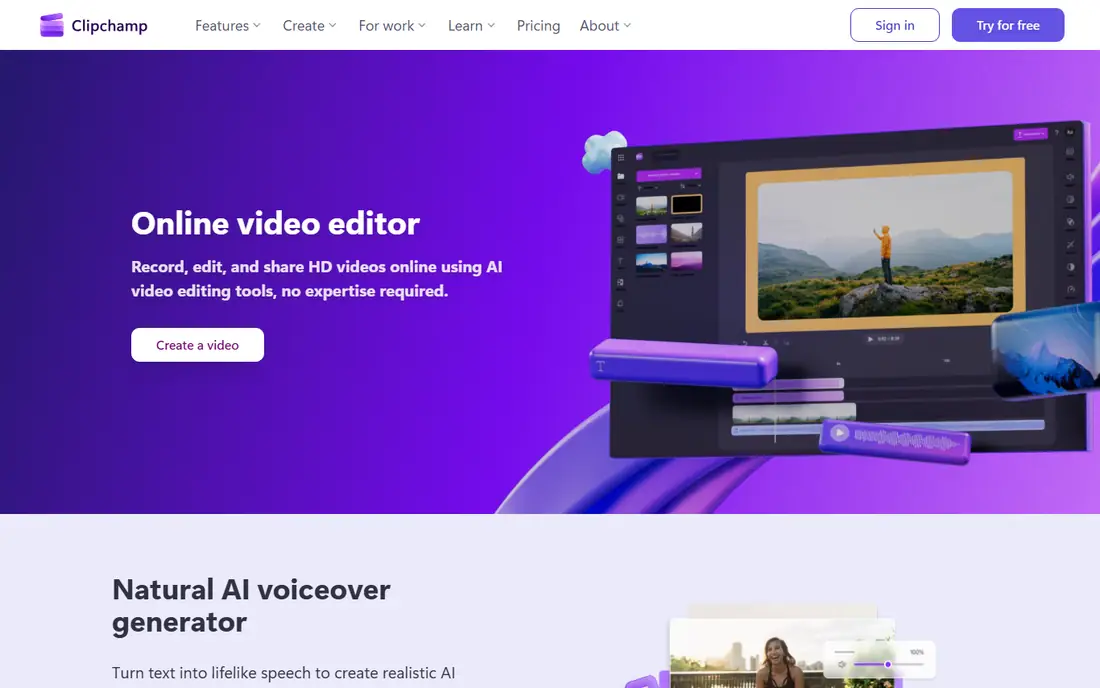
Clipchamp suits Windows users who want to edit without installing a large desktop program. Because it runs in Microsoft Edge or Chrome, you can start on one computer and pick up the project on another, as long as you sign in to the same account. The timeline uses simple drag and drop, and the free plan includes unlimited watermark-free exports up to 1080p, which covers most social video.
The limit to note is resolution and stock. If you need 4K export or the full premium stock library, you need a paid plan, often bundled with Microsoft 365. For school projects, internal work videos, and social clips, the free plan is usually enough. For a longer documentary or a project with many large files, a desktop editor will handle the workload with less browser strain.
What we like- Runs in the browser with no heavy install
- Watermark-free exports up to 1080p on the free plan
- Auto-captions and text-to-speech included
Watch out for- 4K export and premium stock require a paid plan
- Longer projects can feel slow in a browser
#4iMovie
Best for: First edits on Apple devices4.3/5 on
G2 (568 reviews, checked Oct 2026)
Visit apple.com
Starting priceFree
Free planYes
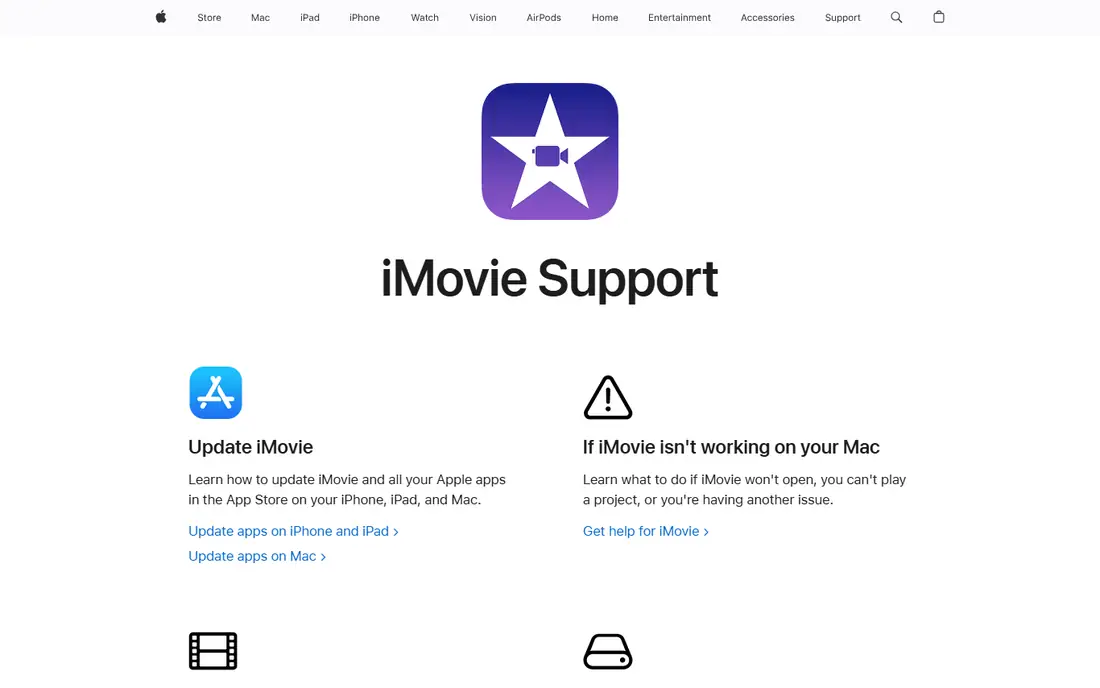
If you own a Mac, iPhone, or iPad, iMovie is the lowest-friction way to make a first video. The interface hides most technical choices, trailers and themes give a rough cut a finished shape, and you can start a project on a phone and finish it on a Mac. For family videos, class projects, and short YouTube videos, it rarely gets in the way.
Its limits show up when you want finer control. You get fewer audio tracks, fewer color tools, and less freedom over titles and effects than Resolve or Kdenlive offer. That is a fair trade for a first editor, and many beginners never feel the limit. If you later want more control, your clips and your sense of pacing transfer directly to a fuller editor.
What we like- Included free on Mac, iPhone, and iPad
- Very simple timeline and trailers
- Direct sharing to YouTube and other services
Watch out for- Apple devices only
- Limited advanced controls compared with desktop editors
#5OpenShot
Best for: Very simple desktop edits4.5/5 on
G2 (31 reviews, checked Oct 2026)
Visit openshot.org
Starting priceFree
Free planYes
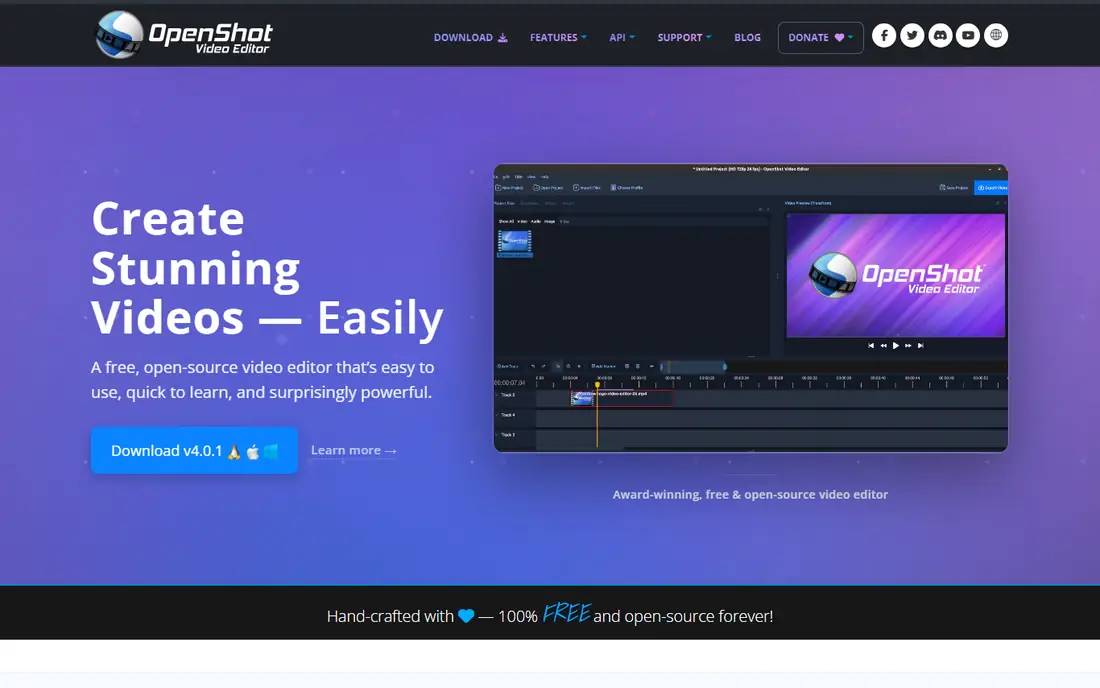
OpenShot is built for people who want to trim clips, add titles, and join scenes without learning a complex program. The timeline is clear, the basic transitions are easy to find, and there is no account, subscription, or watermark to manage. It runs on Windows, Mac, and Linux, so it is a safe pick if you switch computers later.
The weakness is scale. OpenShot handles short, simple projects well, but large 4K projects with many effects can slow down or crash, so save often and keep early projects modest. If your edits stay short and simple, that weakness may never matter. If you plan to edit weekly YouTube videos with many layers, Shotcut or Resolve will hold up better.
What we like- Free and open source with no subscription
- Simple drag-and-drop timeline
- Unlimited tracks and layers
Watch out for- Can feel slow or unstable on large projects
- Fewer advanced effects than Resolve
#6Shotcut
Best for: Free editing on modest computers4.2/5 on
G2 (42 reviews, checked Oct 2026)
Visit shotcut.org
Starting priceFree
Free planYes
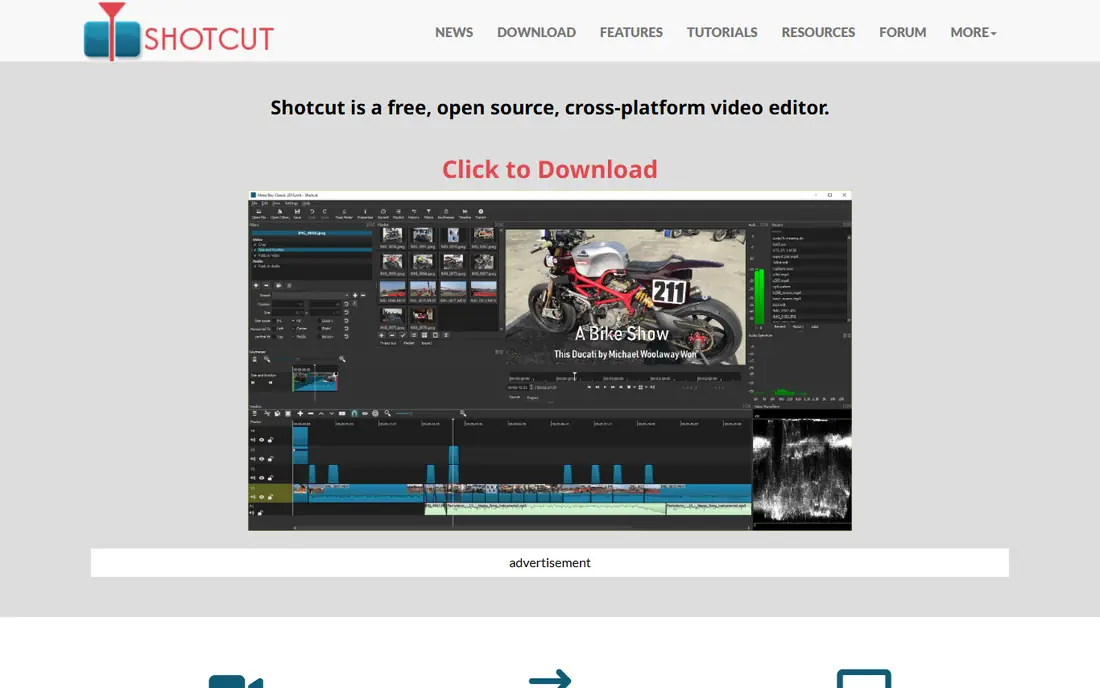
Shotcut is a practical choice for beginners on older or modest computers. It supports a wide range of video formats without asking you to convert files first, and it does not limit export resolution or add a watermark. The timeline supports multiple tracks, filters, audio mixing, and keyframes, which is more than many free editors offer.
The interface is the trade-off. It looks plain, and some tools are tucked into panels that take a session or two to learn. Watch one short tutorial on the timeline and filters before your first real project, and the learning curve drops fast. For a beginner who wants a free editor that stays free and runs on almost any machine, Shotcut is hard to beat.
What we like- Free and open source with no watermark
- Wide format support through FFmpeg
- Runs on Windows, Mac, and Linux
Watch out for- Interface looks plain and takes a little time to learn
- Color and effects tools are basic next to Resolve
Starting priceFree
Free planYes
Kdenlive sits between the simplest editors and full professional tools. You get a normal multi-track timeline, a good set of effects and transitions, audio tools, and proxy editing for smoother playback on weaker machines. It runs on Windows, Mac, and Linux, and because it is open source, there is no subscription or export limit waiting for you.
For a complete beginner, the first screen can look busy, with panels for clips, effects, and scopes. Spend your first session on one short project: import, cut, add a title, and export. That single loop teaches most of the layout. Kdenlive rewards that small investment with an editor that can handle longer, layered projects without asking you to pay.
What we like- Free and open source
- Flexible multi-track timeline
- Strong format support and effects
Watch out for- Interface can feel busy for a first-time editor
- Documentation varies in depth
#8Lightworks
Best for: Traditional timeline editing3.6/5 on
G2 (31 reviews, checked Oct 2026)
Visit lwks.com
Starting priceFree
Free planYes
Lightworks has a long history in film and television editing, and its free version gives beginners a taste of that traditional workflow. The timeline, trimming tools, and multi-cam support feel more like a craft editor than a template app, which appeals to beginners who want to learn editing as a skill rather than assemble clips from presets.
Check the free version limits before a long project, because export options are restricted compared with the paid version. The workflow also takes practice, since Lightworks does things in its own way rather than copying the layout of simpler apps. If you like its approach, it is a strong learning tool. If you want the fastest path to a finished social clip, CapCut or Clipchamp will get you there sooner.
What we like- Professional timeline workflow
- Multi-cam editing
- Versions for Windows, Mac, and Linux
Watch out for- Free version has export limits
- The workflow differs from simpler editors and takes practice
Starting priceFree
Free planYes
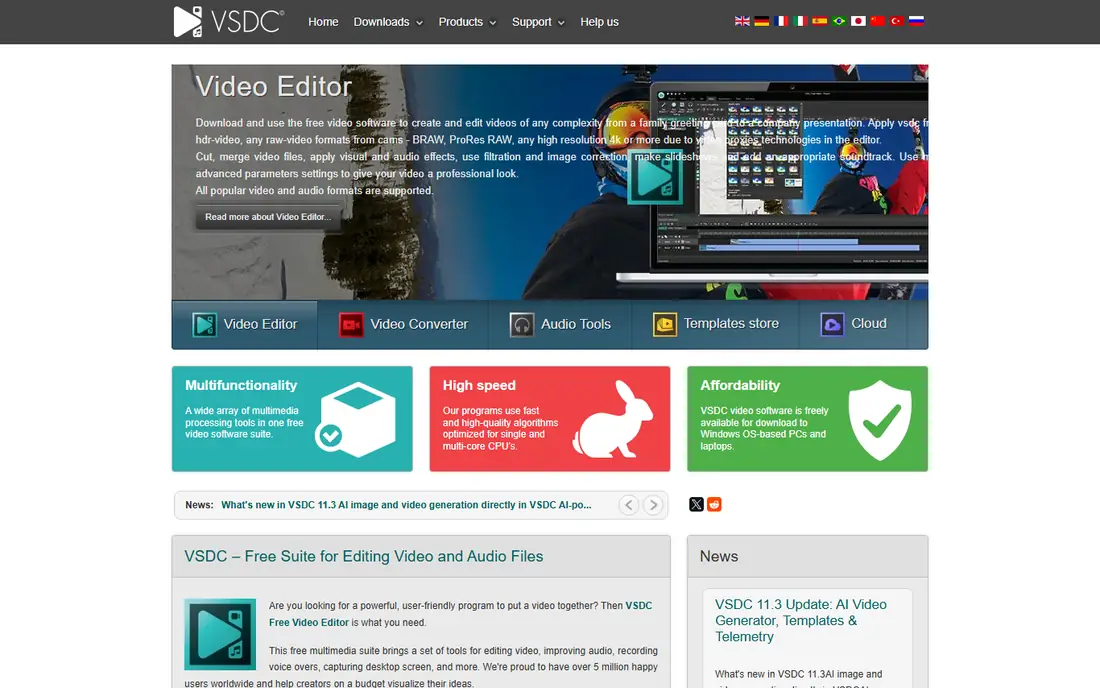
VSDC is a Windows-only editor with more depth than its plain look suggests. The free version covers cutting, transitions, color correction, audio waveform editing, and masking, which is a generous set for a free tool. It also handles a wide range of formats, so beginners can work with phone footage, screen recordings, and downloaded clips in one timeline.
The interface is the main barrier. Menus are dense, labels are technical, and the layout can feel crowded on a small screen. A beginner who is comfortable exploring menus will find a lot of value here. A beginner who wants a clean, guided first edit will likely prefer OpenShot or Clipchamp, and can return to VSDC when a project needs its extra controls.
What we like- Free version with many tools, including color correction and audio waveform editing
- Runs on Windows
- No subscription needed for basic use
Watch out for- Windows only
- Interface feels dated and crowded
- Some advanced features require the paid Pro version
How we chose
We compared pricing pages, product documentation, and public reviews on G2, Capterra, and Reddit, and we checked each tool for a real free plan, export limits, watermarks, platform support, and fit for a first-time editor. We favored tools that let a beginner finish and export a real video without paying, and we kept a mix of social editors, simple desktop editors, and fuller editors that leave room to grow. We did not claim hands-on testing, and we treated vendor pricing pages as the source for prices and plan limits, with review sites used only to spot common complaints such as stability or hardware demands.
What to check before you pick
A free plan is only useful if its limits match your project. Check export resolution first, then watermarks, then whether the templates and effects you want are free or paid. A social editor that exports at 1080p is fine for phones and most social feeds, but it will disappoint if you promised a client a 4K master. A desktop editor with no watermark is better for YouTube and class work, even if it takes longer to learn.
Think about your computer as well. Browser editors and simple desktop editors run well on modest machines, while Resolve benefits from more memory and a stronger graphics card. If your computer is older, start with Shotcut, OpenShot, or Clipchamp, and use proxy files or lower preview quality where the editor offers it. Save your project often, keep your source files in one folder, and export a test clip early so a problem shows up before you have edited for hours.
Match the editor to the video
Short social clips favor CapCut and Clipchamp, with templates and captions doing much of the work. Family videos and school projects favor iMovie on Apple devices and OpenShot elsewhere, where simplicity matters more than advanced tools. Longer YouTube videos, short films, and color work favor Resolve, Kdenlive, or Shotcut, where a multi-track timeline and better audio tools pay off over time.
Avoid the common beginner traps
Do not judge an editor by its effects library alone, since most beginners use only a few transitions and titles in a finished video. Do not pay for a plan before you have exported at least two full projects on the free plan, because the free limits are often clearer in practice than on a pricing page. Back up your project file and your source clips together, so a move to another computer does not break the links between them.
Frequently asked questions
Is a free video editor good enough for YouTube?
Yes, for most beginner and intermediate YouTube work. DaVinci Resolve, Shotcut, and Kdenlive export without a watermark and handle multi-track timelines, titles, and audio well enough for regular uploads. The main limits are hardware and learning time, not the price of the editor itself.
Which free video editor is easiest for a complete beginner?
iMovie is easiest on Apple devices, and Clipchamp or OpenShot are easiest on Windows for a first project. CapCut is easiest if your goal is short social video with captions and templates. Pick the one that matches your device and your video type, and you will finish faster than if you pick the most powerful tool.
Do free video editors add a watermark?
Some do and some do not, so check before you start. DaVinci Resolve, Shotcut, Kdenlive, OpenShot, and iMovie export without a watermark on their free plans. CapCut and Clipchamp offer watermark-free exports on their free plans for standard exports, but some premium templates, effects, or assets may require payment.
Can I edit 4K video for free?
Yes, with the right tool and computer. DaVinci Resolve exports up to Ultra HD in its free version, and Shotcut and Kdenlive do not impose their own export resolution cap. Your computer still needs enough power to play and export 4K smoothly, so use proxy editing or lower preview quality if playback stutters.
Should I start with CapCut or DaVinci Resolve?
Start with CapCut if you make short social videos and want captions and templates fast. Start with DaVinci Resolve if you want to learn editing properly and make longer videos, and you have a computer that can run it well. Many creators use both, with CapCut for quick social cuts and Resolve for longer projects.
Sources we checked (9)
- https://www.capcut.com
- https://www.blackmagicdesign.com/products/davinciresolve/studio
- https://www.clipchamp.com
- https://www.apple.com/imovie/
- https://www.openshot.org
- https://www.shotcut.org
- https://kdenlive.org
- https://lwks.com
- https://www.videosoftdev.com
Is your product missing or out of date?
We review this list regularly. Vendors can request a listing, send updated pricing or ask about featured placement.

Shihab Mia · Founder, Rankite
Shihab has 5+ years in B2B and SaaS SEO. He writes Rankite's software buying guides from pricing pages, documentation and public user reviews. More about Shihab.