How we make this list: we compare pricing pages, product documentation and public user reviews. Ratings come from G2, Capterra or Trustpilot, with the date we checked them.
Key takeaways
- Photopea is the best free choice for manual control, because it runs in a browser, keeps files on your device, and offers layers and masks at no cost.
- Canva and Adobe Express suit people who remove a background and then design a post, flyer, or listing around the cutout in the same app.
- PhotoRoom, Pixelcut, and PicWish suit sellers who need clean product cutouts, new backgrounds, and batch work for listings.
- Free plans differ most on export size, watermarks, and commercial use, so check those terms before you build a shop or client workflow on a free tier.
Quick comparison
| Tool | Best for | Starting price | Free plan |
|---|
 Photopea Photopea | Manual background edits with layers and masks | Free | Yes |
 Canva Canva | Background removal inside a design workflow | Free | Yes |
 Adobe Express Adobe Express | Quick background removal for social and marketing designs | Free | Yes |
 Pixlr Pixlr | Browser editing with AI removal and full retouching | $1.99 per month | Yes |
 Fotor Fotor | Casual editing plus background replacement | $8.99 per month | Yes |
 PhotoRoom PhotoRoom | Product photos and batch listing images | $12.99 per month | Yes |
 Pixelcut Pixelcut | Mobile-first sellers who need fast cutouts | $10 per month | Yes |
 PicWish PicWish | Low cost batch cutouts and photo enhancement | $4.99 per month (billed annually) | Yes |
Is your product missing or out of date?
We review this list regularly. Vendors can request a listing, send updated pricing or ask about featured placement.
#1Photopea
Best for: Manual background edits with layers and masks4.6/5 on
G2 (21 reviews, checked Oct 2026)
Visit photopea.com
Starting priceFree
Free planYes
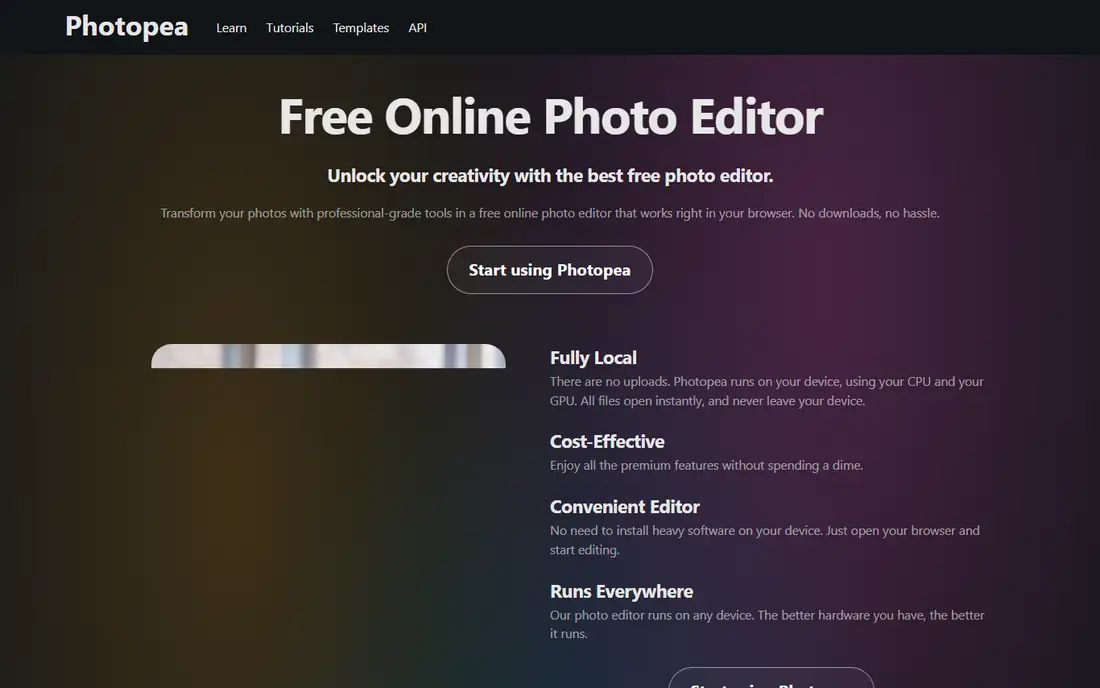
Photopea is the closest free equivalent to a desktop photo editor, and that matters when an automatic cutout leaves a rough edge. You can remove a background with a selection tool, refine it with a mask, paint back hair or fabric detail, and place a new background on a layer below. Because it runs locally in the browser, your files are not uploaded to a server, which is a real plus for personal photos.
The trade-off is effort. Photopea does offer one-click background removal, but its real strength is manual control, and manual control takes practice. If you only need a fast cutout for one social post, a simpler tool will be quicker. If you need clean edges on tricky subjects, or you already think in layers, Photopea gives you that control for free.
What we like- Full browser editor with layers, masks, and selections
- Files stay on your device
- Opens PSD and many image formats
Watch out for- No one-click magic for every edge
- Learning curve is steeper than a single-purpose remover
#2Canva
Best for: Background removal inside a design workflow4.7/5 on
G2 (7,678 reviews, checked Oct 2026)
Visit canva.com
Starting priceFree
Free planYes

Canva suits the common case: remove a background, then use the photo in a design. Once the subject is cut out, you can drop it onto a solid color, a template background, or a full social post layout, add text, and export for the platform you need. That flow saves the step of moving a transparent PNG between apps, and it is why many small sellers keep Canva open all day.
Free access to background removal is limited, and Canva's own help pages describe it as a paid feature with some free use. That means a casual user can try it, but a seller who removes backgrounds daily should price Canva Pro. If you already pay for Canva for design work, its remover is a practical bonus. If you only need removal, a dedicated free tool may cost less.
What we like- Removal sits inside a huge design library
- Easy to add a new background, text, and layout
- Strong templates for sellers and creators
Watch out for- Background removal is limited on free accounts
- Full access needs a paid plan
#3Adobe Express
Best for: Quick background removal for social and marketing designs4.5/5 on
G2 (855 reviews, checked Oct 2026)
Visit adobe.com
Starting priceFree
Free planYes
Adobe Express is a fast, browser-based design app, and its remove background tool is built for speed. Upload a photo, remove the background, and place the subject on a new color or design in the same workspace. It works well for social posts, flyers, and simple marketing graphics, where the goal is a clean image quickly rather than pixel-perfect masking.
The free plan covers a useful amount of work, but Adobe lists remove background among premium features in some pricing material, while free accounts have reported access to basic removal. That mixed picture means you should test it with a free account before planning a workflow around it. For Adobe users, Express is a natural add-on. For others, it is worth trying free before paying.
What we like- Free plan available
- One-click removal in a browser
- Templates and brand tools for marketing content
Watch out for- Some background features are tied to premium plans
- Projects are tied to an Adobe account
#4Pixlr
Best for: Browser editing with AI removal and full retouching4.4/5 on
G2 (751 reviews, checked Oct 2026)
Visit pixlr.com
Starting price$1.99 per month
Free planYes
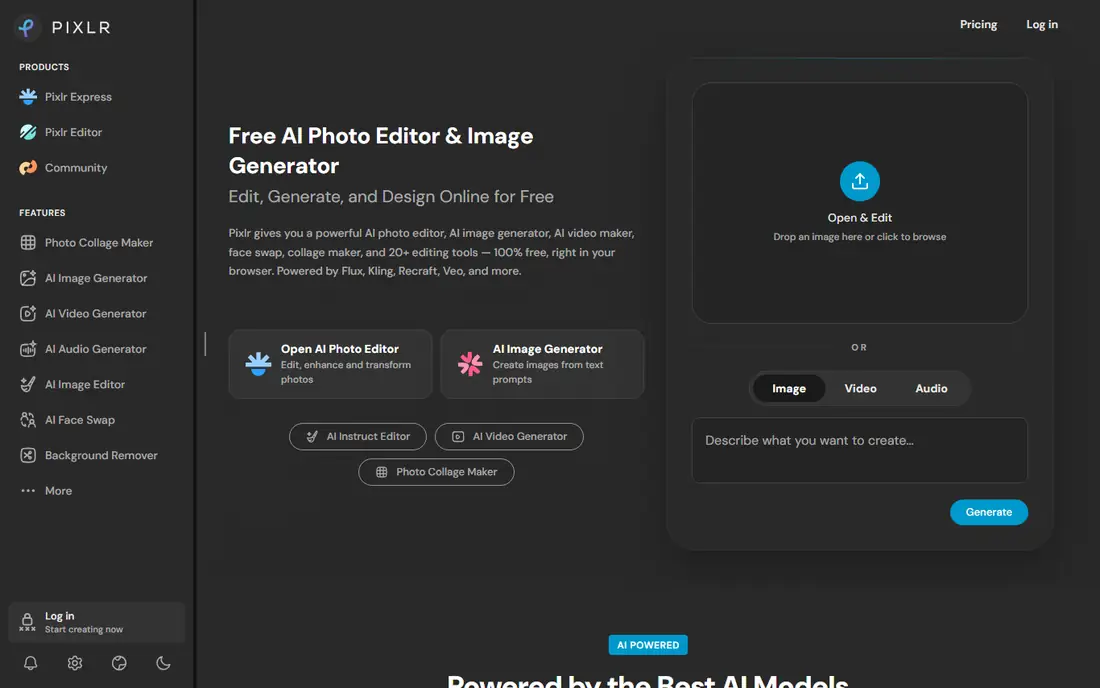
Pixlr combines a one-click background remover with a full photo editor in the browser. You can remove a background, then adjust light, color, and sharpness, add text or overlays, and export without opening another app. That range suits creators who edit photos often but do not want desktop software. The free version covers basic editing well, and paid plans start low compared with most editors.
AI features are where the limits appear. Free AI credits run out, and heavy use of newer models needs a paid plan. Ads also appear on the free tier. If your main job is background removal for a few photos a week, Pixlr free is enough. If you process images daily, price a paid plan and check how many AI credits it includes before you commit.
What we like- AI background removal plus a full editor
- No install needed
- Low starting price for paid plans
Watch out for- Free use is ad-supported and credit limited for AI tools
- Advanced models need paid credits
#5Fotor
Best for: Casual editing plus background replacement4.2/5 on
G2 (342 reviews, checked Oct 2026)
Visit fotor.com
Starting price$8.99 per month
Free planYes
Fotor is a friendly choice for people who want more than a cutout. Its background eraser removes a background in one click, and its AI background generator can create a new scene behind a product or portrait. Add filters, text, and collage layouts, and a casual user can finish a complete social image without learning a complex editor.
The free plan handles basic editing and exports, but the more useful AI background options sit on paid plans. That split is common in this category, and it means Fotor is best for users who will also use its other editing tools. If background work is your only need, compare Fotor's paid price with a dedicated remover before paying.
What we like- Simple background eraser and AI background generator
- Batch editing
- Filters, collages, and design tools in one place
Watch out for- Some AI background features need a paid plan
- Free exports may carry limits
#6PhotoRoom
Best for: Product photos and batch listing images4.3/5 on
G2 (20 reviews, checked Oct 2026)
Visit photoroom.com
Starting price$12.99 per month
Free planYes
PhotoRoom is built for sellers. Upload a product photo, remove the background, add a clean white or branded background, and export a listing-ready image. Batch processing lets a seller apply the same look to many products at once, which is the difference between listing ten items in an afternoon and listing ten items in a week. Templates for marketplaces add to that speed.
Free use is a trial of the workflow rather than a full free tier for business use, because free exports often carry a watermark. Sellers should treat PhotoRoom as a paid tool and judge it on time saved per listing. If you sell regularly, that time saving usually covers the subscription. If you only need a few cutouts, a free general editor will do.
What we like- Fast cutouts built for e-commerce
- AI backgrounds and shadows
- Batch processing for catalogs
Watch out for- Free exports are watermarked in many cases
- Full batch and brand tools need a paid plan
Starting price$10 per month
Free planYes

Pixelcut started as a mobile-first tool for sellers, and it still feels best on a phone. Take a product photo, remove the background, add a studio-style background, and post it to a shop or social account without touching a computer. Upscaling and retouching tools help when a phone photo needs extra polish before listing.
The free plan lets you try the workflow, but watermark-free, high-resolution exports and the full set of AI tools need a paid plan, listed at about $10 per month, or less when billed annually. Pixelcut suits sellers who shoot and list from a phone. Desktop-heavy users may prefer Photopea or Canva for larger screens and finer control.
What we like- Strong mobile app
- Clean cutouts and AI product photos
- Upscaling and background tools in one app
Watch out for- Best experience is on mobile
- Desktop workflow is thinner
- Paid plan needed for watermark-free exports
#8PicWish
Best for: Low cost batch cutouts and photo enhancement4.8/5 on
G2 (6 reviews, checked Oct 2026)
Visit picwish.com
Starting price$4.99 per month (billed annually)
Free planYes

PicWish is a practical middle option. Its background remover handles batches, so a seller can cut out many product photos in one run instead of one by one. It also offers enhancement tools that sharpen blurry photos, which helps when source images come from an old phone or a supplier. The paid starting price is low compared with most tools in this list, which makes it a good step up from free-only use.
Free use is credit based, so heavy users will run out and need a plan. PicWish also lacks the deep manual masking of Photopea, so tricky edges may need a second pass elsewhere. For straightforward product and portrait cutouts at volume, though, its batch speed and low price are hard to beat.
What we like- Batch background removal for up to 30 files
- Photo enhancement and unblur tools
- Low paid starting price
Watch out for- Free credits are limited
- Interface is simpler than a full editor
How we chose
We compared vendor pricing pages, product documentation, and public reviews on G2 and Capterra, with a focus on free access. A tool earned a place when a reader could remove or edit a photo background without paying first, even if full features needed a plan. We included a manual editor, design apps, and seller tools, because the best free choice depends on what happens after removal: a design, a listing, or a clean transparent file. Prices shown are starting prices where a vendor publishes a clear figure, and See website is used where pricing varies by region or plan. Note that remove.bg, a well known remover, was left out because its standalone site is scheduled to close on 1 December 2026, with its removal moving into Canva.
How to get a clean background edit for free
Start by deciding what kind of edge you need. A product on a plain background, a portrait with clear contrast, and a pet with fine fur are three different jobs. Automatic tools handle the first two well. Fur, hair, glass, and busy backgrounds need manual help, such as a mask brush or an eraser, and that is where Photopea earns its place. Test a tool on your hardest photo first, not your easiest one.
Check export terms before you rely on a free plan
Free does not always mean full size or commercial use. Some tools limit free downloads to preview size, add a watermark, or restrict commercial use. Before you edit a whole catalog, export one test image at full size, open it at 100 percent, and check the edges, the file size, and any watermark. If the free export is too small for a listing, price the paid plan that gives full resolution.
Fix edges instead of re-running the remover
When an automatic cutout leaves a halo or cuts off hair, do not keep re-running it and hoping for a better result. Open the cutout in an editor with a mask or eraser, zoom in, and paint the edge back or trim it by hand. A few minutes of manual work usually beats ten automatic attempts, and it teaches you which photos need manual help next time.
Keep the original and the cutout
Save the original photo, the transparent cutout, and the final design as separate files. That way a new background, a different marketplace size, or a client change does not force you to start over. Name files clearly, such as product name, original, cutout, and final, so a batch stays easy to find later.
Frequently asked questions
What is the best completely free tool to edit a photo background?
Photopea is the strongest completely free option for manual work, because it offers layers, masks, and full-size exports at no cost and keeps files on your device. For one-click removal, Pixlr, Fotor, and PicWish offer useful free tiers, with limits on credits, exports, or watermarks.
Can I remove a photo background for free without signing up?
Some tools allow removal without an account, but most ask for an account to save or export at full size. Photopea works in a browser without an account for basic editing. Check the export step before you edit many photos, because that is where account or payment limits usually appear.
Do free background removers add a watermark?
Some do, and some do not. Photopea free exports have no watermark from the editor itself. Seller tools such as PhotoRoom often watermark free exports, with watermark-free exports on paid plans. Always export a test image and check it before using a tool for client or shop work.
How do I replace a photo background instead of just removing it?
Remove the background to get a transparent cutout, then place that cutout on a new layer or background. Canva, Adobe Express, Fotor, and PhotoRoom all offer this in one workflow, with solid colors, generated scenes, or template backgrounds to choose from.
Why does my cutout look rough around hair or fur?
Automatic removal struggles with fine, semi-transparent edges such as hair, fur, and glass. Use a mask brush in Photopea or a refine edge tool where available, and zoom in to paint small sections back. A higher resolution source photo also helps, because the tool has more detail to work with.
Can I use free background removal tools for my business?
Yes, in many cases, but check the terms for each tool. Some free plans allow personal use only, or limit commercial exports. If you sell products or serve clients, confirm commercial use is allowed on the plan you use, or move to a paid plan that clearly includes it.
Sources we checked (8)
- https://www.photopea.com
- https://www.canva.com/pricing
- https://www.adobe.com/express/pricing
- https://pixlr.com/pricing
- https://www.fotor.com/pricing
- https://www.photoroom.com/pricing
- https://www.pixelcut.ai/pricing
- https://picwish.com/pricing
Is your product missing or out of date?
We review this list regularly. Vendors can request a listing, send updated pricing or ask about featured placement.

Shihab Mia · Founder, Rankite
Shihab has 5+ years in B2B and SaaS SEO. He writes Rankite's software buying guides from pricing pages, documentation and public user reviews. More about Shihab.