How we make this list: we compare pricing pages, product documentation and public user reviews. Ratings come from G2, Capterra or Trustpilot, with the date we checked them.
Key takeaways
- Gemini and ChatGPT offer the most flexible free path, because you can describe placement, lighting, and scale in plain words.
- Dedicated tools such as EditThisPic and Sparkpix focus on this exact job, and their free offers are usually one preview or one first photo.
- Fotor and Canva suit beginners who also want general editing, while Photoshop suits users who need manual control after AI generation.
- Matching light, camera angle, and image quality between the two photos matters more than which tool you pick.
- Only add a real person with their permission, and be open about AI editing when you share the result.
Quick comparison
| Tool | Best for | Starting price | Free plan |
|---|
 Gemini Gemini | Prompt based photo edits | See website | Yes |
 ChatGPT ChatGPT | Chat based image edits | See website | Yes |
 Fotor Fotor | Beginner photo editing | $8.99 per month | Yes |
 Canva Canva | Design plus photo edits | See website | Yes |
 Adobe Photoshop Adobe Photoshop | Manual control and compositing | See website | Free trial |
 Pixlr Pixlr | Free browser editing | See website | Yes |
 Picsart Picsart | Mobile photo edits | See website | Yes |
 YouCam Makeup YouCam Makeup | Mobile AI edits | See website | Yes |
 EditThisPic EditThisPic | Dedicated add person edits | See website | Yes |
 Sparkpix Sparkpix | Dedicated add person tool | See website | Yes |
Is your product missing or out of date?
We review this list regularly. Vendors can request a listing, send updated pricing or ask about featured placement.
Starting priceSee website
Free planYes
Gemini is a strong free starting point because it accepts two photos and a plain instruction, such as adding a person on the right side of a group at the same scale as the others. Its image model tries to match light, shadows, and perspective, which is the hardest part of this job. You can also ask for revisions in the same chat, such as moving the person, fixing an edge, or softening a shadow.
Drift is the main risk. The model may alter faces, clothing, or background details while adding the new person, so you should state what must stay unchanged in your prompt. Free use has limits, and high resolution or repeated generations may need a paid Google AI plan. For a one off family photo, Gemini is often the fastest free test.
What we like- Edit by describing the change in words
- Strong image model for scene matching
- Works in a browser with no install
Watch out for- Results can drift from the original photo
- Free limits apply
- Faces may change on repeated edits
#2ChatGPT
Best for: Chat based image edits4.6/5 on
G2 (3,089 reviews, checked Oct 2026)
Visit chatgpt.com
Starting priceSee website
Free planYes
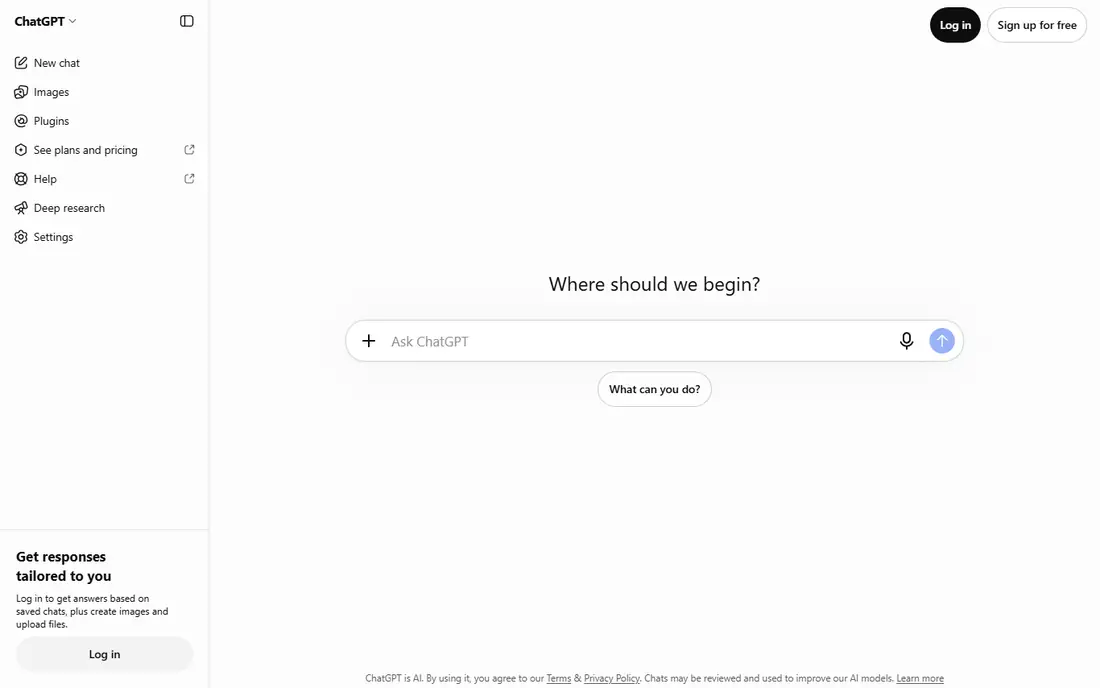
ChatGPT handles this task in a similar chat style. Upload the main photo and a clear photo of the person, describe where the person should stand, and ask the model to keep other people, lighting, and background as close as possible to the original. Follow up prompts let you adjust position, size, or expression without starting over.
Like Gemini, ChatGPT can change details you did not ask to change, especially faces and background text. Free plans limit how many image generations you can run, so use your best source photos first and keep prompts specific. For a quick social post or card, ChatGPT is a practical free option, while a large print may need a higher resolution workflow.
What we like- Conversational editing with follow up prompts
- Good at following placement instructions
- Useful for cards and social posts
Watch out for- Free image limits apply
- Faces can shift between generations
- Output resolution may not suit large prints
#3Fotor
Best for: Beginner photo editing4.2/5 on
G2 (342 reviews, checked Oct 2026)
Visit fotor.com
Starting price$8.99 per month
Free planYes
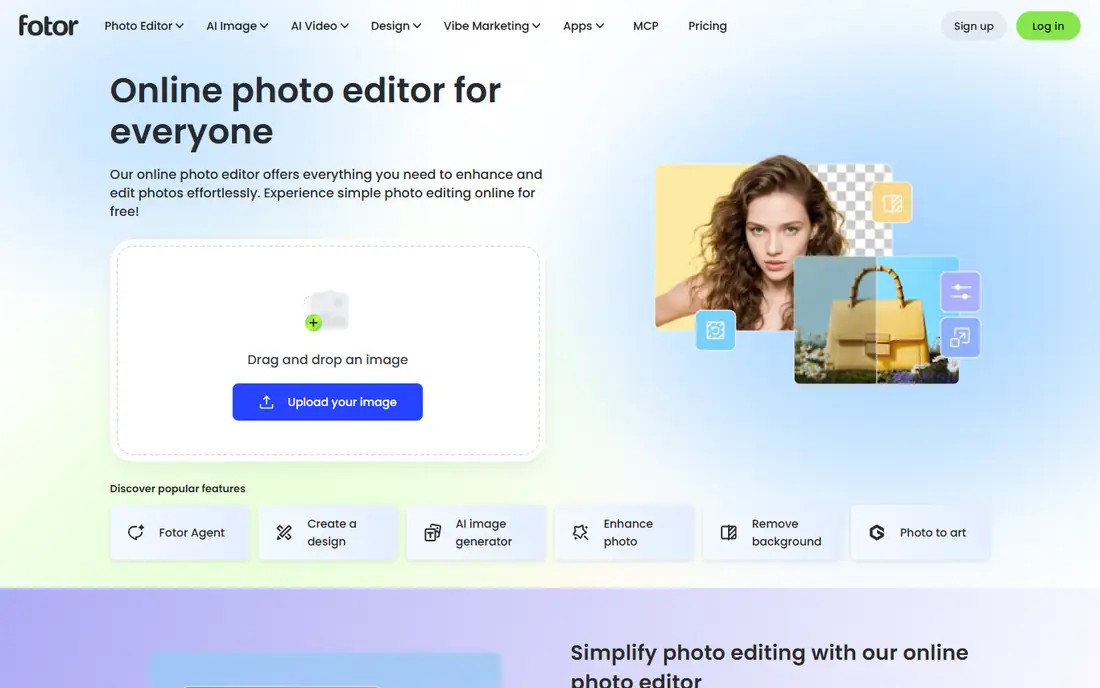
Fotor suits beginners who want one editor for several jobs. It offers background removal, enhancement, and AI editing tools in a browser, without installing software. For adding a person, the workflow often involves cutting out the person, placing them in the main photo, and using enhancement tools to match tone and sharpness. That gives more manual control than a single prompt, but it takes more steps.
Free use covers basic editing, while Pro at $8.99 per month adds more AI features and higher quality exports. Fotor is a good pick when you also need general photo fixes, collages, or batch edits. For a single dedicated add person job, a tool built for that task may be faster.
What we like- Simple browser editor
- Background removal and enhancement tools
- Batch options for many photos
Watch out for- AI person placement is less direct than dedicated tools
- Free exports may have limits
- Some features need Pro
#4Canva
Best for: Design plus photo edits4.7/5 on
G2 (7,678 reviews, checked Oct 2026)
Visit canva.com
Starting priceSee website
Free planYes
Canva is useful when the edited photo becomes part of a design, such as a holiday card, a social post, or a poster. Magic Edit can change parts of an image from a description, and background removal helps isolate a person for placement. Once the photo is ready, templates, text, and layout tools are already in the same app.
Canva is not a dedicated add person tool, so placement and blending take manual adjustment. Free AI use is limited, and Pro adds more credits and features. Choose Canva when design matters as much as the photo edit, and choose a dedicated tool when you only need the cleanest possible group photo.
What we like- Magic Edit and background tools inside a design app
- Easy to turn a photo into a card or post
- Large template library
Watch out for- Person placement needs manual steps
- AI edit quality varies
- Pro needed for full AI features
#5Adobe Photoshop
Best for: Manual control and compositing4.6/5 on
G2 (13,426 reviews, checked Oct 2026)
Visit adobe.com
Starting priceSee website
Free planFree trial
Photoshop gives the most control, and that control matters when an AI result is close but not quite right. Generative Fill can add a person or fill a gap, while layers, masks, and adjustment tools let you fix edges, shadows, color, and scale by hand. A skilled user can produce a result that a single prompt tool cannot match, especially for prints or client work.
The cost and learning curve are real barriers. Photoshop is a subscription product with a free trial, and beginners may find the interface crowded. Use Photoshop when quality and control matter more than speed, or when you need to fix an AI generated photo after the first pass. For a quick free edit, start with Gemini or a dedicated tool first.
What we like- Generative Fill for adding and blending elements
- Full layer and mask control
- Highest control over edges and light
Watch out for- Subscription cost
- Learning curve is steep
- AI results still need manual cleanup
#6Pixlr
Best for: Free browser editing4.4/5 on
G2 (751 reviews, checked Oct 2026)
Visit pixlr.com
Starting priceSee website
Free planYes
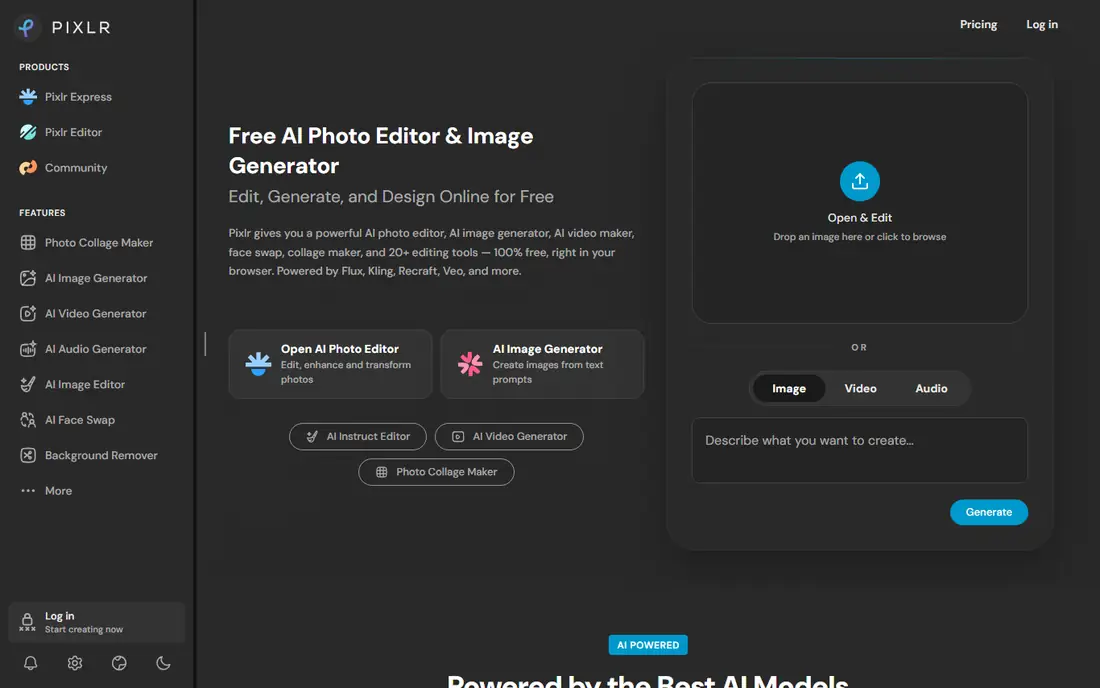
Pixlr is a free browser editor that mimics many Photoshop style features, including layers. You can cut out a person, place them in a group photo, adjust size and color, and export without installing software. That makes it a useful free path for users who want manual control but do not want a subscription.
The work is manual, so results depend on your patience with edges, shadows, and color matching. Free use includes ads and limits, and AI features may need a paid plan for full use. Pixlr fits users who are comfortable with layers and want a free desktop style editor in a browser.
What we like- Free browser editing with layers
- AI tools for removal and enhancement
- No install needed
Watch out for- AI person addition is manual
- Free tier has ads and limits
- Interface can feel busy
#7Picsart
Best for: Mobile photo edits4.5/5 on
G2 (797 reviews, checked Oct 2026)
Visit picsart.com
Starting priceSee website
Free planYes
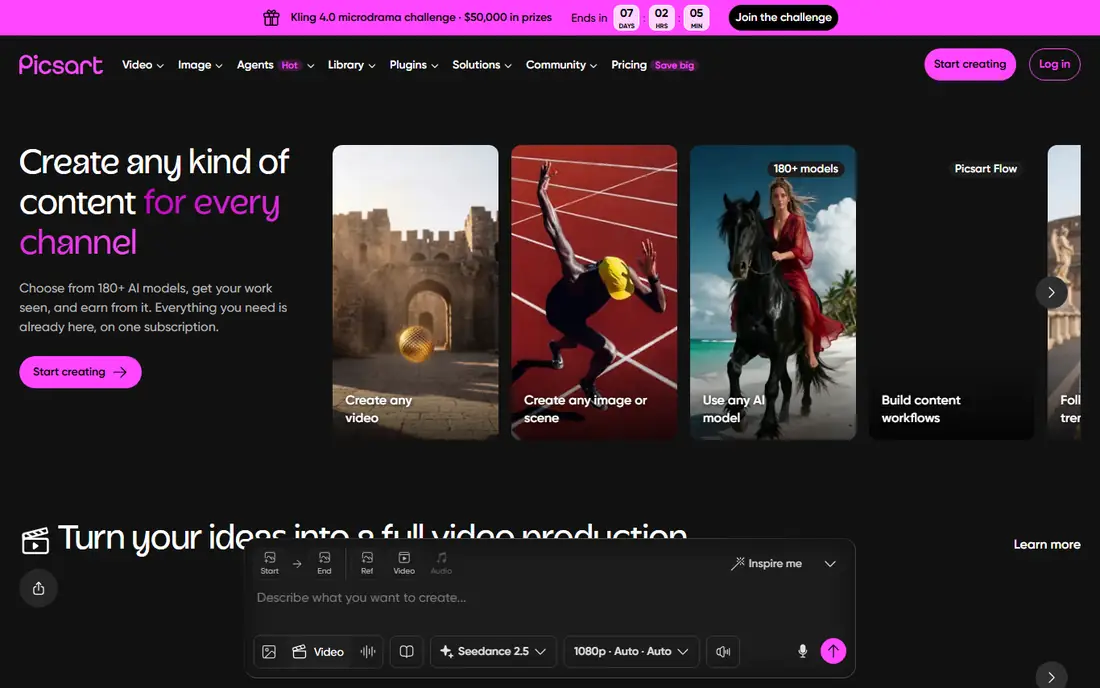
Picsart is a mobile first option for quick edits on a phone. Cutout tools, background tools, and AI enhancement help place a person in a photo and adjust the result for social sharing. The app is easy to learn, and templates help turn an edited photo into a post or story in minutes.
Desktop precision is limited compared with Photoshop or Pixlr, and many AI features sit behind a paid plan. Picsart suits casual users who edit on a phone and share online, rather than users who need a large print or a precise composite. Test the free tier first, and check export quality before paying.
What we like- Strong mobile editing and cutout tools
- Easy sharing to social apps
- Creative effects and stickers
Watch out for- AI features vary by plan
- Free exports may include limits
- Less control than desktop compositing
Starting priceSee website
Free planYes
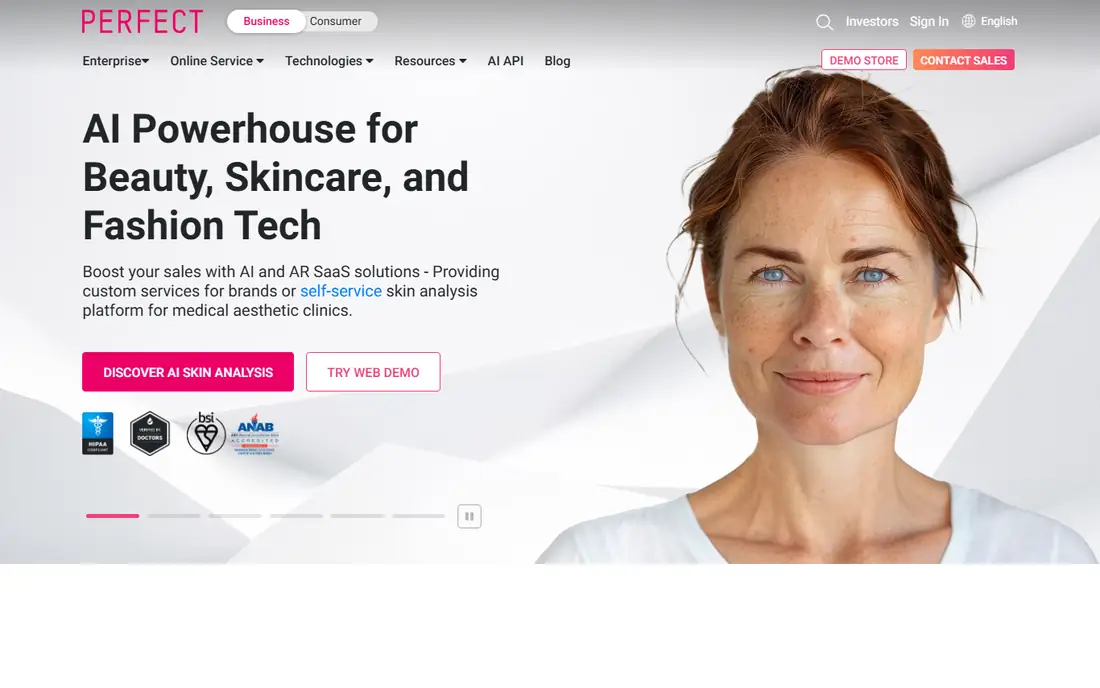
YouCam Makeup includes an AI agent that can add a person to a photo from a simple instruction on a phone. Upload the main photo and a photo of the person, describe placement, and the app handles detection, blending, and color correction. That mobile flow suits family photos taken and shared on a phone.
The app is primarily a beauty and selfie editor, so the add person feature sits inside a wider app rather than a dedicated photo studio. Results depend heavily on matching light and camera angle between source photos. YouCam is a good mobile test when you want a quick result without a desktop editor.
What we like- AI agent accepts plain instructions on mobile
- Handles cutout, blending, and color in one flow
- Works on iPhone and Android
Watch out for- App focused on beauty and selfie editing
- Results vary with source photo quality
- Some features need in app purchases
Starting priceSee website
Free planYes
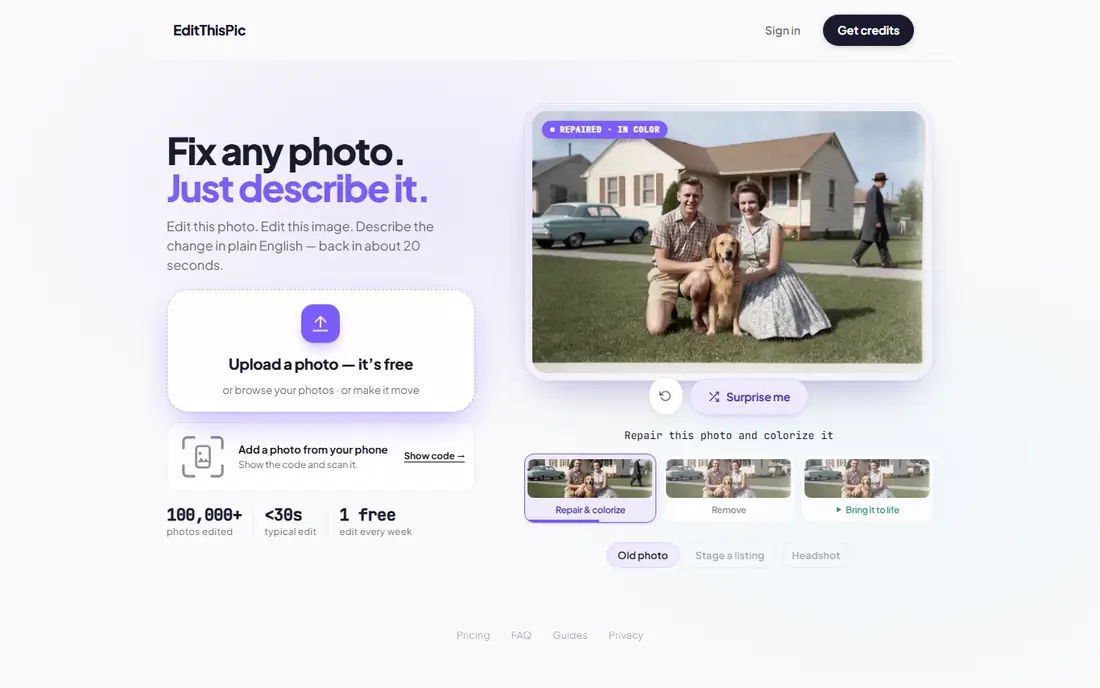
EditThisPic focuses on this exact task, which is its advantage. Upload a main photo and a reference photo, describe placement, and the tool generates a new image with matched scale, perspective, lighting, and shadows. Reports checked for this article describe a free edit per week with no account needed, with paid credits for clean, full quality downloads.
The free preview model means you should check the result before paying for a download. General editing features are limited, so you may still need another app for crops or text. For a dedicated, browser based add person job with no install, EditThisPic is one of the clearest free starting points.
What we like- Built specifically for adding a person
- Free preview with no signup in reports
- Plain English placement instructions
Watch out for- Free edit is a preview, not a clean download in reports
- Paid downloads needed for full quality
- Limited general editing
Starting priceSee website
Free planYes
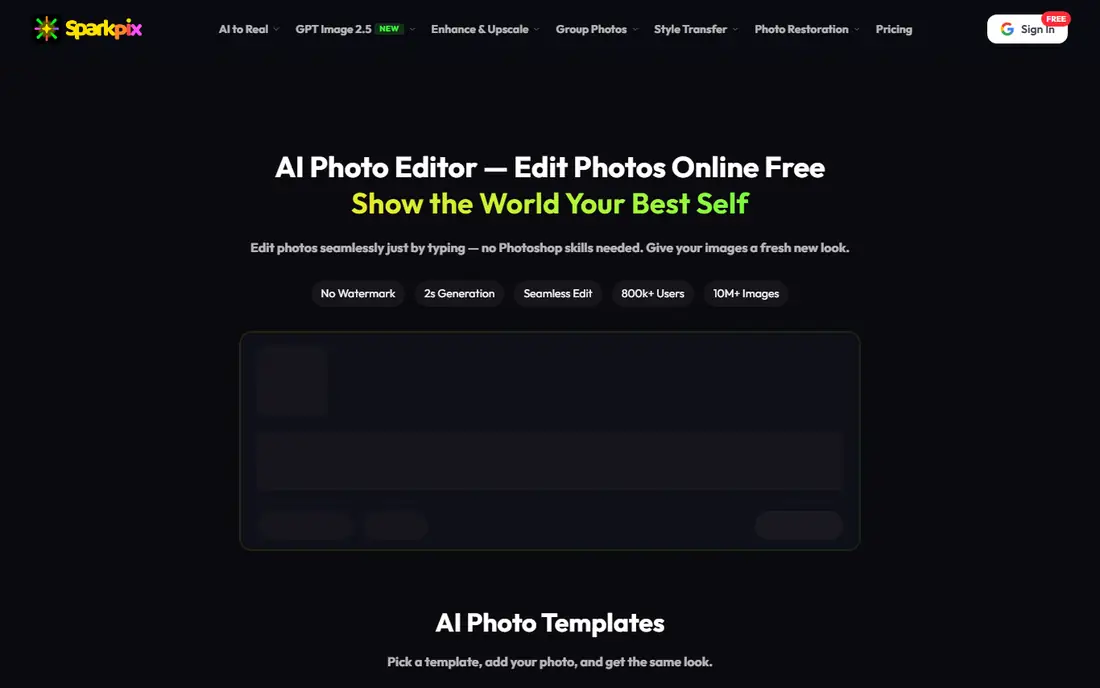
Sparkpix is another dedicated tool for adding a person to an existing photo. You upload the main photo and the person, write where they should stand, and the tool generates a new image in about a minute, with lighting, scale, and shadows matched. Reports describe a first photo free with signup credits, which makes it easy to test on a real family photo.
Limits apply to source quality. A tiny, blurred, or poorly lit reference face will not produce a reliable result, and the tool does not support adding public figures in its stated rules. Sparkpix suits users who want a focused, browser based result without learning a full editor, and who are willing to pay for credits after the free test.
What we like- Dedicated add person workflow in a browser
- First photo free with signup credits in reports
- Placement described in words
Watch out for- Newer and smaller service than large editors
- Limits on tiny or blurred faces
- Paid credits needed after the free offer
How we chose
We compared vendor pricing pages, product documentation, and public reviews on G2, Capterra, and Reddit, and we checked whether each tool can actually add a person to an existing photo, not just remove a background or enhance a selfie. A tool made this list only if it exists today, offers a free plan or a free trial or a free first edit, and supports photo upload plus placement control. We treated vendor claims about realism as claims to test, because results vary with source photos.
Free limits were a key test. Some tools offer a free plan with daily caps, some offer a free preview, and some offer a free trial that ends. We noted those differences where reports or vendor pages made them clear. Readers should test two tools on the same photos before paying, because lighting and angle matching differ by tool.
Getting a believable result, and using it fairly
Use the largest, clearest versions of both photos, and match lighting, camera height, and angle as closely as possible. A person photographed in bright daylight will look pasted into an indoor evening photo, no matter which tool you use. State placement clearly, such as standing on the right side at the same scale as the others, and state what must stay the same, such as faces, clothing, and background.
Consent and disclosure
Only add a real person with their permission, and do not add someone to a photo to mislead others about where they were or what they did. For memorial photos, family keepsakes, or cards, be open with recipients that the image was edited with AI, especially when the person was not present. Platforms and clients may also require disclosure for AI edited images, so check the rules before publishing.
Practical checks before you share
Zoom in on edges, hands, shadows, and skin tone before sharing. Check that the added person casts a shadow in the right direction, that their size matches people at the same depth, and that background details behind them look natural. If one detail looks wrong, regenerate or fix that detail in a manual editor rather than sharing a flawed result.
Frequently asked questions
What is the best free tool to add a person to a photo?
Gemini and ChatGPT are strong free starting points for prompt based edits, while EditThisPic and Sparkpix focus on this exact job with a free preview or first photo. The best pick depends on whether you want a chat editor, a dedicated tool, or a manual editor. Test two tools on the same photos before paying.
Can I add a person to a photo without Photoshop?
Yes. Gemini, ChatGPT, EditThisPic, Sparkpix, and YouCam Makeup can add a person without Photoshop skills. Photoshop remains useful for manual fixes after an AI generation, but it is not required for a basic edit. Start with a free prompt or dedicated tool, and use a manual editor only if the result needs cleanup.
Why does the added person look pasted in?
Mismatched lighting, scale, camera angle, or image quality is usually the cause. A bright, close up reference photo will not blend into a distant, dim group photo. Use source photos with similar light and angle, state scale and placement clearly, and check shadows and edges before sharing.
Can I add a deceased loved one to a family photo?
Many families use these tools for memorial keepsakes, and dedicated tools describe that use. Use a clear reference photo, describe placement with care, and be open with family members that the image is an AI edited keepsake. Do not present an edited memorial photo as an original photograph.
Will free tools give me a high resolution download?
Not always. Some free tiers limit resolution, add watermarks, or offer only a preview, with clean downloads behind a paid credit or plan. Check export terms before you start, especially if you plan to print the photo. A paid download or a manual editor may be needed for a large print.
Is it legal to add someone to a photo?
Adding a person for a personal keepsake with permission is different from using an edited photo to mislead, defame, or advertise falsely. Do not use an edited image to claim someone attended an event, endorsed a product, or said something they did not. When in doubt, get permission and disclose the edit.
Sources we checked (10)
- https://gemini.google.com
- https://chatgpt.com/pricing
- https://www.fotor.com/pricing
- https://www.canva.com/pricing
- https://www.adobe.com/products/photoshop/pricing
- https://pixlr.com/pricing
- https://picsart.com/pricing
- https://www.perfectcorp.com
- https://editthispic.com
- https://sparkpix.ai
Is your product missing or out of date?
We review this list regularly. Vendors can request a listing, send updated pricing or ask about featured placement.

Shihab Mia · Founder, Rankite
Shihab has 5+ years in B2B and SaaS SEO. He writes Rankite's software buying guides from pricing pages, documentation and public user reviews. More about Shihab.