How we make this list: we compare pricing pages, product documentation and public user reviews. Rankite is independent; if a vendor ever pays for a featured spot, that listing is clearly labeled Partner.
Key takeaways
- OBS Studio is the most capable free recorder by a wide margin, with no watermark, no time limit and no account required.
- ShareX is the best free option for Windows power users who live on screenshots and short clips.
- Loom and Screencastify are fastest for quick shareable videos, but their free plans cap recording length.
- ScreenRec, RecordCast and Vmaker offer generous free tiers with no watermark for everyday tutorial and demo work.
- Clipchamp is the sensible pick on Windows 11 since it is already installed and records at 1080p for free.
Quick comparison
| Tool | Best for | Starting price | Free plan |
|---|
 OBS Studio OBS Studio | Full control, streaming and recording | Free | Yes |
 Loom Loom | Quick shareable video messages | See website | Yes |
 ShareX ShareX | Windows screenshots and short clips | Free | Yes |
 Screencastify Screencastify | Chrome-based classroom recording | See website | Yes |
 ScreenRec ScreenRec | Business demos with instant sharing | Free | Yes |
 Clipchamp Clipchamp | Windows recording plus light editing | Free | Yes |
 RecordCast RecordCast | Browser recording with light editing | Free | Yes |
 Vmaker Vmaker | AI-assisted tutorial videos | Free | Yes |
 ActivePresenter ActivePresenter | Training content and eLearning | Free | Yes |
Is your product missing or out of date?
We review this list regularly. Vendors can request a listing, send updated pricing or ask about featured placement.
The best free screen record software
Starting priceFree
Free planYes
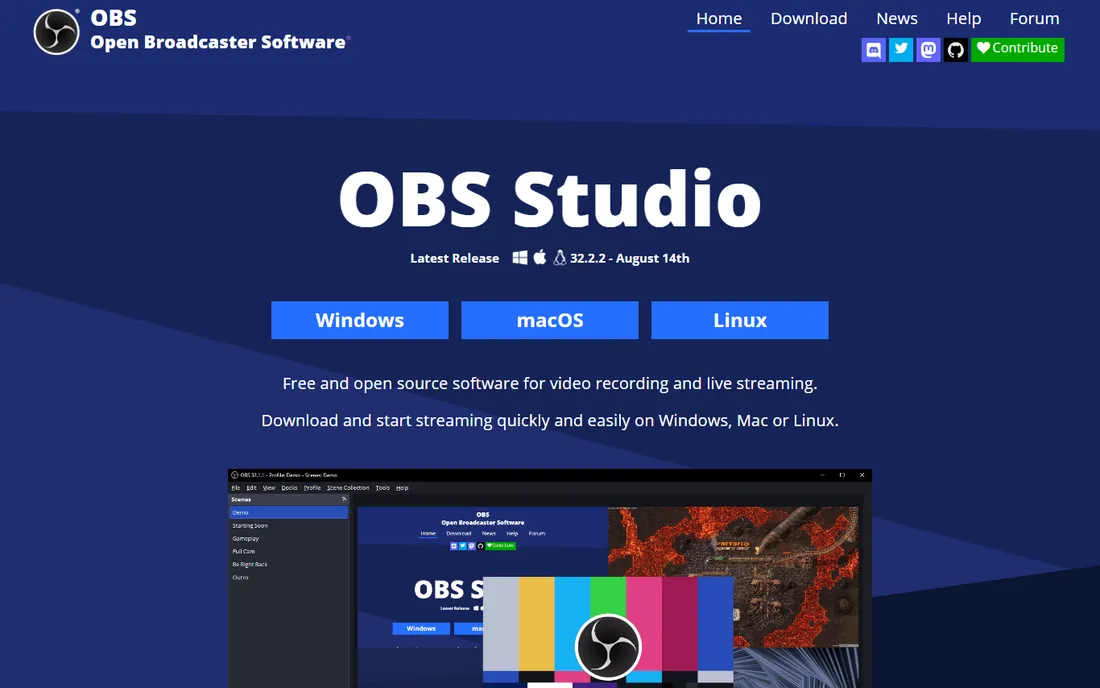
OBS Studio is the closest thing to professional broadcast software you can get for zero dollars. It records your screen, webcam, multiple audio sources and application windows simultaneously, composites them into scenes, and either saves the result locally or streams it live. There is no watermark, no recording cap and no upsell screen waiting at export.
The price you pay is setup time. Your first recording requires building a scene, adding sources and choosing an encoder, which takes about half an hour if you have never done it. After that, one hotkey starts and stops recording. For tutorials, courses, software demos and anything you will record repeatedly, that initial investment pays off fast. For a single quick clip, pick something simpler from this list.
What we like- No watermark, no time limit, no account
- Records and live-streams
- Deep audio and video controls
Watch out for- Setup takes real effort the first time
- Interface intimidates beginners
- Overkill for a quick two-minute clip
Starting priceSee website
Free planYes
Loom owns the "send a quick video instead of a meeting" workflow. Hit record, capture your screen with a camera bubble in the corner, stop, and you instantly get a link to send. For async team updates, bug reports and short explanations, nothing else is this fast. The free plan includes the camera and instant sharing that made Loom popular.
The five-minute cap on free videos is the catch that matters. It is fine for a bug report and too short for a real tutorial. Longer videos, unlimited storage and editing features sit behind the paid plans. Use Loom free for short messages and quick feedback, and reach for OBS Studio or ScreenRec when the recording needs to run longer.
What we like- Fastest path from record to shareable link
- Camera bubble plus screen in one click
- Viewer analytics on paid tiers
Watch out for- Free plan caps videos at five minutes
- Recordings live on Loom's platform
- Limited editing on the free tier
Starting priceFree
Free planYes
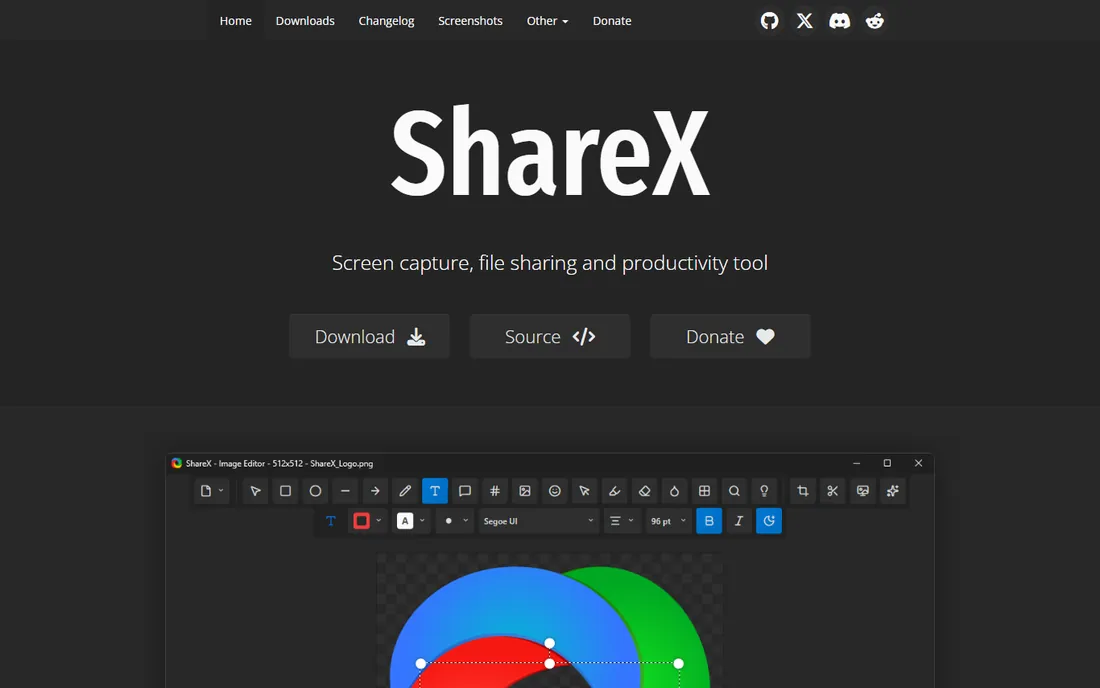
ShareX is a beloved utility among developers, support teams and technical writers on Windows. One hotkey captures a region, records a short clip or grabs a scrolling screenshot, then automatically uploads it and copies the share link to your clipboard. It also handles OCR text extraction, color picking and GIF recording in the same lightweight package.
It is not a tutorial studio. Recording controls are basic, there is no webcam bubble and no editing timeline. But for the daily grind of "show, don't tell" communication, ShareX removes more friction than any other tool here. It is free, open source, has no ads and requires no account, which is a combination almost nobody else offers.
What we like- Completely free and open source
- One-hotkey capture with automatic upload
- Doubles as a GIF and screenshot powerhouse
Watch out for- Windows only
- Interface looks dated
- Screen recording features are basic compared to dedicated tools
Starting priceSee website
Free planYes
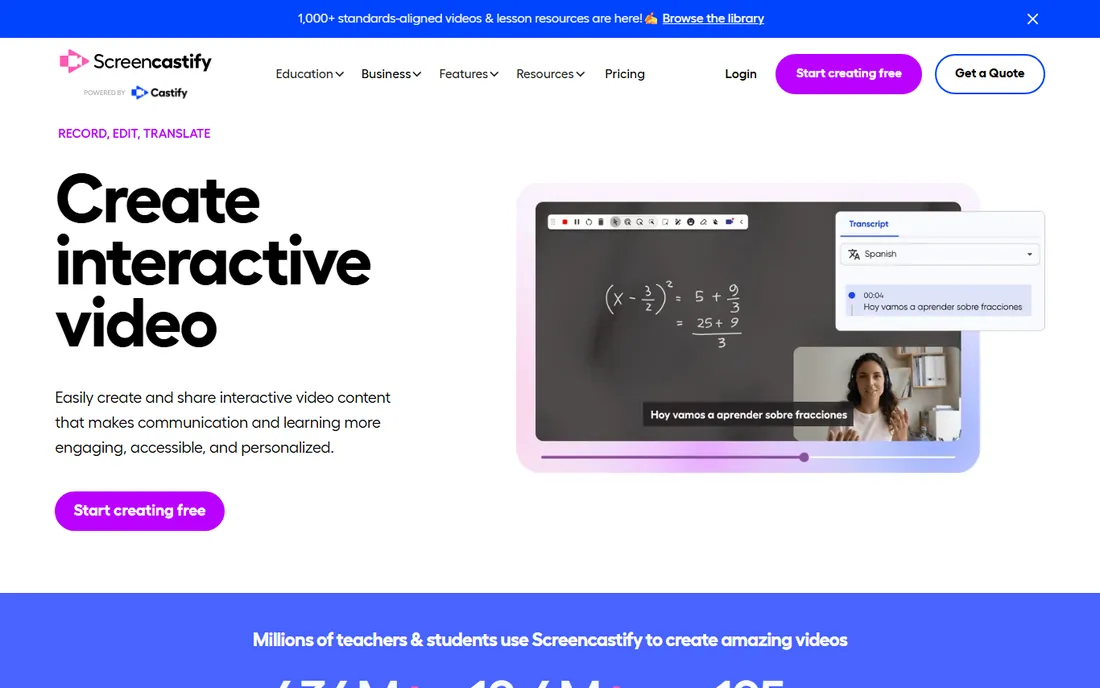
Screencastify is the screen recorder of the Google Classroom world. As a Chrome extension it records browser tabs, the desktop or the webcam, then drops finished videos straight into Google Drive. Teachers annotate slides with the pen tool mid-recording, and students submit recordings as assignments without touching another app.
The free tier gives you 10 videos at up to 30 minutes each, but exports carry a watermark. Paid plans start with the Starter tier and remove the watermark while adding unlimited videos and longer recordings. If your team lives in Chromebooks and Google Workspace, Screencastify fits like a glove. Everyone else should look at the desktop options first.
What we like- Runs entirely in Chrome with no install
- Saves directly to Google Drive
- Drawing tools work during recording
Watch out for- Free plan limited to 10 videos with a watermark on exports
- Chrome only
- Editing tools are basic
Starting priceFree
Free planYes
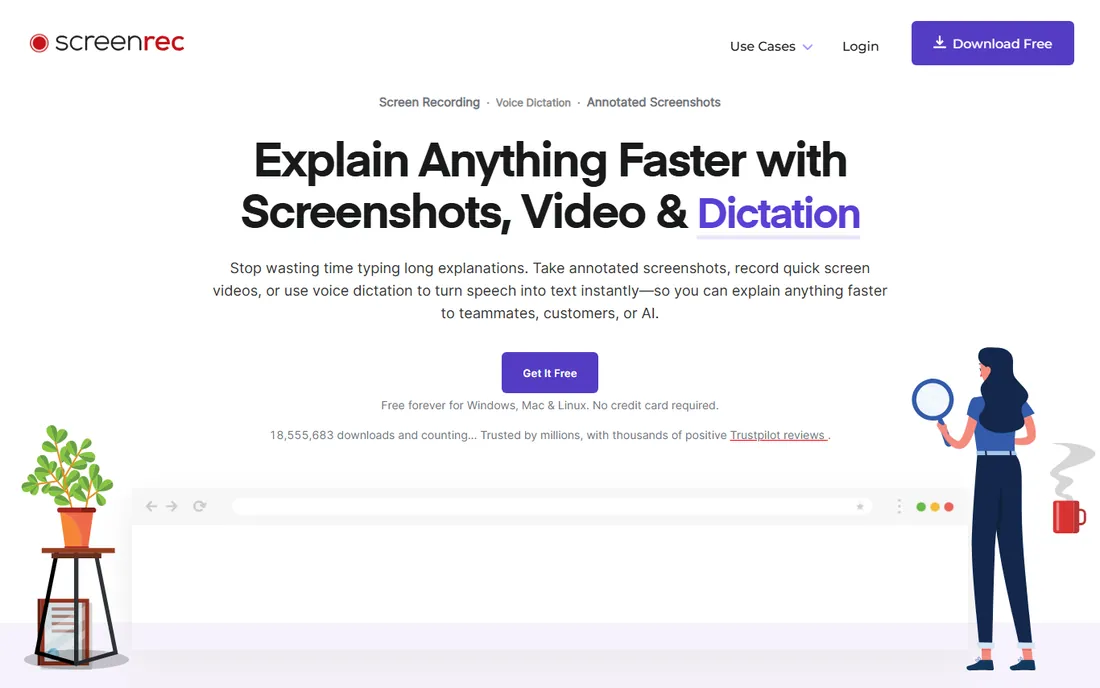
ScreenRec's pitch is simple: press Alt+S, record, and get a private sharing link the moment you stop. There is no watermark and no recording time limit on the free tier, which already puts it ahead of most "free" competitors. Videos save locally as MP4 and upload to your private cloud in the background, so sharing never means waiting on an upload bar.
The company behind it sells a broader business video platform, so expect gentle nudges toward paid features. For straightforward needs, recording a demo, walking a client through a dashboard, capturing a bug, the free tier asks for nothing and delivers plenty. It is one of the most genuinely free options on this list.
What we like- Free with no watermark and no time limit
- Instant private share links
- 2GB of free cloud storage
Watch out for- Desktop app only for Windows, Linux and Mac
- Business features push toward the paid platform
- Smaller community
Starting priceFree
Free planYes
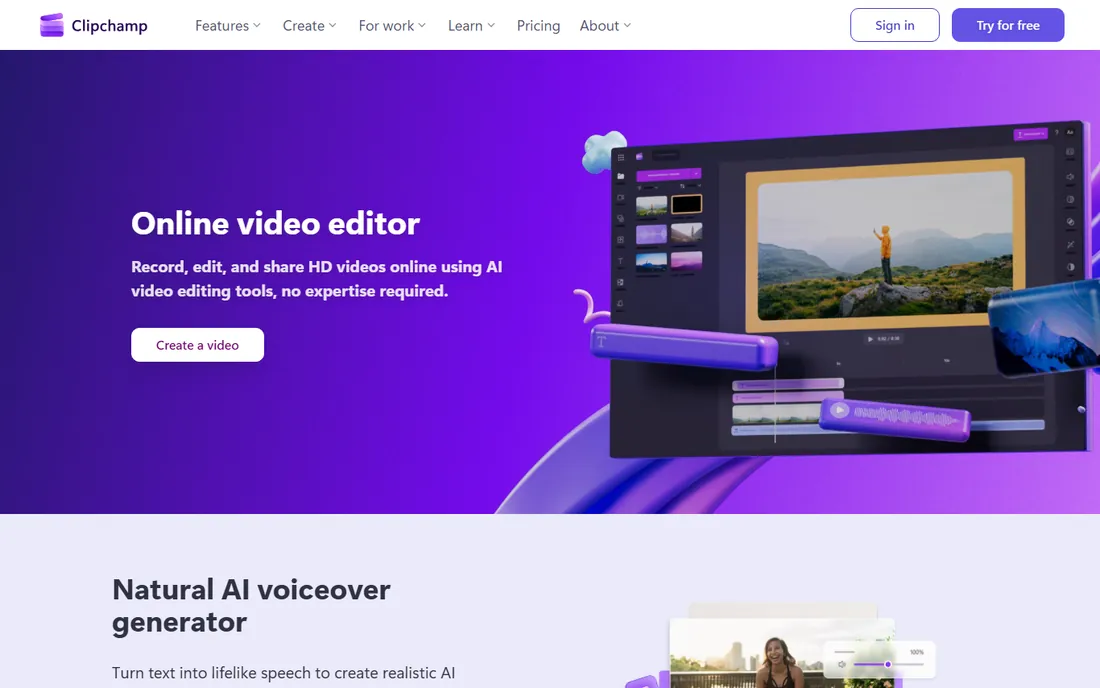
Microsoft's Clipchamp is the path of least resistance for Windows users. It ships with Windows 11, records the screen and webcam together, then opens the result in a built-in editor with trimming, text overlays, transitions and AI auto-captions. The free plan exports at 1080p with no watermark, which covers the vast majority of tutorial and training use.
Two limits to know: recordings top out at 30 minutes, and 4K export requires the premium tier (which Microsoft 365 subscribers already have). You also need a Microsoft account to use it. If you are on Windows and want to record and lightly edit without installing anything new, start here before downloading anything else.
What we like- Preinstalled on Windows 11
- 1080p export with no watermark on the free plan
- Built-in editor with auto-captions
Watch out for- Requires a Microsoft account
- Recordings capped at 30 minutes
- 4K export needs a paid plan
Starting priceFree
Free planYes
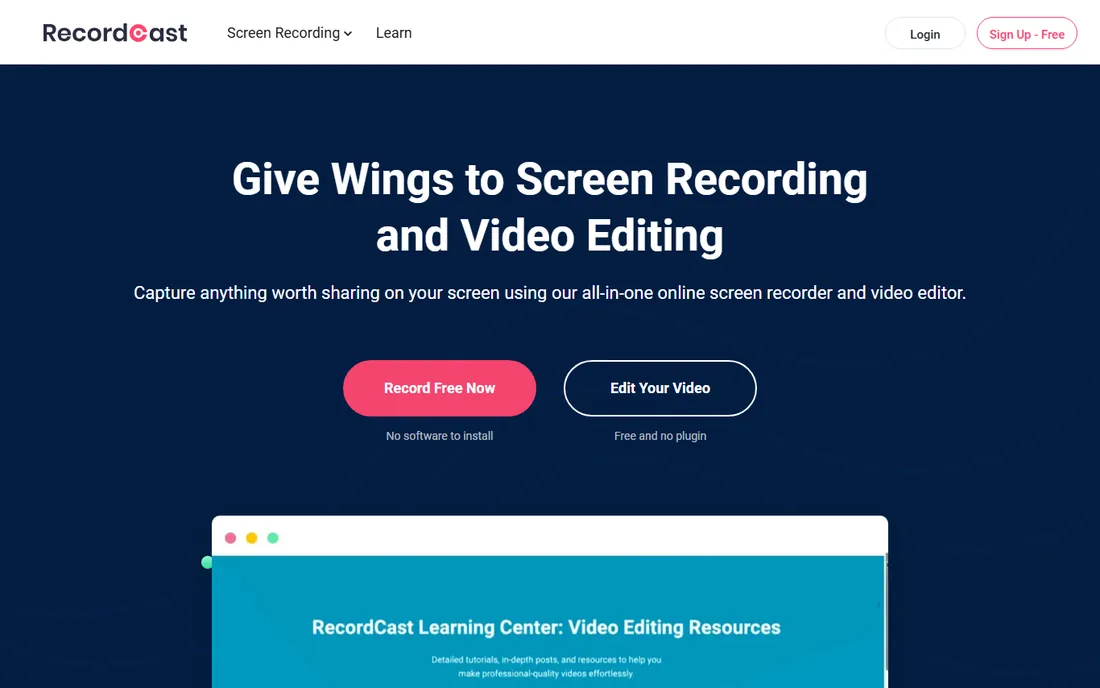
RecordCast runs entirely in the browser, which makes it the easiest recommendation for someone on a locked-down work computer. Open the site, choose screen, webcam or both, record, then trim and annotate in the built-in editor before downloading. Exports are watermark-free, a rarity among browser recorders.
The 30-minute per-recording limit and MP4-only export are the main constraints, and free accounts can only save a handful of projects. For one-off tutorials, student projects and quick demos where installing software is not an option, RecordCast is genuinely useful rather than merely tolerable. Just download your finished video promptly.
What we like- No install and no extension required
- Watermark-free exports
- Built-in editor with text and annotations
Watch out for- 30-minute cap per recording
- MP4 export only
- Limited saved projects on the free tier
Starting priceFree
Free planYes
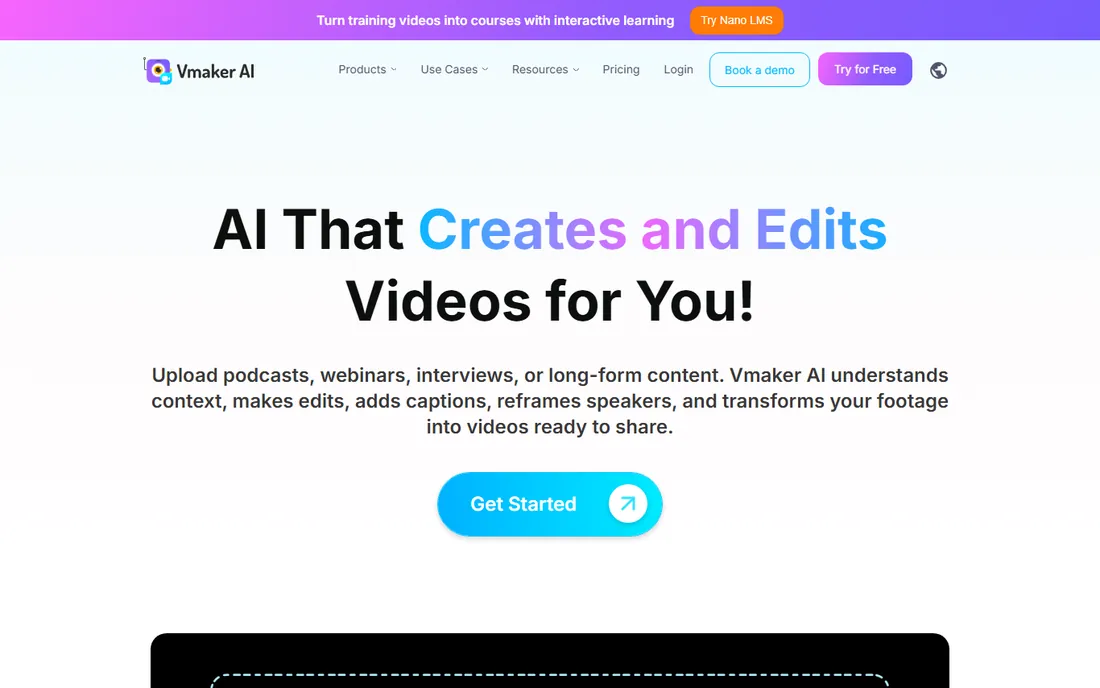
Vmaker's free Lite plan is unusually generous: unlimited recordings with no watermark, noise cancellation, virtual backgrounds and an AI editor that generates subtitles, transitions and b-roll from your raw footage. For tutorial creators and course builders, the AI editing alone can save hours of post-production.
The paid Starter and Team tiers add 4K recording, custom branding and screen annotations during recording. As with any AI-assisted tool, review the auto-generated edits before publishing. But as a free starting point for polished-looking tutorial content, Vmaker punches well above its price.
What we like- Free Lite plan with unlimited recording and no watermark
- AI editor adds subtitles and b-roll automatically
- Virtual backgrounds
Watch out for- Advanced features like 4K need paid tiers
- Account required
- AI features vary in quality
Starting priceFree
Free planYes
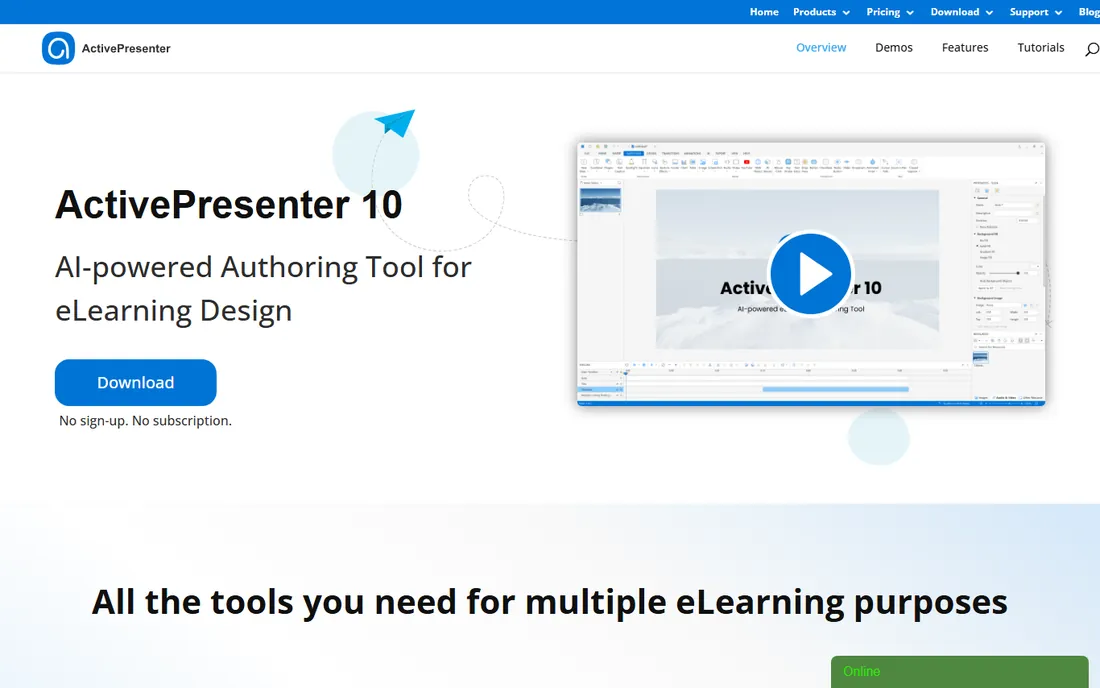
ActivePresenter is the specialist pick for anyone creating training material. The free edition records the screen with no watermark and no time limit, then hands you a proper non-destructive video editor instead of a trim-only toy. Its real differentiator is eLearning export: interactive HTML5 content and SCORM packages that plug into corporate learning systems.
Paid editions (Standard and Pro, sold as perpetual licenses) add quiz creation and advanced publishing. The interface carries its training-software heritage and feels denser than single-purpose recorders. But if your recordings are destined for a course rather than YouTube, nothing else free comes this close to a professional authoring tool.
What we like- Free edition with no watermark and no time limit
- Built-in non-destructive video editor
- Exports interactive HTML5 and SCORM courses
Watch out for- Windows and macOS only
- Interface reflects its eLearning roots
- Advanced exports need the paid editions
What to check before you pick a free recorder
Start with the three traps: watermarks, time limits and export locks. A surprising number of "free" recorders stamp their logo on your video, cut you off at five minutes, or hold the download button hostage until you pay. Every tool above states its limits plainly, but always test the full path from record to exported file before committing to a tool for real work.
Next, match the tool to the job's shape. Quick async messages belong in Loom. Repeated tutorials belong in OBS Studio or ActivePresenter. Browser-only environments point to RecordCast or Screencastify. Windows users who also need light editing should try Clipchamp first since it is already installed.
Finally, think about where the video lives. Cloud-based tools give you instant share links but keep your content on someone else's servers. Desktop tools like OBS Studio and ShareX keep files local, which matters for sensitive material. Neither approach is wrong, but the choice should be deliberate.
The limits nobody advertises
Free screen recording has failure modes that only appear mid-project. Browser-based recorders depend on tab stability: close the wrong tab and the recording dies with it. Tools with cloud uploads can stall on slow connections, leaving you with a "processing" spinner instead of a video file. Always do a 30-second test recording and play it back before recording anything important.
Audio is the other silent killer. Most recording disasters are audio disasters: the mic was muted, the system audio was not captured, or the levels were unusable. Before any important session, record ten seconds, listen to it with headphones, and confirm both your voice and the system sound are present. This single habit prevents more ruined recordings than any choice of software.
How we chose
We evaluated the free tiers of the most widely used screen recorders, testing what "free" actually includes rather than what marketing pages imply. We read current pricing pages, documentation and user reviews on G2 and Reddit, and excluded tools whose free plans are effectively unusable. Every pick here is actively maintained in 2026 and lets you record and export real videos without paying. No vendor paid for placement.
Frequently asked questions
Are free screen recorders safe to install?
Stick to the official websites and well-known open-source projects, and yes. OBS Studio, ShareX and ScreenRec are established tools with large user bases. Avoid downloading recorders from aggregator sites that bundle adware, and be wary of any "free" recorder that asks for payment details before your first recording.
Why do so many free recorders add watermarks?
Watermarks are the business model. Vendors give away recording and charge to remove the logo, betting that professional-looking output matters enough to convert you. Tools like OBS Studio, ShareX and ScreenRec skip this entirely because they monetize differently or not at all.
Can I record my screen and webcam at the same time for free?
Yes. OBS Studio, Loom, Screencastify, RecordCast, Vmaker and ActivePresenter all support picture-in-picture webcam recording on their free tiers. OBS Studio gives you the most control over layout; Loom gives you the fastest setup.
Which free screen recorder has no time limit?
OBS Studio, ShareX and ScreenRec impose no recording time limit on their free tiers. ActivePresenter's free edition is also unlimited. Loom caps free videos at five minutes, while Clipchamp, RecordCast and Screencastify allow 30 minutes per recording.
Do I need to install software, or can I record in the browser?
Both work. RecordCast and Screencastify record entirely in the browser with nothing to install, which suits locked-down computers and Chromebooks. Desktop tools like OBS Studio, ShareX and ScreenRec offer more control and work offline. Browser recording quality depends on your connection and tab stability.
Sources we checked (10)
- https://github.com/haxzie/prequel/blob/HEAD/apps/web/src/content/blog/free-screen-recorder-mac-camera.mdx
- https://obsproject.com
- https://filmora.wondershare.com/screen-recorder/screencastify.html
- https://www.dadan.io/blog/best-screen-recorder-chrome-extension-free-paid
- https://screenrec.com/screen-recorder/screen-recorders-no-watermark/
- https://pexo.ai/blog/what-is-clipchamp-1109
- https://www.recordcast.com/learn/screen-recorder-with-audio.html
- https://www.vmaker.com/blog/record-skype-calls-on-windows-mac/
- http://atomisystems.com/tutorials/how-to-desktop-screen-recorder-activepresenter/
- https://sourceforge.net/software/product/ActivePresenter/
Is your product missing or out of date?
We review this list regularly. Vendors can request a listing, send updated pricing or ask about featured placement.

Shihab Mia · Founder, Rankite
Shihab has spent more than a decade helping SaaS and e-commerce brands grow through search. He writes Rankite's software buying guides from pricing pages, documentation and public user reviews. More about Shihab.