How we make this list: we compare pricing pages, product documentation and public user reviews. Rankite is independent; if a vendor ever pays for a featured spot, that listing is clearly labeled Partner.
Key takeaways
- Everything is the fastest free way to find any file on Windows by name, returning results as you type.
- TagSpaces organizes files with tags instead of folders, and it runs on Windows, Mac, and Linux.
- dupeGuru and Duplicate Cleaner both find duplicate files, including near-duplicates; dupeGuru is fully open source while Duplicate Cleaner offers a friendlier free version with an optional Pro upgrade.
- Bulk Rename Utility renames thousands of files in one pass, and DropIt auto-sorts files into folders using rules you define once.
- All nine tools are free for personal use; only Bulk Rename Utility and Duplicate Cleaner require a paid license for commercial use.
Quick comparison
| Tool | Best for | Starting price | Free plan |
|---|
 Everything Everything | Instantly finding any file by name on Windows | Free | Yes |
 TagSpaces TagSpaces | Organizing files with tags instead of rigid folders | Free | Yes |
 dupeGuru dupeGuru | Finding duplicate files with a free, open-source tool | Free | Yes |
 Duplicate Cleaner Duplicate Cleaner | Duplicate cleanup with a guided, beginner-friendly interface | Free | Yes |
 FreeCommander FreeCommander | Power file management with dual panes on Windows | Free | Yes |
 Double Commander Double Commander | A free dual-pane file manager on Mac, Linux, and Windows | Free | Yes |
 DropIt DropIt | Automatically sorting files with drag-and-drop rules | Free | Yes |
 Bulk Rename Utility Bulk Rename Utility | Renaming thousands of files in a single batch | Free | Yes |
 WinDirStat WinDirStat | Seeing exactly what is eating your disk space | Free | Yes |
Is your product missing or out of date?
We review this list regularly. Vendors can request a listing, send updated pricing or ask about featured placement.
The best free file organizer software
Starting priceFree
Free planYes
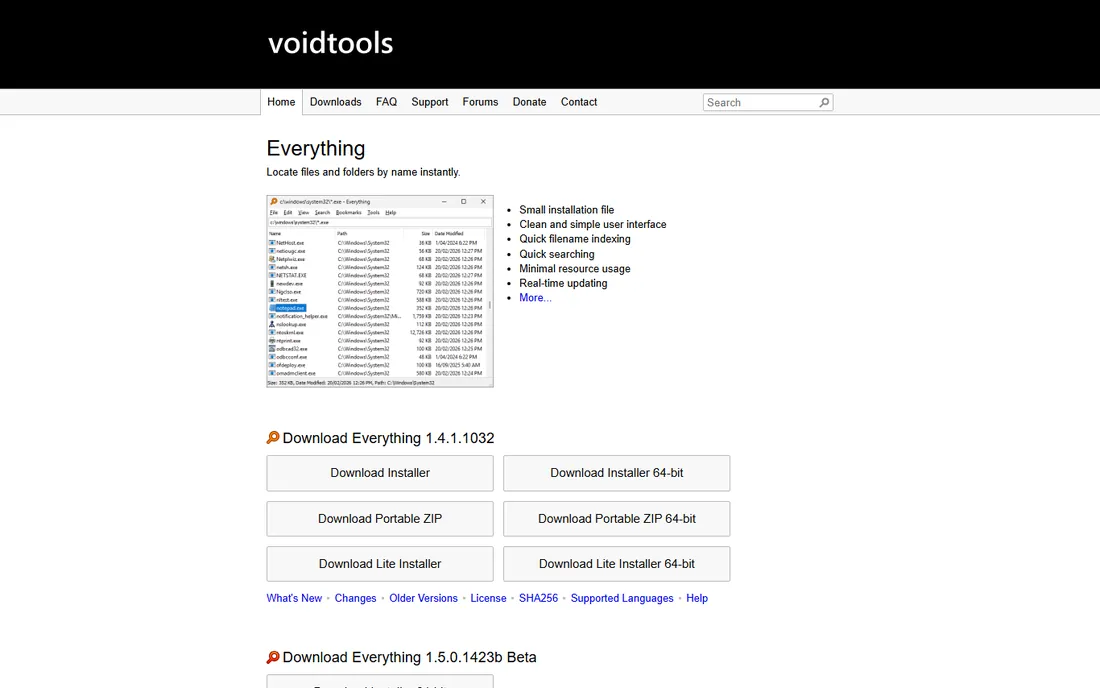
If you have ever typed a filename into Windows search and watched it think, Everything will feel like a different computer. It builds an index of every file and folder name on your NTFS drives in seconds, then shows matches the moment you start typing. The 1.4 release is a small download that runs quietly in the background, and version 1.5 in beta adds content search and a proper HTTP server.
The honest catch is scope. Everything is a search tool, not an organizer: it will not tag, sort, or deduplicate your files. It is also Windows-only, so Mac and Linux users need to look elsewhere. But for the single most common file frustration, not being able to find something you know you saved, nothing free beats it.
What we like- Returns results as you type
- Tiny install with minimal resource use
- Powerful search syntax with filters and regex
Watch out for- Windows only
- Searches filenames, not file contents, by default
Starting priceFree
Free planYes

Folders force every file into exactly one place. TagSpaces rejects that idea: you add color-coded tags to files and folders, and the tags are stored right alongside the files, so they survive moves, renames, and syncing across machines. There is no account, no cloud dependency, and no tracking, which makes it a comfortable fit for privacy-minded teams. It also previews images, PDFs, audio, video, and documents without opening other apps.
The tradeoff is effort. A tagging system only pays off if you actually tag things, and building that habit takes a few weeks. The free Lite edition covers tagging, notes, and search; Pro adds AI-assisted tagging, Kanban views, and geo-tagging. For a shared project archive or a research library, the Lite version alone is enough to test whether tags beat folders for your workflow.
What we like- Tags travel with files, no database or account needed
- Runs on Windows, Mac, and Linux
- Can preview 50+ file formats in the app
Watch out for- Tagging takes discipline to maintain
- Advanced views like Kanban require the paid Pro edition
Starting priceFree
Free planYes
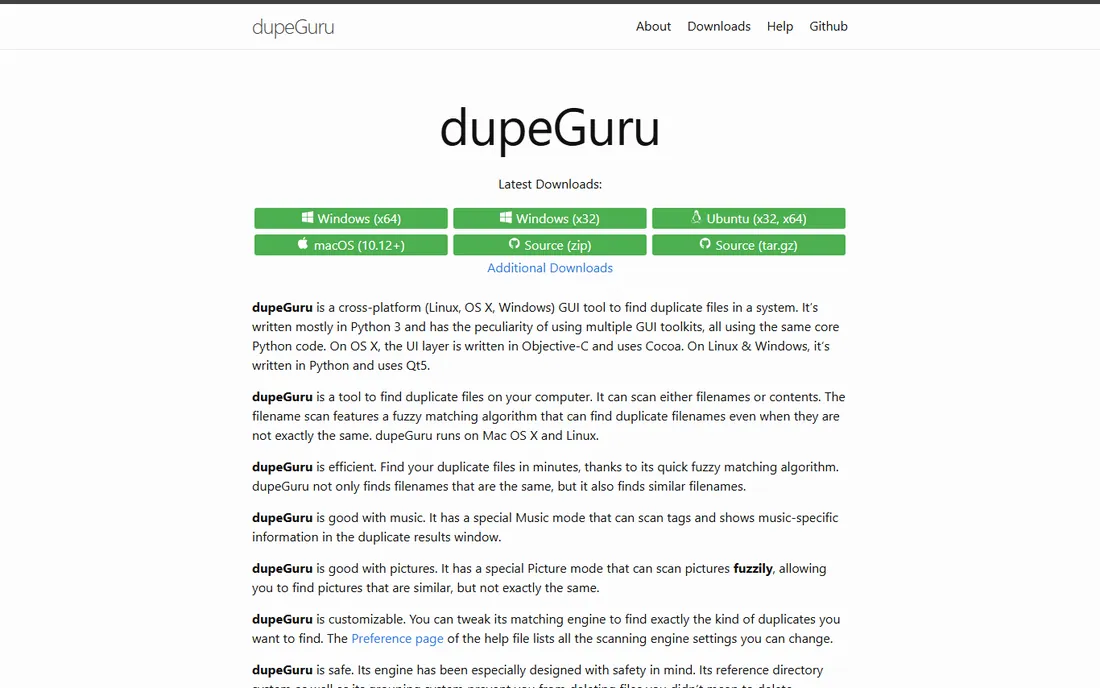
Duplicates are the quiet killers of disk space: the same installer downloaded three times, photos imported twice, documents copied into every project folder. dupeGuru scans by filename or by content, and its fuzzy matching catches files that are almost but not exactly the same name. Separate Music and Picture modes understand ID3 tags and can find visually similar images, which generic duplicate finders miss.
The interface looks like it time-traveled from 2010, and scanning very large drives can be slow. There is also no company behind it, so support means community forums. But it is free and open source with no paid tier at all, and its reference-directory system is designed to stop you from deleting something you meant to keep. For a careful, no-cost duplicate sweep, it remains the benchmark.
What we like- Fuzzy matching finds near-duplicate filenames
- Dedicated modes for music and pictures
- Runs on Windows, Mac, and Linux
Watch out for- Dated interface
- Development is community-driven and slow
Starting priceFree
Free planYes
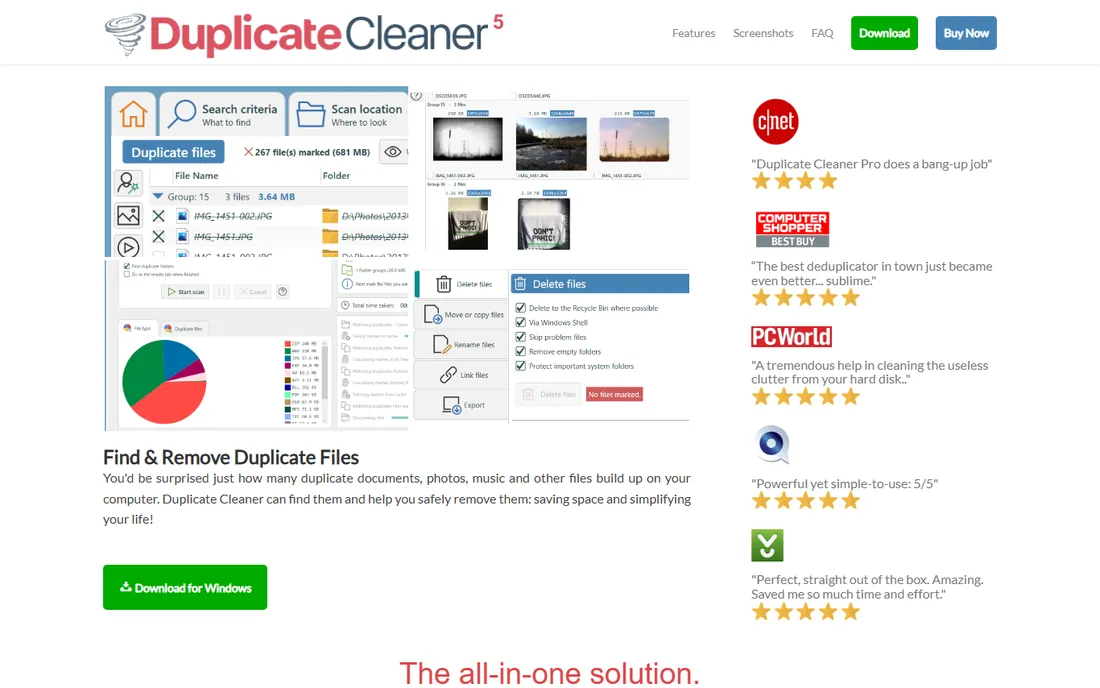
When dupeGuru feels too rough around the edges, Duplicate Cleaner is the polished alternative. A setup wizard walks you through choosing folders and criteria, and the Selection Assistant helps you mark duplicates by group, date, or location instead of clicking hundreds of checkboxes. It finds duplicate files and folders, scans inside zip archives in Pro, and compares images visually so rotated or resized copies get caught.
The free edition is genuinely useful but limited to personal, non-commercial use, and the headline features like similar-image detection sit in Pro, which you can trial for 7 days. Pricing is a one-time license rather than a subscription. If you want duplicate cleanup that a non-technical colleague could run without supervision, this is the friendliest free starting point.
What we like- Wizard-led setup makes first scans easy
- Selection Assistant helps mark files safely
- Free version covers core duplicate finding
Watch out for- Free version is for personal use only
- Similar-image detection and zip searching need Pro
Starting priceFree
Free planYes
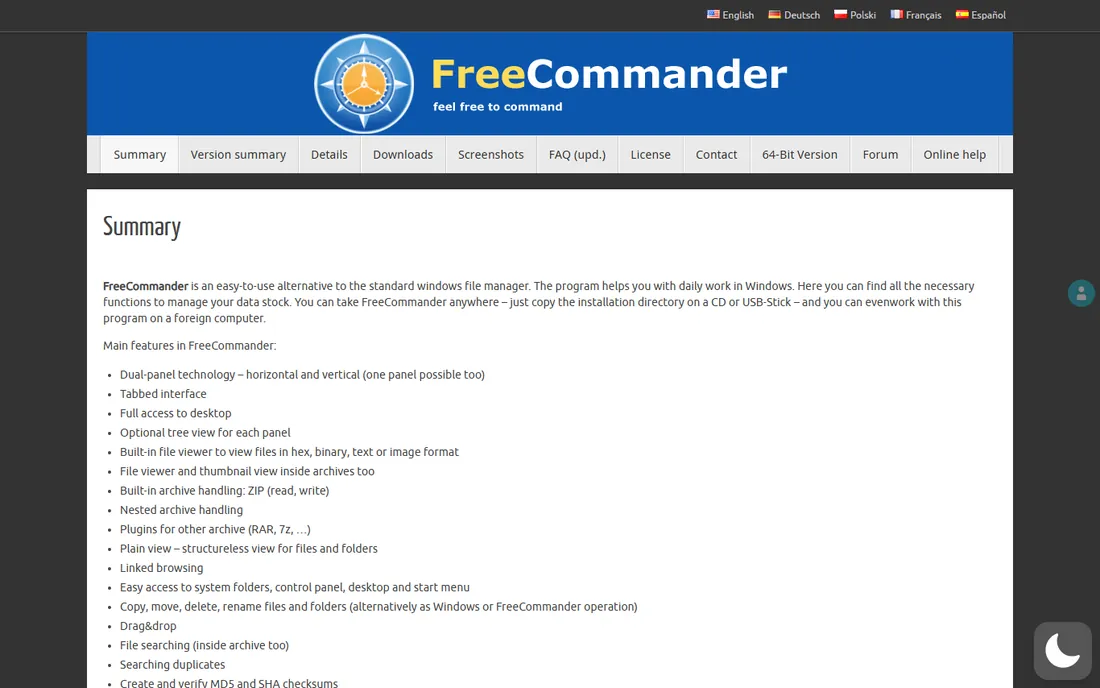
Windows File Explorer is fine until your job involves moving files between folders all day. FreeCommander puts two folder panes side by side with tabs, so copying, comparing, and synchronizing directories takes half the clicks. It packs a serious toolkit: duplicate file search, MD5 and SHA checksum tools, a multi-rename tool, folder comparison and sync, and archive handling for ZIP and other formats.
All that power comes with a learning curve. The settings dialogs are extensive, and the interface will not win design awards. There is also a paid XE Donor version that adds a 64-bit build and a few extras, but the free edition covers the core. For anyone who lives in a file manager, office admins, photographers ingesting cards, data wranglers, it is the most capable free option on Windows.
What we like- Dual-pane layout with tabs speeds up moving files
- Built-in duplicate search, checksums, and folder sync
- Portable version runs from a USB stick
Watch out for- Windows only
- Settings are deep enough to overwhelm new users
Starting priceFree
Free planYes
FreeCommander is Windows-only, which leaves Mac and Linux users out. Double Commander fills that gap with a dual-pane, open-source file manager that runs on all three desktop platforms. It borrows its keyboard-driven workflow from Total Commander, supports that program's WCX, WDX, and WLX plugins, and includes a multi-rename tool, tabbed browsing, archive handling, and full-text search across files.
The look is unapologetically retro, and if you have never used a Commander-style manager, the F-key shortcuts take an afternoon to learn. But it is completely free with no paid tier, it is actively maintained, and files, FTP, and archives all work the same on every OS. Mixed-platform teams that want one file manager for everyone should start here.
What we like- Cross-platform with the same workflow everywhere
- Total Commander plugin support
- Full-text search inside files
Watch out for- Interface follows the old Norton Commander style
- Documentation is community-maintained
Starting priceFree
Free planYes
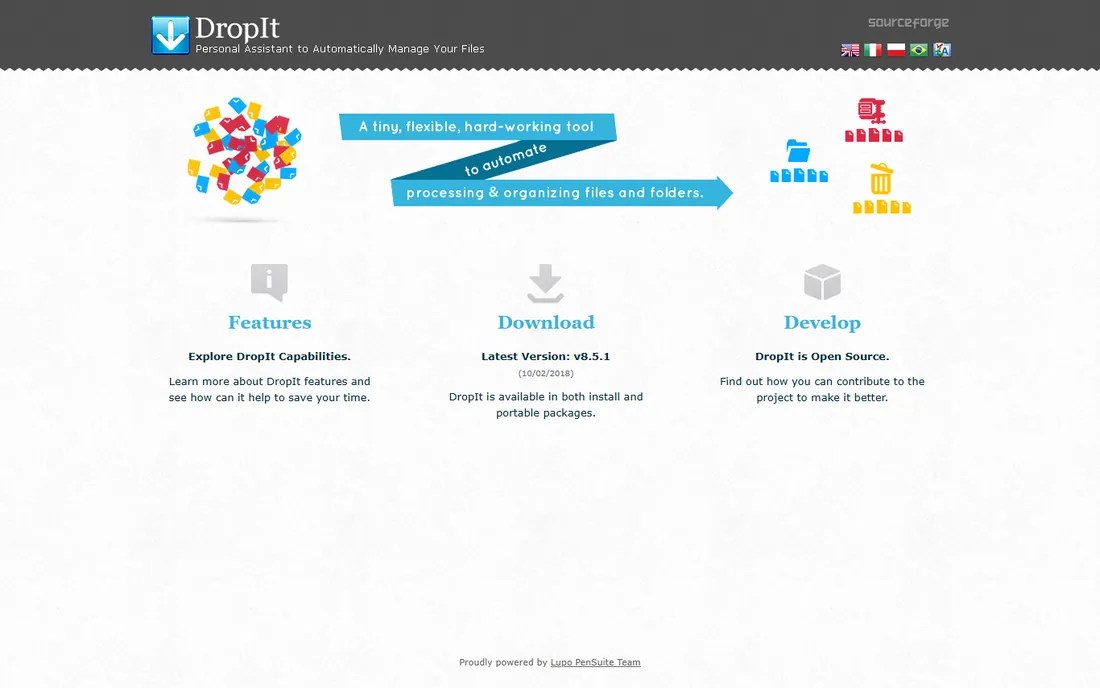
The most unusual tool on this list is also the most hands-off. DropIt sits as a small floating target on your desktop. You define associations, rules like "move every .pdf to Documents/Invoices" or "compress every .log older than 30 days", then drag files onto the target or let it watch a folder automatically. With 21 actions including rename, split, join, encrypt, FTP upload, and email, one drop can replace a whole manual routine.
Two caveats. It is Windows-only, and the last release was version 8.5.1 in 2018, so it is in maintenance mode rather than active development. It still works on current Windows, but do not expect new features. For taming a chaotic Downloads folder or routing incoming files to project directories, nothing else free does this much with this little daily effort.
What we like- 21 actions from move and rename to encrypt and upload
- Rules filter by name, size, date, or regex
- Can auto-process monitored folders
Watch out for- Windows only and not updated since 2018
- Rule setup takes experimentation
Starting priceFree
Free planYes
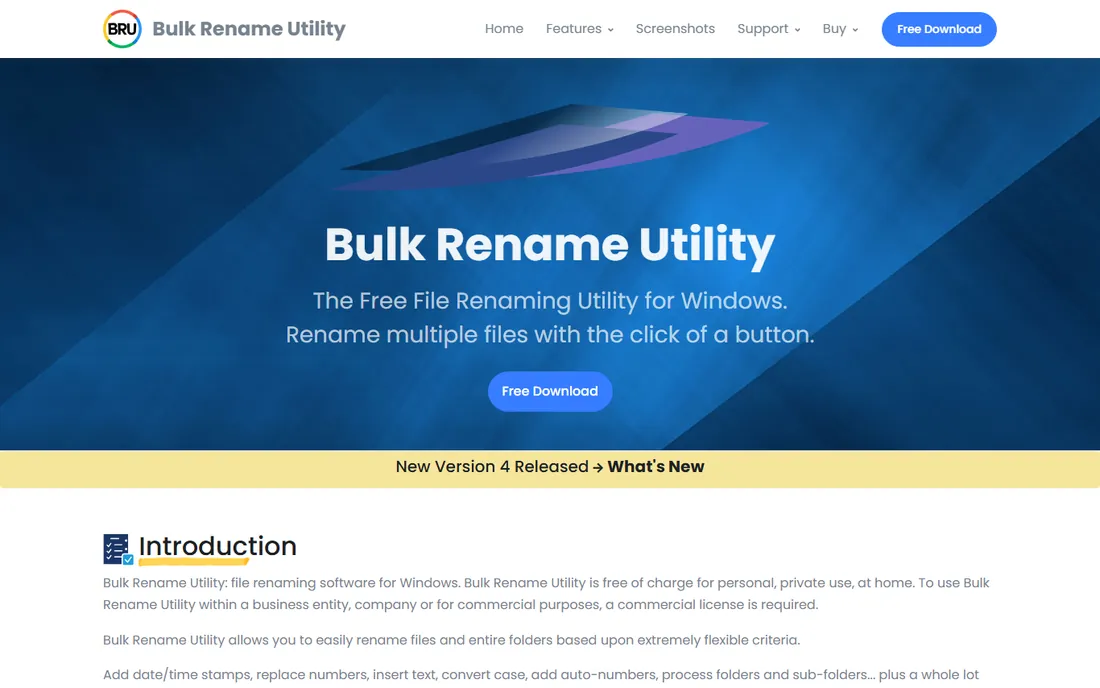
Camera dumps named DSC_0042.jpg are nobody's idea of organization. Bulk Rename Utility renames files and folders in bulk using rules: add dates, replace text, change case, auto-number, strip characters, or write JavaScript for edge cases. Photographers can rename by EXIF shoot date, music collectors by ID3 tags, and everyone gets a full preview of new names before anything changes, plus an undo batch file for safety.
The main window shows every option at once, which is overwhelming until you learn to ignore the panels you do not need. Licensing matters here: it is free for personal home use, but any business or commercial use requires a paid commercial license per computer. For a one-person cleanup project or a home photo archive, it is unmatched and costs nothing.
What we like- Extremely flexible rules including regex and JavaScript
- Live preview before any rename
- Renames photos by EXIF and music by ID3 tags
Watch out for- Free only for personal use, businesses need a license
- The control panel is intimidating at first
Starting priceFree
Free planYes
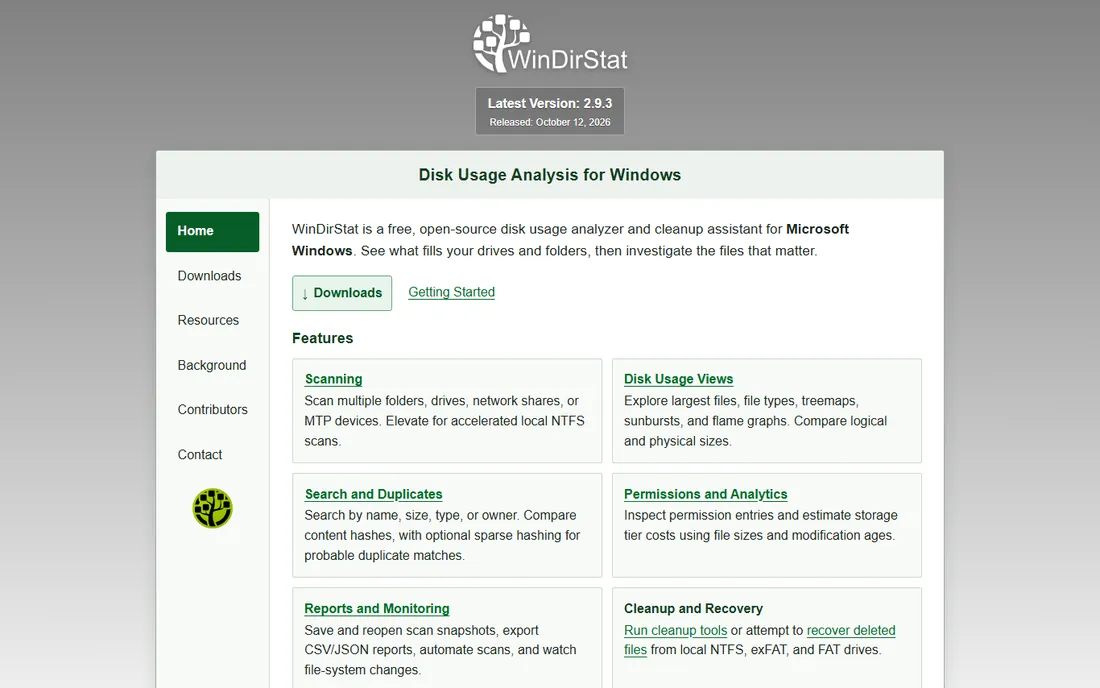
Sometimes the mess is not disorganization but a full hard drive with no idea why. WinDirStat scans a drive and shows three views at once: a directory tree sorted by size, a breakdown by file extension, and a treemap where each file is a colored rectangle sized by its footprint. One glance reveals the forgotten 40 GB video render or the log folder that grew for two years.
Version 2.x is under active development again after a long quiet period, adding duplicate detection by content hash, permission inspection, and CSV or JSON reports. Scans of very large drives still take time, and it is Windows-only. But as a first step before any cleanup project, it answers the question every other tool on this list assumes you already know: where did all the space go.
What we like- Treemap visualization makes huge files obvious
- Finds duplicate files by content hash
- Free and open source
Watch out for- Windows only
- Full-drive scans take a while on large disks
How we chose
We started from the vendor's own pricing pages, documentation, and changelogs to confirm what each tool does and what it costs today. We then cross-checked features and limitations against public reviews on G2, Capterra, and SourceForge, plus long-running community threads on Reddit where IT admins and power users discuss these utilities in detail. We favored tools that are genuinely free rather than time-limited trials, and we weighted cross-platform support, active maintenance, and safety features like previews and undo. We did not run hands-on tests; this ranking reflects documented features, pricing, and reviewer consensus.
What to check before you download
Free does not always mean free for work, so read the license line before installing anything on a company machine. Bulk Rename Utility and Duplicate Cleaner both require paid licenses for commercial use, while the open-source tools on this list, dupeGuru, Double Commander, DropIt, and WinDirStat, carry no such restriction. Everything and TagSpaces are free for personal use with no business-use carve-outs stated, but confirm the current terms on their sites if you deploy widely.
Match the tool to the job instead of installing all nine. If finding files is the pain, start with Everything. If the drive is full of copies, run dupeGuru or Duplicate Cleaner first, then use WinDirStat to verify what the scan freed. If new files arrive faster than you can file them, DropIt rules or a TagSpaces tagging habit will do more than any one-time cleanup.
Mind the platform gap
Most of these utilities are Windows-first, and three are Windows-only: Everything, FreeCommander, DropIt, Bulk Rename Utility, and WinDirStat. Mac and Linux users get the best coverage from TagSpaces, Double Commander, and dupeGuru. If your team mixes operating systems, standardize on the cross-platform picks so everyone follows the same workflow.
Keep a backup before bulk actions
Duplicate deletion and mass renaming are safe in these tools, they all offer previews, recycle-bin deletion, or undo files, but a backup is still cheap insurance. Run your first duplicate scan or bulk rename on a copy of a folder, check the results, and only then point the tool at the real thing.
A simple weekly routine that keeps files tidy
Tools alone do not create order; a small routine does. Once a week, spend fifteen minutes: run Everything to check for stray files on the desktop, drop new downloads onto your DropIt rules, and tag anything important in TagSpaces. Once a month, run dupeGuru on your documents folder and WinDirStat on the system drive. That is the whole system. The tools on this list are free, but the habit is what keeps the next cleanup from taking a weekend.
Frequently asked questions
Are these file organizers really free?
Yes for personal use. Everything, TagSpaces Lite, dupeGuru, FreeCommander, Double Commander, DropIt, and WinDirStat cost nothing with no time limit. Bulk Rename Utility and the free edition of Duplicate Cleaner are free for personal home use but require a paid license if you use them for business.
Which free file organizer is best for Mac?
TagSpaces and Double Commander both run natively on Mac, and dupeGuru has a Mac build. Everything, FreeCommander, DropIt, Bulk Rename Utility, and WinDirStat are Windows-only, so Mac users should start with the cross-platform three.
Can these tools delete my files automatically?
Only if you tell them to. dupeGuru and Duplicate Cleaner can delete duplicates, and DropIt can delete files by rule, but all of them show you what will happen first, and deletions can go to the Recycle Bin. Never run an automatic delete rule on a folder you have not backed up.
Do I need more than one of these tools?
Most people need two or three. A common setup is Everything for search, dupeGuru or Duplicate Cleaner for duplicates, and DropIt for incoming files. The tools solve different problems, so stacking a finder, a cleaner, and a sorter covers nearly everything.
What is the difference between dupeGuru and Duplicate Cleaner?
Both find duplicate files, but dupeGuru is fully open source and free forever with a technical interface, while Duplicate Cleaner offers a guided wizard and a friendlier free version with an optional paid Pro edition. Choose dupeGuru for cost-certainty and Duplicate Cleaner for ease of use.
Can I organize files stored in Google Drive or Dropbox with these tools?
Mostly yes, with a caveat. Desktop sync clients make cloud files appear as local folders, so tools like Everything, dupeGuru, and Bulk Rename Utility work on them normally. TagSpaces can also browse S3-compatible storage directly. Files that exist only in the cloud, not synced locally, cannot be scanned.
Sources we checked (9)
- https://www.voidtools.com/
- https://www.tagspaces.org/
- https://dupeguru.voltaicideas.net/
- https://duplicatecleaner.com/
- https://freecommander.com/
- https://doublecmd.sourceforge.io/
- http://www.dropitproject.com/
- https://www.bulkrenameutility.co.uk/
- https://windirstat.net/
Is your product missing or out of date?
We review this list regularly. Vendors can request a listing, send updated pricing or ask about featured placement.

Shihab Mia · Founder, Rankite
Shihab has spent more than a decade helping SaaS and e-commerce brands grow through search. He writes Rankite's software buying guides from pricing pages, documentation and public user reviews. More about Shihab.