How we make this list: we compare pricing pages, product documentation and public user reviews. Ratings come from G2, Capterra or Trustpilot, with the date we checked them.
Key takeaways
- DaVinci Resolve is the most capable free video editor overall, with professional color, audio, and effects tools, but it needs a fairly strong computer.
- CapCut and Clipchamp are the fastest free routes to short social videos, with templates, captions, and browser or mobile editing.
- Shotcut, OpenShot, and Kdenlive are free desktop editors with no subscription, and each suits a different comfort level with technical settings.
- For photos, Photopea and GIMP cover layers, masks, and retouching at no cost, while iMovie gives Apple users a simple video starting point.
- Free does not always mean unlimited. Check export resolution, watermarks, premium features, and whether the app needs an internet connection.
Free editing software has improved to the point where many creators never need a paid editor. You can now cut a YouTube video, edit a short for TikTok, retouch a photo, or build a slideshow without a subscription. The catch is that free tools differ in what they limit. Some limit export resolution. Others limit premium effects, cloud storage, or AI features. A few are fully free and open source, with no account or payment step at all.
This guide covers video and photo editing together, because many people search for free editing apps without separating the two. It includes desktop editors for longer projects, mobile and browser editors for quick social clips, and photo editors for still images. Use the comparison table to narrow the list, then read the entries that match your device and project type.
Quick comparison
| Tool | Best for | Starting price | Free plan |
|---|
 DaVinci Resolve DaVinci Resolve | Professional free video editing | $0 | Yes |
 CapCut CapCut | Short social videos on mobile and web | $0 | Yes |
 iMovie iMovie | Simple video editing on Apple devices | $0 | Yes |
 Clipchamp Clipchamp | Browser video editing with captions | $0 | Yes |
 Shotcut Shotcut | Free open source desktop video editing | $0 | Yes |
 OpenShot OpenShot | Easy desktop video editing | $0 | Yes |
 Kdenlive Kdenlive | Advanced open source video editing | $0 | Yes |
 Lightworks Lightworks | Professional-style timeline editing | $0 | Yes |
 Photopea Photopea | Browser photo editing with layers | $0 | Yes |
 GIMP GIMP | Free desktop photo editing and retouching | $0 | Yes |
Is your product missing or out of date?
We review this list regularly. Vendors can request a listing, send updated pricing or ask about featured placement.
The best free editing software
Starting price$0
Free planYes
DaVinci Resolve stands apart because its free version is not a stripped demo. You get timeline editing, color grading, visual effects, and Fairlight audio tools in one app, and you can export without a watermark. That makes it a serious choice for YouTube creators, short filmmakers, and anyone who wants to learn professional post-production without paying first. Its color tools in particular are far ahead of most free editors.
The price for that power is hardware and learning time. Resolve runs best on a modern computer with a good graphics card, and large 4K projects can slow down on a basic laptop. The interface has several pages for media, editing, effects, color, and audio, so a beginner should expect a few tutorials before the workflow feels natural. If your computer can handle it, though, no other free editor on this list matches its ceiling.
What we like- Full editing, color, effects, and audio pages
- No watermark on free exports
- Strong format support
Watch out for- Needs a capable computer
- Interface can overwhelm a first-time editor
Starting price$0
Free planYes
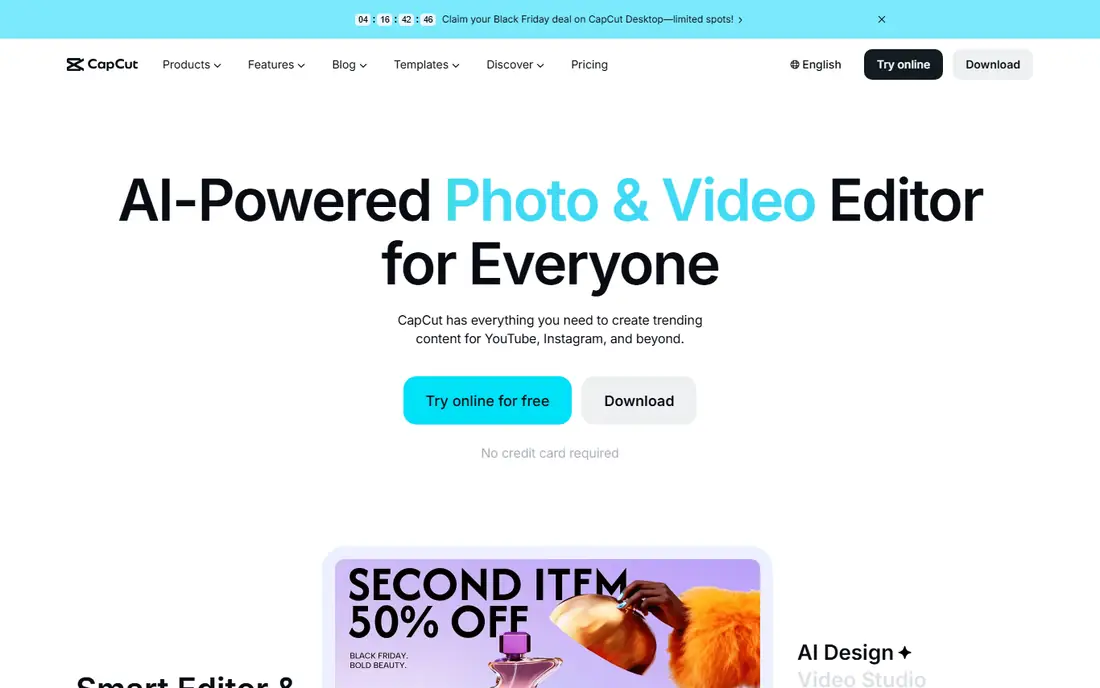
CapCut is built for the way most people now edit: on a phone, in short clips, for TikTok, Reels, and Shorts. Templates can turn a set of clips into a finished video in minutes, and auto captions, background removal, and trending effects are easy to find. The mobile app is the strongest version for quick edits, while the browser version helps when you want a larger screen and a keyboard.
Free users should check which templates, effects, and export options are marked premium, because the most eye-catching items are often paid. CapCut also works best with an account and an internet connection for cloud assets. For fast social content, those limits rarely matter. For long documentaries or precise color work, a desktop editor such as DaVinci Resolve or Shotcut is a better fit.
What we like- Templates, auto captions, and effects built for short video
- Mobile and browser versions
- Quick sharing sizes
Watch out for- Many premium templates and effects need a paid plan
- Cloud features need an account and connection
#3iMovie
Best for: Simple video editing on Apple devices4.3/5 on
G2 (568 reviews, checked Oct 2026)
Visit apple.com
Starting price$0
Free planYes
iMovie is the calmest starting point for anyone with a Mac, iPhone, or iPad. You can trim clips, add titles, transitions, and music, and build a trailer from a template without learning a professional timeline. Projects can move between iPhone, iPad, and Mac, which helps when you shoot on a phone and finish on a larger screen. For school projects, family videos, and simple YouTube edits, it is often all you need.
Its simplicity is also its limit. iMovie lacks the deep color grading, multicam controls, and audio mixing found in DaVinci Resolve or Kdenlive, and it is not available on Windows or Android. If you outgrow it, Final Cut Pro is the natural Apple upgrade, but many users move to a free cross-platform editor instead. Start here if you own Apple hardware and want a finished video today, not a new skill to study.
What we like- Included with Apple devices
- Clean timeline and trailer templates
- Easy sharing to Apple services
Watch out for- Apple devices only
- Fewer advanced color, audio, and effects controls
#4Clipchamp
Best for: Browser video editing with captions4.1/5 on
G2 (49 reviews, checked Oct 2026)
Visit clipchamp.com
Starting price$0
Free planYes
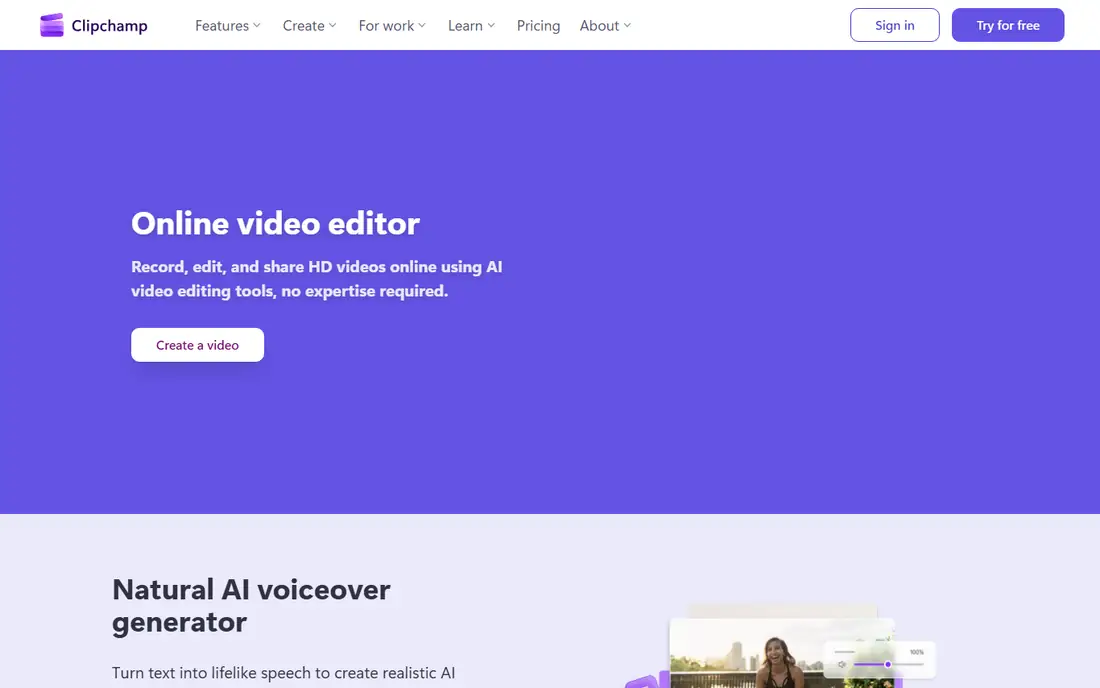
Clipchamp, from Microsoft, is a browser editor that suits work and school videos as well as social clips. You can record a screen or webcam, trim clips, add captions generated from speech, and use templates and stock video, images, and music. Exports in HD are available on the free plan, and the browser approach means it works on a Windows PC or a Mac without a large download.
Because it runs online, Clipchamp depends on your connection and browser, and very large projects can feel slower than a desktop editor. Some premium stock assets, filters, and features sit behind a paid plan or a Microsoft 365 subscription. For quick explainers, presentations, and social videos, it is one of the easiest free editors to start. For long or 4K-heavy projects, a desktop editor will usually run more smoothly.
What we like- Runs in a browser with no install
- AI captions and voiceover tools
- Stock assets and templates
Watch out for- Needs an internet connection
- Some premium assets and features need a paid plan
#5Shotcut
Best for: Free open source desktop video editing4.2/5 on
G2 (42 reviews, checked Oct 2026)
Visit shotcut.org
Starting price$0
Free planYes
Shotcut is a free, open source video editor for Windows, Mac, and Linux, and it does not add a watermark or require an account. It supports many audio and video formats, lets you edit at several resolutions and frame rates in one project, and includes filters, transitions, and audio tools. That makes it a good choice for creators who want a desktop editor they own outright, with no subscription or cloud lock-in.
The interface is more technical than CapCut or iMovie. Panels, filters, and export settings are powerful, but they assume you are willing to learn basic editing terms. There are also fewer one-click templates for social trends. If you value control, privacy, and a free desktop workflow over templates, Shotcut is a strong, durable pick that has been updated for many years.
What we like- Free and open source with no watermark
- Wide format support with no import step
- Runs on Windows, Mac, and Linux
Watch out for- Interface feels technical
- Fewer ready-made templates than CapCut or Clipchamp
#6OpenShot
Best for: Easy desktop video editing4.5/5 on
G2 (31 reviews, checked Oct 2026)
Visit openshot.org
Starting price$0
Free planYes
OpenShot aims to be the easiest desktop video editor that is still free and open source. Its timeline is clear, clips can be dragged into place, and titles, transitions, and effects are easy to add. Unlimited tracks let you layer video, images, and audio without hitting an artificial cap, and it runs on Linux, Mac, and Windows. For a first desktop editor, OpenShot is less intimidating than Shotcut or DaVinci Resolve.
Performance is the main trade-off. On long projects with many effects, OpenShot can feel slower than a more optimized editor, and its color and audio tools are simpler. It is best for short to medium videos, slideshows, and school or hobby projects, rather than feature-length work. If you want a gentle desktop editor with no cost and no watermark, OpenShot is a good place to start.
What we like- Simple timeline and drag-and-drop editing
- Unlimited tracks
- Free and open source
Watch out for- Can feel slower on large projects
- Fewer advanced color and audio tools
Starting price$0
Free planYes
Kdenlive is a free, open source editor from the KDE community that sits between OpenShot and DaVinci Resolve in depth. It offers multicam editing, a wide effects library, keyframe animation, titling, and audio mixing, and its interface can be rearranged to match your workflow. It runs on Linux, Windows, macOS, and BSD, which makes it useful for creators who move between systems or who prefer open source software.
The learning curve is real. Kdenlive has many panels and settings, and new users may need guides to set up proxies for smooth playback on weaker computers. Its community documentation is strong, especially for Linux, but support can vary by platform. For editors who have outgrown OpenShot and want more control without paying, Kdenlive is a logical next step.
What we like- Multicam, effects, titling, and audio tools
- Customizable interface
- Free and open source
Watch out for- Best documented on Linux, with a learning curve on other systems
- Interface can feel busy
#8Lightworks
Best for: Professional-style timeline editing3.6/5 on
G2 (31 reviews, checked Oct 2026)
Visit lwks.com
Starting price$0
Free planYes
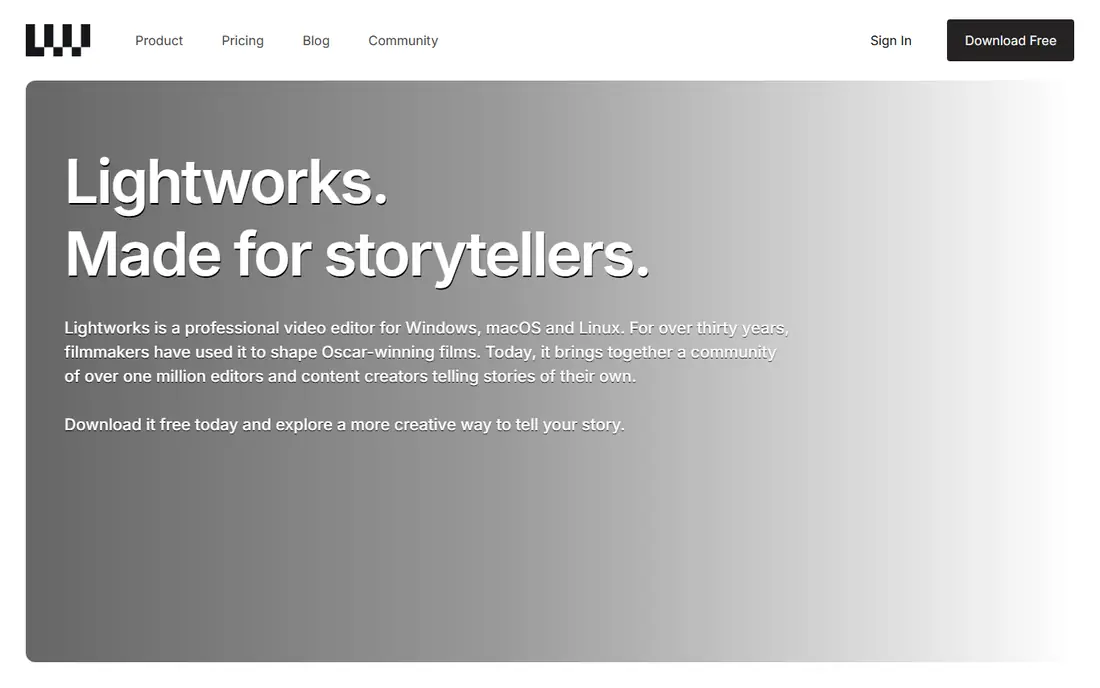
Lightworks has a long history in film editing, and its free version gives you a professional-style timeline, trim tools, bins, and effects. Unlike a trial, the free version is not time-limited, so you can learn at your own pace and finish real projects. It runs on Windows, macOS, and Linux, and it supports social formats including portrait video.
The free limit to know is export resolution. Free exports go up to 1080p, which suits YouTube, social media, and most online viewing, but not 4K delivery. Paid Create and Pro plans add higher resolutions, more formats, and delivery options. If you want to learn a professional editing style and you are happy with 1080p for now, Lightworks is a distinctive free choice.
What we like- Professional timeline and trim tools
- Free version is not time-limited
- Exports up to 1080p free
Watch out for- Free exports cap at 1080p
- Higher resolutions and formats need a paid plan
#9Photopea
Best for: Browser photo editing with layers4.6/5 on
G2 (21 reviews, checked Oct 2026)
Visit photopea.com
Starting price$0
Free planYes
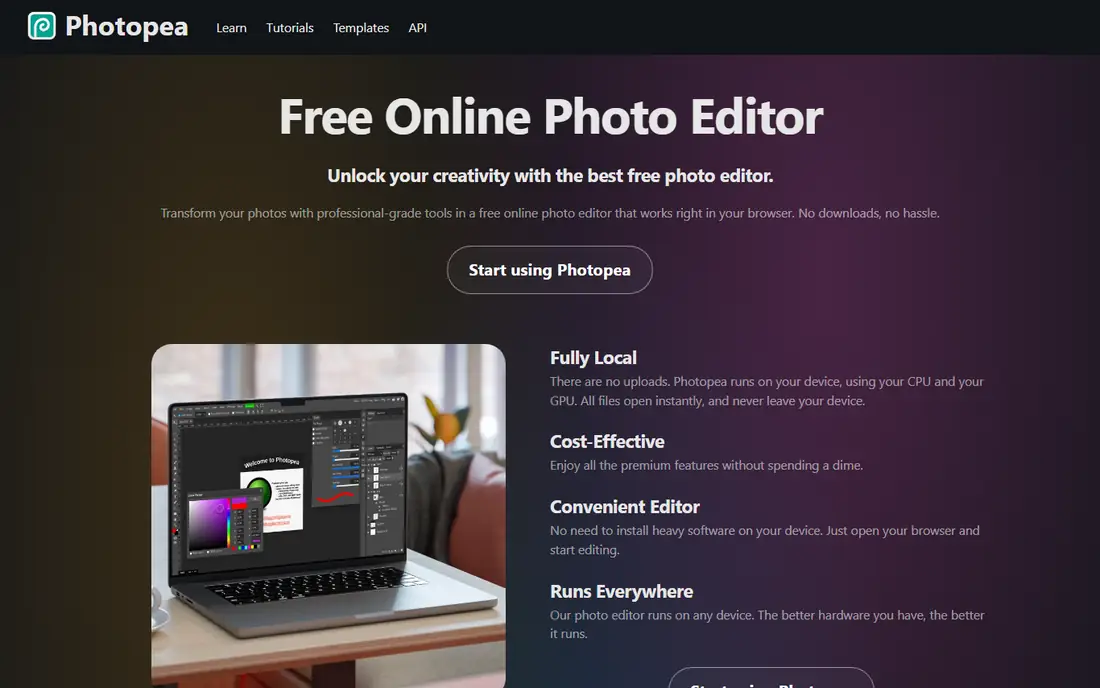
Photopea is the best free browser answer to Photoshop for still images. It opens PSD files, supports layers, masks, adjustment layers, and smart objects, and handles many formats including raw files from major camera brands. Because it runs locally in your browser, your files do not need to be uploaded to a server, which is a privacy plus for personal photos.
The free version shows ads, and a paid account removes them and adds other benefits. Very large files can also strain a browser, so Photopea is not a full replacement for a desktop raw workflow on huge shoots. For editing a photo, designing a graphic, or opening a PSD on any computer, it is remarkably capable for a free tool with no install.
What we like- Layers, masks, and PSD support in a browser
- Runs locally with no uploads
- Wide file format support
Watch out for- Free version shows ads
- Heavy files need a capable browser and computer
#10GIMP
Best for: Free desktop photo editing and retouching4.3/5 on
G2 (1,484 reviews, checked Oct 2026)
Visit gimp.org
Starting price$0
Free planYes
GIMP, the GNU Image Manipulation Program, is a free desktop editor for retouching, compositing, and graphic design. It offers layers, masks, brushes, filters, and a large plugin ecosystem, and it has been used for years by photographers, designers, and illustrators. Unlike a browser tool, it works offline and handles large files on a desktop computer.
GIMP is not a photo organizer, and its raw workflow usually involves an extra plugin or a separate raw developer. The interface can also feel dated compared with Photopea or a modern paid editor, though it is highly customizable. For free desktop photo work, especially retouching and compositing, GIMP remains the most capable open source option.
What we like- Deep retouching, layers, masks, and plugins
- Free and open source
- Runs on Windows, Mac, and Linux
Watch out for- Interface feels dated to some users
- Photo organization and raw workflow need extra steps
How we chose
We checked vendor homepages and pricing pages, feature documentation, and public feedback, and we favored tools that are genuinely usable without payment, not just free to download with a watermark on every export. We looked at export limits, platform support, format support, learning curve, and whether a tool needs an account or an internet connection. We also mixed desktop, mobile, and browser editors, because the best free video editing app for a phone is not the same as the best free editor for a long desktop project.
Choosing the right free editor for your project
Match the editor to the length and platform
Short social videos suit CapCut, Clipchamp, and iMovie, where templates and captions save time. Longer YouTube videos, documentaries, and films suit DaVinci Resolve, Kdenlive, Shotcut, or Lightworks, where timeline control and audio matter more. Photos suit Photopea and GIMP, with Photopea winning for quick browser work and GIMP winning for offline desktop retouching.
Check exports before you invest hours
Before you edit a long project, test a short export. Confirm the resolution, frame rate, file size, and whether a watermark appears. Check whether the free plan exports in the format your platform needs, and whether captions, titles, and audio survive the export. A free editor that cannot export your final format is not free in practice.
Plan for learning time and hardware
A powerful free editor on a weak computer can be slower than a simpler editor that runs well. Use proxy editing or lower preview resolution when a desktop editor offers it, and close other heavy apps while exporting. If you only edit occasionally, a browser or mobile editor may finish the job faster than learning a professional timeline.
Frequently asked questions
What is the best free editing software overall?
DaVinci Resolve is the most capable free editor overall, thanks to its editing, color, effects, and audio tools and its watermark-free exports. For quick social videos, CapCut and Clipchamp are faster to learn. The best choice depends on your device, project length, and how much time you want to spend learning.
What is the best free video editing app for mobile?
CapCut is the strongest free mobile option for short social videos, with templates, captions, and effects built for phones. iMovie is the best simple mobile choice on Apple devices. For mobile editing, check export resolution and whether premium templates are needed for the style you want.
Is there a free video editor with no watermark?
Yes. DaVinci Resolve, Shotcut, OpenShot, Kdenlive, and GIMP for photos are free and do not add a watermark to exports. Some browser and mobile editors offer watermark-free exports on free plans, but premium assets or higher resolutions may still need payment. Always test an export before a deadline.
Can free editing software handle 4K video?
DaVinci Resolve, Shotcut, and Kdenlive can handle 4K, but playback and export speed depend on your computer. Lightworks free exports cap at 1080p, and browser editors may struggle with very large 4K files. For smooth 4K work, use proxy files when available and keep your computer's storage and memory in mind.
What is the best free editing software for beginners?
OpenShot and iMovie are the gentlest desktop and Apple starting points. CapCut and Clipchamp are the gentlest choices for social video. Beginners should start with a short project, learn trimming, titles, and audio levels first, and move to a deeper editor only when a project needs it.
Do free editors work offline?
Desktop editors such as DaVinci Resolve, Shotcut, OpenShot, Kdenlive, Lightworks, and GIMP work offline once installed. Browser editors such as Clipchamp and Photopea need a connection, although Photopea runs files locally in the browser once loaded. Mobile editors may need a connection for templates, stock assets, and cloud projects.
Sources we checked (10)
- https://www.blackmagicdesign.com/products/davinciresolve
- https://www.capcut.com/
- https://www.apple.com/imovie/
- https://clipchamp.com
- https://shotcut.org/
- https://www.openshot.org/
- https://kdenlive.org/
- https://lwks.com/
- https://www.photopea.com/
- https://www.gimp.org/
Is your product missing or out of date?
We review this list regularly. Vendors can request a listing, send updated pricing or ask about featured placement.

Shihab Mia · Founder, Rankite
Shihab has 5+ years in B2B and SaaS SEO. He writes Rankite's software buying guides from pricing pages, documentation and public user reviews. More about Shihab.