How we make this list: we compare pricing pages, product documentation and public user reviews. Ratings come from G2, Capterra or Trustpilot, with the date we checked them.
Key takeaways
- Krita is the strongest free choice for serious digital painting, while GIMP suits artists who also need photo editing and image manipulation in the same app.
- MediBang Paint and FireAlpaca are better first steps for comic artists and beginners, because their tools are simpler and their learning curve is shorter.
- Kids do best with a simple, low pressure app such as Kleki or Sketchbook, rather than a full painting suite with dozens of panels.
- Free does not mean limited in a harmful way here, since most picks on this list are open source or fully free, with the main costs being time to learn and, in a few cases, optional extras.
Quick comparison
Is your product missing or out of date?
We review this list regularly. Vendors can request a listing, send updated pricing or ask about featured placement.
The best free drawing software for every kind of artist
#1Krita
Best for: Serious digital painting4.4/5 on
G2 (65 reviews, checked Oct 2026)
Visit krita.org
Starting price$0
Free planYes
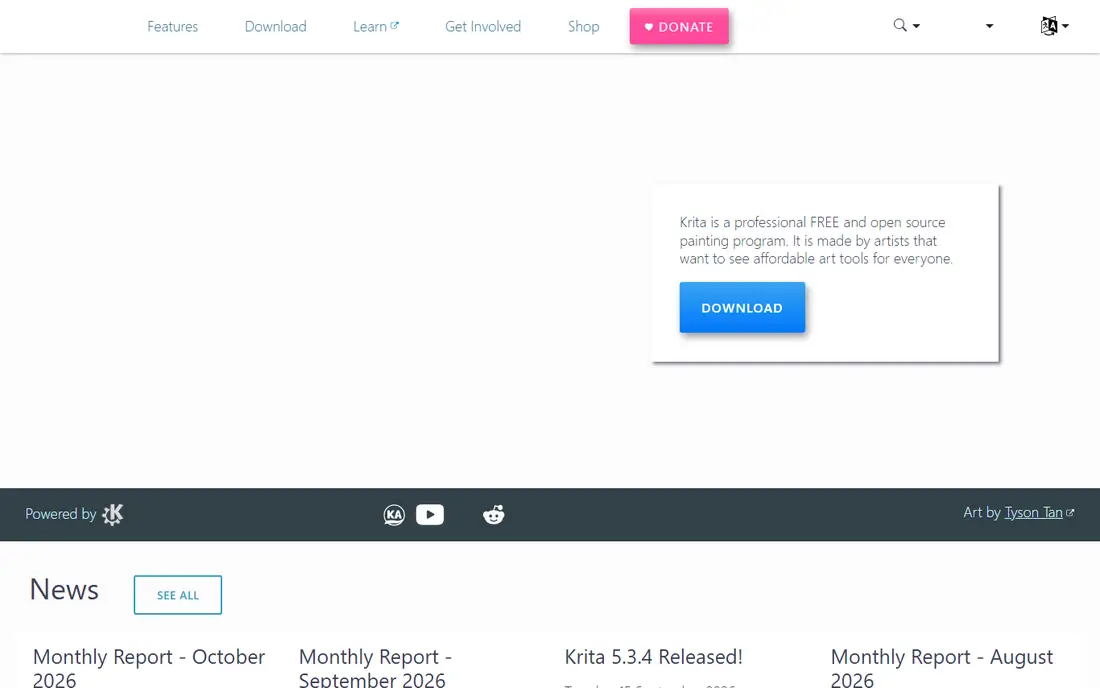
Krita is the first app to install if you want to paint seriously without paying for software. Its brush engine is deep, with stabilisers, blending modes, layer styles and a large library of preset brushes, and it also handles animation with a timeline and onion skinning. Many illustrators use it for finished client work, not just practice, and it opens PSD files well enough to exchange work with Photoshop users.
The price of that depth is a busy interface. New users may spend their first sessions hiding panels and learning where brush settings live, and very large canvases with many layers can slow older machines. Start with a modest canvas size, learn five or six brushes well, and expand from there. Krita rewards patience in a way few free apps do.
What we like- Strong brush engine
- Animation tools included
- PSD support for layered files
Watch out for- Interface can feel crowded at first
- Needs a fairly capable computer for large canvases

#2GIMP
Best for: Painting plus photo editing4.3/5 on
G2 (1,484 reviews, checked Oct 2026)
Visit gimp.org
Starting price$0
Free planYes
GIMP began as an image editor, and that history still shapes it. If your work mixes drawing with photo cleanup, colour correction, selections and text, GIMP covers both jobs in one free program. It supports layers, masks, filters and a wide range of plugins, and it runs on almost any desktop system, which makes it a safe choice for shared family computers and school machines.
As a pure painting app, GIMP is less fluid than Krita. Brushes are serviceable but not as expressive, and animation support is more limited. Choose GIMP when photo editing matters as much as drawing, or when you need a free Photoshop style editor that can also handle illustration. Choose Krita when painting is the main job.
What we like- Powerful photo editing and retouching
- Huge plugin library
- Runs on Windows, Mac and Linux
Watch out for- Brush engine is weaker than Krita for painting
- Interface feels dated to new users
Starting price$0
Free planYes
MediBang Paint is designed around comics, and it shows in the details. Panel tools, screentones, comic fonts and page templates are ready from the start, so a manga page takes less setup than in a general painting app. Cloud sync lets a sketch started on a tablet continue on a desktop, and the app runs well on modest hardware, which helps students and younger artists.
The free version is genuinely usable, but the in app store is always nearby, with extra brushes and materials for sale. That is not a blocker for most users, yet parents should know about it before handing the app to a child. For comic creators, the built in comic workflow outweighs that minor annoyance.
What we like- Comic panels, tones and fonts built in
- Cloud sync across devices
- Light on system resources
Watch out for- Some brushes and materials are paid extras
- Free version includes a store and prompts
Starting price$0
Free planYes
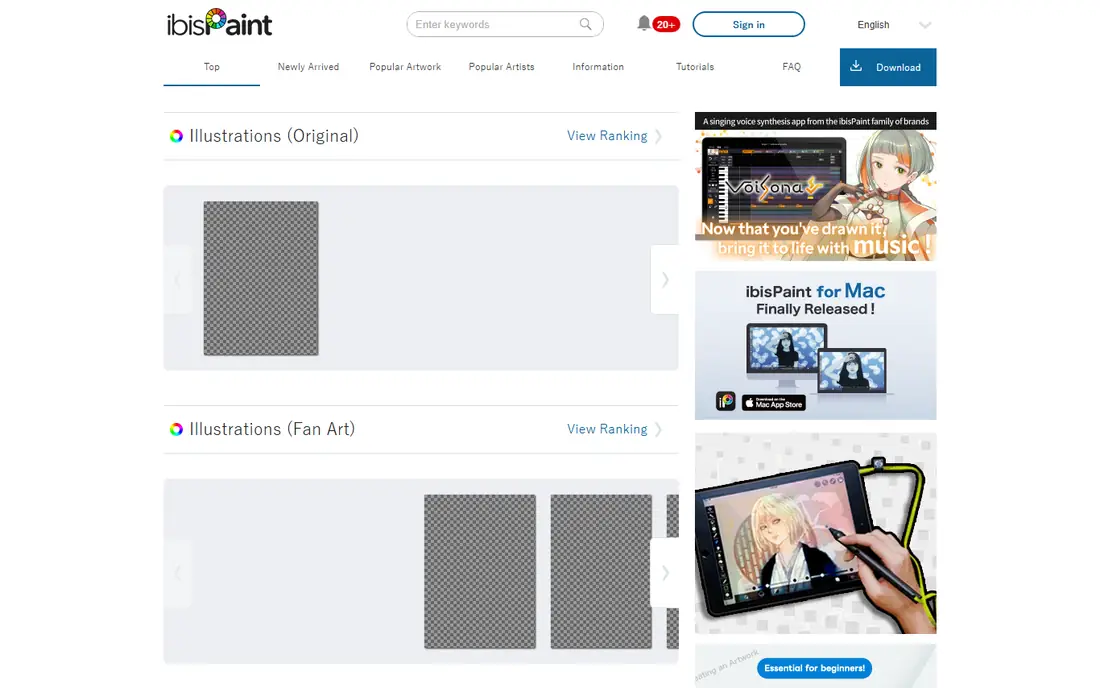
On a phone, ibisPaint is the most practical free drawing app on this list. It is built for touch and stylus input, with layers, stabilisers, filters and a large library of brushes and materials, and it can record your drawing process so you can share a time lapse. Many young artists learn digital art entirely on ibisPaint, because it needs no computer and no payment to start.
A phone screen is still a phone screen. Fine line work and large compositions are easier on a tablet or desktop, and the free version shows ads, with a paid prime membership removing them and adding extras. Use ibisPaint for sketching, fan art and practice on the go, then move finished pieces to Krita or MediBang if you need larger canvases.
What we like- Made for phones and tablets
- Huge brush and material library
- Records drawing process as video
Watch out for- Small phone screen limits detailed work
- Ads and a paid prime option in the free version
Starting price$0
Free planYes
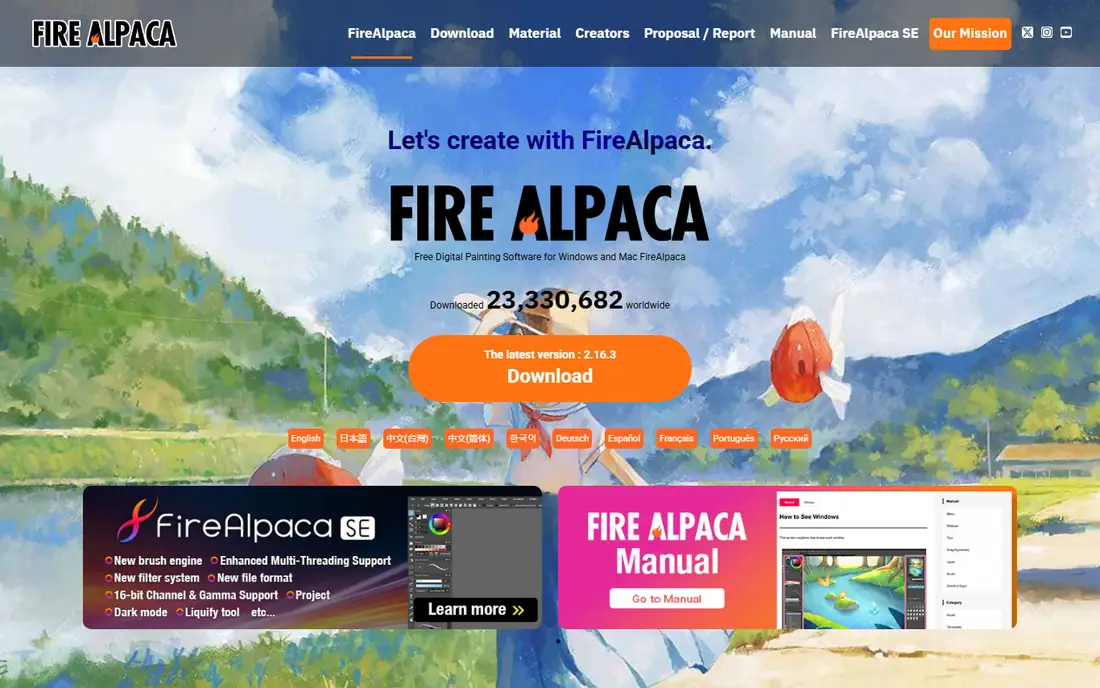
FireAlpaca is the calmest starting point for a new digital artist. The interface is clean, the tools are clearly labelled, and the line stabiliser helps shaky hands produce smooth inking, which builds confidence fast. It opens quickly, runs well on older laptops and covers the basics of layers, brushes and selections without burying them in menus.
Advanced painters will outgrow it. Brush customisation is thinner than Krita, and there is little for animation or complex photo work. That is a fair trade for a first app. Learn to draw, ink and colour here, and when you want textured brushes, animation or deeper layer effects, Krita will feel like a natural next step rather than a shock.
What we like- Very easy to learn
- Excellent line stabiliser
- Light and fast on older computers
Watch out for- Fewer advanced painting features
- No built in animation tools of note
Starting price$0
Free planYes
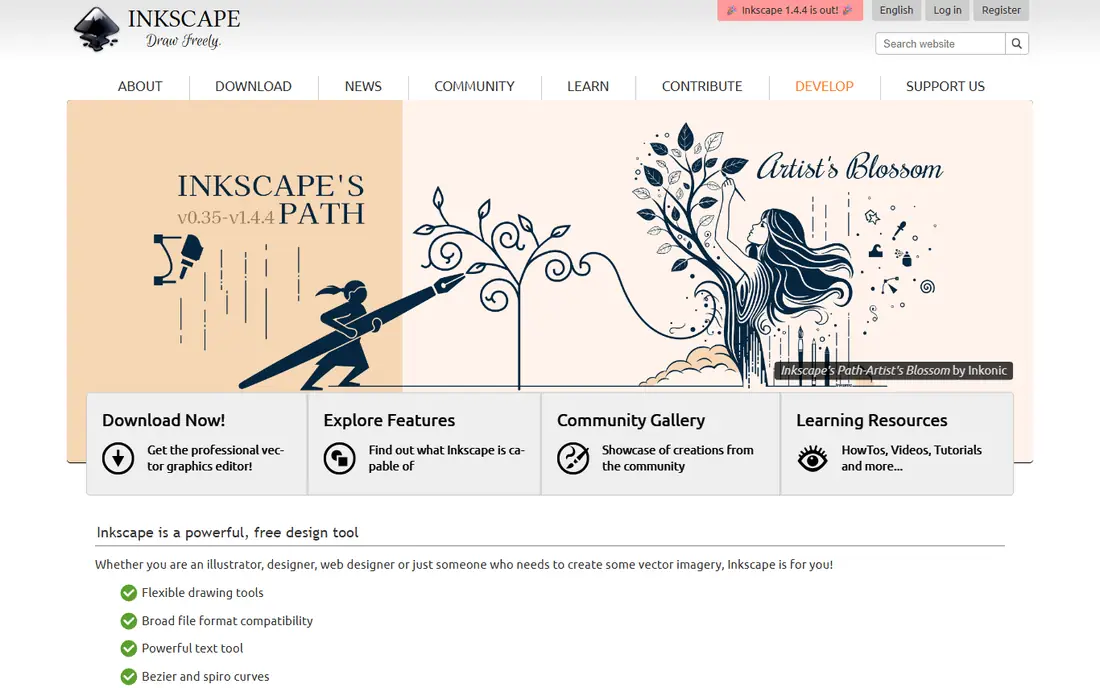
Inkscape does a different job from the rest of this list, and that is why it belongs here. It draws with vectors, which are shapes defined by points and curves, so a logo, icon or poster can scale from a phone screen to a banner without losing sharpness. Text on a path, node editing and boolean shape operations give it real design power, and SVG is an open standard that other tools can open.
It is a poor choice for painterly work. If you want soft watercolour blending or textured brush strokes, Krita or MediBang will serve you better. Pick Inkscape when your goal is logos, diagrams, stickers, lettering or clean illustration that must stay sharp at any size.
What we like- True vector editing for logos and illustration
- Excellent path and text tools
- Exports SVG and PDF
Watch out for- Not suited to natural painting
- Learning curve for bezier curves and nodes
Starting price$0
Free planYes
Sketchbook keeps the focus on drawing itself. The interface fades away, the brush set is sensible rather than overwhelming, and a child or a beginner can start sketching within minutes of opening it. That simplicity is valuable for daily practice, doodling, storyboarding and for adults who want a digital sketchpad without a manual.
Professional illustrators may miss deeper brush controls, animation and comic tools. Sketchbook is best as a sketching companion, not as a complete production suite. Use it to capture ideas fast, then finish polished work in Krita, GIMP or Inkscape if the project needs more control.
What we like- Clean, distraction free canvas
- Good for quick ideas
- Easy for children and beginners
Watch out for- Fewer professional features than Krita
- Limited text and comic specific tools

#8Photopea
Best for: Browser based editing and drawing4.6/5 on
G2 (21 reviews, checked Oct 2026)
Visit photopea.com
Starting price$0
Free planYes
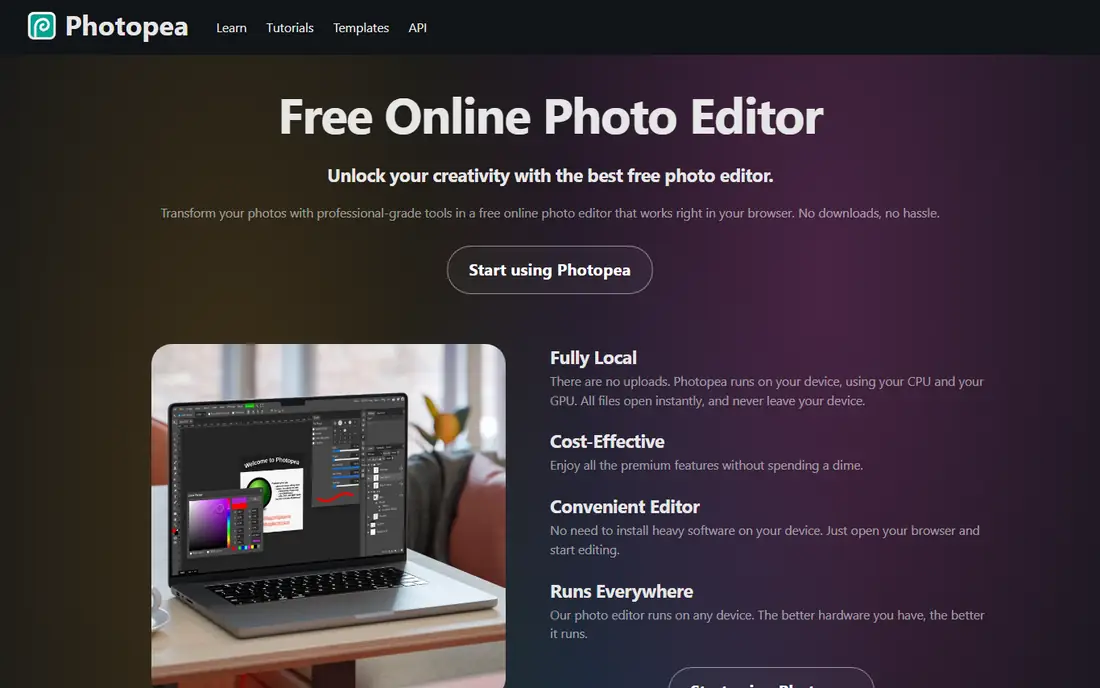
Photopea is the answer when you cannot or do not want to install software. Open the site in a browser, drop in a PSD or other layered file, and edit, draw and export without an account. That makes it useful on school computers, borrowed laptops and Chromebooks, and it is a handy backup when your main app is unavailable.
Drawing in Photopea is workable but not its strength. Brushes and painting feel less refined than Krita, and the free version shows ads, with a paid option to remove them. Use Photopea for quick edits, file conversion and simple illustration in a browser, and keep a desktop app for long painting sessions.
What we like- Runs in a browser with no install
- Opens PSD, XCF and AI files
- Strong layer and selection tools
Watch out for- Ads in the free version
- Needs a stable internet connection
- Drawing brushes are basic
Starting price$0
Free planYes
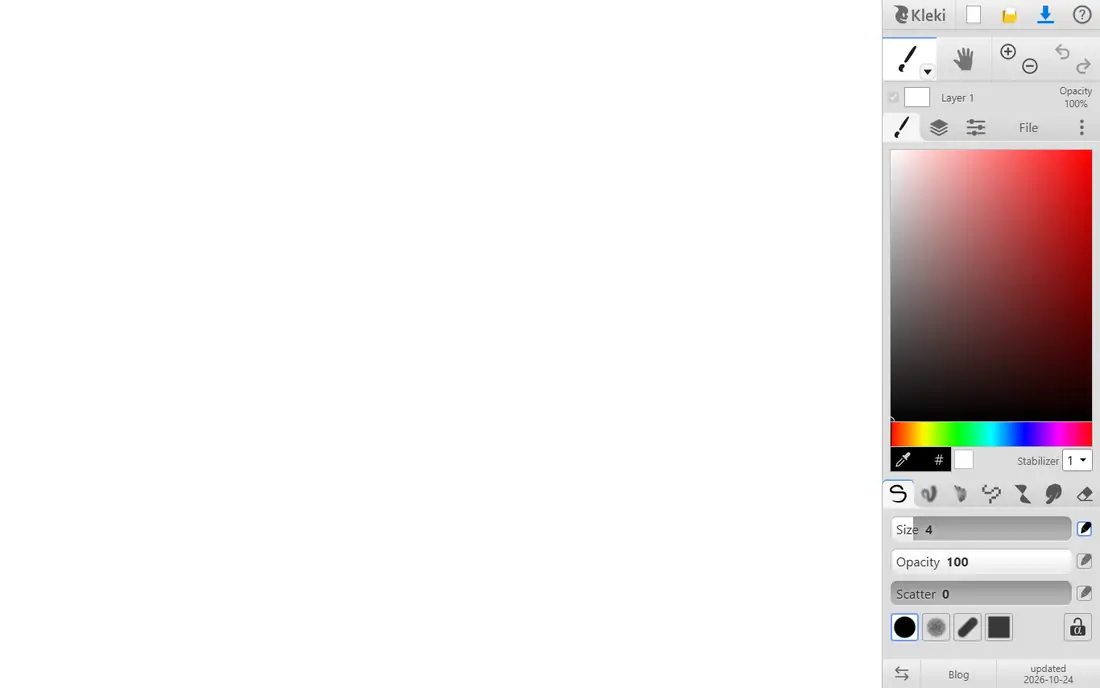
Kleki is the simplest tool here, and for its audience that is a strength. A child can open the page and draw within seconds, with no install, no account and no confusing menus. Teachers use it for quick classroom activities, and adults use it for a fast sketch when they do not want to open a full program. Layers and basic brushes are included, which is enough for early learning.
Do not expect a production tool. Kleki lacks the brush depth, file options and editing power of the other apps, and larger projects will feel cramped. Treat it as a first step for kids, or as a scratch pad for ideas, and move to FireAlpaca or Sketchbook when the young artist asks for more tools.
What we like- Instant browser drawing with no account
- Very simple tools
- Good for children and classrooms
Watch out for- Very limited features
- Small canvas options
- No serious layer or animation workflow
How we chose
We judged each app on whether it is truly free to use, whether it fits a clear drawing need, how it runs on ordinary hardware, and what its limits are in daily use. Vendor sites, documentation and public reviews were checked for pricing, platform support and feature claims, and apps that required payment for basic drawing were left out. The result favours tools that a beginner, a student or a working illustrator can open today without a trial clock running.
Choosing the right free app for your goal
Start with the device you already own, then with the kind of art you want to make. A Windows or Mac laptop opens the full list, while a phone points to ibisPaint and a Chromebook points to Photopea or Kleki. Tablets sit in the middle, with MediBang and ibisPaint working well for comic and sketch work.
For beginners and kids
Pick one simple app and stay with it for a few weeks. FireAlpaca on a computer, Sketchbook on a tablet and Kleki in a browser all keep the first sessions about drawing, not about settings. Parents should check for in app purchases and ads before a child uses MediBang or ibisPaint alone, and should set expectations that free apps may show store prompts.
For comics, painting and design
Comic artists should start with MediBang Paint, painters with Krita, and logo or poster designers with Inkscape. These three cover the main paths without overlap, and each exports files that other programs can open. If you also edit photos, add GIMP as a second app rather than forcing one program to do every job.
For school, shared and low power computers
Photopea and Kleki need no install, which solves many school and library limits. FireAlpaca and MediBang are light enough for older laptops, while Krita and GIMP benefit from more memory and a newer processor. Save work in the native format first, then export a PNG or PSD copy, so layers stay editable if you need to change a drawing later.
Frequently asked questions
What is the best free drawing software overall?
Krita is the strongest overall free choice for digital painting, because of its brush engine, layer tools and animation support. If you also need photo editing, GIMP is the better all rounder, and comic artists will prefer MediBang Paint for its panel and tone tools.
Is free drawing software really free, or is there a catch?
Most apps here are open source or fully free, including Krita, GIMP, FireAlpaca, Inkscape and Kleki. MediBang, ibisPaint and Photopea are free to use but include ads or optional paid extras, so read the store or upgrade prompts before you buy anything inside the app.
Which free drawing app is best for a 10 year old?
Kleki and Sketchbook are the safest first picks, because they are simple, quick to learn and low pressure. FireAlpaca is a good next step on a computer, and MediBang suits an older child who specifically wants to make comics. Check ads and in app purchases first.
Can free software open Photoshop files?
Krita, GIMP and Photopea can open PSD files, with layers largely intact for common cases. Complex smart objects, some adjustment layers and proprietary effects may not transfer perfectly, so keep an original copy and check the imported file before you continue working on it.
Do I need a drawing tablet?
No, but a tablet helps a lot for painting and inking. A mouse or trackpad works for vector work in Inkscape and for simple sketches, while pressure sensitivity from even an entry level tablet makes brush control in Krita and MediBang noticeably easier.
Can I use free drawing software for commercial work?
In most cases yes. Open source apps such as Krita, GIMP and Inkscape place no commercial restriction on work you create. For apps with a store or paid extras, such as MediBang and ibisPaint, check the current terms for any limits on commercial use of included materials.
Sources we checked (9)
- https://krita.org
- https://www.gimp.org
- https://medibangpaint.com
- https://ibispaint.com
- https://firealpaca.com
- https://inkscape.org
- https://www.sketchbook.com
- https://www.photopea.com
- https://kleki.com
Is your product missing or out of date?
We review this list regularly. Vendors can request a listing, send updated pricing or ask about featured placement.

Shihab Mia · Founder, Rankite
Shihab has 5+ years in B2B and SaaS SEO. He writes Rankite's software buying guides from pricing pages, documentation and public user reviews. More about Shihab.
 MediBang Paint
 ibisPaint
 FireAlpaca
 Inkscape
 Sketchbook
 Kleki
Kleki