How we make this list: we compare pricing pages, product documentation and public user reviews. Rankite is independent; if a vendor ever pays for a featured spot, that listing is clearly labeled Partner.
Key takeaways
- For most Windows users, the built-in Optimize Drives tool is enough, it already defrags HDDs weekly and sends TRIM commands to SSDs automatically.
- Defraggler is the best free standalone defragger for control freaks, with per-file defrag and boot-time defrag for system files.
- Auslogics Disk Defrag and IObit Smart Defrag are the fastest, most polished free options, with scheduling and single-file defrag.
- Puran Defrag and Glarysoft Disk SpeedUp are simple, genuinely free alternatives with no upsell pressure.
- Contig from Microsoft Sysinternals is the free command-line pick for scripting and defragging individual files.
Quick comparison
Is your product missing or out of date?
We review this list regularly. Vendors can request a listing, send updated pricing or ask about featured placement.
The best free defrag software
Starting priceFree
Free planYes
Defraggler comes from Piriform, the original maker of CCleaner, now under the CCleaner brand. Its signature feature is granularity: instead of defragging an entire drive, you can analyze it, see which files are fragmented, and defrag only those. For a nearly-full drive where a full defrag would take hours, that selectivity is genuinely useful. Boot-time defrag handles the pagefile and other locked system files that cannot be touched while Windows runs.
The program shows its age in the interface, and updates have been infrequent in recent years. Download from ccleaner.com/defraggler and decline any bundled offers during install. For the user who wants to see fragmentation details and control exactly what gets defragmented, Defraggler remains the most capable free option, even if prettier competitors have caught up on speed.
What we like- Defrags individual files and folders, not just whole drives
- Boot-time defrag handles locked system files
- Drive health monitoring with S.M.A.R.T. data
Watch out for- Interface looks dated
- Development pace has slowed
- The installer may offer bundled software
Starting priceFree
Free planYes

Auslogics Disk Defrag has been the speed pick among free defraggers for years. Its engine is quick, it handles whole drives as well as individual files and folders, and it can run on a schedule or automatically when the system is idle. The interface is modern and clear, with a disk map showing fragmentation before and after. For most home users this is the best balance of capability and ease.
The business model is freemium done loudly. The installer has historically included optional bundled offers, so install carefully, and some advanced optimization algorithms are reserved for the paid Pro version. The free version's core defragging is complete, though. If you want a fast, set-and-schedule defragger and do not mind declining an upsell screen, start here.
What we like- Very fast defrag engine
- Defrags single files and folders
- Scheduling and auto-defrag when the PC is idle
Watch out for- Installer may include optional offers
- The Pro version gates some optimization algorithms
- Upsells other Auslogics products

#3
IObit Smart Defrag
Best for: Set-and-forget automatic defrag
Visit iobit.com
Starting priceFree
Free planYes

Smart Defrag is built for people who never want to think about fragmentation. Install it, enable automatic defrag, and it works in the background when the system is idle. Boot-time defrag handles locked files, and a game optimization feature defrags game directories for faster load times. It is the most hands-off option on this list.
The cost of that convenience is IObit's aggressive cross-promotion. Expect offers for Advanced SystemCare, Driver Booster and other IObit products, and watch the installer. Users who prefer manual control may also find the background activity presumptuous. If you maintain PCs for family members who will never run maintenance themselves, Smart Defrag's automation is exactly right. If you are the one doing the maintaining, Auslogics or Defraggler give you more say.
What we like- Automatic defrag runs quietly in the background
- Boot-time defrag for system files
- Game optimization mode prioritizes game folders
Watch out for- Persistent upsells for IObit's other products
- Installer bundles need declining
- Auto-defrag can surprise users who prefer manual control
Starting priceFree
Free planYes
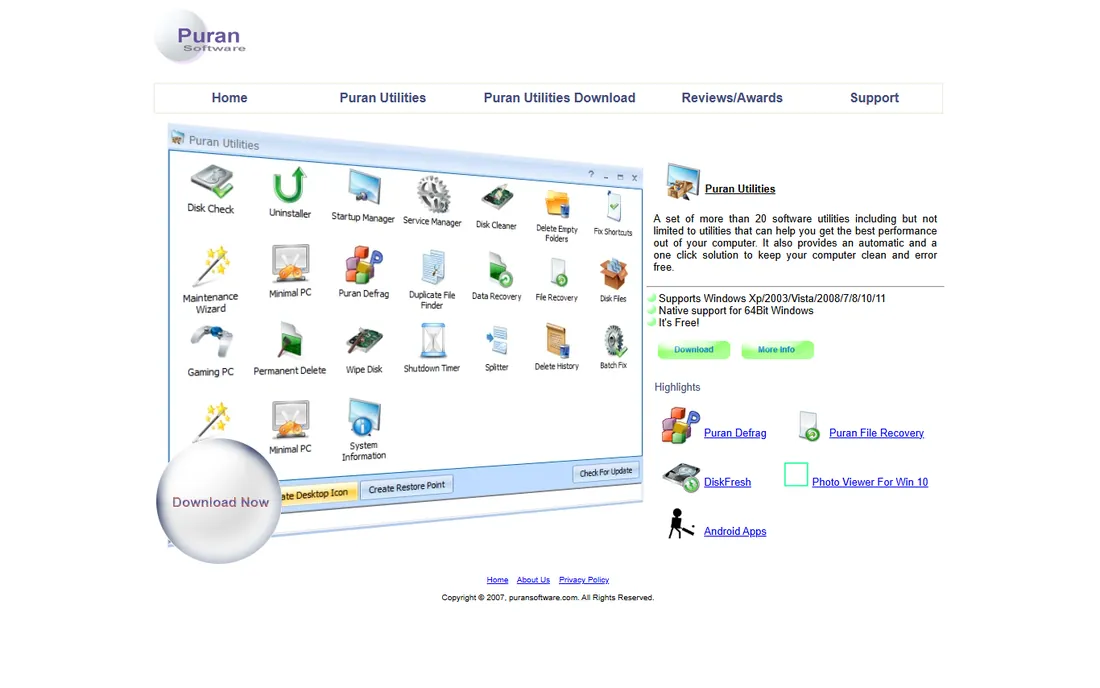
Puran Defrag is the quiet freeware option from Puran Software, whose homepage still leads with "Quality First" and "It's Free." There are no paid tiers, no Pro version, and no upsell screens, which is increasingly rare. It includes automatic defragmentation, an intelligent optimizer that rearranges files for performance, and boot-time defrag for system files. Setup takes a minute and the defaults are sensible.
The interface belongs to an earlier era of Windows utilities, and releases are infrequent. Puran also sells it as part of the Puran Utilities suite, though the standalone defragger is what you want here. For users who distrust freemium installers and just want a free tool that does the job without marketing, Puran Defrag is refreshingly plain.
What we like- Completely free with no tiers or upsells
- Automatic optimization with Puran Intelligent Optimizer
- Boot-time defrag included
Watch out for- Dated interface
- Updates are infrequent
- Part of a suite you may not want
Starting priceFree
Free planYes
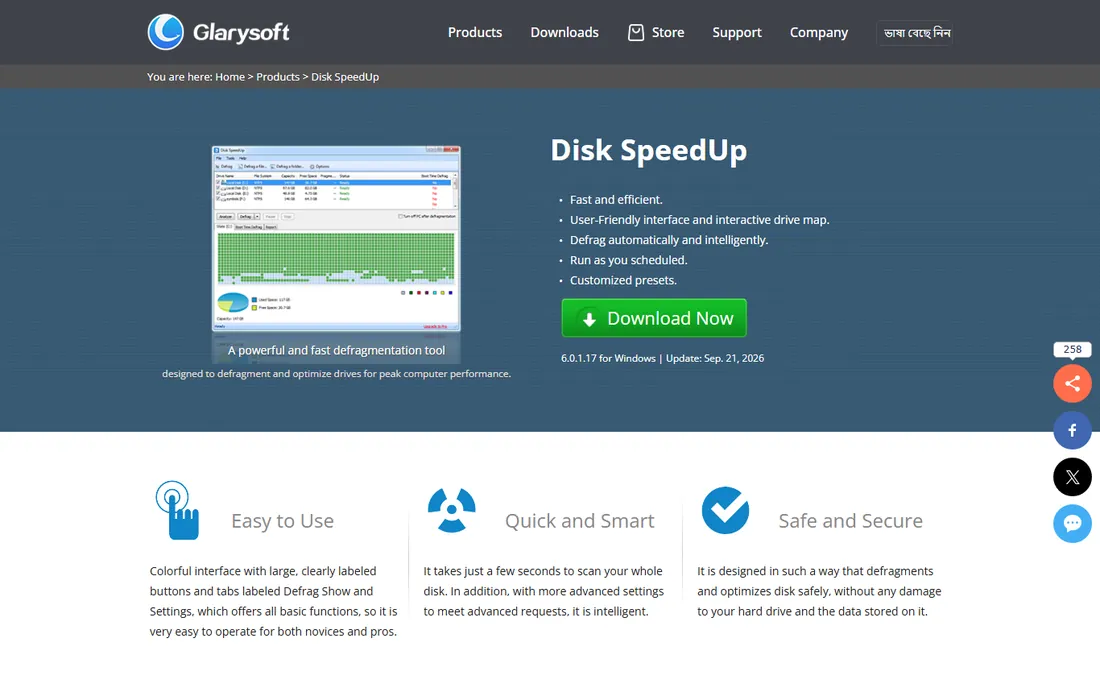
Disk SpeedUp is Glarysoft's standalone defragmenter, separate from the Glary Utilities suite. Its selling point is simplicity: a colorful interface with big labeled buttons for Defrag, Show and Settings, designed so a novice can run it without guidance. It scans quickly, supports scheduled runs, and includes an optimization pass that rearranges files more thoroughly than a standard defrag, at the cost of more time.
It does not match Defraggler's per-file control or Auslogics' speed. What it offers is a gentle on-ramp and zero cost with no upsell to a paid defragger. For a family PC where the maintainer is not technical, Disk SpeedUp's clarity beats a more powerful tool that never gets used. Power users should look at the entries above.
What we like- Free
- Large clearly-labeled buttons aimed at novices
- Scheduled scans and an optimization mode beyond basic defrag
Watch out for- Basic feature set next to Defraggler
- Less well known, so fewer community guides
- Glarysoft's focus is its main Utilities suite
Starting priceFree
Free planYes
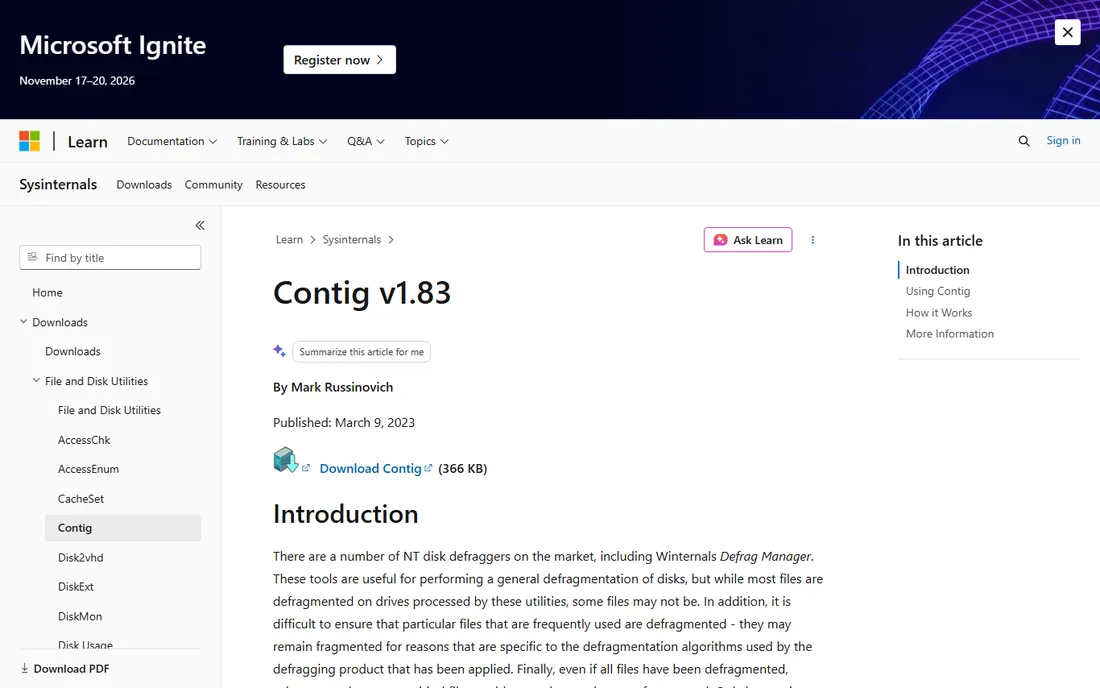
Contig is Mark Russinovich's Sysinternals tool for defragmenting individual files, and it is the precision instrument of this list. Need to defrag one fragmented video file or a database without touching the rest of the drive? Contig does exactly that from the command line, and because it is scriptable, administrators can build it into maintenance routines. It comes from Microsoft's own Sysinternals team, so it is trustworthy and free.
There is no GUI, no disk map and no hand-holding. This is a tool for people comfortable with the command prompt and for IT staff managing multiple machines. Everyone else should pick a graphical option. But when the job is "defrag this specific file," nothing on this list does it more cleanly.
What we like- Free from Microsoft Sysinternals
- Defrags individual files from the command line
- Scriptable for automated maintenance
Watch out for- Command-line only, no graphical interface
- Intimidating for non-technical users
- Single-purpose by design
Starting priceFree
Free planYes
The best free defrag software for most people is the one they already have. Windows includes Optimize Drives, formerly called Disk Defragmenter, which runs on a weekly schedule by default. Crucially, it knows the difference between drive types: it defragments traditional hard drives and sends TRIM commands to SSDs, which is the correct maintenance for flash storage. For the overwhelmingly common case, this scheduled maintenance is sufficient and there is nothing to install.
Its limits are control and visibility. You cannot defrag a single file, the reporting is sparse, and the tool is buried several clicks deep in Settings. If the built-in schedule is running, which you can verify in a minute, most users need nothing else. The standalone tools above exist for the exceptions: full control, faster engines, boot-time defrag and per-file work.
What we like- Already installed on every Windows PC
- Runs automatically on a weekly schedule
- Sends TRIM to SSDs instead of defragging them
Watch out for- Minimal controls and no per-file defrag
- The interface is buried in settings
- Reports little detail
This needs stating clearly because every tool above can technically run on an SSD. Traditional defragmentation rearranges file fragments into contiguous blocks, which helps spinning hard drives because their read heads physically move. SSDs have no moving parts, so fragment location does not affect read speed. Defragging an SSD does not make it faster, and it consumes write cycles that shorten the drive's lifespan.
What SSDs need is TRIM, a command that tells the drive which blocks are free so it can manage them efficiently. Windows sends TRIM automatically through the same Optimize Drives schedule. If you install a third-party defragger, check that it detects SSDs and either skips them or issues TRIM instead of defragmenting. Auslogics, IObit and the built-in tool all handle this. Running a full defrag pass on an SSD is the most common mistake in this category.
Do you still need to defrag in 2026?
If your PC has a traditional hard drive, yes, occasionally. Fragmentation still slows HDDs, and while Windows defrags them weekly by default, that schedule assumes the PC is on and idle at the scheduled time. Laptops that sleep through the night and external drives that are rarely connected can fall behind, which is when a manual tool earns its place.
If your PC is SSD-only, which describes most computers sold in the last five years, you do not need defrag software. Verify that the Windows Optimize Drives schedule is running, which covers TRIM, and spend your maintenance time elsewhere. Buying or installing a defragger for an SSD-only system solves a problem you do not have.
The remaining real use cases: external HDDs used for backups and media, older desktops with spinning drives, and specific files that need defragging without a full pass. Match the tool to the case: the built-in scheduler for routine maintenance, Defraggler or Contig for targeted work, Auslogics or Smart Defrag for a faster engine with scheduling.
How we chose
We verified each vendor's current site for availability and confirmed genuinely free options, excluding tools whose free versions have lapsed into paid-only and discontinued products. We read documentation and user reviews, and judged tools on what matters for a free utility: completeness of the free version, installer honesty, SSD awareness, and suitability for non-technical users. We did not claim hands-on testing.
Frequently asked questions
Is it safe to defrag a hard drive?
Yes. Defragmentation is a routine, safe operation, and modern tools will not damage your files. The main precaution is to avoid defragging SSDs, where it provides no benefit and wastes write cycles. Let the tool detect your drive type, and use the built-in Windows scheduler for routine maintenance.
How often should I defrag?
For a hard drive in regular use, the Windows weekly schedule is a good baseline. Heavily used drives, video editing scratch disks or nearly-full drives may benefit from a manual pass every month or two. SSDs should never be defragmented; they need TRIM, which Windows handles automatically.
Will defragging delete my files?
No. Defragmentation rearranges where file fragments are stored on the disk; it does not delete data. That said, any disk operation carries tiny risk if power fails mid-write, so keep backups of important files regardless. The tools here are mature and safe for normal use.
Is Windows built-in defrag good enough?
For most users, yes. Optimize Drives runs weekly, handles both HDD defrag and SSD TRIM correctly, and costs nothing. Third-party tools add faster engines, per-file defrag, boot-time defrag for locked system files, and better reporting. Install one when you have a specific need the built-in tool does not cover.
Why is my defrag taking so long?
Nearly-full drives defrag slowly because the tool needs free space to shuffle fragments around. If a drive is over 85 percent full, free up space first with a disk analyzer. Very fragmented drives that have never been defragged can also take hours on the first pass; subsequent scheduled runs are much faster.
Do I need to defrag an external hard drive?
External HDDs used for backups and media libraries benefit from occasional defragging, especially since they are often disconnected when the Windows automatic schedule runs. Plug the drive in, run a manual pass with Defraggler or Auslogics, and let it finish. External SSDs need no defragging.
Sources we checked (9)
- https://ccleaner.com/defraggler
- https://auslogics.com/
- https://iobit.com/
- https://puransoftware.com/
- https://glarysoft.com/disk-speedup/
- https://learn.microsoft.com/en-us/sysinternals/downloads/contig
- https://www.microsoft.com/
- https://ultradefrag.net/
- https://sourceforge.net/projects/ultradefrag/
Is your product missing or out of date?
We review this list regularly. Vendors can request a listing, send updated pricing or ask about featured placement.

Shihab Mia · Founder, Rankite
Shihab has spent more than a decade helping SaaS and e-commerce brands grow through search. He writes Rankite's software buying guides from pricing pages, documentation and public user reviews. More about Shihab.
 Defraggler
 Auslogics Disk Defrag
 Puran Defrag
 Disk SpeedUp
 Contig
 Optimize Drives