How we make this list: we compare pricing pages, product documentation and public user reviews. Ratings come from G2, Capterra or Trustpilot, with the date we checked them.
Key takeaways
- Cleanup.pictures is the best free web option here, with free exports at 720px and a Pro plan for full resolution images.
- PhotoDirector and YouCam Perfect offer the easiest one tap removal for casual photos, with fuller editing behind a paid plan.
- TouchRetouch is the specialist for wires, signs and small figures, while Lightroom gives the most control for photos that also need colour work.
- Large people against busy backgrounds still need patience in any app, so keep the original photo until you are happy with the edit.
Quick comparison
Is your product missing or out of date?
We review this list regularly. Vendors can request a listing, send updated pricing or ask about featured placement.
The best free apps to remove people from photos
Starting priceSee website
Free planYes
PhotoDirector is the easiest first download for most people who want a stranger out of a holiday photo. Its AI removal tool lets you brush over a person and fills the area behind them, and the same app then handles cropping, colour and filters without moving the photo to another editor. That combination matters, because a removal often needs a small crop or colour fix after the person is gone.
The free version covers basic removal, but heavy use and the best AI results push toward a paid plan. Check what the free plan includes on your device before you start a large batch of edits. For single photos and occasional cleanups, PhotoDirector gives a good balance of speed and control.
What we like- AI removal tool with brush control
- Full photo editor in one app
- Works on iOS and Android
Watch out for- Strongest AI features sit behind a paid plan
- Export quality and ads vary by plan
Starting priceSee website
Free planYes
YouCam Perfect suits people who edit selfies and travel photos on the same phone. Its removal tool works with a brush or lasso style selection, and the app adds face and body retouching, filters and collage tools for users who want more than a clean background. The controls are guided, so a new editor can get a usable result without learning layers or masks.
Ads and paid extras are the trade off. Some removal and retouch features need a subscription, and the free experience includes prompts to upgrade. If you only need removal, try the free removal tool first and ignore the beauty extras. If you edit portraits often, the wider toolset may justify the paid plan.
What we like- Object removal alongside portrait tools
- Simple guided controls
- Large template and filter range
Watch out for- Free version includes ads and limits some tools
- Portrait focus can distract from simple cleanup
Starting priceSee website
Free planNo

TouchRetouch does one job, and that focus shows in the result. It offers separate tools for lines, meshes and objects, so a power line across a sky or a small figure at the edge of a frame can be removed in seconds. The brush, lasso and eraser controls let you refine the selection instead of trusting a single automatic guess.
It is not free, which puts it in a different group from the other apps here, but it is included because many free tools struggle with exactly the small distractions TouchRetouch handles well. The limit is scale. A large person in front of a fence, a crowd or a patterned wall will still need slow, section by section work, and the result depends on how clean the background behind them is.
What we like- Dedicated removal tools for lines, meshes and people
- Precise brush and lasso controls
- Fast for small distractions
Watch out for- Paid app with no free plan
- Large people against complex backgrounds need careful manual work
Starting price$5 per month
Free planYes
Cleanup.pictures is a browser tool built for exactly this job: removing people, objects, text and defects from a photo. Open the site, drop in an image, paint over the person with the brush, and the AI inpainting rebuilds what was behind them. Photographers use it to remove tourists from holiday pictures, and real estate agents use it to clear rooms, which shows it handles both people and clutter. There is nothing to install, and the free version covers everyday edits.
The catch is resolution. Free exports are limited to 720px, which suits social posts but not large prints. The Pro plan costs $5 per month, or $36 per year, and removes the size limit. Removal is also manual: you paint over the person yourself, so a large figure takes more brush work than a one-tap AI remover. For a free, no-install option that handles most people removals well, Cleanup.pictures is the strongest pick in this list.
What we like- Free browser tool with no install
- AI inpainting rebuilds the area behind a person
- Pro adds full resolution exports
Watch out for- Free exports limited to 720px
- Removal is manual brush work with no one-tap person detection

#5Adobe Lightroom
Best for: Removal plus colour control4.6/5 on
G2 (3,299 reviews, checked Oct 2026)
Visit adobe.com
Starting priceSee website
Free planYes
Lightroom is the pick when a photo needs more than a quick fix. Its Remove tool can erase a person, and Generative Remove rebuilds the area behind them instead of simply cloning nearby pixels. That helps with grass, water, walls and other textured backgrounds where simple healing leaves a visible smudge. The same app then handles exposure, colour and cropping to a professional standard.
The free mobile version covers basic editing, but Generative Remove and cloud sync sit behind a subscription. Lightroom also takes longer to learn than PhotoDirector or YouCam Perfect. For photographers who already edit in Lightroom, it is the natural place to remove people. For a single holiday photo, a simpler app will be faster.
What we like- Generative Remove rebuilds complex areas
- Full colour and light controls
- Sync across phone and desktop
Watch out for- Best removal features need a paid plan
- Learning curve is steeper than one tap apps

#6Picsart
Best for: Creative edits and removal4.5/5 on
G2 (797 reviews, checked Oct 2026)
Visit picsart.com
Starting priceSee website
Free planYes
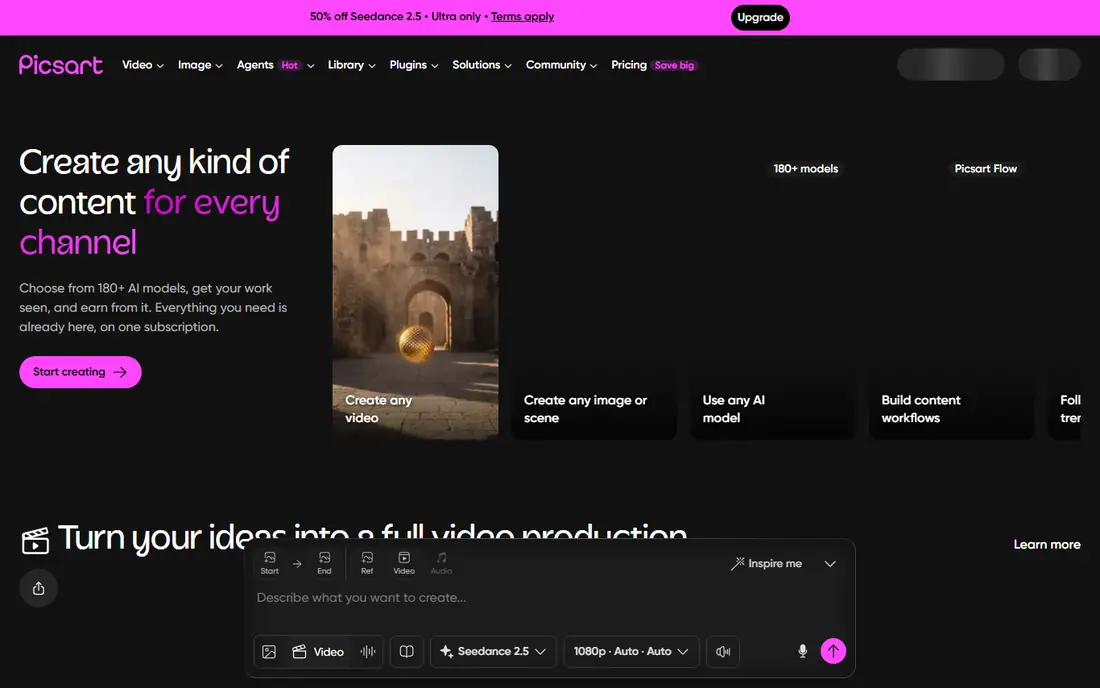
Picsart is a good fit for social media editors who want removal as part of a wider creative workflow. Its Remove tool erases a person or object, and the user can then add text, stickers, filters or a new background without leaving the app. Templates help when a photo needs to fit a post format quickly.
Free users should read the plan limits first. Some AI removal features and high quality exports need a paid plan, and ads appear in the free version. If you post often and like creative extras, Picsart earns its place. If you only want a clean photo, a simpler free tool will waste less of your time.
What we like- Object remover inside a large creative editor
- Stickers, text and collage tools
- Active template library
Watch out for- Paid plan gates the strongest AI tools
- Free version includes ads and watermarks on some exports
Starting priceSee website
Free planYes
SnapEdit focuses on speed. You brush over a person, or let the app detect a clear subject, and it fills the background in a few seconds. That makes it useful for travel photos where a stranger walks into an otherwise clean shot, and for sellers who need a tidy product photo without a desktop editor. It also works on the web, so you can edit on a computer without installing an app.
Free use has limits. Standard quality exports, limited AI use and watermarks apply on the free plan, and the paid plans remove those limits and add batch processing and higher quality exports. For occasional use, the free plan is enough to judge the quality. For regular work, check the paid terms before you build a workflow around it.
What we like- AI removal built for objects and people
- Automatic detection for clear subjects
- Web and mobile access
Watch out for- Free exports can be limited in size or carry a watermark
- Complex backgrounds still need manual fixes
Starting priceSee website
Free planYes
Pixelcut started as a tool for sellers, and that history shapes its strengths. Its Cleanup tool removes people and objects from product shots, and its background tools help a photo look ready for a shop listing. For a seller who photographs items at home or in a market, Pixelcut can turn a cluttered shot into a clean listing image in minutes.
The limit is subject matter. A single person against a plain wall is easy. A crowd, a busy street or a person overlapping the main subject is harder, and results can look soft or patched. Use Pixelcut when the background is simple and the product is the focus, and use a manual editor like Cleanup.pictures or Lightroom when the scene is complex.
What we like- Cleanup and background removal in one place
- Templates for online sellers
- Fast results for simple scenes
Watch out for- Best suited to products and simple backgrounds
- Portrait and crowd removal is less reliable

#9PhotoRoom
Best for: Background and object cleanup4.3/5 on
G2 (20 reviews, checked Oct 2026)
Visit photoroom.com
Starting priceSee website
Free planYes
PhotoRoom is best known for removing backgrounds, but it also helps clean up a photo before a listing or post. You can remove a background, tidy an object and place the subject on a plain or branded background, which is useful for small shops and social sellers. Batch tools save time when many photos need the same treatment.
The trade off is focus. PhotoRoom is built around subjects and backgrounds, not around erasing a large person from a complex scene. Free exports may also be lower quality than paid exports. For product and portrait work, it is a strong free start. For a busy travel photo, try PhotoDirector or SnapEdit first.
What we like- Strong background removal
- Batch editing for sellers
- Templates for listings and social posts
Watch out for- Free exports can be lower quality
- Object removal is secondary to background work
How we chose
We compared vendor pricing pages, app store listings and public reviews on G2, Capterra and Reddit, and we checked whether each app actually removes people, not just backgrounds or small spots. We kept apps that offer a free download or free plan, with TouchRetouch included as a paid specialist because it is widely used for the same job and helps readers judge free results against a focused alternative. Prices change often and vary by store, so we used See website where a vendor price could not be confirmed from the vendor page on the day of writing. No hands on testing is claimed, and readers should keep the original photo until they are happy with an edit.
How to get a clean result
Pick the right tool for the size of the person
Small, distant figures suit Cleanup.pictures, TouchRetouch and SnapEdit. Large figures near the main subject need Lightroom or PhotoDirector, and even then the background matters more than the app name. If a person overlaps the main subject, no app will rebuild the hidden detail perfectly.
Work in small sections
Brush over a person in parts rather than one large stroke. Remove the head and shoulders first, check the fill, then move to the body and legs. Small sections give the app cleaner nearby pixels to copy, and errors are easier to undo.
Check edges, shadows and reflections
A removal often fails at shadows, reflections in water or glass, and repeating patterns like fences. Zoom in after the edit and look for a soft patch, a repeated shape or a missing shadow. A small crop can hide a weak edge without harming the photo.
Keep the original and export carefully
Save the edited photo as a new file and keep the original untouched. Free plans may limit export size or add a watermark, so check the export before you post or print. For a print or a client job, a paid export or a desktop edit is worth the cost.
Frequently asked questions
Can a free app really remove a person from a photo?
Yes, for small or distant people against a fairly plain background. Large people, crowds and complex backgrounds need more manual work, and the result may still show a soft patch on close inspection.
Which free app is best for beginners?
PhotoDirector is the easiest start because its AI removal needs only a brush stroke. Cleanup.pictures is the best free web option, but free exports are limited to 720px.
Do free apps add watermarks?
Some do on free exports, including SnapEdit and PhotoRoom on certain plans. Cleanup.pictures limits free exports to 720px instead, and paid plans in most apps raise export quality.
Will removal work on a crowded photo?
It can remove one or two people, but removing a crowd is slow and often leaves visible patches. A different angle, a crop or a photo taken a moment later is often a better fix than heavy editing.
Is it okay to remove people from photos?
For your own photos, yes in most cases. For photos of other people, for news, for legal evidence or for a listing that must show a true scene, do not alter the image in a way that misleads viewers.
Do I need to keep the original photo?
Yes. Keep the original file before any removal. If the edit looks wrong later, or a platform needs the unedited version, you will need it.
Sources we checked (10)
- https://www.cyberlink.com/products/photodirector-photo-editing-software-365/overview_en_US.html
- https://www.perfectcorp.com/consumer/apps/ycp
- https://www.touchretouch.com
- https://www.adobe.com/products/lightroom-mobile.html
- https://www.picsart.com
- https://snapedit.app
- https://cleanup.pictures
- https://www.pixelcut.ai
- https://www.photoroom.com
- https://www.perfectcorp.com/consumer/blog/photo-editing/best-object-removal-apps
Is your product missing or out of date?
We review this list regularly. Vendors can request a listing, send updated pricing or ask about featured placement.

Shihab Mia · Founder, Rankite
Shihab has 5+ years in B2B and SaaS SEO. He writes Rankite's software buying guides from pricing pages, documentation and public user reviews. More about Shihab.
 PhotoDirector
 YouCam Perfect
 TouchRetouch
 Cleanup.pictures
 SnapEdit
 Pixelcut