How we make this list: we compare pricing pages, product documentation and public user reviews. Ratings come from G2, Capterra or Trustpilot, with the date we checked them.
Key takeaways
- Affinity now gives desktop users a full photo, vector, and layout editor at no cost with a free Canva account, which changes the value calculation for most people.
- Photopea is the closest browser match to Photoshop for opening layered PSD files, with no install needed and the same core tools free with ads.
- GIMP and Krita remain the strongest fully open source choices, with GIMP for deep photo editing and Krita for painting and illustration.
- Darktable handles RAW processing and photo libraries better than general editors, so photographers often pair it with a layered editor.
- Most free editors cover everyday retouching, cropping, and compositing well, while complex Photoshop-only effects and plugins remain the main gap.
Quick comparison
| Tool | Best for | Starting price | Free plan |
|---|
 Affinity Affinity | Full desktop photo editing | Free | Yes |
 Photopea Photopea | Editing PSD files in a browser | Free | Yes |
 GIMP GIMP | Deep open source editing | Free | Yes |
 Krita Krita | Digital painting | Free | Yes |
 Pixlr Pixlr | Fast browser edits | Free | Yes |
 Paint.NET Paint.NET | Light Windows editing | Free | Yes |
 Darktable Darktable | RAW processing | Free | Yes |
 Canva Canva | Simple graphics and templates | Free | Yes |
 Polarr Polarr | Filters and quick adjustments | Free | Yes |
Is your product missing or out of date?
We review this list regularly. Vendors can request a listing, send updated pricing or ask about featured placement.
The best free alternatives to Photoshop
Starting priceFree
Free planYes
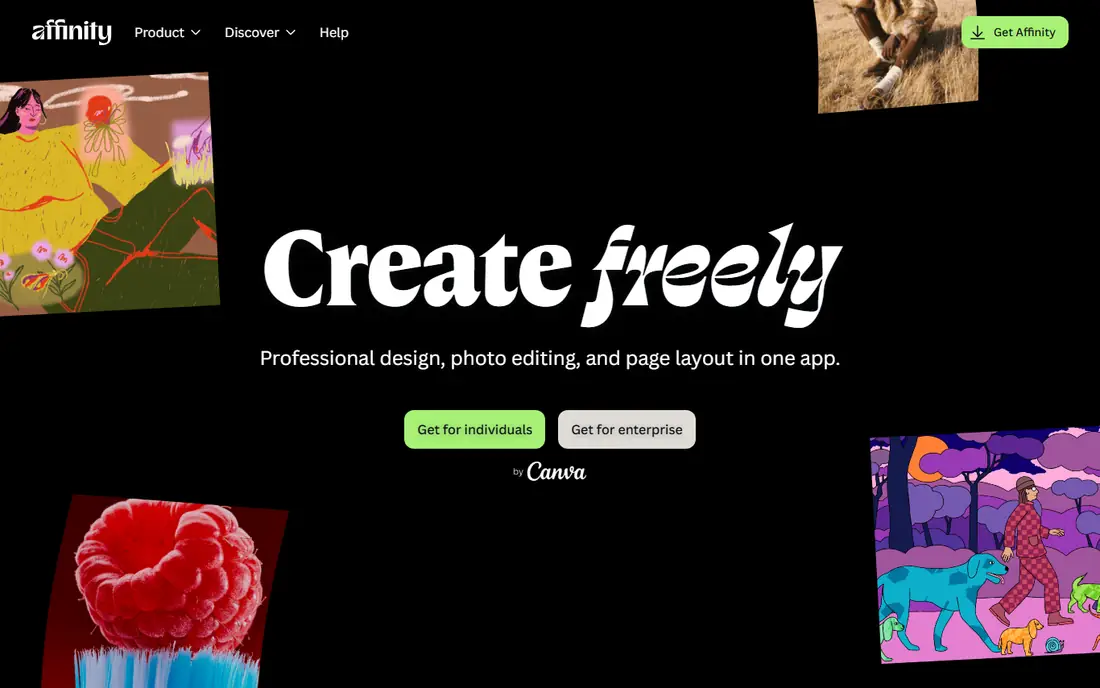
Affinity is the first place to start if you want a desktop program that feels like a serious Photoshop replacement rather than a light web editor. It combines photo editing with vector design and page layout, so one install can cover retouching, posters, and simple documents. Layers, masks, adjustment layers, and non-destructive editing are all present, and RAW files open with a dedicated develop workspace.
The catch is mostly about expectations. Affinity organizes some tools and panels differently from Photoshop, so muscle memory does not transfer on day one. A few newer AI features sit behind a paid Canva plan, while the core editing tools remain free with a free Canva account. If you can accept a short adjustment period, Affinity gives the broadest free desktop package in this list, and it works offline once installed.
What we like- Full layered editing, RAW support, and vector tools in one app
- Professional file support including PSD
- No subscription for the core tools
Watch out for- Some newer AI features need a paid Canva plan
- The workspace takes time to learn if you come from Photoshop
#2Photopea
Best for: Editing PSD files in a browser4.6/5 on
G2 (21 reviews, checked Oct 2026)
Visit photopea.com
Starting priceFree
Free planYes
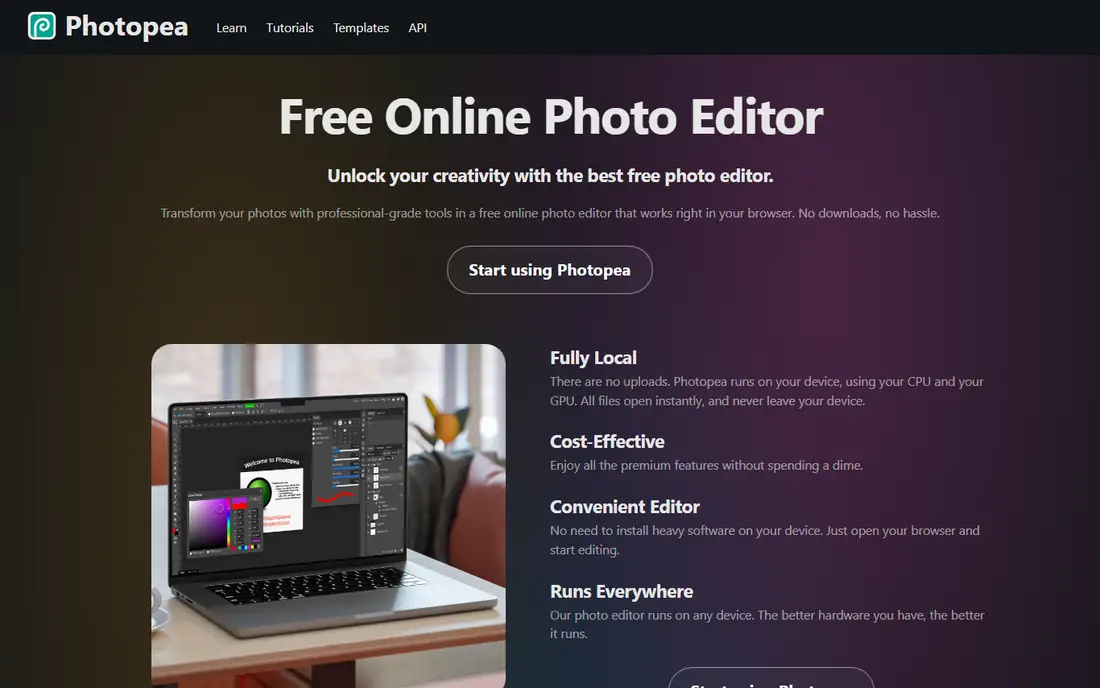
Photopea wins on convenience. Open a browser tab, drop in a PSD, and you get layers, masks, smart objects, adjustment layers, and familiar shortcuts. That makes it the practical choice for a shared computer, a Chromebook, or a one-off edit when you cannot install software. Files are processed locally in the browser, which helps with privacy for ordinary work.
The free version shows ads in a side panel, and Premium removes them while adding more storage, longer history, and AI credits. Premium is listed at about $5 per month in recent pricing coverage, with prepaid periods also offered. For most people, the free version is enough. The honest limit is performance: huge print files and many layers will feel better in a desktop app such as Affinity or GIMP.
What we like- Opens PSD, XCF, Sketch, and XD files with layers intact
- Interface closely mirrors Photoshop
- No install or account needed for basic use
Watch out for- Ads appear in the free version
- Very large files can slow down on weaker machines
#3GIMP
Best for: Deep open source editing4.3/5 on
G2 (1,484 reviews, checked Oct 2026)
Visit gimp.org
Starting priceFree
Free planYes
GIMP has been the default free desktop editor for years, and it still earns that place through depth. You get layers, masks, channels, selection tools, color tools, and a plugin system that extends it into batch work, scripting, and specialized filters. It runs on all three major desktop systems, and there is no account, ad, or paid tier to work around.
New users often find the layout less polished than Affinity or Photopea, and the learning curve is real. Photoshop files open, but complex layer effects and adjustment layers may not survive the round trip exactly. If you plan to stay in GIMP for the whole job, that matters less. GIMP suits people who want a free tool they can keep for years, customize heavily, and use offline without any vendor lock-in.
What we like- Fully free and open source
- Large plugin and script library
- Runs on Windows, macOS, and Linux
Watch out for- Interface feels dated to some users
- PSD support is good but not perfect for complex effects
#4Krita
Best for: Digital painting4.4/5 on
G2 (65 reviews, checked Oct 2026)
Visit krita.org
Starting priceFree
Free planYes
Krita is built for artists first. Its brush engines, stabilizers, and color management make drawing and painting feel natural with a tablet, and it includes frame-by-frame animation tools that Photoshop users would need separate software to match. Illustrators, comic artists, and concept artists will find more here than in a general photo editor.
As a Photoshop replacement for photo work, Krita is narrower. It can crop, adjust color, and work with layers, but retouching, compositing, and print preparation are not its main strengths. Think of Krita as the painting specialist in a free toolkit: pair it with Affinity, GIMP, or Darktable for photos, and use Krita when the job starts with a blank canvas and a stylus.
What we like- Excellent brush engines and tablet support
- Animation tools included
- Fully free and open source
Watch out for- Photo retouching tools are thinner than GIMP or Affinity
- PSD export has limits on some effects
#5Pixlr
Best for: Fast browser edits4.4/5 on
G2 (751 reviews, checked Oct 2026)
Visit pixlr.com
Starting priceFree
Free planYes
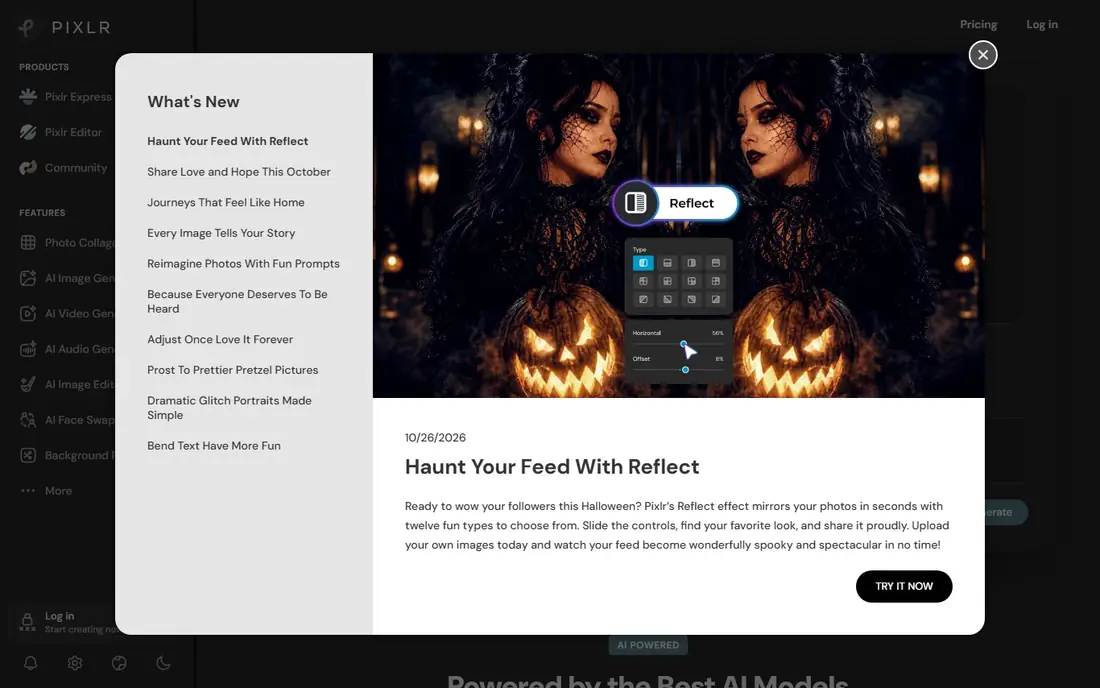
Pixlr is for speed. It opens in a browser, offers one-click adjustments, filters, and AI tools, and lets you finish a social image or product photo in minutes. The interface is simpler than Photopea, which is a benefit when you do not need masks, channels, and advanced selections for every job.
The trade-off is depth. Pixlr handles everyday edits well, but detailed compositing, precise masking, and large print files are better left to desktop editors. The free tier also carries limits that push heavy users toward a paid plan, listed in recent coverage at about $2.49 per month on some plans. Use Pixlr as a fast second tool, not as your only editor for client work.
What we like- Quick edits without an install
- AI background removal and filters
- Mobile and desktop access
Watch out for- Free tier has limits and ads
- Not a full layered Photoshop replacement for complex work
Starting priceFree
Free planYes
Paint.NET sits between a basic paint app and a full editor. It opens quickly, supports layers and blend modes, and has a plugin community that adds file formats and effects. For screenshots, simple composites, and quick retouching on Windows, it is hard to beat for simplicity.
Windows-only support is the main limit, and photographers who need RAW development or advanced color management will need another tool. Paint.NET also lacks the depth of GIMP for masking and channel work. If you use Windows and want a free editor that stays out of the way, Paint.NET is a strong, low-friction pick.
What we like- Fast and light on Windows
- Layers and plugins included
- Easy to learn
Watch out for- Windows only
- RAW and advanced color tools are limited without plugins
Starting priceFree
Free planYes
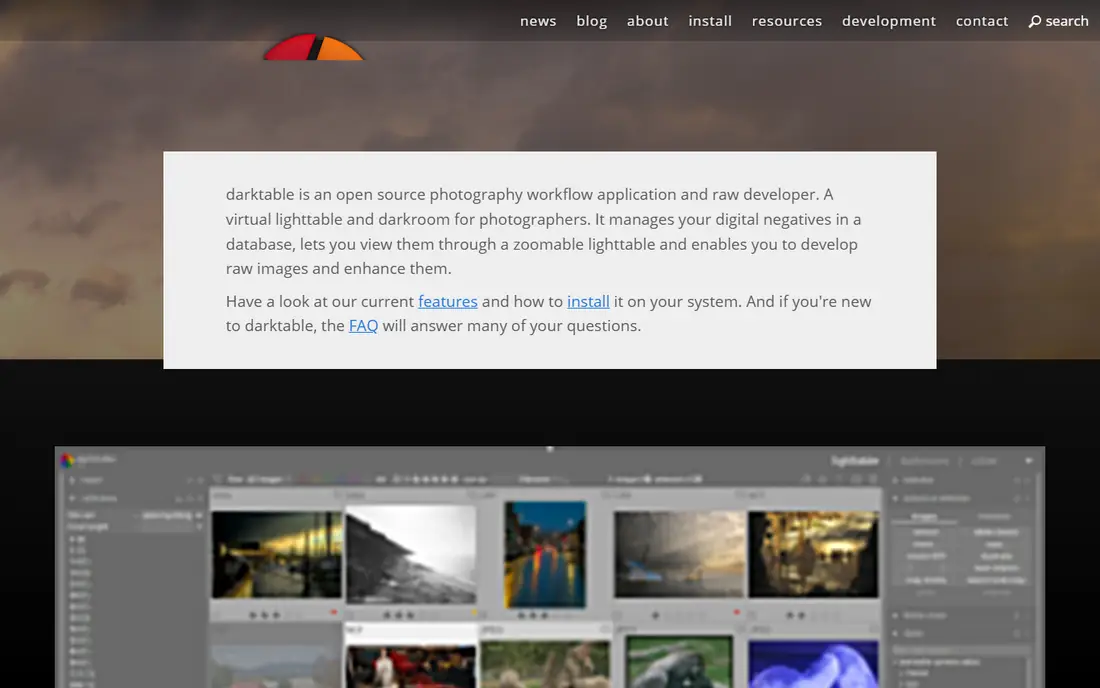
Darktable is the free answer to Lightroom more than to Photoshop. It imports RAW files, applies non-destructive edits, and helps you organize large photo libraries with ratings, tags, and collections. Tone curves, color zones, and lens correction give photographers fine control over the look of a shoot.
It is not designed for layered compositing or graphic design, so it pairs best with a second editor. A common free workflow is Darktable for RAW development and library work, then Affinity or GIMP for retouching and export. If you shoot RAW and currently pay for a photo subscription mainly for that workflow, Darktable alone can remove a large part of the cost.
What we like- Strong RAW development and photo library tools
- Non-destructive editing
- Fully free and open source
Watch out for- Not a layered PSD editor
- Interface takes time to learn
#8Canva
Best for: Simple graphics and templates4.7/5 on
G2 (7,678 reviews, checked Oct 2026)
Visit canva.com
Starting priceFree
Free planYes
Canva is included here with a clear limit: it is a design and layout tool, not a pixel editor. For social posts, flyers, presentations, and simple photo adjustments, its templates and drag-and-drop layout save a lot of time. The free tier covers a large template set and basic editing, which is enough for many small business and school needs.
Do not expect Canva to replace Photoshop for retouching or layered file work. Masks, precise selections, and advanced color tools are limited, and Pro features sit behind a paid plan. Canva fits best as a companion tool: edit photos in Affinity, Photopea, or GIMP, then lay them out in Canva when the final product is a graphic rather than a finished photo.
What we like- Huge template library
- Easy text, layout, and social graphics
- Works in a browser
Watch out for- Limited pixel-level editing
- Not a PSD workflow tool
- Many useful features need a paid plan
#9Polarr
Best for: Filters and quick adjustments4.4/5 on
G2 (45 reviews, checked Oct 2026)
Visit polarr.com
Starting priceFree
Free planYes
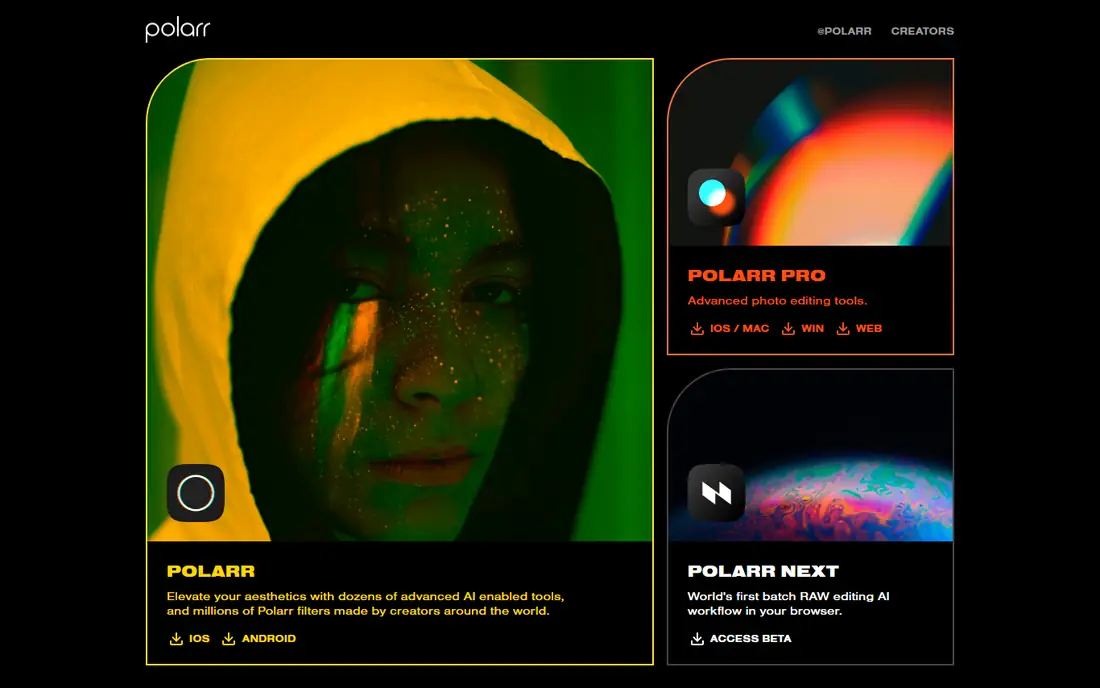
Polarr focuses on look and speed. Filters, local adjustments, and batch editing let you apply a consistent style across a set of photos without opening a heavy editor. It is useful for creators who post often and want a repeatable style, and it runs across desktop, web, and mobile.
The limit is structural: Polarr is not built for compositing or detailed retouching. Layer control is limited compared with Affinity, GIMP, or Photopea, and the fuller feature set needs a paid plan, listed in recent coverage at about $3.99 per month billed yearly. Use Polarr for style and quick passes, and keep a layered editor for work that needs precise edits.
What we like- Good filters and batch adjustments
- Works on desktop, web, and mobile
- RAW support on some platforms
Watch out for- Layered editing is limited
- Full features need a paid plan
How we chose
We compared pricing pages, documentation, and public reviews on G2, Capterra, and Reddit, with attention to file support, platform coverage, and whether the free tier covers real work rather than a demo. We favored tools that exist today, run on current systems, and fit a clear job: desktop editing, browser PSD work, painting, or RAW processing. We left out template-only tools that cannot edit pixels in depth, and we did not count a free trial as a free plan.
What to check before you switch
Start with your files, not the feature list
If clients or collaborators send PSD files, Photopea and Affinity should be at the top of your shortlist, since they handle layered files best in this group. If you work alone and start from camera files, Darktable plus GIMP or Affinity may be a better pair. Write down the three file types you open most often, then test each candidate with a real file before you commit to a switch.
Match the editor to the job
Painting, RAW development, and compositing are different jobs, and no single free tool leads at all three. Krita leads for painting, Darktable leads for RAW libraries, and Affinity or GIMP lead for general layered editing. Using two free tools together is normal, and it often beats forcing one tool to do everything poorly.
Check the free tier limits early
Free can mean fully free, ad-supported, or feature-limited. GIMP, Krita, and Darktable are fully free. Photopea and Pixlr are ad-supported with paid upgrades. Canva and Polarr have larger paid feature sets behind the free tier. Check export limits, storage, and whether your core tools stay free before you build a workflow around a tool.
Frequently asked questions
What is the best free alternative to Photoshop overall?
Affinity is the strongest overall free desktop choice in 2026, since it covers layered editing, RAW files, and vector work in one app. Photopea is the best browser choice, especially for PSD files. If you want fully open source software with no account, GIMP is the safest long-term pick.
Can free editors open PSD files?
Yes, with limits. Photopea preserves layers best in a browser, and Affinity and GIMP open PSD files well for most everyday work. Complex Photoshop effects, smart filters, and some adjustment layers may not transfer exactly, so keep an original copy of important files before converting them.
Is Affinity really free now?
The core Affinity application is available free with a free Canva account, based on current vendor and press coverage in 2026. Some newer AI features need a paid Canva plan. Check the current Affinity site before you install, since bundle terms can change.
Which free editor is best for digital painting?
Krita is the best free choice for digital painting, thanks to its brush engines, tablet support, and animation tools. GIMP can paint, but Krita is designed around drawing from the start, and that shows in brush control and canvas handling.
Do I need to install anything to edit photos free?
No. Photopea, Pixlr, Canva, and Polarr all run in a browser for basic work. Desktop editors such as Affinity, GIMP, Krita, and Darktable need an install, but they work offline afterward and handle larger files more comfortably.
Can I use these tools for client work?
Yes, for most everyday client work, including retouching, social graphics, and web images. For print work or files that must return to a Photoshop-based studio, confirm file compatibility and color settings with the client first, and keep layered masters in a format your editor preserves well.
Sources we checked (9)
- https://www.affinity.studio
- https://www.photopea.com
- https://www.gimp.org
- https://krita.org
- https://pixlr.com
- https://www.getpaint.net
- https://www.darktable.org
- https://www.canva.com
- https://polarr.com
Is your product missing or out of date?
We review this list regularly. Vendors can request a listing, send updated pricing or ask about featured placement.

Shihab Mia · Founder, Rankite
Shihab has 5+ years in B2B and SaaS SEO. He writes Rankite's software buying guides from pricing pages, documentation and public user reviews. More about Shihab.