How we make this list: we compare pricing pages, product documentation and public user reviews. Rankite is independent; if a vendor ever pays for a featured spot, that listing is clearly labeled Partner.
Key takeaways
- Acronis Cyber Protect Home Office (formerly Acronis True Image) is the most complete consumer package: imaging plus backup plus security.
- Macrium Reflect is the technician favorite for reliable cloning and rescue media on Windows.
- Clonezilla and Rescuezilla are the best free disk imaging software options, both bootable and open source.
- EaseUS Todo Backup, AOMEI Backupper, and Paragon Backup & Recovery offer free tiers for Windows users.
- Veeam Agent is free for one machine and built on enterprise-grade backup technology.
Quick comparison
Is your product missing or out of date?
We review this list regularly. Vendors can request a listing, send updated pricing or ask about featured placement.
A disk image is a complete snapshot of a drive: operating system, programs, settings, everything. When a drive dies or ransomware strikes, you restore the image and you are back where you were. The best disk imaging software makes that snapshot easy to create and, more importantly, easy to restore. These ten cover every budget and skill level.

#1
Acronis Cyber Protect Home Office
Best for: all-in-one backup and security
Visit acronis.com
Starting priceSee website
Free planFree trial
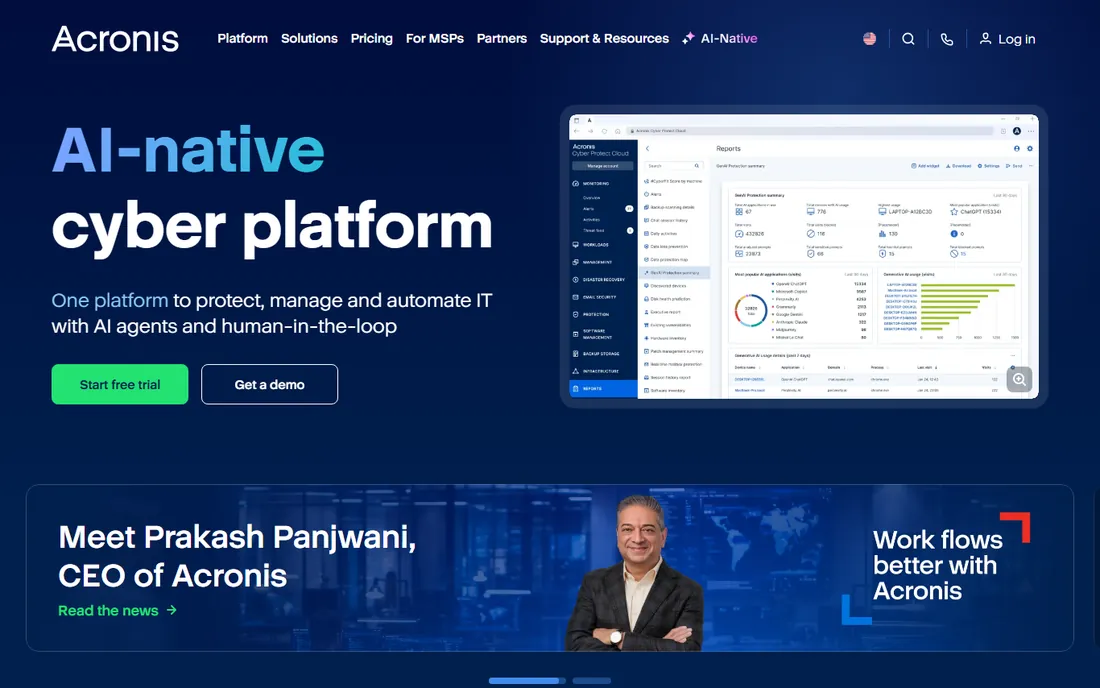
Acronis Cyber Protect Home Office is the new name for the long-running Acronis True Image, and it remains the most complete consumer backup package. Full disk images, incremental backups, file sync, cloud storage, and built-in antivirus live in one dashboard. For non-technical users who want one product that covers everything, it is the default recommendation.
The trade-off is price and complexity. It costs more than single-purpose tools, and the interface packs in a lot. But if you want imaging plus everyday backup plus security without juggling three products, nothing else covers as much ground.
What we like- Combines disk imaging, file backup, antivirus, and cloud storage
- Easy restore from bootable media
- Strong ransomware protection
Watch out for- Subscription pricing adds up
- Interface can feel busy
Starting priceSee website
Free planFree trial
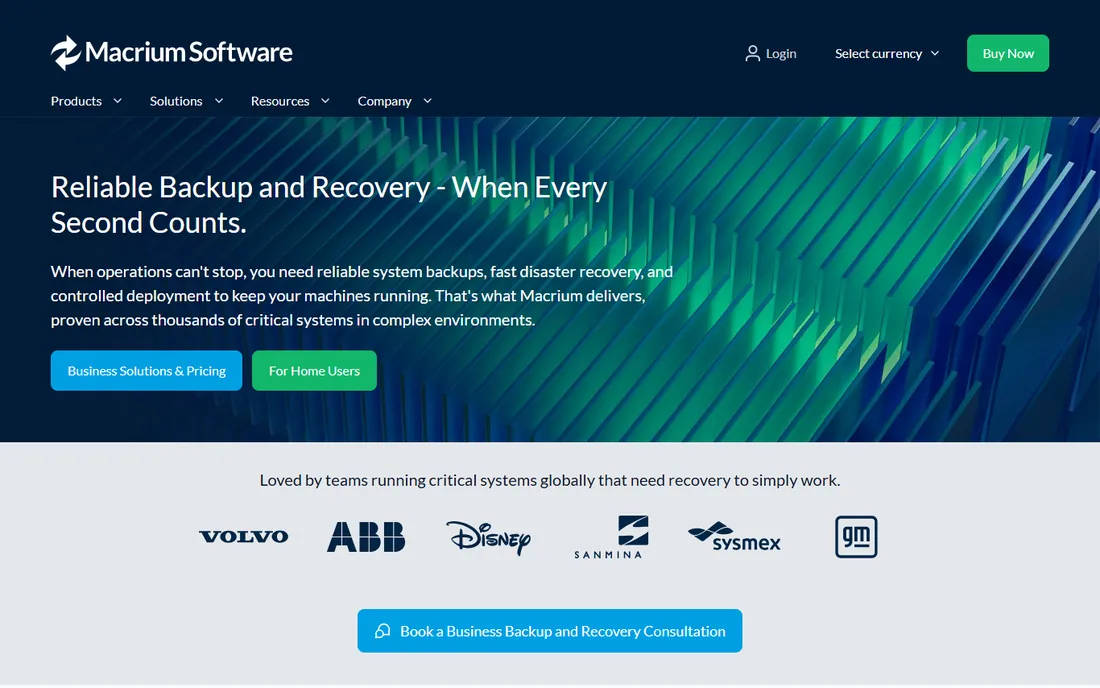
Macrium Reflect has been the technician's choice for years: imaging and cloning that simply works, with rescue media that boots when you need it most. Rapid delta restore and cloning make SSD migrations quick, and scheduled images run quietly in the background.
Note that Macrium ended its free edition, so Reflect is now a paid product with a trial. Windows-only too. If you image Windows machines regularly and want the tool the pros reach for, it is worth the license.
What we like- Fast, dependable imaging trusted by IT pros
- Excellent rescue media builder
- Rapid delta cloning for SSD upgrades
Watch out for- Windows only
- The free edition was discontinued, so it is paid now
Starting priceFree
Free planYes
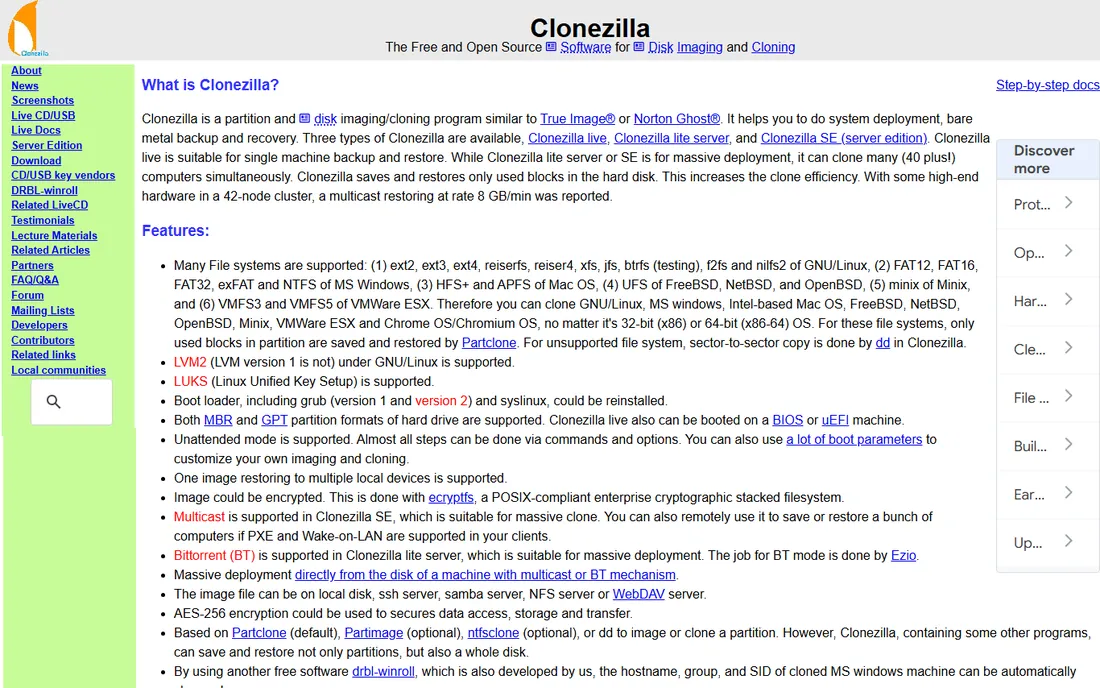
Clonezilla is the free standard for raw disk cloning. Boot it from USB, and it images or clones entire disks and partitions with industrial reliability. The server edition can multicast one image to dozens of PCs at once, which is why IT departments keep it in the toolkit.
It is not friendly. The text menus assume you know what a partition is, and there is no scheduling or incremental backup. For one-off clones and migrations, though, it is free, fast, and proven over decades.
What we like- Completely free and open source
- Clones disks and partitions fast
- Can deploy images to many machines over a network
Watch out for- Text-based interface intimidates beginners
- No scheduling or incremental backups
Starting priceSee website
Free planYes
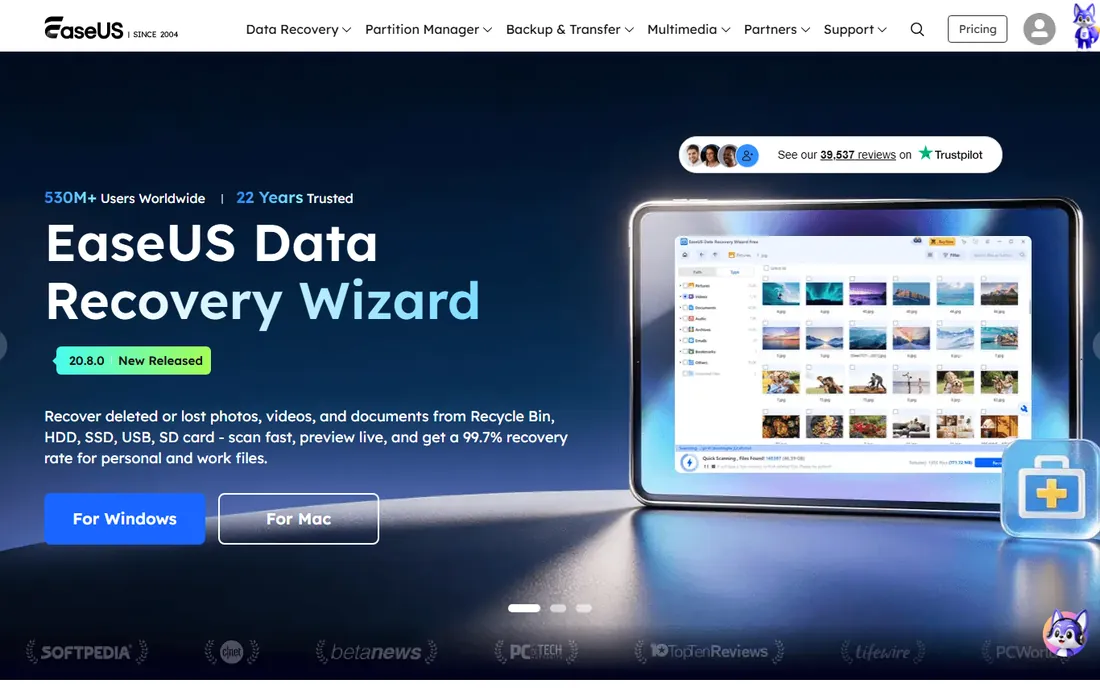
EaseUS Todo Backup is the approachable option: system backup, disk imaging, file backup, and cloning wrapped in an interface a non-technical user can follow. The free version handles basic imaging and backup, which covers most home needs.
Power users will hit the free version's limits and feel the nudges toward paid plans. But for a first backup tool that does not require reading a manual, EaseUS is an easy pick.
What we like- Clean interface good for beginners
- System, disk, and file backup in one tool
- Free version covers the basics
Watch out for- Free version has feature limits
- Upsell prompts can be frequent
Starting priceSee website
Free planYes
AOMEI Backupper's free Standard edition is one of the most capable free imaging tools on Windows: full system and disk imaging, cloning, scheduling, and bootable rescue media at no cost. Paid editions add features like real-time sync and command-line backup.
It is Windows-only, and the fancier features sit behind the paywall. But as free imaging software for a home PC, it is hard to beat on value.
What we like- Generous free Standard edition
- System, disk, and partition imaging
- Includes cloning and bootable media tools
Watch out for- Paid tiers needed for advanced features
- Windows only
Starting priceSee website
Free planSee website
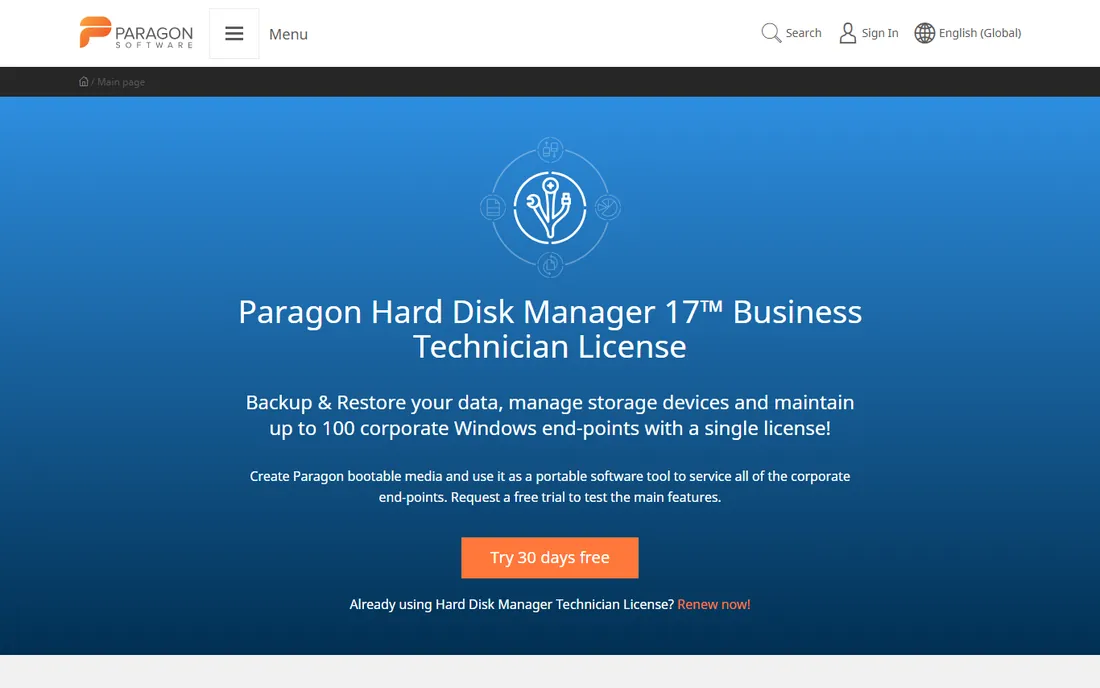
Paragon has worked with disks since 1994, and Backup & Recovery reflects that focus: disk and partition imaging, differential and incremental backups, and WinPE-based recovery media, without the bloat of a security suite. A free edition has historically been available for home users.
It will not sync your files to the cloud or scan for malware. If you want imaging done well and nothing else, that focus is a feature, not a gap.
What we like- Simple, focused imaging workflow
- Solid recovery media
- From a vendor with decades of disk experience
Watch out for- Fewer extras than suites like Acronis
- Check current free edition availability
Starting priceFree
Free planYes
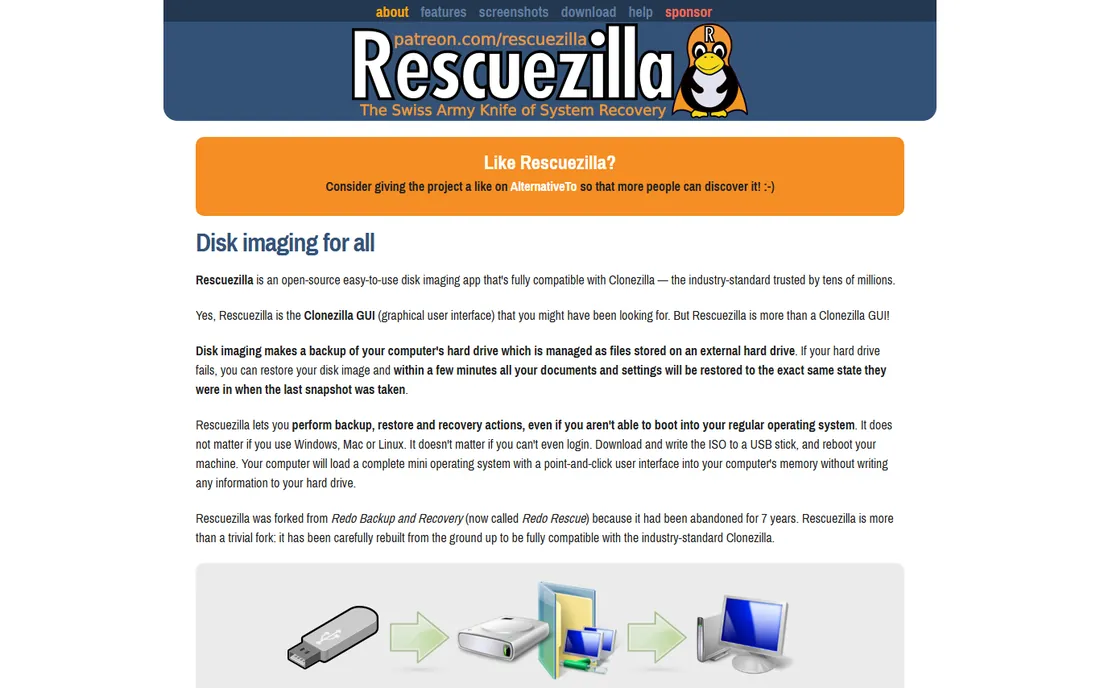
Rescuezilla is what Clonezilla would be if it had a modern interface: a free, open-source, bootable tool for imaging and cloning with a graphical UI anyone can follow. It can even work with Clonezilla image files, so the two tools complement each other.
It lacks Clonezilla's network deployment muscle and the polish of paid tools. For free, friendly, bootable cloning, though, it is the best starting point for beginners who find Clonezilla intimidating.
What we like- Free and open source with a real graphical interface
- Compatible with Clonezilla images
- Boots from USB on any PC
Watch out for- Fewer advanced options than Clonezilla
- Community support only
Starting priceFree
Free planYes
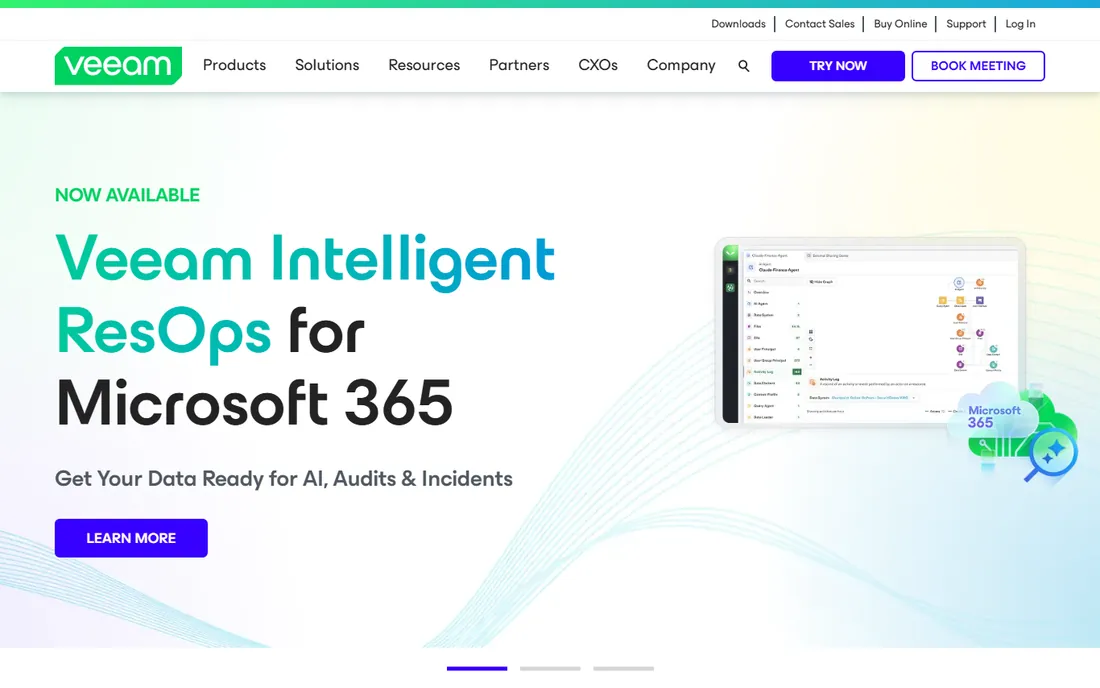
Veeam is the enterprise backup giant, and Veeam Agent brings its imaging technology to individual machines for free. The free edition covers one Windows PC or Mac with image-based backup to local drives, network shares, or a Veeam repository, plus bootable recovery media.
The free tier is deliberately limited, and getting everything means buying into the Veeam platform. But the core imaging engine is the same one enterprises trust, which makes the free edition a serious deal.
What we like- Free edition for one machine
- Enterprise-grade imaging technology
- Image, volume, and file-level backup
Watch out for- Free edition limits backup jobs
- Full power needs the paid Veeam platform
Starting priceSee website
Free planFree trial
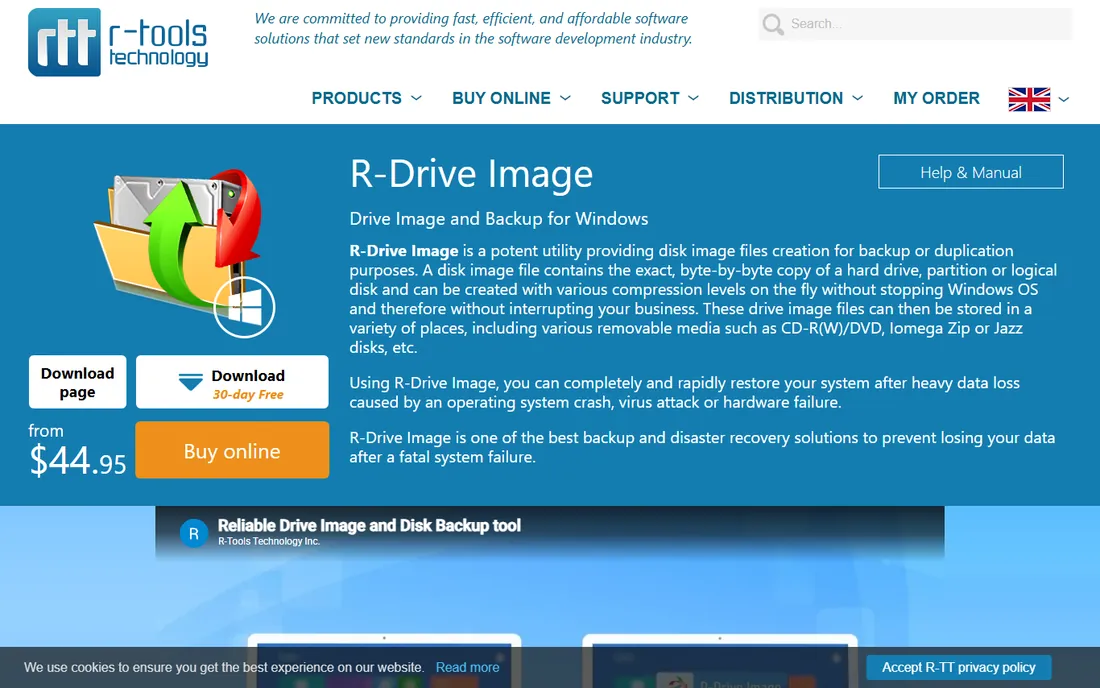
R-Drive Image is a technician's tool: disk imaging and cloning with strong scripting support for automated deployments, plus a bootable startup version for bare-metal restores. It is fast, reliable, and priced reasonably for what it does.
The interface looks its age and assumes technical comfort. Home users will prefer something friendlier, but IT pros who script their imaging workflows rate it highly.
What we like- Powerful scripting and command-line support
- Fast imaging with compression
- Startup version runs from bootable media
Watch out for- Dated interface
- Aimed at technical users
Starting priceSee website
Free planFree trial
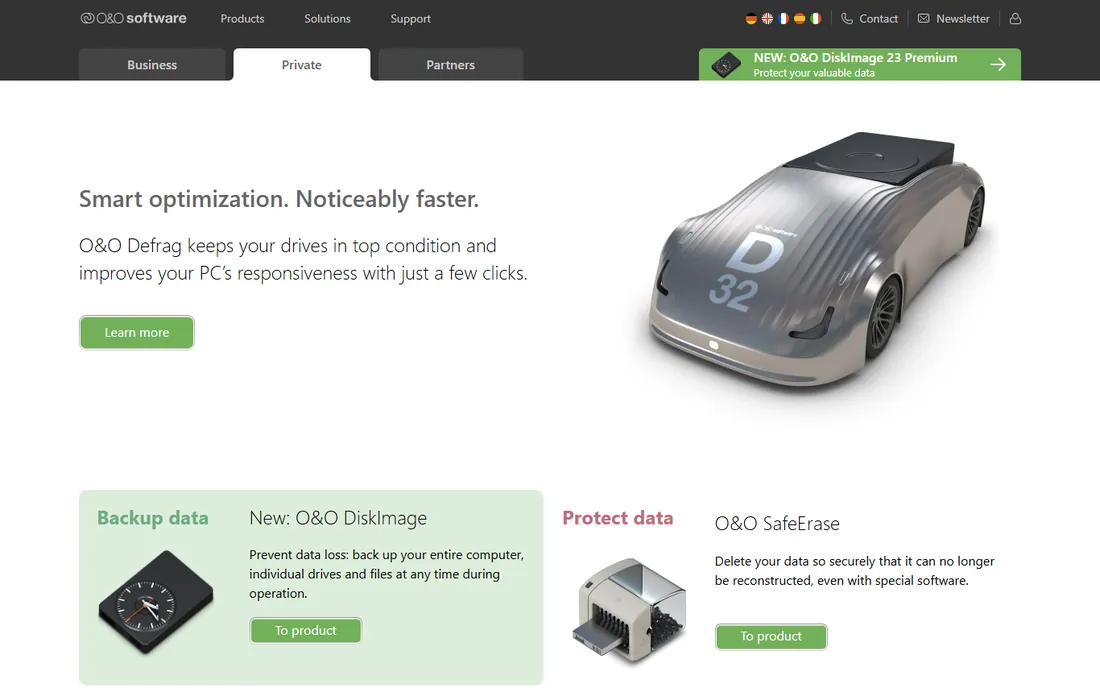
O&O DiskImage comes from O&O Software in Berlin, a company known for Windows utilities. It does full, incremental, and differential imaging with a clean one-click workflow, and its recovery partition feature means you can restore without hunting for boot media.
It is Windows-only and less well known in English-speaking markets than Acronis or Macrium. For a straightforward, well-engineered imaging tool, it deserves a look.
What we like- One-click imaging with solid scheduling
- Integrated recovery partition option
- From a respected Berlin software house
Watch out for- Windows only
- Smaller community than the big names
Scheduled backup or one-off clone
These tools serve two different jobs, and buying the wrong type wastes money. A cloning tool like Clonezilla, Rescuezilla, or Macrium Reflect copies a drive once: perfect for migrating to a new SSD. A backup tool like Acronis, EaseUS, or Veeam Agent runs on a schedule, keeps versions, and protects against ransomware and accidental deletion.
Most people actually need both jobs covered. If you only buy one product, make it a scheduled backup tool, because a one-time clone from six months ago will not save you from last week's ransomware. Then keep a free cloning tool on a USB stick for the day you upgrade your drive.
You can cover disk imaging without spending anything. For scheduled backups on Windows, AOMEI Backupper's free edition and EaseUS Todo Backup's free version both do the job. For cloning and rescue work, keep Clonezilla or Rescuezilla on a bootable USB. Veeam Agent's free edition adds enterprise-grade imaging for one machine.
The free tools have real limits: fewer scheduling options, no cloud storage, community support only. And the most important free step costs nothing at all: test your restore before you need it. An image you have never restored is a hope, not a backup.
How we chose
We reviewed vendor homepages, product documentation, and pricing pages, then cross-checked against reviews on G2, Capterra, Trustpilot, and tech publications, plus discussions on IT forums and Reddit. We included only current, actively maintained products, covering paid suites, free tools, and open-source options across Windows and bootable environments. Where vendors do not publish prices, we say so. We did not run hands-on tests.
Frequently asked questions
What is the best free disk imaging software?
Clonezilla is the most powerful free option for cloning, Rescuezilla adds a friendly interface to the same idea, and AOMEI Backupper's free edition covers scheduled imaging on Windows. Veeam Agent is free for one machine with enterprise-grade technology.
What is the difference between disk imaging and disk cloning?
Imaging saves a compressed snapshot file of a drive that you restore later; cloning copies everything directly to another drive, ready to boot immediately. Imaging is better for backups, cloning is better for migrating to a new drive.
How often should I image my disk?
A monthly full image plus weekly or daily incremental backups is a solid routine for most users. If your work changes daily, schedule incrementals daily. Whatever the schedule, store at least one copy off the machine, on an external drive or in the cloud.
Can I restore a disk image to a different computer?
Sometimes. Restoring to identical hardware usually works; different hardware may need driver adjustments or a tool with dissimilar-hardware restore, which Macrium Reflect and some paid tools offer. Windows licensing may also require reactivation.
Is Windows Backup good enough?
Windows includes basic system image tools, but they are limited: fewer scheduling options, no incremental chains worth relying on, and a history of Microsoft deprecating the feature. A dedicated tool gives you more control and a better chance of a successful restore.
Do I need to pay for disk imaging software?
Not necessarily. Free tools cover both jobs: AOMEI Backupper or EaseUS Todo Backup for scheduled imaging, Clonezilla or Rescuezilla for cloning. Paid tools earn their price with better scheduling, ransomware protection, cloud storage, and support.
Sources we checked (10)
- https://www.acronis.com
- https://www.macrium.com
- https://clonezilla.org
- https://www.easeus.com
- https://www.aomeitech.com
- https://www.paragon-software.com
- https://rescuezilla.com/
- https://www.veeam.com
- https://www.drive-image.com
- https://www.oo-software.com
Is your product missing or out of date?
We review this list regularly. Vendors can request a listing, send updated pricing or ask about featured placement.

Shihab Mia · Founder, Rankite
Shihab has spent more than a decade helping SaaS and e-commerce brands grow through search. He writes Rankite's software buying guides from pricing pages, documentation and public user reviews. More about Shihab.
 Macrium Reflect
 Clonezilla
 EaseUS Todo Backup
 AOMEI Backupper
 Paragon Backup & Recovery
 Rescuezilla
 Veeam Agent
 R-Drive Image
 O&O DiskImage