How we make this list: we compare pricing pages, product documentation and public user reviews. Rankite is independent; if a vendor ever pays for a featured spot, that listing is clearly labeled Partner.
Key takeaways
- Disk space analyzers like WizTree, WinDirStat and DaisyDisk free the most space because they show you the actual large files instead of guessing at junk.
- BleachBit and PrivaZer are the best free cleaners, open source or freeware with no subscriptions and no bundled junk.
- CCleaner remains the mainstream pick for automated junk cleaning on Windows, with a capable free tier.
- Mac users should look at DaisyDisk for finding space hogs and CleanMyMac for automated cleanup, since Windows tools do not cross over.
- TreeSize and Wise Disk Cleaner suit IT-managed Windows environments where free, scriptable and portable tools matter.
Quick comparison
| Tool | Best for | Starting price | Free plan |
|---|
 CCleaner CCleaner | Mainstream automated cleaning on Windows | See website | Yes |
 BleachBit BleachBit | Free open-source cleaning with no upsells | Free | Yes |
 WizTree WizTree | Finding what is actually eating your disk | Free | Yes |
 WinDirStat WinDirStat | Free visual disk analysis on Windows | Free | Yes |
 TreeSize TreeSize | IT-managed Windows environments | See website | Yes (TreeSize Free) |
 DaisyDisk DaisyDisk | Visual disk cleanup on Mac | See website | Free trial |
 CleanMyMac CleanMyMac | All-in-one Mac cleaning and maintenance | See website | Free trial |
 Wise Disk Cleaner Wise Disk Cleaner | Lightweight free cleaning on Windows | Free | Yes |
 Glary Utilities Glary Utilities | Free all-in-one PC maintenance | Free | Yes |
 PrivaZer PrivaZer | Privacy-focused deep cleaning | Free | Yes |
Is your product missing or out of date?
We review this list regularly. Vendors can request a listing, send updated pricing or ask about featured placement.
The best disk cleanup software
Starting priceSee website
Free planYes
CCleaner is the name most people already know, and for routine junk cleaning it still works. It clears browser caches, temporary files, log files and leftover installer data across Windows and popular applications, with a straightforward scan-and-clean flow. The free version covers the core cleaning, while Professional adds scheduled cleaning, automatic updates and premium support.
The caveats are reputation and restraint. CCleaner has shipped bundled software in its installer in the past, so download only from ccleaner.com and watch the checkboxes. Registry cleaning, a headline feature, rarely improves performance on modern Windows and carries small risk, so treat it as optional. Used for its actual strength, automated junk removal on a schedule, CCleaner is fine. Just do not expect it to find your real space hogs. For that, pair it with WizTree below.
What we like- Cleans browser junk, temp files and registry entries in one click
- Scheduled cleaning in paid tiers
- Huge user base means every problem is documented
Watch out for- Past bundling controversies hurt trust
- The free version nags toward paid
- Registry cleaning offers little real benefit
Starting priceFree
Free planYes
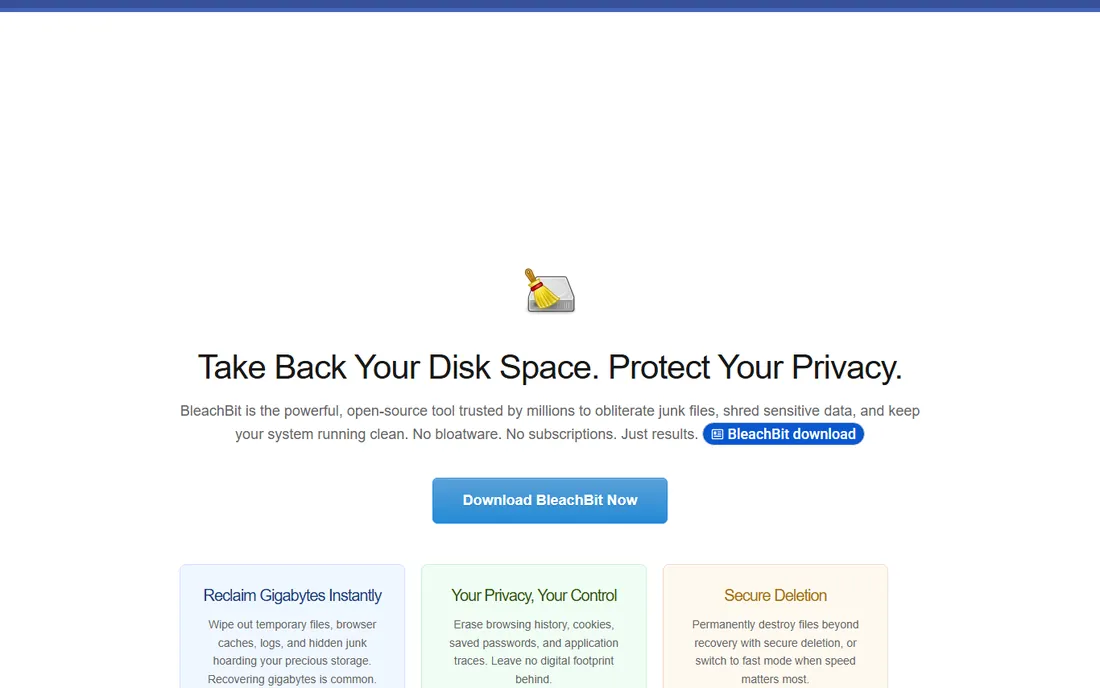
BleachBit is what you get when a cleaner is built by people who distrust cleaner marketing. It is open source, free forever, with no premium tier waiting to upsell you. It wipes temporary files, browser caches, cookies, logs and application traces across Windows and Linux, and it shows you exactly what it will delete before it deletes anything. The secure deletion modes overwrite files for privacy, and system administrators can script it across fleets.
The tradeoff is polish. The interface lists cleaners as checkboxes, and you are expected to know what a thumbnail cache is before you wipe it. There is no "optimize my PC" button and no performance promises, which is honest but less comforting. For privacy-conscious users and anyone managing multiple machines, BleachBit is the principled choice. For a nervous beginner, CCleaner's guidance is kinder.
What we like- Free forever under GPLv3, no ads or premium tier
- Preview shows every file before deletion
- Command-line support for automation
Watch out for- Interface is utilitarian
- No hand-holding for beginners
- MacOS support is limited
Starting priceFree
Free planYes
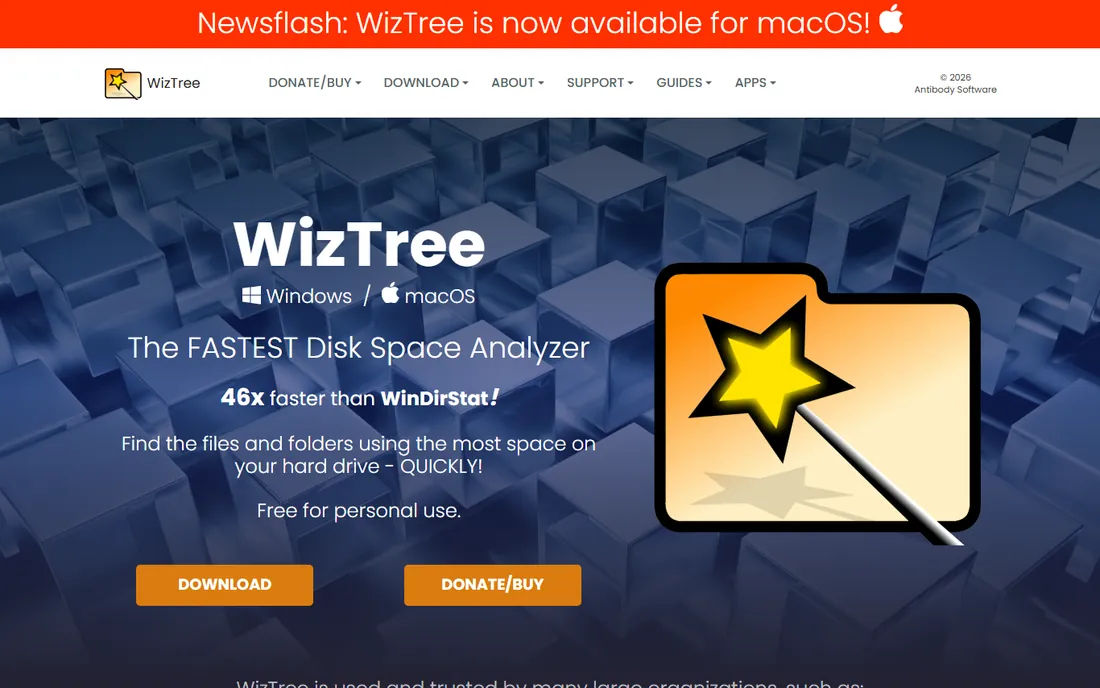
Here is the tool that actually solves the full-disk problem. WizTree scans a drive in seconds, on NTFS it reads the Master File Table directly instead of walking every folder, and shows a treemap where the biggest rectangles are your biggest files. That 40GB of forgotten Zoom recordings and the 25GB node_modules folder become impossible to miss. You decide what goes, which is the only safe way to delete large files.
WizTree does not pretend to be a cleaner. There is no junk database and no automatic optimization. It is a diagnostic instrument, and the free version handles personal use. A macOS version now exists alongside the Windows original, which broadens its reach. Run WizTree first when a drive is full, delete what you recognize as waste, and only then bother with a cleaner for the crumbs.
What we like- Scans NTFS drives in seconds by reading the file table directly
- Clear treemap visualization
- Now available for macOS too
Watch out for- Shows you the problem but does not clean automatically
- Deleting system files is on you
- The free version covers personal use
Starting priceFree
Free planYes
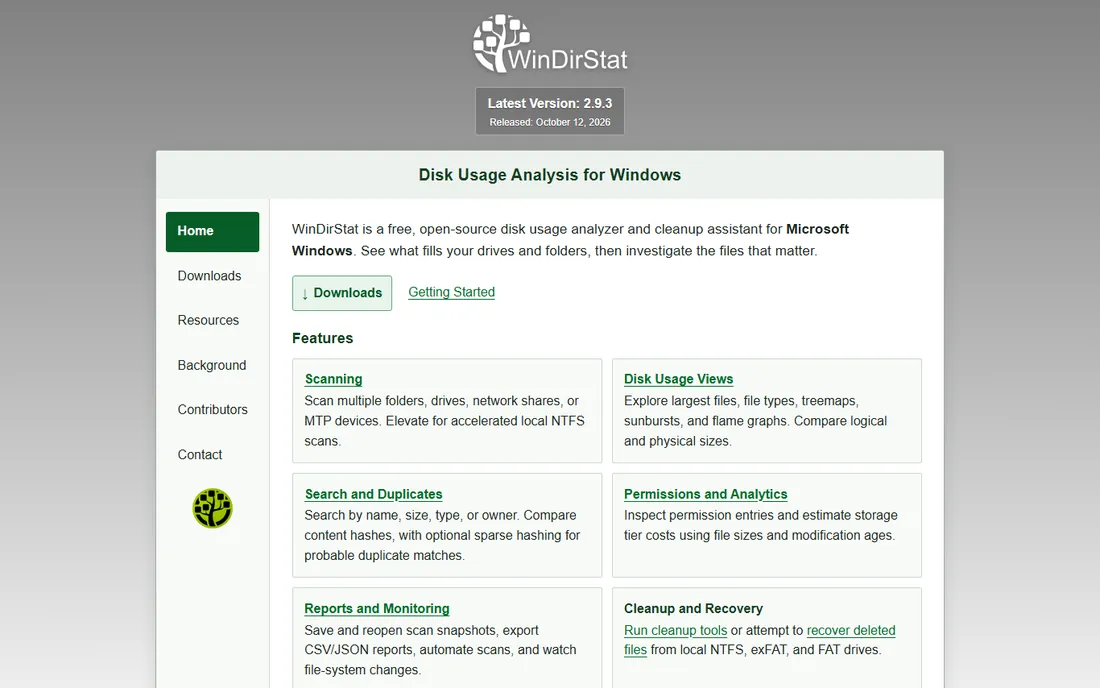
WinDirStat is the classic free disk analyzer that many IT people grew up with. It scans your drives and presents three views at once: a directory tree sorted by size, a breakdown by file extension, and the famous colored treemap. The combination answers both "what is big" and "what kind of files are big" in one screen. It is open source, free, and runs portably from a USB stick, which makes it handy for technicians.
The honest comparison is with WizTree directly above. WinDirStat scans by walking the filesystem, so large drives take minutes where WizTree takes seconds. It is Windows-only and updates are infrequent. It remains on this list because it is free, trustworthy and familiar, and its extension statistics view is genuinely useful for spotting, say, that video files dominate a drive. If speed matters, use WizTree. If you want the extension breakdown, WinDirStat still earns its place.
What we like- Free and open source
- Treemap plus extension breakdown in one view
- Can run portable without installation
Watch out for- Much slower scans than WizTree
- Windows only
- Development moves slowly
Starting priceSee website
Free planYes (TreeSize Free)
TreeSize comes from JAM Software in Germany, and it shows in the engineering-first design. TreeSize Free scans drives and folders with a clean hierarchical view, which is enough for personal cleanup. The paid Professional edition adds the features IT departments pay for: scheduled scans, duplicate file search, exportable reports in multiple formats, and command-line automation. It is a staple in managed Windows environments where someone needs to answer "which department is filling the file server."
For home use the free edition competes directly with WizTree and WinDirStat, and it is slower than WizTree at scanning. The paid tiers make sense when cleanup is someone's job rather than a weekend chore. If you are choosing for a company, TreeSize's reporting and support justify the price. If you are choosing for yourself, try the free edition before spending anything.
What we like- TreeSize Free covers personal use at no cost
- Portable and scriptable editions for technicians
- Detailed reports including duplicate search
Watch out for- The genuinely useful features sit in paid editions
- Interface is dense
- Overkill for a single home PC
Starting priceSee website
Free planFree trial
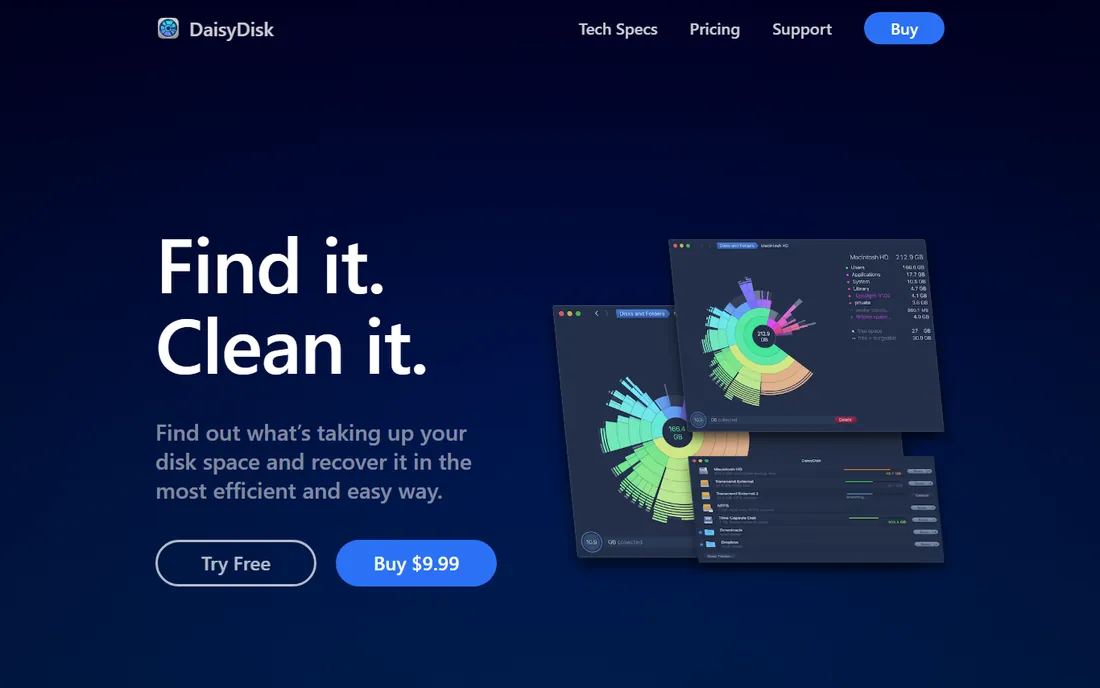
DaisyDisk is the Mac answer to WizTree, and it is the rare utility that is both effective and pleasant. It scans your Mac's drives in seconds and draws a sunburst map where each segment is a folder sized by its contents. Clicking inward drills down to the actual files. The design makes the chore almost enjoyable, and the safety features keep you from deleting system files by accident.
Like all analyzers, it shows rather than cleans. You still decide what to delete, which on a Mac is the right call given how aggressively the system manages its own caches. The license is a one-time purchase rather than a subscription, and user reviews consistently call it worth the roughly ten dollars. Mac users with full drives should start here before considering any automated cleaner.
What we like- Beautiful sunburst map makes space hogs obvious
- Very fast scans
- One-time purchase, no subscription
Watch out for- Mac only
- It finds files but you still delete them yourself
- The trial limits cleanup
Starting priceSee website
Free planFree trial
CleanMyMac is the closest thing the Mac world has to CCleaner: an all-in-one cleaner that removes system junk, manages applications and uninstalls, checks for malware, and runs maintenance scripts. MacPaw, the developer behind Setapp and other Mac utilities, keeps it current, the present version is CleanMyMac 5. For Mac owners who want the magic button rather than a disk map, this is the polished option.
The usual cautions about automated cleaners apply double on macOS, which manages its own caches competently and where Apple discourages cleaner apps. CleanMyMac is subscription-priced, so weigh the yearly cost against DaisyDisk's one-time price plus ten minutes of your own judgment. It suits beginners who want guidance. Experienced Mac users generally get more, more safely, from DaisyDisk.
What we like- Cleans junk, manages apps and runs maintenance scripts in one app
- Polished and beginner-friendly
- From established Mac developer MacPaw
Watch out for- Subscription pricing
- The current version is CleanMyMac 5, so check upgrade terms
- Automated cleaning needs more trust than manual review
Starting priceFree
Free planYes
Wise Disk Cleaner is the quiet freeware alternative for Windows users who find CCleaner too pushy. It cleans temporary files, browser histories and junk across the system with a simple interface, and it does so without constant upgrade prompts. The same download includes a disk defragmenter and a system slimming tool for removing unused Windows components, which is a thoughtful bundle.
It does not match BleachBit on privacy features or secure deletion, and WiseCleaner's business model is to graduate you to the paid Wise Care 365 suite. For straightforward junk cleaning on a home PC, though, it is fast, free and unobtrusive. Think of it as CCleaner's calmer cousin: less famous, less aggressive, and perfectly adequate for routine maintenance.
What we like- Free with no nagging
- Fast scans and a clean interface
- Includes disk defrag and slimming tools
Watch out for- Less thorough than BleachBit for privacy cleaning
- The vendor's upsell is the Wise Care 365 suite
- Smaller community
Starting priceFree
Free planYes
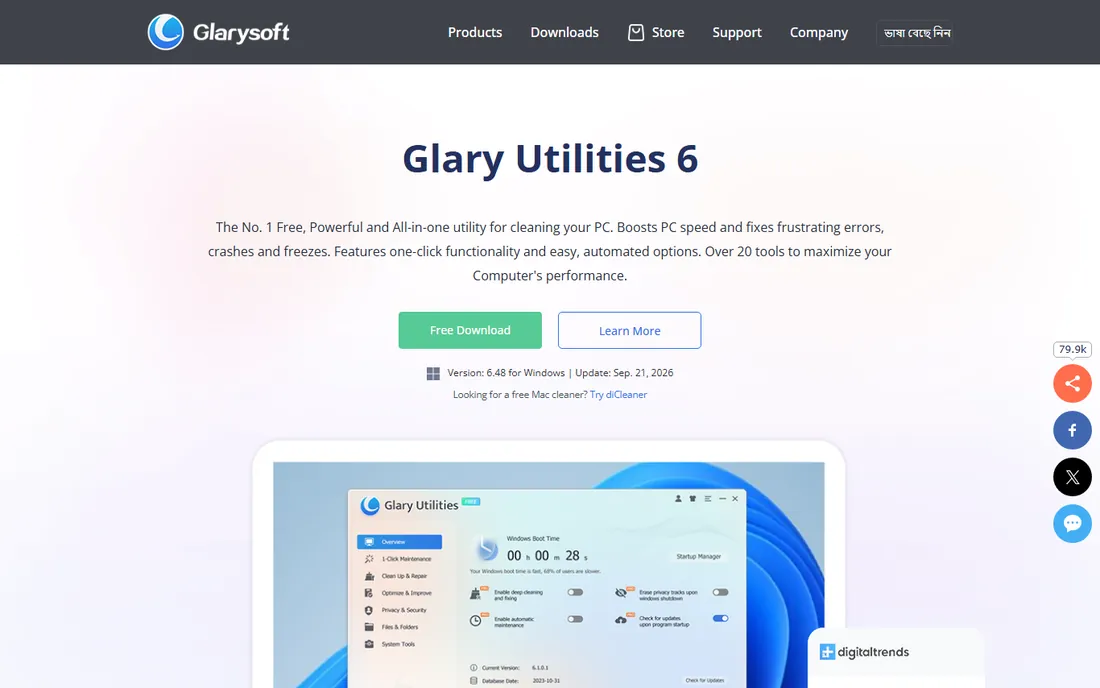
Glary Utilities takes the opposite approach from the focused tools above: one download, more than twenty utilities covering cleaning, registry repair, startup management, file shredding, undelete and more. The one-click maintenance runs the common jobs together, which appeals to users who want a single maintenance app. It is free, actively developed, and the September 2026 update shows it is not stagnating.
The risk of a Swiss-army suite is using tools you do not need. Registry cleaners, driver updaters and RAM optimizers mostly duplicate what Windows already does, and running them on schedule creates work rather than saving it. Stick to the disk cleaner, startup manager and uninstaller, and ignore the rest. For a free all-in-one on a family PC, Glary Utilities is generous. For a focused job, the specialized tools above do it better.
What we like- Over 20 tools in one free download
- One-click maintenance for the impatient
- Actively updated, version 6.48 in September 2026
Watch out for- Bundling so many tools invites overuse
- Some modules duplicate Windows built-ins
- The Pro upsell is persistent
Starting priceFree
Free planYes
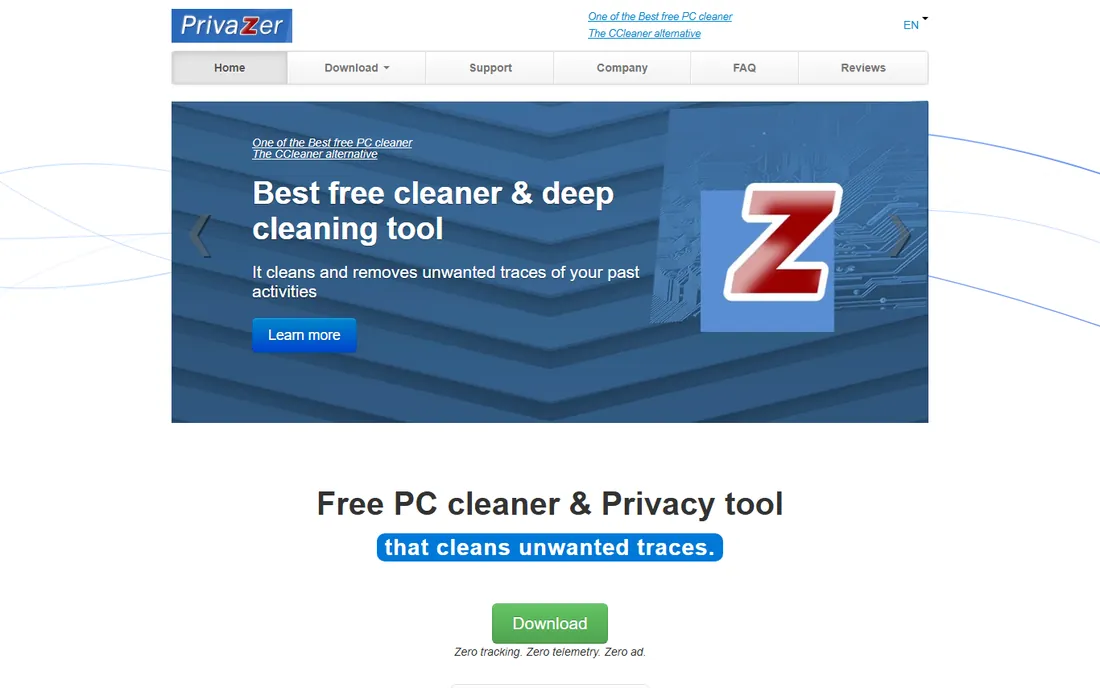
PrivaZer is for people whose concern is traces, not just space. Beyond temporary files it cleans file tables, free space, jumplists, thumb caches and other residues that reveal what you have done on a PC, with overwriting methods adapted to magnetic disks and SSDs. The scan visualizations show findings clearly, and the smart cleanup skips areas already cleaned to speed up repeat runs. It is free, which is remarkable for the depth on offer.
The depth is also the warning. A full deep clean takes a while, and the number of options can overwhelm a casual user. This is a privacy instrument first and a disk cleaner second. If your goal is freeing space, start with WizTree. If your goal is leaving no trace, for a sold computer, a shared machine or a privacy-sensitive workplace, PrivaZer is the most thorough free option here.
What we like- Free
- Deep cleaning of usage traces beyond standard temp files
- Smart overwriting adapted to HDDs and SSDs
- Detailed visualizations of findings
Watch out for- Deep scans take a long time
- The thoroughness can intimidate
- Windows only
What actually frees disk space (and what does not)
Run an analyzer first. WizTree on Windows or DaisyDisk on Mac will show you, in under a minute, the large files and folders responsible for most of a full drive. Old installers, forgotten downloads, video projects, game libraries and phone backups are the usual culprits, and deleting them yourself frees tens of gigabytes that no cleaner can match.
Cleaners handle the remainder: browser caches, temp files, logs and thumbnails, typically one to five gigabytes. That is worth doing on a schedule. But if a cleaner promises 50GB with one click, be skeptical. Caches rebuild, and the big wins are always files you chose to keep and forgot about.
Registry cleaning and RAM optimization do not free meaningful disk space and rarely speed up modern systems. Tools that bundle them are selling reassurance. Focus on the disk map and the junk cleaner, and ignore the rest.
Cleaner apps vs disk space analyzers
These are different instruments for different problems, and most buyers need the analyzer more. Cleaner apps automate the removal of known junk categories. They are convenient, scheduled, and safe within their scope. Their scope is small.
Disk space analyzers show you everything and let you decide. They require ten minutes of your judgment, and in return they find the real space hogs that junk categories miss. WizTree, WinDirStat, TreeSize and DaisyDisk all work this way.
The practical Windows setup is WizTree for the occasional deep clean plus BleachBit or CCleaner on a schedule. For a Mac, it is DaisyDisk plus macOS's own storage management, with CleanMyMac as the optional convenience layer.
How we chose
We verified each vendor's current site for availability and pricing, read documentation and user reviews on tech publications and forums, and judged tools on what actually helps small businesses and home users: how much space they can realistically free, safety of automated deletion, pricing honesty, and platform coverage. We favored tools that show their work over tools that promise miracles, and we did not claim hands-on testing.
Frequently asked questions
Is CCleaner safe to use in 2026?
Yes, when downloaded from ccleaner.com. Its past bundling of extra software damaged its reputation, so watch installer checkboxes and decline extras. The cleaning itself is safe for standard junk categories. Skip the registry cleaner unless you have a specific reason.
What is the best free disk cleanup software for Windows?
BleachBit for privacy-respecting automated cleaning with no upsells, WizTree for finding what is actually filling the drive, and WinDirStat as the classic free analyzer. Wise Disk Cleaner and Glary Utilities are solid free all-rounders. For most people, WizTree plus BleachBit covers everything at zero cost.
What is the best disk cleaner for Mac?
DaisyDisk for seeing what uses your space, with a one-time purchase and fast scans. CleanMyMac for automated all-in-one cleaning, though it is subscription-priced. macOS also manages its own caches well, so start with DaisyDisk and the built-in storage management before paying for automation.
Do I need disk cleanup software on Windows 11?
Windows 11 includes Storage Sense, which automates temp file cleanup reasonably well. A third-party cleaner adds browser-specific cleaning and privacy features, and an analyzer like WizTree finds large files Storage Sense will never touch. The built-in tools cover the basics, the tools here cover the rest.
Can disk cleanup software damage my system?
Reputable cleaners are safe for their standard junk categories, but aggressive or unfamiliar tools can delete things you wanted. Always review what will be deleted before confirming, keep backups of important data, and avoid registry cleaners and driver tools bundled into suites unless you know why you need them. Analyzers are the safest category because you choose every deletion.
Why does my disk fill up again after cleaning?
Because cleaners mostly remove caches and temp files that applications recreate during normal use. Lasting space comes from deleting large files you no longer need, which is an analyzer's job, or from moving data to external or cloud storage. If the drive keeps filling, the answer is bigger storage or fewer stored files, not more aggressive cleaning.
Sources we checked (10)
- https://ccleaner.com/
- https://bleachbit.org/
- https://diskanalyzer.com/
- https://windirstat.net/
- https://jam-software.com/
- https://daisydiskapp.com/
- https://macpaw.com/
- https://wisecleaner.com/
- https://glarysoft.com/
- https://privazer.com/
Is your product missing or out of date?
We review this list regularly. Vendors can request a listing, send updated pricing or ask about featured placement.

Shihab Mia · Founder, Rankite
Shihab has spent more than a decade helping SaaS and e-commerce brands grow through search. He writes Rankite's software buying guides from pricing pages, documentation and public user reviews. More about Shihab.