How we make this list: we compare pricing pages, product documentation and public user reviews. Rankite is independent; if a vendor ever pays for a featured spot, that listing is clearly labeled Partner.
Key takeaways
- UiPath and Automation Anywhere lead the enterprise RPA market, with the pricing and complexity to match.
- Microsoft Power Automate is the pragmatic pick for companies already on Microsoft 365.
- AutoHotkey, AutoIt, and Pulover's Macro Creator are free tools that handle an enormous range of Windows automation for nothing.
- Macro Scheduler and RoboTask sit in the middle: affordable, scriptable, and built for IT pros automating Windows desktops.
Quick comparison
Is your product missing or out of date?
We review this list regularly. Vendors can request a listing, send updated pricing or ask about featured placement.
Starting priceSee website
Free planFree trial

UiPath is the name most people mean when they say RPA. The platform lets you build software robots that interact with desktop applications, web apps, and documents, using a visual designer backed by a massive library of prebuilt activities. Large companies run thousands of bots on it.
The ecosystem is the real advantage. UiPath Academy trains your team for free, the forum answers hard questions fast, and the marketplace offers components for everything from SAP to PDF extraction. When a process is genuinely complex, with exceptions and human approvals, UiPath handles the orchestration.
For simple desktop macros, it is far too much. The licensing is enterprise-grade, and the platform assumes you are building a bot program, not automating one annoying task. If your need is "click these buttons every morning," look at the free tools below first.
What we like- The most mature RPA platform
- Huge activity library
- Strong community and training
Watch out for- Enterprise pricing
- Overkill for simple macros
Starting priceSee website
Free planFree trial
Automation Anywhere is UiPath's closest competitor, with a cloud-native architecture that appeals to IT departments tired of managing RPA infrastructure. Bots are built in a web-based studio and managed from a central control room with scheduling, monitoring, and access controls.
Document automation is a particular strength. The platform's document processing handles invoices, forms, and semi-structured documents better than most rivals, which matters for finance and back-office automation. Governance features like audit trails and role-based access satisfy compliance teams.
Like UiPath, this is enterprise software with enterprise pricing and sales cycles. Small teams will find the free tools faster and cheaper for straightforward automation. Automation Anywhere earns its keep when you need dozens of bots running reliably with central oversight.
What we like- Cloud-native control room
- Strong document processing
- Good governance features
Watch out for- Enterprise pricing
- Learning curve for advanced features
Starting priceSee website
Free planFree trial
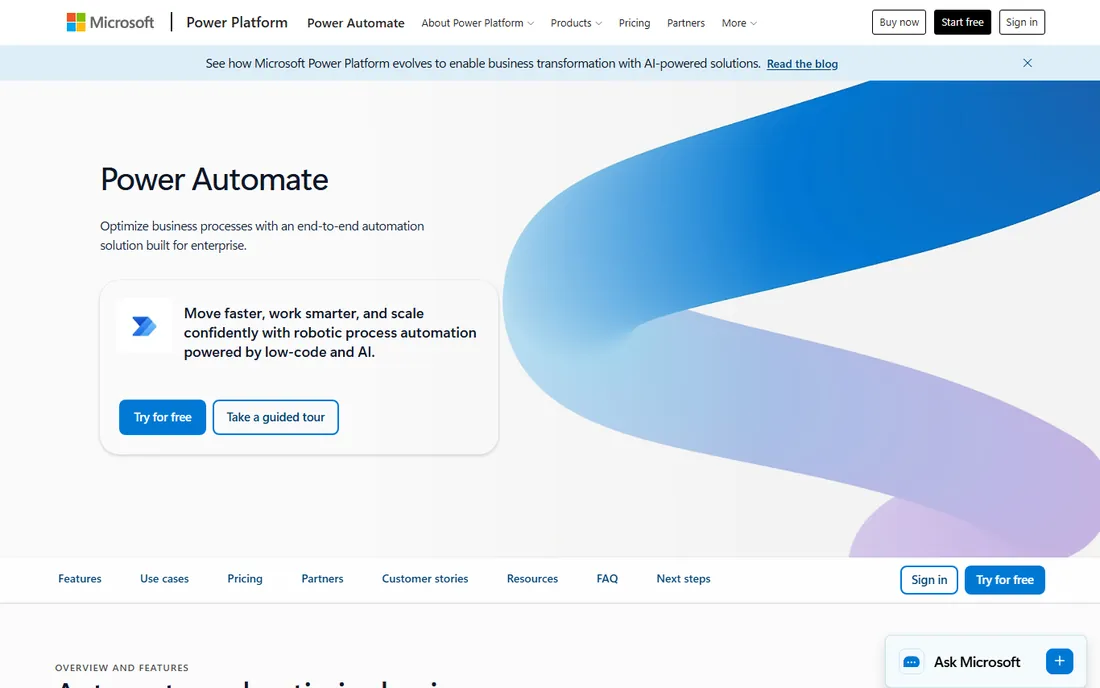
Power Automate is the automation layer inside the Microsoft ecosystem, and its desktop flows (formerly WinAutomation, which Microsoft acquired) bring RPA to Windows desktops. If your company already pays for Microsoft 365, you may already own useful automation capacity.
The strength is connectivity. Flows move data between Outlook, Excel, SharePoint, Teams, and hundreds of other services without code, and desktop flows handle the legacy applications that have no API. For the common business pattern of "when this email arrives, update that spreadsheet," it is the fastest path.
The desktop automation is less capable than UiPath for complex scenarios, and the licensing tiers confuse everyone at first. Per-user and per-flow plans price very differently. Still, for Microsoft-centric companies, starting here before buying a dedicated RPA platform is just common sense.
What we like- Bundled with many Microsoft 365 plans
- Desktop flows for UI automation
- Hundreds of connectors
Watch out for- Desktop automation less powerful than pure RPA tools
- Premium features cost extra
Starting priceFree
Free planYes
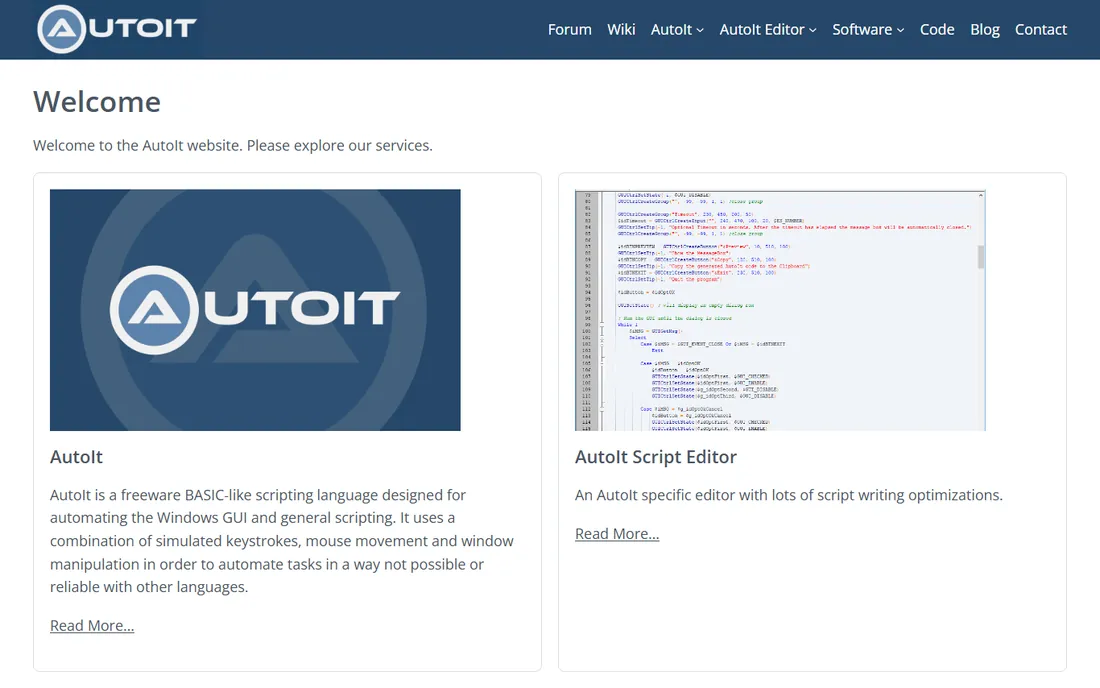
AutoIt is a free scripting language for automating the Windows GUI, and it has been doing the job reliably for over two decades. Scripts can simulate keystrokes and mouse movements, manipulate windows and controls, and interact with applications that expose no API.
The language is approachable for anyone who has written a macro or a batch file, and the compiled scripts run as standalone executables you can distribute. The community has produced libraries for everything from Excel automation to GUI frameworks.
There is no polished visual designer on par with commercial tools, so you write code. That is fine for IT pros and power users, and the price is unbeatable. For automating a legacy Windows application on a budget of zero, AutoIt remains one of the best answers.
What we like- Completely free
- Powerful BASIC-like scripting language
- Tiny footprint
Watch out for- Windows only
- Scripting required, no visual recorder as good as paid tools
Starting priceSee website
Free planFree trial
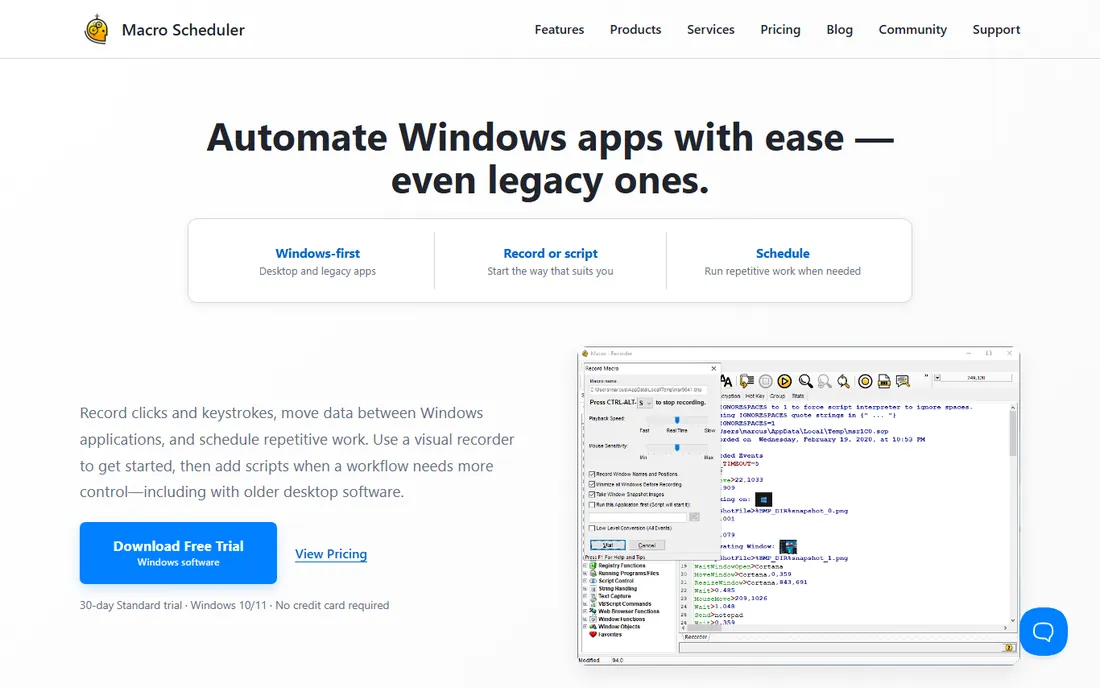
Macro Scheduler has been automating Windows desktops since the late nineties, and it shows in the depth of the feature set. Record a macro, edit the generated script, compile it to an executable, and schedule it, all from one tool.
The scripting language is straightforward and covers window manipulation, image recognition, file operations, and web automation. IT departments use it for unattended tasks like nightly data entry, report generation, and system maintenance. The scheduler is dependable, which matters when the macro runs at 3 AM with nobody watching.
The interface will not win design awards, and it is Windows-only. But the one-time license pricing is refreshingly simple compared to subscription RPA platforms, and the tool does exactly what it promises without drama.
What we like- Macro recorder plus full scripting
- Compiled executables
- Reliable scheduling
Watch out for- Windows only
- Interface shows its age
Starting priceSee website
Free planFree trial
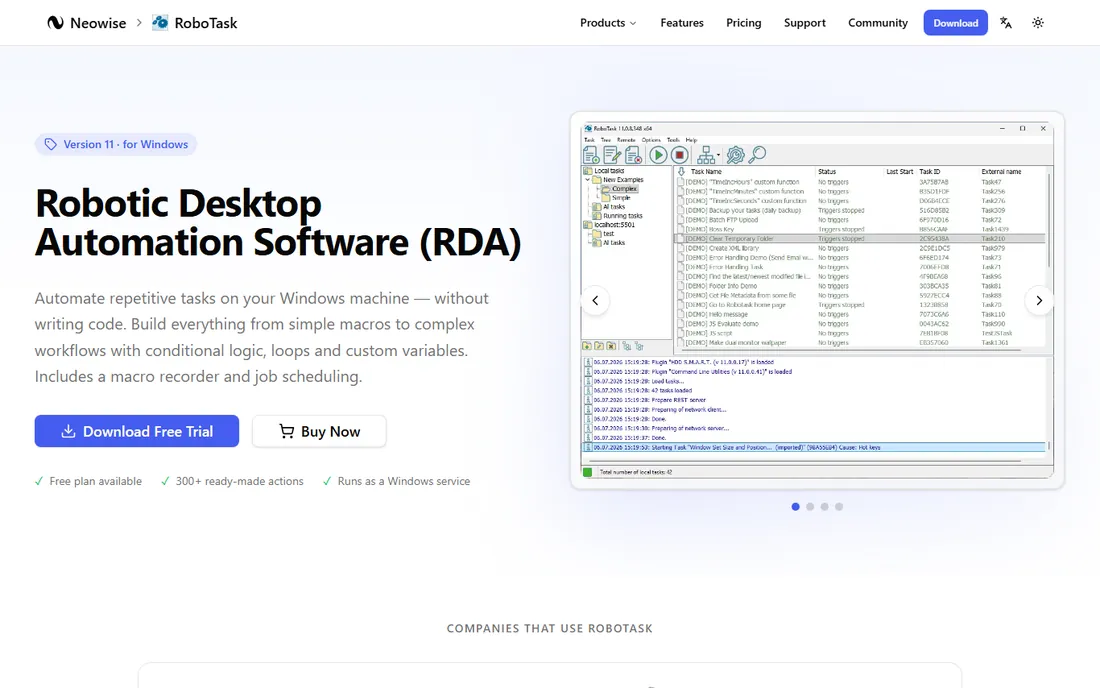
RoboTask is built around a simple idea: define tasks as sequences of actions, trigger them on a schedule or system event, and let them run. With hundreds of built-in actions covering files, email, FTP, databases, and window automation, most common jobs need no code at all.
System administrators use it for the unglamorous work that keeps businesses running: downloading files, processing them, sending reports, cleaning up folders, restarting services. The visual task editor makes these workflows easy to build and, more importantly, easy for a colleague to understand later.
It is less suited to automations that need complex branching logic or AI-style document understanding. And while there is a version for other platforms, the product's heart is Windows. For scheduled, repeatable desktop tasks, it is one of the most cost-effective tools available.
What we like- No programming needed for most tasks
- 300+ built-in actions
- Dependable scheduler
Watch out for- Windows-focused
- Less suited to complex decision logic
Starting priceFree
Free planYes
AutoHotkey turns keyboards into automation engines. Remap keys, expand text snippets, launch programs with hotkeys, and build full macros that drive applications, all from a lightweight scripting language. Millions of people use it daily without realizing how much it does.
The community script library is enormous. Whatever you want to automate, someone has probably written a starting point you can adapt. Version 2 cleaned up many of the language's historical quirks, though the syntax still surprises newcomers.
It is the best free answer to "I want this key to do that thing." For heavier automation with scheduling and complex workflows, pair it with one of the tools above. But as a starting point for desktop automation, AutoHotkey's combination of free, fast, and flexible is unmatched.
What we like- Completely free and open source
- Huge script library
- Tiny and fast
Watch out for- Scripting language has quirks
- Windows only
Starting priceFree
Free planYes
Pulover's Macro Creator is the friendliest free macro recorder for Windows. Hit record, perform the task, and the tool captures your mouse and keyboard actions into an editable macro. The visual editor lets you adjust timing, add loops and conditions, and insert commands without writing code.
Because it is built on AutoHotkey, recorded macros can be exported as AHK scripts for further customization. That gives you a gentle on-ramp: start with recording, graduate to scripting when you need more control.
It is a community project rather than a commercial product, so updates arrive when they arrive. For personal productivity and small business tasks, though, it removes the biggest barrier to automation, which is getting started.
What we like- Free
- Visual macro recorder
- Exports to AutoHotkey scripts
Watch out for- Windows only
- Development is community-paced
Pricing, from free to enterprise
Desktop automation spans the widest price range in software. AutoHotkey, AutoIt, and Pulover's Macro Creator cost nothing and handle a surprising share of real automation needs. Macro Scheduler and RoboTask charge modest one-time or subscription fees aimed at IT departments.
Then there is a cliff. UiPath, Automation Anywhere, and Power Automate's premium tiers are priced for enterprises running bot programs, with per-bot or per-user licensing that adds up fast. The jump is justified when you need central management, audit trails, and support contracts, but it is wasted on simple macros.
The practical advice: start free. Automate one task with AutoHotkey or Power Automate's included tier, measure the time saved, and only then evaluate whether a paid platform's management features are worth the cost.
How we chose
We compared tools people actually use to automate Windows desktops, from free macro recorders to enterprise RPA platforms, using vendor documentation, pricing pages, and community sources like Reddit and vendor forums. We excluded cloud-only workflow tools like Zapier because the category here is desktop automation: software that drives applications on a computer. The list spans free scripting tools, mid-priced IT utilities, and enterprise RPA so readers at every budget find a starting point.
What to automate first
Start with the task you hate most, not the most impressive one. Daily data entry between two applications, weekly report generation, and repetitive file handling are the classic wins. They are simple enough to automate reliably and frequent enough that the time savings compound.
Avoid automating broken processes. If the workflow itself is confusing, a bot will just make the confusion faster. Fix the process on paper first, then automate the clean version.
And build in failure handling from day one. Applications update, windows move, and network drives disconnect. The difference between a toy macro and production automation is what happens when something unexpected occurs at 3 AM.
Frequently asked questions
What is the difference between RPA and macro software?
Macro software records and replays your actions, which works well for simple, stable tasks. RPA platforms add orchestration: scheduling, exception handling, credentials management, audit trails, and central monitoring. Use macros for personal productivity and RPA when bots run business processes unattended.
Do I need to know programming to automate my desktop?
Not necessarily. Pulover's Macro Creator, RoboTask, and Power Automate's recorders let you build automations visually. Scripting tools like AutoHotkey and AutoIt need code but reward the effort with more power. Start visual, learn scripting when you hit limits.
Can these tools automate web applications?
Yes, with caveats. Most handle browser automation, but if the web app has an API, using it directly is more reliable than driving the user interface. Reserve UI automation for applications with no API, which usually means older desktop software.
Will automation break when software updates?
It can. UI automation depends on windows, buttons, and layouts staying put. Tools that identify controls by their properties (rather than screen coordinates) survive updates better. Budget maintenance time, especially for automations that run unattended.
Is desktop automation secure?
It can be, with care. Never hardcode passwords in scripts; use the credential vaults that enterprise tools provide. Run unattended bots on dedicated machines with limited permissions, and keep audit logs so you know what the bot did.
Sources we checked (8)
- https://www.uipath.com/
- https://www.automationanywhere.com/
- https://www.microsoft.com/en-us/power-platform/products/power-automate/
- https://www.autoitscript.com/
- https://www.mjtnet.com/
- https://www.neowise.com/robotask/
- https://www.autohotkey.com/
- https://www.macrocreator.com/
Is your product missing or out of date?
We review this list regularly. Vendors can request a listing, send updated pricing or ask about featured placement.

Shihab Mia · Founder, Rankite
Shihab has spent more than a decade helping SaaS and e-commerce brands grow through search. He writes Rankite's software buying guides from pricing pages, documentation and public user reviews. More about Shihab.
 UiPath
 Automation Anywhere
 Microsoft Power Automate
 AutoIt
 Macro Scheduler
 RoboTask
 AutoHotkey
 Pulover's Macro Creator