How we make this list: we compare pricing pages, product documentation and public user reviews. Ratings come from G2, Capterra or Trustpilot, with the date we checked them.
Key takeaways
- Cleanup.pictures and Pixlr are the fastest no-install options, with browser tools that erase objects in seconds.
- Google Photos Magic Eraser is the easiest choice for Android and Pixel owners, since it lives inside the gallery app.
- Lightroom and PhotoDirector suit photographers who want object removal inside a full editing workflow, not a one-off fix.
- Always work on a copy of the original, since AI fills can look clean at phone size and flawed at full size.
Quick comparison
Is your product missing or out of date?
We review this list regularly. Vendors can request a listing, send updated pricing or ask about featured placement.
The best apps to remove objects from photos
Starting priceFree, Pro $5 per month
Free planYes
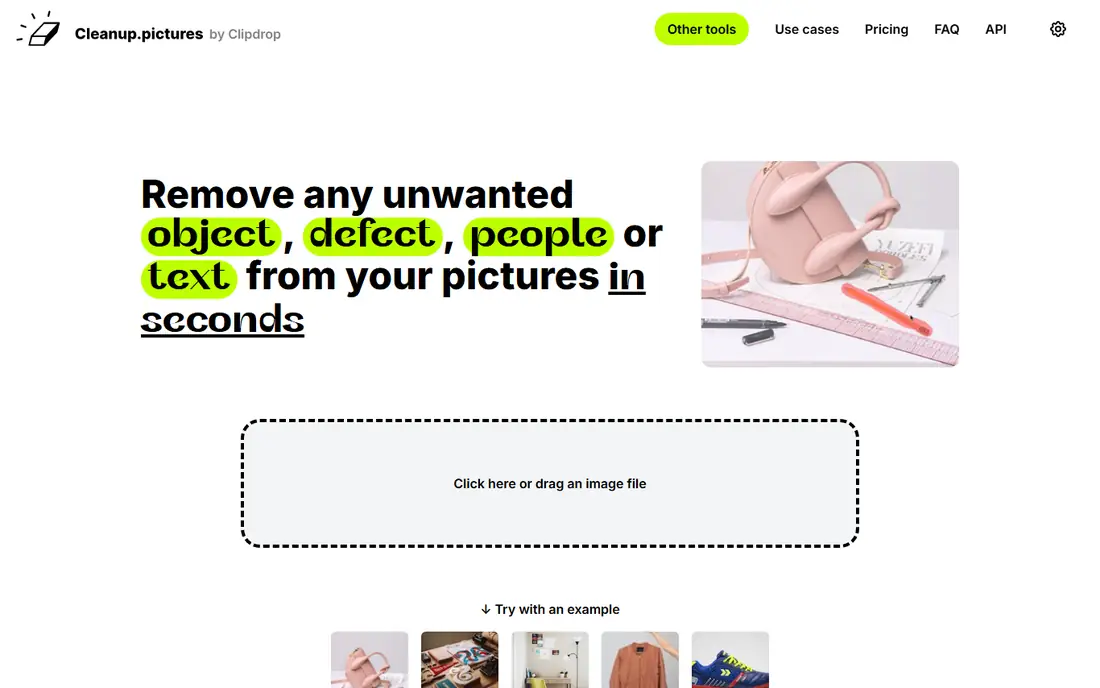
Cleanup.pictures is the purest object removal tool on this list. You drag a photo into the browser, brush over the tourist, trash can, sign or power line you want gone, and the AI fills in what it thinks was behind it. The site is explicit about its use cases: photographers cleaning holiday shots, real estate agents depersonalizing rooms, and sellers tidying product photos.
The free version limits exports to 720 pixels, which is fine for social posts but not for prints or large screens. Pro, at $5 per month or $36 per year, removes the size limit. Cleanup.pictures is the right pick when you have one photo and one distraction to remove, and you do not want to install an editor or learn layers to do it.
What we like- No install needed
- Brush over any object and AI fills the background
- Works for people, text and defects
Watch out for- Free exports limited to 720 pixels
- No full photo editor attached
- Large or complex removals can smear
Starting priceFree
Free planYes
Google Photos puts object removal where your photos already live. Magic Eraser lets you circle or brush over distractions and watch them fade, with tools to remove larger objects or camouflage smaller ones by matching their color to the surroundings. Because it sits inside the gallery, the fix takes seconds and the edited photo stays in the same album as the original.
Availability is the catch. Magic Eraser started on Pixel phones and has spread more widely, but some features sit behind a Google One plan or a newer device, so check what your phone offers before relying on it. Control is also simpler than in a dedicated editor: you cannot always fine-tune the fill the way a brush and clone tool allow. For quick phone fixes, though, nothing beats an eraser that is already installed.
What we like- Magic Eraser built into the gallery app
- No separate install for many Android users
- Backup and sharing included
Watch out for- Magic Eraser availability varies by device and plan
- Less control than a brush editor
- Edits depend on Google account storage
Starting priceFree
Free planYes
Photoshop Express brings a slice of Photoshop to your phone for free. You can crop, adjust color, apply looks, and use retouch tools to clean up spots and distractions, then share directly or send a file to desktop Photoshop for deeper work. Imports from Google Photos, Dropbox and Facebook make it easy to reach photos wherever they live.
The mobile toolset is deliberately lighter than desktop Photoshop. Complex removals across busy backgrounds, such as a person in front of detailed foliage, will test its limits, and the best results may need the desktop app. Photoshop Express suits casual editors who want a trusted free app for quick cleanups, social posts and light retouching, with a path to fuller tools when a photo demands them.
What we like- Free mobile editor from Adobe
- Healing and retouch tools
- Easy sharing and cloud imports
Watch out for- Object removal is less powerful than desktop Photoshop
- Premium features need a subscription
- Mobile-only workflow

#4Adobe Lightroom
Best for: Removal inside photo workflow4.6/5 on
G2 (3,299 reviews, checked Oct 2026)
Visit adobe.com
Starting priceSee website
Free planFree trial
Lightroom is where photographers should remove objects, because removal happens inside the same workflow as organizing, developing and exporting. The Remove tool brushes away distractions and fills the area, and since edits are non-destructive, you can always return to the original or adjust the fix later. Photos sync across desktop, web and mobile, so a cleanup started on a laptop can be finished on a phone.
Lightroom is a subscription product, and its breadth can overwhelm someone who only wants to erase one object from one photo. Beginners will spend time learning the library and develop panels before removal feels natural. For photographers with a growing library, though, Lightroom is the efficient choice: the removal tool is one step in a workflow you already use, not a separate app to open and close.
What we like- Remove tool inside a full photo library
- Non-destructive edits
- Syncs across desktop, web and mobile
Watch out for- Subscription pricing
- Learning curve for beginners
- Overkill for a single quick removal
Starting priceFree Essential version
Free planYes
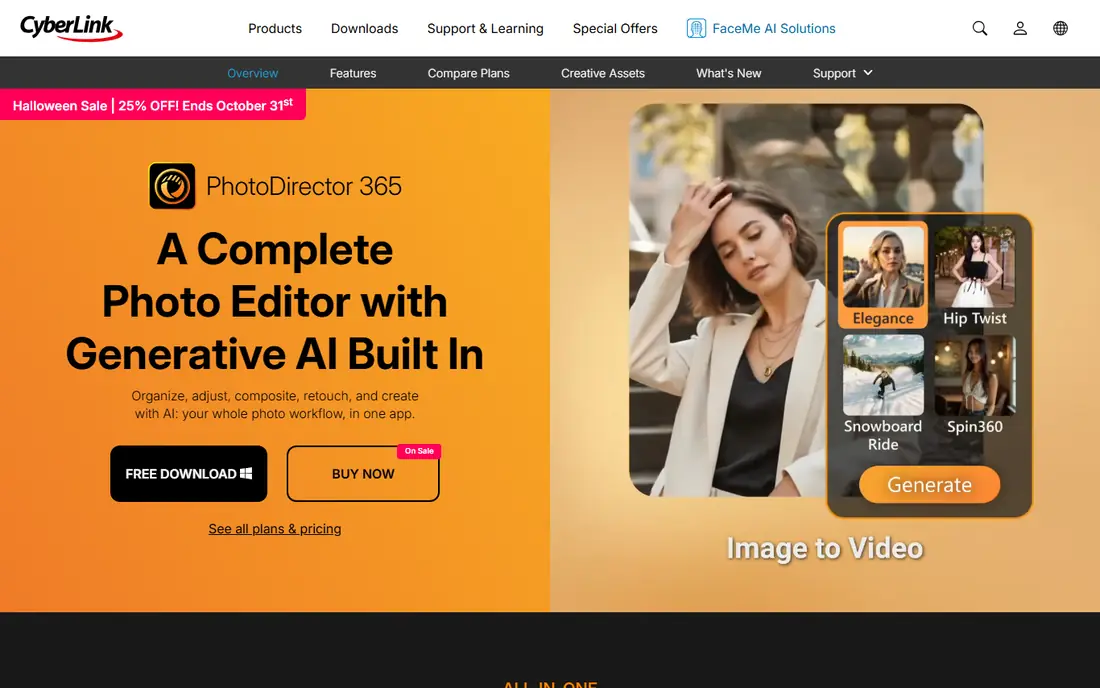
PhotoDirector combines object removal with a complete desktop editor. Its removal tools clear people, objects, power lines and backgrounds, and the surrounding workflow includes layer editing, masks, RAW development and batch editing, so a cleaned photo can be finished and exported without switching apps. A free Essential version covers core editing with no time limit, while a subscription or lifetime license adds the newest AI features.
The trade-off is focus. PhotoDirector is a Windows desktop editor first, and its depth makes it heavier than a browser tool for a single fix. Mobile editors exist in the CyberLink family, but the desktop app is where removal and finishing work best. Choose PhotoDirector when you edit on a computer, want removal plus layers and RAW support, and prefer a free starting version over a subscription-only tool.
What we like- AI removal of people, objects and power lines
- Full layer and RAW editing
- Free Essential version with no time limit
Watch out for- Desktop-focused, mainly Windows
- Advanced AI features need a paid plan
- Interface is dense for casual users

#6Picsart
Best for: Object removal plus creative tools4.5/5 on
G2 (797 reviews, checked Oct 2026)
Visit picsart.com
Starting priceFree, Pro $10.50 per month
Free planYes

Picsart treats object removal as one tool in a large creative platform. The Pro plan, at $10.50 per month billed yearly, includes advanced background and object removal alongside AI generation, templates, stock photos and video tools. That breadth suits creators who remove an object, then add text, change a background, or resize the result for several social formats in the same session.
The free version covers basic editing, but the removal features that matter most sit behind Pro, so casual users may find the paywall frustrating. The app also surfaces many tools you may never use, which can clutter the workflow. Picsart fits social creators and small businesses that edit daily and want removal, design and publishing in one subscription, rather than someone fixing a single holiday photo.
What we like- Advanced background and object removal on Pro
- Huge template and stock library
- Works on web and mobile
Watch out for- Best removal features need Pro
- App pushes many unrelated creative tools
- Free version shows ads and limits
Starting priceFree
Free planYes

YouCam Perfect is an all-in-one mobile editor with a clear strength in removing unwanted objects and people from everyday photos. Its maker describes AI-powered object and people removal alongside object replacement and sky editing, plus thousands of frames and collage templates for daily edits. That combination suits phone photographers who want a quick cleanup before posting, without learning a desktop editor.
The app leans toward selfies and social sharing, so photographers looking for RAW editing or precise layer control should look at Lightroom or PhotoDirector instead. Premium features and an ad-free experience need a subscription, and the free version includes ads. For fast phone edits, especially portraits and travel shots with a stray stranger in the background, YouCam Perfect is a strong, simple pick.
What we like- AI tools to remove unwanted objects and people
- Strong selfie retouching
- Frames and collage templates
Watch out for- Beauty and selfie focus may not suit photographers
- Premium features need a subscription
- Ads on the free version

#8Pixlr
Best for: Browser editor with AI removal4.4/5 on
G2 (751 reviews, checked Oct 2026)
Visit pixlr.com
Starting priceFree, plans from $1.99 per month
Free planYes
Pixlr is the browser editor to choose when object removal is part of a larger edit. Its AI object removal lets you draw around an unwanted item and watch it vanish, and the same workspace offers layers, masks, generative fill, background removal and upscaling. Paid plans start at $1.99 per month and add ad-free editing, more AI credits and priority generation, while education plans are also offered.
Pixlr is more editor than Cleanup.pictures, which is both its strength and its weakness. A single removal takes a few more clicks, and heavy AI use runs into credit limits on lower plans. But when a photo needs removal plus a background change, a resize and a color fix, Pixlr does it all in one browser tab. It is the best free browser choice for editors who want more than a one-trick eraser.
What we like- AI object removal in the browser
- Full editor with layers, masks and generative fill
- No install needed
Watch out for- Free version includes ads
- AI credits limit heavy use
- Interface can feel busy for a single fix
How we chose
We compared object removal apps on the quality of the fill, the ease of selecting an object, the export resolution, and whether removal sits inside a workflow you already use. We checked vendor homepages and feature pages, and weighed public reviews and user feedback, with attention to the gap between a clean phone-size preview and a full-size result. We did not claim hands-on testing of every app, and AI results vary by photo, so test any app on a copy of a real photo before you rely on it for important work.
How to get clean removals every time
Start with a copy, never the original. Keep the original safe, duplicate the photo, and edit the copy, so a bad fill never costs you the only version of a memory. Then choose the smallest selection that covers the object plus a little margin, including its shadow. AI fills work best when they have surrounding context to copy from, and a tight selection on a busy background often leaves a visible smear.
Check the result at full size, not just on your phone screen. Zoom to 100 percent and look at edges, repeating patterns and places where the fill meets the real background. If the fill looks wrong, try again with a slightly larger selection, or remove the object in two smaller passes instead of one large one. For people in front of complex scenes, a dedicated editor with clone and healing tools gives more control than a one-tap eraser. Finally, be honest about the edit when it matters: removing a stranger from a holiday photo is tidying, while removing an object from a news, insurance or sales photo can mislead, so keep edits appropriate to the purpose.
A short removal checklist
- Duplicate the photo and edit the copy, keeping the original untouched.
- Select the object plus its shadow and a small margin around it.
- Zoom to full size and inspect edges before sharing or printing.
- Try a second pass with a different selection if the first fill smears.
- Avoid removing watermarks or objects from photos you do not own or have no right to edit.
Frequently asked questions
What is the best free app to remove objects from photos?
Cleanup.pictures is the best free browser option for a quick removal, with free exports up to 720 pixels, while Google Photos Magic Eraser is the best free phone option where available. Pixlr offers a fuller free browser editor with AI removal. For full-resolution free exports, a free desktop version like PhotoDirector Essential or a trial of Lightroom may suit better.
Can I remove a person from a photo completely?
Yes, in most cases, especially when the person stands against a simple background like sky, water or a plain wall. People in front of busy or detailed backgrounds are harder, and the AI fill may leave traces at full size. Try a larger selection, remove in smaller passes, or use a desktop editor with clone tools for difficult cases.
Will object removal work on old or low-quality photos?
It can help, but results depend on the photo. AI fills need surrounding detail to copy, and a blurry or noisy photo gives the tool less to work with. Enhance or upscale the photo first if the app offers it, and keep expectations modest for heavily damaged images. For valuable old photos, keep the original and consider a professional restoration service.
Is it legal to remove a watermark from a photo?
Only remove watermarks from photos you own or have an explicit license to edit. Watermarks usually signal copyright or licensing restrictions, and removing them to use someone else work without permission can infringe copyright. If you bought a photo, check the license terms, and ask the rights holder when you are unsure.
Do these apps work on iPhone and Android?
Most do. Cleanup.pictures and Pixlr run in any mobile browser, Google Photos works on both platforms, and Photoshop Express, Picsart and YouCam Perfect offer iPhone and Android apps. Lightroom and PhotoDirector focus on desktop, with mobile companions for Lightroom. Check the app store listing for your device before subscribing.
Why does my removal look fine on my phone but bad on a computer?
Phone screens hide flaws that a larger display reveals, and free exports at reduced resolution can mask smearing. Always zoom to full size before sharing, printing or posting an edited photo. If the fill fails at full size, retry with a different selection size, use a desktop editor for finer control, or accept a crop that removes the object instead.
Sources we checked (8)
- https://cleanup.pictures
- https://photos.google.com
- https://www.adobe.com/products/photoshop-express.html
- https://www.adobe.com/products/photoshop-lightroom.html
- https://www.cyberlink.com/products/photodirector
- https://picsart.com
- https://www.youcamapps.com
- https://pixlr.com
Is your product missing or out of date?
We review this list regularly. Vendors can request a listing, send updated pricing or ask about featured placement.

Shihab Mia · Founder, Rankite
Shihab has 5+ years in B2B and SaaS SEO. He writes Rankite's software buying guides from pricing pages, documentation and public user reviews. More about Shihab.
 Cleanup.pictures
 Google Photos
 Adobe Photoshop Express
 PhotoDirector
 YouCam Perfect