How we make this list: we compare pricing pages, product documentation and public user reviews. Ratings come from G2, Capterra or Trustpilot, with the date we checked them.
Key takeaways
- CapCut and Clipchamp are the fastest routes to a finished YouTube video, with templates, auto captions, and browser or mobile editing that needs little setup.
- DaVinci Resolve offers a genuinely free professional editor with editing, color, effects, and audio in one app, though its depth takes time to learn.
- Premiere Pro and Final Cut Pro remain the professional standards, with Premiere Pro fitting Adobe users and Final Cut Pro fitting Mac and iPad creators.
- Filmora and PowerDirector sit in the middle, pairing guided editing with large asset libraries and AI tools at a friendlier price than pro suites.
- iMovie is the best free starting point for Apple users, with a clean path into Final Cut Pro when a channel outgrows it.
YouTube editing rewards speed and consistency more than fancy effects. A channel grows when videos go out on schedule, look clean, sound clear, and hold attention past the first thirty seconds. The editor you choose shapes all of that: a fast app with captions and templates can double your output, while a deep professional tool gives you color and audio control that shows in the final video. The eight tools below span free apps, mid-priced editors, and professional suites, so you can match the tool to your channel stage rather than buying power you never use.
Quick comparison
| Tool | Best for | Starting price | Free plan |
|---|
 CapCut CapCut | fast mobile and online edits | Free | Yes |
 Adobe Premiere Pro Adobe Premiere Pro | professional Adobe workflows | See website | Free trial |
 Final Cut Pro Final Cut Pro | Mac and iPad creators | $299.99 one-time | Free trial |
 DaVinci Resolve DaVinci Resolve | free professional editing | Free | Yes |
 Filmora Filmora | guided editing with big asset library | See website | Yes |
 iMovie iMovie | free Apple starter editor | Free | Yes |
 PowerDirector PowerDirector | AI-assisted Windows and mobile editing | See website | Yes |
 Clipchamp Clipchamp | browser editing with Microsoft 365 | Free | Yes |
Is your product missing or out of date?
We review this list regularly. Vendors can request a listing, send updated pricing or ask about featured placement.
The best apps to edit YouTube videos
Starting priceFree
Free planYes
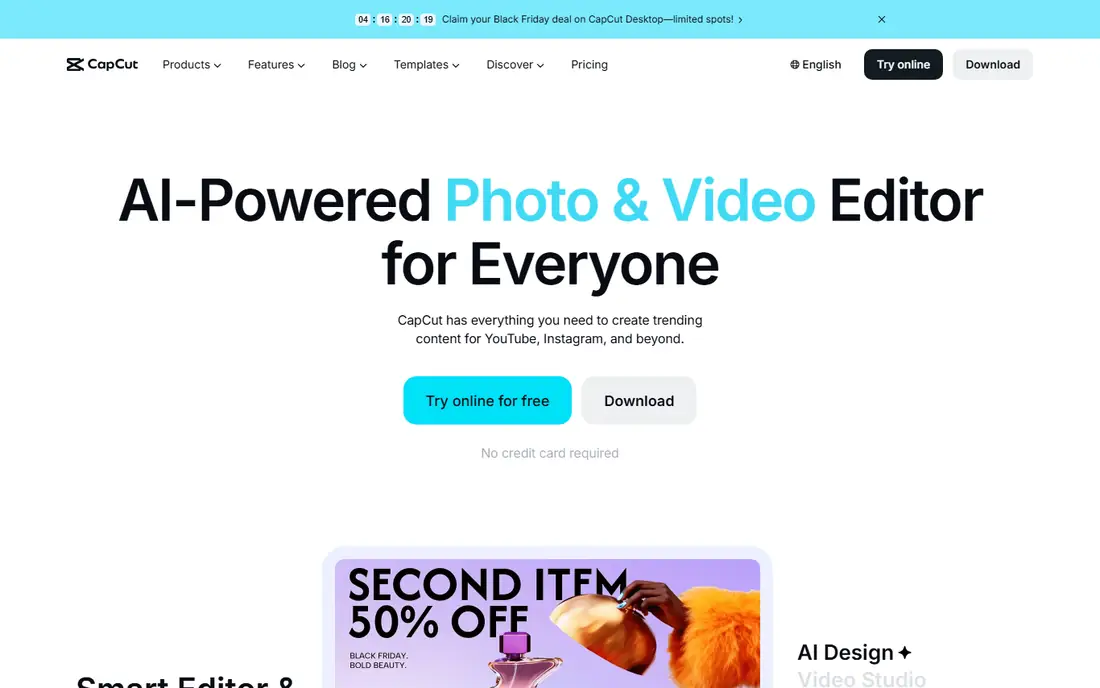
CapCut is the quickest way for many creators to go from raw clips to a posted video. Its online and mobile editors offer trimming, transitions, text, music, and templates, plus AI tools that generate captions, clean audio, remove backgrounds, and turn text into voiceover. For Shorts and fast-turnaround vlogs, that combination is hard to beat, since a caption pass that once took an hour can now take minutes.
The trade-off is sameness and paywalls. Heavy template use can make videos look alike, and some effects, assets, and higher-quality exports require the Pro plan. CapCut fits creators who publish often, edit on a phone or in a browser, and value speed over fine color and audio control. Long-form creators with complex timelines may still prefer a desktop editor such as Premiere Pro or DaVinci Resolve.
What we like- Templates and auto captions
- Online, desktop, and mobile versions
- AI tools for subtitles, voice, and background removal
Watch out for- Many advanced features sit behind a Pro plan
- Template-heavy style can look generic
- Cloud features need an account and connection
#2Adobe Premiere Pro
Best for: professional Adobe workflows4.5/5 on
G2 (1,675 reviews, checked Oct 2026)
Visit adobe.com
Starting priceSee website
Free planFree trial
Premiere Pro is the professional editor most YouTube teams and agencies standardize on. Its timeline handles multi-camera edits, nested sequences, and a wide range of camera formats, while integration with After Effects for motion graphics, Audition for audio cleanup, and Photoshop for thumbnails keeps a whole production inside one ecosystem. Caption tools, speech-to-text, and direct publishing options suit channels that produce long videos on a schedule.
Cost and hardware are the real barriers. Premiere Pro is subscription-only, so the total over several years exceeds a one-time purchase, and smooth 4K editing needs a strong processor, memory, and storage. Premiere Pro fits serious creators, editors, and teams who already use Adobe tools or plan to collaborate with professionals who do.
What we like- Industry-standard timeline and format support
- Tight Photoshop, After Effects, and Audition integration
- Strong caption and audio tools
Watch out for- Subscription cost adds up over years
- Needs a capable computer for 4K work
- Learning curve is steep for beginners
#3Final Cut Pro
Best for: Mac and iPad creators4.4/5 on
G2 (87 reviews, checked Oct 2026)
Visit apple.com
Starting price$299.99 one-time
Free planFree trial
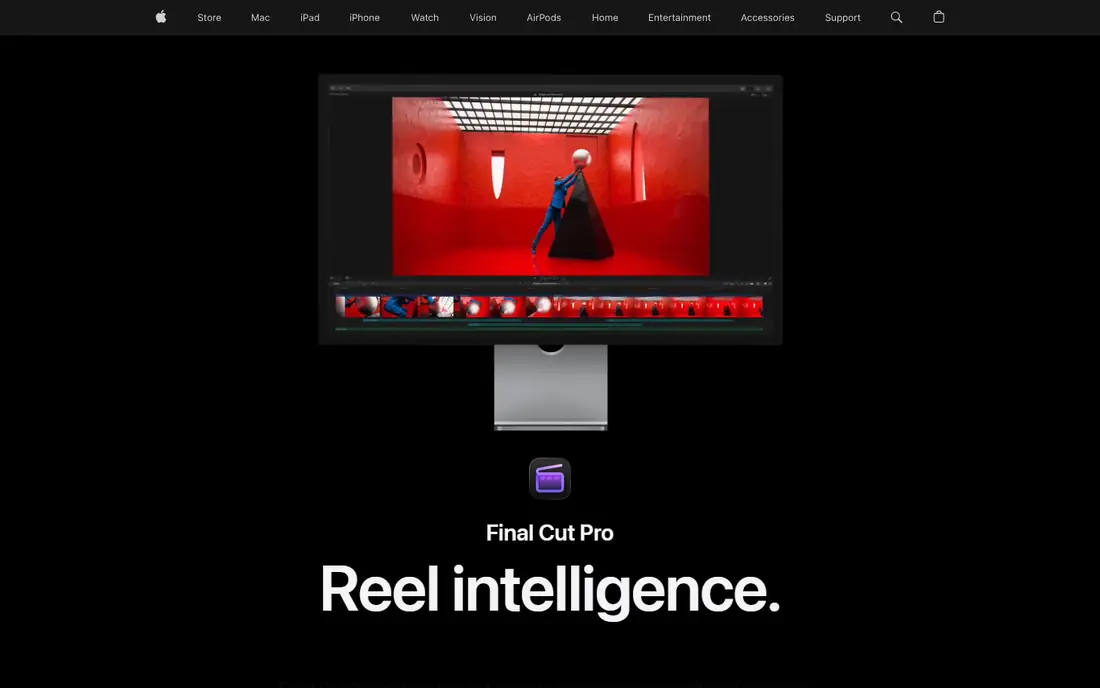
Final Cut Pro is Apple professional editor for Mac and iPad, and its homepage confirms a one-time Mac purchase price of 299.99 dollars, with a subscription bundle called Apple Creator Studio also available at 12.99 dollars per month. Its Magnetic Timeline snaps clips together without leaving gaps, which makes rough cuts fast, and its optimization for Apple silicon gives smooth playback and export on modern Macs. iMovie projects import directly, so Apple users have a clear upgrade path.
The limits are platform and ecosystem. There is no Windows version, and the plugin, template, and tutorial library is smaller than Premiere Pro, though still large. Final Cut Pro fits Mac-based creators who want professional power without a permanent subscription, and who value speed and stability on Apple hardware.
What we like- One-time Mac purchase at 299.99 dollars
- Fast performance on Apple silicon
- Magnetic Timeline speeds rough cuts
Watch out for- Mac and iPad only
- Smaller plugin and template market than Premiere Pro
- Subscription bundle now sits beside the one-time purchase
Starting priceFree
Free planYes
DaVinci Resolve is the rare professional tool with a free version that is genuinely usable for full YouTube production. One app covers editing on cut and edit pages, color grading on the color page, visual effects on the Fusion page, and audio mixing on the Fairlight page, plus a deliver page with YouTube export presets. Its color tools are widely regarded as the best available, which shows in skin tones, contrast, and overall polish.
Depth is the price of that power. New editors face several workspaces, node-based color and effects tools, and a learning curve that rewards patience. A strong graphics card helps for 4K and effects work. DaVinci Resolve fits creators who want professional quality without a subscription and are willing to learn a deeper tool, plus editors who care most about color.
What we like- Free version covers editing, color, effects, and audio
- Best-in-class color tools
- Direct YouTube export from the deliver page
Watch out for- Interface has many pages to learn
- Needs a strong computer for heavy effects
- Studio extras cost extra for advanced AI and 3D tools
Starting priceSee website
Free planYes
Filmora targets creators who want a polished result without professional training. Its timeline editor covers trimming, keyframes, motion tracking, color grading, and captions, while AI tools handle media analysis, pause removal, text-based editing, and subtitle generation. A library of more than 2.9 million templates, effects, titles, transitions, music tracks, and stock clips gives a new channel a professional look quickly, and a YouTube upload mode exports with platform-ready settings.
The free version exports with a watermark, so serious publishing needs a paid plan, and asset licensing needs checking for commercial channels, since some AI resources are limited to non-commercial use. Filmora fits growing creators who want guided tools, a large asset library, and a gentler learning curve than Premiere Pro or DaVinci Resolve.
What we like- More than 2.9 million creative assets
- AI captions, text-based editing, and audio cleanup
- Direct YouTube upload mode
Watch out for- Free exports carry a watermark
- Some assets and AI tools need a paid plan
- Commercial use rules vary by asset type
#6iMovie
Best for: free Apple starter editor4.3/5 on
G2 (568 reviews, checked Oct 2026)
Visit apple.com
Starting priceFree
Free planYes
iMovie is the free editor included with Apple devices, and it remains the best starting point for a new YouTube creator on a Mac, iPhone, or iPad. Clips can be trimmed, arranged, titled, and scored quickly, with trailers and themes for a polished first video. Projects move into Final Cut Pro when a channel needs more control, which makes iMovie a genuine on-ramp rather than a dead end.
Advanced control is limited: multi-track editing, detailed color grading, and audio mixing are basic compared with paid tools, and there is no Windows or Android version. iMovie fits beginners, students, and casual creators who want a free, reliable editor for straightforward videos, and who may graduate to Final Cut Pro later.
What we like- Free on Mac, iPhone, and iPad
- Simple timeline with trailers and titles
- Projects import into Final Cut Pro
Watch out for- Limited multi-track and color control
- Fewer effects and audio tools than paid editors
- Apple devices only
#7PowerDirector
Best for: AI-assisted Windows and mobile editing4.4/5 on
G2 (57 reviews, checked Oct 2026)
Visit cyberlink.com
Starting priceSee website
Free planYes
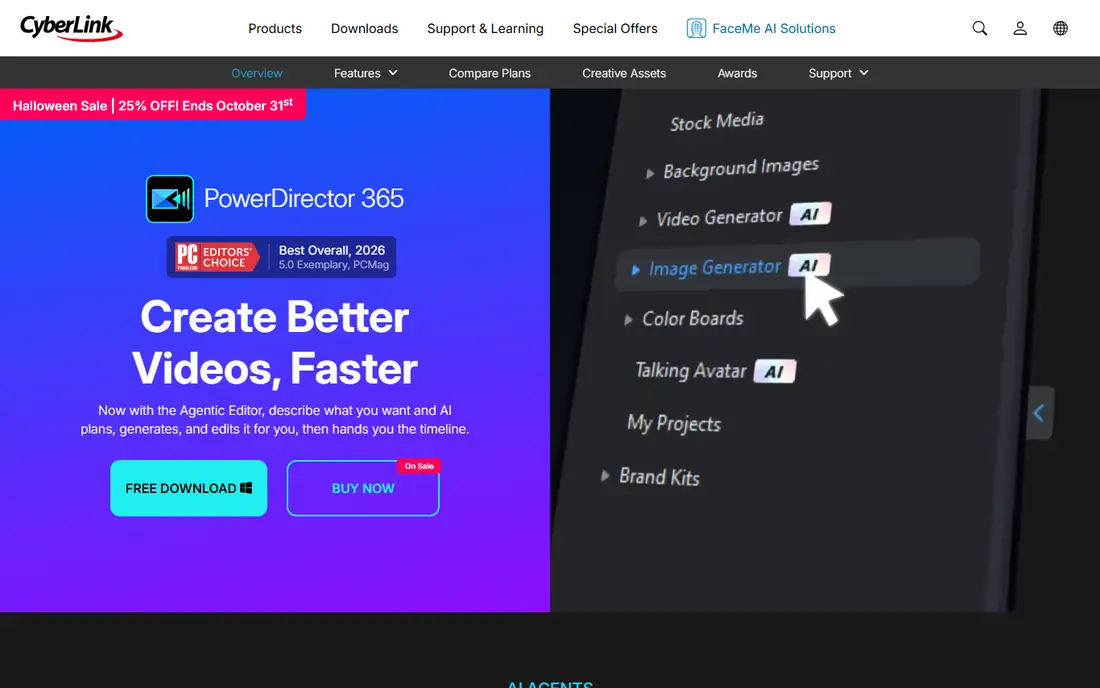
PowerDirector combines a traditional timeline with a strong set of AI tools: describe a video and an agentic editor can plan a cut, remove objects, reframe for vertical formats, clean audio, and generate captions. A free Essential version covers core editing without a time limit, while the 365 subscription adds newer AI features and a large royalty-free stock library. Direct upload to YouTube, TikTok, Facebook, and Vimeo saves an export step for frequent publishers.
The subscription model matters for budgeting, since the lifetime purchase covers core tools but not the newest AI features. Menus can also feel crowded for first-time editors. PowerDirector fits Windows creators and mobile editors who want AI help to speed up routine work, plus channels that publish across several platforms from one project.
What we like- Free Essential version with no time limit
- AI tools for object removal, reframing, and captions
- Huge stock library on paid plans
Watch out for- Best features sit on the 365 subscription
- Lifetime version lacks newer AI tools
- Interface packs many features into dense menus
#8Clipchamp
Best for: browser editing with Microsoft 3654.1/5 on
G2 (49 reviews, checked Oct 2026)
Visit clipchamp.com
Starting priceFree
Free planYes
Clipchamp, owned by Microsoft, is a browser-based editor that suits creators who do not want to install software or manage a powerful desktop. It offers recording for camera, screen, and voice, AI voiceover generation, subtitle generation in many languages, audio cleanup, and a stock library, with unlimited HD exports without watermarks on its free offering. Windows 11 users find it in the Start menu, and premium features come with a Microsoft 365 subscription.
Browser editing has limits: large 4K projects and heavy effects run better in a desktop editor, and a weak connection can slow uploads and exports. Color and effects depth also trail Premiere Pro and DaVinci Resolve. Clipchamp fits beginners, educators, and business creators who want a free, no-install editor for clean YouTube videos, especially inside a Microsoft 365 setup.
What we like- Runs in a browser with no install
- AI voiceovers and captions in many languages
- Unlimited HD exports without watermarks on the free tier
Watch out for- Premium features need a Microsoft 365 subscription
- Browser editing depends on connection and machine power
- Fewer pro color and effects tools
How we chose
We opened each vendor homepage and compared the features YouTube creators use most: timeline editing, captions, audio cleanup, color tools, templates, stock assets, export presets, and direct publishing. We weighed public documentation and user feedback on stability, export speed, and learning curve, and we favored editors with a clear YouTube workflow over general video tools. Where pricing varied by plan or bundle, we used See website rather than quoting a figure that would mislead readers, except where the vendor homepage stated a clear one-time price.
How to pick an editor for your channel stage
Start with your publishing pace and your computer. If you post several Shorts or quick vlogs per week from a phone, CapCut or Clipchamp will keep you on schedule. If you post one polished long video per week from a desktop, Filmora, PowerDirector, or DaVinci Resolve gives more control without a pro subscription. If you edit for clients or run a team, Premiere Pro or Final Cut Pro earns its cost through collaboration, format support, and finishing tools.
Next, test the three jobs that eat the most time: cutting, captioning, and audio. Import a real project, cut a two-minute section, generate captions, clean a noisy clip, and export for YouTube, then time each step. The editor that finishes that test fastest, on your machine, is usually the right one, even if another tool has a longer feature list. Also check storage and backup: video projects grow quickly, so confirm export settings, proxy options for weaker machines, and how projects move between devices.
Sound and captions deserve as much attention as picture
Viewers forgive imperfect video faster than bad audio or missing captions, since many watch on phones in noisy places or with sound off. Prioritize an editor with strong audio cleanup, loudness control, and accurate captions, and build a simple routine: clean voice first, add music under it, then check captions for names and terms the auto tool may miss. A consistent intro, caption style, and audio level across videos does more for a channel look than a new effect in every upload.
Frequently asked questions
What is the best free app to edit YouTube videos?
DaVinci Resolve is the strongest free professional editor for desktop, while CapCut and Clipchamp are the best free options for mobile and browser editing. iMovie is the best free choice for Apple users. Pick DaVinci Resolve for depth, CapCut for speed on a phone, and Clipchamp for no-install browser work.
Is Premiere Pro or Final Cut Pro better for YouTube?
Premiere Pro suits creators in the Adobe ecosystem or working with teams on Windows and Mac, while Final Cut Pro suits Mac and iPad creators who prefer a one-time purchase and fast Apple silicon performance. Both produce professional YouTube videos, so choose by your computer, your other tools, and whether you prefer a subscription or a one-time purchase.
Can I edit YouTube videos on my phone?
Yes. CapCut is built for phone editing with templates and auto captions, and Clipchamp and PowerDirector offer mobile options beside desktop and browser versions. Phone editing works well for Shorts and vlogs, while long videos with many tracks, color work, and audio mixing are easier on a desktop editor.
Does the free version of Filmora add a watermark?
Yes. Filmora states that videos exported from the free version include a Filmora watermark, and a paid plan removes it. If you publish regularly, budget for a paid plan or choose a free editor such as DaVinci Resolve, CapCut, or Clipchamp that does not watermark free exports in the same way.
What computer do I need for 4K YouTube editing?
A modern multi-core processor, at least 16GB of memory, a capable graphics card, and fast storage help greatly for 4K work, especially in Premiere Pro and DaVinci Resolve. Proxy editing, where the editor uses smaller preview files, lets weaker machines handle 4K projects, so check that option if your computer struggles with full-resolution playback.
How long does it take to learn a YouTube editor?
A simple editor such as iMovie, CapCut, or Clipchamp can produce a first video within a day, while Filmora and PowerDirector take a few days to learn well. Premiere Pro, Final Cut Pro, and DaVinci Resolve take weeks of regular use to master, though basic cuts and exports are possible in the first session. Start with a real video rather than tutorials alone, since editing skill grows fastest from finished projects.
Sources we checked (8)
- https://www.capcut.com
- https://www.adobe.com/products/premiere.html
- https://www.apple.com/final-cut-pro/
- https://www.blackmagicdesign.com/products/davinciresolve
- https://filmora.wondershare.com
- https://www.apple.com/imovie/
- https://www.cyberlink.com/products/powerdirector-video-editing-software/overview_en_US.html
- https://clipchamp.com
Is your product missing or out of date?
We review this list regularly. Vendors can request a listing, send updated pricing or ask about featured placement.

Shihab Mia · Founder, Rankite
Shihab has 5+ years in B2B and SaaS SEO. He writes Rankite's software buying guides from pricing pages, documentation and public user reviews. More about Shihab.