How we make this list: we compare pricing pages, product documentation and public user reviews. Ratings come from G2, Capterra or Trustpilot, with the date we checked them.
Key takeaways
- Adobe Lightroom suits photographers who manage large libraries and shoot in RAW, while free browser editors such as Pixlr and Photopea cover most everyday edits at no cost.
- PicsArt, VSCO, and Canva lean toward social and creative work, with presets, templates, and quick sharing built in, rather than deep manual control.
- Luminar Neo and Affinity Photo appeal to desktop editors who want to avoid a monthly bill, with one-time or free access replacing a subscription.
- Free plans differ a lot: some give full basic editing, while others lock the most useful tools, higher resolution exports, or batch work behind a paid plan.
- The cheapest starting price here is free, and the most expensive regular subscription in this list sits near the top of the usual photo app range, so check the billing period before you pay.
Quick comparison
| Tool | Best for | Starting price | Free plan |
|---|
 Adobe Lightroom Adobe Lightroom | RAW photo libraries and batch edits | $19.99 per month | Free trial |
 VSCO VSCO | Film-style presets and a photo community | See website | Yes |
 PicsArt PicsArt | Creative social edits and AI effects | $10.50 per month (billed annually) | Yes |
 Pixlr Pixlr | Free browser editing with layers | $1.99 per month | Yes |
 Canva Canva | Fast edits inside social designs | See website | Yes |
 Affinity Photo Affinity Photo | Desktop editing without a subscription | See website | Yes |
 Luminar Neo Luminar Neo | One-click AI fixes for portraits and skies | See website | Free trial |
 Fotor Fotor | Quick one-click enhancement and collages | $8.99 per month | Yes |
 Photopea Photopea | Photoshop-style editing in a browser | $0 | Yes |
Is your product missing or out of date?
We review this list regularly. Vendors can request a listing, send updated pricing or ask about featured placement.
The best app to edit photos
#1Adobe Lightroom
Best for: RAW photo libraries and batch edits4.6/5 on
G2 (3,299 reviews, checked Oct 2026)
Visit adobe.com
Starting price$19.99 per month
Free planFree trial
Lightroom remains the default choice for people who shoot a lot and need their edits to stay organized. Edits are non-destructive, which means the original file stays intact while you adjust exposure, color, and detail. That matters when you return to a photo months later and want a different version without starting over. Presets and batch tools also help when a whole set of photos needs the same base correction.
The mobile app covers most daily edits well, and it syncs with desktop and web versions, so a photo edited on a phone can be finished on a computer. The trade-off is price and depth. Casual editors may find the full set of sliders and masking tools more than they need, and the subscription model means the cost never stops. If you shoot in RAW, keep thousands of photos, and edit in batches, that cost is easier to justify than it is for someone who edits a few phone photos each week.
What we like- Strong RAW editing and color tools
- Non-destructive edits with cloud sync
- Batch editing and presets save time on large shoots
Watch out for- Subscription cost adds up over time
- Full desktop features take time to learn
#2
VSCO
Best for: Film-style presets and a photo community
Visit vsco.co
Starting priceSee website
Free planYes
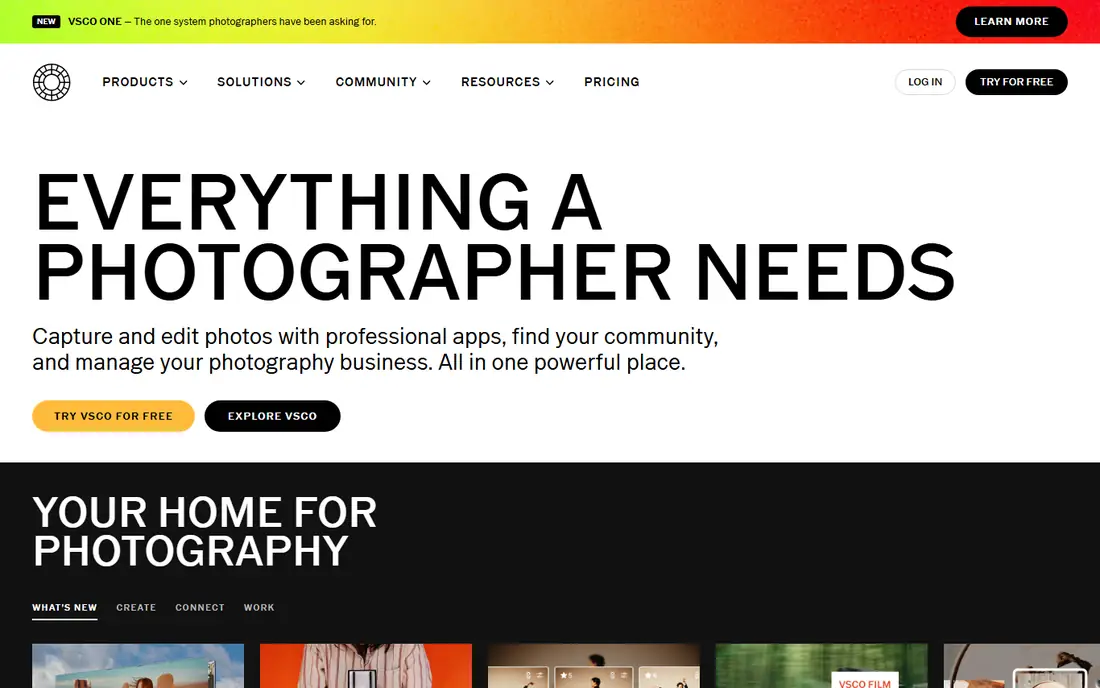
VSCO built its name on presets that imitate film stocks, and that focus still defines it. The editing screen stays simple, with exposure, contrast, color, and grain controls that are easy to reach on a phone. For people who want a consistent look across their photos, the preset library does much of the work, and small tweaks after applying a preset are usually enough.
The community side sets VSCO apart from a plain editor. You can publish work, follow other photographers, and build a small portfolio without moving to a separate site. That is a real benefit for hobbyists who want feedback and inspiration. The limits show up when you need exact local edits, layered work, or print-level retouching. VSCO is a style-first editor, and photographers who need full manual control will outgrow it.
What we like- Distinctive film-style presets
- Clean editing interface on mobile
- Built-in community for sharing work
Watch out for- Fewer precise manual controls than desktop editors
- Some popular presets require a paid membership
#3PicsArt
Best for: Creative social edits and AI effects4.5/5 on
G2 (797 reviews, checked Oct 2026)
Visit picsart.com
Starting price$10.50 per month (billed annually)
Free planYes
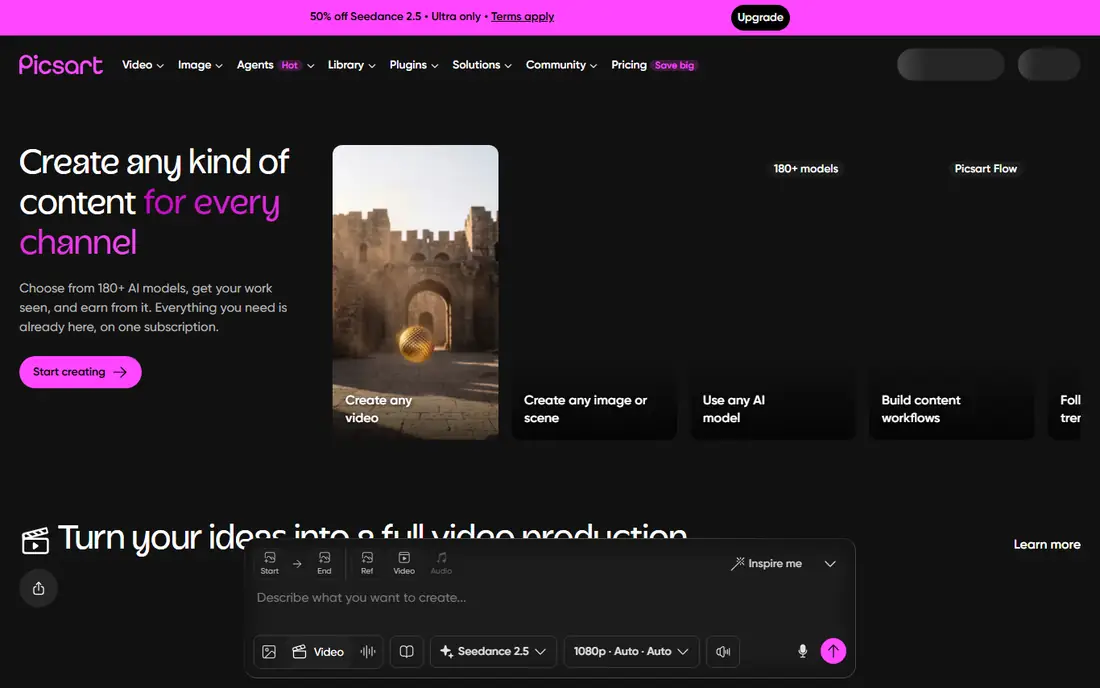
PicsArt aims at creators who publish often and want a finished post in minutes. Beyond basic cropping and color fixes, it offers background removal, object removal, stickers, text styles, and AI image tools in one place. That breadth makes it a strong pick for small business owners who need product posts, sale graphics, and profile images without switching apps.
The free version handles simple edits, but the more interesting AI features and the full asset library sit on the paid plan. The app also packs a lot into each screen, so new users may need a few sessions to find the tools they use most. If your goal is a polished social image rather than a carefully graded photograph, PicsArt gives you speed and variety that stricter photo editors do not.
What we like- Wide range of stickers, filters, and AI tools
- Works well for social posts and short video
- Large template library for fast content
Watch out for- Paid plan is needed for many advanced features
- Interface can feel crowded with offers and extras
#4Pixlr
Best for: Free browser editing with layers4.4/5 on
G2 (751 reviews, checked Oct 2026)
Visit pixlr.com
Starting price$1.99 per month
Free planYes
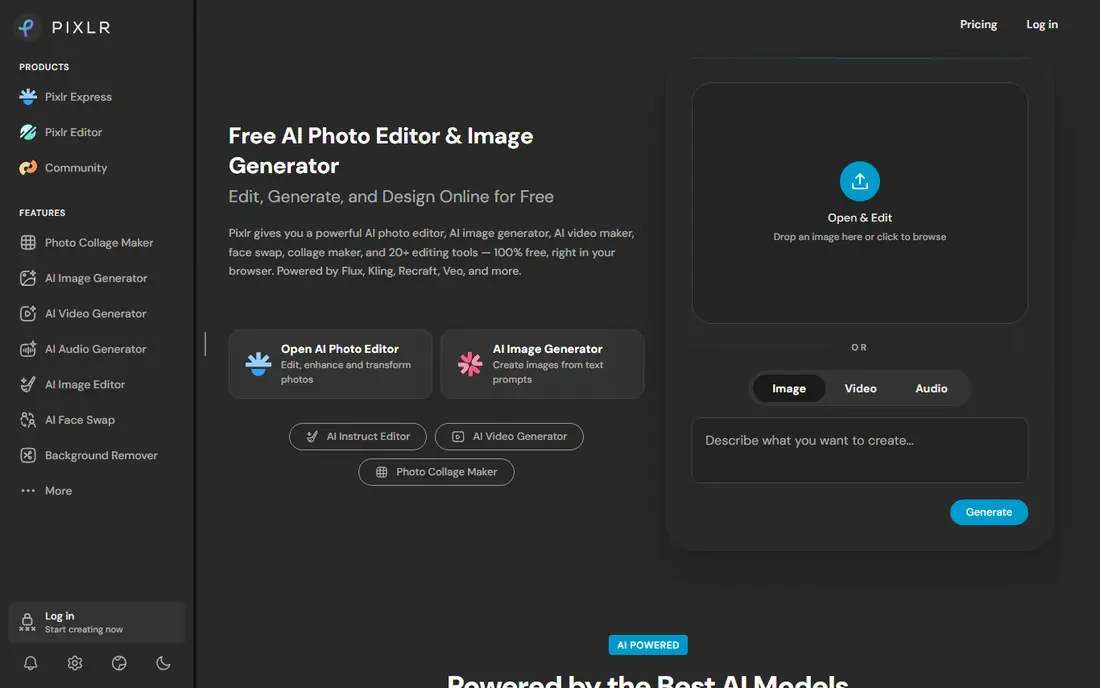
Pixlr is the practical answer for anyone who wants real editing tools without installing software or paying first. It opens in a browser, supports layers, and includes AI background removal, object removal, and generative fill. For blog images, marketplace listings, and social posts, that combination covers nearly everything a casual editor needs.
The free tier is genuinely usable, though ads and credit limits on AI features will push heavy users toward a paid plan. Even then, the starting price is low compared with most competitors in this list. The catch is depth and polish: complex retouching, color management for print, and very large files are better handled on desktop software. For quick, capable, no-install editing, Pixlr is hard to beat.
What we like- Runs in a browser with no install
- Layers, masks, and AI tools included
- Low starting price for the paid plans
Watch out for- Free version shows ads and limits some AI credits
- Not as deep as a full desktop editor for print work
#5Canva
Best for: Fast edits inside social designs4.7/5 on
G2 (7,678 reviews, checked Oct 2026)
Visit canva.com
Starting priceSee website
Free planYes
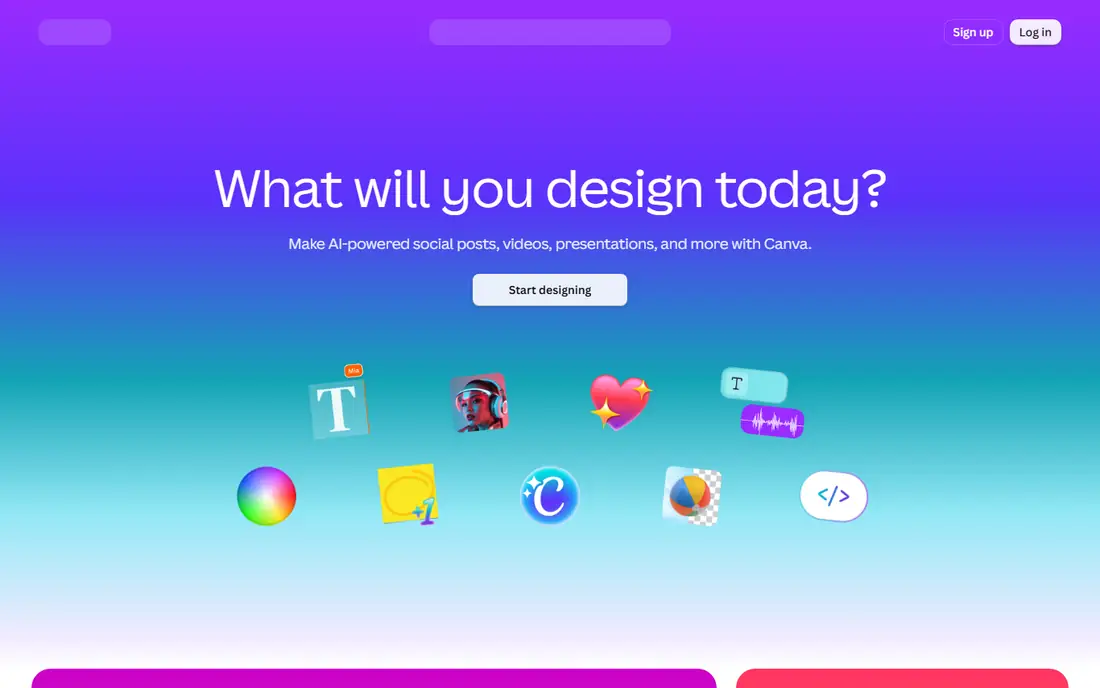
Canva is not a pure photo editor, and that is exactly why many people choose it. A photo usually needs to become a post, a flyer, a presentation slide, or a product banner, and Canva lets you edit the image and finish the design in the same place. Filters, background removal, brightness and color adjustments, and text tools are all close at hand, and templates remove the blank-page problem for non-designers.
Serious photographers will notice the limits quickly. There is no deep RAW workflow, no fine-grained local masking comparable to Lightroom, and color work stays at a basic level. The free plan is generous for simple designs, while Pro adds background removal, brand kits, and larger storage. Pick Canva when the finished design matters as much as the photo itself, and pick a dedicated editor when the photo is the whole job.
What we like- Huge template library for social and marketing use
- Easy background removal and one-click fixes
- Good for teams sharing brand assets
Watch out for- Photo editing controls are simpler than dedicated editors
- Best features require a Pro plan
#6Affinity Photo
Best for: Desktop editing without a subscription4.5/5 on
G2 (234 reviews, checked Oct 2026)
Visit affinity.serif.com
Starting priceSee website
Free planYes
Affinity Photo gives desktop editors a serious alternative to subscription software. It handles layers, masks, retouching, RAW development, and panorama stitching, and it runs well on hardware that struggles with heavier suites. For photographers and designers who dislike monthly bills, that model alone makes it worth a close look.
The smaller ecosystem is the main drawback. You will find fewer ready-made presets, fewer third-party plugins, and fewer step-by-step tutorials than Adobe users enjoy. Recent AI tools also arrive more slowly here than in apps built around AI first. If you value a complete desktop toolset, a one-time style of access, and full control over your files, Affinity Photo covers the core work well.
What we like- Full desktop editor with layers and RAW support
- No ongoing subscription to keep using it
- Clean performance on modest computers
Watch out for- Smaller tutorial and preset community than Adobe products
- Some AI features lag behind newer competitors
#7Luminar Neo
Best for: One-click AI fixes for portraits and skies4.4/5 on
G2 (115 reviews, checked Oct 2026)
Visit skylum.com
Starting priceSee website
Free planFree trial
Luminar Neo is built for photographers who want strong results with fewer steps. Its AI tools can replace a flat sky, smooth skin, remove distractions, reduce noise, and sharpen detail with a slider or two. For family photos, travel shots, and portraits, that speed is a genuine advantage over manual masking and brushing.
The pricing needs a careful read before purchase, since desktop licenses, platform access, and AI tool access are sold in different combinations. Check exactly what your license includes and for how long, especially for AI features that may renew separately. Luminar Neo also favors guided, slider-based editing over precise manual work, so retouchers who build complex layer stacks may prefer Affinity Photo or Lightroom.
What we like- AI tools for sky replacement, portraits, and noise reduction
- Simple sliders for fast results
- Works as a plugin with Lightroom and Photoshop
Watch out for- Perpetual license terms and AI access need careful reading
- Less suited to detailed manual retouching
#8Fotor
Best for: Quick one-click enhancement and collages4.2/5 on
G2 (342 reviews, checked Oct 2026)
Visit fotor.com
Starting price$8.99 per month
Free planYes
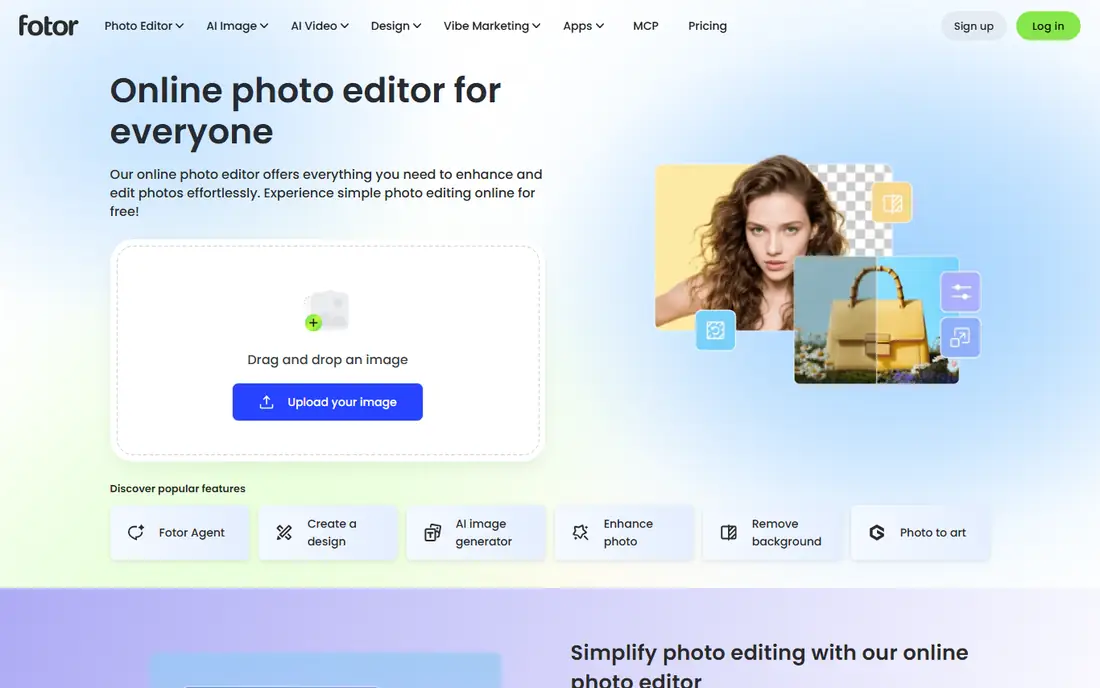
Fotor suits people who want better photos with very little effort. Its one-click enhancement fixes light and color in seconds, and the batch editor applies the same improvement to many photos at once. Collages, templates, and portrait retouching round out a package that works well for sellers, bloggers, and families preparing photos to share.
The free plan covers basic edits and exports without a watermark on many images, which is more generous than some rivals. Heavy users will still hit the Pro wall for AI tools, higher quality exports, and the full asset library. Fotor will not replace a desktop RAW editor, but for fast, good-looking results across many photos, it is a dependable everyday choice.
What we like- Simple one-click enhancement and batch editing
- Collage maker and design templates included
- Works in a browser and on mobile
Watch out for- Advanced AI tools and full assets need the Pro plan
- Export quality and ads limit the free version
#9Photopea
Best for: Photoshop-style editing in a browser4.6/5 on
G2 (21 reviews, checked Oct 2026)
Visit photopea.com
Starting price$0
Free planYes
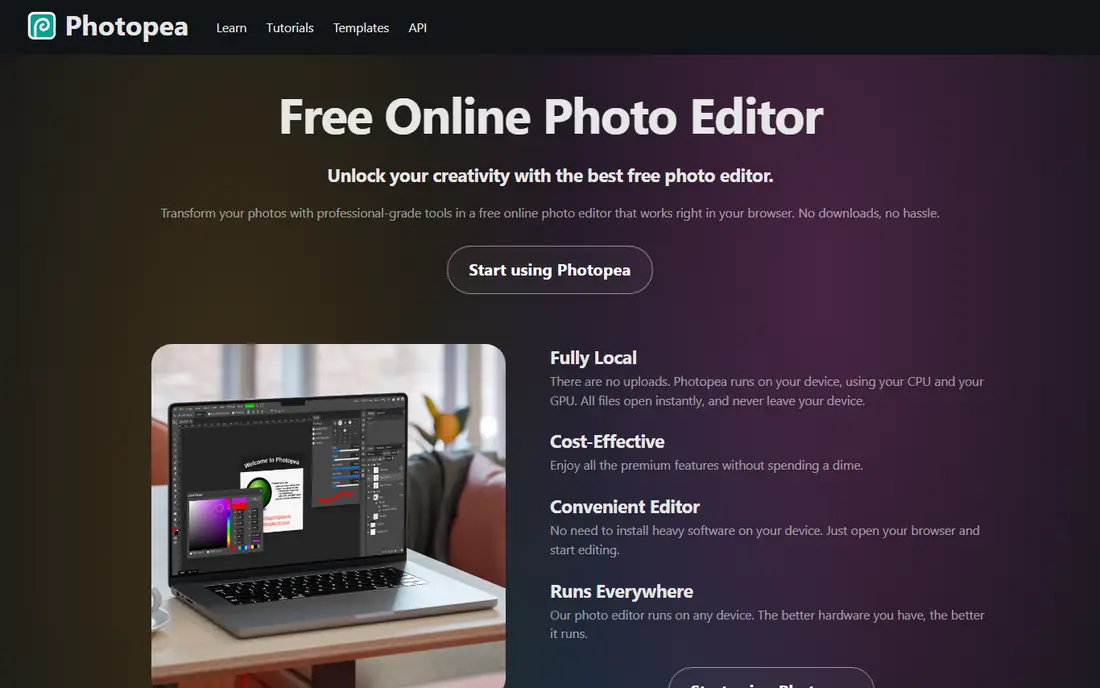
Photopea is the closest free equivalent to Photoshop that runs entirely in a browser. It supports layers, masks, adjustment layers, smart objects, and a wide list of file formats, including PSD and common RAW formats. Files are processed on your own device rather than uploaded, which is a privacy benefit worth noting for client work.
Beginners may find the interface dense at first, since it mirrors professional software rather than simplifying it. The free version shows ads, and a paid upgrade removes them and adds extra steps in the history. For designers, students, and anyone who needs real layer-based editing on a borrowed computer or a Chromebook, Photopea is an unusually capable free option.
What we like- Full layer, mask, and adjustment support in a browser
- Opens PSD, RAW, and many other formats
- No install and no account needed for basic use
Watch out for- Ads in the free version
- Interface feels dense for beginners
How we chose
We compared pricing pages, documentation, and public reviews on G2, Capterra, and Reddit, and we checked each vendor homepage to confirm the product still exists and matches its name. Tools made this list only if they edit photos as a core job, not as a side feature, and if a current free plan, trial, or clear price could be confirmed. We favored a mix of mobile apps, browser editors, and desktop software, so readers with different devices and budgets can find a fit. No hands-on testing is claimed here, and prices change often, so confirm the current price on the vendor site before you buy.
How to pick the right photo editor
Start with where your photos live and where they end up. Phone photographers who post daily need a fast mobile editor with good presets and easy sharing. Desktop photographers who shoot RAW need strong color tools, batch editing, and reliable file handling. Browser editors suit shared computers, Chromebooks, and quick jobs where installing software is not practical.
Next, weigh the billing model against how often you edit. A subscription makes sense if you edit every week and use cloud sync, presets, or AI credits regularly. A free browser editor or a non-subscription desktop app makes more sense for occasional editing, since you keep access without a monthly bill. Check what the free plan actually includes before you commit time to learning an app, since limits on exports, AI credits, and batch work are common.
Match the editor to the job
Social posts and marketing graphics favor Canva, PicsArt, or Fotor, where templates and text tools sit beside the photo tools. Portrait and travel editing favors Lightroom, Luminar Neo, or VSCO, depending on your taste for manual control, AI speed, or a film look. Layered design work, compositing, and PSD files point to Photopea or Affinity Photo.
Check exports before you pay
Export size, file format, and watermark rules matter more than a long feature list. A free plan that caps resolution can ruin a print order, and a paid plan that still compresses images may disappoint a seller who needs crisp product photos. Test the full path from import to export on a real photo during the free trial, and confirm that your camera file type is supported.
Frequently asked questions
What is the best free app to edit photos?
Pixlr and Photopea offer the most capable free editing, with layers and real adjustment tools in a browser. Fotor and Canva also give useful free plans for quick fixes and social designs. The best free pick depends on the job, precise layer work or fast templates, so try two free options on the same photo before choosing.
Is Lightroom worth paying for?
Lightroom is worth it for photographers who shoot often, work in RAW, and need organized libraries with batch editing and cloud sync. Casual editors who fix a few phone photos each week will get similar results from a free editor. Use the trial on a real shoot, including exports, before deciding.
Can a browser editor replace Photoshop?
For many everyday jobs, yes. Photopea handles layers, masks, and PSD files in a browser, and Pixlr covers most quick edits with AI tools. Desktop software still wins for very large files, print color management, and heavy retouching, but browser editors have closed much of the gap for web and social work.
Do free photo editors add watermarks?
Some do and some do not, and the rule can differ between the app and the web version. Fotor and Photopea generally let you export basic edits without a watermark, while some AI features and premium assets may require payment. Always check a test export before using a free editor for client or product work.
Which editor is best for beginners?
Fotor and Canva are the easiest starting points, with one-click fixes and templates that produce good results fast. VSCO is also friendly for phone photographers who like presets. Move to Lightroom or Affinity Photo when you want deeper color control, RAW editing, and batch workflows.
Sources we checked (9)
- https://www.adobe.com/products/photoshop-lightroom.html
- https://vsco.co
- https://picsart.com
- https://pixlr.com
- https://www.canva.com
- https://affinity.serif.com
- https://skylum.com/luminar
- https://www.fotor.com
- https://www.photopea.com
Is your product missing or out of date?
We review this list regularly. Vendors can request a listing, send updated pricing or ask about featured placement.

Shihab Mia · Founder, Rankite
Shihab has 5+ years in B2B and SaaS SEO. He writes Rankite's software buying guides from pricing pages, documentation and public user reviews. More about Shihab.