How we make this list: we compare pricing pages, product documentation and public user reviews. Rankite is independent; if a vendor ever pays for a featured spot, that listing is clearly labeled Partner.
Key takeaways
- Samsung Smart Switch is free and the right answer for Samsung owners: full backups to a PC with no cost and no learning curve.
- For other Android brands, the paid tools (Dr.Fone, MobileTrans, DroidKit, Coolmuster) all do the same core job: back up and restore without root. Trial them before buying.
- Syncios ($39.95/year) is the only one with readable pricing; the rest hide prices behind JS-driven stores, so expect roughly $30 to $50 per year.
- AirDroid backs up wirelessly instead of by cable: convenient, but slower for full backups than a USB connection.
Quick comparison
| Tool | Best for | Starting price | Free plan |
|---|
 Dr.Fone Dr.Fone | Users who want backup plus a full phone toolkit | See website | Free trial |
 DroidKit DroidKit | Backing up phones that are damaged or misbehaving | See website | Free trial |
 MobileTrans MobileTrans | Moving everything to a new phone via your PC | See website | Free trial |
 Coolmuster Android Backup Manager Coolmuster Android Backup Manager | One-click backup and restore without extras | See website | Free trial |
 Syncios Syncios | Budget backup with honest, readable pricing | $39.95/year (currently $34.95 on sale) | Free trial |
 Samsung Smart Switch Samsung Smart Switch | Samsung Galaxy owners, full stop | Free | Yes |
 Aiseesoft FoneLab Aiseesoft FoneLab | Backup combined with Android data recovery | See website | Free trial |
 iMyFone D-Back iMyFone D-Back | Recovering lost Android data with backup on the side | See website | Free trial |
 ApowerManager ApowerManager | Managing phone files on the PC with backup included | See website | Free trial |
 AirDroid AirDroid | Wireless backup and management without cables | See website | Yes (free tier) |
Is your product missing or out of date?
We review this list regularly. Vendors can request a listing, send updated pricing or ask about featured placement.
The best Android backup software for PC
Your phone holds your photos, messages, contacts and two-factor codes, and Google's cloud backup does not cover everything. When the screen dies or you switch phones, a full backup on your PC is the difference between an afternoon of restoring and a week of regret. These ten tools copy your Android phone to a Windows PC (most also support Mac), with the free options first and the paid specialists after.
Starting priceSee website
Free planFree trial
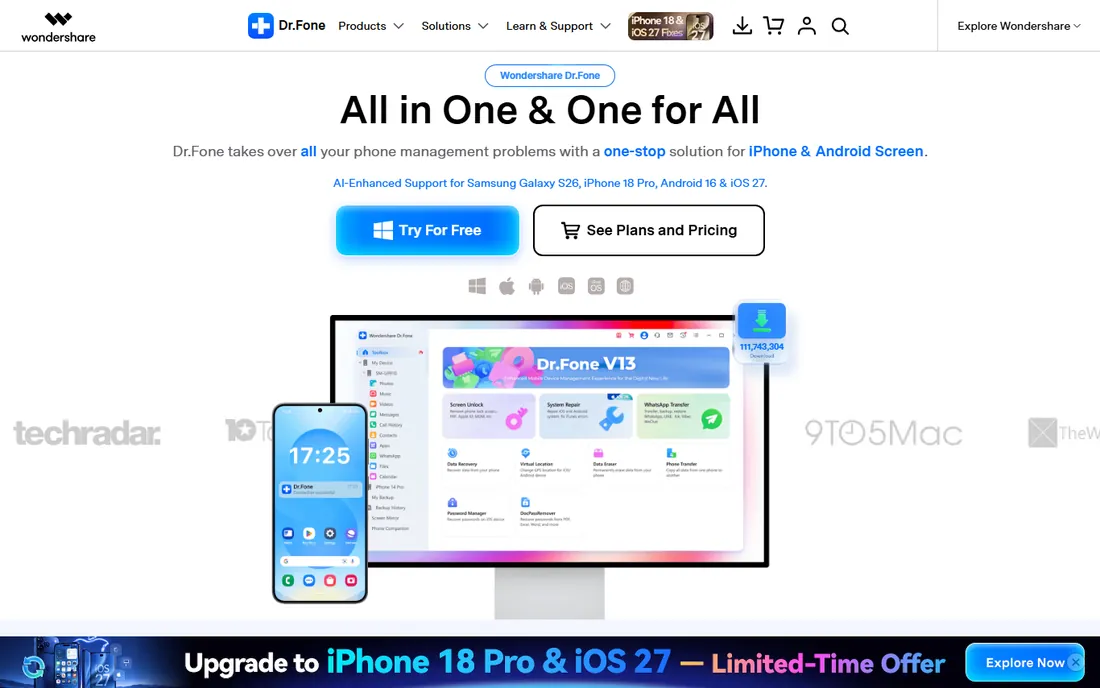
Dr.Fone is Wondershare's phone Swiss Army knife, and Phone Backup is one of its sharper blades. Connect the Android phone by USB, choose what to back up (photos, videos, contacts, messages, apps), and restore selectively later. The no-root approach means it works on locked-down phones that other tools refuse.
The buying advice: trial the backup module specifically, because the toolkit contains a dozen modules you may never open. Check drfone.wondershare.com for current pricing, which varies by module bundle and license length. If you only need backup, the simpler tools below cost less. If you also need repair or transfer tools, the bundle logic works.
What we like- Backup is one module in a complete toolkit (transfer, repair, screen removal, erase)
- Backs up without root
- Restore to the same or a different phone
Watch out for- Pricing requires visiting the JS-driven store
- The toolkit upsells can confuse buyers who only want backup
#2
DroidKit
Best for: Backing up phones that are damaged or misbehaving
Visit imobie.com
Starting priceSee website
Free planFree trial
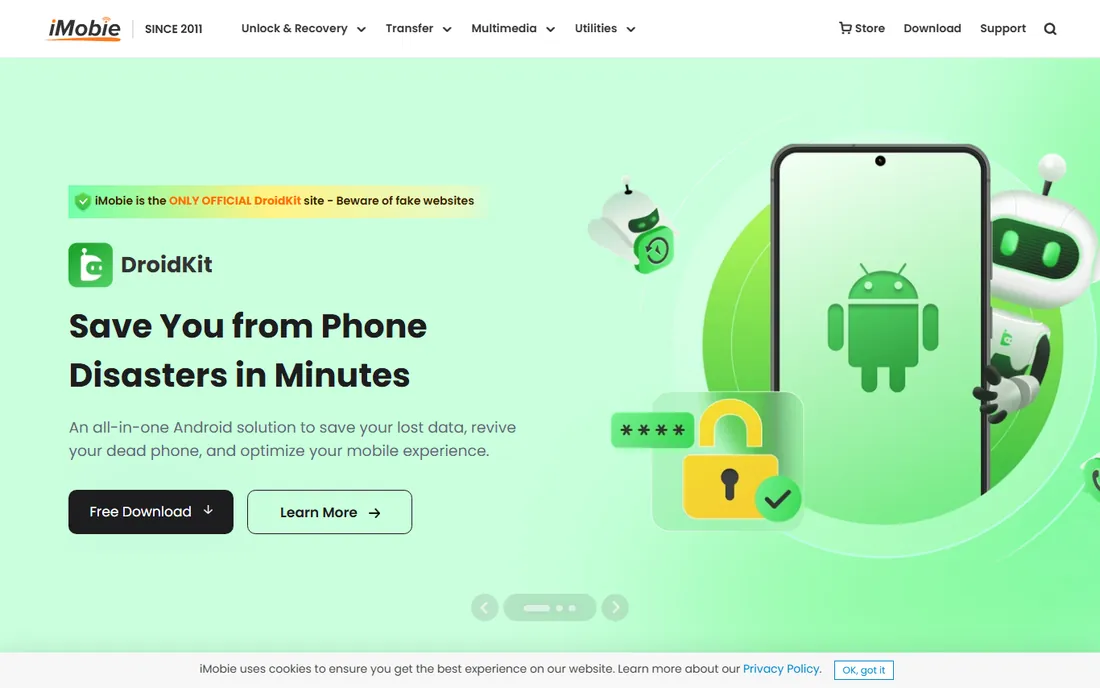
DroidKit positions itself as the rescue toolkit: it backs up your data and fixes the phone that will not boot properly. For a cracked-screen or boot-looping phone, that combination matters: back up what you can, repair what you must. The backup module covers the standard data types without requiring root.
Check imobie.com for current DroidKit pricing. The trial shows what the tool can see on your phone before you pay, which is the right way to evaluate any backup software. Healthy phones with simple backup needs can use the cheaper specialists.
What we like- Handles problem phones: system repair alongside backup
- Backs up without root
- IMobie has a long track record in phone utilities
Watch out for- The store pricing did not render for automated checks
- The repair features overlap the backup mission
Starting priceSee website
Free planFree trial
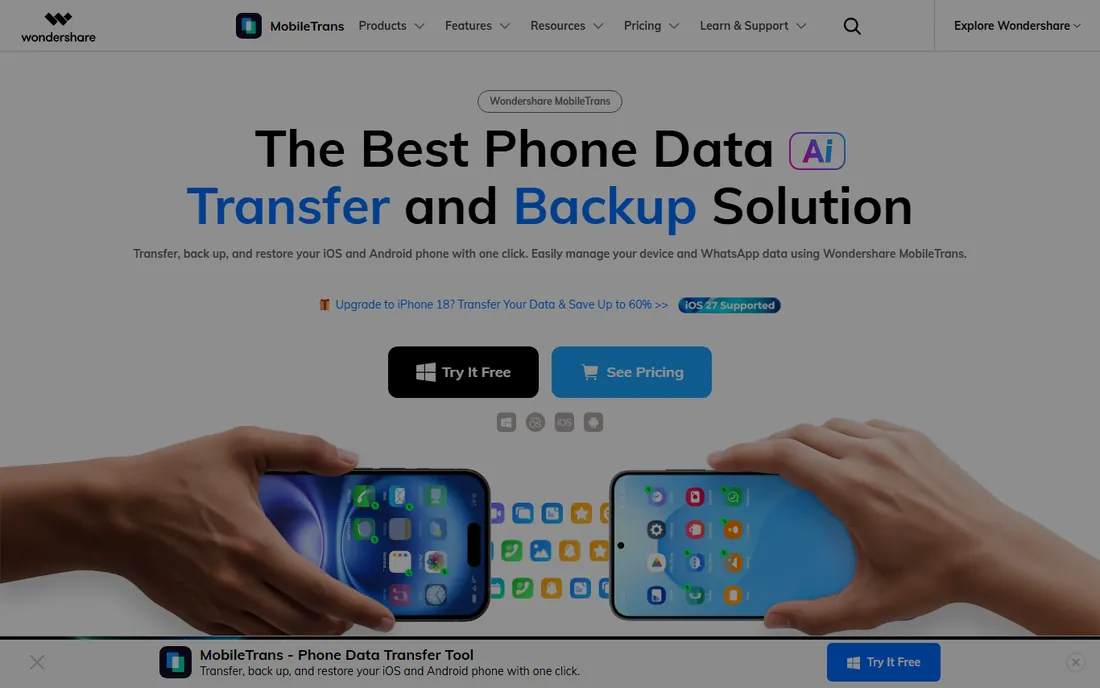
MobileTrans is the new-phone tool: back up the old Android to your PC, restore to the new one, with WhatsApp chats and attachments carried across. That WhatsApp support is the differentiator, since chat history is the data people actually panic about losing. The PC sits in the middle as the safe staging point.
The pricing requires a visit to mobiletrans.wondershare.com. If your need is specifically switching phones, this is the most direct tool. If you just want scheduled backups of one phone, the backup-first tools are simpler and cheaper.
What we like- Built for phone-to-phone transfer with the PC as the bridge
- Backup and restore included
- Handles WhatsApp data, which many tools skip
Watch out for- Pricing lives in the JS store
- Transfer-focused, so pure backup users pay for features they will not use
#4
Coolmuster Android Backup Manager
Best for: One-click backup and restore without extras
Visit coolmuster.com
Starting priceSee website
Free planFree trial
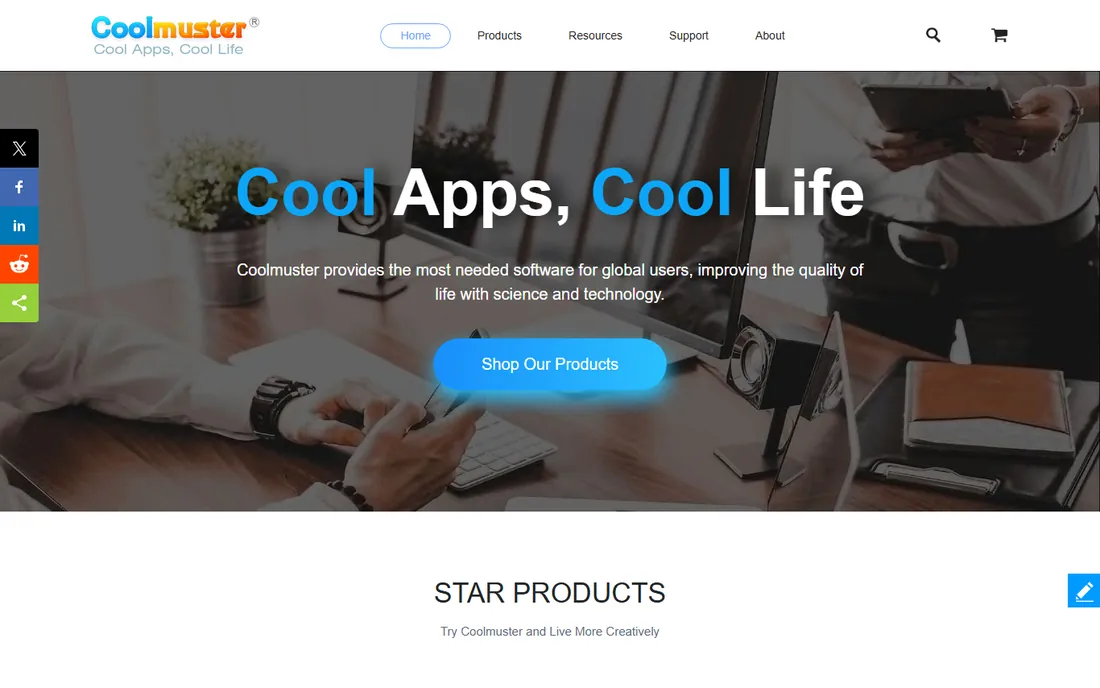
Coolmuster does the backup job with minimal interface: connect, back up, restore. You can preview contacts, messages and photos in the backup before restoring, which avoids the restore-and-hope pattern. There is no toolkit, no repair module, no upsell maze.
Confirm pricing on coolmuster.com. The audience is anyone who found the big toolkits intimidating: if you want the backup done and nothing else, fewer buttons is a feature. Trial it against Samsung Smart Switch (if you own a Samsung) before paying anything.
What we like- Deliberately simple: one click backs up, one click restores
- Preview data before restoring
- No root required
Watch out for- The product page did not render pricing
- The simplicity means fewer advanced options than the toolkits
Starting price$39.95/year (currently $34.95 on sale)
Free planFree trial
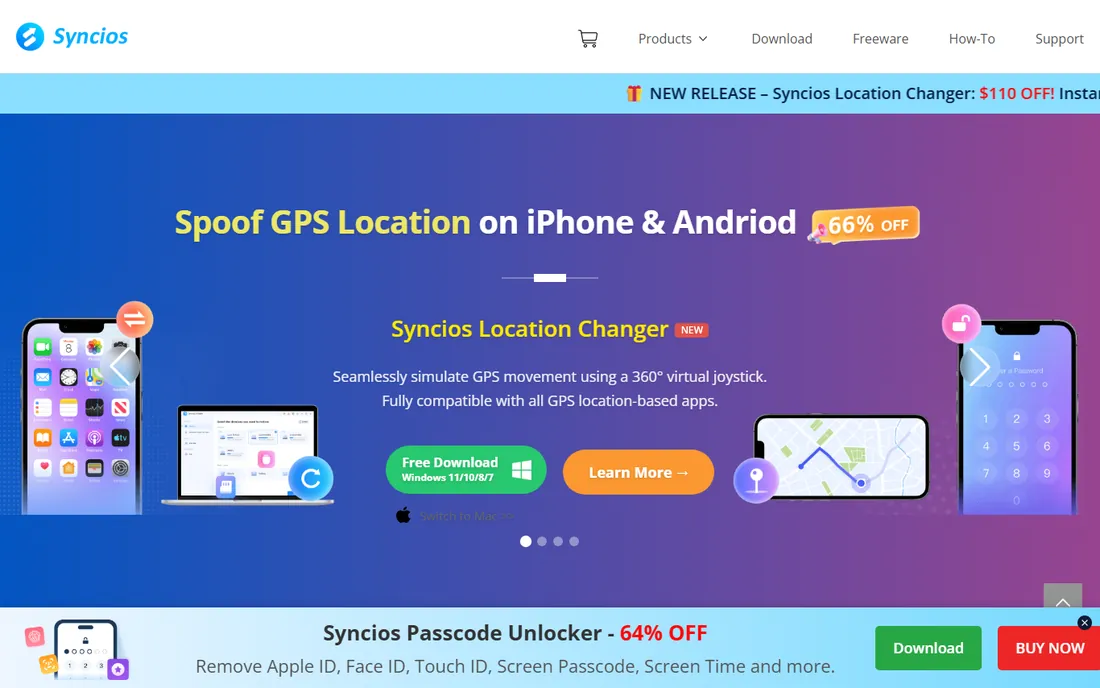
Syncios wins on transparency alone: the price is on the page ($39.95 per year, currently discounted to $34.95), the trial is free, and the backup covers the data types that matter. Messages, call logs, photos, videos and audio all back up to the PC and restore when needed.
It does not try to repair your phone or remove a lock screen; it backs up. For the price of a pizza per year, that focus is fine. If your needs are exactly "back up my Android to my PC," start the trial here before considering the pricier toolkits.
What we like- The only vendor here with plain pricing on the page: $39.95 per year
- Backs up messages, call history, audio, photos and videos
- Free trial before buying
Watch out for- The sale price versus list price dance
- Narrower feature set than the big toolkits
Starting priceFree
Free planYes
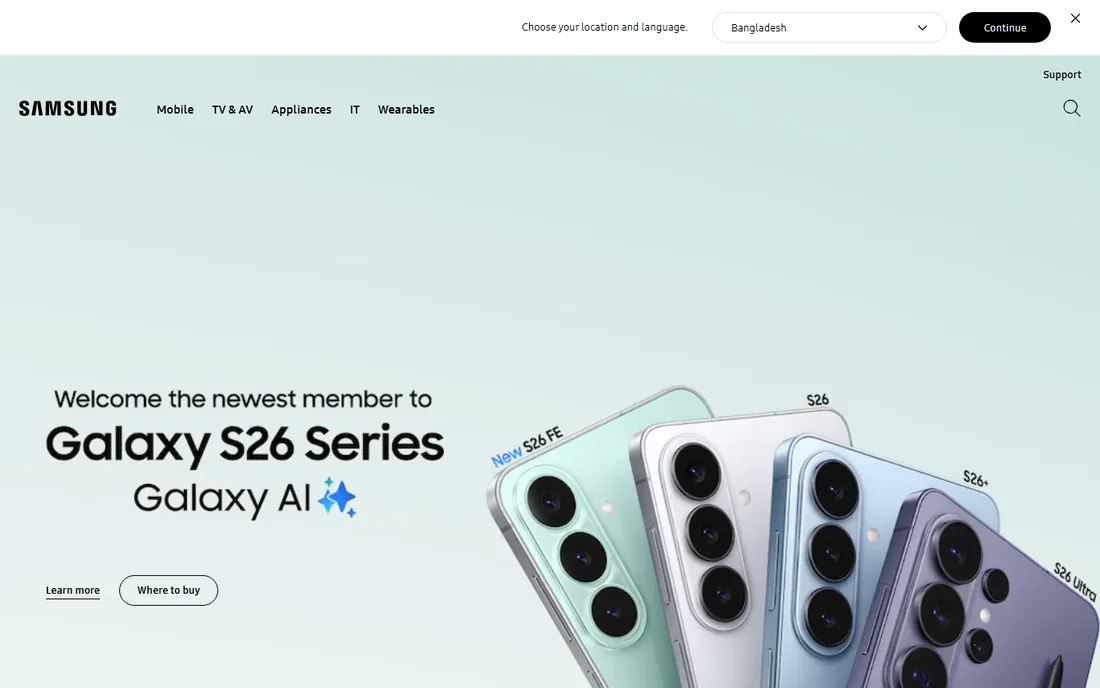
If you own a Samsung Galaxy, stop reading and use Smart Switch. It is free, made by Samsung, and backs up nearly everything on the phone to your PC over USB: apps, settings, messages, photos, contacts. Restoring to a new Galaxy is equally painless. It also helps non-Samsung phones move to Samsung.
There is no reason for a Samsung owner to pay for backup software. The only limitation is the brand gate: full functionality assumes Samsung on at least one end. Everyone else continues down this list.
What we like- Completely free from Samsung
- Full backup of the Galaxy phone to a PC via USB
- Restore to the same or a new Samsung
- Also transfers from other brands
Watch out for- Samsung phones only for full backup
- The restore targets Samsung devices
Starting priceSee website
Free planFree trial
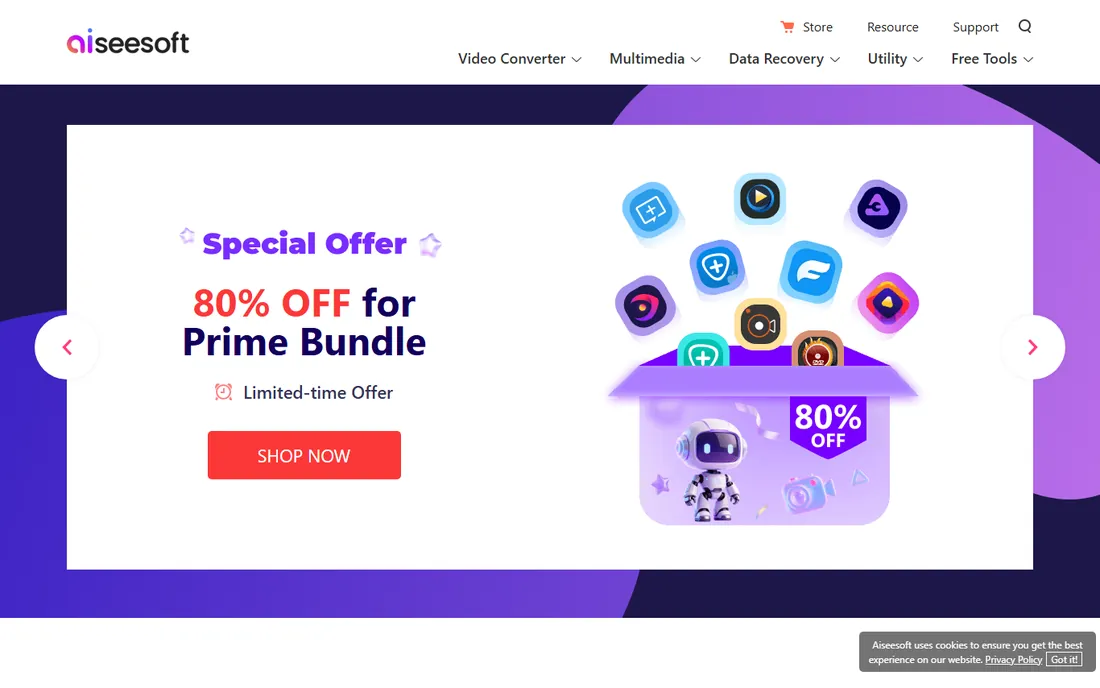
FoneLab approaches from the recovery side: it finds deleted photos, messages and contacts, and its backup tools keep you from needing recovery next time. The trial shows what it can recover before you pay, which is the honest way to sell recovery software.
Check aiseesoft.com for current pricing. Buy it for the recovery capability with backup as the bonus, not the other way around. If you have never lost data and just want backups, the backup-first tools are cheaper.
What we like- Pairs backup with data recovery for deleted files
- Backs up without root
- The trial previews recoverable data before purchase
Watch out for- Pricing requires the store visit
- Recovery-first design means backup is the secondary feature
#8
iMyFone D-Back
Best for: Recovering lost Android data with backup on the side
Visit imyfone.com
Starting priceSee website
Free planFree trial
D-Back is iMyFone's Android recovery specialist: deleted photos, lost messages, formatted storage. The backup features exist to prevent the next emergency. Like all recovery tools, the trial's value is showing you what is recoverable before money changes hands.
Confirm pricing on imyfone.com. The pattern holds: buy recovery tools when you have lost data, buy backup tools to avoid ever needing them. D-Back covers both, at recovery-tool prices.
What we like- Strong recovery engine for deleted and lost data
- Backup features for ongoing protection
- Works without root for most functions
Watch out for- The site pricing did not render for automated checks
- Recovery tools cost more than pure backup tools
Starting priceSee website
Free planFree trial
ApowerManager treats your phone as a drive on your PC: browse files, manage photos, read messages, organize contacts, with backup and restore as part of the package. For users who want to manage the phone from the computer regularly, that integration is convenient.
Check apowersoft.com for pricing. If you manage phone files weekly, the all-in-one saves juggling apps. If you back up quarterly and ignore the phone otherwise, a backup specialist is simpler.
What we like- Full phone management on the PC: files, photos, messages, contacts
- Backup and restore built in
- Clean interface
Watch out for- Management-first, so dedicated backup tools go deeper
- Pricing via the store
Starting priceSee website
Free planYes (free tier)
AirDroid is the wireless option: connect the phone and PC over Wi-Fi, then transfer files, back up data and even mirror notifications without touching a cable. The free tier handles basic use; paid tiers add speed and features.
The honest trade is speed versus convenience. A full backup over Wi-Fi takes meaningfully longer than USB, so use AirDroid for regular small backups and file management, and a USB tool for the full archival backup. Check airdroid.com for the current Personal premium pricing.
What we like- No cable needed: manage and back up over Wi-Fi
- The free tier covers basic use
- Also mirrors notifications and messages to the PC
Watch out for- Wireless is slower than USB for full backups
- The product lineup is confusing (Cast, Business, Personal tiers)
- Pricing requires the site
The free backup stack
Samsung owners: Smart Switch, free, done. Everyone else: start with the free tiers and trials. Google's built-in backup covers apps, settings and some data at no cost. Add AirDroid's free tier for wireless file transfers. Then trial one paid tool (Syncios at $39.95/year is the transparent pick) and check what it sees on your phone before buying.
The paid tools earn their money in two situations: switching phones (MobileTrans, Dr.Fone) and recovering from problems (DroidKit, FoneLab, D-Back). For routine backup of a healthy phone, the free options plus one $40-a-year tool cover everything.
What actually needs backing up
Not all phone data is equal. Photos and videos are irreplaceable: back these up first, to the PC and to a cloud service. Messages and WhatsApp chats are the second priority: they contain the conversations you will want in five years. Contacts and calendars sync to Google already, so they are the lowest priority. App data varies: some apps back up to the cloud, games often do not.
Then test the restore. A backup you have never restored is a hope, not a backup. Once a year, verify that the backup opens, the photos are viewable, and the messages are readable. Every tool on this list lets you preview before restoring: use that feature.
How we chose
We started with the tools Android users actually buy for PC backup: the big toolkits, the specialists and the free options. For each we opened the vendor's own site and recorded pricing exactly as shown. Where the store required JavaScript (most of them), we wrote "See website" rather than repeating third-party prices. We verified Syncios at $39.95/year and Samsung Smart Switch as free directly. We checked reputations against user reviews and forum discussion, and we favored tools with trials that preview your data before purchase.
Frequently asked questions
Do I need backup software if Google already backs up my phone?
Google's backup covers apps, settings, call history and some data, but not everything: WhatsApp chats need their own backup, and full-resolution photos need Google Photos settings checked. A PC backup gives you a complete, offline copy you control. Use both.
Will these tools work without rooting my phone?
Yes. All ten work without root for standard backup functions. Rooting gives deeper access but voids warranties and breaks banking apps. No backup is worth that trade for most users.
Can I back up WhatsApp chats to my PC?
MobileTrans handles WhatsApp transfer explicitly, including chats and attachments. WhatsApp's own backup goes to Google Drive. If chat history matters to you, verify the tool you choose names WhatsApp support before buying.
USB or wireless backup: which is better?
USB is faster and more reliable for full backups; wireless (AirDroid) is more convenient for frequent small transfers. The practical setup is USB for the monthly full backup, wireless for moving individual files.
I have a Samsung. Do I need any of the paid tools?
No. Samsung Smart Switch is free and does full backup and restore for Galaxy phones. The paid tools only make sense for Samsung owners who also need repair, recovery or cross-brand transfer features.
How often should I back up my phone?
Photos continuously (Google Photos or equivalent), a full PC backup monthly, and an extra backup before any system update or phone switch. Automate what you can; the backup you do not have to remember is the one that exists when you need it.
Sources we checked (10)
- https://drfone.wondershare.com/
- https://www.imobie.com/
- https://mobiletrans.wondershare.com/
- https://www.coolmuster.com/
- https://www.syncios.com/
- https://www.samsung.com/
- https://www.aiseesoft.com/
- https://www.imyfone.com/
- https://www.apowersoft.com/
- https://www.airdroid.com/
Is your product missing or out of date?
We review this list regularly. Vendors can request a listing, send updated pricing or ask about featured placement.

Shihab Mia · Founder, Rankite
Shihab has spent more than a decade helping SaaS and e-commerce brands grow through search. He writes Rankite's software buying guides from pricing pages, documentation and public user reviews. More about Shihab.