How we make this list: we compare pricing pages, product documentation and public user reviews. Ratings come from G2, Capterra or Trustpilot, with the date we checked them.

Key takeaways
- Runway gives the most control for film-style work, while Kling AI offers realistic motion at a lower entry cost.
- Pika and CapCut are fastest for short social clips, with editing and effects close at hand.
- Adobe Firefly is the safest choice for client work, thanks to licensed training data and transparency tools.
- Google Veo adds synced audio, which matters when a clip needs dialogue or sound effects.
- Start with free credits on two tools, and compare the same image on both before paying.
Quick comparison
| Tool | Best for | Starting price | Free plan |
|---|
 Runway Runway | Film-style control and editing | $12 per month (billed annually) | Free trial |
 Pika Pika | Fast stylised social clips | $8 per month (billed annually) | Yes |
 Kling AI Kling AI | Realistic longer clips at good value | See website | Yes |
 Luma Dream Machine Luma Dream Machine | Cinematic camera moves and fast iteration | $30 per month | Yes |
 Adobe Firefly Adobe Firefly | Commercially safe brand work | $9.99 per month | Yes |
 Google Veo Google Veo | Realistic clips with synced audio | $19.99 per month (Google AI Pro) | Yes |
 CapCut CapCut | Quick vertical clips with editing built in | See website | Yes |
Is your product missing or out of date?
We review this list regularly. Vendors can request a listing, send updated pricing or ask about featured placement.
#1Runway
Best for: Film-style control and editing4.1/5 on
G2 (105 reviews, checked Oct 2026)
Visit runwayml.com
Starting price$12 per month (billed annually)
Free planFree trial
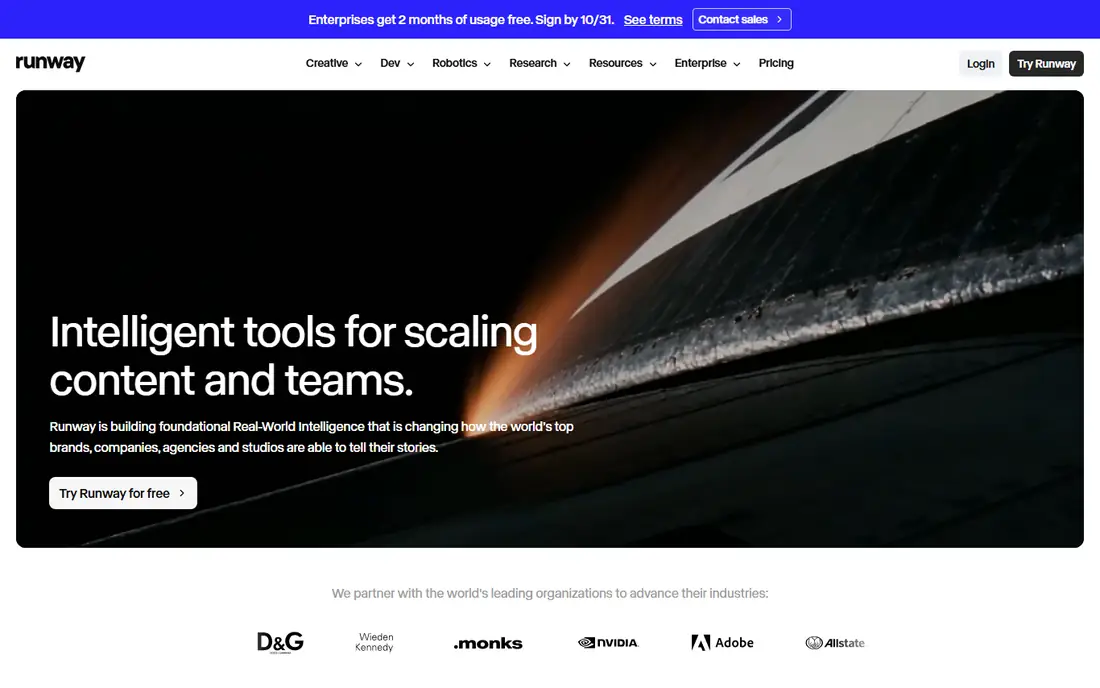
Runway is the choice for creators who want control over camera movement, not just a moving image. Image-to-video generations can be refined with motion controls and editing tools, and the workspace supports longer projects built from several clips. It is built around film-style control and editing, and that focus shows in how the main screens are arranged, with the most used actions close at hand and less used settings kept out of the way. For a new user, the first week usually settles the question of fit, because the core routine either feels natural or it starts to feel like extra work.
In daily use, Runway works best when it holds one clear job at first. Move only the lists or schedules you already use, and check the tool on a phone as well as on a computer, because a tool that is awkward on the device you carry will be skipped on busy days.
On price, compare the free plan or trial against the features you use every week, not against the full feature list. Runway fits readers who want film-style control and editing. If the limits below look like daily friction, choose a different option from this list instead of forcing a fit.
What we like- Strong camera and motion controls
- Editing tools in the same workspace
- High-quality output on paid plans
Watch out for- Free credits do not refill monthly
- Learning curve for new creators
Starting price$8 per month (billed annually)
Free planYes
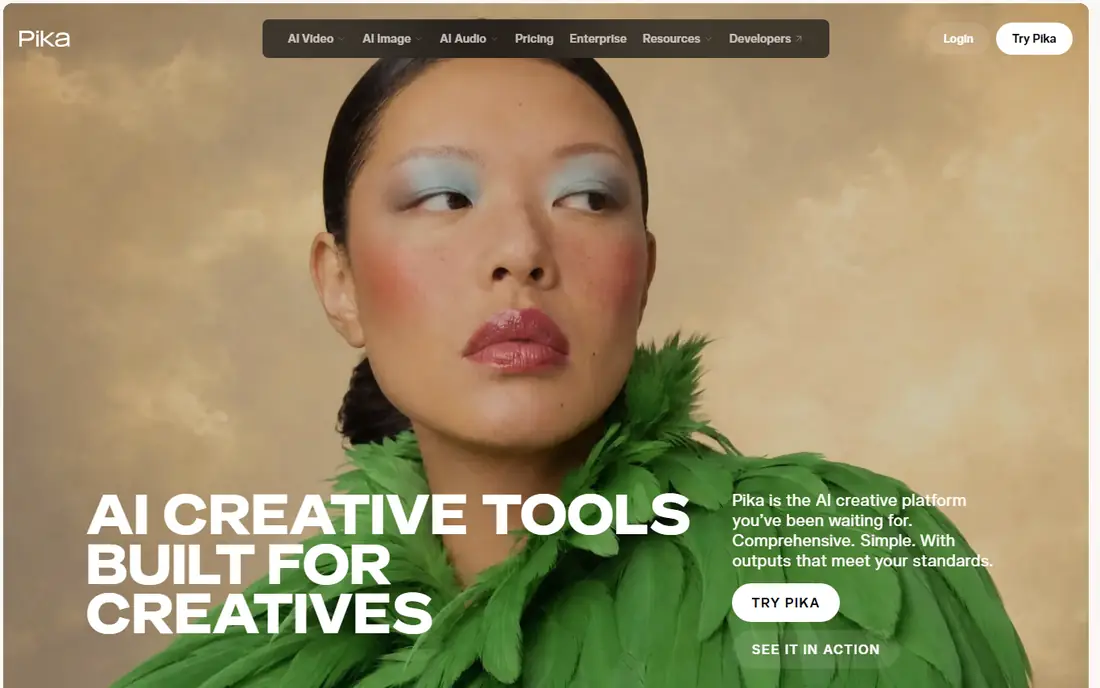
Pika suits creators who need a short, eye-catching clip for social feeds in minutes. A still image can be animated with effects, lip sync, and sound tools, and the results are sized for short-form platforms. It is built around fast stylised social clips, and that focus shows in how the main screens are arranged, with the most used actions close at hand and less used settings kept out of the way. For a new user, the first week usually settles the question of fit, because the core routine either feels natural or it starts to feel like extra work.
In daily use, Pika works best when it holds one clear job at first. Move only the lists or schedules you already use, and check the tool on a phone as well as on a computer, because a tool that is awkward on the device you carry will be skipped on busy days.
On price, compare the free plan or trial against the features you use every week, not against the full feature list. Pika fits readers who want fast stylised social clips. If the limits below look like daily friction, choose a different option from this list instead of forcing a fit.
What we like- Fast generations for social content
- Fun effects and styles
- No watermark on paid output
Watch out for- Short clips suit social, not long film
- Credit packs can confuse new users
Starting priceSee website
Free planYes

Kling AI stands out for realistic motion at a lower entry price than many film-focused tools. Images can become longer clips with consistent characters and objects, and multi-shot sequences help a single idea stretch across scenes. It is built around realistic longer clips at good value, and that focus shows in how the main screens are arranged, with the most used actions close at hand and less used settings kept out of the way. For a new user, the first week usually settles the question of fit, because the core routine either feels natural or it starts to feel like extra work.
In daily use, Kling AI works best when it holds one clear job at first. Move only the lists or schedules you already use, and check the tool on a phone as well as on a computer, because a tool that is awkward on the device you carry will be skipped on busy days.
On price, compare the free plan or trial against the features you use every week, not against the full feature list. Kling AI fits readers who want realistic longer clips at good value. If the limits below look like daily friction, choose a different option from this list instead of forcing a fit.
What we like- Realistic human motion
- Clips up to about 15 seconds
- Daily free credits
Watch out for- Pricing tiers change often
- Some features need higher plans
#4
Luma Dream Machine
Best for: Cinematic camera moves and fast iteration
Visit lumalabs.ai
Starting price$30 per month
Free planYes
Luma Dream Machine appeals to creators who judge a clip by its camera move and its finish. Keyframe controls and cinematic styles help turn a still into a shot that feels directed, rather than a simple pan or zoom. It is built around cinematic camera moves and fast iteration, and that focus shows in how the main screens are arranged, with the most used actions close at hand and less used settings kept out of the way. For a new user, the first week usually settles the question of fit, because the core routine either feels natural or it starts to feel like extra work.
In daily use, Luma Dream Machine works best when it holds one clear job at first. Move only the lists or schedules you already use, and check the tool on a phone as well as on a computer, because a tool that is awkward on the device you carry will be skipped on busy days.
On price, compare the free plan or trial against the features you use every week, not against the full feature list. Luma Dream Machine fits readers who want cinematic camera moves and fast iteration. If the limits below look like daily friction, choose a different option from this list instead of forcing a fit.
What we like- Cinematic camera controls
- Fast iteration on ideas
- Access to partner models
Watch out for- Entry plan is expensive
- No free tier listed on pricing page
#5Adobe Firefly
Best for: Commercially safe brand work4.4/5 on
G2 (373 reviews, checked Oct 2026)
Visit adobe.com
Starting price$9.99 per month
Free planYes
Adobe Firefly is the safest pick for brand and client work where rights and transparency matter. Firefly models are trained on licensed content, and generated clips can move into Photoshop, Premiere, or Express for finishing. It is built around commercially safe brand work, and that focus shows in how the main screens are arranged, with the most used actions close at hand and less used settings kept out of the way. For a new user, the first week usually settles the question of fit, because the core routine either feels natural or it starts to feel like extra work.
In daily use, Adobe Firefly works best when it holds one clear job at first. Move only the lists or schedules you already use, and check the tool on a phone as well as on a computer, because a tool that is awkward on the device you carry will be skipped on busy days.
On price, compare the free plan or trial against the features you use every week, not against the full feature list. Adobe Firefly fits readers who want commercially safe brand work. If the limits below look like daily friction, choose a different option from this list instead of forcing a fit.
What we like- Commercially safe Adobe models
- Works with Photoshop and Premiere
- Content Credentials for transparency
Watch out for- Clips are short, about five seconds
- Credit limits affect heavy users
Starting price$19.99 per month (Google AI Pro)
Free planYes
Google Veo is the pick for creators who want realistic footage with sound that matches the picture. Text and image inputs can produce clips with synced dialogue, sound effects, and ambient audio, which saves a separate audio step. It is built around realistic clips with synced audio, and that focus shows in how the main screens are arranged, with the most used actions close at hand and less used settings kept out of the way. For a new user, the first week usually settles the question of fit, because the core routine either feels natural or it starts to feel like extra work.
In daily use, Google Veo works best when it holds one clear job at first. Move only the lists or schedules you already use, and check the tool on a phone as well as on a computer, because a tool that is awkward on the device you carry will be skipped on busy days.
On price, compare the free plan or trial against the features you use every week, not against the full feature list. Google Veo fits readers who want realistic clips with synced audio. If the limits below look like daily friction, choose a different option from this list instead of forcing a fit.
What we like- Realistic footage with native audio
- Works inside Gemini and Flow
- Strong prompt following
Watch out for- Clips are about eight seconds per generation
- Full access needs a paid Google plan
#7CapCut
Best for: Quick vertical clips with editing built in1.2/5 on
Trustpilot (1,347 reviews, checked Oct 2026)
Visit capcut.com
Starting priceSee website
Free planYes
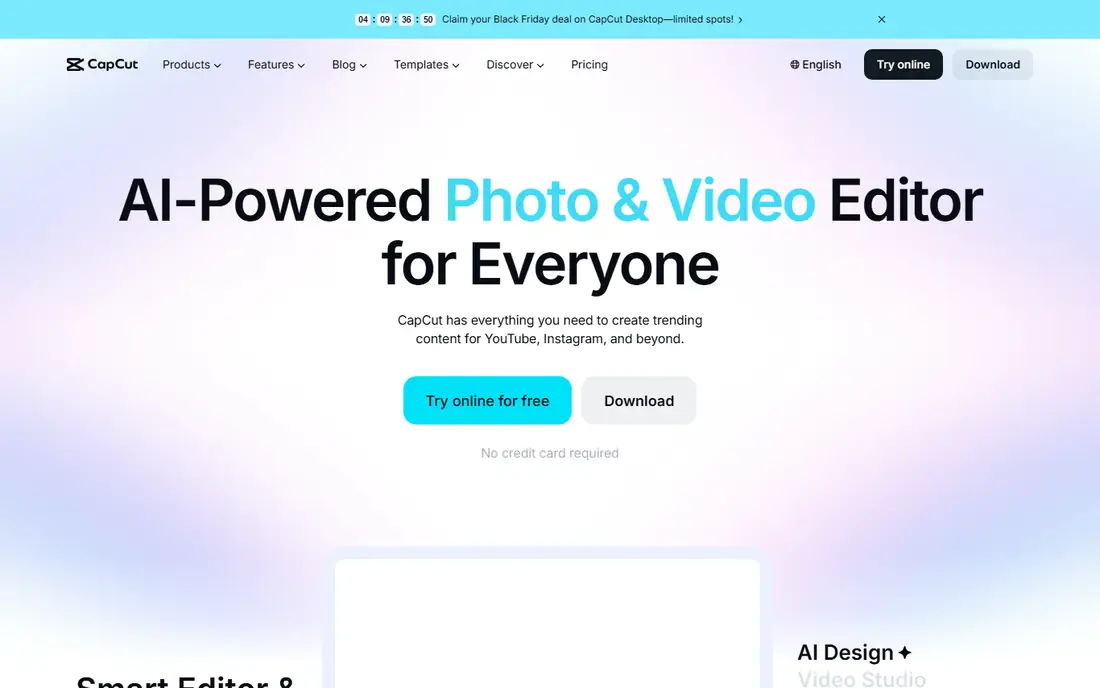
CapCut suits creators who need to generate, edit, caption, and export a vertical clip in one place. AI video generation sits beside trimming, captions, templates, and music, so a generated clip can become a finished post without switching apps. It is built around quick vertical clips with editing built in, and that focus shows in how the main screens are arranged, with the most used actions close at hand and less used settings kept out of the way. For a new user, the first week usually settles the question of fit, because the core routine either feels natural or it starts to feel like extra work.
In daily use, CapCut works best when it holds one clear job at first. Move only the lists or schedules you already use, and check the tool on a phone as well as on a computer, because a tool that is awkward on the device you carry will be skipped on busy days.
On price, compare the free plan or trial against the features you use every week, not against the full feature list. CapCut fits readers who want quick vertical clips with editing built in. If the limits below look like daily friction, choose a different option from this list instead of forcing a fit.
What we like- Full editor beside AI generation
- Templates for social formats
- Free editor with many features
Watch out for- AI video is one feature among many
- Paid price varies by region and device
How we chose
We compared pricing pages, product documentation, and public feature descriptions for tools that are available in the United States in 2026, and we kept only tools that fit the category without stretching the definition. Price, free plan terms, platform support, and the limits that affect daily use carried more weight than marketing claims, because a tool that looks strong in a demo can still fail on a normal Tuesday. We also checked that each official homepage loads and belongs to the named product, and we left out tools that could not be verified. Where a price could not be confirmed from the vendor page at the time of writing, the entry says See website rather than guessing a figure.
Test the same image on two tools
Use one portrait, one product photo, and one outdoor scene, and generate the same prompt on two tools. Compare faces, hands, motion, and background stability, because those flaws show up in real work and rarely show up in demo reels.
Check clip length, credits, and exports
A five-second clip needs a different plan than a fifteen-second clip, and credit costs per generation vary widely. Check the resolution, the export format, and whether the free output carries a watermark, before building a workflow around a tool.
Plan for rights and client use
For client work, check the licence terms for commercial use, and prefer tools with clear terms and content transparency. For personal social posts, a free plan may be enough. Keep the source image and the prompt with each final clip, so a revision does not require starting from scratch.
Frequently asked questions
What is the best AI image-to-video tool overall?
Runway is the best overall pick for control and editing, while Kling AI is the best value pick for realistic clips. Pika is best for fast social clips, and Adobe Firefly is best for commercially safe work. The right pick depends on clip length, budget, and whether audio matters.
How long are AI image-to-video clips?
Most clips run about five to fifteen seconds, depending on the tool and plan. Kling AI supports clips up to about fifteen seconds, while Runway, Pika, and Firefly focus on shorter clips. Longer videos are usually built by joining several clips in an editor.
Do free plans add a watermark?
Some free plans add a watermark, and some do not, so check the tool before publishing. Paid plans usually remove watermarks. If a clip is for a client, use a paid plan or a tool with watermark-free paid output.
Can I use AI video clips commercially?
Commercial use depends on the plan and the licence terms, so read them before publishing client work. Adobe Firefly offers the clearest commercial safety case, thanks to licensed training data. Other tools allow commercial use on paid plans, with terms that vary.
Why do faces and hands look wrong in AI video?
Faces and hands are hard for video models to keep consistent across frames, especially in fast motion. Slower motion, clearer source images, and shorter clips usually give cleaner results. Generate a few variants and keep the cleanest one.
How much do AI video tools cost per month?
Entry plans in this guide range from about eight dollars to thirty dollars per month, with credit limits that affect heavy users. Free plans and trials are useful for testing, but regular publishing usually needs a paid plan with enough credits.
Sources we checked (7)
- https://runwayml.com/pricing
- https://pika.art/pricing
- https://klingai.com/pricing
- https://lumalabs.ai/pricing
- https://www.adobe.com/products/firefly/pricing.html
- https://gemini.google.com
- https://www.capcut.com/pricing
Is your product missing or out of date?
We review this list regularly. Vendors can request a listing, send updated pricing or ask about featured placement.

Shihab Mia · Founder, Rankite
Shihab has 5+ years in B2B and SaaS SEO. He writes Rankite's software buying guides from pricing pages, documentation and public user reviews. More about Shihab.