How we make this list: we compare pricing pages, product documentation and public user reviews. Ratings come from G2, Capterra or Trustpilot, with the date we checked them.
Key takeaways
- Adobe Acrobat Reader is still the safest default for complex forms and signed documents, and it costs nothing for reading.
- Foxit PDF Reader is the strongest free alternative for people who annotate heavily and want tabbed reading.
- PDF Expert is the best paid pick for Apple users, with a clean reading view and strong annotation tools.
- If you only open PDFs now and then, the browser or operating system reader you already have is enough.
Quick comparison
| Tool | Best for | Starting price | Free plan |
|---|
 Adobe Acrobat Reader Adobe Acrobat Reader | Maximum compatibility with complex PDFs | Free | Yes |
 Foxit PDF Reader Foxit PDF Reader | Fast free annotation on Windows and Mac | Free | Yes |
 PDF Expert PDF Expert | Apple devices and clean reading | $49.99 per year | Free trial |
 Xodo Xodo | Reading across devices with sync | See website | Yes |
 PDF-XChange Editor PDF-XChange Editor | Windows users who want a one-time purchase | $59.50 one-time | Yes |
 SumatraPDF SumatraPDF | Lightweight reading on older hardware | Free | Yes |
 Microsoft Edge Microsoft Edge | Occasional reading with nothing to install | Free | Yes |
 Apple Preview Apple Preview | Basic reading on Mac and iPhone | Free | Yes |
Is your product missing or out of date?
We review this list regularly. Vendors can request a listing, send updated pricing or ask about featured placement.
The best apps to read PDFs
#1
Adobe Acrobat Reader
Best for: Maximum compatibility with complex PDFs
Visit adobe.com
Starting priceFree
Free planYes
Adobe Acrobat Reader sets the standard that other readers are measured against. It opens forms, certificates, and documents with embedded media the way their creators intended, which matters when a contract or an application form must look exactly right. The free version covers viewing, printing, searching, commenting, and basic form filling, so most readers never need to pay.
The trade-off is weight. Acrobat Reader starts more slowly than lighter readers and nudges you toward paid plans for editing, converting, and AI summaries. If you read simple documents all day, a lighter app will feel faster. But when a document must render correctly the first time, especially one with digital signatures or restricted permissions, Acrobat Reader is the safe choice.
What we like- Best compatibility with forms and signed files
- Strong comment and markup tools
- Available on desktop and mobile
Watch out for- Feels heavy on older machines
- Editing and AI features require a paid plan
#2
Foxit PDF Reader
Best for: Fast free annotation on Windows and Mac
Visit foxit.com
Starting priceFree
Free planYes
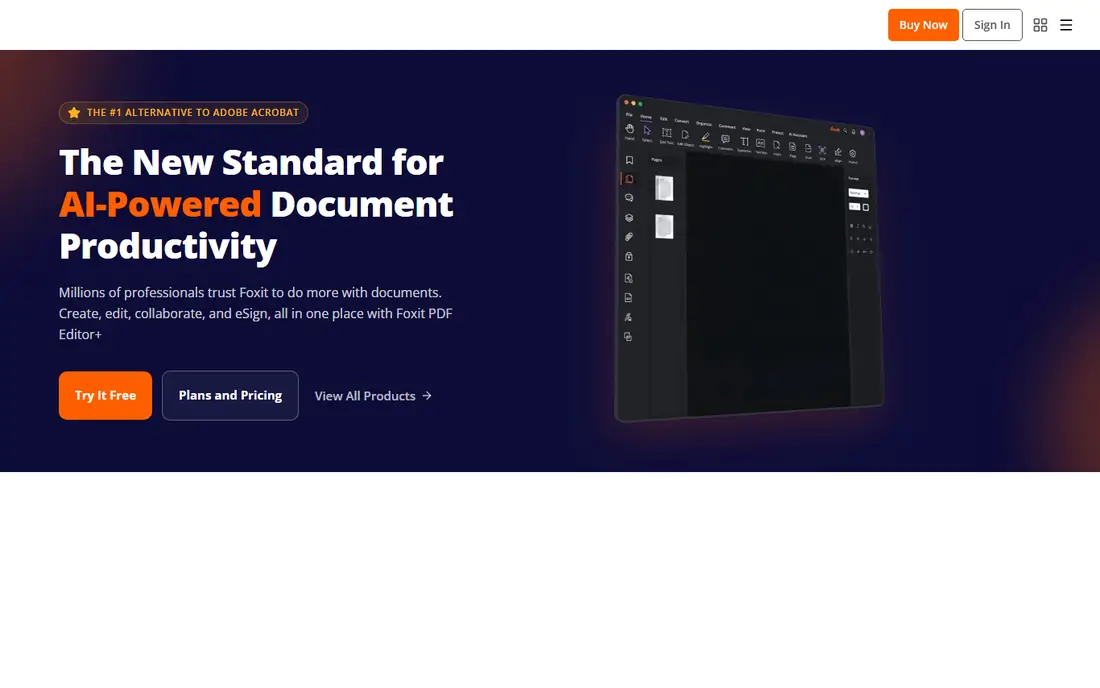
Foxit PDF Reader is the reader many people switch to when Adobe feels slow. It opens quickly, keeps several documents in tabs, and gives you highlight, underline, sticky note, and drawing tools without a subscription. Search is fast, zoom controls are precise, and the interface will feel familiar if you have used office software before.
The catch is the line between reading and editing. Foxit Reader handles reading and markup well, but changing text or images requires Foxit PDF Editor, a paid product. Businesses also like Foxit for managed installs, which is a real plus for IT teams. For a single reader who annotates a lot and pays nothing, Foxit is hard to beat.
What we like- Quick startup and tabbed reading
- Strong highlight and comment tools
- Free for everyday reading
Watch out for- Text and image editing need the paid editor
- Some features moved to paid plans over time
Starting price$49.99 per year
Free planFree trial
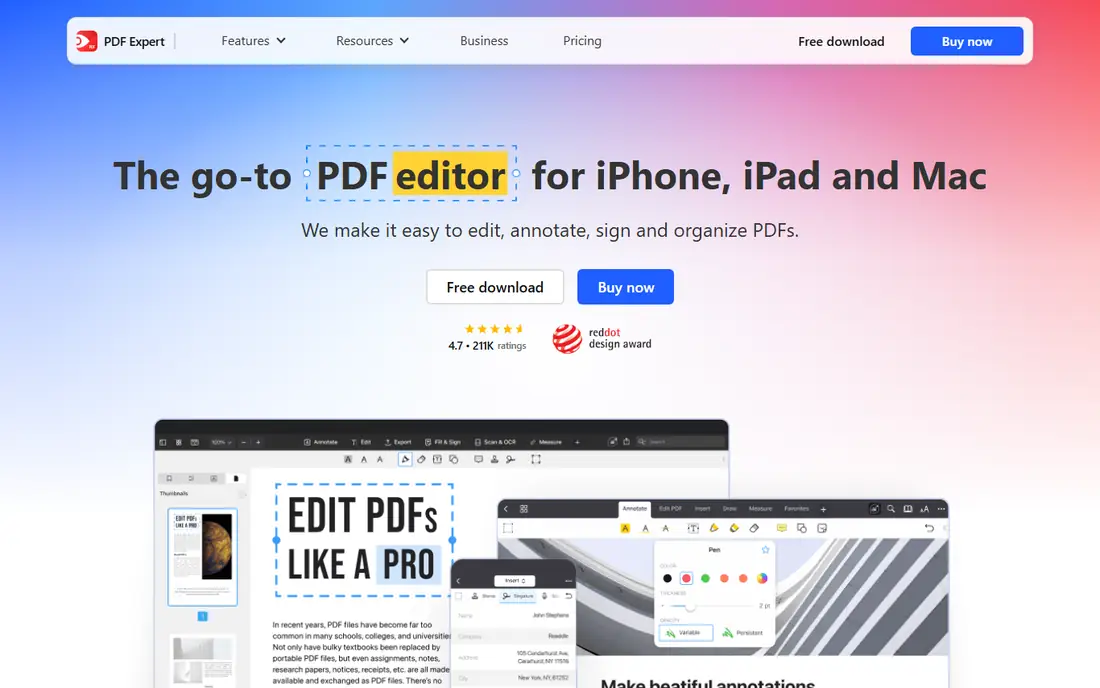
PDF Expert is built for people who live inside the Apple ecosystem. The reading view is calm and uncluttered, pages turn smoothly, and annotation feels natural with a trackpad, mouse, or Apple Pencil. It also handles form filling and signing well, which makes it a good fit for contracts and school or work paperwork.
The limit is platform. There is no Windows or Android version, so mixed-device households will need a second app. The free tier lets you read, while annotation and editing require the Essential plan at $49.99 per year or Pro at $79.99 per year. If your devices are all Apple, that price buys the most pleasant reading experience on this list.
What we like- Polished reading view on Mac, iPad, and iPhone
- Strong annotation and form tools
- Syncs across Apple devices
Watch out for- No Windows or Android version
- Full editing sits behind the paid plan
#4Xodo
Best for: Reading across devices with sync4.4/5 on
G2 (38 reviews, checked Oct 2026)
Visit xodo.com
Starting priceSee website
Free planYes
Xodo suits readers who start a document on one device and finish it on another. The web app is strong, mobile apps are capable, and annotations carry across devices when you sign in. It also supports real-time collaboration, so a team can mark up the same file without passing copies back and forth.
Pricing is the part to check before you commit. Xodo has run promotional annual prices, and the standard rate differs from those offers, so the honest figure is to check the vendor pricing page at purchase time. The free tier covers reading and basic annotation. If cross-device sync matters more than a one-time purchase, Xodo deserves a close look.
What we like- Works on web, desktop, and mobile
- Annotation syncs across devices
- Good collaboration features
Watch out for- Pricing varies by promotion and plan
- Advanced features need a subscription
#5PDF-XChange Editor
Best for: Windows users who want a one-time purchase4.6/5 on
G2 (151 reviews, checked Oct 2026)
Visit pdf-xchange.com
Starting price$59.50 one-time
Free planYes
PDF-XChange Editor is a favorite among Windows power users who dislike subscriptions. The free version reads and annotates, while the paid license at $59.50 adds editing, OCR, and advanced markup. Measurement tools and stamp collections make it popular with engineers, architects, and anyone who marks up technical drawings.
The interface is the honest downside. It packs many tools into dense toolbars, and a casual reader may find it busy next to Acrobat Reader or Edge. There is also no Mac version. If you work on Windows, annotate technical documents, and want to pay once, this is the value pick of the list.
What we like- One-time purchase option
- Deep annotation and measurement tools
- Fast on Windows
Watch out for- Windows only
- Interface feels dense for casual readers
Starting priceFree
Free planYes
SumatraPDF is the smallest reader on this list, and that is the whole point. It launches in a blink, uses little memory, and stays out of the way. It also opens EPUB, MOBI, XPS, and comic book files, which makes it a handy single reader for a personal library.
What you give up is markup. There are no highlight, comment, or form tools, so SumatraPDF is a reading-only choice. It is also Windows only. For an older laptop, a quick reference check, or a distraction-free read, it is excellent. For study notes or review comments, pair it with another app.
What we like- Opens almost instantly
- Tiny install
- Reads EPUB, MOBI, and comic formats too
Watch out for- No annotation or editing tools
- Windows only
Starting priceFree
Free planYes
Microsoft Edge is the reader most Windows users already have, whether they think of it as one or not. Clicking a PDF opens it in a tab, with zoom, search, printing, and basic drawing and highlight tools. For the occasional invoice, ticket, or manual, that is all you need, and there is nothing to install or update separately.
Edge falls short once reading becomes work. There is no document library, no deep annotation set, and complex forms can behave less reliably than in Acrobat Reader. Treat Edge as the zero-effort default, and move to a dedicated reader when you start marking up documents every day.
What we like- Already installed on Windows
- Opens PDFs instantly
- Basic highlight and draw tools
Watch out for- No library or advanced annotation
- Limited form support
Starting priceFree
Free planYes
Apple Preview comes free with every Mac, iPhone, and iPad, and it covers the basics well. It opens PDFs fast, lets you fill simple forms, add a signature, and make basic highlights and notes. For most personal use, that is enough, and you never need to download anything.
The limits show up with heavy markup or complex documents. Preview lacks the deep annotation, measurement, and collaboration tools of paid readers, and it does not exist on Windows or Android. If you read on Apple devices and only need light markup, Preview saves you money. If you annotate for work, PDF Expert or another dedicated reader is a better fit.
What we like- Built into macOS and iOS
- Fast and simple
- Fills and signs basic forms
Watch out for- Annotation set is basic
- No Windows or Android version
How we chose
We compared vendor pricing pages, product documentation, and public user reviews, and we weighed four things: compatibility with real-world documents, annotation depth, price, and platform coverage. Free readers were judged on what they do without payment, not on paid features, and paid plans were judged on what the subscription adds. We did not claim hands-on testing. Where a price varied by promotion or region, we wrote See website rather than publishing a figure that could be wrong by the time you read this.
What to check before you pick
Start with how you actually use PDFs. A reader that feels fast with a two-page memo can feel slow with a 400-page scanned report, so test your real files before you settle. Pay attention to search speed, page rendering, and how comments look when you send the file to someone else. A student who highlights textbooks needs annotation and sync, while a contracts manager needs form fidelity and signature support. Check the platform list twice, because several good readers are single-platform, and switching later means moving your habits and files. Look at the free tier first and pay only when a specific feature, such as editing or OCR, is missing from your daily work.
Also check file handling. Large scanned documents benefit from OCR and fast search, while small text PDFs open well anywhere. If you share marked-up files with others, pick a reader whose comments and highlights survive when the file is opened elsewhere. Acrobat Reader and Foxit are the safest bets for shared files, since most recipients can open their output without surprises.
Frequently asked questions
Is Adobe Acrobat Reader really free?
Yes, for reading, printing, searching, commenting, and basic form filling. Editing text and images, converting files, and AI summaries require a paid Acrobat plan, so the free version is a reader, not an editor.
Which free PDF reader is best for annotation?
Foxit PDF Reader offers the strongest free annotation set on this list, with highlights, comments, and drawing tools at no cost. PDF-XChange Editor also annotates well for free on Windows, while Edge and Preview cover only basic markup.
Do I need a paid PDF app at all?
Most people do not. If you only read, fill simple forms, and add occasional comments, a free reader covers you. Pay when you edit text, run OCR on scans, or need advanced signing and collaboration every week.
Which reader is best on a Mac?
PDF Expert gives the most polished Mac and iPad experience, with strong annotation and form tools. Apple Preview is free and fine for light use, while Adobe Acrobat Reader is the best choice when a document must render exactly as created.
Can I read PDFs offline?
Yes, every desktop and mobile reader on this list works offline once the file is on your device. Only web-only features, such as cloud sync and some AI tools, need an internet connection.
Sources we checked (8)
- https://www.adobe.com
- https://www.foxit.com
- https://www.pdfexpert.com
- https://www.xodo.com
- https://www.pdf-xchange.com
- https://www.sumatrapdfreader.org
- https://www.microsoft.com
- https://www.apple.com
Is your product missing or out of date?
We review this list regularly. Vendors can request a listing, send updated pricing or ask about featured placement.

Shihab Mia · Founder, Rankite
Shihab has 5+ years in B2B and SaaS SEO. He writes Rankite's software buying guides from pricing pages, documentation and public user reviews. More about Shihab.