How we make this list: we compare pricing pages, product documentation and public user reviews. Rankite is independent; if a vendor ever pays for a featured spot, that listing is clearly labeled Partner.
Key takeaways
- For most people, the answer is simple: Adobe Acrobat Reader if you want the default standard, Foxit PDF Reader if you want more features free, SumatraPDF if you want speed on Windows.
- PDFgear is the surprise pick: a genuinely free PDF editor (not just a reader) with no account required, including editing, conversion and AI summarization.
- macOS users get two excellent free options: Skim for research papers with deep annotation, and Preview already built into the system.
- Every tool on this list opens PDFs for free. Pay only when you need advanced editing, OCR or batch processing.
Quick comparison
| Tool | Best for | Starting price | Free plan |
|---|
 Adobe Acrobat Reader Adobe Acrobat Reader | Anyone who wants the default, standards-compliant PDF reader | Free | Yes |
 Foxit PDF Reader Foxit PDF Reader | Users who want a free reader with annotation, forms and signing built in | Free | Yes |
 SumatraPDF SumatraPDF | Windows users who want the fastest possible PDF opening | Free | Yes (free and open source) |
 PDFgear PDFgear | Users who want free PDF editing, not just reading | Free | Yes |
 PDF-XChange Editor PDF-XChange Editor | Power users who want hundreds of features in the free version | Free version (paid perpetual license for full features) | Yes (257 free features per the vendor) |
 PDF Expert PDF Expert | Apple users who want the most polished PDF experience | See website (free trial available) | Free trial |
 Skim Skim | Researchers and students reading scientific papers on Mac | Free | Yes (free and open source) |
 Okular Okular | Linux users who want one viewer for PDFs and more | Free | Yes (free and open source) |
 Xodo Xodo | Users who want PDF tools in the browser without installing anything | Free tools available (paid products for teams) | Yes |
Is your product missing or out of date?
We review this list regularly. Vendors can request a listing, send updated pricing or ask about featured placement.
The best software for opening PDFs
Opening a PDF is not a feature anyone should pay for. Every tool below does it free, and most do it well. The real differences are speed, platform, annotation depth and how much editing you get without paying. Pick the one that matches your operating system and how you actually use PDFs, not the one with the longest feature list.
#1
Adobe Acrobat Reader
Best for: Anyone who wants the default, standards-compliant PDF reader
Visit get.adobe.com
Starting priceFree
Free planYes
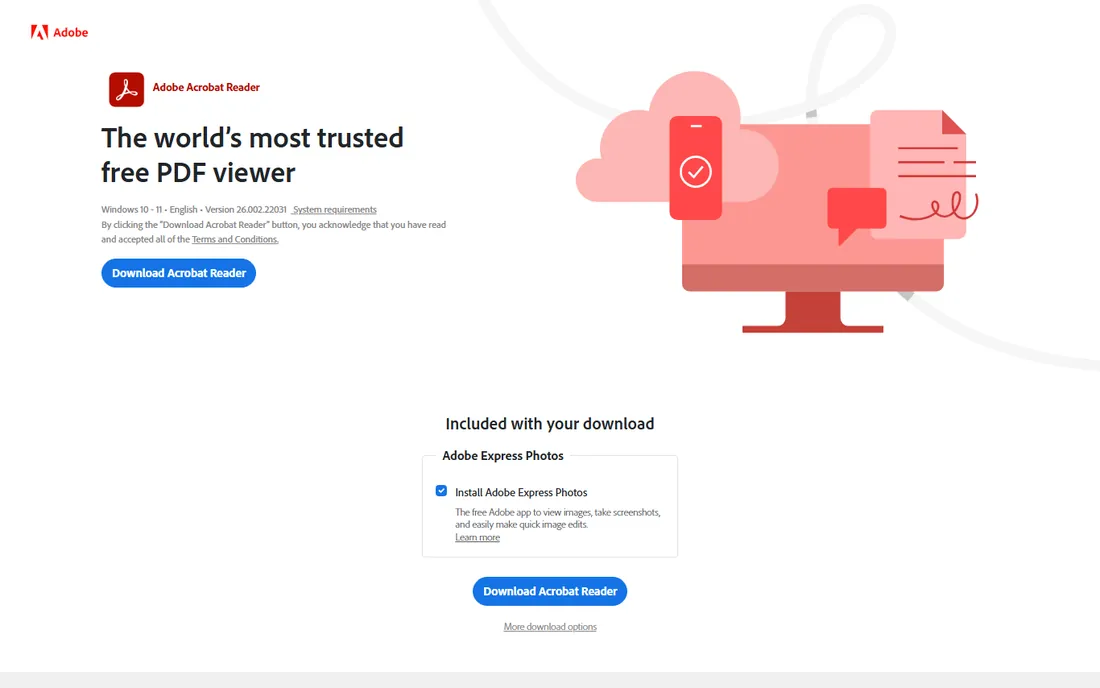
Acrobat Reader is the baseline every other reader is judged against, and Adobe's own download page calls it the world's most trusted free PDF viewer. Because Adobe created the PDF format, complex files with forms, embedded media and unusual fonts render correctly here when they break elsewhere. The free tier covers viewing, commenting, form filling and basic signing, and Reader is approved for organization-wide deployment.
The price of that compatibility is weight. Reader launches slower than SumatraPDF or Skim, uses more memory and regularly nudges you toward paid Acrobat features. If you open PDFs all day and want zero friction, a lighter reader will feel better. If you open tricky PDFs from clients and vendors, Reader is the safe default.
What we like- The reference implementation, so complex PDFs render exactly as intended
- Free signing, commenting and form filling
- Available on desktop and mobile with cloud sharing
Watch out for- Heavier and slower to launch than lightweight readers
- Upsells Acrobat Pro features inside the free app
#2
Foxit PDF Reader
Best for: Users who want a free reader with annotation, forms and signing built in
Visit foxit.com
Starting priceFree
Free planYes
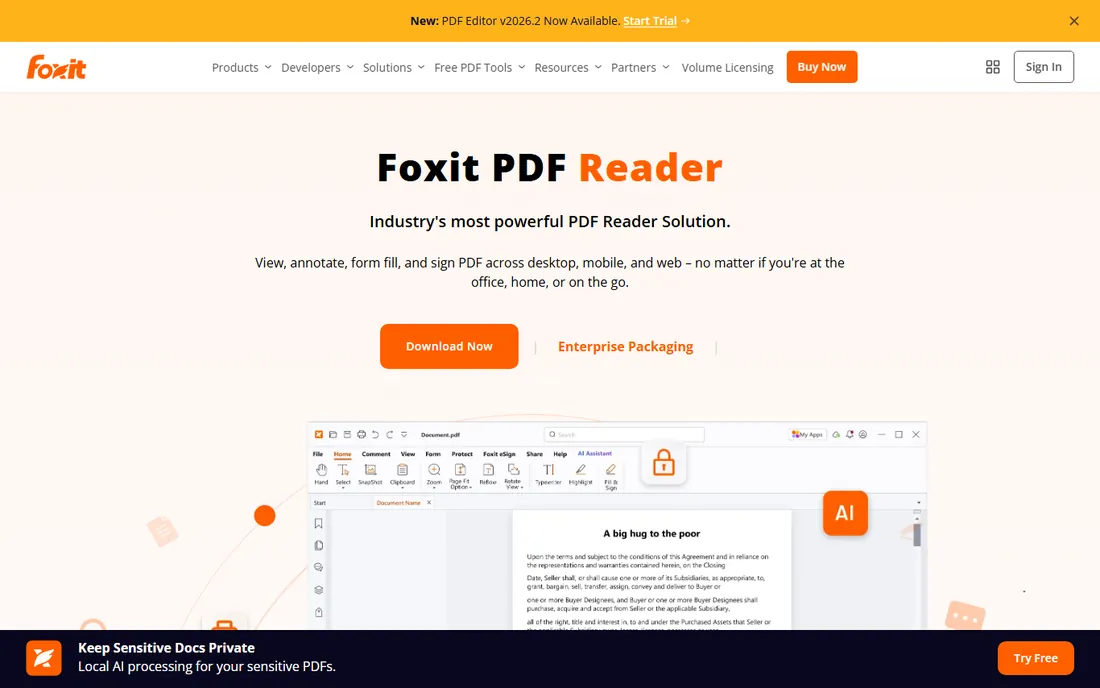
Foxit's pitch is that a reader should do more than display pages, and the free version backs it up: annotation tools, standard and XFA form filling, digital signatures, shared reviews and integrations with SharePoint and Microsoft Teams. It runs on every major platform including the web, which makes it the most versatile free reader on this list.
The tradeoff is commercial pressure. Foxit sells a full product line, and the free Reader carries that weight in upsells and a busier interface. It is also heavier than the minimalist options. But if you want one free reader that handles forms, signatures and collaboration without paying, Foxit gives you the most for zero dollars.
What we like- Free annotation, form filling (including XFA), eSignature and cloud integration
- Runs on Windows, macOS, iOS, Android and the web
- Deployable at scale with MSI installer
Watch out for- Interface can feel busy with upsells to paid Foxit products
- Some advanced editing is paywalled
Starting priceFree
Free planYes (free and open source)
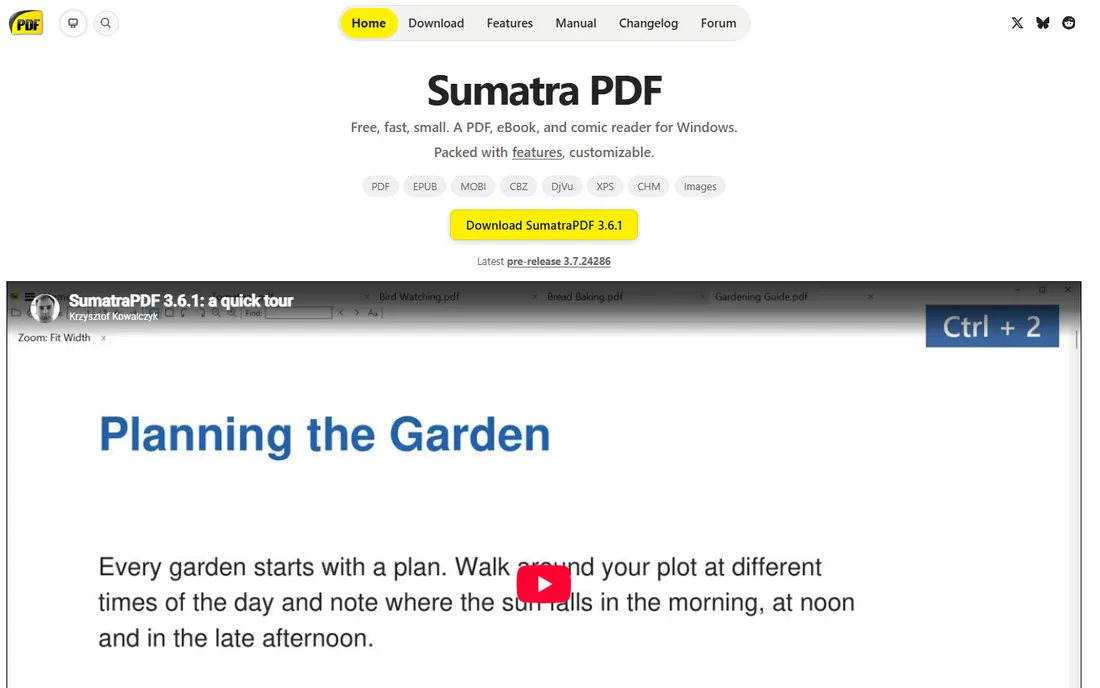
SumatraPDF's homepage makes its case in three words: free, fast, small. It is the anti-Adobe: a tiny native Windows application that opens PDFs (and ebooks, comics and XPS files) instantly, with a portable version that runs from a USB drive. No ads, no bundled toolbars, no subscription screens. Keyboard-driven users love its customizable shortcuts.
What you give up is everything beyond reading. Annotation is basic, form filling is limited and there is no Mac or Linux version. SumatraPDF is the right tool for one job: opening documents fast. Pair it with PDFgear or PDF-XChange when you need to edit, and keep Sumatra as your daily reader.
What we like- Opens instantly with minimal memory use
- No ads, no bundled software, no account
- Also reads EPUB, MOBI, comics, DjVu and XPS
Watch out for- Windows only
- Annotation and editing features are minimal
#4
PDFgear
Best for: Users who want free PDF editing, not just reading
Visit pdfgear.com
Starting priceFree
Free planYes
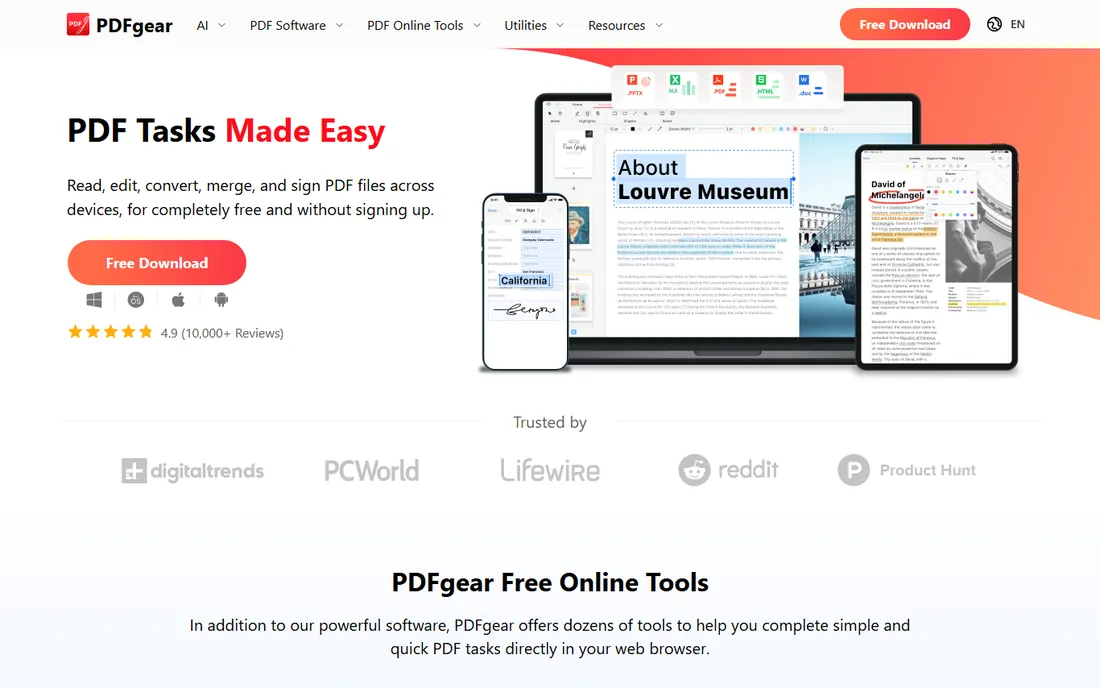
PDFgear breaks the reader category by being a free editor. Where most free readers stop at viewing and commenting, PDFgear edits text, converts files, merges documents, adds signatures and even includes an AI assistant that summarizes documents and answers questions about them. The desktop apps work offline, and the price is zero with no account required.
The honest question is longevity: PDFgear is newer than the established vendors, and its generous free model will invite skepticism. But the software itself is well reviewed, and for users who regularly need to edit PDFs without paying for Acrobat Pro, it is currently the best free option. Use it as your editor and keep a lightweight reader for daily opening.
What we like- Full PDF editing, converting, merging and signing free with no account
- Built-in AI summarization and Q&A
- Desktop apps plus online tools
Watch out for- Newer company with a shorter track record than Adobe or Foxit
- Interface prioritizes editing over pure reading speed
Starting priceFree version (paid perpetual license for full features)
Free planYes (257 free features per the vendor)
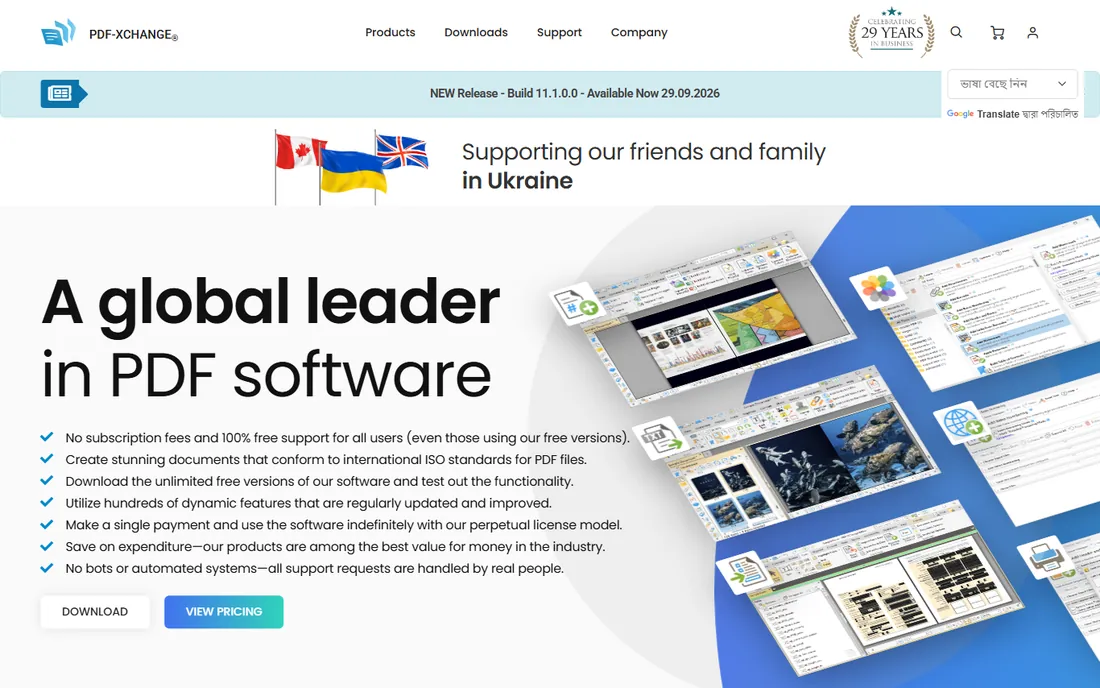
Tracker Software claims more than 400 features in PDF-XChange Editor, with 257 available free. That free set is deeper than most paid readers: full annotation, OCR, form creation, document comparison and a new AI assistant that works with your own API key. Licenses are perpetual, not subscriptions, which is increasingly rare.
The catch is the licensing maze. Some features that look free add watermarks or require the paid license, and the distinction is not always obvious until you use them. Mac support is limited. For Windows users who want one free tool that can do almost everything, though, the free tier's depth is unmatched.
What we like- Over 250 features free, including OCR, annotation and document comparison tools
- Perpetual licenses instead of subscriptions
- Lightweight for its feature depth
Watch out for- Windows-centric with limited Mac support
- The free/paid feature split can confuse (some tools add watermarks)
#6
PDF Expert
Best for: Apple users who want the most polished PDF experience
Visit pdfexpert.com
Starting priceSee website (free trial available)
Free planFree trial
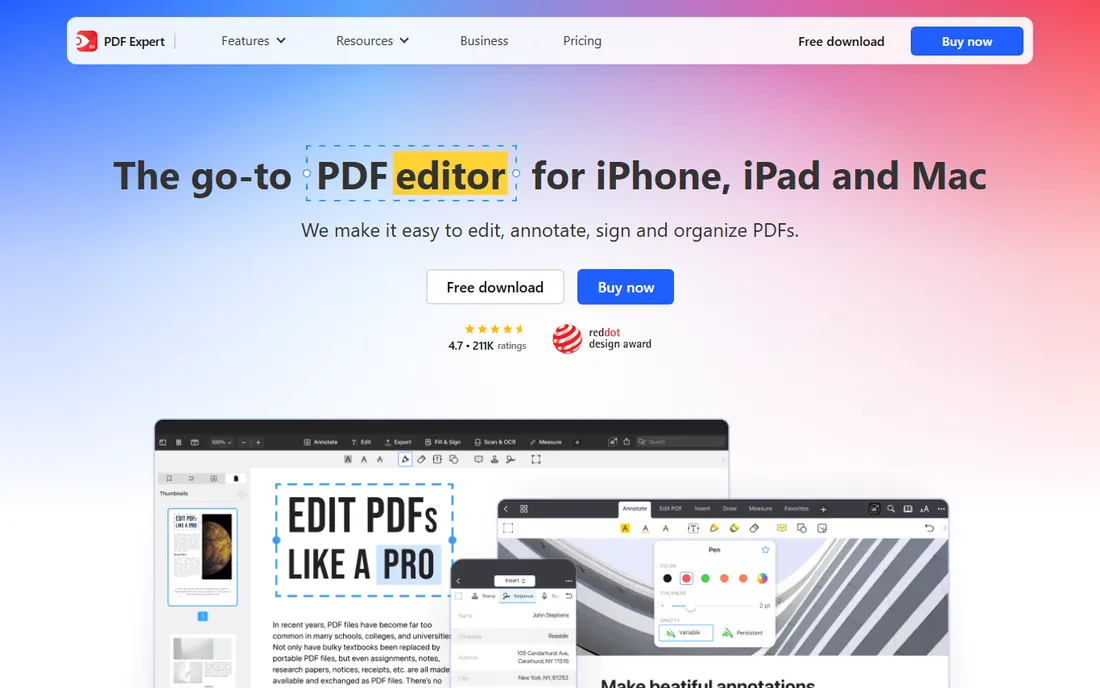
PDF Expert is the reader Mac users recommend to each other, and the praise is deserved: it feels like an Apple app, with fluid scrolling, smart reading modes, strong search and annotation tools that work well with Apple Pencil. One account covers iPhone, iPad and Mac, and features like OCR text recognition and AI-powered scan enhancement handle the messy real world of scanned paperwork.
The limits are platform and price. There is no Windows or Android version, and the free tier is a trial rather than a permanent free plan. If you live in the Apple ecosystem and read PDFs daily, it is worth pricing against the free alternatives. If you need cross-platform, Foxit or Xodo serve you better.
What we like- Fast, native-feeling app across iPhone, iPad and Mac
- Excellent annotation, form filling and signing
- OCR and AI Enhance for scanned documents
Watch out for- Apple-only, so mixed-platform households need a second app
- The best features require a paid plan after the trial
Starting priceFree
Free planYes (free and open source)
Skim's tagline is "stop printing and start skimming," and it was built for one audience: people who read scientific papers. The annotation workflow (highlights, notes, snapshots) is tuned for research, notes export as text into reference managers like BibDesk, and LaTeX integration with SyncTeX lets you jump between source and PDF. It is free and open source.
For general PDF use it is unremarkable, and the interface shows its age. But if your PDFs are journal articles, theses and preprints, Skim's research-focused toolset beats every general reader on this list. Pair it with a reference manager and it becomes a complete academic reading setup for zero dollars.
What we like- Built for academic reading with smart highlighting, notes and snapshots
- SyncTeX support for LaTeX workflows
- Exports notes as text for reference managers
Watch out for- MacOS only
- Interface looks dated and general-purpose features are thin
Starting priceFree
Free planYes (free and open source)
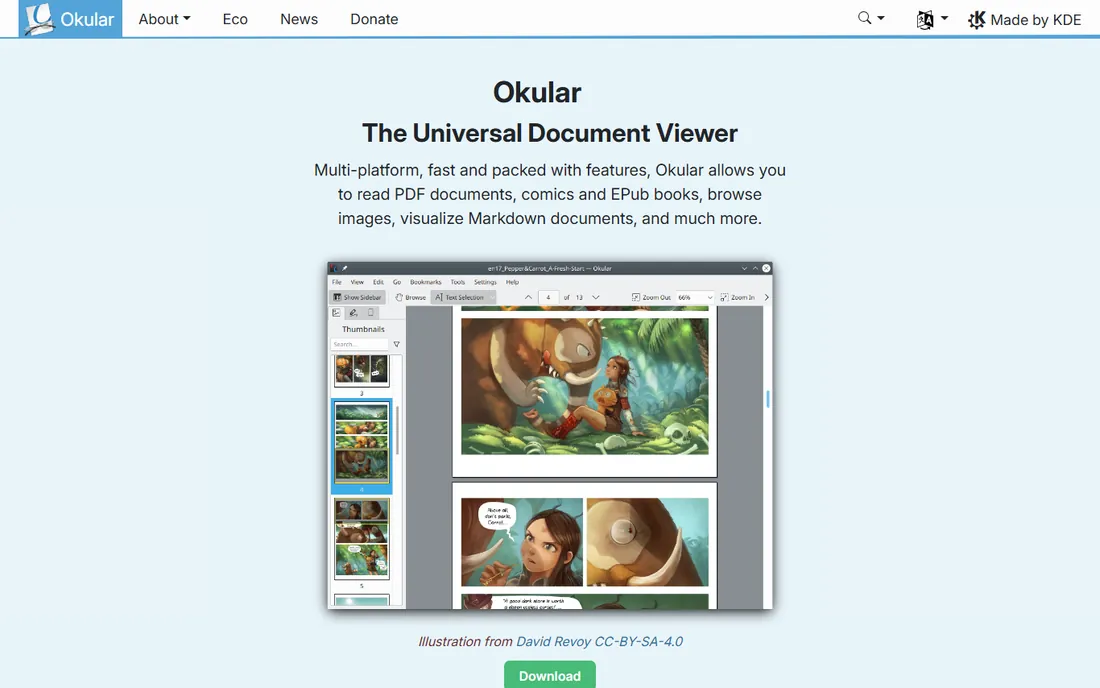
Okular is KDE's universal document viewer, and on Linux it is the default answer for opening PDFs. It handles annotations, forms and digital signatures, reads a wide range of formats beyond PDF, and carries the open-source guarantees: no ads, no tracking, no upsells. It is maintained as part of a major desktop project, not a side product.
Outside Linux it is a compromise. Windows and macOS versions exist but feel like ports, and most users on those platforms will prefer a native reader. For Linux desktops, though, Okular is already installed or one package away, and there is no reason to look further for daily PDF reading.
What we like- Opens PDFs plus EPUB, images, and many other formats
- Annotation and form support
- Part of the KDE ecosystem with no ads or tracking
Watch out for- Best on Linux
- Windows and macOS builds exist but feel less native
#9
Xodo
Best for: Users who want PDF tools in the browser without installing anything
Visit xodo.com
Starting priceFree tools available (paid products for teams)
Free planYes
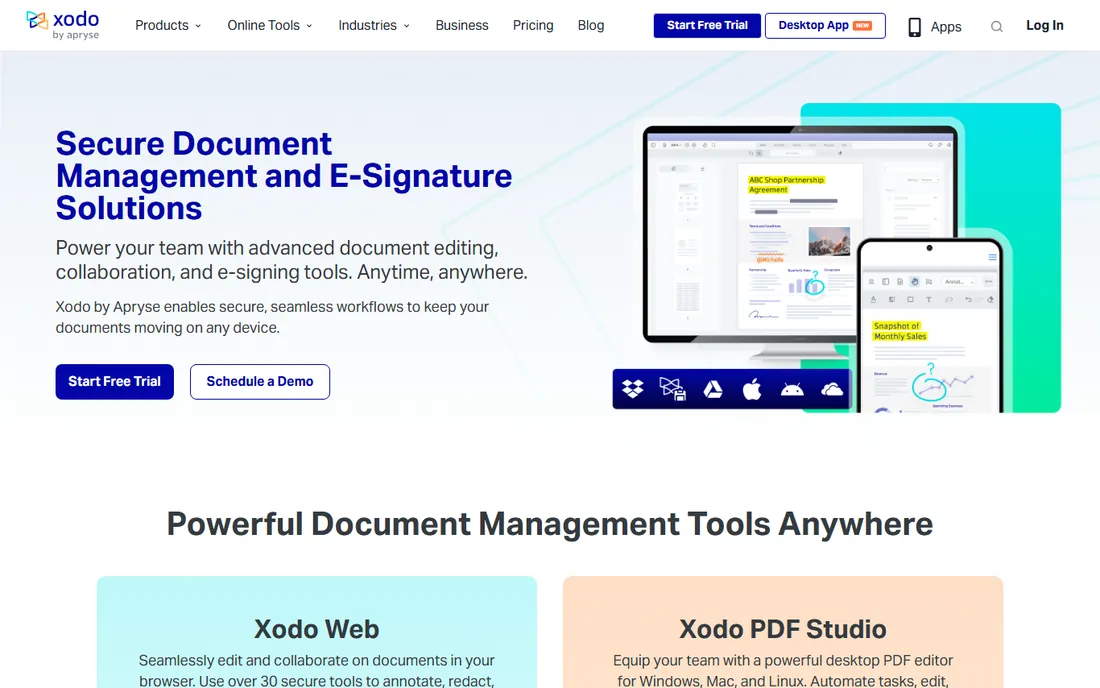
Xodo started as a beloved free PDF app and has grown into a document management company, but its web tools remain free and genuinely useful: annotation, redaction, compression, conversion and e-signing run in the browser with no install. For the common case of "I need to sign this PDF right now on a borrowed computer," Xodo Web is the fastest answer.
The direction of travel is worth noting. Xodo's homepage now leads with paid products for teams (PDF Studio, Xodo Sign), which suggests the free tools are no longer the company's center of gravity. Use them while they are free and excellent, but keep a desktop reader installed for the day that changes.
What we like- Full PDF toolkit in the browser: annotate, redact, compress, convert and sign
- No installation for quick tasks
- Mobile apps for iOS and Android
Watch out for- The company now focuses on paid team products, so the free offering's future is less certain
- Browser tools need an internet connection
What to check before you pick a PDF reader
Four practical checks. First, your operating system narrows the field fast: SumatraPDF and PDF-XChange are Windows-first, Skim and PDF Expert are Mac-only, Okular is Linux-first, and Adobe, Foxit, PDFgear and Xodo cover everything. Second, decide whether you need editing: readers open and annotate, editors change text and pages. PDFgear and PDF-XChange's free tier blur that line for free.
Third, watch the installer. Free PDF software has a long history of bundled toolbars and upsell screens; SumatraPDF, Skim and Okular are clean by design, while the commercial free readers monetize through paid upgrades. Fourth, test your actual files. A reader that flies on a 10-page contract may choke on a 2,000-page scanned manual, so open your heaviest PDF in the finalists before committing.
Reader vs. editor vs. converter: know which one you need
These get confused constantly. A reader opens and displays PDFs, with annotation as a bonus. An editor changes the document: text, images, pages, forms. A converter turns PDFs into Word, Excel or images and back. Most tools here do a bit of all three, but their centers differ: SumatraPDF and Skim are pure readers, PDFgear and PDF-XChange are editors that read, and Xodo's web tools lean toward conversion and quick tasks.
The buying implication is simple. If you only read and sign, a reader is enough and you should never pay. If you edit PDFs weekly, a free editor (PDFgear) or a perpetual license (PDF-XChange) beats a subscription. If you convert files occasionally, free web tools handle it. Match the tool to the job and the free tier usually suffices.
How we chose
We started with the searches buyers use: best PDF reader, free PDF reader, PDF viewer and open PDF software. For each candidate we opened the vendor's own site, confirmed the free tier or free trial is current, and checked platform support, annotation features and real-world performance against reviews on G2, Capterra and Reddit. Okular's site could not be fetched directly, so its details were corroborated through search results; its open-source status and KDE backing are well established. Where a price could not be verified on the vendor's own page we wrote "See website" rather than guessing.
Frequently asked questions
What is the best free PDF reader?
For most users: Foxit PDF Reader, for the best mix of free features (annotation, forms, signing) on every platform. For speed on Windows: SumatraPDF. For Mac research: Skim. Adobe Acrobat Reader remains the safest default for complex files. All four are free.
Is Adobe Acrobat Reader really free?
Yes. Acrobat Reader is free for viewing, commenting, form filling and basic signing, which we confirmed on Adobe's download page. Adobe monetizes through Acrobat Pro subscriptions for editing, OCR and advanced features, and the free Reader will remind you of that.
Can I edit a PDF for free?
Yes, with limits. PDFgear offers full editing free with no account, and PDF-XChange Editor includes over 250 features in its free version. For occasional edits these beat paying for Acrobat Pro. Heavy or daily editing, especially with OCR and batch processing, is where paid tools earn their price.
What is the best PDF reader for Mac?
PDF Expert for polish (paid after trial), Skim for research papers (free and open source), and Preview, which is already installed on every Mac and handles basic reading and annotation well. Foxit and PDFgear cover Mac too if you want cross-platform consistency.
What is the lightest PDF reader for Windows?
SumatraPDF, by a wide margin. It launches instantly, uses minimal memory and has no ads or bundled software. The tradeoff is minimal annotation and no Mac or Linux version. For a balance of lightness and features on Windows, PDF-XChange Editor's free version is the next step up.
Do I need to install anything to open a PDF?
No. Every modern browser opens PDFs natively: drag the file into Chrome, Edge, Firefox or Safari and it renders. Xodo Web adds annotation and signing in the browser. Install a dedicated reader only when you need annotation, forms, signatures or speed that the browser does not provide.
Sources we checked (9)
- https://get.adobe.com/reader/
- https://www.foxit.com/pdf-reader/
- https://www.sumatrapdfreader.org
- https://www.pdfgear.com
- https://www.tracker-software.com/product/pdf-xchange-editor
- https://www.pdfexpert.com
- https://skim-app.sourceforge.net
- https://okular.kde.org
- https://www.xodo.com
Is your product missing or out of date?
We review this list regularly. Vendors can request a listing, send updated pricing or ask about featured placement.

Shihab Mia · Founder, Rankite
Shihab has spent more than a decade helping SaaS and e-commerce brands grow through search. He writes Rankite's software buying guides from pricing pages, documentation and public user reviews. More about Shihab.