How we make this list: we compare pricing pages, product documentation and public user reviews. Ratings come from G2, Capterra or Trustpilot, with the date we checked them.
Key takeaways
- Adobe Scan is the best free third-party scanner, with strong text recognition, clean PDFs, and no watermark on free scans.
- Microsoft Lens is the best fully free pick for Office users, with export to Word, Excel, OneNote, and OneDrive at no cost.
- Apple Notes and Google Drive cover casual scanning free, with no new app to install, though they lack advanced workflows.
- Genius Scan is the best privacy-first pick, keeping scans on your device by default with no account needed.
- Free tiers differ most on watermarks, text recognition, and cloud storage, so check those three points before choosing.
Quick comparison
Is your product missing or out of date?
We review this list regularly. Vendors can request a listing, send updated pricing or ask about featured placement.
The best apps to scan PDF
Starting priceFree
Free planYes
Adobe Scan is the default recommendation for a reason. Point the camera at a page and it finds the edges, straightens the image, cleans up shadows, and runs text recognition so the PDF is searchable. The free version is generous, with unlimited scans and no watermark, which covers most personal and student use outright.
Premium at $9.99 per month adds extra storage and editing features, but casual users rarely need it. The main trade-off is the Adobe cloud: scans sync to Adobe Document Cloud, which suits Adobe users and worries privacy-first users. For the cleanest free PDFs with the least fuss, Adobe Scan leads this list.
What we like- Auto page detection and cleanup
- Strong text recognition for searchable PDFs
- No watermark on free scans
Watch out for- Premium at $9.99 per month adds storage and features most casual users skip
- Scans lean on Adobe cloud
Starting priceFree
Free planYes
Microsoft Lens is the best fully free scanner for anyone in the Microsoft world. It is free, with no watermark and no subscription, and it exports scans to Word, Excel, OneNote, PDF, and OneDrive. Special modes handle documents, whiteboards, and business cards, and text recognition works well on printed pages.
There is no paid tier, so power features such as advanced workflows and batch naming are thinner than in SwiftScan or CamScanner. Cloud export needs a Microsoft account, though local saving works without one. For students and Office users who want a free, honest scanner, Lens is the pick.
What we like- Fully free with no watermark
- Text recognition with Word and Excel export
- Modes for documents, whiteboards, and cards
Watch out for- No paid tier means fewer advanced tools
- Cloud features need a Microsoft account
- Design is plain

#3CamScanner
Best for: Feature depth and batch work4.7/5 on
G2 (54 reviews, checked Oct 2026)
Visit camscanner.com
Starting priceFree
Free planYes
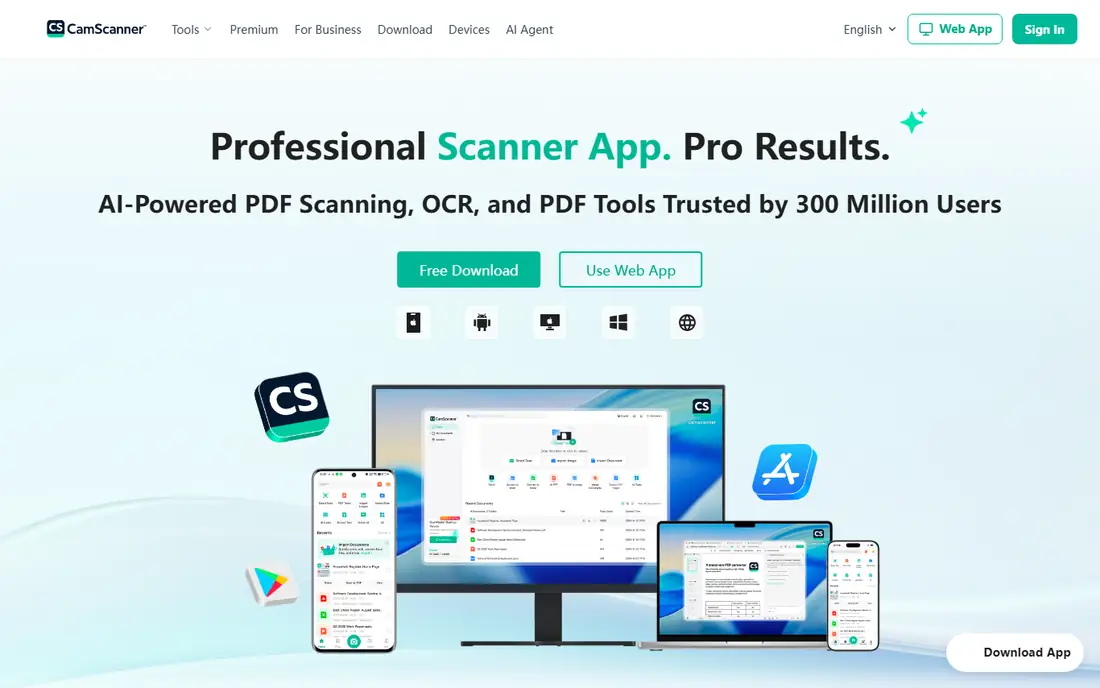
CamScanner is the power-user option, with the widest feature set here: batch scanning, text recognition in more than 40 languages, annotations, faxing, and export to Google Drive, Dropbox, and Box. High-volume users who scan daily will use features the simpler apps lack.
The free tier watermarks scans, and Premium pricing varies across guides, from about $4.99 to $9.99 per month, so check the store listing. CamScanner also faced privacy questions in past years, so security-minded users should weigh that history. For sheer feature depth at volume, it still earns a place, with Genius Scan as the private alternative.
What we like- Deep feature set with batch scanning
- Text recognition in 40 plus languages
- Many cloud export options
Watch out for- Free scans carry a watermark
- Premium costs about $4.99 to $9.99 per month in guides
- Past privacy questions linger
Starting priceFree
Free planYes
Genius Scan is the quiet workhorse of this list. It scans fast, finds page edges well, exports clean PDFs, and keeps your scans on your device by default, with no account required. That local-first design makes it the best pick for legal, medical, and finance documents you would rather not upload.
Text recognition sits behind the paid tier, with guides listing either a one-time purchase near $2.99 or a subscription near $4.99 per month, so check the current store terms. If you need searchable text free, Adobe Scan or Lens covers you. If you value speed and privacy over text recognition, Genius Scan is the best fit.
What we like- Fast capture with good edge detection
- No watermark on free scans
- Scans stay on device by default, no account needed
Watch out for- Text recognition sits behind the paid tier
- One-time purchase near $2.99 in some guides, subscription in others
Starting priceFree
Free planYes
SwiftScan, formerly Scanbot, is built for people who scan on the move. Capture is fast, edge detection is reliable, and automatic file naming plus cloud workflows move scans to Dropbox, Drive, and other services with little manual work. Travelers and freelancers who scan receipts and contracts daily will feel the speed difference.
The free tier watermarks scans, and text recognition sits behind a subscription near $2.99 per month in guides. That makes the free tier a trial more than a daily tool for searchable PDFs. For frequent scanners who value speed and a polished interface and do not mind paying, SwiftScan is a strong pick.
What we like- Very fast capture and clean interface
- Cloud sync and workflows
- Automatic file naming
Watch out for- Free scans carry a watermark
- Text recognition needs the paid tier near $2.99 per month
- Formerly named Scanbot
Starting priceFree
Free planYes
Apple Notes is the scanner most iPhone owners already have. Open a note, tap the camera, and scan a document straight to PDF, with on-device text recognition through Live Text and no watermark. There is nothing to install, nothing to pay, and scans stay on your device unless you share them.
The limits are scope and platform. There are no batch workflows, no advanced naming rules, and no Android version. Scans live inside Notes until you share them out as PDFs. For casual iPhone scanning, a receipt here and a form there, it is all most people need, and it costs nothing.
What we like- Built into every iPhone and iPad
- Free with no watermark
- On-device text recognition through Live Text
Watch out for- IPhone and iPad only
- No batch workflows or advanced export
- Scans live inside Notes unless shared out
Starting priceFree
Free planYes
Google Drive Scan is the Android counterpart to Apple Notes. Inside the Drive app, the camera captures a document, cleans it up, and saves it straight to Drive as a searchable PDF, free and without a watermark. For users whose files already live in Drive, that one-step flow is hard to beat.
Capture controls are thinner than in Adobe Scan or SwiftScan, with fewer manual tweaks for hard pages. The iPhone experience also runs through the Drive app rather than a native tool. For simple, reliable scanning inside the Google ecosystem, it does the job with no new app and no cost.
What we like- Built into the Drive app on Android
- Free with no watermark
- Scans save straight to Drive with search
Watch out for- Fewer capture controls than dedicated apps
- IPhone experience runs through the Drive app
- Google account required
Starting price$3.99 per month
Free planYes
iScanner adds AI polish to the standard scan flow. Edge cleanup, blur matching, and enhancement tools tidy up hard pages, and the feature set runs wider than most rivals, with document tools beyond simple capture. Text recognition is included, which suits users who want searchable PDFs without Adobe.
The free tier is limited, and paid plans start near $3.99 per month in guides, with higher tiers for full features. Users who only scan occasionally will get more free value from Adobe Scan or Lens. For users who want AI cleanup and a broad toolset in one app, iScanner is worth the trial.
What we like- AI edge cleanup and polish
- Wide feature set beyond scanning
- Text recognition included
Watch out for- Free tier is limited
- Paid plans near $3.99 per month or more in guides
- Some features push toward the subscription
How we chose
We started from what a scanner app must do well: find page edges, clean up the image, produce a readable PDF, and handle text recognition where promised. We compared vendor pages, store listings, and current 2026 guides, and we favored apps that are still maintained, fairly priced, and plain about watermarks and free limits. We left out dead apps, hardware-only tools, and apps whose pricing could not be traced. Prices here come from 2026 guides and store listings, and they change, so check the store listing before you pay. Scan quality also depends on light and a flat surface, so test any app on your own documents before committing.
How to pick a scan PDF app
Start with where your files live, not the feature list. A scanner that drops files straight into the cloud you already use saves more time than a feature-rich app that needs manual exporting after every scan.
Match the app to your ecosystem
For Adobe users, Adobe Scan fits naturally. For Microsoft 365 users, Lens exports to Word and OneNote free. For Google users, Drive Scan saves straight to Drive. For iPhone owners, Apple Notes needs no install. Pick the app that shortens your path from paper to filed PDF, and only add a paid app if its extra features serve a real daily need.
Check the three free-tier traps
Before settling, check three points: watermarks on free exports, whether text recognition is free or paid, and where scans are stored. A free app that watermarks every page is not free for work use, and a private document should not need to leave your device. Genius Scan and Apple Notes keep scans local, while Adobe Scan and Drive Scan use their clouds by design.
Get a clean capture every time
Good light and a flat surface do more for scan quality than any app setting. Lay the page flat, avoid shadows from your hand or phone, and let the app detect edges before tapping capture. For multi-page documents, scan in order and check the page count before exporting, since a missing middle page is the most common scanning mistake.
Frequently asked questions
What is the best free app to scan to PDF?
Adobe Scan, because it offers unlimited free scans with strong text recognition and no watermark. Microsoft Lens is the best fully free alternative, with Word and Excel export at no cost.
Do I need a paid scanner app?
Most people do not. Free tiers from Adobe Scan, Lens, Apple Notes, and Drive Scan cover casual and student scanning. Paid plans matter for batch workflows, advanced text recognition in Genius Scan and SwiftScan, and high-volume business use.
Which scanner app is best for privacy?
Genius Scan, because scans stay on your device by default and no account is needed. Apple Notes also keeps scans on-device. Avoid uploading sensitive documents to any cloud scanner unless you need its sync features.
Can scanner apps make PDFs searchable?
Yes, when text recognition is included. Adobe Scan, Lens, CamScanner, and iScanner offer it, though Genius Scan and SwiftScan keep it behind paid tiers. Searchable text lets you find words inside the PDF later, which matters for long documents.
What is the difference between SwiftScan and Scanbot?
They are the same app. Scanbot was renamed SwiftScan, so guides using either name describe one product with fast capture, cloud workflows, and a paid tier for text recognition.
Sources we checked (8)
- https://www.adobe.com
- https://www.microsoft.com
- https://www.camscanner.com
- https://thegrizzlylabs.com
- https://swiftscan.app
- https://www.apple.com
- https://drive.google.com
- https://iscannerapp.com
Is your product missing or out of date?
We review this list regularly. Vendors can request a listing, send updated pricing or ask about featured placement.

Shihab Mia · Founder, Rankite
Shihab has 5+ years in B2B and SaaS SEO. He writes Rankite's software buying guides from pricing pages, documentation and public user reviews. More about Shihab.
 Adobe Scan
 Microsoft Lens
 Genius Scan
 SwiftScan
 Apple Notes
 Google Drive Scan
 iScanner