How we make this list: we compare pricing pages, product documentation and public user reviews. Ratings come from G2, Capterra or Trustpilot, with the date we checked them.
Key takeaways
- DaVinci Resolve is the best free starting point for editors, with strong color, editing, and upscaling tools in the free version.
- Adobe Premiere Pro suits editors already in Adobe workflows who need enhancement as part of a full timeline, not a separate step.
- HitPaw and AVCLabs are the closest direct replacements for Topaz, focused on AI upscaling and denoising without a full editor.
- VideoProc and UniFab suit users who also need conversion, compression, and DVD or Blu-ray handling alongside enhancement.
- Check GPU requirements and export limits before buying, since AI enhancement speed depends heavily on your computer.
Quick comparison
Is your product missing or out of date?
We review this list regularly. Vendors can request a listing, send updated pricing or ask about featured placement.
The best Topaz Video AI alternatives
Starting price$0
Free planYes
DaVinci Resolve is the strongest free alternative for anyone willing to learn a professional editor. The free version includes editing, color correction, visual effects, and audio tools, and its Super Scale feature can upscale footage as part of a normal timeline. For editors who want enhancement inside a real project, not as a separate export step, that integration matters.
The Studio version adds more AI tools and advanced noise reduction, for a one-time price, but the free version already covers a lot. DaVinci fits best for editors, colorists, and filmmakers who want professional tools without a subscription, and who have a computer that can handle demanding video work.
What we like- Free version covers editing, color, and effects
- Professional color grading tools
- Studio version adds advanced AI and noise reduction
Watch out for- Steep learning curve for beginners
- Demanding on hardware for 4K and AI work

#2Adobe Premiere Pro
Best for: Full editing inside Adobe workflows4.5/5 on
G2 (1,675 reviews, checked Oct 2026)
Visit adobe.com
Starting priceSee website
Free planFree trial
Premiere Pro is not a Topaz clone, and that is the point for many editors. Enhancement happens inside the edit: stabilize, denoise, adjust color, and upscale through effects and integrations, then export directly. For a team already delivering client work in Adobe formats, staying in Premiere avoids extra round trips.
If your main job is restoring a large archive of old footage, a dedicated enhancer may give better results per clip. Premiere fits best for editors who need a full, client-standard editing suite, with enhancement as one part of the workflow.
What we like- Industry-standard timeline editing
- Integrates with After Effects, Audition, and Photoshop
- Regular updates with AI features
Watch out for- Subscription cost over time
- AI upscaling is less specialized than a dedicated enhancer

#3
HitPaw Video Enhancer
Best for: Simple AI upscaling and denoising
Visit hitpaw.com
Starting priceSee website
Free planFree trial
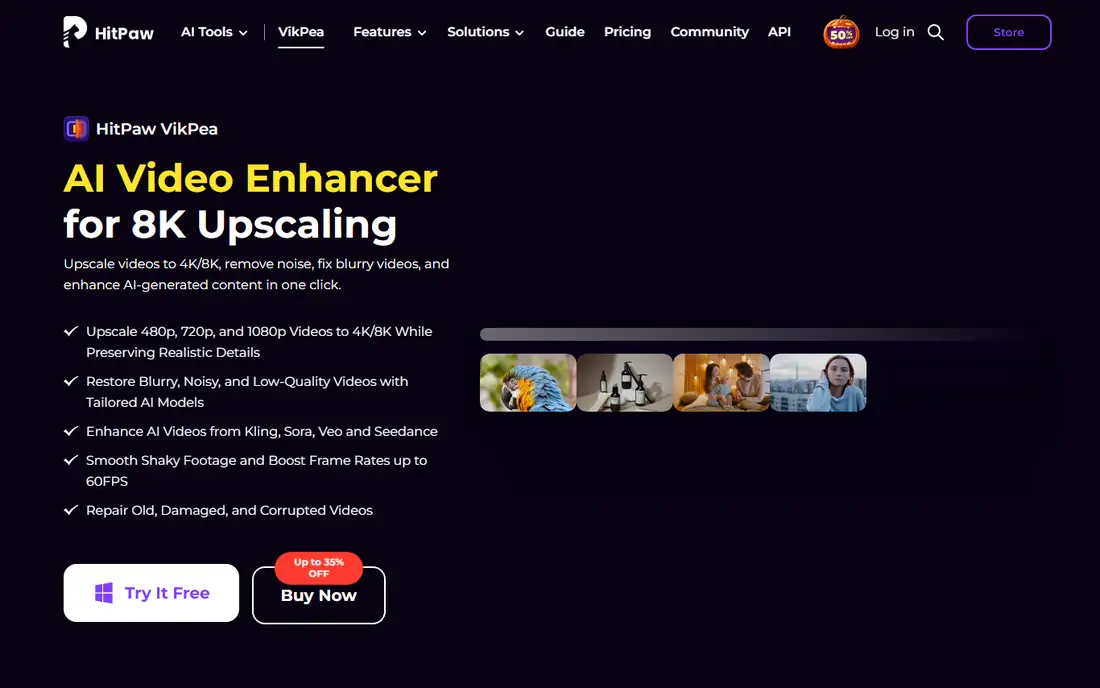
HitPaw is the closest in spirit to Topaz for casual users: pick a clip, pick a model, upscale or denoise, and export. The interface stays simple, which helps when you have a handful of family videos, YouTube clips, or product videos to improve, without learning a full editor.
HitPaw will not replace an editor for cutting, color grading, or complex projects. HitPaw fits best for users who want a straightforward enhancer for occasional clips, with models for faces, animation, and general footage.
What we like- Simple interface focused on enhancement
- Models for general, animation, and face enhancement
- Batch processing for multiple clips
Watch out for- Less editing control than a full editor
- Output quality depends on source footage and model choice

#4AVCLabs Video Enhancer AI
Best for: Dedicated AI upscaling for old footage4.8/5 on
G2 (2 reviews, checked Oct 2026)
Visit avclabs.com
Starting priceSee website
Free planFree trial
AVCLabs focuses on the same core job as Topaz: take low-resolution or noisy video and make it cleaner and sharper. It offers models for different source types, and it is often used for old home videos, archive footage, and low-quality downloads. The workflow is simple, which suits users who do not need editing tools.
As with all AI enhancers, results depend on the source. Heavily compressed footage will improve, but it will not become true high-definition detail that was never recorded. AVCLabs fits best for archivists and hobbyists restoring old footage, who want a dedicated tool at a lower cost than a full editor.
What we like- Dedicated AI models for upscaling and denoising
- Good for restoring old and low-resolution footage
- Batch processing support
Watch out for- Processing can be slow on weaker hardware
- Interface is functional rather than polished
Starting priceSee website
Free planFree trial
VideoProc Converter AI is a practical pick when enhancement is part of a larger conversion job. Convert a video for a phone, compress it for upload, and run AI enhancement in the same program, instead of using three separate tools. Hardware acceleration helps keep processing times reasonable on supported systems.
For pure restoration quality, a dedicated enhancer may still win on difficult footage. VideoProc fits best for users who regularly convert and optimize video, and who want AI enhancement included without buying a separate specialist app.
What we like- Combines conversion, compression, and AI enhancement
- Hardware acceleration for faster processing
- Useful for many formats and devices
Watch out for- AI enhancement is one feature among many, not the sole focus
- Interface can feel busy for simple tasks

#6
UniFab
Best for: All-in-one video enhancement and conversion
Visit unifab.ai
Starting priceSee website
Free planFree trial
UniFab bundles several video tools that are often sold separately: AI enhancement, conversion, and disc handling. That breadth helps a user who manages a media library in many formats, and who wants one account for enhancement, conversion, and related tasks.
The breadth is also the drawback. If you only need to upscale a few clips, a simpler tool will be faster to learn. UniFab fits best for media collectors and small studios who need enhancement plus conversion and disc tools in one place.
What we like- AI upscaling, denoising, and HDR conversion in one app
- Also handles conversion and DVD or Blu-ray tools
- Batch workflows for multiple files
Watch out for- Broad feature set can be confusing for a single enhancement job
- Pricing varies by module and plan
Starting priceSee website
Free planYes
Filmora is the beginner-friendly editor on this list. Cut clips, add titles and effects, use AI enhancement for a cleaner look, and export for social or YouTube, all in a simple interface. For creators who edit weekly but do not need professional color grading, that ease matters more than maximum restoration quality.
The free version watermarks exports, so plan to pay for published work. Filmora fits best for YouTubers, social creators, and beginners who want editing plus light AI enhancement in one easy app.
What we like- Easy timeline editing for beginners
- AI tools for enhancement, denoising, and effects
- Large template and effect library
Watch out for- Free version includes a watermark on exports
- Advanced color and restoration tools are less deep than DaVinci or Topaz

#8Movavi Video Converter
Best for: Simple conversion and upscaling4.8/5 on
G2 (60 reviews, checked Oct 2026)
Visit movavi.com
Starting priceSee website
Free planFree trial
Movavi Video Converter is best thought of as a converter with enhancement help, not a restoration specialist. Convert between formats, adjust resolution, and improve quality for a phone, tablet, or TV, without learning a complex editor. That simplicity suits users with a clear, practical goal.
For heavily degraded footage, a dedicated AI enhancer will usually do better. Movavi fits best for casual users who mainly need conversion, with a modest quality boost as a bonus.
What we like- Simple interface for conversion and basic enhancement
- Fast processing for common formats
- Good for device-specific exports
Watch out for- Enhancement depth is below dedicated AI tools
- Less control for professional restoration work
Starting priceSee website
Free planFree trial
Aiseesoft Video Enhancer covers the basics: upscale resolution, optimize brightness and contrast, and reduce video noise. It is not trying to match the latest AI models, but for a casual user with a few clips, the basics may be enough, at a lower price than specialist tools.
Professional editors and archivists will likely outgrow it quickly. Aiseesoft fits best for casual users who want a simple, low-cost enhancement tool for occasional videos, without a subscription or a steep learning curve.
What we like- Low-cost option for basic enhancement
- Simple workflow for resolution, brightness, and noise
- Good for occasional clips
Watch out for- AI features are less advanced than Topaz, HitPaw, or AVCLabs
- Limited editing features
How we chose
We checked vendor pricing pages, product documentation, and public reviews on G2, Capterra, and Reddit, and compared each tool on upscaling quality, denoising, frame handling, export formats, hardware needs, and price model. Tools were kept only if they are available today, can improve video quality in a real workflow, and have a clear audience, from beginners to professionals. Where pricing varied by plan or module, we marked it as See website instead of publishing a single figure.
We gave extra weight to tools that work well on typical user hardware, since AI enhancement that only runs well on a high-end GPU is not useful for most readers. A tool with slightly lower peak quality but reasonable speed scored higher than a tool that is unusable on a mid-range computer.
How to pick a Topaz alternative without wasting time on renders
AI enhancement rewards patience and good source material. Use the checks below before you commit to a large batch.
Test on a short, difficult clip first
Pick a 30-second clip that represents your worst footage, not your best. Run it through the trial, check faces, text, and motion, and time the render. That test tells you more than a demo video, and it reveals whether your GPU can handle the tool.
Match the model to the source
General, animation, face, and old-footage models behave differently. A model tuned for animation can distort live-action faces, and a face model can smooth backgrounds too much. Try two models on the same clip and compare at full size before processing a whole archive.
Keep the original files
Always enhance a copy, never the only original. AI enhancement changes detail, and a model update can change results later. Keep originals archived, so you can re-run enhancement with a better tool or model in the future.
Budget render time, not just money
A tool that costs less but renders three times slower can cost more in lost time. Check GPU requirements, batch support, and whether you can queue overnight renders. For large archives, overnight batch processing is often the practical solution.
Frequently asked questions
Is there a free alternative to Topaz Video AI?
Yes. DaVinci Resolve is free and includes editing, color, and upscaling tools, though it requires learning a professional editor. Filmora also offers a free version, but exports carry a watermark. For a free dedicated enhancer, trials from HitPaw, AVCLabs, and others let you test quality before paying.
Which Topaz alternative is best for old home videos?
HitPaw and AVCLabs are strong dedicated picks for old footage, with models for denoising and upscaling. DaVinci Resolve is also useful if you want to edit and color correct the restored footage in the same project. Test a short clip from your archive before buying, since results vary by source quality.
Do I need a powerful computer for AI video enhancement?
In most cases, yes, for reasonable speed. AI upscaling uses GPU power heavily, and a weak GPU means long renders. Check each vendor's system requirements, test a trial clip, and consider overnight batch renders for large jobs. A tool with hardware acceleration, such as VideoProc, can help on supported systems.
Can AI enhancement turn 480p video into true 4K?
No, not in the strict sense. AI can upscale, denoise, and sharpen 480p footage so it looks better on a larger screen, but it cannot recover detail that was never recorded. Expect a cleaner, sharper image, not the same quality as footage shot natively in 4K.
Is DaVinci Resolve really free?
Yes, the base version of DaVinci Resolve is free and covers editing, color, effects, and audio. The paid Studio version adds advanced AI tools, stereoscopic 3D, and other professional features for a one-time price. Many editors use the free version for full projects.
Which alternative is easiest for beginners?
Filmora is the easiest full editor here, with a simple timeline and AI tools built in. HitPaw is the easiest dedicated enhancer, with a simple pick-a-model workflow. Choose Filmora if you also need to edit, and HitPaw if you only need to enhance finished clips.
Sources we checked (9)
- https://www.blackmagicdesign.com/products/davinciresolve/pricing
- https://www.adobe.com/products/premiere/pricing.html
- https://www.hitpaw.com/video-enhancer/pricing.html
- https://www.avclabs.com/video-enhancer-ai/pricing.html
- https://www.videoproc.com/pricing
- https://www.unifab.ai/pricing
- https://filmora.wondershare.com/pricing
- https://www.movavi.com/video-converter/pricing
- https://www.aiseesoft.com/video-enhancer/pricing
Is your product missing or out of date?
We review this list regularly. Vendors can request a listing, send updated pricing or ask about featured placement.

Shihab Mia · Founder, Rankite
Shihab has 5+ years in B2B and SaaS SEO. He writes Rankite's software buying guides from pricing pages, documentation and public user reviews. More about Shihab.
 DaVinci Resolve
 VideoProc Converter AI
 Wondershare Filmora
 Aiseesoft Video Enhancer