How we make this list: we compare pricing pages, product documentation and public user reviews. Ratings come from G2, Capterra or Trustpilot, with the date we checked them.
Key takeaways
- If you only need quick screen recordings turned into GIFs, the free tools (LICEcap, ShareX, N-Studio, Gifski) cover most real use cases without a subscription.
- Ezgif is the fastest option when you cannot install anything: it runs entirely in the browser and handles conversion, resizing and optimization.
- Photoshop remains the choice when GIFs need frame-by-frame control, brand colors and precise timing, but it is the only tool here with a mandatory paid subscription.
- Kapwing and Canva sit in the middle: browser-based editors with free tiers that add watermarks or limits, and paid plans that remove them.
Quick comparison
| Tool | Best for | Starting price | Free plan |
|---|
 Adobe Photoshop Adobe Photoshop | frame-by-frame GIF design | See website | Free trial (7 days) |
 N-Studio N-Studio | screen recording to GIF on Windows | See website | See website |
 GIMP GIMP | free desktop GIF editing | Free | Yes |
 Kapwing Kapwing | browser-based GIF and video editing | $16 per month (Pro, billed annually) | Yes |
 Canva Canva | quick animated designs for marketing | See website | See website |
 Gifski Gifski | high-quality video-to-GIF conversion | Free | Yes |
 LICEcap LICEcap | tiny instant screen captures | Free | Yes |
 Ezgif Ezgif | online GIF conversion and optimization | Free | Yes |
 Snagit Snagit | annotated captures for documentation | See website | Free trial |
 ShareX ShareX | power-user screen capture on Windows | Free | Yes |
Is your product missing or out of date?
We review this list regularly. Vendors can request a listing, send updated pricing or ask about featured placement.
The best GIF creator software
Starting priceSee website
Free planFree trial (7 days)
Photoshop is the tool behind most polished GIFs you see in ads and product launches. Its timeline panel lets you control each frame's duration, reorder frames, and paint or retouch individual frames, which matters when a GIF has to match brand colors or loop cleanly. The Save for Web export gives direct control over colors, dithering and file size, so you can hit a platform's upload limit without a second tool.
The honest catch is cost and weight. Photoshop requires a Creative Cloud subscription, and Adobe does not publish a permanent free version, though a 7-day trial of the full desktop app is available. If your team makes GIFs daily for campaigns, the control is worth it. If you need a GIF of a bug for a support ticket, one of the free recorders below gets it done in a tenth of the time.
What we like- Full timeline control over every frame
- Precise color and dithering options
- Exports tuned for web file sizes
Watch out for- Subscription only, no free tier beyond the trial
- Overkill if you just need quick captures
Starting priceSee website
Free planSee website
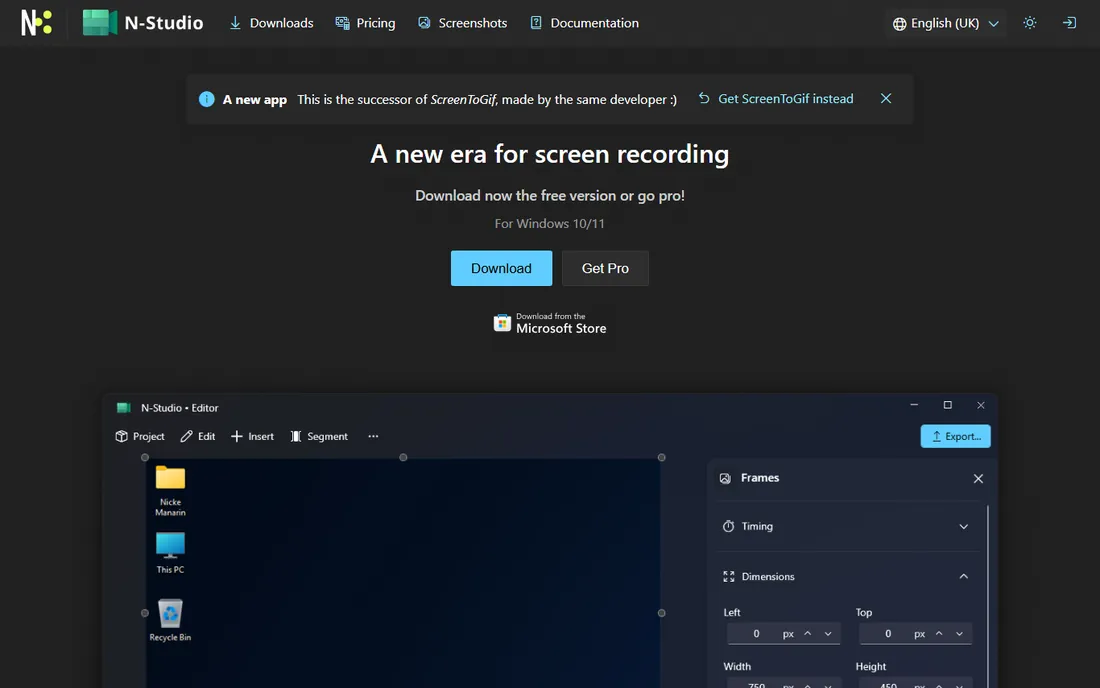
N-Studio is the successor to ScreenToGif, the long-running free recorder by Nicke Manarin, and it now lives at the old screentogif.com address. The workflow is built for speed: drag a frame over part of your screen, hit record, then trim, annotate and export as GIF, APNG, video or an image sequence without leaving the app. For tutorial clips, bug reports and UI demos, that record-then-edit loop is hard to beat.
The catch is the transition. The classic ScreenToGif builds are still available through its GitHub releases, but the website now presents N-Studio as the forward path, with a redesigned interface and a broader feature set covering screen, sound and region sharing. Pricing for N-Studio was not published on the site at the time of writing, so check the site before you commit a team to it.
What we like- Records screen, webcam and sketchboard in one app
- Built-in editor for trimming frames
- Lightweight native Windows app
Watch out for- Windows only
- The project is in transition from its previous incarnation
Starting priceFree
Free planYes
GIMP has been the free answer to Photoshop for decades, and it handles GIFs through a simple convention: each layer becomes a frame. That makes it a capable editor for banner-style animations, sprites and short loops, with full control over timing per layer. Being GPL-licensed free software, there are no watermarks, export limits or upsells, and it runs on Windows, macOS and Linux.
The tradeoff is the learning curve. Building and previewing animations in GIMP involves menus and dialogs that feel like they belong to another era, and there is no one-click screen recording. It fits a designer who already knows GIMP or a team that refuses to pay for software. For everyone else, pairing GIMP with a dedicated recorder covers both creation and capture for zero dollars.
What we like- Completely free with no account or watermark
- Layers map directly to animation frames
- Huge plugin ecosystem
Watch out for- The animation workflow feels dated next to modern tools
- Interface takes time to learn
Starting price$16 per month (Pro, billed annually)
Free planYes
Kapwing earns its place because GIFs are rarely the whole job. Marketing teams usually need the same clip as a GIF for email, an MP4 for social and a still for a blog post, and Kapwing exports all three from one browser project. The editor includes trimming, captions, text overlays and a stock library, so a raw screen recording can become a finished asset without touching desktop software.
Pricing is straightforward and was verified on Kapwing's own pricing page: Free ($0) with watermarked exports up to 4 minutes at 720p, Pro at $16 per member per month billed annually with no watermark and 4K exports, and Business at $50 with team features. The free tier is genuinely usable for testing, but client-facing GIFs will need Pro to drop the watermark.
What we like- Nothing to install, works on any device
- Strong template and stock library
- Exports GIF, video and image from one project
Watch out for- Free exports carry a watermark and cap at 720p
- Heavier projects can feel slow in the browser
Starting priceSee website
Free planSee website
Almost every marketing team already has Canva, which makes it the path of least resistance for animated social posts exported as GIFs. You pick a template, apply an animation style, and download. Brand kits keep fonts and colors consistent, and the collaboration features mean a manager can comment directly on the design instead of trading screenshots over email.
Two honest notes. First, Canva's site served bot-detection pages during our checks, so we could not verify current pricing on canva.com itself; confirm the plan prices on their pricing page before budgeting. Second, Canva animates whole designs, not individual frames, so precise timing tweaks and complex loops are out of reach. It is a design tool that exports GIFs, not a GIF editor.
What we like- Enormous template library purpose-built for social
- Animation styles apply in one click
- Easy brand kit reuse
Watch out for- Site blocks automated browsers, so verify pricing yourself
- Animation control is shallow compared with editors
#6
Gifski
Best for: high-quality video-to-GIF conversion
Visit gif.ski
Starting priceFree
Free planYes
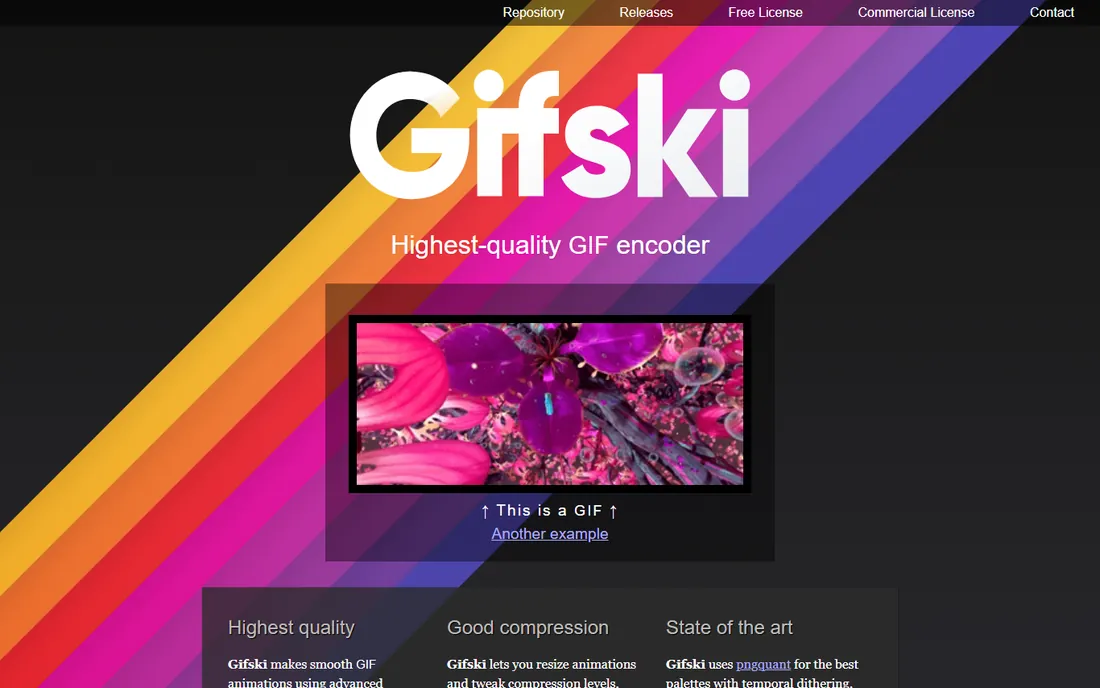
Gifski exists for one job and does it better than anything else here: turning video frames into GIFs that actually look good. It uses pngquant's palette techniques with temporal dithering, producing smooth gradients and thousands of colors per frame where most converters give you banding and noise. Developers and video teams pipe ffmpeg output straight into it, and there are GUI wrappers for Windows and macOS for those who prefer buttons.
The limitation is scope. Gifski converts; it does not record your screen or edit. The typical setup is recording with something like LICEcap or ShareX, then running the footage through Gifski when quality matters, for example a product demo GIF on a pricing page. If your GIFs live next to your revenue, that extra step pays off.
What we like- Best-in-class GIF quality from video frames
- Free and open source
- Scriptable for batch workflows
Watch out for- Command-line core intimidates non-technical users
- No built-in screen recording or editing
Starting priceFree
Free planYes
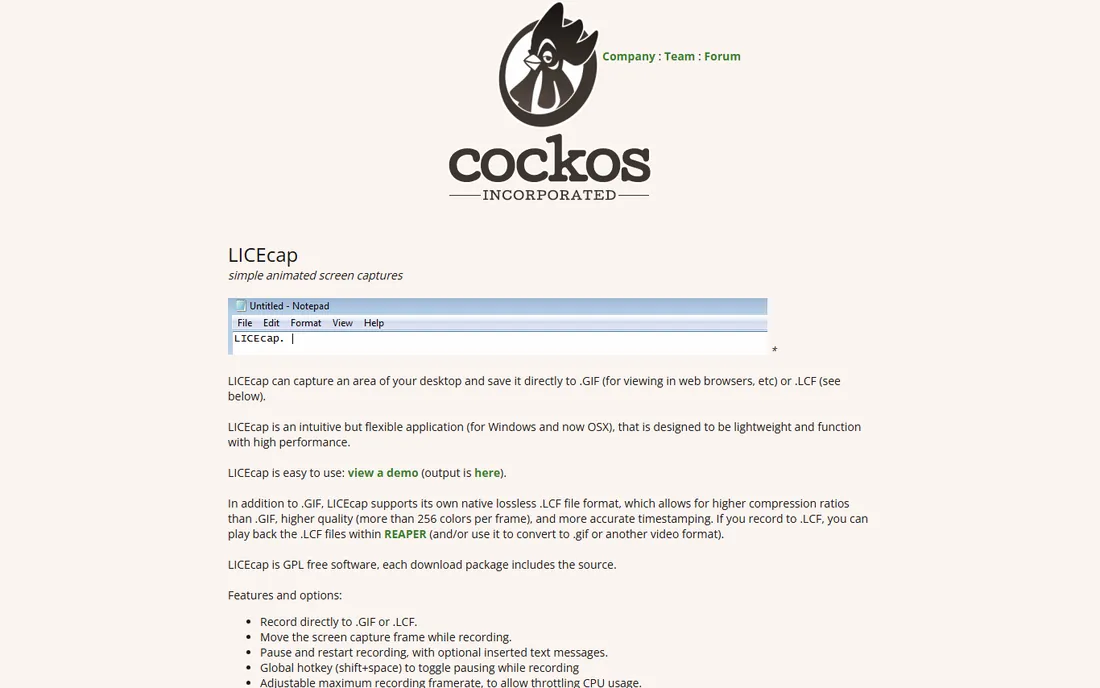
LICEcap is the simplest tool on this list, and sometimes simplest wins. You drag its transparent frame over any part of your screen, press record, and stop when done; the result is a GIF file ready to paste into Slack, Jira or a GitHub issue. Made by Cockos (the REAPER audio software company) and released as GPL free software, it has no accounts, no watermarks and no upsells.
It shows its age in places. There is no built-in editor, so a flubbed recording means re-recording, and macOS support tops out at older versions. But for the core job of showing rather than telling, a five-second LICEcap GIF still beats three paragraphs of explanation, and it costs nothing to keep installed.
What we like- Under 1 MB, launches instantly
- Records directly to GIF
- Free with no strings attached
Watch out for- No editing beyond basic options
- Last major update was 2022
Starting priceFree
Free planYes
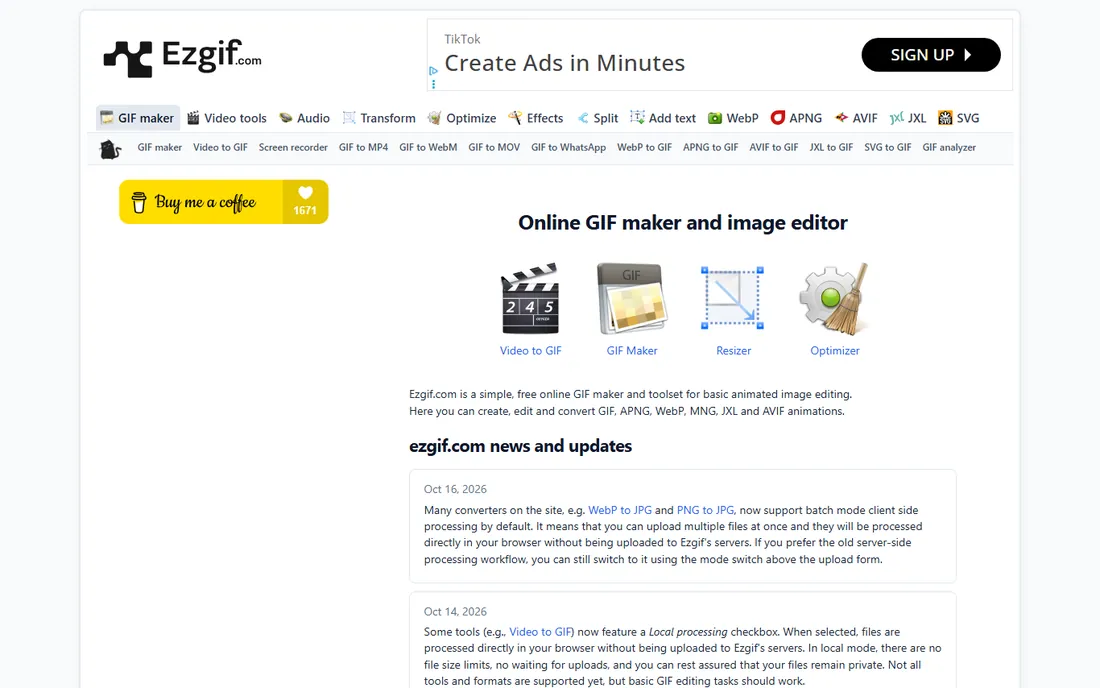
Ezgif is the Swiss army knife of GIF work on the web. It converts video to GIF, resizes and compresses existing GIFs, adds text, reverses or splits animations, and handles newer formats like WebP, APNG and AVIF. The site's news log shows steady development through 2026, including a local-processing mode that handles files in your browser without uploading, plus a bulk optimizer for compressing many GIFs at once.
The tradeoff is the experience around the tools. The pages carry ads and the interface is utilitarian rather than pretty. For a marketer who needs to shrink a 12 MB GIF under an email platform's limit in two minutes, though, Ezgif is usually the fastest route, and the price is zero.
What we like- No install, works on any device with a browser
- Deep toolkit for resize, crop, optimize and effects
- Actively developed
Watch out for- Ad-supported interface feels cluttered
- Uploads go to their servers unless you use local processing mode
Starting priceSee website
Free planFree trial
TechSmith's Snagit (now branded as Camtasia Snagit) is built for people who document software for a living. Capture a region, window or scrolling page, then add arrows, numbered steps, callouts and redactions in the built-in editor, and share the result as an image, video or GIF. Support teams and technical writers use it to build knowledge base articles where every visual follows the same style.
As a GIF creator specifically, Snagit is a means to an end: short recordings can be trimmed and exported as animated GIFs for chats and docs. It is not the tool for creative animation. Pricing was not displayed on the pages we could load, so check TechSmith's store; a free trial is available to evaluate it first.
What we like- Capture plus annotation in one workflow
- Scrolling capture for full pages
- Searchable library of past captures
Watch out for- Paid license with no free tier beyond trial
- GIF output is a side feature, not the focus
Starting priceFree
Free planYes
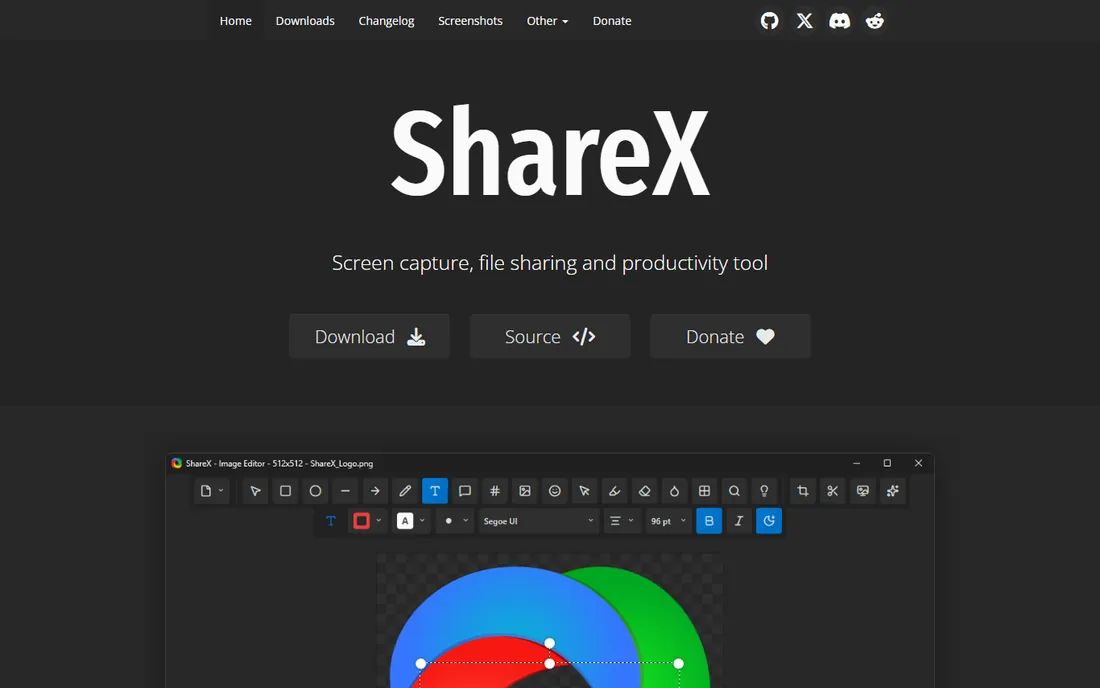
ShareX is what Windows power users install when the built-in Snipping Tool runs out of road. Beyond screenshots, it records the screen directly to GIF or video, runs OCR on captures, and can upload results to dozens of destinations automatically. Everything is driven by hotkeys you define, so a practiced user can capture, annotate and share a GIF in seconds.
The depth is also the weakness. The configuration screens expose hundreds of options, and first-time users often bounce off. But for support teams, QA testers and community managers who live in screenshots all day, ShareX replaces three or four separate utilities, and the open-source license means it will never surprise you with a paywall.
What we like- Free and open source with enormous depth
- GIF screen recording plus instant uploading
- Customizable hotkeys and workflows
Watch out for- Windows only
- The settings panels overwhelm new users
How we chose
We started from how small teams actually make GIFs: recording screens for support and docs, converting clips for social, and designing animations for campaigns. For each candidate we checked that the product still exists and is maintained, opened the vendor's own site to confirm the URL and pricing, and read current documentation and user discussions on G2, Capterra and Reddit for known limitations. We favored tools with a clear free path and honest pricing, and we left out discontinued products and pure meme generators with no creation tools. No vendor paid for placement, and we did not run hands-on benchmark tests; the rankings reflect feature fit, pricing transparency and maintenance status.
Start with where the GIF begins. If most of your GIFs are screen recordings for internal docs or support tickets, a recorder like LICEcap, ShareX or N-Studio is the whole solution, and all three are free. If your GIFs start as video clips or existing animations, you need conversion and optimization, which is Ezgif's home turf or Gifski's when quality is the priority.
Next, decide who sees the output. Internal GIFs tolerate watermarks and rough edges; customer-facing GIFs do not, which pushes you toward paid plans of Kapwing or Canva, or a desktop editor like Photoshop or GIMP. Check export limits before you commit: free tiers commonly cap resolution, length or monthly exports, and those caps are what force upgrades in practice.
Finally, weigh installation against convenience. Browser tools need no IT approval and work on locked-down machines, but they upload your content to someone else's servers unless they offer local processing. Desktop tools keep everything in-house and usually work offline, at the cost of installing and updating software on every machine. For teams handling sensitive screens, that distinction matters more than any feature list.
Free versus paid: where the money actually goes
The free tier of GIF software is unusually strong, which is worth understanding before spending. Recording, converting, resizing and optimizing all have capable free options, so a paid plan only earns its price in three situations: removing watermarks from client-facing output, opening up higher resolution or longer exports, and getting an editor that combines capture, design and export in one seat.
Watch for the pricing model, not just the number. Photoshop and Kapwing are subscriptions that stop working when you stop paying. Snagit has traditionally been a perpetual license with paid upgrades, which changes the multi-year math for teams. And free open-source tools like GIMP, ShareX, LICEcap and Gifski cost nothing but the time to learn them, with no renewal dates to track. Match the model to how long you will use the tool, not just the first-year price.
Frequently asked questions
What is the best free GIF creator software?
For screen recording, LICEcap and ShareX are both free and cover most needs on Windows and macOS. For editing existing GIFs or converting video, Ezgif is free in the browser and GIMP is free on the desktop. Gifski is the free choice when conversion quality matters most.
Can I make a GIF without installing software?
Yes. Ezgif runs entirely in the browser and handles creation, conversion and optimization. Kapwing and Canva also work in the browser with free tiers, though free exports may carry watermarks or resolution limits.
Which tool makes the highest quality GIFs?
Gifski produces the best quality when converting video frames to GIF, thanks to its advanced palette and dithering approach. Photoshop gives the most control when designing GIFs frame by frame. Both require more effort than one-click converters, which is the tradeoff for quality.
How do I keep GIF file sizes small?
Reduce dimensions, lower the frame rate, shorten the clip, and limit the color palette. Ezgif has a dedicated optimizer and a target-size compressor that automates this. Gifski's efficient encoding also produces smaller files at the same visual quality than most converters.
Is Photoshop worth it just for making GIFs?
Only if you design GIFs rather than capture them. Photoshop's timeline, per-frame control and export tuning justify the subscription for campaign and ad creative. For quick recordings and conversions, the free tools on this list do the job faster and cost nothing.
Sources we checked (10)
- https://kapwing.com/
- https://www.kapwing.com/pricing
- https://gimp.org/
- https://www.screentogif.com/
- http://www.cockos.com/licecap/
- https://ezgif.com/
- https://Www.Techsmith.com/snagit/
- https://www.canva.com/
- https://www.adobe.com/in/creativecloud/roc/blog/photography/get-photoshop-free-legally.html
- https://adobe.com/id_en/products/photoshop.html
Is your product missing or out of date?
We review this list regularly. Vendors can request a listing, send updated pricing or ask about featured placement.

Shihab Mia · Founder, Rankite
Shihab has 5+ years in B2B and SaaS SEO. He writes Rankite's software buying guides from pricing pages, documentation and public user reviews. More about Shihab.