How we make this list: we compare pricing pages, product documentation and public user reviews. Rankite is independent; if a vendor ever pays for a featured spot, that listing is clearly labeled Partner.
Key takeaways
- Cloning (an exact, bootable copy of a drive) and imaging (a compressed backup file) solve different problems: clone when migrating to a new SSD, image when protecting against failure.
- Acronis True Image and Macrium Reflect are the premium picks, pairing cloning with full backup, ransomware protection, and rescue media.
- Clonezilla and Rescuezilla are free and do the core job well, Clonezilla for IT pros who like the command line, Rescuezilla for everyone else.
- Mac users have one clear answer, Carbon Copy Cloner, while Windows users choosing between free tools should look at AOMEI Backupper, EaseUS Todo Backup, and Hasleo Backup Suite.
Quick comparison
Is your product missing or out of date?
We review this list regularly. Vendors can request a listing, send updated pricing or ask about featured placement.
The top cloning software, compared
Starting price$49.99/year
Free planFree trial
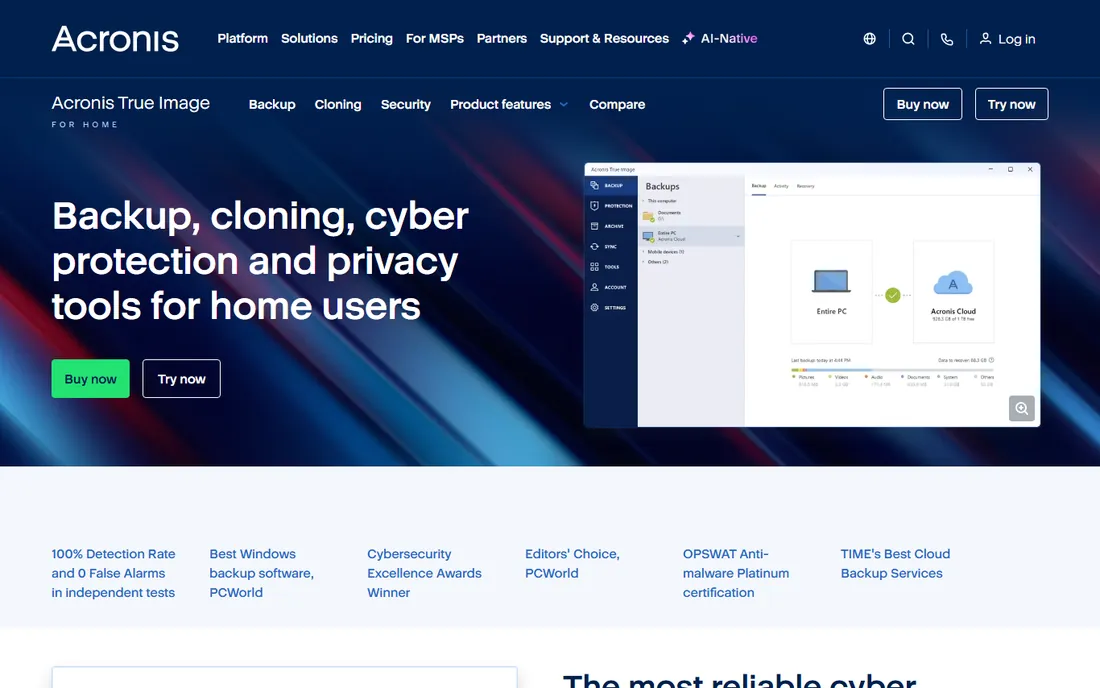
Acronis True Image (sold as part of the Cyber Protect Home Office line) is the all-in-one option. Disk cloning creates an exact replica for migrating to a new drive or PC, while full image backups protect the whole machine on a schedule, locally or to Acronis cloud. On top of that you get AI-based antivirus, ransomware detection with automatic recovery, and vulnerability scanning, which no other tool on this list bundles.
The $49.99 per year entry price covers the Essentials tier, with Advanced and Premium adding more cloud storage and identity protection. The honest catch is bloat: if you only want to clone a drive once, Acronis installs a full security suite to do it. For ongoing protection of a family PC or small office, the combination is genuinely convenient. For a one-time SSD upgrade, the free tools below are the smarter pick.
What we like- Disk cloning plus full image backup
- Built-in antivirus and ransomware protection
- Bootable rescue media
Watch out for- Subscription only
- Heavier install than pure cloning tools
Starting priceSee website
Free planFree trial
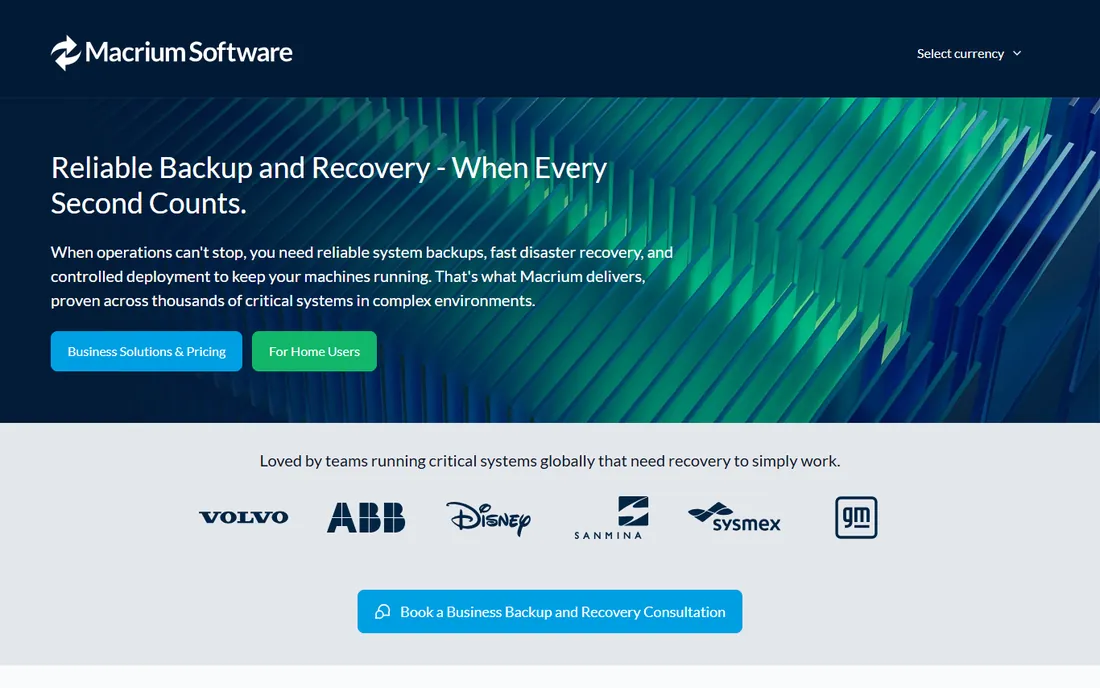
Macrium Reflect has a reputation among IT professionals that borders on devotion: when a restore absolutely must work, this is the tool they reach for. Rapid delta restore only writes changed blocks during recovery, cutting restore times dramatically. It images everything from Windows XP-era machines to current Windows releases, runs offline in air-gapped environments, and offers annual, perpetual, and LTSC licensing.
The big change to know: the free edition was discontinued, so Reflect is now paid-only with a trial. The interface is functional rather than friendly, and it assumes you understand partitions and boot media. For home users the Home edition covers backup and recovery of a household PC. If your priority is a restore you can bet your data on, Macrium remains the benchmark.
What we like- Famously reliable restores
- Rapid delta restore
- Broad Windows compatibility
Watch out for- Free edition discontinued
- Interface assumes technical comfort
Starting priceFree
Free planYes
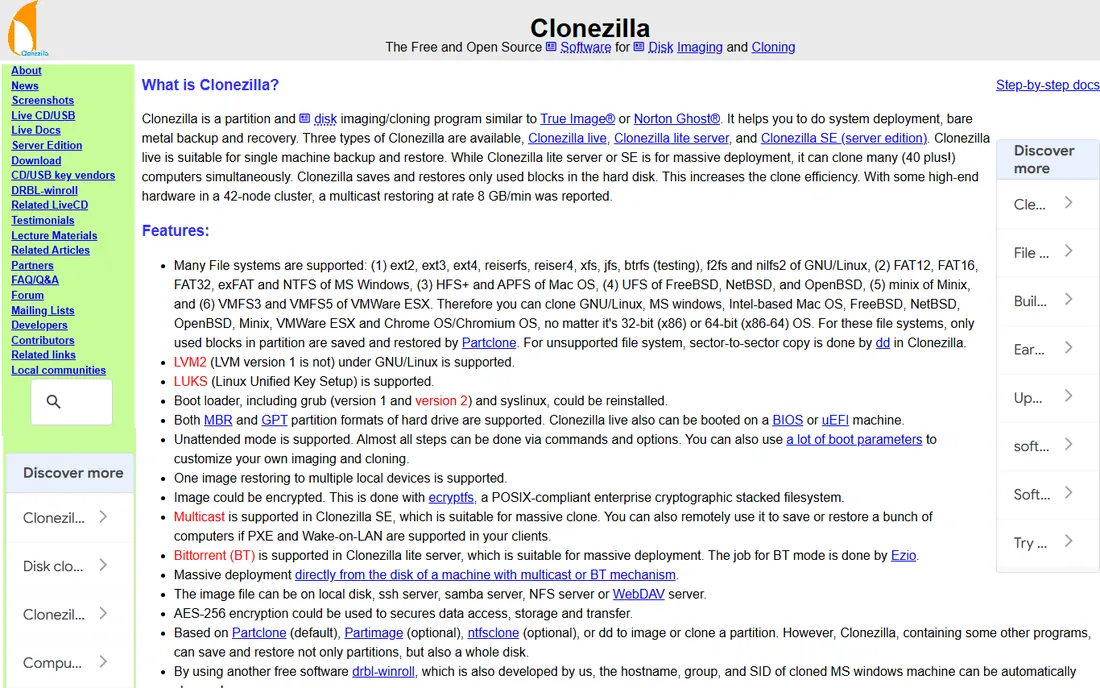
Clonezilla is the free standard for disk cloning. It handles NTFS, ext4, APFS, and most other filesystems, saving only used blocks for efficiency, and the server edition can multicast an image to 40-plus machines at once, which is why IT departments use it for lab and fleet deployment. It is GPL-licensed and costs nothing.
The tradeoffs are real. The interface is text menus, the disk being cloned must be unmounted (you boot from USB), there is no incremental or differential backup, and you cannot pull a single file out of an image. For technicians, none of that matters. For everyone else, Rescuezilla below wraps the same engine in a point-and-click interface.
What we like- Completely free and open source
- Clones almost any filesystem
- Mass deployment via server edition
Watch out for- Text-based interface
- No incremental backup
- Cannot clone a mounted partition
Starting priceFree
Free planYes
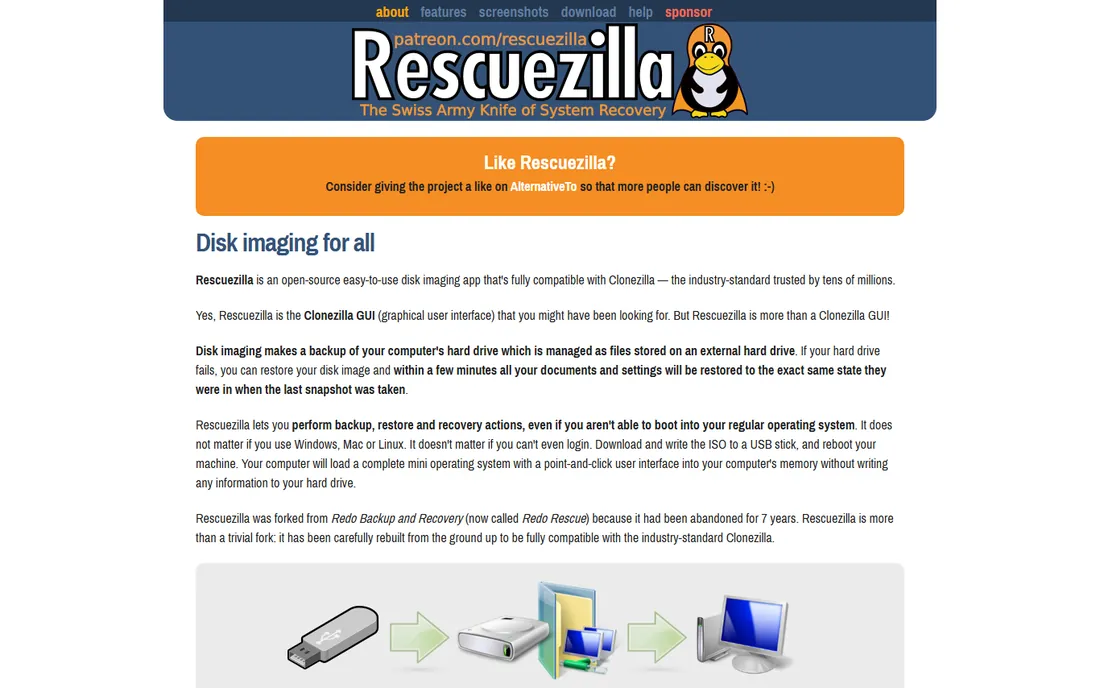
Rescuezilla is what you recommend to a friend who needs Clonezilla's power without the learning curve. It boots from a USB stick into a full graphical environment, walks you through backup and restore with point-and-click dialogs, and stays fully compatible with Clonezilla images. It can even mount a backup image to copy out individual files, which plain Clonezilla cannot do, and it includes file recovery tools for deleted photos and documents.
The project is open source and funded by small Patreon contributions, so development moves slower than commercial tools. Advanced options like multicast deployment are thinner here than in Clonezilla SE. For rescuing a dead laptop, migrating to a bigger drive, or keeping a spare image of a parent's PC, it is the easiest free path.
What we like- Graphical interface over Clonezilla compatibility
- Boots from USB, no install
- Can mount images to recover files
Watch out for- Smaller project, slower release cadence
- Fewer advanced options than Clonezilla
Starting priceFree
Free planYes
AOMEI Backupper's free Standard edition is one of the most generous in Windows backup: disk and partition cloning, system backup, scheduled backups, and bootable rescue media without paying. The interface is modern and approachable, a clear step up from Clonezilla for non-technical users, and version 8.5.0 is current as of late 2026.
The catch is the tiering. System clone and some advanced features require the paid Professional edition, and the app nudges you toward upgrading. For straightforward jobs, cloning to a new SSD, imaging before a Windows reinstall, the free tier does the job. AOMEI also sells partition management and business backup tools if you outgrow Backupper.
What we like- Free Standard edition covers cloning
- Scheduled backups
- Clean modern interface
Watch out for- Advanced cloning locked to paid Pro
- Upsells within the app
Starting priceSee website
Free planYes
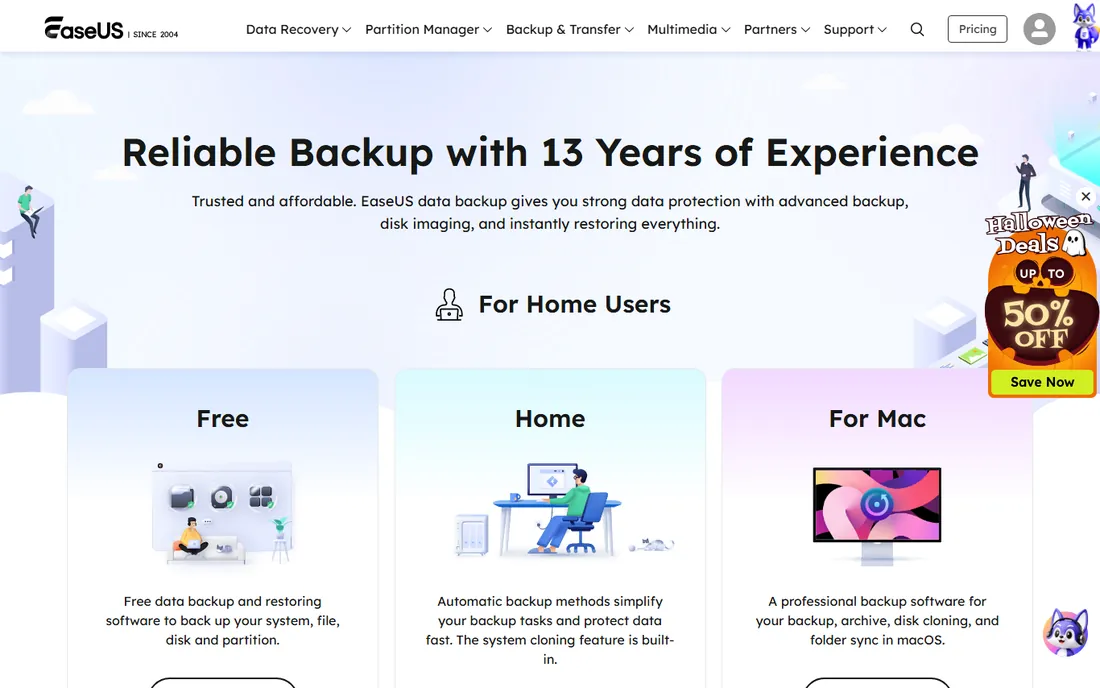
EaseUS Todo Backup targets the nervous first-timer. The free edition backs up files, disks, and partitions through guided wizards, and the interface explains each step instead of assuming knowledge. There is a dedicated Mac edition too, which most Windows-first competitors lack. The paid Home edition adds system cloning, ransomware protection, and cloud backup.
Pricing on the paid tier moves around with promotions, so check the site for the current offer. The free edition is genuinely useful but limited: full system cloning sits behind the paywall, unlike AOMEI. Expect upgrade prompts. For someone who wants hand-holding through their first backup, the guidance is worth the nagging.
What we like- Free edition for basic backup
- Guided wizards
- Mac version available
Watch out for- Paid Home edition needed for system cloning
- Frequent promotional popups
Starting priceSee website
Free planFree trial
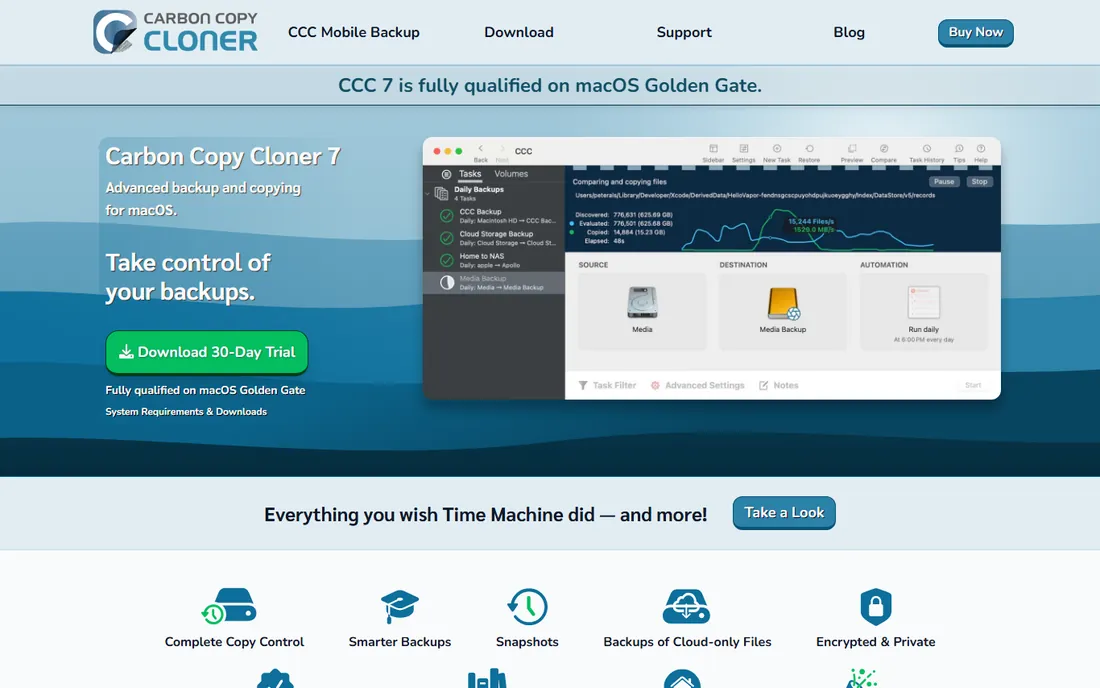
Carbon Copy Cloner is the Mac answer to this entire category. It makes bootable copies of your Mac, keeps versioned snapshots so you can recover deleted files, verifies backup health automatically, and understands APFS deeply. Backups are stored in a non-proprietary format, so you can browse them in Finder without the app. One license covers every Mac in your household for personal use.
CCC 7 is the current version, with scheduling, task chaining, and even iOS device backups via a companion app. The honest catches: it is macOS only, and there is no built-in cloud backup, you bring your own destination disk or NAS. For Mac users who want Time Machine done properly, this is it.
What we like- Bootable Mac backups
- Snapshot versioning
- One license covers household Macs
Watch out for- MacOS only
- No cloud backup built in
Starting priceFree
Free planYes
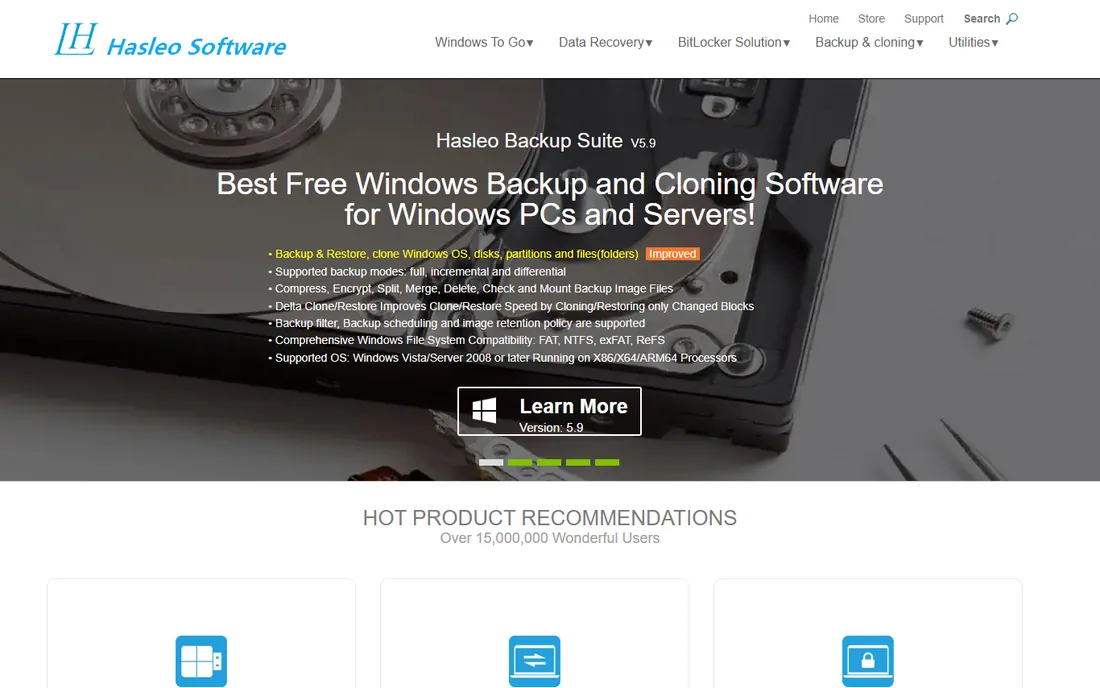
Hasleo Backup Suite is free, full stop: system backup, disk and partition backup, file backup, and restore, with no paid tier gating the core features. It is lightweight and straightforward, aimed at Windows users who want scheduled image backups without learning an enterprise tool. The same company makes well-regarded free utilities for Windows deployment and UEFI boot management.
The cloning side is more basic than AOMEI or Macrium, and documentation and community support are thinner than the big names. For set-and-forget system images on a home PC, free is hard to argue with. For complex migrations, pair it with one of the stronger cloning tools above.
What we like- Completely free
- System, disk, and file backup
- Lightweight
Watch out for- Cloning features are basic
- Smaller company, less documentation
How we chose
We focused on tools that do disk cloning or full-system imaging, not file-sync apps. That gave us the premium tier (Acronis, Macrium), the free open-source tier (Clonezilla, Rescuezilla, Hasleo), the freemium Windows tier (AOMEI, EaseUS), and the Mac specialist (Carbon Copy Cloner). For each we opened the vendor homepage, verified current pricing and licensing, checked the feature list for cloning vs. imaging capabilities, and read user feedback on Reddit and review sites about restore reliability, the metric that actually matters. We did not clone real drives, so reliability judgments reflect documented track records and user consensus.
Cloning vs imaging: which do you need?
Cloning makes an exact, immediately bootable copy of one drive onto another. Use it when you are migrating to a new SSD or setting up an identical machine: you clone, swap the drive, and boot. Imaging creates a compressed file containing the whole drive, stored on another disk. Use it for ongoing protection: you schedule images weekly, and if the drive dies or ransomware hits, you restore the image. Most tools here do both, but they lean one way. Clonezilla, Rescuezilla, and Carbon Copy Cloner lean toward cloning. Acronis, Macrium, AOMEI, EaseUS, and Hasleo lean toward scheduled imaging with cloning included. Buy for the job you will do most.
What to check before you commit
Confirm your OS is supported
Macrium, AOMEI, EaseUS, and Hasleo are Windows-first. Carbon Copy Cloner is Mac-only. Clonezilla and Rescuezilla boot from USB and handle Windows, Mac, and Linux. Acronis covers Windows and Mac.
Make rescue media before you need it
Every tool here can create a bootable USB for restores when Windows will not start. Make it on day one, test that it boots, and store it somewhere you will find. An image you cannot restore is not a backup.
Check whether cloning is in the free tier
Free does not always mean free cloning. AOMEI and Hasleo include cloning free; EaseUS reserves system cloning for the paid edition; Macrium has no free edition at all. Read the feature comparison before downloading.
Verify the destination drive is big enough
Cloning generally requires the destination to be as large as the source data. Most tools can clone to a smaller SSD as long as the used space fits, but confirm this for your specific tool and drive sizes.
Frequently asked questions
What is the best free cloning software?
Clonezilla is the most capable free option and Rescuezilla is the easiest free option, both fully free and open source. On Windows, AOMEI Backupper's free Standard edition and Hasleo Backup Suite cover cloning and imaging without paying.
Can I clone my drive to a smaller SSD?
Usually yes, as long as the data on the source drive fits on the destination. Most modern tools handle this automatically by resizing partitions. Clonezilla requires the destination partition to be equal or larger than the source partition, which is its main limitation here.
Is cloning the same as backing up?
No. Cloning copies a drive to another drive for immediate use, typically when upgrading hardware. Imaging creates a compressed backup file you store and restore from later. Imaging supports incremental updates and scheduling; cloning is usually a one-time operation.
Do I need to pay for Macrium Reflect?
Yes. Macrium discontinued the free edition, so Reflect is paid-only with a free trial. If you need a free Windows alternative, AOMEI Backupper, Hasleo Backup Suite, and Rescuezilla all cover the core jobs.
What is the best cloning software for Mac?
Carbon Copy Cloner. It is built specifically for macOS, makes bootable backups, keeps versioned snapshots, and one license covers every Mac in your household. Time Machine is fine for casual use, but CCC gives you control Time Machine does not.
Sources we checked (8)
- https://acronis.com/en-us/products/true-image/
- https://macrium.com/
- https://clonezilla.org
- https://rescuezilla.com/
- https://www.aomeitech.com
- https://easeus.com/backup-software/
- https://bombich.com
- https://www.hasleo.com
Is your product missing or out of date?
We review this list regularly. Vendors can request a listing, send updated pricing or ask about featured placement.

Shihab Mia · Founder, Rankite
Shihab has spent more than a decade helping SaaS and e-commerce brands grow through search. He writes Rankite's software buying guides from pricing pages, documentation and public user reviews. More about Shihab.
 Acronis True Image
 Macrium Reflect
 Clonezilla
 Rescuezilla
 AOMEI Backupper
 EaseUS Todo Backup
 Carbon Copy Cloner
 Hasleo Backup Suite