How we make this list: we compare pricing pages, product documentation and public user reviews. Ratings come from G2, Capterra or Trustpilot, with the date we checked them.
What Is Photopea and Why Look for an Alternative
Photopea runs in a browser and covers many Photoshop-style tasks, including layers, masks, blend modes and PSD export. It costs nothing for the core editor, which makes it hard to beat for occasional use. A buyer usually looks elsewhere for four reasons. The first is offline work, since Photopea stops when the connection drops. The second is speed and stability with large files, where a desktop app such as Photoshop, Affinity Photo or GIMP handles big PSDs and RAW batches with less lag. The third is AI, including generative fill, background removal and one-click portrait retouching, where Photoshop, Canva, Pixlr, Polarr and Fotor now move faster. The fourth is storage and templates, where Canva and Fotor add cloud libraries and brand kits.
Which Photopea Alternative Is Best for You
Choose Photoshop for client PSD work and generative AI. Choose Affinity Photo for professional desktop editing without a subscription. Choose GIMP for free offline editing. Choose Pixlr for browser editing close to Photopea. Choose Canva for social posts and marketing graphics. Choose Sumopaint for browser painting and photo editing. Choose Polarr for phone photos, filters and batch editing. Choose Fotor for one-click AI fixes and batch tools at a low annual price.
How Much Should You Pay for a Photopea Alternative
Photopea is free, so a paid alternative has to earn its price through time saved or features you cannot get free. GIMP costs nothing and covers layers, masks and RAW editing. Pixlr starts at 1.99 dollars per month billed annually, while Fotor Pro starts at 8.99 dollars per month billed monthly or 39.99 dollars per year. Polarr Pro is 7.99 dollars per month billed monthly, Canva Pro is 144 dollars per year, and Affinity Photo is now free in the unified Affinity app. Photoshop is the premium option at 22.99 dollars per month for the single app plan on an annual plan billed monthly, or 19.99 dollars per month for the Photography plan with Lightroom. If you edit a few photos a month, stay free or pick a low-cost plan. If you edit daily for clients, a desktop app or Photoshop usually pays back through speed and stability.
Quick comparison
| Tool | Best for | Starting price | Free plan |
|---|
 Adobe Photoshop | Professional retouching, PSD work for clients, and generative AI editing | 22.99 dollars per month, single app, annual plan billed monthly; Photography plan 19.99 dollars per month with Lightroom; price checked 16 November 2026 | No permanent free plan. A 7 day trial is offered. |
 Affinity Photo | Professional desktop editing without a monthly subscription | Free in the unified Affinity app since 30 October 2025; AI tools need a Canva Pro plan at 144 dollars per year; price checked 16 November 2026 | Yes, the full unified Affinity app is free on Mac and Windows, with a free Canva account needed to download and activate it. |
 GIMP | Free offline desktop editing with layers, masks and plugins | Free, 0 dollars, no paid edition; price checked 16 November 2026 | Yes. The full program is free and open source, with no watermark, no account and no locked feature. |
 Pixlr | Browser editing close to Photopea, with AI tools and a low paid tier | 1.99 dollars per month billed annually for Plus, or 2.49 dollars billed monthly; Premium 7.99 dollars billed annually or 9.99 dollars billed monthly; price checked 16 November 2026 | Yes, with ads, limited saves and limited AI credits. Paid plans remove ads and add more credits. |
 Canva | Social posts, presentations, marketing graphics and quick photo fixes | 144 dollars per year for Pro for one person, or 18 dollars per month billed monthly; price checked 16 November 2026 | Yes, with 250,000 plus templates, basic photo editing, 5GB of uploads and limited AI tools. Pro adds 100GB storage and background remover. |
 Sumopaint | Browser-based painting, illustration and photo editing in one tool | 9 dollars per month for Pro; price checked 16 November 2026 | Yes, with limits on layers and effects. Pro adds unlimited layers, layer effects and more brushes. |
 Polarr | Mobile photo editing, filters, masks and batch exports | 7.99 dollars per month billed monthly for Pro, or 3.99 dollars billed annually at 47.99 dollars per year; price checked 16 November 2026 | Yes, with core adjustments, basic presets, layers and retouching, and limits on masks, batch export and Pro filters. |
 Fotor | One-click AI fixes, batch editing and quick design templates | 8.99 dollars per month billed monthly for Pro, or 39.99 dollars per year; Pro+ 19.99 dollars billed monthly or 62.99 dollars per year; price checked 16 November 2026 | Yes. Basic is free with limited AI credits, 512MB storage and a watermark on some exports. Pro adds HD export, no watermark and 100 credits a month. |
Is your product missing or out of date?
We review this list regularly. Vendors can request a listing, send updated pricing or ask about featured placement.
8 Best Photopea Alternatives Compared
The table below gives a quick price and platform comparison. Read the full entries after it for free plans, pros, cons and who each tool suits best. All prices are in US dollars and were checked on 16 November 2026. Confirm the current price before you buy, since promotions change.
| Tool |
Starting price |
Free plan |
Best for |
| Adobe Photoshop |
22.99 dollars per month, single app, annual plan billed monthly |
7 day trial, no permanent free plan |
Professional PSD and AI editing |
| Affinity Photo |
Free |
Full app free since October 2025, Canva account required |
Desktop editing without a subscription |
| GIMP |
Free, 0 dollars |
Full free version |
Free offline desktop editing |
| Pixlr |
1.99 dollars per month billed annually |
Yes, with ads and limits |
Browser editing close to Photopea |
| Canva |
144 dollars per year, Pro, or 18 dollars per month |
Yes, with limits |
Templates and social graphics |
| Sumopaint |
9 dollars per month, Pro |
Yes, with limits |
Browser painting and photo editing |
| Polarr |
7.99 dollars per month billed monthly |
Yes, with limits |
Mobile photo editing and filters |
| Fotor |
8.99 dollars per month billed monthly, or 39.99 dollars per year |
Yes, Basic plan |
One-click AI fixes and batch editing |
#1Adobe Photoshop
Best for: Professional retouching, PSD work for clients, and generative AI editing4.6/5 on
G2 (13,426 reviews, checked Oct 2026)
Visit adobe.com
Starting price22.99 dollars per month, single app, annual plan billed monthly; Photography plan 19.99 dollars per month with Lightroom; price checked 16 November 2026
Free planNo permanent free plan. A 7 day trial is offered.
Photoshop is the benchmark that Photopea imitates, so it is the natural upgrade when Photopea feels limited. It opens complex PSD files with layer styles, smart objects and text layers intact, which matters for agency handover and print work. Generative Fill lets you extend a background, remove an object or add an element with a text prompt. Camera Raw handles RAW files from most cameras, and batch actions speed up large sets. At 22.99 dollars per month, a year costs about 275.88 dollars, and you lose access if you stop paying.
What we like- Strongest PSD compatibility, Generative Fill and Expand, Camera Raw, and desktop, web and mobile apps.
Watch out for- Subscription cost never stops, and the annual plan carries an early cancellation fee after the first 14 days.
#2Affinity Photo
Best for: Professional desktop editing without a monthly subscription4.5/5 on
G2 (234 reviews, checked Oct 2026)
Visit affinity.serif.com
Starting priceFree in the unified Affinity app since 30 October 2025; AI tools need a Canva Pro plan at 144 dollars per year; price checked 16 November 2026
Free planYes, the full unified Affinity app is free on Mac and Windows, with a free Canva account needed to download and activate it.
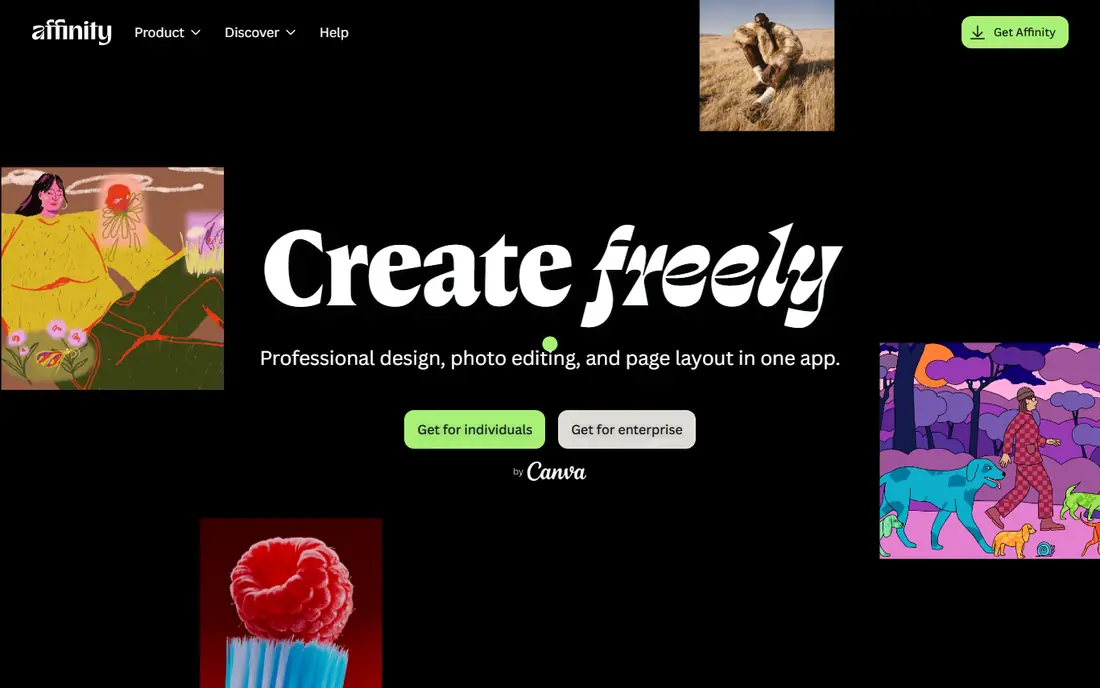
Affinity Photo gives Photopea users a desktop home without a subscription. It feels closer to Photoshop than GIMP, with a cleaner interface, live preview filters and a dedicated RAW develop workspace. It handles layered PSD files well for most retouching and compositing, though very complex Photoshop files can need adjustment. At zero cost for the core app, it undercuts every paid rival here, though the old Photo 2 one-time purchase is no longer sold. The main gap is AI, since Affinity has inpainting tools but no text-prompt generative fill. Buy it if you want a stable desktop editor and mainly need retouching, compositing and RAW work.
What we like- Free, professional RAW develop persona, live filters, PSD import and export, focus stacking and HDR merge.
Watch out for- No generative fill to match Photoshop, and fewer third-party plugins. AI tools inside Affinity need a paid Canva plan.
#3GIMP
Best for: Free offline desktop editing with layers, masks and plugins4.3/5 on
G2 (1,484 reviews, checked Oct 2026)
Visit gimp.org
Starting priceFree, 0 dollars, no paid edition; price checked 16 November 2026
Free planYes. The full program is free and open source, with no watermark, no account and no locked feature.
GIMP is the closest free desktop match to Photopea, and it fixes the main Photopea weakness, which is offline use. You install it once and edit without a browser or an internet connection, which helps on travel, on slow connections and with large files. Version 3.2, released in 2026, modernised the interface and added non-destructive filter editing. It covers most everyday tasks, including cutouts, colour correction, retouching and text overlays. It does not match Photoshop for AI or for smooth PSD round trips with complex layer effects. Download only from gimp.org or the Microsoft Store, since paid listings elsewhere are repackaged copies.
What we like- Free for personal and commercial use, runs on Windows, macOS and Linux, supports layers and masks, opens PSD files, and works offline.
Watch out for- The interface is less polished than Photoshop or Affinity Photo, and new users often find the layout confusing. It has no native generative AI fill.
#4Pixlr
Best for: Browser editing close to Photopea, with AI tools and a low paid tier4.4/5 on
G2 (751 reviews, checked Oct 2026)
Visit pixlr.com
Starting price1.99 dollars per month billed annually for Plus, or 2.49 dollars billed monthly; Premium 7.99 dollars billed annually or 9.99 dollars billed monthly; price checked 16 November 2026
Free planYes, with ads, limited saves and limited AI credits. Paid plans remove ads and add more credits.
Pixlr is the easiest switch for a Photopea user who wants to stay in the browser. Pixlr E keeps layers, masks and blend modes, while Pixlr Express handles fast crops, filters and social posts. Plus at 1.99 dollars per month billed annually removes ads and adds unlimited saves and 80 monthly AI credits, which is enough for light AI use. Premium adds 1,000 monthly AI credits and private generation mode. The credit system is the main limit to watch. If you use AI background removal on every image, check how many credits each action uses before you commit.
What we like- Runs in the browser like Photopea, offers Pixlr E for layered editing and Express for quick edits, and includes AI background removal and generative fill.
Watch out for- AI features use monthly credits, so heavy use can run out before the month ends. The free plan shows ads and limits saves.
#5Canva
Best for: Social posts, presentations, marketing graphics and quick photo fixes4.7/5 on
G2 (7,678 reviews, checked Oct 2026)
Visit canva.com
Starting price144 dollars per year for Pro for one person, or 18 dollars per month billed monthly; price checked 16 November 2026
Free planYes, with 250,000 plus templates, basic photo editing, 5GB of uploads and limited AI tools. Pro adds 100GB storage and background remover.
Canva is not a direct Photopea replacement for deep retouching, and that distinction matters. It wins when the finished product is a post, a flyer, a presentation or a product graphic rather than a retouched photo file. You start from a template, drop in a photo, use the background remover or one-click enhance, add text, and export in the right size. Magic Resize adapts one design to several social sizes, which saves time for small business owners. For pixel-level work, such as complex masking or CMYK print preparation, use Photoshop, Affinity Photo or GIMP instead and bring the finished image into Canva.
What we like- Huge template library, simple drag and drop editor, background remover and Magic Edit on Pro, brand kits, and strong mobile apps.
Watch out for- Photo retouching is shallower than Photoshop, Affinity Photo or GIMP, with no deep layer control. Pro costs 144 dollars per year, and AI is metered on some plans.
#6
Sumopaint
Best for: Browser-based painting, illustration and photo editing in one tool
Visit sumo.app
Starting price9 dollars per month for Pro; price checked 16 November 2026
Free planYes, with limits on layers and effects. Pro adds unlimited layers, layer effects and more brushes.
Sumopaint suits a different kind of Photopea user, the one who paints and edits in the same session. It started as a painting tool, so brushes, symmetry tools and blending feel more natural than in a pure photo editor. You can sketch a concept, add a photo layer, apply filters, add text and export without leaving the browser. That makes it useful for hobby art, school projects, social graphics and quick illustration work. It is not the best pick for professional retouching, RAW batches or print CMYK work. The free plan is enough to test the brushes, and Pro is worth it only if you use the extra brushes and unlimited layers often.
What we like- Runs in the browser with no install, combines photo editing with more than 300 brushes, supports layers and text, and works on Chromebook.
Watch out for- Photo retouching is less deep than Photoshop or Affinity Photo, Pro costs 9 dollars per month for features GIMP offers free, and it has no strong AI fill.
#7Polarr
Best for: Mobile photo editing, filters, masks and batch exports4.4/5 on
G2 (45 reviews, checked Oct 2026)
Visit polarr.com
Starting price7.99 dollars per month billed monthly for Pro, or 3.99 dollars billed annually at 47.99 dollars per year; price checked 16 November 2026
Free planYes, with core adjustments, basic presets, layers and retouching, and limits on masks, batch export and Pro filters.
Polarr is the most mobile-first option in this list, and it shows in the workflow. You can shoot, apply a custom filter, adjust colour masks for skin or sky, retouch a portrait and batch export a set from your phone. The preset system is a real strength for creators who want a consistent look across Instagram or a client gallery, since you can save a look as a QR code and reuse it. The web and desktop apps are useful for larger screens, but they do not replace a full PSD editor. Pro at 3.99 dollars per month billed annually is reasonable for regular mobile editors, while the monthly price is better for a short test.
What we like- Strong filter system with shareable QR code presets, colour masks and double exposure, batch editing on Pro, and one subscription covers five devices.
Watch out for- Desktop editing is less powerful than Photoshop or Affinity Photo, the best filters sit behind Pro, and the subscription is hard to justify for a few photos a month.
#8Fotor
Best for: One-click AI fixes, batch editing and quick design templates4.2/5 on
G2 (342 reviews, checked Oct 2026)
Visit fotor.com
Starting price8.99 dollars per month billed monthly for Pro, or 39.99 dollars per year; Pro+ 19.99 dollars billed monthly or 62.99 dollars per year; price checked 16 November 2026
Free planYes. Basic is free with limited AI credits, 512MB storage and a watermark on some exports. Pro adds HD export, no watermark and 100 credits a month.
Fotor suits buyers who want fast results with little manual work. The one-click enhancer fixes exposure and colour in seconds, the background remover handles product photos cleanly, and batch editing applies the same fix to a set. Pro at 39.99 dollars per year is one of the cheaper paid routes to watermark-free HD exports and batch tools, provided you stay within 100 AI credits a month. Pro+ at 62.99 dollars per year triples credits to 300 a month and adds 100GB storage, which suits small shops with regular product photos. Fotor is not the tool for layered compositing or detailed retouching.
What we like- One-click enhance, background and object remover, AI headshots and upscaling, batch editing on Pro, templates, and a low annual Pro price.
Watch out for- AI work uses monthly credits, so heavy generation can exhaust the allowance. Free exports carry limits, and deep manual retouching is weaker than Photoshop, Affinity Photo or GIMP.
Frequently asked questions
Is Photopea really free
Yes. Photopea is free to use in a browser, with no install and no account needed for core editing. It opens PSD, XCF, Sketch and RAW files, and it supports layers, masks and adjustment layers. Ads support the free version, and a paid account removes ads. The free editor is enough for occasional edits, but it needs an internet connection and offers no offline desktop editing.
What is the best free Photopea alternative
GIMP is the best free alternative for offline desktop work, since the full program costs nothing and covers layers, masks, RAW editing and plugins. Pixlr is the best free browser alternative if you want to stay online and keep a Photopea-style workflow, with ads and credit limits on the free plan. Affinity also announced a free unified app in October 2025, so check the Affinity site before you pay for Photo 2.
Can GIMP open Photoshop PSD files
Yes, GIMP can open PSD files, and it can export to PSD as well. Basic layers, masks and text usually transfer, but complex features such as smart objects and some layer styles may not round trip exactly. For client files that must return to Photoshop unchanged, Photoshop or Affinity Photo gives safer compatibility. Always keep a copy of the original PSD before you edit it elsewhere.
Which Photopea alternative is best for beginners
Canva is best for beginners who mainly need social posts and marketing graphics, because templates and one-click tools do most of the layout work. Pixlr and Fotor are best for beginners who want photo editing in a browser, since both offer one-click enhance and background removal. GIMP and Photoshop are more powerful, but they need more learning time. Start free and only pay when a limit blocks your work.
Do I need Photoshop if I already use Photopea
No, not for occasional edits. Photopea covers crops, colour correction, layers, masks and PSD fixes at no cost. You need Photoshop if you edit for clients daily, if you need Generative Fill, if you handle large RAW batches, or if you must exchange complex PSD files without loss. Affinity Photo is a good middle step without a subscription, and GIMP is a good free middle step for offline editing.
Sources we checked (9)
- https://www.adobe.com/products/photoshop.html
- https://affinity.serif.com/
- https://www.gimp.org/
- https://pixlr.com/pricing
- https://www.canva.com/pricing/
- https://sumo.app/
- https://polarr.com/
- https://www.fotor.com/pricing
- https://www.photopea.com/
Is your product missing or out of date?
We review this list regularly. Vendors can request a listing, send updated pricing or ask about featured placement.

Shihab Mia · Founder, Rankite
Shihab has 5+ years in B2B and SaaS SEO. He writes Rankite's software buying guides from pricing pages, documentation and public user reviews. More about Shihab.