How we make this list: we compare pricing pages, product documentation and public user reviews. Ratings come from G2, Capterra or Trustpilot, with the date we checked them.
Key takeaways
- Affinity, GIMP, and Krita now cover the core Photoshop workflow for many users at no cost, with layers, masks, and broad file support.
- Photopea is the closest browser-based match for PSD work, since it opens and saves PSD files with no install step.
- Pixlr and Fotor suit quick edits, social graphics, and AI-assisted retouching, while Luminar Neo suits photographers who want AI tools in a desktop app.
- Paint.NET is the lightest desktop pick on this list, and it works best for Windows users who want simple, fast editing.
- Check file compatibility before you switch, because PSD support, RAW support, and plugin support differ from tool to tool.
Quick comparison
| Tool | Best for | Starting price | Free plan |
|---|
 Affinity Affinity | Professional photo editing and design | $0 | Yes |
 GIMP GIMP | Full-featured free desktop editing | $0 | Yes |
 Photopea Photopea | Browser-based PSD editing | $5 per month | Yes |
 Pixlr Pixlr | Fast online edits and AI generation | $1.99 per month (billed annually) | Yes |
 Krita Krita | Digital painting and illustration | $0 | Yes |
 Paint.NET Paint.NET | Lightweight Windows editing | $0 | Yes |
 Luminar Neo Luminar Neo | AI-assisted photo editing | $99 one-time | Free trial (7 days) |
 Fotor Fotor | Quick online edits and templates | See website | Yes |
Is your product missing or out of date?
We review this list regularly. Vendors can request a listing, send updated pricing or ask about featured placement.
The best Photoshop alternatives
#1Affinity
Best for: Professional photo editing and design4.5/5 on
G2 (452 reviews, checked Oct 2026)
Visit affinity.studio
Starting price$0
Free planYes
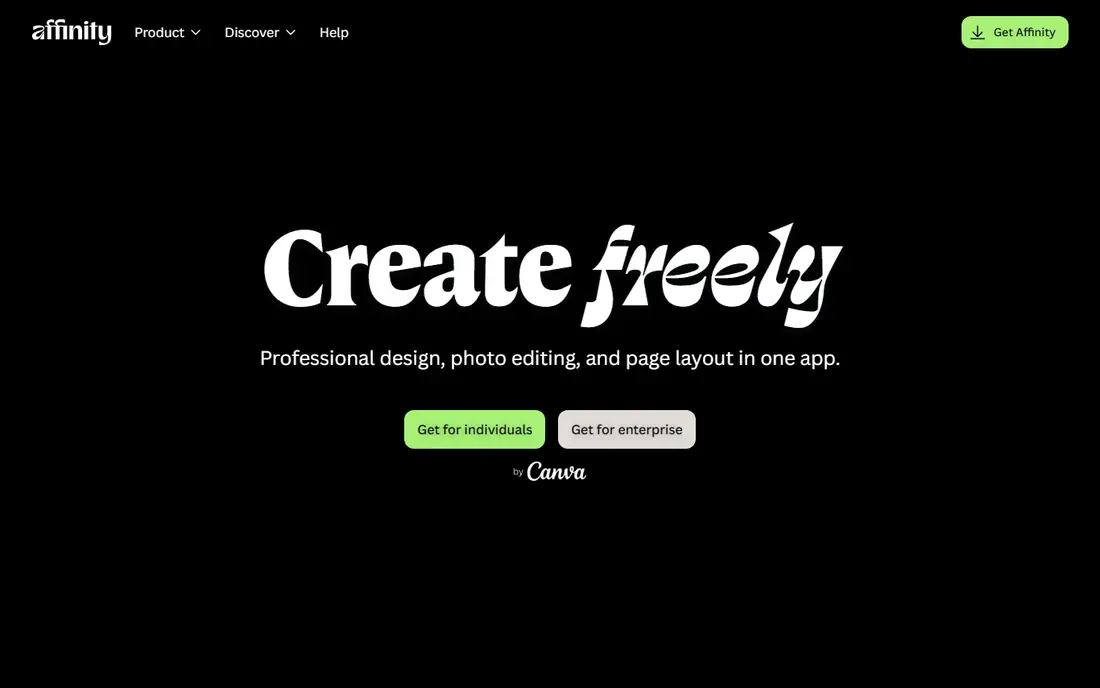
Affinity is now a single free app from Canva that brings photo editing, vector design, and page layout into one workspace. You can switch between pixel editing, vector work, and layout work in the same file, which keeps multi-part projects in one place. It opens PSD files directly, so moving work away from Photoshop is less painful than a full rebuild.
The free version covers the core editing set, including RAW processing, layers, masks, adjustments, filters, and retouching. Paid Canva features add AI tools such as generative fill and background removal, but the standard editing tools work without a subscription. If you want a desktop-class Photoshop replacement with no monthly fee, Affinity is the first tool to try.
What we like- Full photo, vector, and layout tools in one app
- PSD file support
- Fast performance on desktop
Watch out for- AI features require a paid Canva plan
- Requires a free Canva account
- No browser version
#2GIMP
Best for: Full-featured free desktop editing4.3/5 on
G2 (1,484 reviews, checked Oct 2026)
Visit gimp.org
Starting price$0
Free planYes
GIMP has been the standard free Photoshop alternative for years, and the current 3.x releases keep that position with a modernized interface and stronger color management. It handles retouching, compositing, and graphic design work on Windows, macOS, and Linux, with no account and no watermark. Layers, masks, channels, and paths give you the control that serious editing demands.
The trade-off is a steeper learning curve, because menus and tool names do not always match Photoshop. Plugin support also changed between major versions, so check that any plugin you rely on supports GIMP 3 before you install it. For users who want a free desktop editor with no subscription and no feature limits, GIMP remains hard to beat.
What we like- Free and open source with no paid tier
- Deep layer, mask, and selection tools
- Large plugin and script community
Watch out for- Interface takes time to learn
- Some Photoshop workflows need extra setup
- No official cloud sync
#3Photopea
Best for: Browser-based PSD editing4.6/5 on
G2 (21 reviews, checked Oct 2026)
Visit photopea.com
Starting price$5 per month
Free planYes
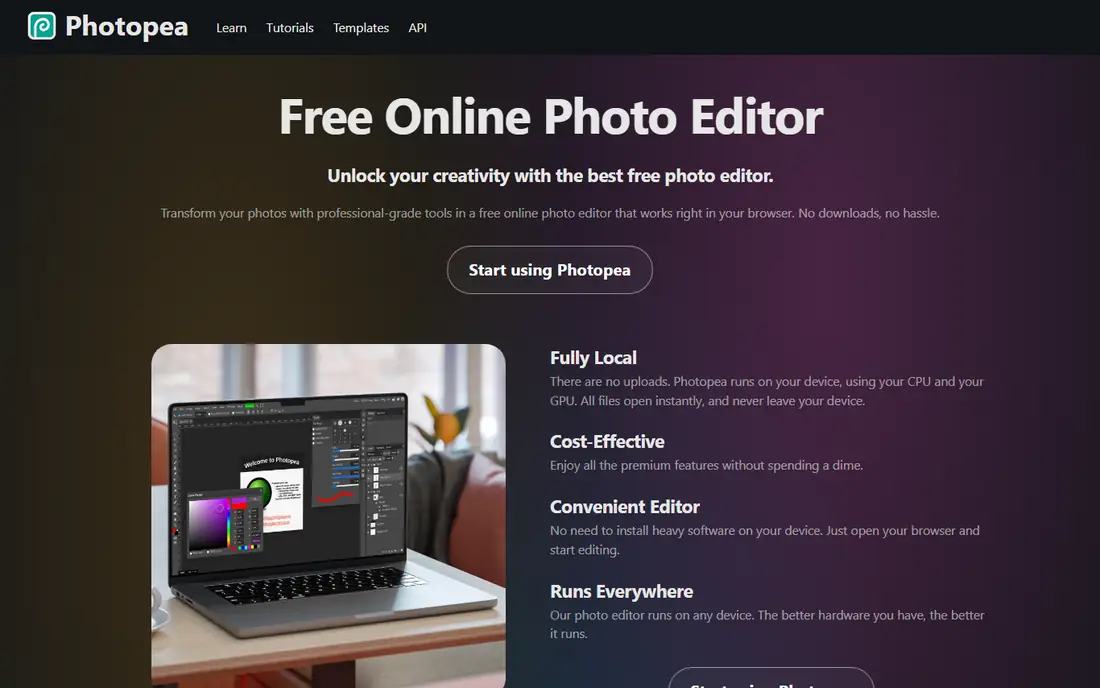
Photopea runs entirely in a browser tab, which makes it useful on shared computers, Chromebooks, and machines where you cannot install software. Its layout will feel familiar to Photoshop users, with layers, masks, adjustment layers, smart objects, and channels in expected places. It also opens RAW files and a long list of formats, including SVG, PDF, and AI files.
The free version includes the full editing toolset, with ads shown at the side of the screen. Premium removes the ads, adds more edit history, adds PeaDrive storage, and adds monthly AI credits. If you need Photoshop-style editing from any computer, Photopea is the most direct browser option on this list.
What we like- Opens and saves PSD, AI, and many other formats
- No install needed
- Files stay on your device
Watch out for- Free version shows ads
- Very large files can feel slow
- No native desktop app
#4Pixlr
Best for: Fast online edits and AI generation4.4/5 on
G2 (751 reviews, checked Oct 2026)
Visit pixlr.com
Starting price$1.99 per month (billed annually)
Free planYes
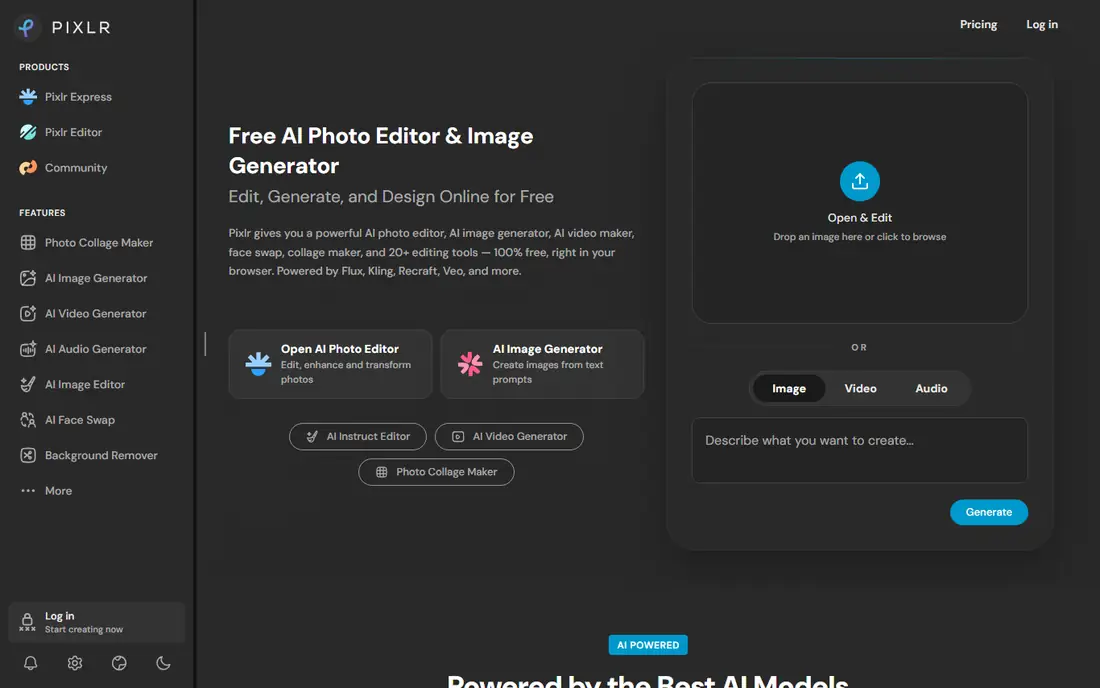
Pixlr is built for speed. You can open a photo in the browser, adjust light and color, remove a background, or apply a filter in a few minutes, with no software to install. The platform now also includes AI image and video generation, face swap, and generative fill, so it covers more than basic retouching. Templates and design tools make it a fit for social posts and marketing graphics.
The free plan covers the core editors with limited AI credits and daily save caps, while paid plans remove ads and raise credit limits. Pixlr does not support RAW camera files, so photographers who shoot RAW should pair it with a desktop editor or pick another tool here. For quick online work and AI-assisted content, Pixlr is a strong, low-cost choice.
What we like- Quick browser editing with no install
- AI background removal, generative fill, and image generation
- Works on web, desktop, and mobile
Watch out for- Free plan has ads and save limits
- No RAW file support
- AI credits run out fast on lower plans
#5Krita
Best for: Digital painting and illustration4.4/5 on
G2 (65 reviews, checked Oct 2026)
Visit krita.org
Starting price$0
Free planYes
Krita is a painting program first, and that focus shows in its brush engine, stabilizers, drawing assistants, and layer options. Illustrators, comic artists, and concept artists get a toolset shaped around drawing, with animation support built in. It is free and open source, with versions for Windows, macOS, Linux, and Android.
As a Photoshop replacement, Krita works best when your main work is painting and illustration rather than photo retouching. It can adjust photos and handle layers and masks, but it lacks some of the deep photo-specific tooling found in GIMP or Affinity. If you draw more than you retouch, Krita deserves a place beside a photo editor in your workflow.
What we like- Free and open source
- Strong brush engine and painting tools
- Animation tools included
Watch out for- Photo editing tools are less deep than GIMP
- Interface is geared to painters
- Large canvases need a capable computer
Starting price$0
Free planYes
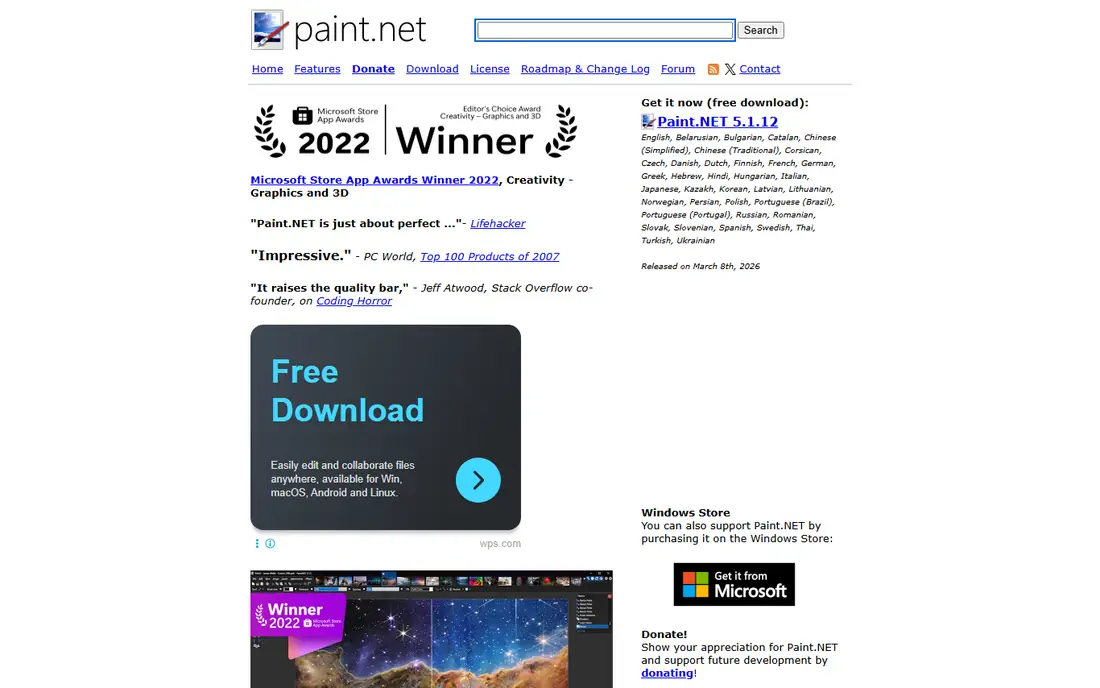
Paint.NET started as a simple replacement for Microsoft Paint and grew into a capable editor that stays light and quick. It supports layers, unlimited undo, special effects, and a wide set of plugins from its community. The interface is plain and direct, which makes it a good first editor for Windows users who find GIMP or Photoshop overwhelming.
The limits are clear. Paint.NET runs on Windows only, and it does not match the depth of GIMP for color work or the AI tooling of Pixlr and Luminar Neo. Still, for cropping, resizing, color correction, and layered graphics on a Windows PC, it does the job with little fuss and no cost. A paid Microsoft Store version also exists for users who want to support development.
What we like- Free, fast, and easy to learn
- Layers and unlimited undo
- Active plugin community
Watch out for- Windows only
- Fewer advanced photo tools than GIMP
- No RAW editing built in
#7Luminar Neo
Best for: AI-assisted photo editing4.4/5 on
G2 (115 reviews, checked Oct 2026)
Visit skylum.com
Starting price$99 one-time
Free planFree trial (7 days)
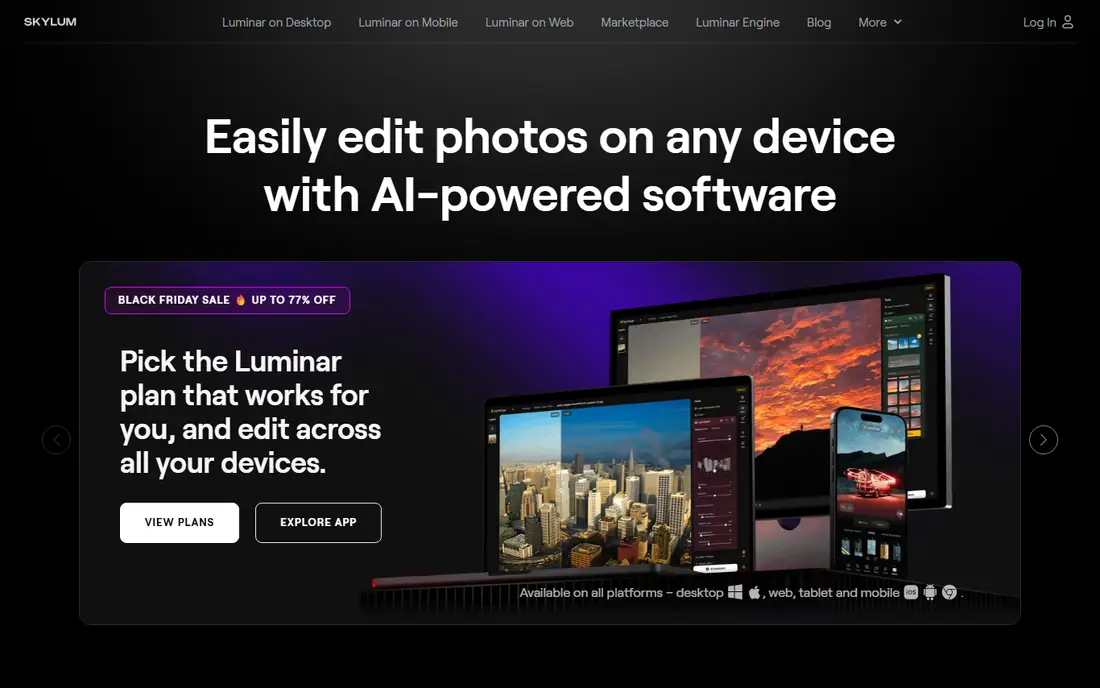
Luminar Neo takes a different approach from the other editors here. Instead of asking you to build every edit by hand, it offers named AI tools for tasks such as sky replacement, portrait retouching, background removal, and object removal. You pick the tool, adjust its strength, and move on, which suits photographers who edit many images and want consistent results fast.
Skylum sells Luminar Neo as a perpetual desktop license, with higher tiers adding mobile and web access and extra content. Generative tools such as GenErase and GenExpand are included for the first year, with renewal needed after that period. If you dislike subscriptions but want AI help with portraits and outdoor scenes, Luminar Neo is the clearest fit on this list.
What we like- One-time perpetual license option
- Named AI tools for sky, skin, and portraits
- Works as a plugin for Lightroom Classic and Photoshop
Watch out for- Generative tools need renewal after the first year
- Catalog tools are lighter than Lightroom
- Higher upfront cost than free editors
#8Fotor
Best for: Quick online edits and templates4.2/5 on
G2 (342 reviews, checked Oct 2026)
Visit fotor.com
Starting priceSee website
Free planYes
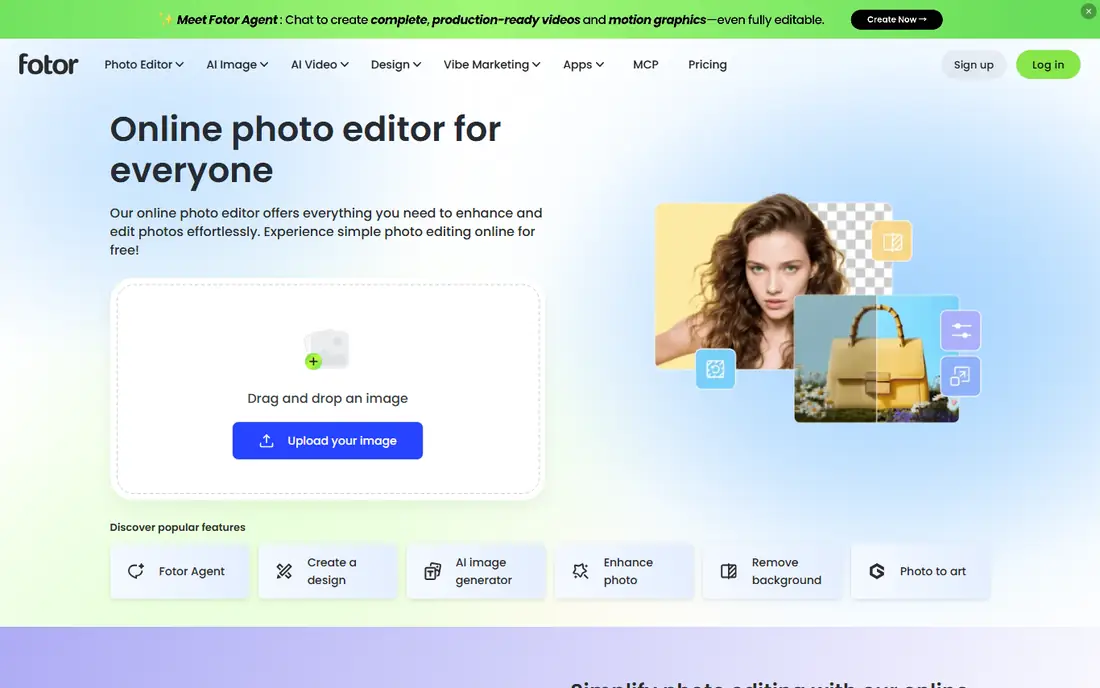
Fotor is an online editor aimed at people who want good results fast. The browser editor covers brightness, contrast, retouching, filters, collages, and text, and batch editing lets you apply changes to many photos at once. A large template library covers social posts, covers, and thumbnails, so you can move from edit to publish without a separate design tool.
The free plan handles basic edits, while Pro plans add high-resolution exports without watermarks, more templates, and more AI features. Fotor will not replace a desktop editor for detailed retouching or color-critical print work. For social content, quick fixes, and template-based design, it is one of the easiest options here.
What we like- Easy browser editor with batch editing
- Large template and stock library
- AI enhance, background remover, and effects
Watch out for- Free plan is limited and shows ads
- Advanced features sit behind paid plans
- Less control than desktop editors
How we chose
We compared tools on the factors that matter most when you leave Photoshop: file compatibility, editing depth, platform support, and total cost. Pricing and free-plan details were checked against vendor pricing pages and official product pages, and feature claims were checked against vendor documentation and public product descriptions. We favored tools that exist today, run on current systems, and fit photo editing, design, or painting work rather than narrow single-purpose apps.
We also weighed fit for different users. A free desktop editor suits a different buyer than a browser editor or an AI-assisted photo app, so the list mixes those types on purpose. Where pricing varies by region or promotion, we used the standard published figure or listed the price as See website rather than guessing.
What to check before you switch
File compatibility
Open a copy of a real project before you commit. Check that layers, masks, text, and adjustment layers survive the round trip, and confirm whether PSD export keeps your work editable in other apps. Photographers should also confirm RAW support for their camera models, since browser editors often skip RAW entirely.
Editing depth and speed
Match the tool to the work you do most. Layered compositing and detailed retouching need a desktop editor, while quick crops, filters, and social graphics work fine in a browser. If you edit large files or many photos at once, test performance on your own machine, because browser editors slow down sooner than desktop apps.
Cost over a year
Free tools carry no subscription, but paid plans add up. Compare the annual cost of a subscription with the one-time price of a perpetual license, and check what happens when a plan lapses. AI credits are a second cost to watch, since low-tier plans can run out mid-project.
Frequently asked questions
Can a free Photoshop alternative fully replace Photoshop?
For many users, yes. Affinity, GIMP, and Photopea cover layers, masks, retouching, and PSD work, which handles most photo and design tasks. Users who depend on specific Photoshop plugins, 3D tools, or tight Adobe integrations may still need Photoshop for some projects.
Which Photoshop alternative is best for beginners?
Paint.NET and Fotor are the easiest starting points, because both keep menus simple and results fast. Photopea suits beginners who already know Photoshop basics, while Affinity and GIMP reward a longer learning period with deeper control.
Is Affinity really free?
Yes. Canva now offers the unified Affinity app free for macOS and Windows, with photo, vector, and layout tools included. Some AI features and premium content require a paid Canva plan, and you need a free Canva account to download it.
Does Photopea work offline?
Photopea runs in the browser, but it can keep working offline once the page has loaded, since files are processed on your device. You need an internet connection for the first load and for any cloud storage features.
Which tool is best for digital painting?
Krita is the best pick for painting on this list, thanks to its brush engine, stabilizers, and animation tools. Affinity also handles illustration well, but Krita is built around drawing from the start.
Do any of these tools support RAW photos?
Yes. Affinity, GIMP, and Photopea support RAW files, and Luminar Neo is built for photo workflows that include RAW images. Pixlr does not support RAW files, and Paint.NET and Fotor focus on standard image formats such as JPEG and PNG.
Sources we checked (9)
- https://affinity.studio
- https://www.canva.com/newsroom/news/all-new-affinity/
- https://gimp.org
- https://www.photopea.com
- https://pixlr.com
- https://krita.org
- https://www.getpaint.net
- https://skylum.com
- https://www.fotor.com
Is your product missing or out of date?
We review this list regularly. Vendors can request a listing, send updated pricing or ask about featured placement.

Shihab Mia · Founder, Rankite
Shihab has 5+ years in B2B and SaaS SEO. He writes Rankite's software buying guides from pricing pages, documentation and public user reviews. More about Shihab.