How we make this list: we compare pricing pages, product documentation and public user reviews. Rankite is independent; if a vendor ever pays for a featured spot, that listing is clearly labeled Partner.
Key takeaways
- DaVinci Resolve is the most capable free editor by a wide margin, with professional color grading and no watermark, but it demands a powerful computer and real learning time.
- CapCut is the fastest route from phone footage to a finished YouTube video, with free watermark-free exports, though its best AI features sit behind the Pro tier.
- Shotcut, OpenShot and Kdenlive are fully free and open source with no upsell, which makes them dependable long-term picks for beginners who hate paywalls.
- Lightworks and Clipchamp are free with real limits: 720p exports on Lightworks free, and a Microsoft account plus internet connection for Clipchamp.
- iMovie remains the easiest free start for Mac and iPhone owners, but it only runs on Apple devices and tops out well below professional tools.
Quick comparison
| Tool | Best for | Starting price | Free plan |
|---|
 DaVinci Resolve DaVinci Resolve | pro-grade editing at zero cost | $0 | Yes |
 CapCut CapCut | fast phone-to-YouTube workflow | $0 | Yes |
 Shotcut Shotcut | no-nonsense open-source editing | $0 | Yes |
 OpenShot OpenShot | simplest free editor for beginners | $0 | Yes |
 Kdenlive Kdenlive | flexible open-source timeline editing | $0 | Yes |
 VSDC VSDC | feature-packed free editor for Windows | $0 | Yes |
 Lightworks Lightworks | professional cutting with a 720p cap | $0 | Yes |
 Clipchamp Clipchamp | browser-based editing for Windows users | $0 | Yes |
 iMovie iMovie | effortless editing on Apple devices | $0 | Yes |
Is your product missing or out of date?
We review this list regularly. Vendors can request a listing, send updated pricing or ask about featured placement.
The best free YouTube editing software
Starting price$0
Free planYes
DaVinci Resolve is the rare free product that competes with software costing hundreds of dollars. The free version includes the full editing timeline, respected color grading tools, visual effects in the Fusion page and Fairlight audio mixing. There is no watermark, no export limit and no trial countdown. Version 21 is the current release.
The price you pay is in hardware and time. Resolve wants a discrete GPU, 16 GB of RAM as a practical minimum, and fast storage, or playback stutters on 4K timelines. The interface assumes you know editing vocabulary: nodes, bins, compound clips. A beginner can cut a simple video within a day, but the software rewards weeks of learning.
Choose Resolve if you are serious about video quality and willing to learn professional software. It is overkill for quick vlogs, and it will frustrate owners of older laptops, but nothing else free comes close on capability.
What we like- Professional color grading and Fairlight audio built in
- Free version has no watermark and no time limit
- Used on real film and TV productions
Watch out for- Steep learning curve for beginners
- Needs a strong GPU and plenty of RAM
- Large download and disk footprint
Starting price$0
Free planYes
CapCut is the editor most new YouTubers actually finish videos in. It is free, exports in HD without a watermark, and runs on phones, desktops and browsers with projects syncing between them. The template library, auto-captions, background removal and one-click effects compress hours of fiddly work into minutes.
The business model is freemium with teeth. Core editing stays free, but the flashiest AI tools, premium effects and extra cloud storage sit behind CapCut Pro. The company is owned by ByteDance, TikTok's parent, which gives some creators pause about data handling. Heavy users also report that free export quality and available effects shift over time as features move between tiers.
Pick CapCut if speed matters more than fine control. It is the best free choice for creators who shoot on phones and publish often.
What we like- Free watermark-free HD export
- Huge template and effect library
- Phone, desktop and web apps stay in sync
Watch out for- Best AI features require the paid Pro tier
- Account and cloud features raise privacy questions
- Interface pushes trends over technique
Starting price$0
Free planYes
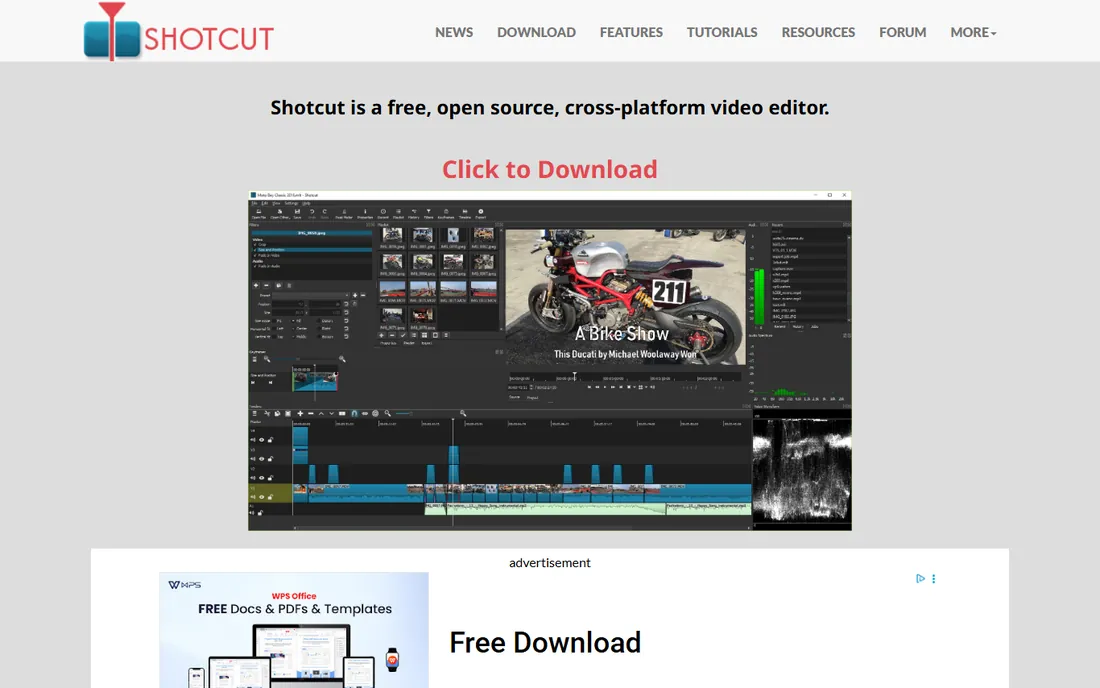
Shotcut is an open-source editor that does exactly what it promises and nothing it does not. It is free forever, with no account, no watermark and no premium tier waiting to charge you. Format support is excellent because it is built on FFmpeg, so odd camera files and screen recordings usually just work. It handles 4K timelines and exports to every format YouTube accepts.
What it lacks is polish. The interface feels utilitarian next to CapCut or Premiere, the effects library is modest, and some workflows take more clicks than they should. Performance is decent on mid-range hardware but not remarkable. There is no phone app and no cloud sync; your projects live on your hard drive.
Choose Shotcut if you want a free editor with zero commercial strings attached. It suits technically comfortable creators who value reliability and format support over templates and trends.
What we like- Completely free with no account and no upsell
- Wide format support through FFmpeg
- Runs on Windows, Mac and Linux
Watch out for- Interface looks dated
- Effects and transitions are basic
- Documentation is thinner than commercial rivals
Starting price$0
Free planYes
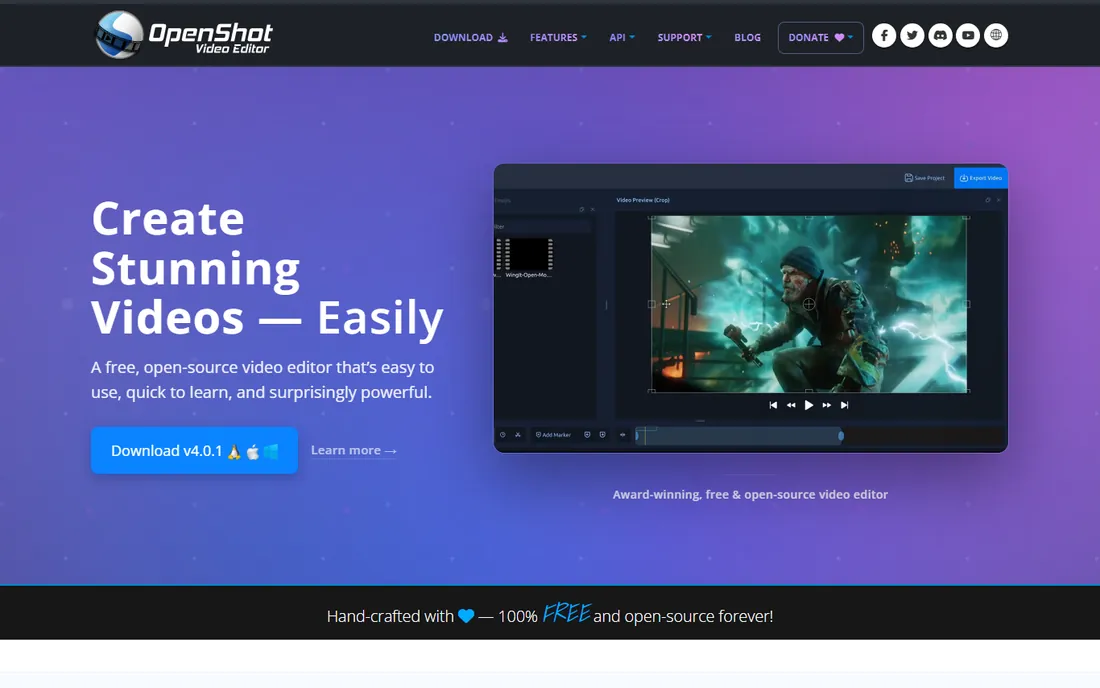
OpenShot targets the beginner who opens DaVinci Resolve, closes it in panic, and wants something friendlier. The timeline is drag-and-drop simple, the toolbar is small, and basic cuts, titles and transitions take minutes to learn. It is free and open source with no watermark, and it runs on all three desktop platforms.
The honest weakness is stability under load. OpenShot has a long-running reputation for crashes on long timelines, many layers or heavy effects. Rendering is slower than commercial editors, and some headline features like animated 3D titles require installing Blender separately. For short, simple videos it behaves well; for ambitious projects it fights back.
Pick OpenShot for your first month of editing, school projects or simple talking-head videos. Move to Shotcut or Resolve once your projects outgrow it.
What we like- Easiest learning curve of the open-source options
- Free with no watermark
- Cross-platform on Windows, Mac and Linux
Watch out for- Stability complaints on large or complex projects
- Slower rendering than rivals
- 3D titles need extra setup
Starting price$0
Free planYes
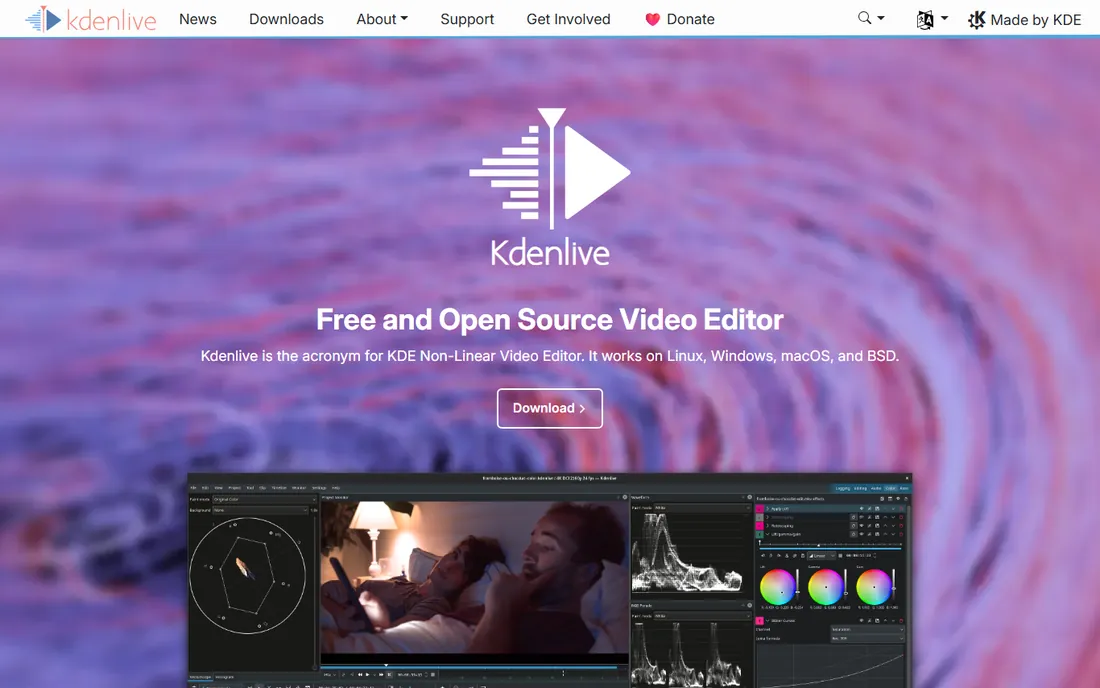
Kdenlive is the open-source editor for people who want real timeline power without paying for it. Multi-track editing, keyframeable effects, proxies for smooth 4K playback and a customizable interface put it a tier above OpenShot in capability, while staying free forever with no account or upsell.
Its roots show. Kdenlive was built for Linux first, and while Windows and Mac versions exist, they carry more quirks than the Linux builds. The tutorial ecosystem is smaller than Resolve's, so solving odd problems takes more forum digging. There is no phone companion or cloud workflow.
Choose Kdenlive if you edit on Linux, or if you want a free desktop editor with genuine depth and you are comfortable troubleshooting.
What we like- Powerful multi-track timeline for a free tool
- Highly customizable interface and shortcuts
- Active development with regular releases
Watch out for- Linux-first, with Windows and Mac builds less polished
- Occasional stability quirks
- Smaller tutorial ecosystem than Resolve
Starting price$0
Free planYes
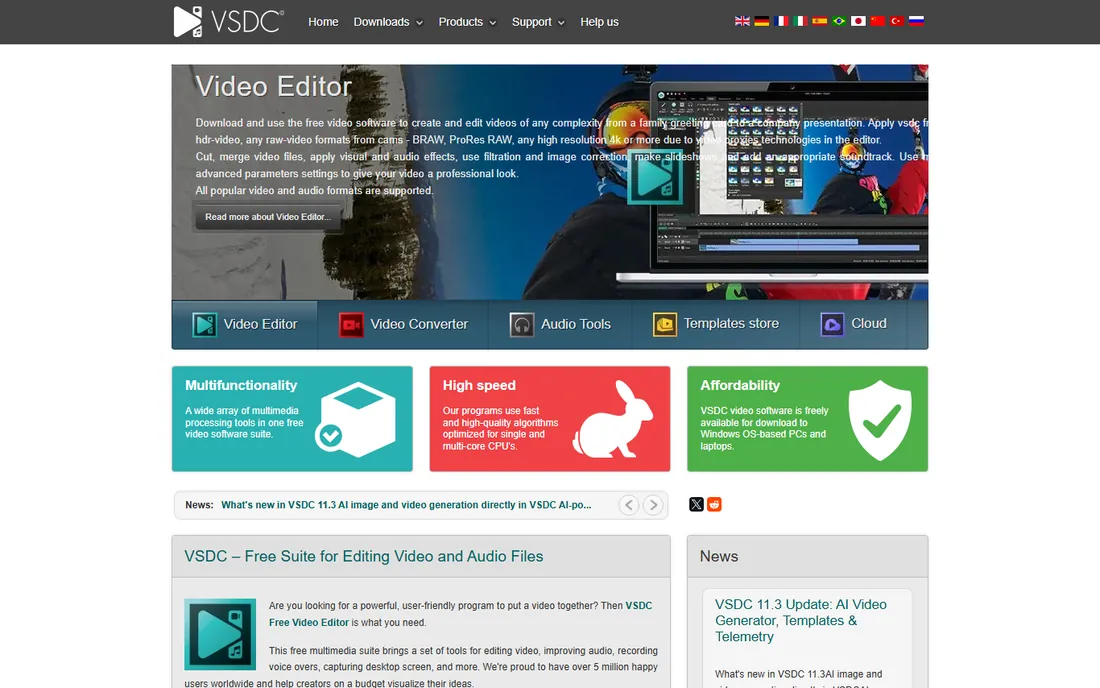
VSDC packs a surprising amount of professional capability into a free Windows download. The free version includes a non-linear timeline, masking, motion tracking, chroma key and color correction, all exporting without a watermark. System requirements are modest, so it runs acceptably on older PCs that would choke on Resolve.
The interface is the barrier. Dense menus, small icons and dated design make the learning curve steeper than the feature list deserves. Platform support is narrow: Windows and iOS only. Hardware acceleration is reserved for Pro, so free users wait longer on renders.
Pick VSDC if you edit on Windows, your PC is modest, and you want advanced tools like masking and tracking without paying.
What we like- Free version exports without watermarks
- Non-linear editor with masking, motion tracking and color tools
- Low system requirements
Watch out for- Windows and iOS only, no Mac or Android
- Interface is dense and dated
- Pro version gates hardware acceleration and some tools
#7
Lightworks
Best for: professional cutting with a 720p cap
Visit lwks.com
Starting price$0
Free planYes
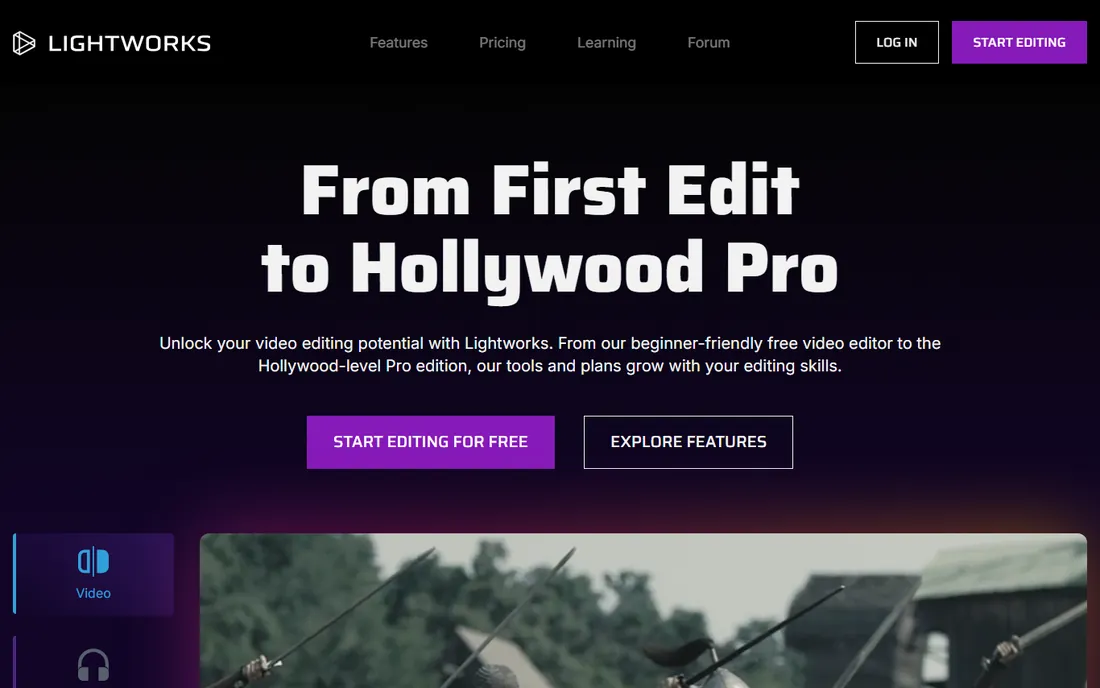
Lightworks has genuine film-industry pedigree: movies cut on it have won Oscars, and the free version includes the same editing engine as the paid tiers. The trimming tools are precise, multicam support is strong, and the workflow rewards editors who learn its keyboard-driven style. For cutting interviews, documentaries and narrative work, it feels more professional than any other free option except Resolve.
The free tier's limit is specific and important: exports max out at 720p. That is fine for drafts and rough cuts, but YouTube viewers expect 1080p minimum, so publishing from the free version means visibly softer video. Paid Create and Pro tiers lift the cap and add format support. The interface follows its own logic rather than Premiere's, so experienced editors face a relearning period, and beginners face a steep one.
Choose Lightworks if you care about the craft of cutting and want professional trimming tools for free. Pay for a tier the moment you publish regularly, because 720p is not a 2026 publishing resolution.
What we like- Editing workflow used on real Hollywood films
- Precise trimming tools
- Free tier includes the full editing feature set
Watch out for- Free exports capped at 720p
- Unique interface takes real adjustment
- Some formats need the paid tier
Starting price$0
Free planYes
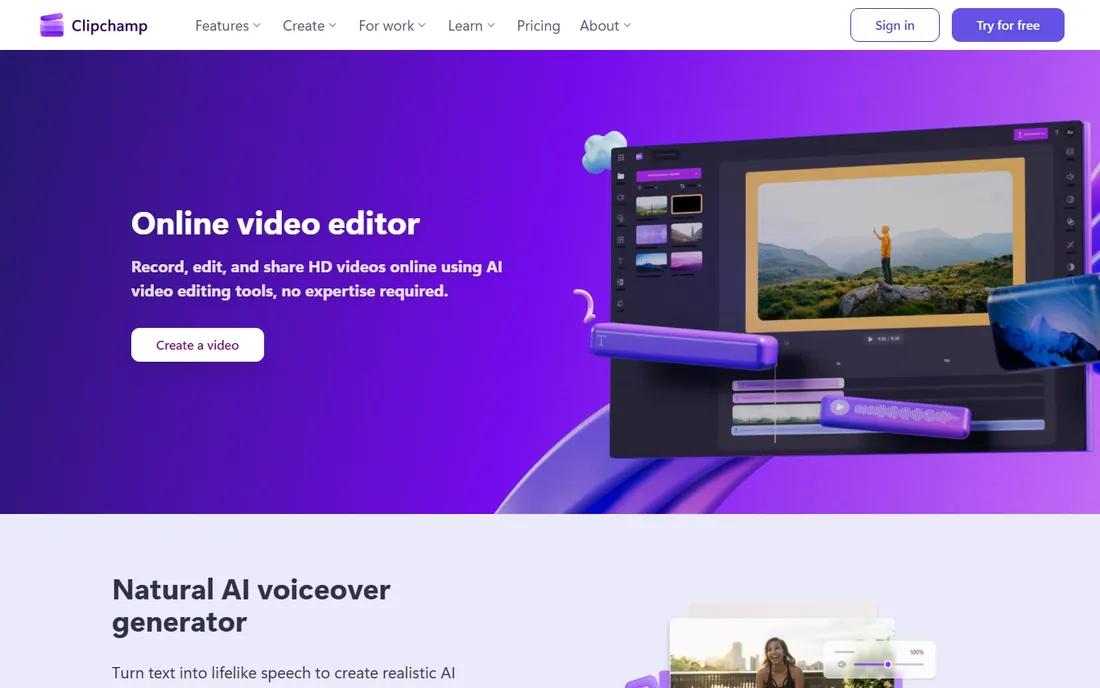
Clipchamp is Microsoft's answer to casual video editing, and it ships with Windows. The free tier exports HD video without a watermark and includes templates, stock footage, text-to-speech and auto-captions. Because it runs in the browser, there is nothing to install and projects are reachable from any machine. For quick YouTube videos, intros and social clips, it is genuinely convenient.
The constraints are structural. You need a Microsoft account and an internet connection; there is no real offline mode. Long or complex timelines can feel sluggish in the browser compared to desktop editors. The more advanced features, brand kits, premium stock and higher resolutions, push toward paid plans or Microsoft 365 subscriptions. Privacy-conscious creators should note that projects and media pass through Microsoft's cloud.
Pick Clipchamp if you are on Windows, want zero setup, and make short straightforward videos. Anyone editing long-form content or working offline should choose a desktop editor instead.
What we like- Free with watermark-free HD export
- Runs in the browser with nothing to install
- Templates, stock and auto-captions included
Watch out for- Needs a Microsoft account and internet connection
- Browser performance lags on long projects
- Premium features tie into Microsoft 365
Starting price$0
Free planYes
iMovie is the reason many YouTubers never install another editor. It is free on every Mac, iPhone and iPad, it opens in seconds, and its trailer templates and one-click themes produce polished results with almost no learning. Stability is excellent, 4K export works, and projects can move between iPhone and Mac. For vlogs, family videos and simple talking-head content, it is all most people need.
The ceiling is low by design. Audio mixing is basic, effects and transitions are limited, color tools are minimal, and there is no Windows or Android version. Apple clearly intends iMovie as the on-ramp to Final Cut Pro, which costs $299.99, so growing creators eventually face a paid jump rather than a gradual skill path. Collaboration features are thin compared to cloud editors.
Choose iMovie if you own Apple devices and want to start publishing today with zero friction. It is the easiest free editor here, and the right one to outgrow: when you hit its limits, you will know exactly what to look for in Resolve or Premiere.
What we like- Free on every Mac, iPhone and iPad
- Simplest interface on this list
- Excellent stability and 4K export
Watch out for- Apple devices only
- Limited audio mixing and effects
- No real path to professional features
How we chose
We did not edit test projects in each tool for this roundup. We read each vendor's current feature and pricing pages, checked export limits and platform support in official documentation, and scanned user reviews on G2 and Capterra plus editor discussions on Reddit for recurring complaints about stability, watermarks and paywalled features. We favored editors that are genuinely free to publish with, not free trials wearing a free label.
Free does not mean unlimited: what to check
Every free editor has a catch. Knowing where it sits saves you from learning software you will abandon in a month.
Export limits
This is the big one. Lightworks free caps exports at 720p, which rules it out for publishing. The rest here export at least 1080p without watermarks, which is the minimum bar for this list. Always verify the export resolution on the vendor's current pricing page before committing, since free tiers change.
Watermarks and trial traps
All nine tools on this list export without watermarks on their free tiers. That is rarer than it sounds: many "free" editors watermark exports or limit export counts until you pay. If an editor you are considering is not on this list, check for watermarks first.
Paywalled features
CapCut Pro gates the best AI tools and effects, VSDC Pro gates hardware acceleration, and Clipchamp's premium features tie to Microsoft 365. None of this blocks basic YouTube publishing, but heavy users of templates and AI features should price the paid tier before building a workflow around free features that might move.
Platform lock-in
iMovie only runs on Apple hardware, VSDC is Windows and iOS only, and Clipchamp needs a Microsoft account and internet. Shotcut, OpenShot, Kdenlive and Resolve run on all major desktop platforms with your files stored locally. If you might switch computers, prefer editors that do not tie you to an ecosystem.
Hardware and workflow fit
Match the editor to your machine and your habits, not to a feature chart.
If your computer is older or modest
Skip DaVinci Resolve; it will frustrate you. VSDC, Shotcut and OpenShot run on modest hardware, and Clipchamp offloads work to the browser. Use proxy editing where offered: Kdenlive and Resolve both support proxies, which let weak machines cut 4K smoothly.
If you shoot on your phone
CapCut and iMovie are built for this, with mobile apps that sync to desktop. Clipchamp works through the mobile browser in a pinch. Desktop-first editors like Shotcut and Lightworks assume footage arrives via file transfer.
If you publish weekly or more
Stability and speed matter more than features. Resolve and Kdenlive reward the learning investment with fast, reliable workflows. OpenShot's crash reputation makes it a poor pick for volume publishing. Templates in CapCut and Clipchamp save real time on recurring formats like intros and end screens.
If you might go pro later
Resolve teaches skills that transfer directly to paid studio work, and moving from free to Studio is straightforward. Lightworks also teaches professional cutting discipline. iMovie's path leads to Final Cut Pro at $299.99, which is fine if you plan to stay on Apple hardware.
Frequently asked questions
Is free editing software really enough for YouTube?
Yes for the vast majority of channels. DaVinci Resolve's free version outclasses paid editors from a decade ago, and CapCut handles the short-form workflow most new creators need. Paid software buys convenience, support and niche features, not the ability to publish good video.
Which free editor has no watermark?
All nine on this list export without watermarks on their free tiers. That was a requirement for inclusion. Be careful with editors not listed here: watermarked exports are the most common catch in "free" video software.
Can I edit 4K video with free software?
DaVinci Resolve, Shotcut, Kdenlive, VSDC and iMovie all handle 4K on capable hardware. Lightworks free caps exports at 720p regardless of source. If your machine struggles, use proxy editing or edit in 1080p; YouTube viewers rarely notice on most content.
Do I need a powerful computer for DaVinci Resolve?
It helps a lot. Resolve wants a discrete GPU and 16 GB of RAM for smooth 4K work. Integrated graphics can handle 1080p projects with optimized media. If your machine is modest, start with Shotcut or VSDC and move to Resolve when you upgrade hardware.
Is CapCut safe to use?
CapCut is owned by ByteDance, TikTok's parent company, which concerns some creators about data handling. Read the current privacy policy and decide based on your own comfort level. If that bothers you, the open-source options on this list involve no accounts and no cloud.
Will I outgrow iMovie?
Probably, if you keep creating. iMovie covers vlogs, talking-head videos and simple projects well, but its audio, effects and color tools are limited by design. When you start wanting multicam, keyframes or serious color work, move to Resolve or Final Cut Pro.
Sources we checked (10)
- https://www.blackmagicdesign.com/products/davinciresolve
- https://www.capcut.com/
- https://shotcut.org/
- https://www.openshot.org/
- https://kdenlive.org
- https://videosoftdev.com/
- https://lwks.com/
- https://clipchamp.com/
- https://www.apple.com/
- https://www.allaboutai.com/ai-reviews/lightworks/
Is your product missing or out of date?
We review this list regularly. Vendors can request a listing, send updated pricing or ask about featured placement.

Shihab Mia · Founder, Rankite
Shihab has spent more than a decade helping SaaS and e-commerce brands grow through search. He writes Rankite's software buying guides from pricing pages, documentation and public user reviews. More about Shihab.