How we make this list: we compare pricing pages, product documentation and public user reviews. Rankite is independent; if a vendor ever pays for a featured spot, that listing is clearly labeled Partner.
Key takeaways
- Stellar Repair for Video is the safest default for most people: it handles MP4, MOV, AVI and MKV, repairs in batches, and lets you preview results before saving.
- Restore.Media is the cheapest route for a single file, with repairs from $4.99 per file and a free preview before you pay anything.
- Remo Repair AVI is the specialist pick if your problem is strictly AVI, Xvid or DivX files, with a read-only process that never touches the original.
- Online tools suit one-off repairs and drone footage; desktop tools win when you have batches, large files or sensitive footage you would rather not upload.
- Grau GmbH Video Repair Tool is the professional fallback for severely damaged camera recordings that consumer tools give up on.
Quick comparison
Is your product missing or out of date?
We review this list regularly. Vendors can request a listing, send updated pricing or ask about featured placement.
The best video repair software
Starting priceSee website
Free planFree preview
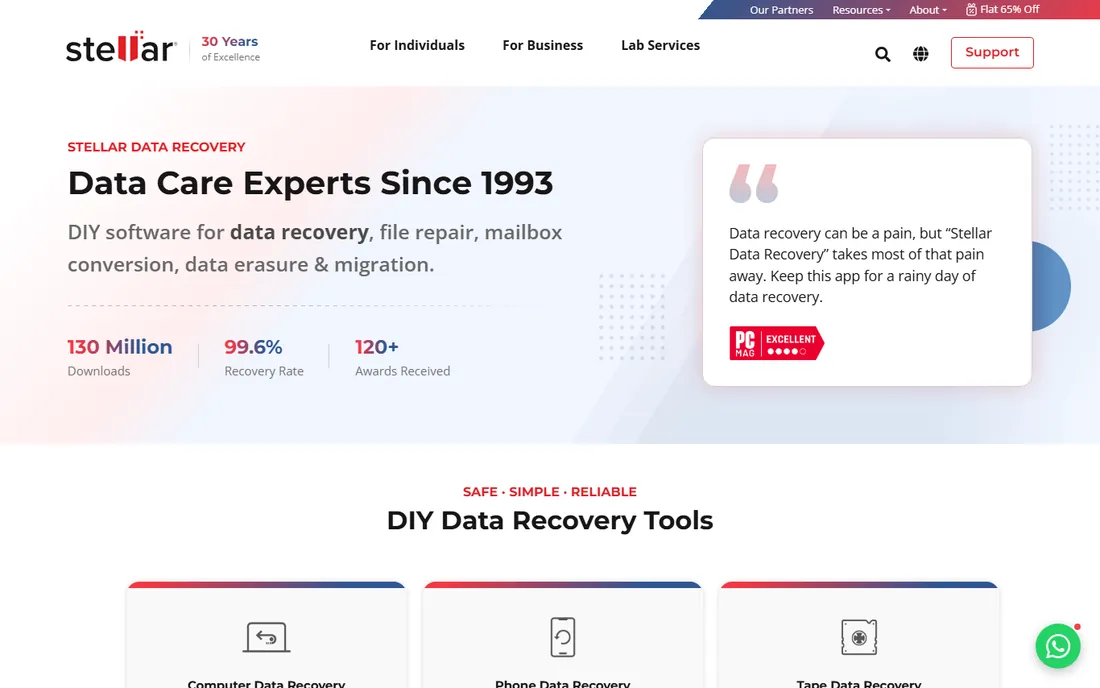
If you only try one desktop repair tool, this is the one most people end up with. Stellar Repair for Video covers the formats that actually break in real life: MP4 from phones and cameras, MOV from iPhones and DSLRs, AVI from older recorders, plus MKV and FLV. You add one file or a whole folder, run the repair, and preview the fixed result before you save anything. That preview step matters, because it stops you from paying for a repair that did not work.
The workflow is straightforward. For light corruption, the quick repair fixes headers, indexes and playback errors without any extra input. For badly damaged files, the advanced mode asks for a sample video shot on the same device in the same format, which the tool uses as a reference to rebuild the broken structure. The honest catch: the product lineup has several editions with different feature sets, and the pricing page takes real effort to decode. Start with the free preview, confirm your file actually gets fixed, then decide.
What we like- Repairs MP4, MOV, AVI, MKV, FLV and more
- Batch repair with preview before saving
- Works on Windows and Mac
Watch out for- Severe corruption often needs a healthy sample file
- Pricing tiers are confusing across editions
Starting priceSee website
Free planFree trial
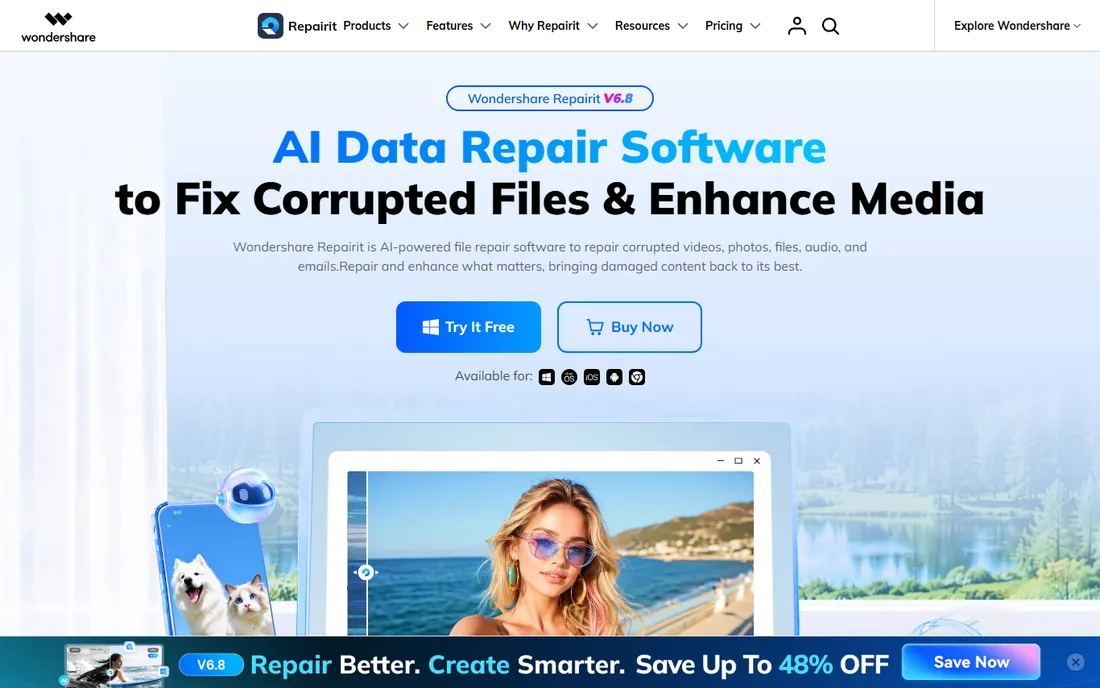
Repairit is the loudest name in this category, and its format list is genuinely long. Beyond the usual MP4, MOV and AVI, it handles camera-specific formats from drones, action cameras and professional recorders, plus photo, audio and document repair in the same app. If your work spans more than video, that breadth has real value: one license covers the memory card that corrupted both your footage and your stills.
The repair process runs in three modes. Quick repair handles common header and index problems. Advanced repair uses a sample file from the same device for deep structural damage. The batch mode processes folders of damaged files, which is useful for videographers coming back from a shoot with a stack of broken clips. The downside is cost. Repairit is priced like professional software, and casual users who need one repair a year will feel that. The free trial lets you scan and preview, so you can confirm the fix before spending anything.
What we like- Supports 100+ formats across video, photo, audio and documents
- Batch repair with AI-assisted modes
- Free preview of repaired files
Watch out for- Full pricing is steep for occasional use
- Desktop install required for the strongest features
Starting priceSee website
Free planFree demo with preview
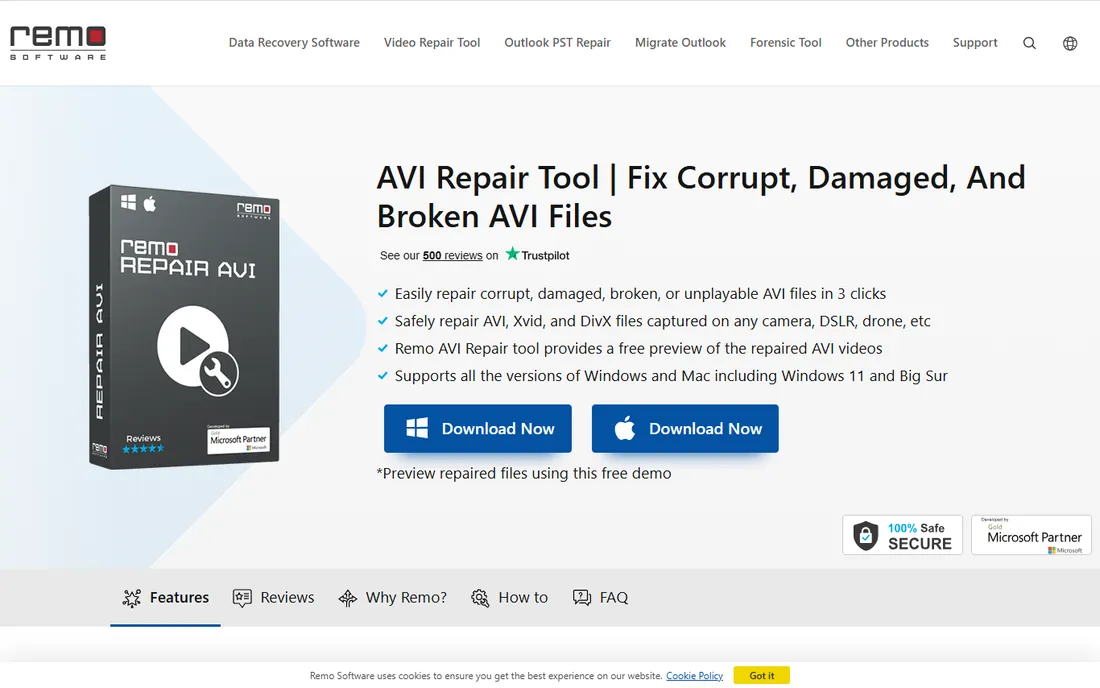
Aviation-era file formats still show up everywhere, and this tool exists for exactly one family of them. Remo Repair AVI fixes corrupt, damaged and unplayable AVI files, plus Xvid and DivX variants. The repair engine works in read-only mode: it copies the damaged file and performs the repair on the copy, so the original is never at risk of further damage. That design choice is worth noting if the footage is irreplaceable.
In practice, Remo handles the classic AVI failure modes: broken or missing indexes, damaged headers, choppy playback, and audio drifting out of sync with video. The free demo previews the repaired video so you can judge the result before buying. The limitation is scope. If your corrupted file is an MP4 or MOV, this tool cannot help. Buy it only when you know your problem is AVI-shaped.
What we like- Read-only repair that never alters the original file
- Fixes broken indexes, header corruption and audio-video sync
- Simple three-step process
Watch out for- Limited to AVI, Xvid and DivX
- Not the pick for modern MP4 or MOV corruption
Starting priceSee website
Free planFree trial

Kernel competes on price more than polish. Kernel Video Repair is a Windows desktop tool that fixes corrupt and damaged video files across the common formats, with batch processing for users who need to repair several clips in one run. The company behind it, Nucleus Technologies, has sold data recovery and repair software for over two decades, so this is not a fly-by-night utility.
The repair flow mirrors the category standard: add damaged files, let the tool analyze headers and indexes, preview the output, then save. It handles the usual suspects, files that will not play, files with broken headers, files with audio-video sync problems. Where it lags the leaders is in camera-specific intelligence and modern codec coverage; heavily damaged HEVC or ProRes footage is not its strong suit. For straightforward corruption on common formats, though, it gets the job done at a lower price point than Stellar or Wondershare. Try the free trial on your actual damaged file first, since repair success varies file by file.
What we like- Batch repair for multiple files at once
- Supports common formats including MP4, MOV, AVI and MKV
- Straightforward pricing tiers
Watch out for- Interface looks dated next to newer rivals
- Fewer camera-specific presets than the leaders

#5
Fix.Video
Best for: drone and truncated footage, repaired online
Visit fix.video
Starting pricePay per file
Free planFree preview
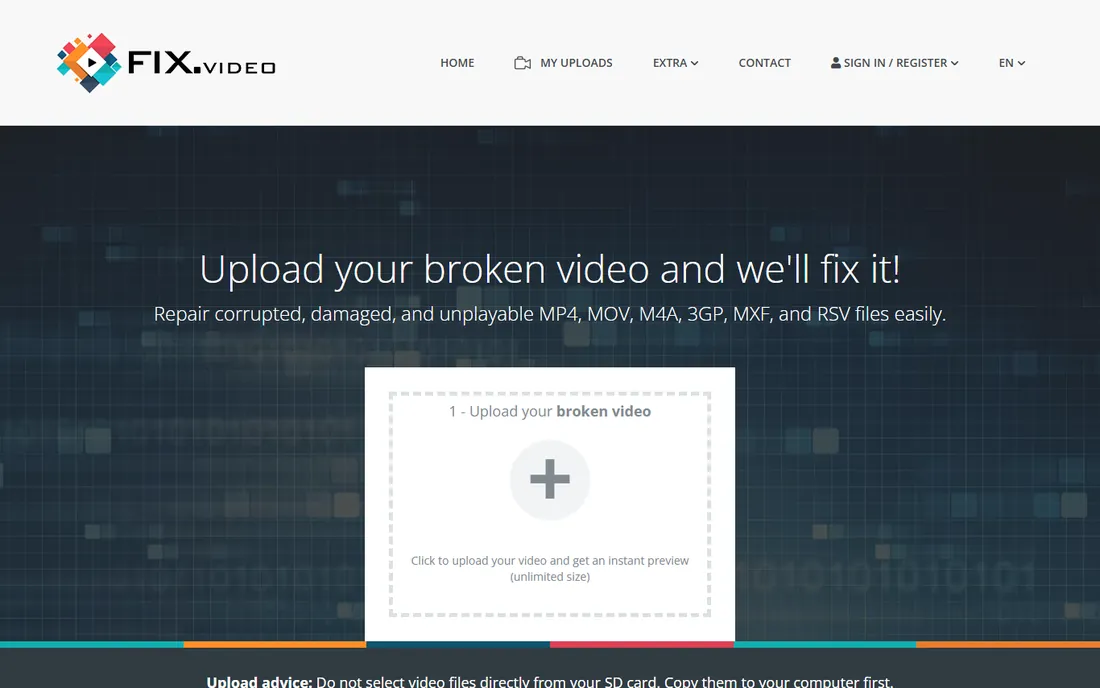
Drone pilots lose footage in a very specific way, and Fix.Video was built around that. When a drone crashes, the battery dies, or the pilot powers off before stopping the recording, the video file is truncated: the data is there, but the closing metadata was never written. Fix.Video repairs these truncated MP4, MOV, M4V, 3GP, ProRes, RSV and MXF files directly in the browser. You upload the damaged file, the service rebuilds it, and you preview the result before paying.
The site also covers footage from Canon, Nikon, Sony, Panasonic, Blackmagic, GoPro, iPhones, dashcams and Android devices, and it sells a desktop Video Repair Tool for Windows and Mac if you prefer to work offline. The online model has real conveniences: no install, works from any computer, per-file payment instead of a license. The tradeoffs are equally real. Large files take a while to upload, batches get expensive one file at a time, and anyone with confidential footage should think twice before sending it to a third-party server. For a single crashed-drone clip, it is one of the fastest paths to a working file.
What we like- No installation, everything runs in the browser
- Built for truncated MP4/MOV from drones, dashcams and cameras
- Also offers a desktop repair tool
Watch out for- Upload times depend on your connection
- Per-file pricing adds up for batches
- Uploading sensitive footage is a privacy tradeoff
Starting price$4.99 per file
Free planFree preview
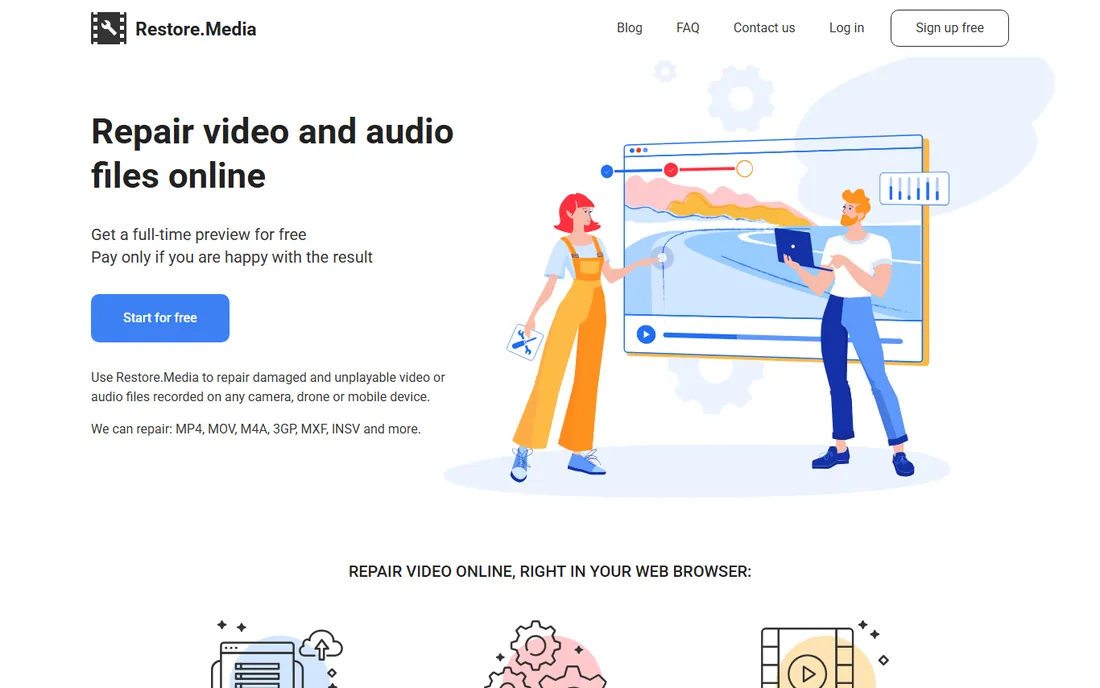
The pricing model here flips the usual order: you see the repaired file before you pay. Restore.Media is an online service for corrupted and unplayable video and audio files. Upload the damaged file, adjust recovery settings if needed, and the service produces a low-resolution preview of the repaired result at no cost. If the preview looks right, you pay to download the full-resolution file, with prices calculated per file starting at $4.99 based on file size.
That structure removes the biggest risk in this category, paying for software that cannot fix your specific file. The service handles unfinalized recordings, corrupted metadata and indexes, and recovered-but-unplayable files, across MP4, MOV, M4A, M4V, MXF, 3GP, INSV and more, from phones, drones, action cameras and professional cameras. Uploads go up to 128GB. For genuinely difficult cases, they offer manual recovery by an engineer, priced by quote. The weaknesses are the usual online-tool ones: no offline option, and you are trusting a third party with your footage. For one precious file, the free preview makes this the lowest-risk paid option here.
What we like- Full preview free, pay only if the repair worked
- Per-file pricing starts at $4.99 with no subscription
- Repairs MP4, MOV, M4A, MXF, INSV and more
Watch out for- No desktop app for offline work
- Files over 128GB are not supported
- Manual recovery for edge cases takes longer
Starting priceSee website
Free planFree
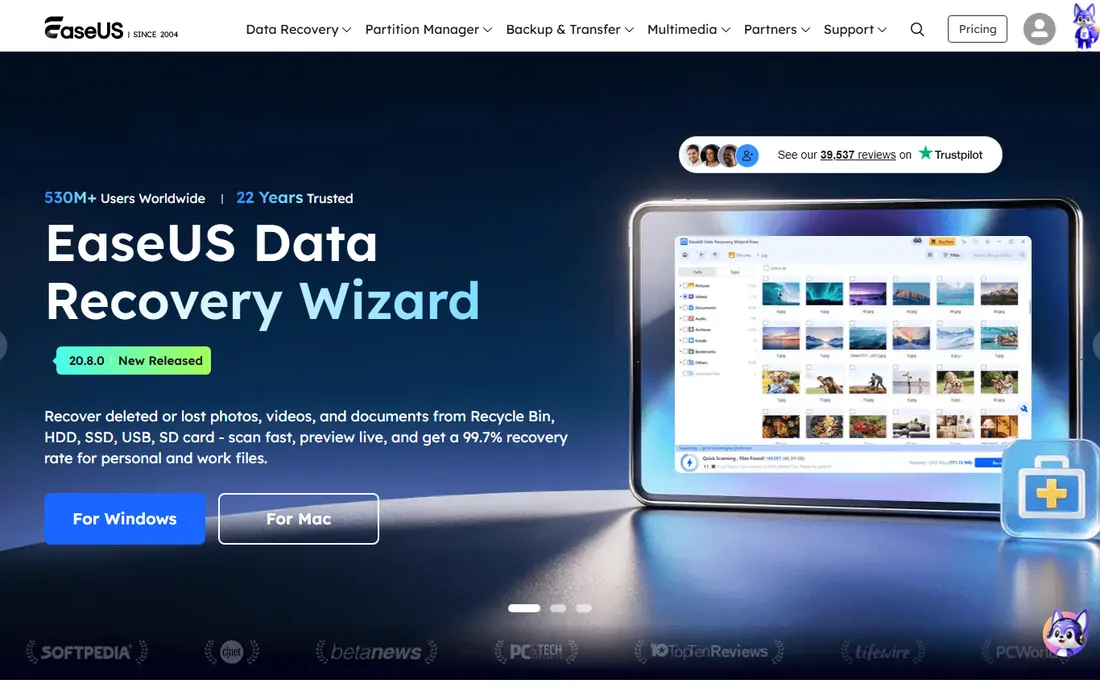
When the damage is light and the file is small, a free online tool is worth trying first. EaseUS, best known for its partition manager and data recovery software, launched an online video repair tool that fixes corrupted MP4, MOV and similar formats directly in the browser. There is nothing to download and no account gymnastics for basic use, which makes it a sensible first stop before you spend money.
Because the service is relatively new, there is less public evidence about its success rate on difficult files than for Stellar or Repairit. Treat it as a triage step: if it fixes your file, you are done for free; if it does not, move on to a desktop tool with a sample-file mode. Check the current limits on their site before uploading anything large.
What we like- Browser-based with no install
- From an established data recovery vendor
- Useful first attempt before paying for anything
Watch out for- Newer service with less track record than desktop rivals
- Limits on file size and features are not clearly published

#8
Grau GmbH Video Repair Tool
Best for: severely damaged professional footage
Visit grauonline.de
Starting priceSee website
Free planFree trial
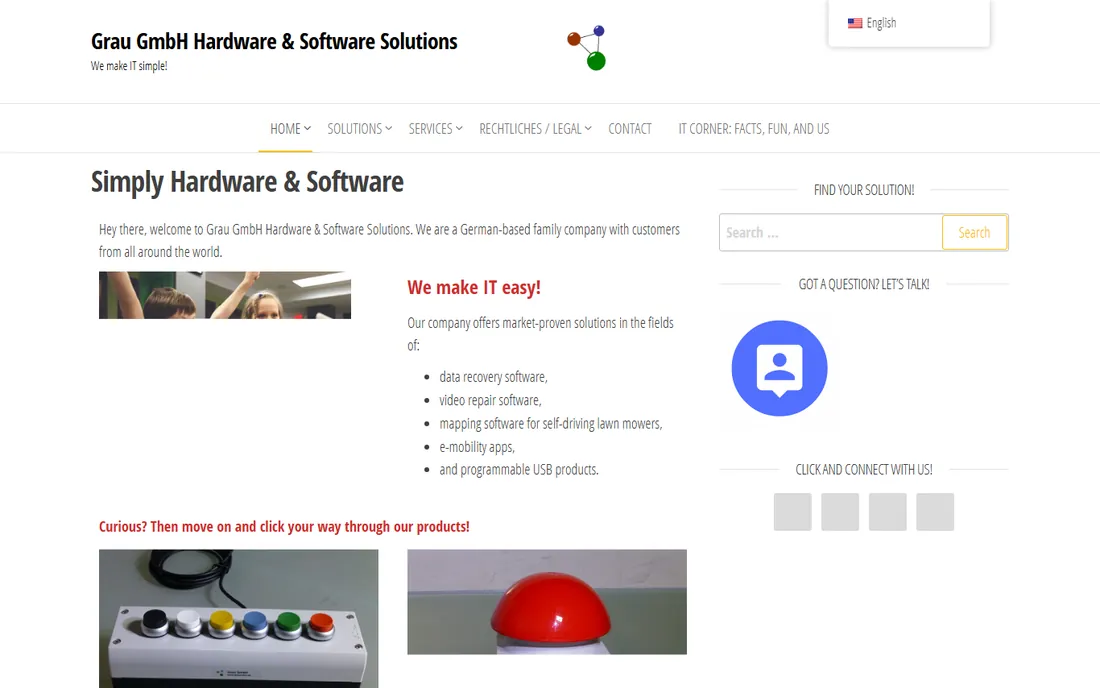
For files that every consumer tool gives up on, this is the professional-grade fallback. The Grau GmbH Video Repair Tool is built for severely damaged video from professional cameras and recorders. It analyzes the raw stream, rebuilds broken structures, and repairs without re-encoding, which means the recovered footage keeps its original quality instead of being compressed a second time.
This is the tool that video forensics people and broadcast engineers reach for when the footage is mission-critical and nothing else worked. The tradeoff is usability. The interface is functional rather than friendly, and getting the best results sometimes requires understanding what is actually wrong with the file. It is also priced for professionals, not for fixing one phone clip. Most buyers should start with the free tools and mainstream options above; keep Grau in mind for the file that survives everything else.
What we like- Handles severely damaged files other tools abandon
- Repairs without re-encoding, preserving original quality
- Long track record with camera-specific formats
Watch out for- Interface feels like engineering software, not a consumer app
- Documentation assumes technical comfort
How we chose
We checked each tool against its vendor's own site: the product still exists, the homepage loads, and the supported format list covers current cameras and codecs. Pricing and free tiers come from vendor pricing pages where we could verify them; where a vendor does not publish clear pricing, we say so instead of guessing. We weighed public documentation, review coverage on G2, Capterra and Reddit, and how each tool fits different buyer situations, from a single corrupted phone clip to a batch of damaged professional footage. We did not run hands-on repair tests; repair success depends heavily on the specific damage in each file, which is why preview-before-you-pay features scored well.
A video repair purchase goes wrong in predictable ways. Run through these checks first and you will avoid most of them.
Match the tool to your format
Not every repair tool handles every format. Remo Repair AVI is excellent for AVI and useless for MP4. Before buying, confirm your exact format and codec appear on the vendor's supported list. H.264 in an MP4 container is the easy case; HEVC, ProRes and camera-specific RAW-adjacent formats narrow the field fast.
Find out whether you need a sample file
Severe corruption often requires a healthy reference video shot on the same device in the same format. If you still have the camera, record a short working clip before you start. Tools with an advanced or sample-based mode, like Stellar, Repairit and Kernel, depend on this. If the camera is gone, favor tools that attempt repair without a reference.
Never pay before a preview
Every reputable tool in this category lets you preview the repaired result before money changes hands, either as a free trial preview or a low-resolution online preview. If a tool asks you to pay before showing you the fixed file, walk away.
Check size limits and batch support
Online tools cap upload sizes, and desktop tools vary in batch support. One corrupted wedding video is an online-tool job. Two hundred clips from a damaged memory card is a desktop batch job. Match the tool to the scale of the problem.
Online repair or desktop software: which fits your case
Online services like Fix.Video, Restore.Media and EaseUS Online Video Repair win on convenience. Nothing to install, per-file pricing, and you can start from any computer. They are the right call for one-off repairs and for drone footage where the failure mode is well understood.
Desktop software like Stellar, Repairit, Remo and Kernel wins on control. Large files never leave your machine, batch processing handles volume, and sample-file modes tackle deeper corruption. If the footage is sensitive or you have dozens of files, install a desktop tool. Many buyers use both: try a free online repair first, then buy desktop software if the file needs more.
Frequently asked questions
Can a corrupted video file always be repaired?
No. Repair tools fix structural problems like broken headers, damaged indexes and truncated recordings. They cannot recover data that was never written or sectors that were overwritten. If the file is 0KB or the storage was reformatted and reused, repair software is the wrong tool; you need data recovery first.
Do I need a sample file from the same camera?
Sometimes. Light corruption, broken indexes and truncated files, can often be fixed without one. Severe structural damage usually requires a healthy reference clip from the same device and format. Keep the camera if you can, and record a short working video before you start the repair.
Is it safe to upload private footage to an online repair tool?
It depends on the footage and your comfort level. Reputable services process files automatically and delete them after the repair window. For client work, legal matters or anything confidential, a desktop tool keeps everything on your machine. Read the vendor's privacy terms before uploading.
Why does VLC fix some files but not others?
VLC can rebuild broken AVI indexes on the fly and remux some damaged files during conversion, which handles light corruption. It cannot rebuild severely damaged structures, repair modern codec damage, or fix files that will not open at all. When VLC fails, a dedicated repair tool is the next step.
When is paid video repair software worth it?
When the footage is irreplaceable and the free options failed. Try VLC and a free online repair first; both cost nothing. If the file matters, a wedding, a paid client shoot, evidence, then a paid tool with a free preview is a reasonable spend. Always confirm the preview shows your fixed video before paying.
Sources we checked (11)
- https://repairit.wondershare.com/
- https://www.remosoftware.com/remo-repair-avi
- https://nucleustechnologies.com/
- https://fix.video/
- https://restore.media/
- https://stellarinfo.com/
- https://www.easeus.com/
- https://www.grauonline.de/
- https://pctechmag.com/2026/06/video-file-is-corrupted-heres-how-to-repair-it-easily/
- https://tech-insider.org/how-to-fix-corrupted-mp4-mov-video-files/
- https://www.dsaviour.com/repair-corrupt-video-files/
Is your product missing or out of date?
We review this list regularly. Vendors can request a listing, send updated pricing or ask about featured placement.

Shihab Mia · Founder, Rankite
Shihab has spent more than a decade helping SaaS and e-commerce brands grow through search. He writes Rankite's software buying guides from pricing pages, documentation and public user reviews. More about Shihab.
 Stellar Repair for Video
 Wondershare Repairit
 Remo Repair AVI
 Kernel Video Repair
 Restore.Media
 EaseUS Online Video Repair