How we make this list: we compare pricing pages, product documentation and public user reviews. Rankite is independent; if a vendor ever pays for a featured spot, that listing is clearly labeled Partner.
Key takeaways
- On a zero budget, OBS Studio remains the best free video recording software for streamers and tinkerers, while ShareX is the best video capture software free pick for quick screenshots and GIFs.
- Tutorial makers who publish regularly will get the most from Camtasia, which pairs recording with an editor built for the job, and Snagit for the quick annotated stills that go with it.
- Loom is the fastest way to replace a long typed update with a short video, though its free plan caps each recording at five minutes.
- Bandicam and Movavi Screen Recorder sit in the affordable seats for Windows users who want dependable capture without learning a broadcast tool.
- Apowersoft and Icecream Screen Recorder suit casual use, but their free tiers push toward paid plans faster than the open-source options.
Quick comparison
| Tool | Best for | Starting price | Free plan |
|---|
 OBS Studio OBS Studio | live streaming and advanced screen capture | Free | Yes |
 Camtasia Camtasia | polished tutorials and course videos | $179.88/year | Free trial (watermarked exports) |
 Loom Loom | quick video messages for teams | $15 per user/month (billed annually) | Yes |
 Bandicam Bandicam | lightweight gameplay and screen recording on Windows | $33.26/year | Yes (10-minute recordings with watermark) |
 Movavi Screen Recorder Movavi Screen Recorder | beginners who want clean recordings fast | $44.95/year | Free trial (7 days, watermarked exports) |
 EaseUS RecExperts EaseUS RecExperts | flexible full-screen and partial capture | $19.95/month | Yes (exports limited to one minute) |
 Snagit Snagit | screenshots with quick annotations | $39.00/year | Free trial |
 ShareX ShareX | free capture plus instant sharing | Free | Yes |
 Apowersoft Screen Recorder Pro Apowersoft Screen Recorder Pro | browser-based and desktop recording | $12.95/month | Free trial |
 Icecream Screen Recorder Icecream Screen Recorder | simple screen capture on a budget | $29.95/year | Yes (free version with limits) |
Is your product missing or out of date?
We review this list regularly. Vendors can request a listing, send updated pricing or ask about featured placement.
The best video recording software in 2026
The problem with most screen recording advice is that it treats every buyer the same. A streamer, a teacher making course videos, and a support agent recording a bug repro have almost nothing in common, yet they keep landing on the same generic list. Picking the wrong tool costs more than money: it costs hours of fiddling with settings that were never built for your job.
This list sorts the top video recorder software by actual use case. You will find free open-source workhorses, cheap one-job recorders, and the pricier suites that earn their keep when video is your product. Prices come from the vendors' own sites, checked in October 2026, so the numbers below are the ones you will see at checkout.
Starting priceFree
Free planYes
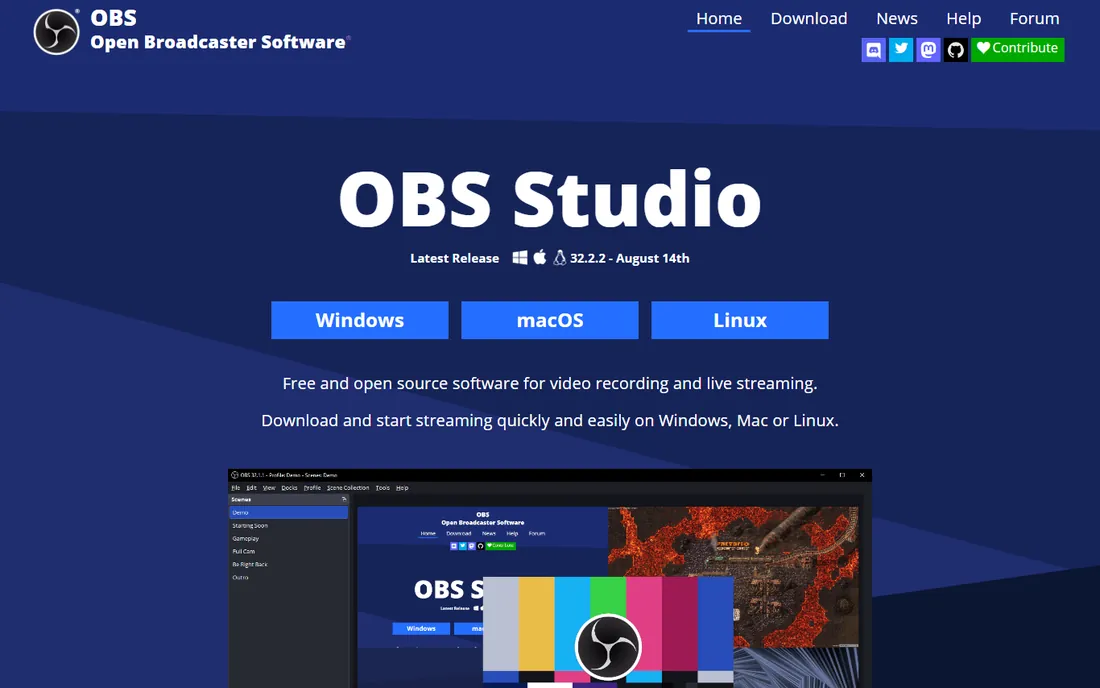
Nothing else free touches OBS for flexibility. You can mix screen, webcam, and audio sources into scenes, switch between them live, and record locally at high quality with no watermarks. That is why streamers adopted it years ago and never left.
The trade is complexity. OBS assumes you know what bitrate, encoder, and canvas resolution mean, and the default settings are tuned for streaming, not for clean local recordings. Plan on spending an evening on guides and test captures. Once it is dialed in, though, it stays dialed in, and there is no subscription to keep paying.
What we like- Completely free with no watermarks or time limits
- Deep scene mixing, filters and plugins
- Huge community for help and add-ons
Watch out for- The interface overwhelms first-timers
- Expect a real setup session before your first clean recording
Starting price$179.88/year
Free planFree trial (watermarked exports)
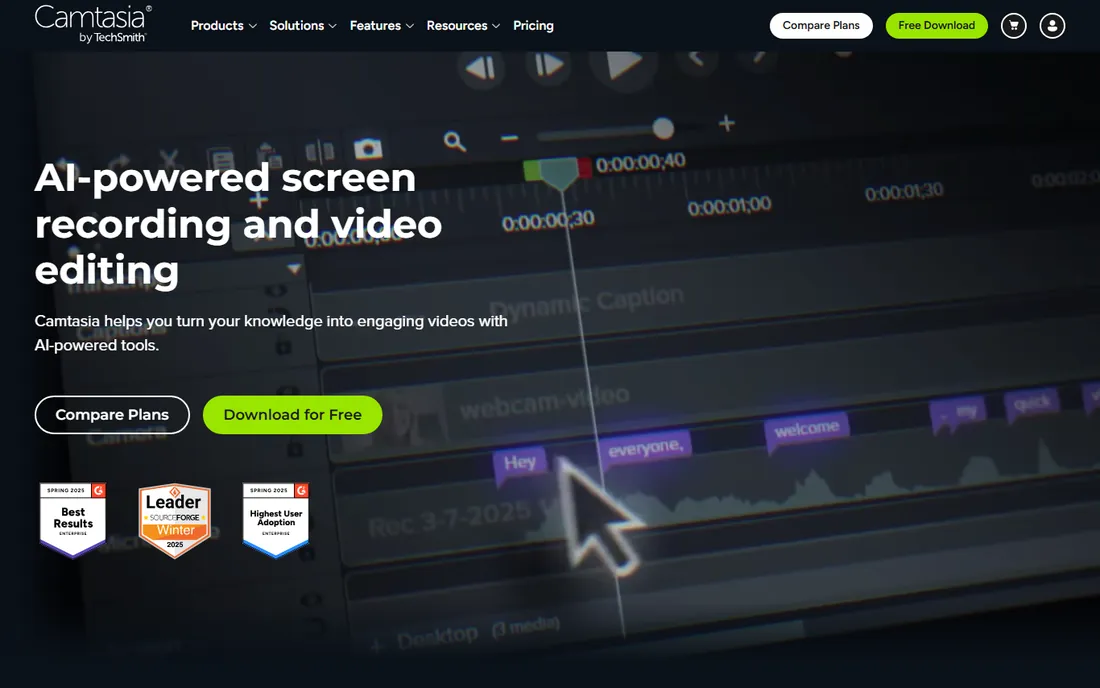
Camtasia is the answer when your recordings need to look finished. Capture the screen, then edit in the same app with callouts, animated zooms, and transitions that make software tutorials easier to follow. The free trial watermarks exports, but Camtasia Online lets you record and share without one.
At $179.88 per year for the Essentials plan, this is a tool for people who publish training content regularly. If you record a demo once a quarter, the price will not make sense. For course creators and in-house training teams, the all-in-one workflow saves real hours every week.
What we like- Recorder and editor designed to work as one
- Strong cursor effects and zoom animations
- Quiz and caption tools built in
Watch out for- The annual price stings for occasional users
- Heavier than a pure recorder
Starting price$15 per user/month (billed annually)
Free planYes
Loom owns the "send a video instead of a meeting" category because it removed every step between recording and sharing. Hit record, talk through your screen, and the link is ready before you have closed the tab. Teams use it for design feedback, async standups, and customer walkthroughs.
The free Starter plan is genuinely usable: 25 videos at 720p with a five-minute cap each. The Business plan at $15 per user per month (billed annually) raises limits and adds branding and engagement insights. Buyers should know Loom is for communication, not production; if you need to edit, you will export elsewhere.
What we like- Records and shares a link in seconds
- Viewer reactions and comments built in
- Minimal learning curve
Watch out for- Free Starter plan limits recordings to five minutes and 25 videos
- Not an editing tool
#4
Bandicam
Best for: lightweight gameplay and screen recording on Windows
Visit bandicam.com
Starting price$33.26/year
Free planYes (10-minute recordings with watermark)
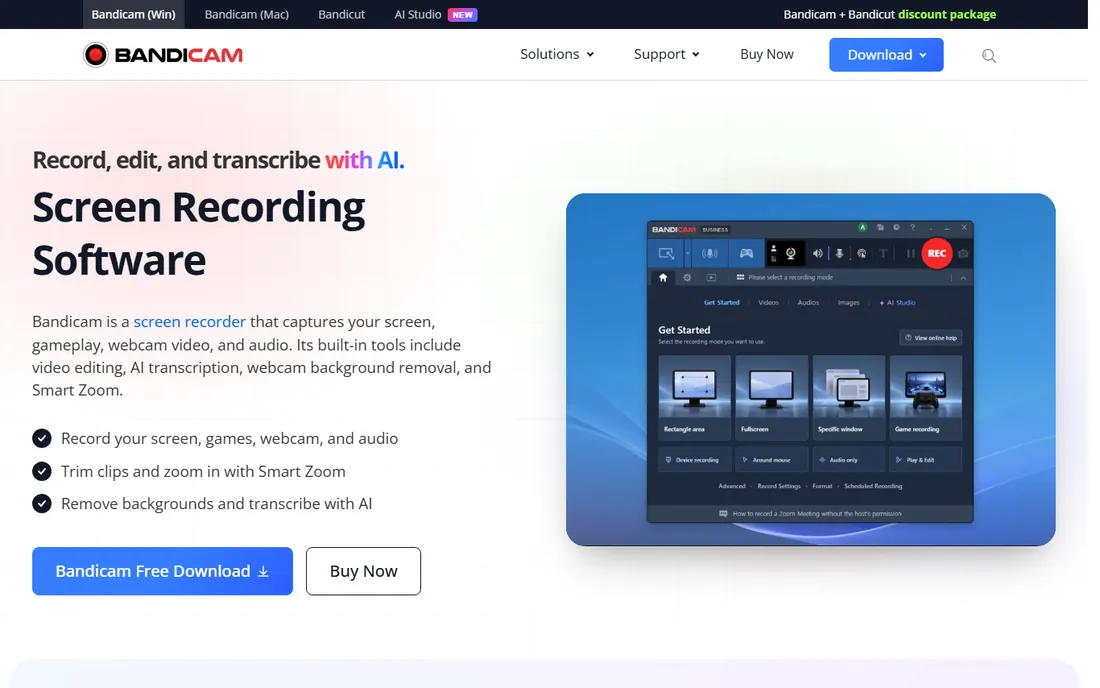
Bandicam has been the budget Windows recorder for years because it does one thing well: capture screen, game, or webcam footage without dragging down the machine. Game recording mode hooks directly into the game for smooth framerates, and the interface has about five buttons that matter.
Pricing is refreshingly simple. The annual 1-PC license lists at $33.26 per year, and the perpetual license at $53.90 ends the subscription question entirely. The free version lets you test everything with a ten-minute, watermarked limit. It is not cross-platform and it is not an editor, but for cheap reliable capture on Windows it is hard to beat.
What we like- Small footprint that stays out of the way
- Hardware acceleration keeps file sizes sane
- Simple mode switching
Watch out for- Windows only
- The free tier caps recordings at ten minutes with a watermark
#5
Movavi Screen Recorder
Best for: beginners who want clean recordings fast
Visit movavi.com
Starting price$44.95/year
Free planFree trial (7 days, watermarked exports)
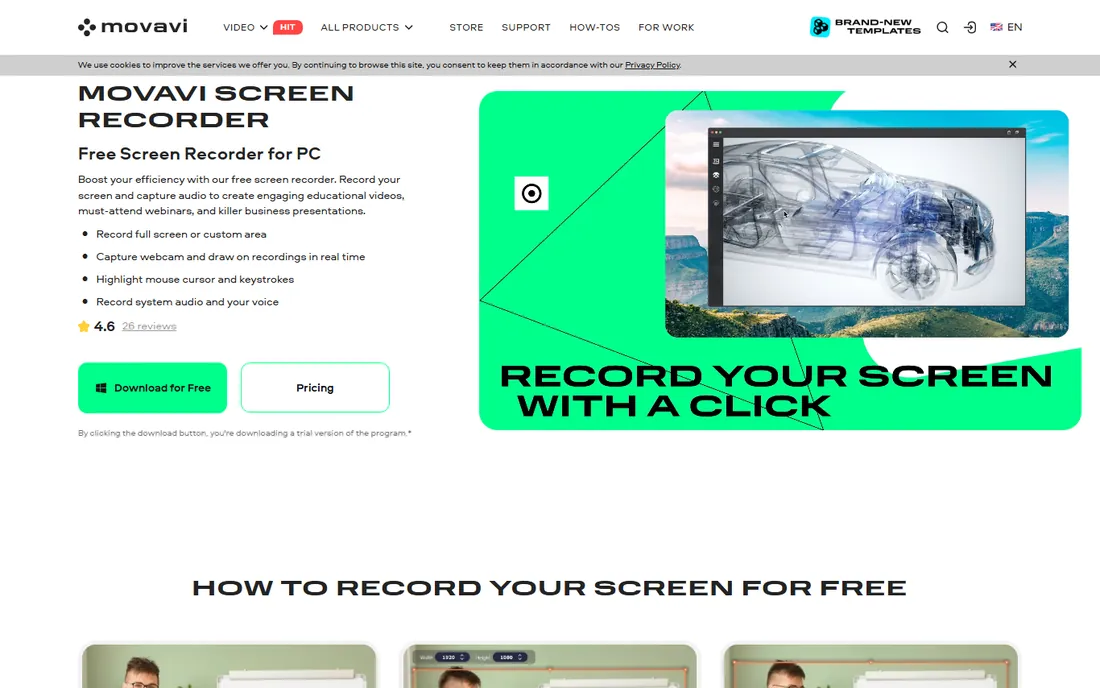
Movavi built its screen recorder for people who open OBS and close it again. Everything is one click: region, webcam overlay, system sound, microphone. You can sketch on the screen mid-recording, which teachers and presenters use constantly, and schedule captures for webinars you cannot attend live.
The one-year subscription runs $44.95 on Movavi's own site. The seven-day trial shows you the full feature set but watermarks exports, which is enough to decide whether the workflow fits. If you want recording plus a real editor from the same vendor, Movavi sells that separately rather than bundling it here.
What we like- Friendly interface that needs no manual
- Draws on screen while recording
- Scheduled recordings included
Watch out for- Trial exports carry a watermark
- The editor upsell appears quickly
#6
EaseUS RecExperts
Best for: flexible full-screen and partial capture
Visit easeus.com
Starting price$19.95/month
Free planYes (exports limited to one minute)
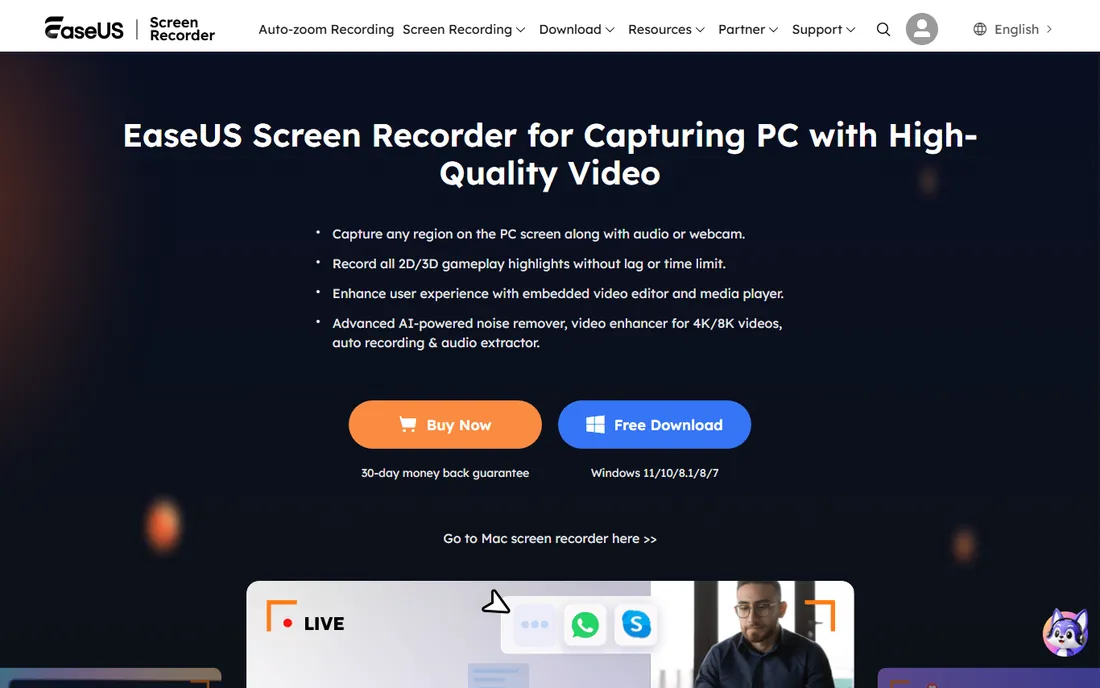
RecExperts is a solid middle-ground recorder with more capture modes than most buyers will ever use: full screen, region, webcam picture-in-picture, audio-only, and even a green-screen style background cut for webcam feeds. The built-in editor covers trimming and basic cleanup, and the scheduler handles unattended recordings.
EaseUS lists three tiers on its buy page: $19.95 per month, $39.95 per year, and $69.95 for a lifetime license. The monthly rate is steep compared with rivals, so treat the yearly or lifetime options as the real prices. The free version caps exports at one minute, which tells you the feature set but little about long recordings.
What we like- Many capture modes including region and webcam overlays
- Built-in trimming and task scheduler
- Straightforward pricing tiers
Watch out for- The monthly plan is pricey for what it does
- Annual and lifetime plans are better value but harder to find on the site
Starting price$39.00/year
Free planFree trial
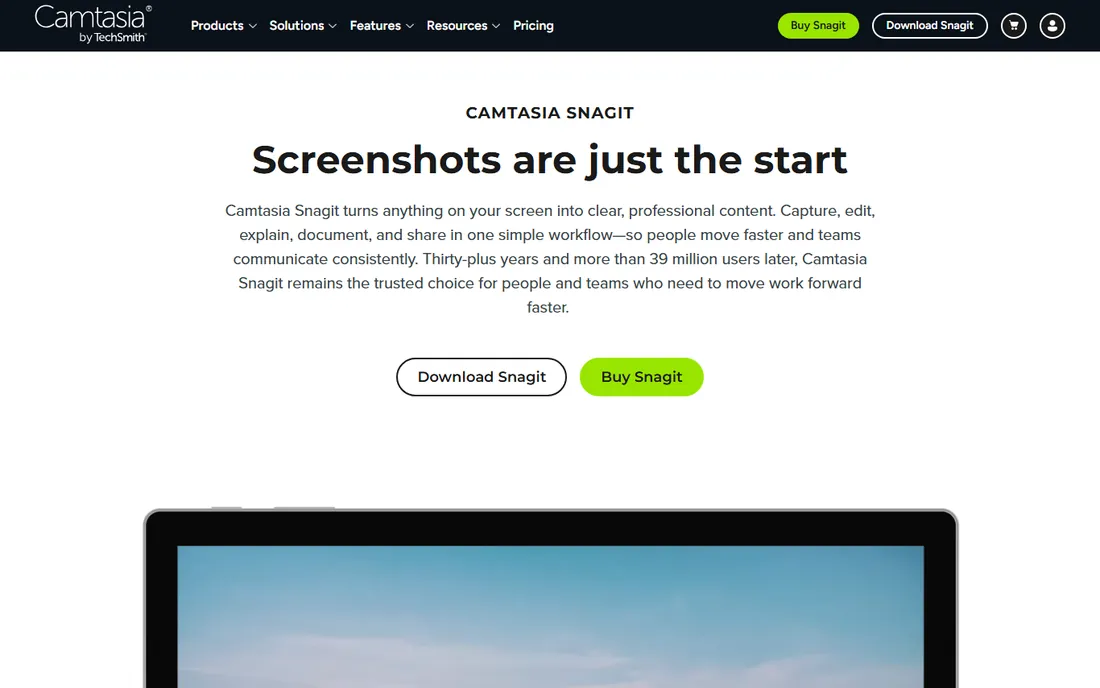
Snagit is a screenshot tool first, and that is exactly why support teams and technical writers swear by it. Grab a region, a scrolling window, or a short clip, annotate it in seconds, and drop it into a doc or ticket. Its templates turn rough captures into tidy step-by-step guides faster than any general recorder.
The video side exists and works for quick explainers, but it is not trying to compete with Camtasia, its TechSmith sibling. At $39 per year for individuals, it is cheap for daily documentation work. Note the licensing changed: Snagit now renews annually, so buyers coming from the old perpetual version should budget accordingly.
What we like- The fastest still-capture workflow in the business
- Templates and stamps speed up documentation
- Reliable scrolling capture
Watch out for- Video recording is basic, capped at simple captures
- The subscription replaced the old one-time price
Starting priceFree
Free planYes
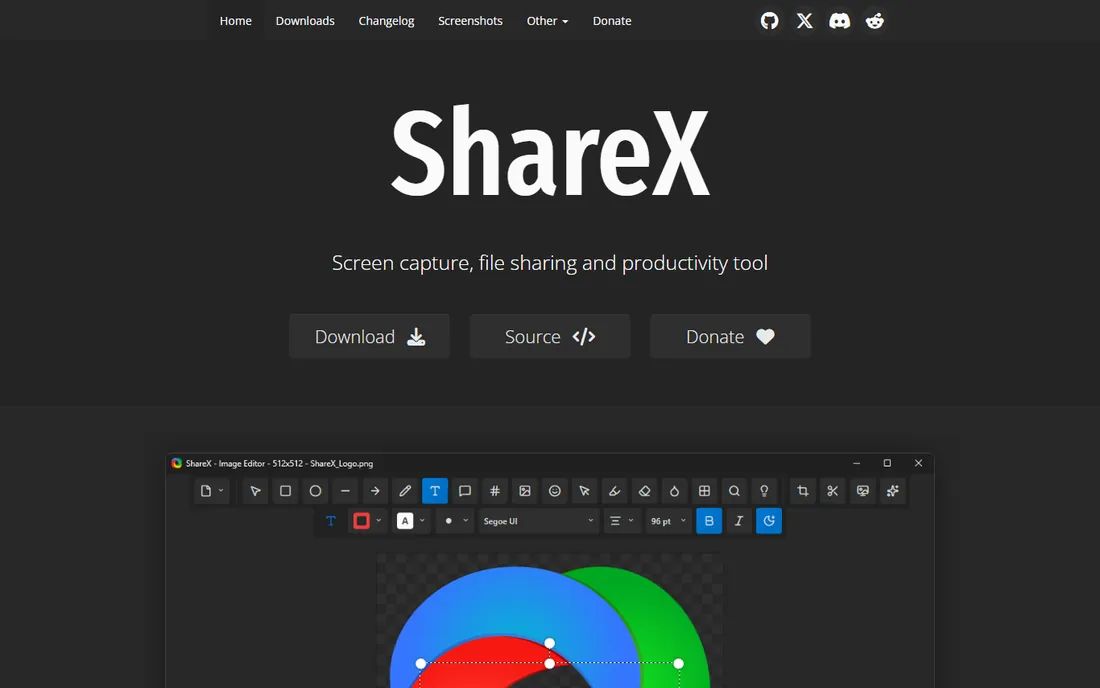
ShareX is what you install when you want every capture trick for free. Region and fullscreen screenshots, screen recording to video or GIF, scrolling capture, color pickers, rulers, and one-click uploads to Imgur, YouTube, and your own server. The workflow engine lets you chain capture, annotate, and upload into a single hotkey.
The catch is the interface. ShareX exposes everything, which means new users face a wall of checkboxes. Spend twenty minutes configuring destinations and hotkeys and it becomes invisible, a background tool you stop thinking about. For Windows users who capture constantly, it is the best free video recorder software in the pure-utility sense.
What we like- Free and open source with no ads
- Captures screenshots, GIFs, video, and scrolling pages
- Uploads straight to dozens of services
Watch out for- Windows only
- The settings menu is a maze of options
Starting price$12.95/month
Free planFree trial
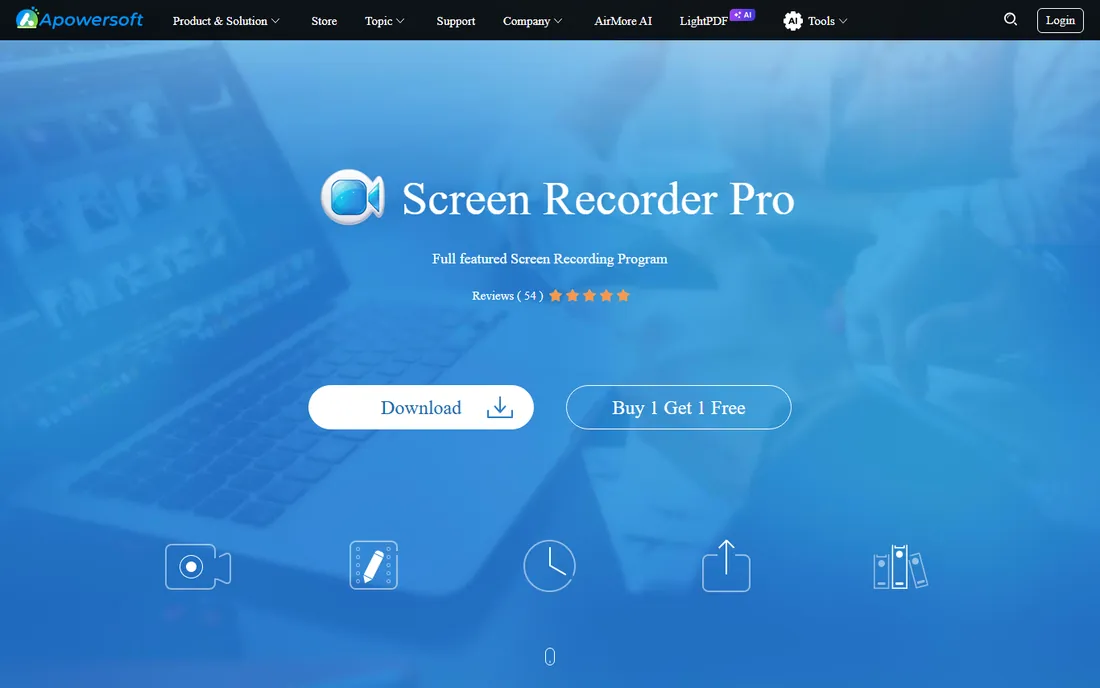
Apowersoft takes a different route: start recording from the browser with no install, then graduate to the Pro desktop app when you need more. The online recorder covers quick captures nicely, while Pro adds task scheduling, real-time annotation, and webcam overlays.
The official page lists $12.95 per month for Pro. That monthly figure looks gentle until you compare it with annual plans from Bandicam or Icecream, which cost less for a full year. Apowersoft suits occasional recorders who prefer paying month to month and never touching a subscription they forget to cancel.
What we like- Online recorder needs no install
- Desktop Pro version adds scheduling and annotation
- Supports common output formats
Watch out for- The free online version has time limits
- Monthly pricing adds up fast versus yearly rivals
Starting price$29.95/year
Free planYes (free version with limits)
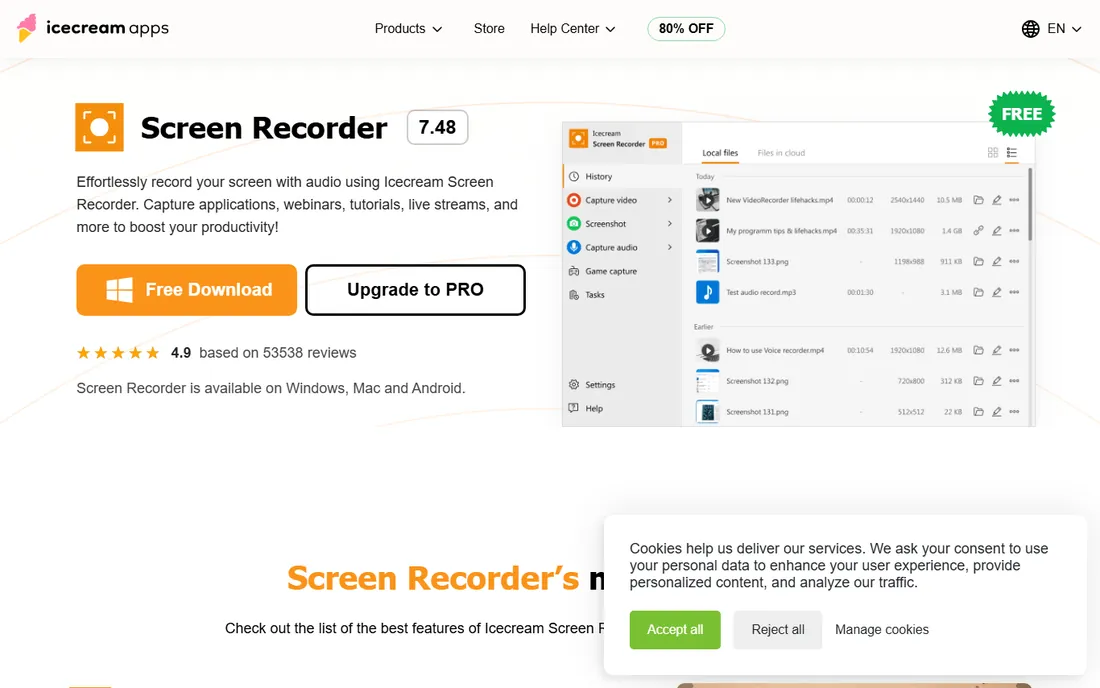
Icecream Screen Recorder keeps things deliberately simple: pick an area, record it, add drawings or text while you talk. It is the kind of tool you hand to a colleague who needs to record a process today, not next week after training.
The free version handles short captures with a watermark and feature limits. Pro at $29.95 per year removes those caps and adds the higher-resolution options, and Icecream also sells a lifetime license for buyers who hate renewals. It will not replace an editor, but as a budget capture tool it does exactly what it promises.
What we like- Clean, approachable interface
- Draws and annotates during recording
- Affordable yearly Pro plan
Watch out for- Free version restricts recording length and features
- 4K and some tools need Pro
How we chose
We compared vendors' own pricing pages and feature lists, checked what each free tier actually allows, and cross-referenced user feedback on G2, Capterra, and Reddit threads about real recording workflows. Tools made the list when they had a clear audience, an active 2026 release, and honest pricing we could verify on the vendor's site. We never claim hands-on testing; the rankings come from documented features, plan limits, and reported support quality, not from a lab.
How to pick the right screen recorder
Start with the job, not the feature list. If your video is a message, Loom beats every editor on this list because the link matters more than the cut. If your video is a product, tutorials need Camtasia or Filmora-style editing, while bug reports and quick demos are better served by Snagit or ShareX.
Then check the limits that actually bite. Free tiers almost always cap recording length, resolution, or add watermarks, and those limits decide whether "free" works for you or just delays a purchase. Windows-only tools like Bandicam and ShareX are non-starters on a Mac, while browser options like Apowersoft's online recorder travel with you. Finally, look at the billing model: a $20 monthly plan costs more than a $60 yearly plan within three months, so match the term to how often you will record.
Getting clean recordings without the trial-and-error
A few habits matter more than which app you buy. Record system audio and microphone to separate tracks when the tool allows it; fixing levels in post is easy, re-recording a call is not. Close notifications and set do-not-disturb before you hit record, because one banner can ruin a take. For tutorials, record at the resolution you will export, since upscaling a 1080p capture to 4K never looks right.
Audio deserves the biggest share of your budget. A $60 USB microphone improves a tutorial more than any software upgrade, and every recorder on this list benefits from a quiet room and a mic check. When exports look soft, the cause is usually a low bitrate setting rather than the tool itself, so check the export preset before blaming the recorder.
Frequently asked questions
What is the best free video recording software?
OBS Studio is the strongest free option overall, with no watermarks, no time limits, and professional scene mixing. For quick captures and GIFs, ShareX is the best free video recorder software on Windows, and Loom's free Starter plan covers short team videos with a five-minute per-recording cap.
Do I need a separate video editor with a screen recorder?
It depends on what you publish. Tools like Camtasia and Movavi include editing, while OBS, Bandicam, and ShareX record only. If your videos need titles, zooms, or cuts, either pick an all-in-one tool or budget for an editor alongside your recorder.
Why do my screen recordings look blurry?
Blur usually comes from export settings, not the recorder. Record at your target resolution and export with an adequate bitrate. Capturing a small window and stretching it to fullscreen will always look soft, so size your recording region to match your final video.
Can I record my screen and webcam at the same time?
Yes. OBS Studio, Bandicam, Movavi Screen Recorder, EaseUS RecExperts, and Apowersoft Screen Recorder Pro all support webcam overlays on screen captures. Loom includes webcam bubbles by default for its async video messages.
Is a lifetime license better than a subscription?
For tools you will use for years, often yes. Bandicam and Icecream Screen Recorder both sell perpetual or lifetime licenses that end the renewal question. Subscriptions make sense when you need continuous updates or cloud features, as with Loom and EaseUS RecExperts.
Sources we checked (10)
- https://obsproject.com/
- https://www.techsmith.com/camtasia/
- https://www.loom.com/
- https://bandicam.com/
- https://www.movavi.com/screen-recorder/
- https://www.easeus.com/screen-recorder/index.html
- https://www.techsmith.com/screen-capture.html
- https://getsharex.com
- https://www.apowersoft.com/screen-recorder.html
- https://icecreamapps.com/Screen-Recorder/
Is your product missing or out of date?
We review this list regularly. Vendors can request a listing, send updated pricing or ask about featured placement.

Shihab Mia · Founder, Rankite
Shihab has spent more than a decade helping SaaS and e-commerce brands grow through search. He writes Rankite's software buying guides from pricing pages, documentation and public user reviews. More about Shihab.