How we make this list: we compare pricing pages, product documentation and public user reviews. Rankite is independent; if a vendor ever pays for a featured spot, that listing is clearly labeled Partner.
Key takeaways
- Acronis True Image is the most complete package, combining disk imaging with antivirus, ransomware rollback, and cloud backup in one subscription.
- Macrium Reflect X is the specialist's choice for pure imaging speed and reliability, now subscription-based after the free edition was retired.
- Clonezilla and Rescuezilla are free and do the core job well; Rescuezilla adds the graphical interface Clonezilla lacks.
- Veeam Agent for Microsoft Windows is free for single PCs and brings enterprise-grade backup engineering to home users.
- If you only need to clone one drive to a new SSD, the free editions of AOMEI, EaseUS, Paragon, or Rescuezilla are enough; pay only for scheduling and advanced restore.
Quick comparison
| Tool | Best for | Starting price | Free plan |
|---|
 Acronis True Image Acronis True Image | Complete backup, cloning, and cyber protection in one subscription | $49.99 per year | Free trial (30 days) |
 Macrium Reflect X Macrium Reflect X | Fast, dependable disk imaging for Windows | See website | Free trial |
 Clonezilla Clonezilla | Free, scriptable imaging for technicians and labs | Free | Yes |
 EaseUS Todo Backup EaseUS Todo Backup | Straightforward backup and cloning for non-technical users | See website | Free (Free edition) |
 AOMEI Backupper AOMEI Backupper | Generous free backup with affordable paid upgrades | $39.95 per year | Free (Standard edition) |
 Veeam Agent for Microsoft Windows Veeam Agent for Microsoft Windows | Free, enterprise-grade backup for a single Windows PC | Free | Yes |
 Rescuezilla Rescuezilla | Free graphical disk cloning from a bootable USB | Free | Yes |
 Paragon Backup & Recovery Paragon Backup & Recovery | Free Windows imaging for personal, non-commercial use | Free | Yes (Community Edition) |
Is your product missing or out of date?
We review this list regularly. Vendors can request a listing, send updated pricing or ask about featured placement.
The best imaging software for disk imaging and cloning in 2026
#1
Acronis True Image
Best for: Complete backup, cloning, and cyber protection in one subscription
Visit acronis.com
Starting price$49.99 per year
Free planFree trial (30 days)
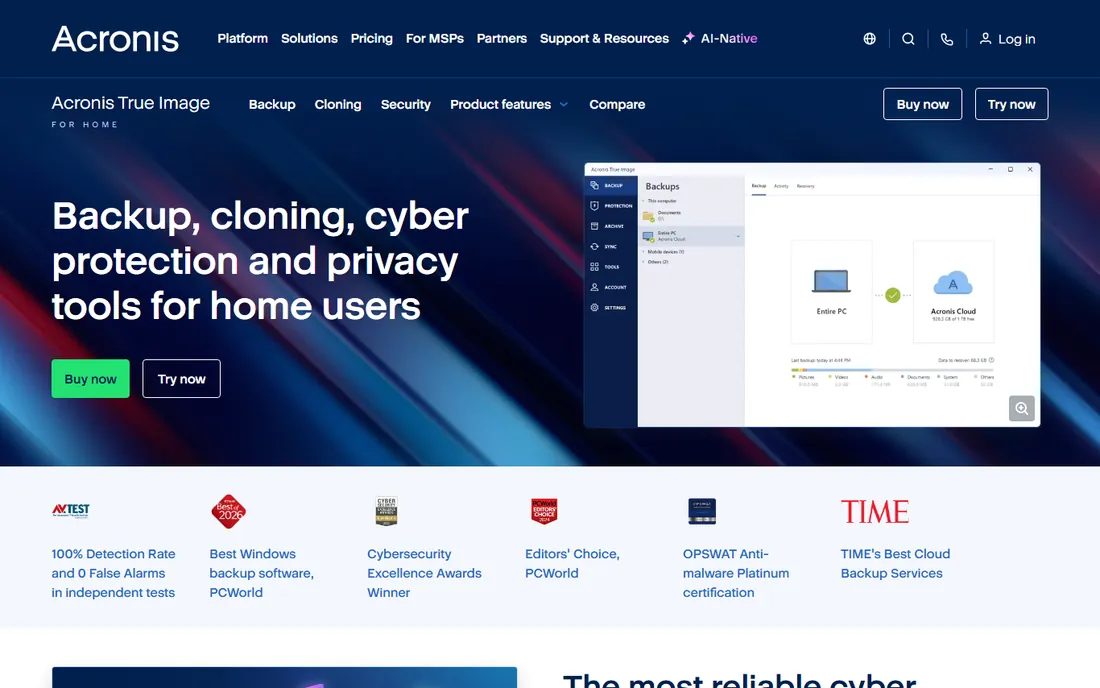
Acronis True Image, which briefly carried the Cyber Protect Home Office name before Acronis restored the True Image branding in 2024, is the only tool here that treats backup as a security problem. Its Active Protection watches for ransomware behavior and can roll back encrypted files, which matters now that attackers deliberately hunt backup archives first. The Essential plan at $49.99 per year covers local backup and cloning for one computer, with Advanced and Premium adding cloud storage and identity protection.
The tradeoff is price and model. There is no perpetual license and no free tier, only a 30-day trial, so the cost recurs every year. If you want pure imaging without the security suite, Macrium or the free tools do the job for less. Buy Acronis when you want one subscription covering backup, cloning, antivirus, and ransomware defense for the whole household.
What we like- Full-image and file backup plus integrated antivirus and anti-ransomware
- Active disk cloning without rebooting
- Universal Restore to dissimilar hardware
Watch out for- Subscription only with no perpetual license
- More expensive than backup-only rivals
- Cloud storage costs extra on higher tiers
#2
Macrium Reflect X
Best for: Fast, dependable disk imaging for Windows
Visit macrium.com
Starting priceSee website
Free planFree trial
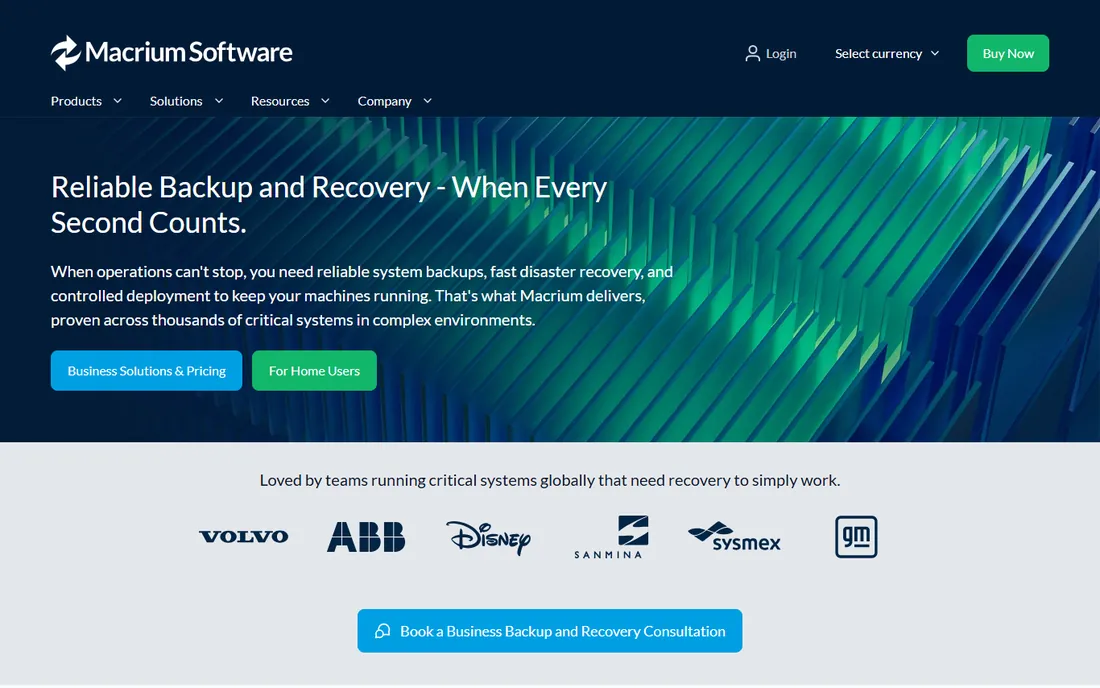
Macrium built its reputation on imaging that simply works, and Reflect X continues that with a faster engine, resumable imaging after interruptions, and support for ARM-based Windows devices. The Image Guardian feature guards backup files against unauthorized modification, addressing the same backup-targeting ransomware problem Acronis tackles. Annual plans start the home lineup, with multi-year options discounting longer commitments.
The big change is the end of free. Macrium retired Reflect Free in early 2024 and the perpetual Home edition after that, so every current option is paid. Longtime free users have mostly moved to Rescuezilla or Veeam Agent. If you are willing to pay, Reflect X remains the imaging specialist's pick: it does one job, imaging and recovery, better than suites that do five jobs adequately.
What we like- Very fast imaging engine with rapid delta restore
- Image Guardian protects backup files from ransomware
- Rescue media creation is straightforward
Watch out for- Free edition was discontinued, so there is no free tier anymore
- Windows-only, which excludes Mac and Linux users
Starting priceFree
Free planYes
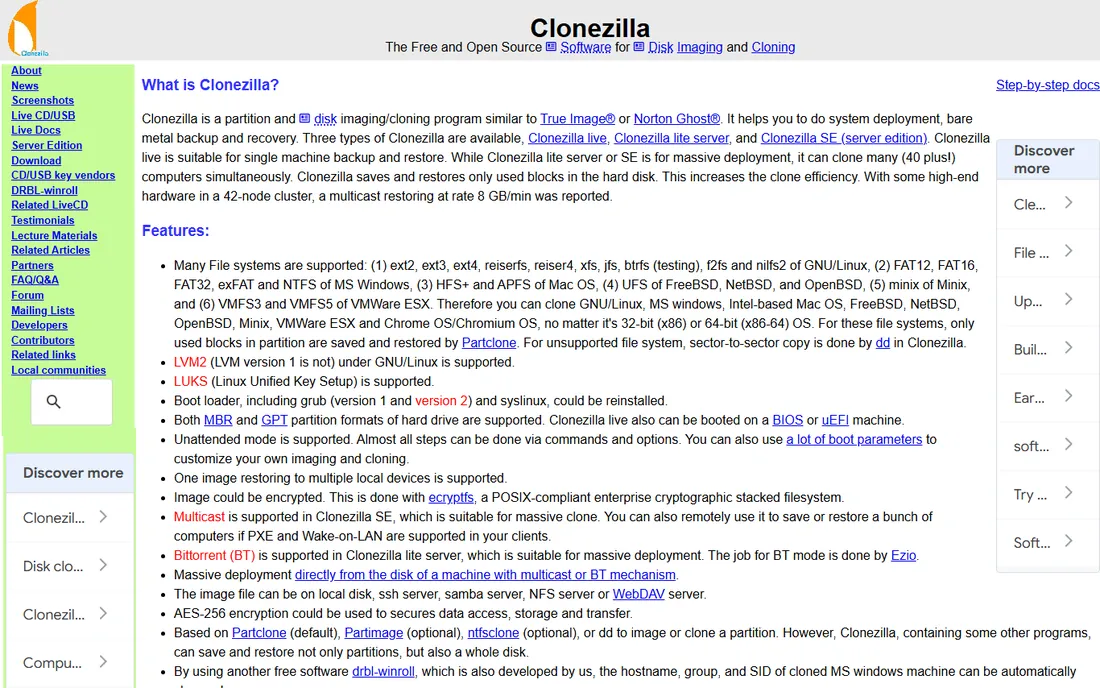
Clonezilla is the industry-standard free imager, trusted in IT departments and repair shops for two decades. It boots from USB, images or clones whole disks and partitions, and its server edition can multicast one image to forty or more machines simultaneously, which is why schools and labs love it. It handles Windows, Linux, and Mac filesystems, encrypts images with AES-256, and costs nothing.
The interface is the price of admission. The menu-driven text UI confuses first-timers, and limitations like no incremental backups and no single-file extraction from images require workarounds. If the text interface puts you off, Rescuezilla wraps the same engine in a graphical front end. Technicians who live in terminals will feel at home immediately.
What we like- Completely free and open source under GPL
- Images only used blocks for speed
- Multicasts to dozens of machines at once for lab deployment
Watch out for- Text-based interface intimidates beginners
- No incremental backup and no way to mount an image to pull single files
#4
EaseUS Todo Backup
Best for: Straightforward backup and cloning for non-technical users
Visit easeus.com
Starting priceSee website
Free planFree (Free edition)
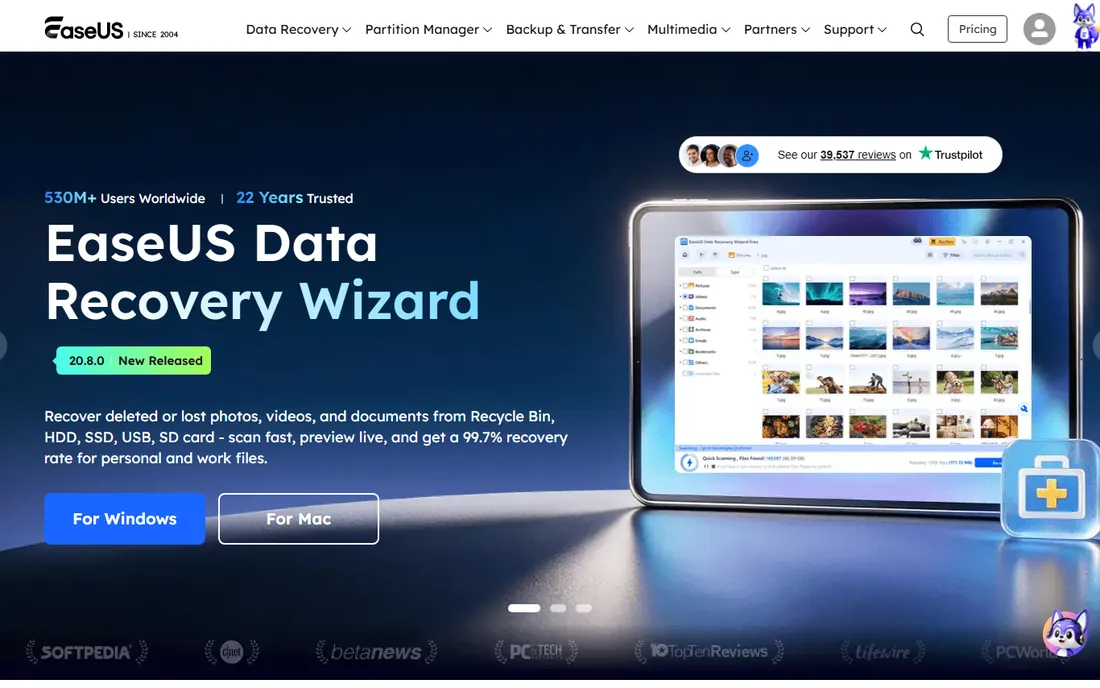
EaseUS Todo Backup has survived for twenty years by being the backup tool your non-technical relative can actually use. The free edition handles file, disk, partition, and system backup with scheduling and encryption, which covers the basics honestly. Stepping up to the paid Home tier adds disk and system cloning, Outlook backup, and restore to different hardware.
Watch two things. First, cloning lives in the paid tier, so the free edition will not migrate your system to a new SSD. Second, EaseUS runs frequent promotions that change the effective price, and the cart has been known to preselect add-ons, so read the checkout screen. For set-and-forget scheduled backups on a family PC, it is one of the easiest options here.
What we like- Clean wizard-driven interface
- Free edition covers system, disk, and file backup
- Paid Home adds cloning and dissimilar-hardware restore
Watch out for- Pricing and plan names shift with promotions, so confirm at checkout
- Free edition omits disk cloning, the feature many buyers want
#5
AOMEI Backupper
Best for: Generous free backup with affordable paid upgrades
Visit aomeitech.com
Starting price$39.95 per year
Free planFree (Standard edition)
AOMEI Backupper's free Standard edition is unusually complete: system, disk, partition, and file backup plus cloning and file sync at no cost. That makes it the first tool to try before spending anything. The Professional edition, from $39.95 for a one-year license, adds real-time file sync, system clone, automatic backup cleanup, and universal restore to different hardware, with a lifetime license option for buyers who hate subscriptions.
The free edition is genuinely usable rather than a teaser, which is why it ranks well in independent reviews. The annoyance is the upsell nudging inside the interface. If you can ignore the upgrade prompts, Backupper gives away more for free than any commercial rival on this list.
What we like- Free Standard edition covers backup, restore, cloning, and sync
- Professional from $39.99 per year adds real-time sync and dissimilar-hardware restore
- 90-day money-back guarantee
Watch out for- Interface carries upsell prompts for paid editions
- Advanced features like PXE boot sit in higher business tiers
#6
Veeam Agent for Microsoft Windows
Best for: Free, enterprise-grade backup for a single Windows PC
Visit veeam.com
Starting priceFree
Free planYes
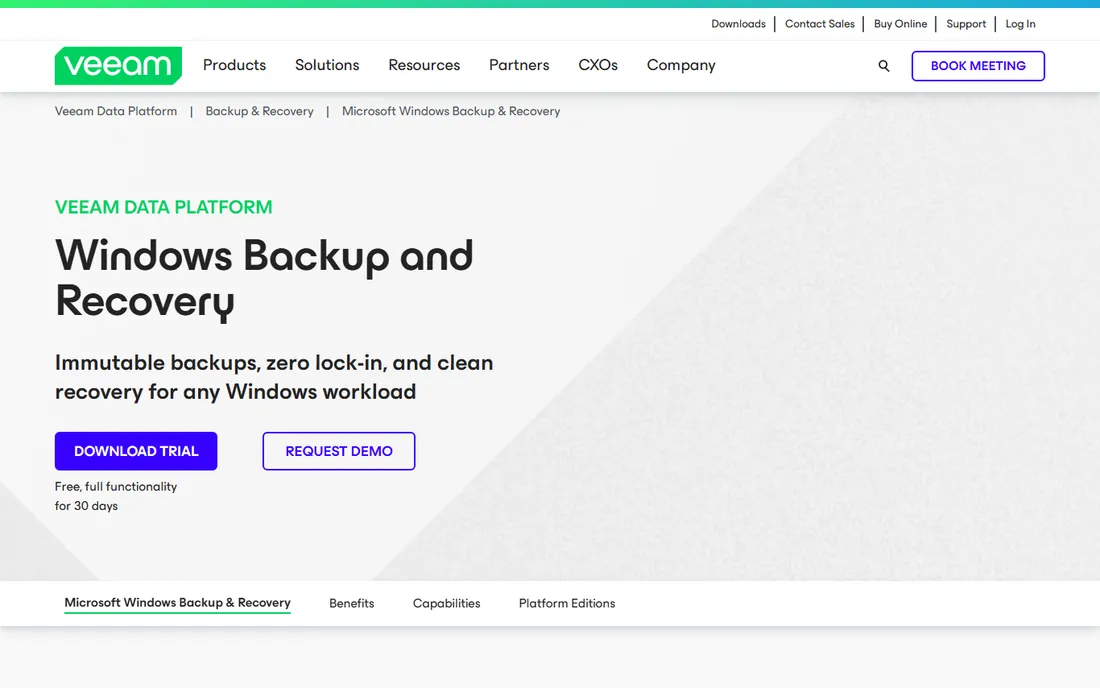
Veeam built its name protecting enterprise servers, and the free Agent brings that engineering to a single Windows PC at no cost. It does full image backup, volume backup, and file-level backup, creates recovery media for bare-metal restores, and the restore quality matches the paid editions for single-machine recovery. For a free tool, the reliability pedigree is unmatched.
The friction is administrative. You must register for a Veeam account to download it, and the free edition restricts advanced scheduling and some backup targets. It is also Windows-focused; Mac users get a separate agent with its own limits. If you want the most trustworthy free backup for one PC and do not mind the signup, this is it.
What we like- Free edition with no license required
- Image, volume, and file-level backup
- Bare-metal recovery from created recovery media
Watch out for- Download requires creating a free Veeam account
- Free edition limits scheduling options and backup targets compared with paid editions
Starting priceFree
Free planYes
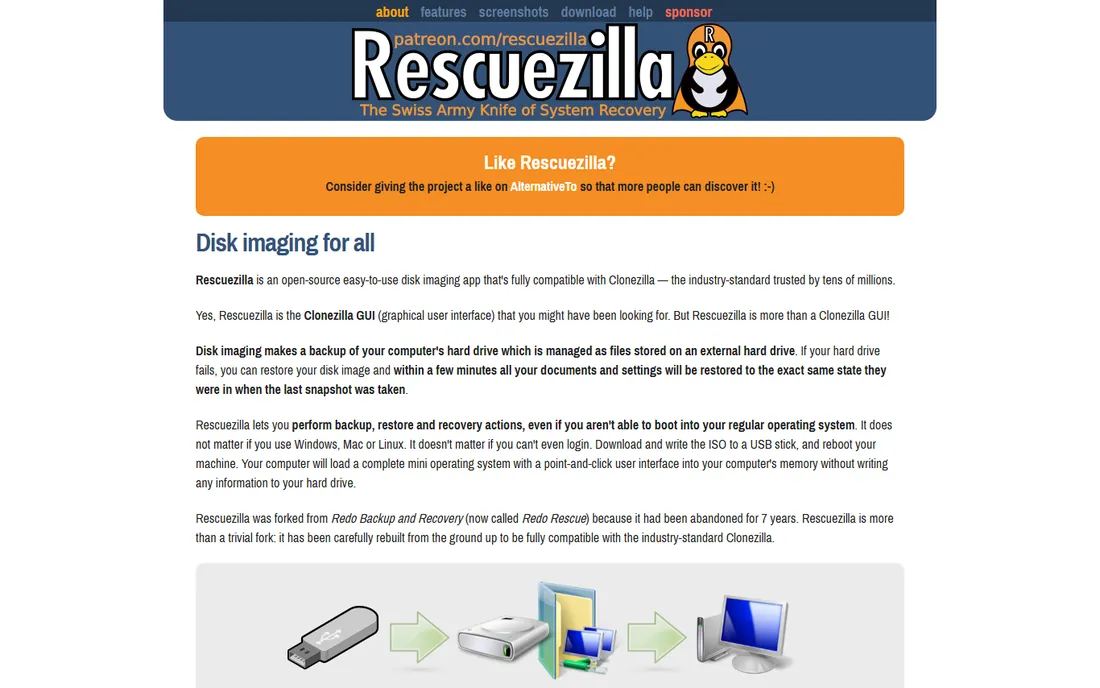
Rescuezilla is what Clonezilla looks like with a friendly face. It boots from a USB stick into a point-and-click environment that walks you through backup, restore, and cloning, and it reads and writes the same image format as Clonezilla, so the two are interchangeable. The image explorer can mount a backup and let you copy out individual files, which covers Clonezilla's biggest limitation.
Because it runs outside Windows, there is no scheduling or background backup; it is a tool you boot when you need it. That makes it ideal for one-off jobs like migrating to a new SSD or rescuing a failing drive, and less suited to daily automated backups. For a free rescue toolkit on a USB stick, it is the easiest option in this list.
What we like- Free and open source with an easy graphical interface
- Fully compatible with Clonezilla images
- Mounts images to browse and copy individual files
Watch out for- Boots from USB only, so no scheduled backups inside Windows
- Smaller project with community support rather than a vendor helpdesk
Starting priceFree
Free planYes (Community Edition)
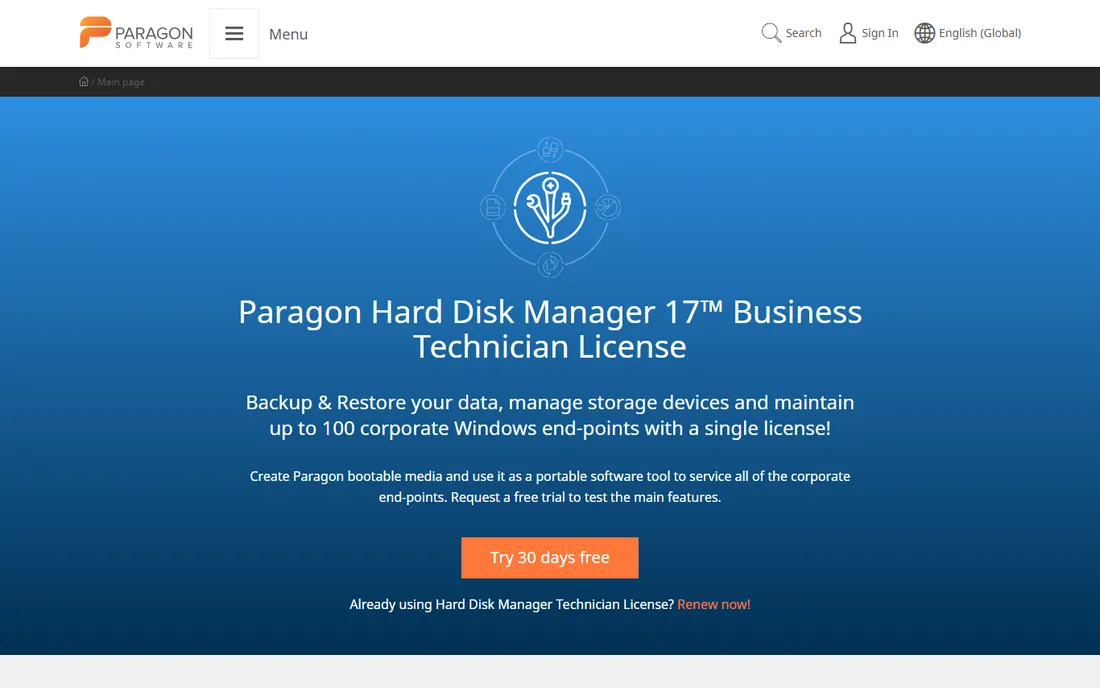
Paragon's Backup & Recovery Community Edition is a proper free Windows backup tool, not a trial: system and disk imaging, file backup, scheduling, and WinPE-based recovery media for machines that will not boot. It comes from the same company behind the long-running Hard Disk Manager suite, so the imaging engine is mature.
The Community Edition draws its line at advanced features. Disk-to-disk copy, email notifications, and Windows Server support require the paid Hard Disk Manager editions. For personal use on a home PC, those limits rarely matter. Download it, schedule a weekly image to an external drive, create the recovery USB, and you have disaster recovery covered for free.
What we like- Community Edition is free with no time limit
- Covers system, disk, and file backup with scheduling
- WinPE recovery media for unbootable machines
Watch out for- Free edition excludes disk copy, notifications, and server OS support
- Commercial features live in the paid Hard Disk Manager line
Choosing imaging software: the questions that matter
Buy for the recovery scenario, not the feature table. Almost every tool here makes an image; the differences show up when something breaks at midnight.
How will you restore?
If the drive dies completely, you need bootable recovery media and ideally bare-metal restore to different hardware. Acronis, Macrium, Veeam, Paragon, and Rescuezilla all cover this. If you only ever restore individual files, even the simplest free tool suffices.
Do you need scheduled, unattended backups?
Bootable tools like Clonezilla and Rescuezilla cannot schedule anything; someone must boot the USB. For automatic nightly images, pick an installed Windows application: Acronis, Macrium, AOMEI, EaseUS, Veeam Agent, or Paragon. Decide whether the backup happens without you, because the backup you forget to run is the one you need.
Is ransomware protection worth paying for?
Attackers now encrypt backup archives first, so a backup tool without protection can lose everything in the same incident. Acronis bakes in active anti-ransomware, and Macrium's Image Guardian locks backup files against modification. If your threat model includes ransomware, that protection justifies the paid tier. Otherwise, storing images on a disconnected external drive is a free and effective defense.
Frequently asked questions
What is the difference between disk imaging and disk cloning?
Imaging saves the drive's contents as a compressed file you store and restore later, which suits scheduled backups. Cloning copies everything directly onto another drive, which suits migrating to a new SSD. Most tools here do both; Clonezilla and Rescuezilla are the purest imaging-and-cloning utilities.
What is the best free imaging software?
For a bootable graphical tool, Rescuezilla. For scriptable technician work, Clonezilla. For an installed Windows app with scheduling, AOMEI Backupper Standard or Veeam Agent Free. All four are genuinely free with no time limits.
Is Acronis True Image still called Cyber Protect Home Office?
No. Acronis renamed True Image to Cyber Protect Home Office in 2021, then restored the True Image name in July 2024. You may still see the old name on some reseller listings and older installers, but new purchases and the current product page use Acronis True Image.
Can I clone my drive without reinstalling Windows?
Yes. Every cloning tool here, including the free editions of AOMEI Backupper, Rescuezilla, and Paragon, copies the operating system, applications, and settings to the new drive. After cloning, the PC boots from the new drive exactly as before. This is the standard way to upgrade from a hard disk to an SSD.
How often should I image my system drive?
A monthly full image plus weekly incrementals suits most home users, stored on an external drive that stays disconnected when not in use. Before major changes like a Windows upgrade or a drive swap, take a fresh full image. Businesses with compliance needs usually image daily.
Does Macrium Reflect still have a free version?
No. Macrium discontinued Reflect Free in January 2024 and retired the perpetual Home edition afterward. The current product is Reflect X, sold on annual plans with a free trial. Former free users looking for a no-cost replacement should try Rescuezilla, Veeam Agent Free, or AOMEI Backupper Standard.
How we chose
We compared current product pages, pricing pages, documentation, and public reviews on sites including G2, Capterra, Reddit, and dedicated backup review publications. Every tool is actively maintained as of October 2026, and renamed or retired products are listed under their current status: Acronis True Image under its restored name, Macrium Reflect X as the current paid product. We weighted recovery reliability, free-tier honesty, scheduling, ransomware protection for backups, and restore flexibility. No hands-on testing is claimed.
Free vs paid: where the line sits in 2026
The free tier in imaging software has never been stronger, and the paid tier has never been more clearly about extras. AOMEI Backupper Standard, Veeam Agent Free, Rescuezilla, Clonezilla, and Paragon's Community Edition all perform full disk imaging and cloning at no cost. For a one-time SSD migration or a rescue USB, paying anything is unnecessary.
Paid plans earn their money in three places. First, automation: scheduled, unattended backups with email reports. Second, security: Acronis's active ransomware rollback and Macrium's Image Guardian protect the backups themselves. Third, convenience: universal restore to dissimilar hardware, cloud storage, and priority support. If none of those apply to you, the free tools are not a compromise; they are the sensible choice.
Sources we checked (10)
- https://acronis.com/en-us/products/true-image/
- https://www.acronis.com/en/blog/posts/is-acronis-true-image-free/
- https://macrium.com/
- https://clonezilla.org/
- https://www.easeus.com
- https://www.aomeitech.com/
- https://www.veeam.com/windows-cloud-server-backup-agent.html
- https://helpcenter.veeam.com/docs/agentforwindows/userguide/license_editions.html
- https://rescuezilla.com/
- https://paragon-software.com/
Is your product missing or out of date?
We review this list regularly. Vendors can request a listing, send updated pricing or ask about featured placement.

Shihab Mia · Founder, Rankite
Shihab has spent more than a decade helping SaaS and e-commerce brands grow through search. He writes Rankite's software buying guides from pricing pages, documentation and public user reviews. More about Shihab.