How we make this list: we compare pricing pages, product documentation and public user reviews. Rankite is independent; if a vendor ever pays for a featured spot, that listing is clearly labeled Partner.
Key takeaways
- VLC remains the default recommendation: free, open source, no ads, and it plays nearly any format on any platform.
- PotPlayer is the pick for Windows tinkerers who want deep settings, skins, and hardware acceleration.
- IINA gives Mac owners a modern native player, while MPC-HC and SMPlayer stay light on old or low-spec PCs.
- Kodi is not just a player but a full home theater library, worth the setup if you watch on a TV-connected PC.
- KMPlayer and GOM Player stand out for subtitles, but both show ads in their free versions.
Quick comparison
Is your product missing or out of date?
We review this list regularly. Vendors can request a listing, send updated pricing or ask about featured placement.
The best video player software
Starting priceFree
Free planYes
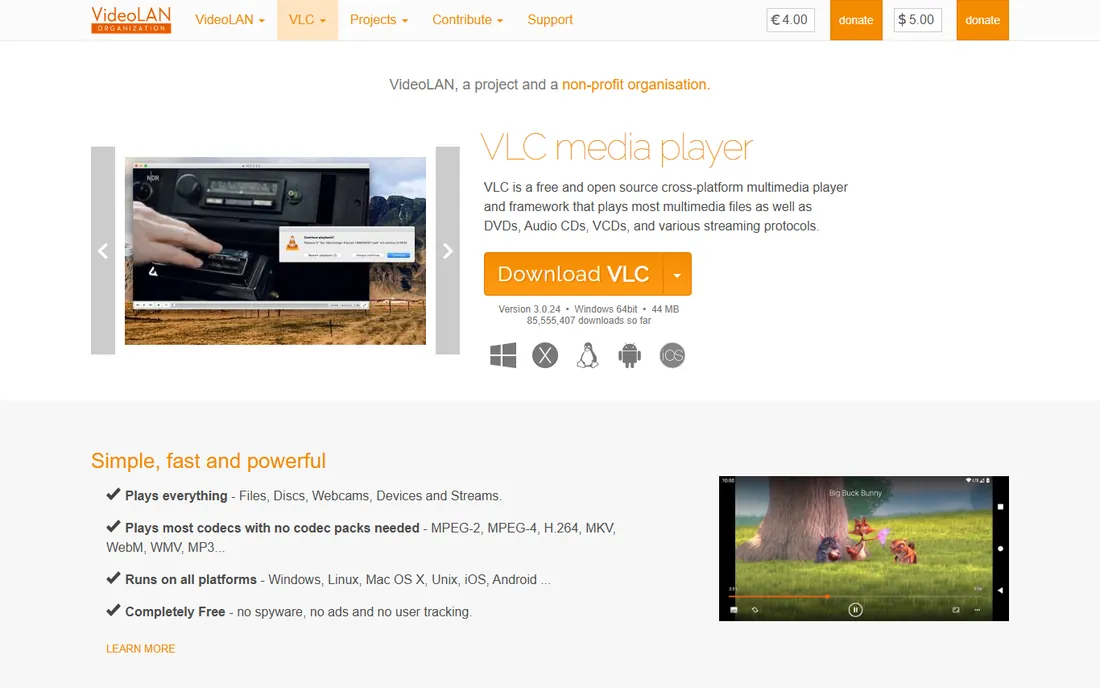
VLC is the player you install and stop thinking about. It handles MKV, MP4, AVI, DVDs, network streams, and broken downloads that choke other players, with no codec pack needed. The nonprofit VideoLAN project keeps it free of ads and bundled junk, which is rarer than it should be in this category.
The audience is everyone. If you only install one player from this list, make it VLC. The honest weakness is the interface: it works fine but looks like it did a decade ago, and if you want a pretty media library with posters and watched states, Kodi does that job better. For simply playing files, nothing beats it.
What we like- Plays nearly every format out of the box
- No ads, no spyware, no bundled offers
- Runs on Windows, Mac, Linux, and mobile
Watch out for- Interface looks dated
- Media library features are basic
Starting priceFree
Free planYes

Made by Kakao, PotPlayer is the tinkerer's player. Every behavior can be tuned: custom skins, per-file equalizer settings, subtitle styling, screen capture, and detailed control over hardware decoding. It opens files that are still downloading and powers through damaged videos that make other players give up.
This is the pick for Windows users who enjoy configuring software and want maximum performance from their hardware. The catch is the flip side of that strength: the preferences dialog has hundreds of options, and a casual user can get lost. It is also Windows-only, so Mac and Linux users should look at VLC or IINA instead.
What we like- Deep customization with skins, hotkeys, and filters
- Strong hardware acceleration for 4K
- Plays incomplete and damaged files
Watch out for- Windows only
- The settings maze overwhelms beginners
Starting priceFree
Free planYes
KMPlayer built its reputation on subtitles. Sync is adjustable on the fly, styling is flexible, and it handles the subtitle formats that foreign-film watchers and anime fans actually use. Format support is broad and playback is smooth on modest hardware.
The tradeoff is monetization. The free desktop version shows ads, and the installer has historically pushed extra offers, so choose the custom install path and decline what you do not want. If you watch a lot of subtitled content and do not mind the ads, it is a strong player. If ads bother you, VLC or MPC-HC do the same job quietly.
What we like- Strong subtitle controls with sync adjustment
- Wide format support
- Companion mobile apps
Watch out for- The free version shows ads
- The installer needs a careful custom install
Starting priceFree
Free planYes
Media Player Classic Home Cinema is the lightweight champion. It launches instantly, sips RAM, and runs happily on old laptops that struggle with heavier players. The interface is deliberately plain: open a file, watch it, done. It remains open source and free.
The audience is anyone with aging hardware or anyone who values speed over features. It plays the common formats well, especially paired with a codec pack if you need exotic ones. What you give up is modern polish: no media library, limited streaming support, and no Mac version. For a secondary PC or a work laptop, it is ideal.
What we like- Extremely lightweight with fast startup
- Open source
- Simple interface anyone understands
Watch out for- Windows only
- Plain looks
- Fewer streaming and library features

#5
IINA
Best for: Mac owners who want a modern player
Visit iina.io
Starting priceFree
Free planYes
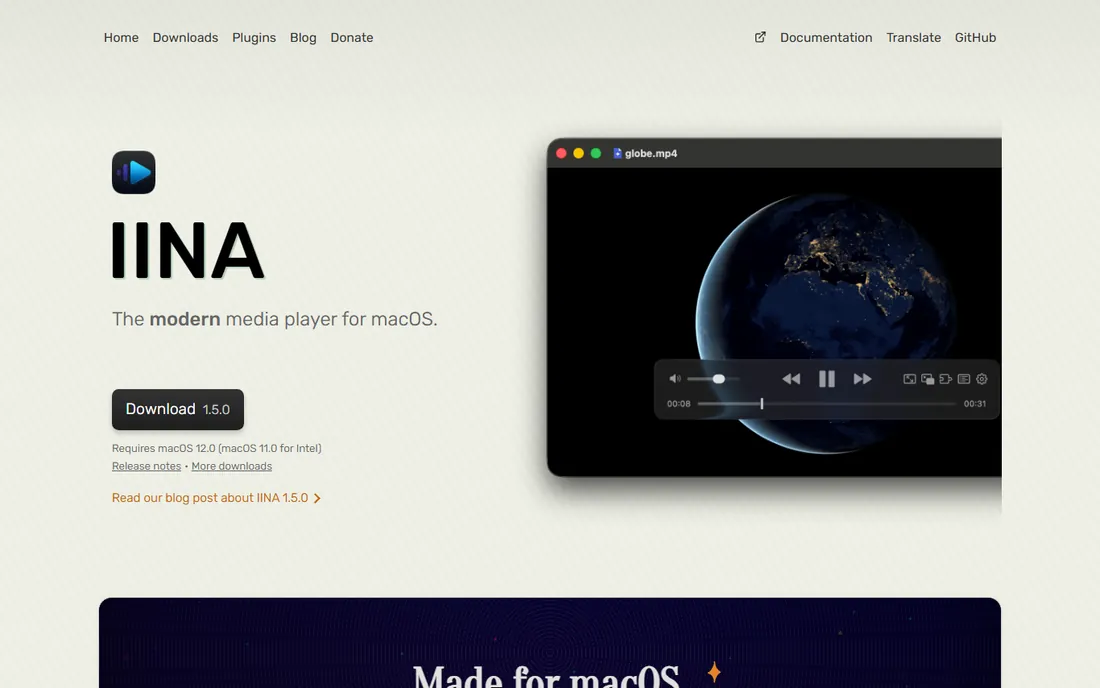
IINA is what a Mac video player should feel like. It respects dark mode, supports Picture-in-Picture, works with the Touch Bar on older MacBooks, and handles trackpad gestures naturally. Under the hood it uses mpv, so format support is excellent and playback is efficient on Apple Silicon.
Mac owners who disliked VLC's dated interface usually land here and stay. It is free and open source, with no ads. The limitations are the platform (Mac only) and a smaller community, which means fewer troubleshooting threads when something unusual breaks. For everyday watching on a Mac, it is the most pleasant option on this list.
What we like- Native macOS design with dark mode and Picture-in-Picture
- Built on mpv for broad format support
- Open source
Watch out for- MacOS only
- Smaller community and fewer guides than VLC
Starting priceFree
Free planYes
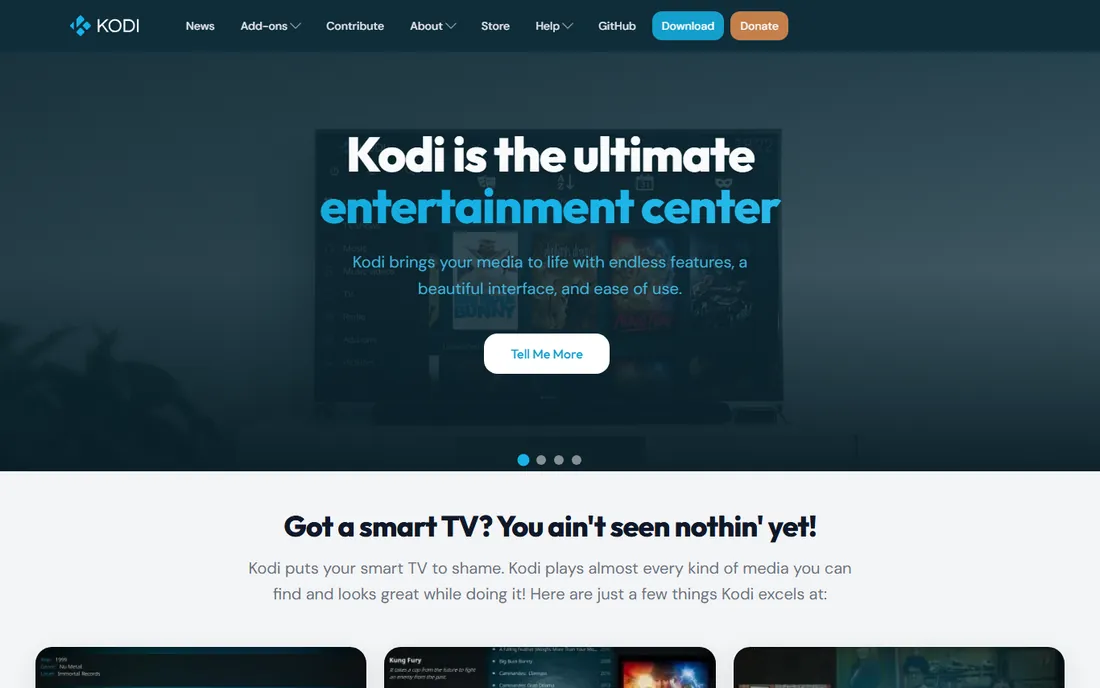
Kodi is a different animal: media center software rather than a simple player. Point it at your folders and it builds a browsable library with cover art, episode lists, and resume points, designed to be driven from a couch with a remote. Add-ons extend it to streaming sources, PVR, and retro games.
The fit is a PC connected to a TV, or a household that wants one interface for movies, shows, and music. Setup takes an evening: library sources, scrapers, and remote pairing. If all you do is open the occasional video file on a laptop, Kodi is the wrong tool. If you run a home theater, it is the best free option by a wide margin.
What we like- Full media library with posters, metadata, and watched states
- Huge add-on ecosystem
- Remote control apps for phones
Watch out for- Setup takes real time
- Overkill if you just double-click files
Starting priceFree
Free planYes
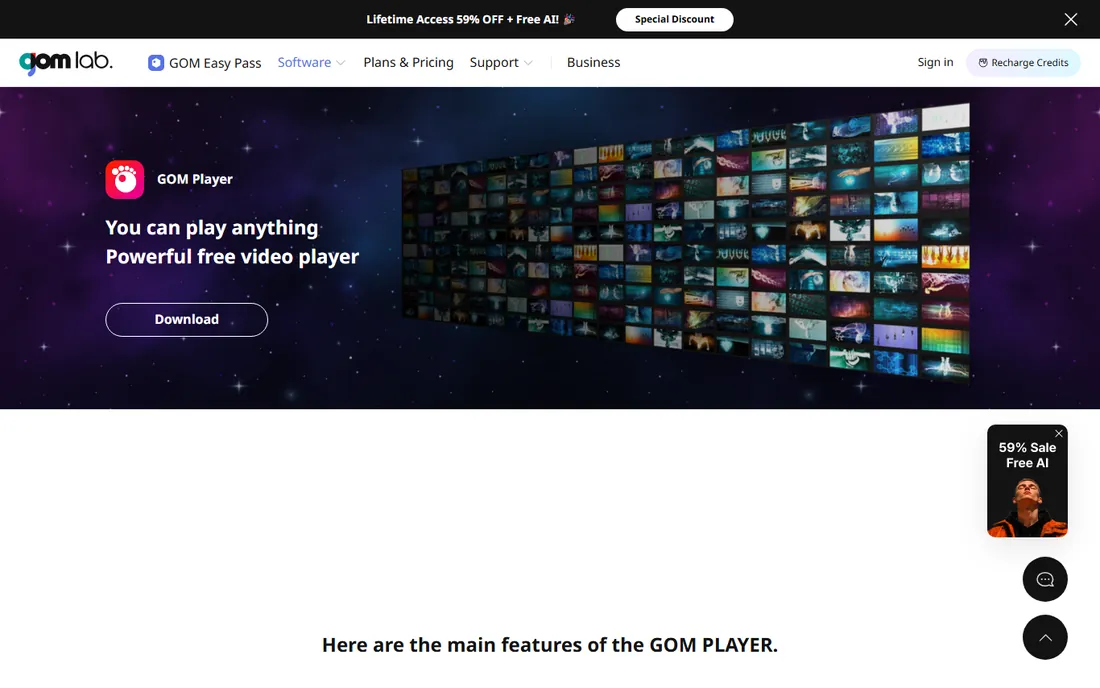
GOM Player's signature trick is its subtitle finder: it searches its subtitle library for the video you are playing and syncs the timing automatically. For viewers who constantly hunt subtitles on separate sites, this alone is worth the install. It also handles damaged AVI files and plays 360-degree video.
Like KMPlayer, the free version is ad-supported, and GOM Lab sells a Plus tier that removes ads and adds extra features. The player itself costs nothing and the core playback is solid. Choose it if automatic subtitles appeal to you; choose VLC if you would rather have zero ads and zero upsells.
What we like- Automatic subtitle search and sync
- Recovers damaged and incomplete files
- 360-degree video support
Watch out for- Free version includes ads
- Some extras require the paid Plus tier
Starting priceFree
Free planYes
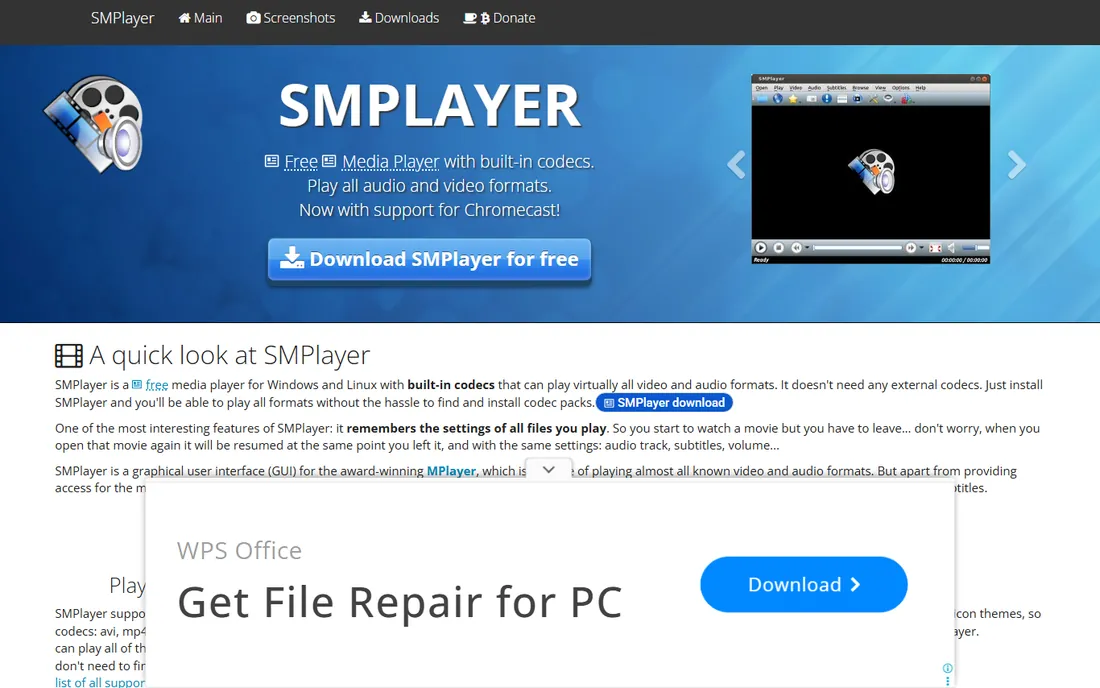
SMPlayer's best feature is memory. Close a video halfway through and it reopens at the exact second, with your subtitle delay, audio track, and volume intact. For people working through series or long lectures across sessions, that is genuinely useful. It also plays YouTube URLs directly, which saves a download step.
It is free, open source, and light on resources, running on Windows and Linux. The interface will not win design awards, and Mac users are out of luck. But as a no-fuss player that respects your time across sessions, it earns its place.
What we like- Remembers playback position and settings for every file
- Built on MPlayer and MPV
- Can play YouTube videos directly
Watch out for- Interface looks dated
- No macOS version
How to pick the right player for your setup
Start with the platform, then the job. The wrong player on the right OS is worse than a boring player that just works.
Start with your platform
Windows users have the full menu: VLC, PotPlayer, KMPlayer, MPC-HC, GOM Player, and SMPlayer all run well. Mac owners should shortlist IINA first and VLC second. Linux users get VLC, SMPlayer, and Kodi. Do not fight a player onto an OS it was not built for.
Format support and codecs
The whole point of a third-party player is never seeing "codec missing" again. VLC, PotPlayer, and IINA cover the most formats out of the box. If you play unusual files, check that your pick handles them before you commit your library to it.
Subtitles
If you watch subtitled content weekly, prioritize KMPlayer or GOM Player for their subtitle search and sync tools. Everyone else can rely on VLC's solid basics. Subtitle handling is the one area where players genuinely differ day to day.
Library versus single files
Single-file watchers need VLC, PotPlayer, or MPC-HC. Households with big local collections need Kodi's library. Do not install Kodi to watch one file, and do not manage a terabyte of shows in VLC.
How we chose
We verified each player's official homepage and confirmed it is actively maintained and free. We read the documentation and feature lists for format support, subtitle tools, and platform coverage, then checked public discussions on Reddit and forums for real-world complaints about ads, bundled installers, and playback problems. We weighted fit for ordinary users over feature checklists: a player with a hundred options you never open loses to one that plays your files quietly. No lab benchmarks were run; this is a comparison of published features and user reports.
When the default player is not enough
Built-in players fail in predictable ways, and each points to a pick from this list. Files with no sound or picture mean missing codec support: install VLC. Stuttering 4K or HDR means weak hardware decoding: try PotPlayer on Windows or IINA on Mac. A growing folder of shows with no organization means you need Kodi's library, not a better player. Subtitles that never sync mean KMPlayer or GOM Player. An old laptop that wheezes on modern players means MPC-HC. Match the symptom to the tool and you will only install once.
Frequently asked questions
Do I need a codec pack in 2026?
No, not with a modern player. VLC, PotPlayer, IINA, and the others on this list bundle their own decoders and play common formats without extras. Codec packs were a 2000s solution. Install one player from this list instead.
Is VLC really free?
Yes. VLC is developed by the nonprofit VideoLAN project and is free and open source, with no ads, no premium tier, and no bundled software. The same is true of MPC-HC, IINA, Kodi, and SMPlayer. KMPlayer and GOM Player are free but ad-supported, with paid tiers for extras.
Which player is best for 4K and HDR?
PotPlayer on Windows and IINA on Mac make the best use of hardware decoding for demanding 4K and HDR files. VLC handles 4K well on most modern machines too. If playback stutters, the fix is usually enabling hardware acceleration in the settings rather than switching players.
Why do some free players show ads?
KMPlayer and GOM Player fund development with in-player ads and paid Plus tiers. The open source players (VLC, MPC-HC, IINA, Kodi, SMPlayer) are built by communities or nonprofits and carry no ads. If ads bother you, the open source options cost nothing and show nothing.
Can these players play DVDs and Blu-rays?
VLC plays DVDs including menus, and handles unencrypted Blu-rays. Kodi manages DVD and Blu-ray libraries with varying success depending on encryption. Commercial Blu-rays with copy protection generally need dedicated paid software, which is outside this free list.
Sources we checked (8)
- https://www.videolan.org/vlc/
- https://potplayer.tv/
- https://www.kmplayer.com/
- https://mpc-hc.org/
- https://iina.io/
- https://kodi.tv/
- https://www.gomlab.com/en/gomplayer-media-player
- https://www.smplayer.info/
Is your product missing or out of date?
We review this list regularly. Vendors can request a listing, send updated pricing or ask about featured placement.

Shihab Mia · Founder, Rankite
Shihab has spent more than a decade helping SaaS and e-commerce brands grow through search. He writes Rankite's software buying guides from pricing pages, documentation and public user reviews. More about Shihab.
 VLC media player
 PotPlayer
 KMPlayer
 Media Player Classic
 Kodi
Kodi GOM Player
 SMPlayer