How we make this list: we compare pricing pages, product documentation and public user reviews. Rankite is independent; if a vendor ever pays for a featured spot, that listing is clearly labeled Partner.
Key takeaways
- Camtasia is the training video specialist: screen recording plus editing in one app.
- DaVinci Resolve is the best free professional editor, with a $295 Studio upgrade.
- Adobe Premiere Pro is the professional standard for polished training content.
- Vyond creates animated training videos without cameras or actors.
- Microsoft Clipchamp is the best free starting point, built into Windows 11.
Quick comparison
Is your product missing or out of date?
We review this list regularly. Vendors can request a listing, send updated pricing or ask about featured placement.
The best video editing software for training videos
Starting price$14.99/mo
Free planFree trial
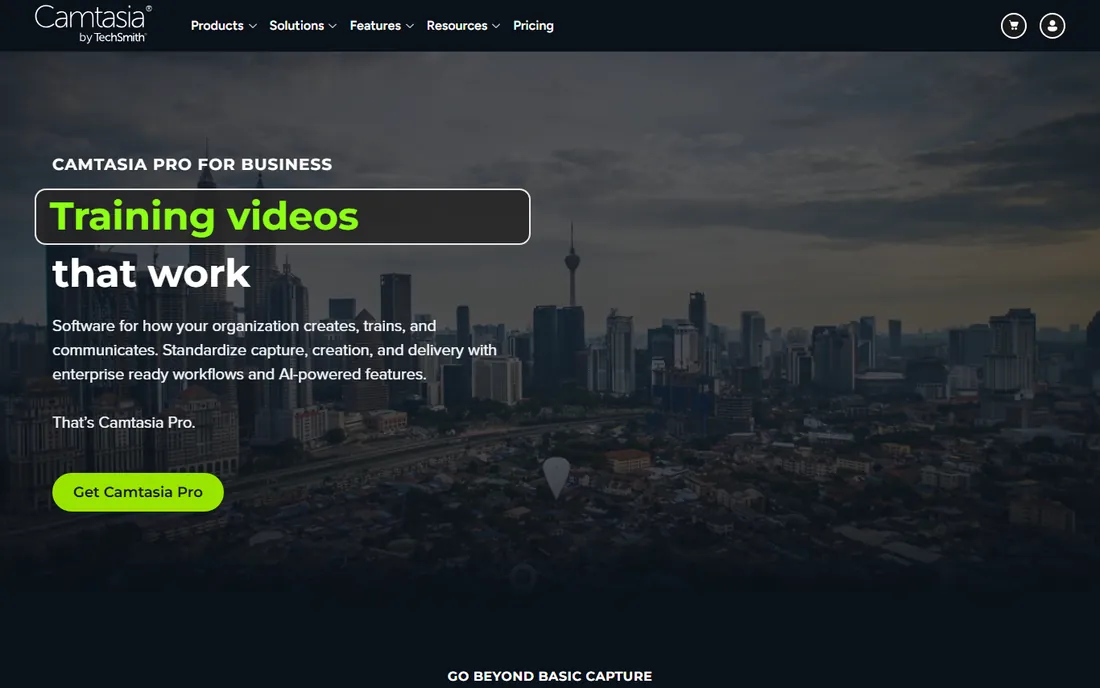
Camtasia is the tool built specifically for training videos. The screen recorder captures up to 4K at 60fps along with camera, microphone, system audio, and cursor movements. The editor then turns that footage into polished tutorials with zoom effects, callouts, annotations, quizzes, and captions. A free trial lets you test the full workflow.
The training-specific features are the differentiator. Interactive quizzes embed in videos for LMS delivery. Cursor effects highlight clicks automatically. Audiate integration enables text-based audio editing. The new AI workflow can turn screenshots into narrated videos, which speeds up software training production dramatically.
The honest catch is the price. The individual subscription runs $14.99 a month billed annually, and the perpetual license is $299.99. That is fair for a training department and steep for an occasional creator. For pure cinematic editing, Premiere or Resolve win. But for screen-based training, nothing is more purpose-built than Camtasia.
What we like- Best screen recorder plus editor in one app
- Built for tutorials and software training
- AI features speed up production
Watch out for- Subscription or $300 license is pricey for casual use
- Weaker for cinematic camera footage
- Windows and Mac only
Starting price$22.99/mo (reported)
Free planFree trial
Adobe Premiere Pro is the professional standard for edited video, and training teams with high production values use it for polished courses. The single-app plan costs $22.99 a month on an annual plan, with a 7-day free trial. Text-based editing lets you cut video by editing the transcript, which is a genuine time-saver for talking-head training.
The ecosystem advantage matters for training production. After Effects adds motion graphics, Audition cleans up audio, and Media Encoder batch-exports to every LMS format. Auto-captions with styling produce accessible training videos fast. Dynamic Link moves projects between apps without rendering.
The honest catch is fit. Premiere is a film editor, not a training tool: there is no built-in screen recording, no quiz embedding, no LMS packaging. Beginners face a real learning curve. For training teams producing broadcast-quality courses with graphics and multi-camera shoots, Premiere is the standard. For quick screen tutorials, it is overkill.
What we like- Industry-standard editing with unmatched depth
- Captions and text-based editing
- Integrates with After Effects and Audition
Watch out for- Subscription only, no perpetual license
- Overkill for simple screen recordings
- Learning curve for beginners
Starting price$0 (Studio $295)
Free planYes
DaVinci Resolve is the remarkable deal in video editing: a Hollywood-grade editor, color grader, VFX compositor, and audio suite in one free download. The free version handles 8-bit video up to 4K at 60fps with multi-user collaboration. DaVinci Resolve Studio at $295 one-time adds AI tools, noise reduction, and 10-bit support.
For training videos, the free version covers nearly everything: multi-track editing, captions, Fairlight audio mixing for clear voiceovers, and Fusion titles and graphics. The color tools make even webcam footage look professional. No watermark, no export limits, no subscription.
The honest catch is complexity and hardware. Resolve's interface assumes editing knowledge, and it wants a powerful computer. Training-specific features like screen recording and quizzes are absent. But for training teams that film and edit camera footage and want professional results free, Resolve is unbeatable. The $295 Studio license is the best value upgrade in software.
What we like- Professional editor completely free
- Legendary color grading built in
- No subscription, Studio is one-time $295
Watch out for- Demanding on hardware
- Interface overwhelms beginners
- Collaboration features need the Studio version
Starting price$299.99 (reported)
Free planNo
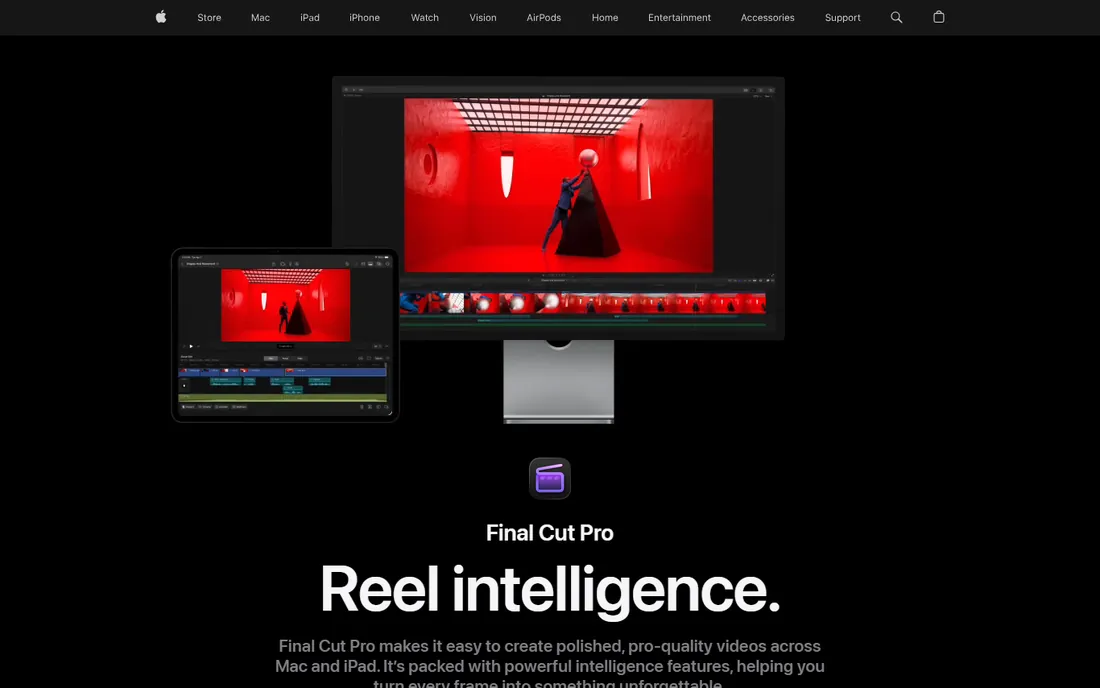
Final Cut Pro is Apple's professional editor, priced at $299.99 as a one-time Mac App Store purchase. The magnetic timeline eliminates track collisions and sync drift, and deep Apple Silicon optimization delivers real-time playback of 4K and 8K ProRes that other editors struggle to match. Existing owners get updates free.
For Mac-based training teams, the speed is transformative. Assembling talking-head lessons, cutting interviews, and rendering final courses happens noticeably faster than on Premiere. The companion apps Motion and Compressor extend graphics and encoding. A 90-day free trial is generous for evaluation.
The honest catch is the platform lock. Final Cut runs only on Mac, so mixed Windows/Mac teams cannot standardize on it. There is no free plan beyond the trial, though the one-time price beats years of Adobe subscriptions. For all-Mac training departments producing camera-based courses, Final Cut is the fastest, most economical pro option.
What we like- Blazing speed on Apple Silicon
- One-time purchase, no subscription
- Magnetic timeline speeds assembly
Watch out for- Mac only
- No free plan
- Smaller plugin ecosystem than Premiere
Starting price$61.99/yr
Free planYes
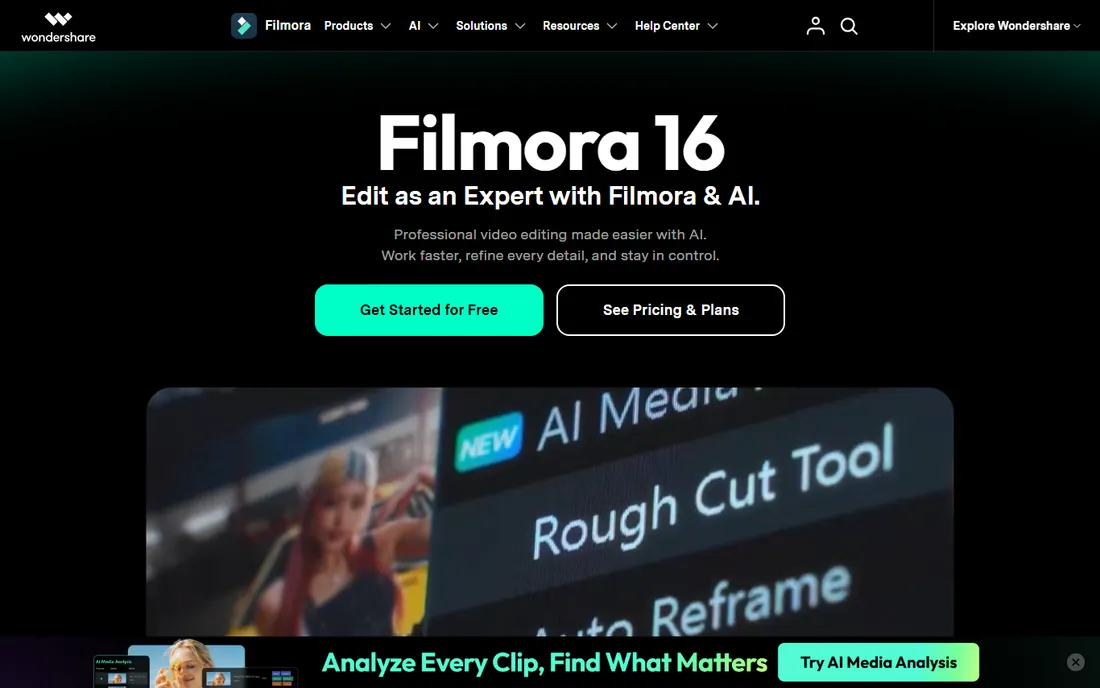
Filmora is the friendly editor for trainers who find Premiere intimidating. The annual plan at $61.99 includes AI features like text-to-video, auto captions, silence detection, and motion tracking, plus screen recording for tutorials. The interface is drag-and-drop simple, with templates and effects that make training videos look polished fast.
The value proposition is clear: most of what training videos need, at a fraction of pro software prices. The AI tools genuinely accelerate production: generate a script, create a voiceover, auto-caption the result. The stock library of music and footage fills gaps without extra purchases.
The honest catch is the ceiling. Filmora lacks the precision, color science, and audio depth of Premiere or Resolve. The free version watermarks exports, forcing the paid plan for real use. For trainers producing straightforward tutorials and talking-head lessons without a learning curve, Filmora hits the sweet spot between capability and simplicity.
What we like- Easy to learn with AI-assisted features
- Screen recording built in
- Affordable annual pricing
Watch out for- Free version watermarks exports
- Less precise than pro editors
- Asset upsells add up
Starting price$58/user/mo (reported)
Free planFree trial
Vyond takes a completely different approach: instead of filming or recording screens, you build animated training videos with characters, scenes, and props. The Starter plan at $58 per user per month includes AI avatars, 650+ text-to-speech voices, screen recording, and text-to-video. Higher tiers add collaboration and Shutterstock assets.
For corporate training, the advantages are practical. No cameras, no actors, no filming locations. Update a procedure by editing the animation, not reshooting. Characters and branding stay consistent across a whole course library. The 14-day free trial lets instructional designers test the workflow on a real module.
The honest catch is cost and style. Vyond is priced for business budgets, and the animation look is recognizable. It cannot replace real software demonstrations or human-led training. But for compliance training, onboarding, and concept explainers, animated video scales in a way filming never will. Many L&D teams pair Vyond with Camtasia: animation for concepts, screen recording for software.
What we like- Professional animated videos without filming
- Huge character and template library
- Text-to-speech with lip sync
Watch out for- Expensive for individuals
- Animation style is recognizable
- No live-action editing
Starting price$0
Free planYes
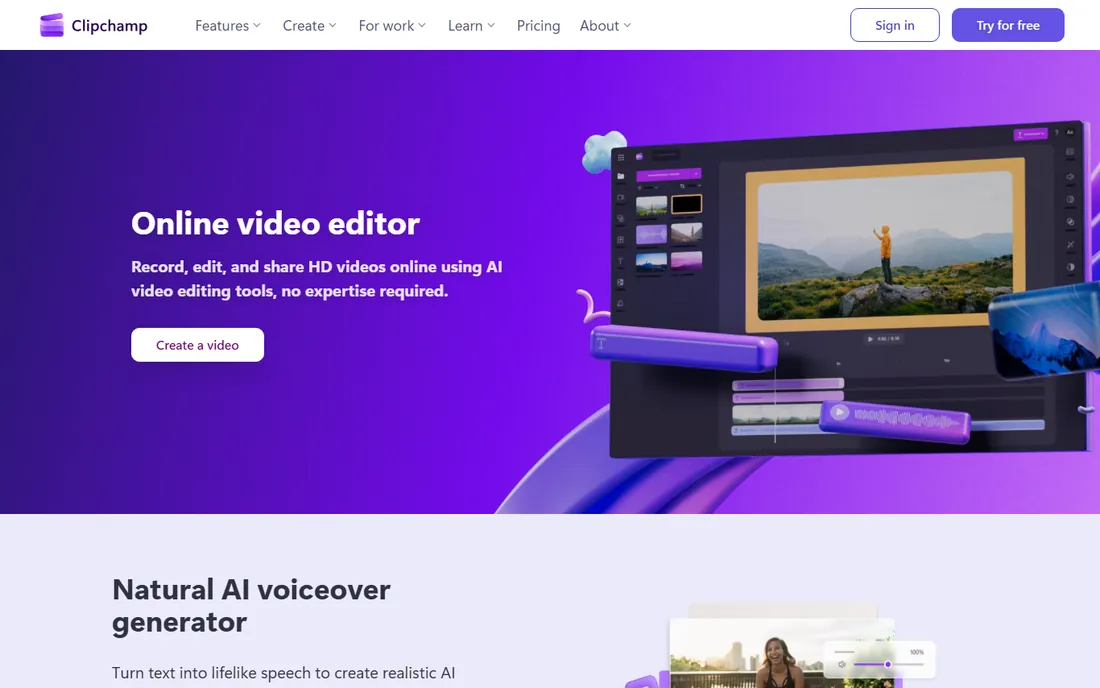
Microsoft Clipchamp is the free editor most Windows users already have. Pre-installed on Windows 11, it offers timeline editing, screen and webcam recording, AI captions, templates, and unlimited watermark-free 1080p exports on the free plan. Premium features like 4K export and premium stock come through Microsoft 365 subscriptions.
For quick training videos, the workflow is ideal. Record your screen and webcam together for a software walkthrough, auto-generate captions for accessibility, trim the result, and export. Templates for educational videos speed up recurring formats like weekly updates or how-tos.
The honest catch is depth. Clipchamp handles simple edits well and complex projects poorly: no advanced color, limited audio tools, and browser-based performance constraints. But as a free starting point for training videos, especially in Microsoft-centric organizations, it removes every excuse for not recording that tutorial.
What we like- Free with generous 1080p watermark-free exports
- Pre-installed on Windows 11
- Screen and webcam recording built in
Watch out for- 4K and premium stock require Microsoft 365
- Browser-based with internet needed
- Basic compared to pro editors
How we chose
We selected seven tools that serve training video production: screen-recording editors, professional NLEs, an animation platform, and a free quick editor. We required current availability and real training use cases, from corporate L&D to course creators. Pricing is vendor-published or third-party reported. We did not produce training videos with any tool.
Start with what you film. Screen-based software training belongs in Camtasia or Filmora, which record and edit in one app. Talking-head and multi-camera courses belong in Premiere Pro, DaVinci Resolve, or Final Cut Pro. Concept explainers and compliance modules belong in Vyond. Quick updates and simple tutorials belong in Clipchamp.
Consider who edits. Professional editors want Premiere, Resolve, or Final Cut. Subject-matter experts recording their own tutorials want Camtasia or Filmora. Instructional designers building animated courses want Vyond. If the whole team edits, standardize on one tool and invest in templates.
Think about your LMS. Training videos usually end up in a learning management system or video host. All seven export standard MP4, but Camtasia's quiz embedding and caption workflows are built for LMS delivery. Vyond integrates with Articulate 360 for embedding in Storyline and Rise courses. Check your LMS's format requirements before choosing.
Captions and accessibility
Captions are not optional for training videos: they serve deaf learners, non-native speakers, and anyone watching on mute, and many organizations require them. Premiere Pro, DaVinci Resolve, Filmora, and Clipchamp all generate captions with AI. Camtasia supports caption workflows for LMS delivery.
Budget time for caption review. AI captions are good but not perfect, especially with technical terminology. A ten-minute training video needs five to fifteen minutes of caption cleanup. Build that into your production schedule rather than discovering it at upload time.
Production tips for training videos
Keep videos short. Learners retain more from five focused videos than one fifty-minute lecture. Break courses into modules under ten minutes, each covering one concept. Short videos are also easier to update when procedures change.
Script before you record. Write the narration or talking points first, then record to the script. This cuts editing time dramatically and produces tighter training. Camtasia's AI and Vyond's text-to-speech can generate scratch narration from your script for timing.
Record audio well. Learners forgive mediocre video but not bad audio. A $50 USB microphone beats a laptop mic enormously. Record in a quiet room, normalize levels in your editor, and remove background noise. Every editor here has basic audio tools; DaVinci Resolve's Fairlight and Adobe Audition go deeper.
Frequently asked questions
What is the best software for recording training videos?
Camtasia is the best all-in-one screen recorder and editor for training, at $14.99 a month billed annually. Filmora adds screen recording at $61.99 a year for beginners. Clipchamp records screen and webcam free. Choose Camtasia for serious training production.
Is DaVinci Resolve really free?
Yes. The free version of DaVinci Resolve is a full professional editor with no watermark or export limits. DaVinci Resolve Studio costs $295 one-time and adds AI tools, noise reduction, and 10-bit support. For training video editing, the free version is more than enough for most teams.
Can I make training videos without filming?
Yes. Vyond creates animated training videos with characters and text-to-speech, from $58 per user per month. Camtasia's AI can generate videos from screenshots. These approaches work well for compliance training, onboarding, and concept explainers where live footage is not essential.
What is the cheapest way to edit training videos?
Microsoft Clipchamp is free with watermark-free 1080p exports and is pre-installed on Windows 11. DaVinci Resolve is free with professional features. Filmora costs $61.99 a year. All three handle basic training video editing without a subscription to pro software.
Do I need Premiere Pro for training videos?
Only if you need professional-grade editing, motion graphics, or multi-camera production. For screen tutorials, Camtasia or Filmora are better fits. For simple edits, DaVinci Resolve free or Clipchamp suffice. Premiere earns its $22.99 a month for polished, broadcast-quality training content.
How do I add quizzes to training videos?
Camtasia embeds interactive quizzes directly in videos for LMS delivery. Vyond integrates with Articulate 360 for assessments in Storyline and Rise courses. Alternatively, host videos in your LMS and build quizzes there, which works with video from any editor.
Sources we checked (15)
- https://discover.techsmith.com/camtasia-edit-video/
- https://www.techsmith.com/store/camtasia
- https://www.globenewswire.com/en/news-release/2023/10/17/2761671/0/en/TechSmith-s-Camtasia-Accelerates-Video-Creation-and-Editing-with-New-AI-Assisted-Rev-Workflow.html
- https://josephnilo.com/blog/adobe-premiere-pro-cost/
- https://www.techradar.com/how-to/try-adobe-premiere-pro-for-free-or-with-creative-cloud
- https://github.com/editorsden/editorsden.github.io/blob/HEAD/src/content/tools/davinci-resolve.md
- https://blackmagicdesign.com/sg/products/davinciresolve
- https://github.com/editorsden/editorsden.github.io/blob/HEAD/src/content/tools/final-cut-pro.md
- https://www.macrumors.com/2024/11/13/apple-releases-final-cut-pro-11-for-mac/
- https://filmora.wondershare.com/store/buy-filmora-video-editor.html?f=pro&login_code=&client-type=1&lang=en&m-pid=846&User-Agent=wondershare_filmora_win&pid=5760&device-no=AE3CBDCE-J216-0051-JNTU-A0B3CC761D64&version=10.1.1.1
- https://www.capterra.com/p/182240/Vyond/
- https://www.nogentech.org/what-is-vyond/
- https://www.techradar.com/reviews/clipchamp-review
- https://dkc.umw.edu/tools/microsoft-clipchamp/
- https://techdows.com/download-clipchamp-for-pc-windows-11-10-mac.html
Is your product missing or out of date?
We review this list regularly. Vendors can request a listing, send updated pricing or ask about featured placement.

Shihab Mia · Founder, Rankite
Shihab has spent more than a decade helping SaaS and e-commerce brands grow through search. He writes Rankite's software buying guides from pricing pages, documentation and public user reviews. More about Shihab.
 Camtasia
 Adobe Premiere Pro
 DaVinci Resolve
 Final Cut Pro
 Filmora
 Vyond
Vyond Microsoft Clipchamp