How we make this list: we compare pricing pages, product documentation and public user reviews. Ratings come from G2, Capterra or Trustpilot, with the date we checked them.
Key takeaways
- Procreate is the best value for iPad illustrators, at a one-time price of $12.99, with no subscription to maintain.
- Clip Studio Paint is the strongest pick for comics and manga, thanks to panel, lettering, and perspective tools built for that work.
- Krita and Inkscape give professional-level painting and vector work for free, which makes them ideal starting points.
- Adobe Photoshop and Illustrator remain the industry standards for client work, but they cost more over time through subscriptions.
- Affinity Designer 2 offers vector and raster illustration in one app with a one-time purchase, which suits artists who want to avoid subscriptions.
Quick comparison
| Tool | Best for | Starting price | Free plan |
|---|
 Procreate Procreate | iPad illustration with no subscription | $12.99 one-time | No |
 Clip Studio Paint Clip Studio Paint | Comics, manga, and panel work | See website | Free trial |
 Adobe Photoshop Adobe Photoshop | Raster illustration and photo-based work | See website | Free trial |
 Adobe Illustrator Adobe Illustrator | Vector illustration, logos, and icons | See website | Free trial |
 Krita Krita | Free digital painting | $0 | Yes |
 Affinity Designer 2 Affinity Designer 2 | Vector and raster work without a subscription | See website | Free trial |
 Corel Painter Corel Painter | Natural media painting on desktop | See website | Free trial |
 Inkscape Inkscape | Free vector illustration | $0 | Yes |
 MediBang Paint MediBang Paint | Free comics and illustration on many devices | $0 | Yes |
Is your product missing or out of date?
We review this list regularly. Vendors can request a listing, send updated pricing or ask about featured placement.
#1Procreate
Best for: iPad illustration with no subscription4.9/5 on
G2 (73 reviews, checked Oct 2026)
Visit procreate.com
Starting price$12.99 one-time
Free planNo
Procreate earns its place at the top for iPad artists because it removes friction. Open the app, pick a brush, and draw. The brush engine feels responsive with Apple Pencil, layers and masks cover most illustration needs, and the one-time price of $12.99 means the cost does not grow each month. For sketching, painting, and finished illustration on iPad, few tools match that combination.
The limits are clear and worth accepting only if they fit you. Procreate does not run on Windows, Mac, or Android, and its files do not move cleanly into vector workflows. If you need scalable logos or cross-platform files, pair it with a vector tool. For iPad-first illustrators, Procreate is hard to beat on value.
What we like- One-time price with no subscription
- Large brush library and smooth Apple Pencil response
- Simple interface that stays out of the way while drawing
Watch out for- IPad only, with no Windows or Android version
- No true vector tools for scalable logo work
#2Clip Studio Paint
Best for: Comics, manga, and panel work4.4/5 on
G2 (55 reviews, checked Oct 2026)
Visit clipstudio.net
Starting priceSee website
Free planFree trial
Clip Studio Paint is built for sequential art, and that focus shows in every part of the workflow. Panel division, frame borders, tones, speech balloons, and page management are native features, not workarounds. Perspective rulers and poseable 3D models help with difficult angles, which is why many comic artists keep it as their main tool even when they also own Photoshop.
Pricing is the confusing part, because options differ for PRO and EX versions, for desktop licenses, and for monthly plans on tablets. Check the vendor pricing page for your exact device before buying. Clip Studio fits best for comic, manga, and webtoon artists who need page and panel tools as a core part of the job.
What we like- Panel, speech balloon, and lettering tools built in
- Strong perspective rulers and 3D model support
- Available on desktop, iPad, and mobile
Watch out for- Pricing varies by device, version, and subscription or license
- Learning curve is steeper than Procreate for simple painting
#3Adobe Photoshop
Best for: Raster illustration and photo-based work4.6/5 on
G2 (13,426 reviews, checked Oct 2026)
Visit adobe.com
Starting priceSee website
Free planFree trial
Photoshop remains the default for many professional illustrators, not because it is the simplest app, but because it covers the most ground. Painterly illustration, texture work, photo compositing, and print preparation all live in one program, and client files in PSD format move easily between studios. The brush engine, layer styles, and adjustment tools give fine control over a finished image.
That breadth comes with a subscription and a busy interface. For a hobbyist who only sketches, Photoshop is more than needed, and a one-time app will cost less over time. Photoshop fits best for professionals who need client-standard files, print work, and photo-based illustration in the same tool.
What we like- Deepest raster toolset for painting, texture, and compositing
- Industry standard for client files and print work
- Huge brush, plugin, and tutorial ecosystem
Watch out for- Subscription cost adds up over years
- Interface can feel heavy for simple sketching
#4Adobe Illustrator
Best for: Vector illustration, logos, and icons4.6/5 on
G2 (6,200 reviews, checked Oct 2026)
Visit adobe.com
Starting priceSee website
Free planFree trial
Illustrator is the right tool when an image must stay sharp at any size. Logos, icons, infographics, and brand illustrations are built from vector paths, so they can scale from a phone screen to a billboard without losing quality. Type controls, alignment tools, and shape building make it strong for graphic work that mixes text and image.
Illustrator is less comfortable for loose, textured painting, where a raster app feels more natural. Many illustrators use both: Illustrator for clean shapes and type, and Photoshop or Procreate for texture and shading. Illustrator fits best for vector-first work, brand design, and any project where scalability is a requirement.
What we like- Clean, scalable vector shapes for logos and icons
- Precise pen, shape, and type tools
- Standard format for brand and print work
Watch out for- Subscription pricing
- Less natural for painterly, textured illustration
#5Krita
Best for: Free digital painting4.4/5 on
G2 (65 reviews, checked Oct 2026)
Visit krita.org
Starting price$0
Free planYes
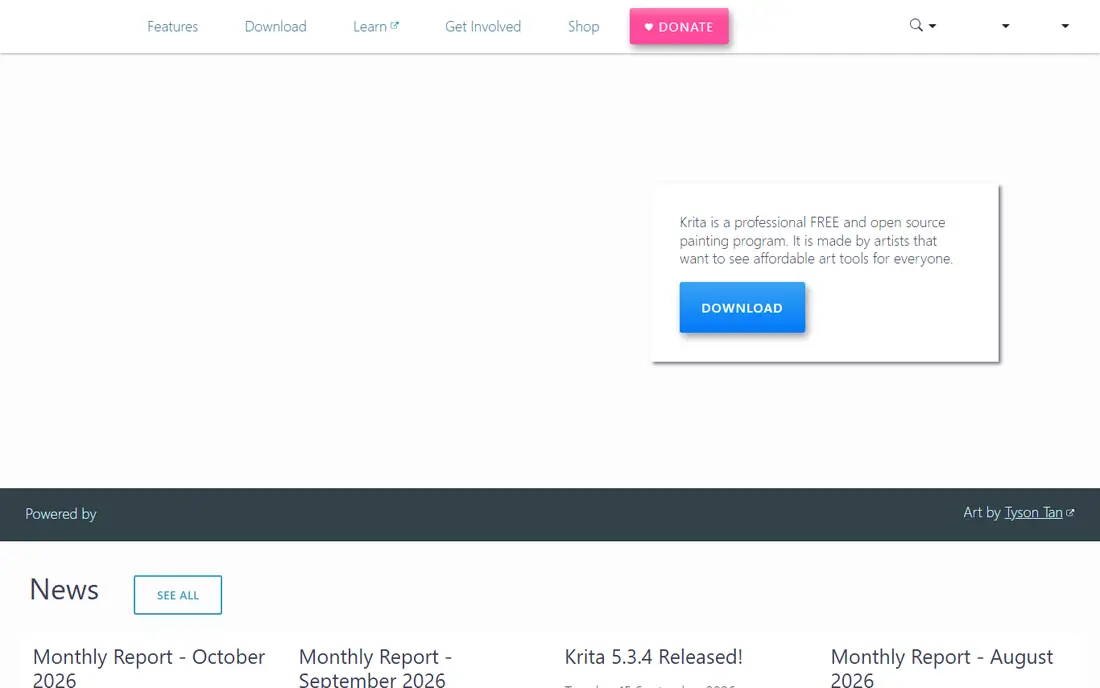
Krita is the strongest free painting app in this guide, and it is not a compromise pick. The brush engine covers watercolor, oil, ink, and texture styles, layers and masks handle professional illustration, and built-in animation tools let artists test motion without a second app. It runs on desktop systems and is maintained by an active open source community.
New users may need time to learn the layout, and vector work is not Krita's strength. Those are fair trade-offs for a free tool that can carry a professional painting workflow. Krita fits best for painters, concept artists, and students who want full painting power without paying a subscription.
What we like- Free and open source with no subscription
- Strong brush engine and animation tools
- Available on Windows, Mac, and Linux
Watch out for- Vector tools are limited compared with Illustrator
- Interface can feel busy for new users
#6Affinity Designer 2
Best for: Vector and raster work without a subscription4.5/5 on
G2 (452 reviews, checked Oct 2026)
Visit affinity.serif.com
Starting priceSee website
Free planFree trial
Affinity Designer 2 tries to solve a common frustration: paying every month for vector tools. It offers pen and shape tools for clean illustration, plus raster brushes and pixel layers for texture, in a single app with a one-time purchase. Artists can switch between vector and raster work without exporting between programs.
The ecosystem is smaller than Adobe's, so check compatibility if clients require native Illustrator files. For independent artists and small studios, that is often a manageable trade. Affinity Designer fits best for illustrators who want both vector and raster work, prefer a one-time purchase, and do not need Adobe file formats for every project.
What we like- Vector and raster tools in one app
- One-time purchase instead of a subscription
- Available on desktop and iPad
Watch out for- Smaller plugin and tutorial ecosystem than Adobe
- Some print and client workflows still expect Adobe files
Starting priceSee website
Free planFree trial
Corel Painter is built for artists who think in traditional media. Its brushes aim to behave like real paint, with blending, texture, and paper grain that go beyond a simple digital brush. That makes it appealing for portrait, scenery, and fine art illustration where a natural media look is the goal.
Painter is a desktop program with a higher price and heavier performance needs than Procreate or Krita. It is not the best pick for quick vector work or for an iPad-only workflow. Painter fits best for desktop artists who want a traditional painting feel and are willing to pay for that specialized brush engine.
What we like- Brushes that mimic oil, watercolor, pastel, and ink
- Strong for traditional-style painting on desktop
- Good tablet and pen display support
Watch out for- Higher one-time cost than many rivals
- Heavier system requirements than lighter painting apps
#8Inkscape
Best for: Free vector illustration4.4/5 on
G2 (417 reviews, checked Oct 2026)
Visit inkscape.org
Starting price$0
Free planYes
Inkscape is the free answer to Illustrator for many independent artists. It handles paths, shapes, gradients, and text well, and exports to common vector and image formats. For logos, icons, diagrams, and posters, it covers the core work without a subscription.
The interface is less polished than paid rivals, and raster painting is not its job. Pair Inkscape with Krita if you need both vector and painting in a free workflow. Inkscape fits best for vector illustrators, open source users, and anyone who needs scalable artwork on a zero budget.
What we like- Free and open source vector tools
- Strong path, shape, and text features
- Works on Windows, Mac, and Linux
Watch out for- Interface feels dated next to Affinity and Illustrator
- No raster painting depth
Starting price$0
Free planYes
MediBang Paint is a useful free option for artists who draw on more than one device. It runs on desktop and mobile, includes comic tools such as panels and tones, and offers cloud saving so work can move between phone and computer. For a beginner or a comic artist on a tight budget, that combination is hard to ignore.
Professional painters will hit limits in brush depth and color control sooner than with Krita or Clip Studio Paint. MediBang fits best for beginners, hobbyists, and comic artists who want a free, cross-device tool and do not yet need a full professional suite.
What we like- Free on desktop, tablet, and phone
- Comic panel and cloud features built in
- Lightweight and easy to start
Watch out for- Less depth for professional painting than Krita or Photoshop
- Some features and storage require a paid plan
How we chose
We checked vendor pricing pages, documentation, and public reviews on G2, Capterra, and Reddit, and compared each tool on brush quality, vector and raster support, device compatibility, file formats, and price model. Tools were kept only if they are available today, support digital illustration as a core use, and have a clear audience, from beginners to professionals. Where pricing varied by device or region, we marked it as See website instead of publishing a single guessed figure.
We also considered the total cost over three years, not just the first payment. A low monthly subscription can cost more than a one-time purchase over time, while a free tool can be the best choice if it covers the work you actually do.
Your device and your output type narrow the list faster than any feature comparison. Use the checks below to avoid buying a tool that does not fit your daily work.
Start with your device
List the devices you draw on most often, including iPad, Windows PC, Mac, and Android tablet. Procreate only helps iPad owners, while Krita, Inkscape, and Affinity cover more platforms. If you switch devices, a cross-platform tool or a cloud workflow will save frustration later.
Decide raster, vector, or both
Raster tools paint with pixels and suit textured, painterly work. Vector tools draw with paths and suit logos, icons, and scalable graphics. If you do both, Affinity Designer 2 or a pair such as Krita plus Inkscape may fit better than a single specialized app.
Test brushes with your own tablet
A brush list on a website does not tell you how a tool feels with your pen. Use free trials and free apps to draw your usual subject, test pressure, tilt, and palm rejection, and check export to the file format your clients or printers need. Comfort with the brush engine matters more than a long feature list.
Check the three-year cost
Add up subscriptions over three years and compare them with one-time purchases and free tools. A $12.99 one-time app and a free app can save hundreds of dollars over a subscription, but only if they cover your work. Do not pay for a subscription for features you use once a year.
Frequently asked questions
What is the best digital illustration tool for beginners?
Krita is a strong free starting point for desktop painting, while Procreate is the simplest paid pick for iPad owners at $12.99 one-time. MediBang Paint also works well for beginners who want a free, cross-device tool. Start with a free or low-cost tool, learn the basics, and upgrade only when a specific limit blocks your work.
Is Procreate better than Photoshop for illustration?
It depends on the job. Procreate is simpler, cheaper over time, and excellent for iPad painting and sketching. Photoshop offers deeper raster tools, photo compositing, and industry-standard files for client and print work. Many professionals use both, with Procreate for sketching and Photoshop for finishing.
Can I do professional illustration with free software?
Yes. Krita covers professional painting, and Inkscape covers professional vector work, both for free. The limits are ecosystem and file compatibility, not basic quality. Check whether clients require Adobe files before committing to a free-only workflow.
Do I need a drawing tablet for digital illustration?
A tablet with pen pressure helps a lot, but it does not need to be expensive. Entry-level tablets from Wacom, Huion, and XP-Pen work well with most tools in this guide. An iPad with Apple Pencil is another good route, especially with Procreate. Start with a comfortable, pressure-sensitive pen, and upgrade only when you know what limits you.
What is the difference between raster and vector illustration?
Raster illustration uses pixels, which suits painting, texture, and photo-based work, but loses quality when scaled up too far. Vector illustration uses mathematical paths, which stay sharp at any size and suit logos and icons. Choose raster for painterly work, vector for scalable graphics, and a combined tool if you do both.
Which tool is best for comics and manga?
Clip Studio Paint is the strongest pick for comics and manga, thanks to panel, lettering, tone, and page management tools. MediBang Paint is a good free alternative for beginners. Procreate and Krita can also draw comic pages, but they lack the dedicated panel and page workflow that Clip Studio provides.
Sources we checked (9)
- https://procreate.com/pricing
- https://www.clipstudio.net/pricing
- https://www.adobe.com/products/photoshop/pricing.html
- https://www.adobe.com/products/illustrator/pricing.html
- https://krita.org/pricing
- https://affinity.serif.com/designer/pricing
- https://www.painterartist.com/pricing
- https://inkscape.org/pricing
- https://medibangpaint.com/pricing
Is your product missing or out of date?
We review this list regularly. Vendors can request a listing, send updated pricing or ask about featured placement.

Shihab Mia · Founder, Rankite
Shihab has 5+ years in B2B and SaaS SEO. He writes Rankite's software buying guides from pricing pages, documentation and public user reviews. More about Shihab.