How we make this list: we compare pricing pages, product documentation and public user reviews. Ratings come from G2, Capterra or Trustpilot, with the date we checked them.
Key takeaways
- Procreate leads on iPad illustration, with a huge brush library, fast performance, and a one-time price.
- Clip Studio Paint leads on comics and manga, with panel tools, perspective rulers, and animation support.
- Krita leads on free professional painting, with strong brushes and no subscription for desktop artists.
- MediBang Paint and Ibis Paint lead on free mobile and manga-friendly painting for beginners.
- Adobe Fresco suits artists inside the Adobe ecosystem who want live brushes and Photoshop integration.
- Corel Painter leads on traditional media simulation, mimicking oils, watercolors, and pastels digitally.
- Affinity Designer suits vector-focused artists who want illustration plus design in one affordable app.
Quick comparison
Is your product missing or out of date?
We review this list regularly. Vendors can request a listing, send updated pricing or ask about featured placement.
Digital art tools split by device, style, and price: iPad illustrators, comic artists, concept painters, and vector designers need different brushes, layer systems, and export options. The eight tools below cover raster painting, comics, manga, vector illustration, and traditional media simulation, and the right pick depends on your device, your style, and whether you prefer a one-time purchase or a subscription.
How we chose
We started from the art tools working artists actually use in 2026, drawing on vendor pages, artist guides, and community reviews. We favored tools with strong brush engines, layer support, and export options for print and web, and we excluded phone-only filters and AI generators, since this list is about tools artists draw with. Prices vary by platform and plan, so where a figure is not confirmed on a vendor page, we use "See website" and flag the gap.
Buying guide
Start with your device. iPad artists should shortlist Procreate and Clip Studio Paint, desktop artists should shortlist Krita, Clip Studio Paint, and Corel Painter, and Android artists should shortlist MediBang and Ibis Paint. A tool that does not run well on your device will frustrate you no matter how good its brushes are.
Next, match the tool to your style. Illustrators need brush variety and layer blending, comic artists need panel and perspective tools, concept artists need large canvases and fast performance, and vector artists need pen tools and scalable shapes. Test brushes on a real piece before buying, since brush feel matters more than feature lists.
Then check export and print needs. Artists who print need CMYK support and high-resolution export, while web artists need PNG, JPEG, and social sizes. Clip Studio Paint and Affinity handle print well, while mobile apps sometimes limit canvas size and color modes.
Finally, weigh purchase models. One-time purchases such as Procreate and Affinity cost more upfront but nothing later, while subscriptions such as Clip Studio Paint and Adobe Fresco spread cost over time. Free tools such as Krita, MediBang, and Ibis Paint remove cost entirely, which suits beginners and hobbyists.
One more practical point: stylus support matters as much as software. Pressure sensitivity, tilt, and palm rejection depend on your stylus and tablet as well as the app, so test your actual hardware with each tool. An app that feels great with one stylus can feel awkward with another, and that feel decides whether you draw daily or abandon the tool.
Common mistakes to avoid
The most common mistake is buying every art app instead of mastering one. Each tool has a learning curve, and switching constantly prevents deep skill growth. Pick one main tool for six months, learn its brushes and shortcuts, and add a second tool only for a specific need it cannot cover.
The second mistake is ignoring canvas size and resolution. Starting small and upscaling later produces soft prints, so set print-size canvases from the start if you plan to print. The third mistake is hoarding brushes: hundreds of downloaded brushes slow workflow, while a dozen well-understood brushes cover most work. Curate a small set and learn it deeply.
Frequently asked questions
Which art app is best for beginners?
Krita on desktop and Ibis Paint or MediBang on mobile lead for beginners, since they are free with strong brushes and tutorials. Procreate suits beginners with an iPad who want a polished, affordable one-time purchase.
Is Procreate available on Android or Windows?
No. Procreate is iPad-only. Android artists should use MediBang, Ibis Paint, or Krita, while Windows artists should use Krita, Clip Studio Paint, or Corel Painter.
Do I need a subscription for professional art tools?
No. Procreate, Affinity Designer, and Krita offer one-time or free options, while Clip Studio Paint and Adobe Fresco use subscriptions. Choose based on your budget and update preferences.
Can free art apps produce professional work?
Yes. Krita is used professionally for concept art and illustration, and MediBang and Ibis Paint produce publishable manga and illustration. Skill matters more than price, though paid tools add convenience and print features.
What is the difference between raster and vector art tools?
Raster tools paint with pixels, which suits illustration, comics, and painting but loses quality when scaled up. Vector tools draw with mathematical shapes, which scale cleanly and suit logos, icons, and design work.
Sources
- Vendor pages for Procreate, Clip Studio Paint, Krita, MediBang Paint, Ibis Paint, Adobe Fresco, Corel Painter, and Affinity Designer
- Third-party 2026 comparisons of digital art tools
- Artist guides on brushes, canvas sizes, and print workflows
Starting priceSee website
Free planNo
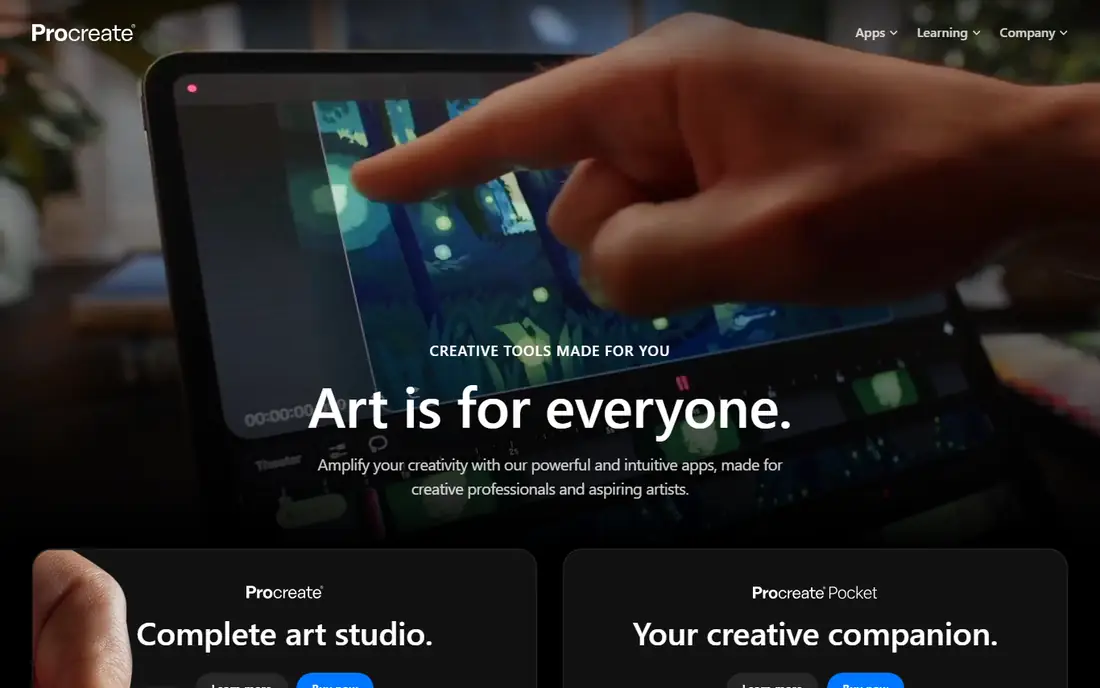
Procreate is the standard iPad illustration app, with a huge brush library, fast performance on Apple silicon, and a one-time purchase that avoids subscriptions. Its interface stays out of the way, layers and masks cover professional workflows, and its community shares thousands of free and paid brushes.
Procreate is iPad-only, vector tools are absent, and animation features are basic compared with Clip Studio Paint. Procreate suits iPad illustrators who want a polished, affordable, one-time purchase app with the largest brush community.
What we like- Huge brush library
- Fast iPad performance
- One-time purchase
Watch out for- IPad-only
- No vector tools
- Animation features are basic
Starting priceSee website
Free planFree trial
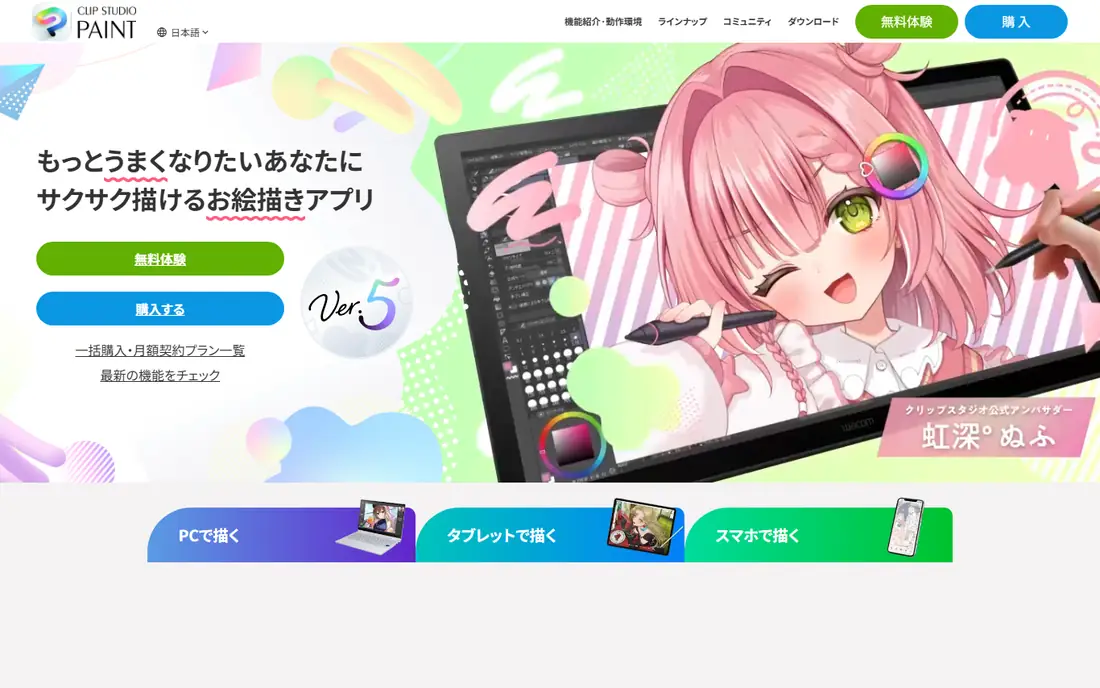
Clip Studio Paint is the comic and manga standard, with panel creation, perspective rulers, 3D models for poses, speech balloons, and animation timelines built in. Its brush engine handles inking beautifully, and its asset store offers brushes, tones, and materials from a huge creator community.
Subscriptions apply on most plans, the interface is dense for new users, and the learning curve is real. Clip Studio Paint suits comic, manga, and webtoon artists who need panel tools and inking quality, on iPad, desktop, or Android.
What we like- Best comic and manga tools
- Panel and perspective rulers
- Animation support
Watch out for- Subscription on most plans
- Interface is dense
- Learning curve for beginners
#3Krita
Best for: Free desktop painting4.4/5 on
G2 (65 reviews, checked Oct 2026)
Visit krita.org
Starting priceFree
Free planFree
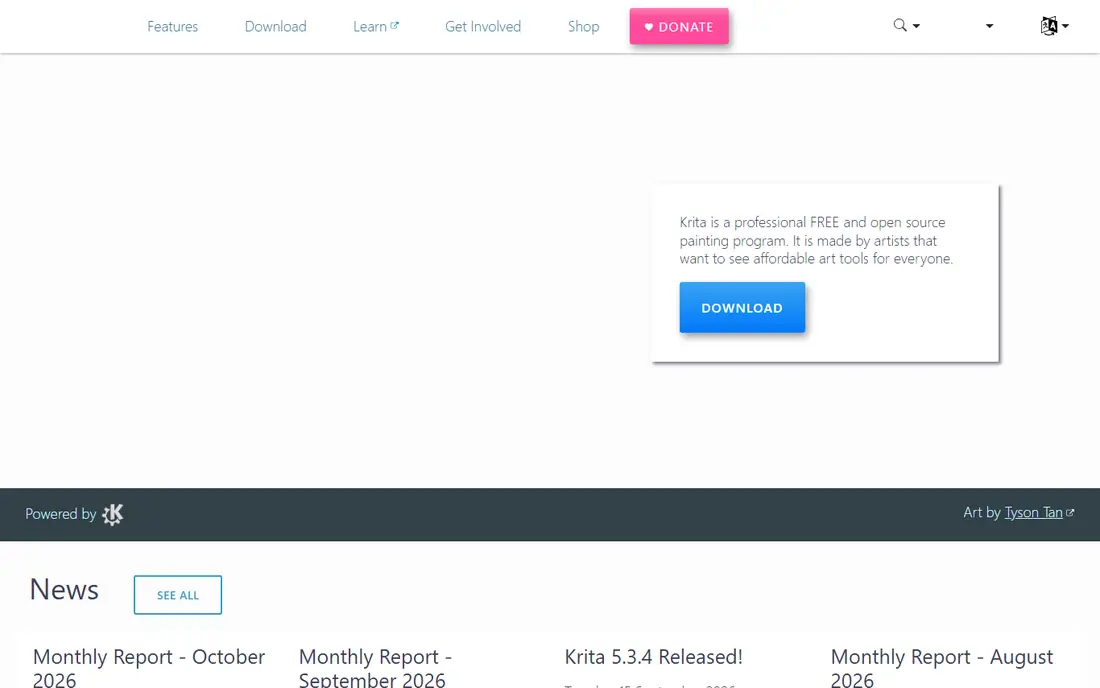
Krita is the best free professional painting app, with a strong brush engine, layer and mask support, HDR painting, and animation tools, all open source and free on Windows, Mac, and Linux. Concept artists and illustrators use it professionally, and its community produces brushes and tutorials freely.
The interface can overwhelm beginners, performance varies by hardware, and asset libraries are smaller than Clip Studio Paint. Krita suits desktop artists who want professional painting free, and anyone who prefers open-source software.
What we like- Completely free and open source
- Strong brush engine
- Animation support
Watch out for- Interface can overwhelm beginners
- Performance varies by hardware
- Fewer assets than rivals
Starting priceFree app
Free planFree plan
MediBang Paint is a free manga-friendly painting app on desktop, mobile, and web, with panel tools, cloud saving, and team collaboration features that suit manga circles and student groups. Its cross-platform sync lets artists start on a phone and finish on a desktop.
Brush quality trails Procreate and Clip Studio Paint, the free tier shows ads, and mobile canvas limits apply. MediBang Paint suits beginners and manga artists who want a free, cross-platform tool with cloud saving and collaboration.
What we like- Free on many platforms
- Manga tools and cloud saving
- Easy collaboration
Watch out for- Brush quality trails Procreate
- Ads on free tier
- Canvas limits on mobile
Starting priceFree app
Free planFree plan
Ibis Paint is the most popular free mobile painting app, with a huge brush and filter library, layer support, and social sharing that lets artists post work and watch process videos from others. Its mobile-first design suits phone and tablet artists who draw on the go.
Ads appear on the free tier, canvas sizes are limited on mobile, and the desktop version is thinner than the mobile app. Ibis Paint suits mobile artists and beginners who want a free, social painting app with a huge brush library.
What we like- Free mobile painting
- Huge brush and filter library
- Social sharing
Watch out for- Ads on free tier
- Canvas size limits
- Desktop version is thinner
#6Adobe Fresco
Best for: Adobe ecosystem art4.5/5 on
G2 (34 reviews, checked Oct 2026)
Visit adobe.com
Starting priceFree app
Free planFree plan
Adobe Fresco offers live brushes that simulate watercolor bleeding and oil blending in real time, plus pixel and vector brushes in one app, with Photoshop integration for finishing work. Its free tier covers basic painting, which suits Adobe users testing the app.
Best features need a Creative Cloud subscription, brush variety trails Procreate, and platform availability is narrower. Adobe Fresco suits artists inside the Adobe ecosystem who want live brushes and a smooth path into Photoshop.
What we like- Live brushes that mimic watercolor and oil
- Photoshop integration
- Free tier
Watch out for- Best features need Creative Cloud
- Fewer brushes than Procreate
- Platform limits
Starting priceSee website
Free planFree trial
Corel Painter is unmatched for traditional media simulation, with brushes that mimic oils, watercolors, pastels, and charcoal, including paper textures and paint mixing that feel close to physical media. Fine artists moving to digital often start here for that familiar feel.
It is expensive, the learning curve is steep, and performance needs a strong computer for large canvases. Corel Painter suits fine artists and illustrators who want the closest digital match to traditional painting and who will invest in learning it.
What we like- Best traditional media simulation
- Huge brush library
- Realistic textures
Watch out for- Expensive
- Steep learning curve
- Performance needs a strong computer
Starting priceSee website
Free planFree trial
Affinity Designer combines vector illustration with raster painting personas in one app, letting artists sketch, ink, and design logos, icons, and illustrations without switching tools. Its one-time purchase avoids subscriptions, and its design tools cover typography, grids, and export for print and web.
Painting tools trail dedicated raster apps such as Procreate, the community is smaller, and vector beginners face a learning curve. Affinity Designer suits vector-focused artists and designers who want illustration plus design in one affordable app.
What we like- Vector plus raster in one app
- One-time purchase
- Strong design tools
Watch out for- Painting tools trail Procreate
- Smaller community
- Learning curve for vector beginners
Is your product missing or out of date?
We review this list regularly. Vendors can request a listing, send updated pricing or ask about featured placement.

Shihab Mia · Founder, Rankite
Shihab has 5+ years in B2B and SaaS SEO. He writes Rankite's software buying guides from pricing pages, documentation and public user reviews. More about Shihab.
 Procreate
 Clip Studio Paint
 MediBang Paint
 Ibis Paint
 Corel Painter
 Affinity Designer