How we make this list: we compare pricing pages, product documentation and public user reviews. Ratings come from G2, Capterra or Trustpilot, with the date we checked them.
Key takeaways
- Photoshop and Illustrator remain the professional standard for photo and vector work, at $22.99 per month each on an annual plan.
- Canva and Adobe Express cover fast marketing graphics for people who do not design full time, while Figma is the stronger pick for product and interface teams.
- Affinity is now free, which makes it the lowest cost route to desktop photo, vector and layout tools without a subscription.
- Inkscape and Pixlr are useful free or low cost complements, but neither replaces a full professional suite on its own.
- Check file compatibility before you buy, because moving a finished project between tools is where most time is lost.
Quick comparison
| Tool | Best for | Starting price | Free plan |
|---|
 Adobe Photoshop Adobe Photoshop | Professional photo editing | $22.99 per month (billed annually) | Free trial (7 days) |
 Adobe Illustrator Adobe Illustrator | Professional vector design | $22.99 per month (billed annually) | Free trial (7 days) |
 Canva Canva | Fast marketing graphics | $144 per year (Canva Pro) | Yes |
 Figma Figma | Interface design and team collaboration | $16 per editor per month (billed annually, Professional) | Yes (Starter) |
 Affinity Affinity | Professional design without a subscription | Free | Yes |
 CorelDRAW Graphics Suite CorelDRAW Graphics Suite | Print, sign and illustration work | $269 per year (subscription) or $549 one-time | Free trial (15 days) |
 Sketch Sketch | Mac-based interface design | See website | Free trial |
 Procreate Procreate | Digital illustration on iPad | See website | No |
 Inkscape Inkscape | Free vector editing | Free | Yes |
Is your product missing or out of date?
We review this list regularly. Vendors can request a listing, send updated pricing or ask about featured placement.
#1Adobe Photoshop
Best for: Professional photo editing4.6/5 on
G2 (13,426 reviews, checked Oct 2026)
Visit adobe.com
Starting price$22.99 per month (billed annually)
Free planFree trial (7 days)
Photoshop suits photographers, retouchers and marketing designers who need precise control over images. Layer masks, adjustment layers and selection tools handle work that simpler editors cannot, from product retouching to complex composites. The trade-off is learning time. A new user can crop and adjust colour quickly, but the full toolset takes weeks of regular use to learn well.
File support is another reason Photoshop stays central in many studios. PSD files travel between Photoshop, Illustrator and InDesign without friction, and most print shops accept Photoshop files without questions. If your work is mainly social graphics and you rarely edit photos in depth, a lighter tool will save money and time.
What we like- Deep photo editing and retouching tools
- Huge plugin and tutorial library
- Strong print and web export options
Watch out for- Subscription cost adds up over time
- Interface can feel crowded for beginners
#2Adobe Illustrator
Best for: Professional vector design4.6/5 on
G2 (6,200 reviews, checked Oct 2026)
Visit adobe.com
Starting price$22.99 per month (billed annually)
Free planFree trial (7 days)
Illustrator is the right pick when the output must stay sharp at any size. Logos, icons, packaging and large format print all benefit from vector paths rather than pixels, and Illustrator gives fine control over anchor points, strokes and colour. Designers who work with brand systems also value its libraries and symbol tools, which keep repeated elements consistent.
The weakness is speed on simple jobs. Building a quick social post in Illustrator takes longer than using a template editor, and the interface assumes you know design terms. Pair Illustrator with Photoshop if you handle both photos and vector art, or buy it alone if logos and illustration are your main work.
What we like- Precise vector drawing for logos and print
- Clean scaling to any size
- Strong typography controls
Watch out for- Subscription pricing
- Steeper learning curve than template tools
#3Canva
Best for: Fast marketing graphics4.7/5 on
G2 (7,678 reviews, checked Oct 2026)
Visit canva.com
Starting price$144 per year (Canva Pro)
Free planYes
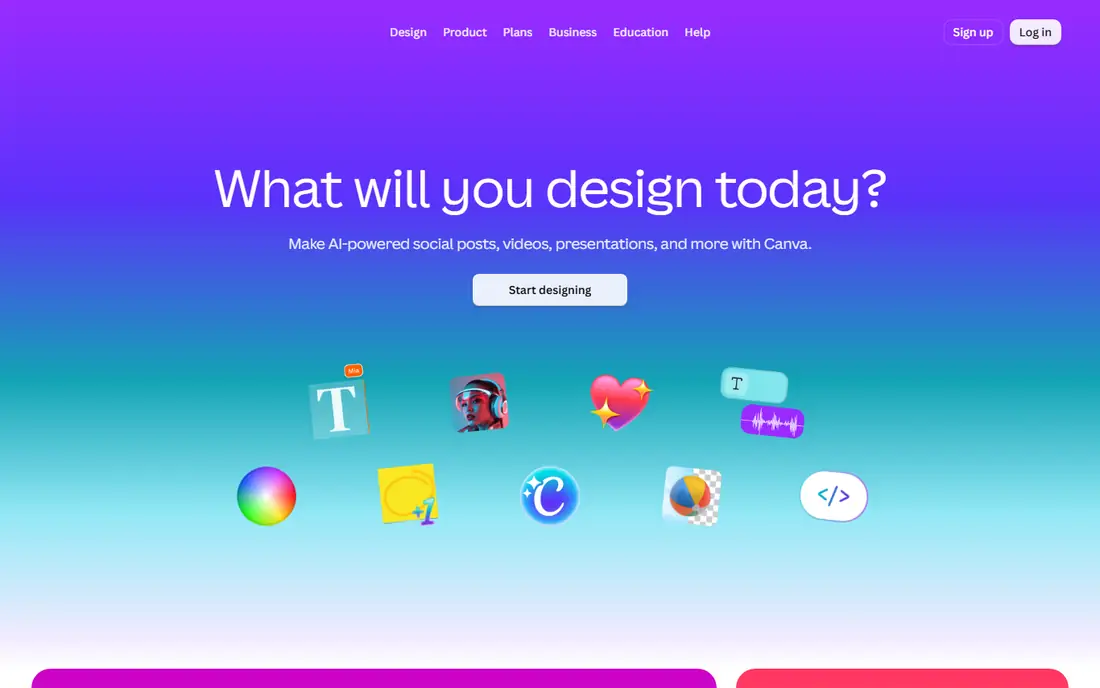
Canva fits small teams and solo creators who need a steady stream of posts, presentations and flyers. Templates, stock photos and a drag and drop editor remove most of the setup work, and Pro adds background removal, brand kits and one click resizing for different platforms. A social post that might take an hour in a professional tool often takes ten minutes here.
The limit shows up in detailed work. Colour control, typography and print export are not as precise as in Illustrator or Affinity, and heavy template use can make different brands look alike. Use Canva for volume and speed, and keep a professional tool for logos and print pieces that must be exact.
What we like- Large template and stock library
- Very easy for non-designers
- Brand kits and resizing on Pro
Watch out for- Limited precision for print work
- Templates can make output look generic
#4Figma
Best for: Interface design and team collaboration4.7/5 on
G2 (1,593 reviews, checked Oct 2026)
Visit figma.com
Starting price$16 per editor per month (billed annually, Professional)
Free planYes (Starter)
Figma is built for teams designing apps and websites together. Several people can work in the same file at once, leave comments on specific frames, and build prototypes that stakeholders can click through. Components and styles keep a product consistent, and developers can inspect spacing, colour and assets without asking for exported files.
Print designers should look elsewhere. Figma works in RGB, focuses on screens, and lacks the colour management and layout controls that print work needs. The free Starter plan is also limited to a small number of team files, so solo designers with many projects may need the paid plan sooner than expected.
What we like- Real time collaboration in the browser
- Strong components and prototyping
- Clear developer handoff
Watch out for- Weak for print design
- Costs rise with each full editor seat
#5Affinity
Best for: Professional design without a subscription4.5/5 on
G2 (452 reviews, checked Oct 2026)
Visit affinity.serif.com
Starting priceFree
Free planYes
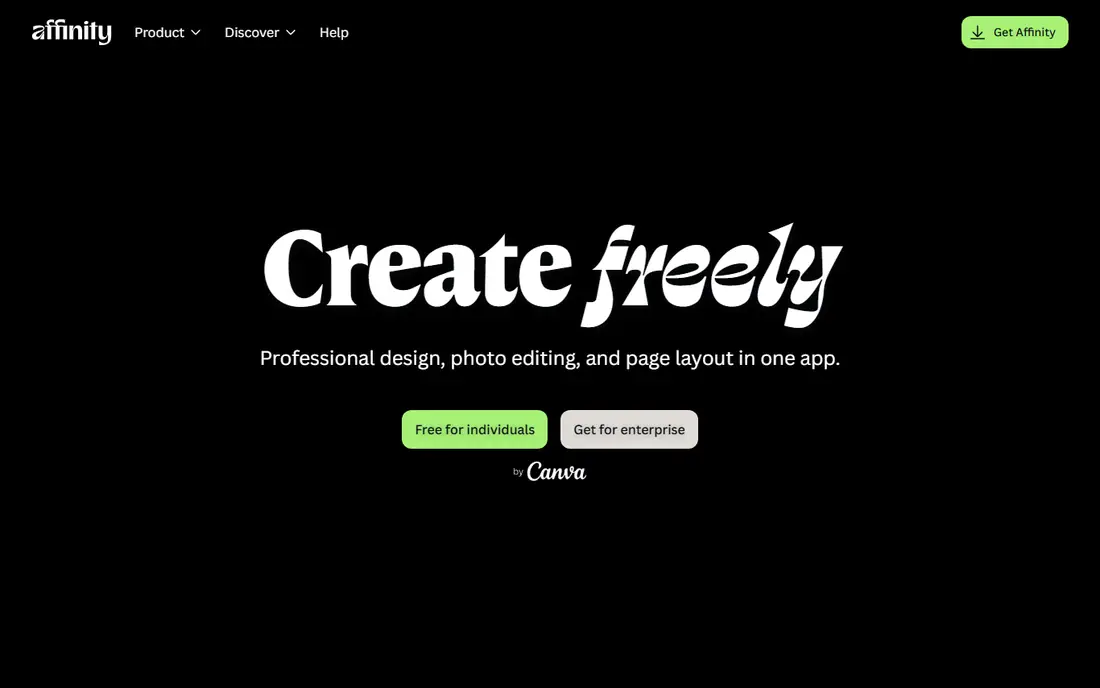
Affinity covers photo editing, vector illustration and page layout in three desktop apps, now available free. That makes it the most credible low cost route for freelancers who want professional tools without a monthly bill. Performance is generally quick, files open fast, and the tools feel familiar to anyone who has used Photoshop or Illustrator.
The catch is ecosystem size. Fewer plugins, fewer stock integrations and fewer tutorials exist than for Adobe products, and complex Adobe files do not always convert perfectly. If you work alone or with clients who accept common file formats, Affinity is a strong buy at its price. If you work inside an Adobe based studio, check compatibility on a real project first.
What we like- Full desktop photo, vector and layout apps
- No subscription
- Good Adobe file compatibility for many projects
Watch out for- Smaller plugin and tutorial library than Adobe
- Some advanced Adobe features have no direct match
#6CorelDRAW Graphics Suite
Best for: Print, sign and illustration work4.3/5 on
G2 (555 reviews, checked Oct 2026)
Visit coreldraw.com
Starting price$269 per year (subscription) or $549 one-time
Free planFree trial (15 days)
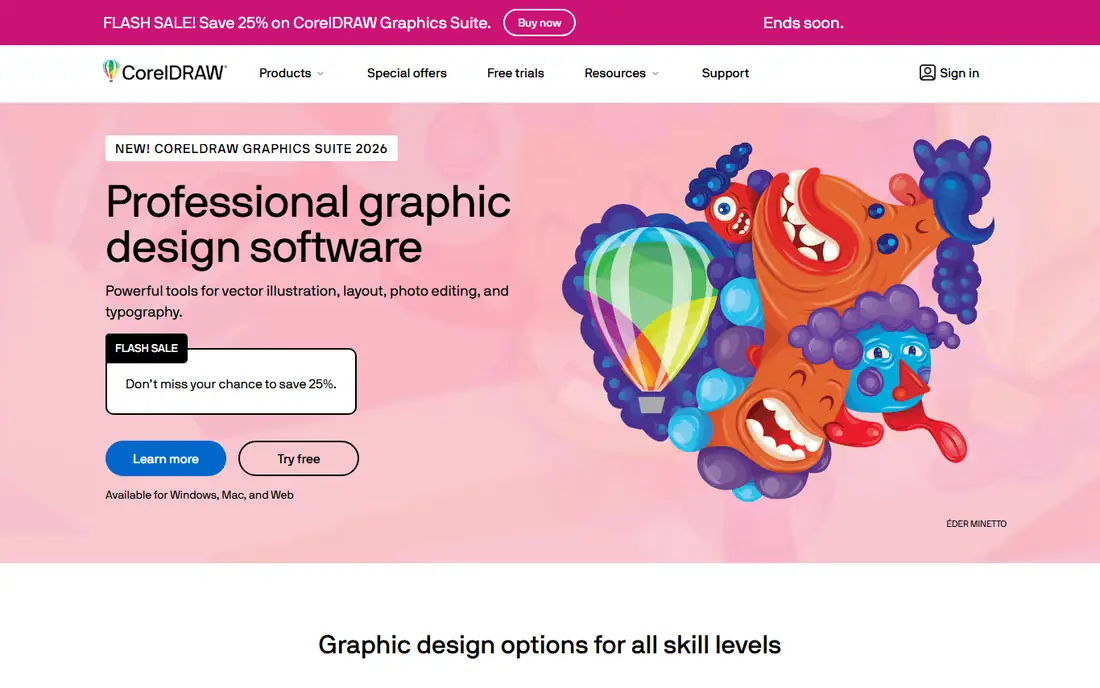
CorelDRAW suits print shops, sign makers and illustrators who want vector drawing and page layout in one package. It handles multi-page documents, large format output and detailed vector work, and the one-time purchase option appeals to buyers who dislike subscriptions. Many long running print businesses already use it, so finding a printer who accepts its files is rarely a problem in that world.
Outside print, CorelDRAW gets less attention. Tutorials, templates and third party plugins are thinner than for Adobe or Canva, and interface design teams will find Figma or Sketch more useful. Buy CorelDRAW for print and illustration, not as a general replacement for a product design tool.
What we like- One-time purchase option still available
- Strong vector and layout tools
- Popular in print and sign shops
Watch out for- Smaller community than Adobe
- Mac and Windows experience can differ
#7Sketch
Best for: Mac-based interface design4.5/5 on
G2 (1,227 reviews, checked Oct 2026)
Visit sketch.com
Starting priceSee website
Free planFree trial
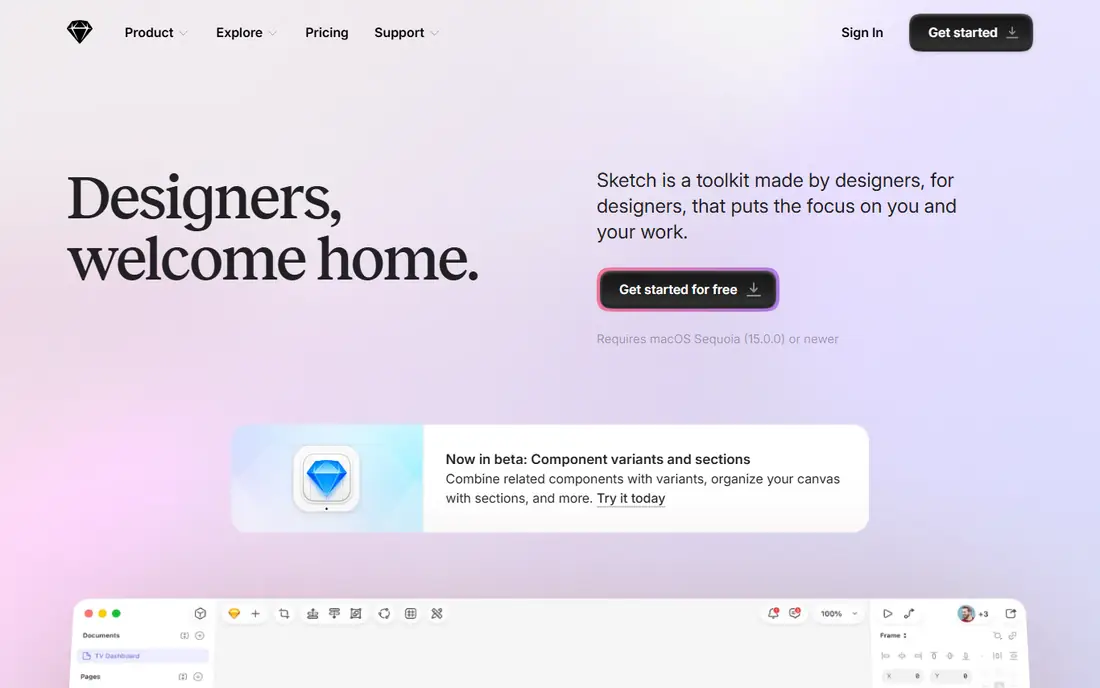
Sketch remains a solid choice for Mac based product teams, especially those with an established Sketch workflow. The native app feels fast, symbols and libraries keep interfaces consistent, and a large plugin collection covers tasks from data population to developer handoff. Teams that already use Sketch often stay because migration would cost more time than the subscription saves.
The Mac only limit is the main drawback. Windows based colleagues cannot open the desktop app, and real time collaboration is not as central as in Figma. New teams choosing a tool today should compare Sketch with Figma on team size and platform mix before committing.
What we like- Fast native Mac app
- Large plugin library
- Clean interface design workflow
Watch out for- Mac only
- Collaboration depends on the web app and paid seats
#8Procreate
Best for: Digital illustration on iPad4.9/5 on
G2 (73 reviews, checked Oct 2026)
Visit procreate.com
Starting priceSee website
Free planNo
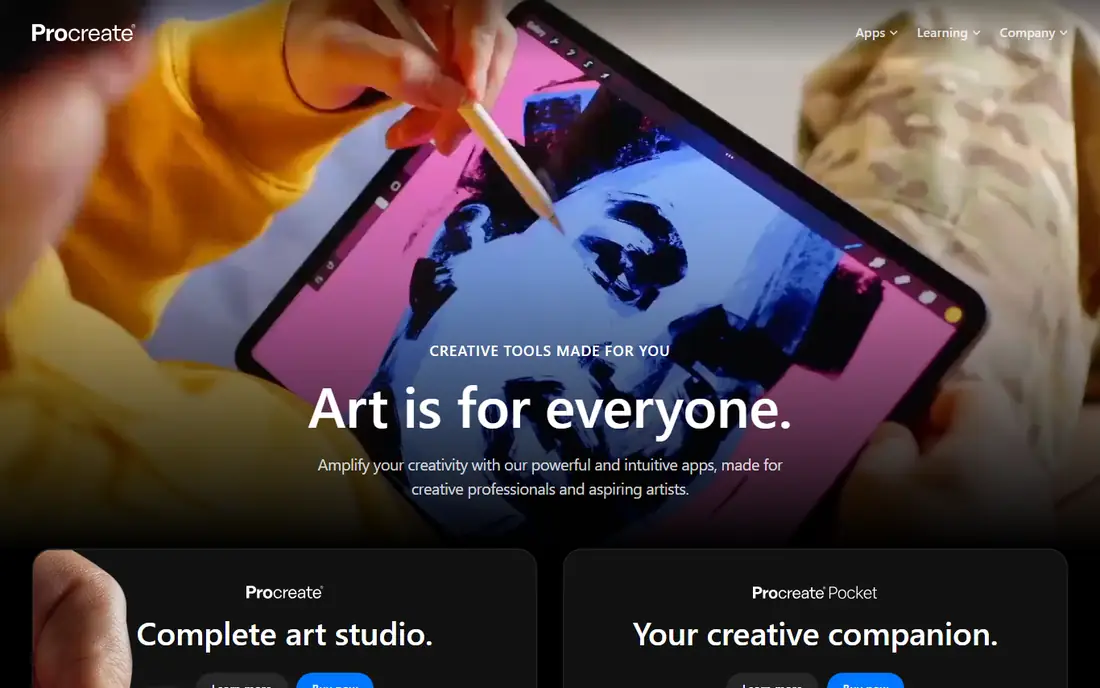
Procreate is the favourite of many illustrators because drawing on an iPad with a stylus feels direct and the brush engine responds well to pressure and tilt. It handles painting, sketching, lettering and animation frames, and the one-time purchase keeps costs simple. Artists often use it for the creative stage, then finish files in a desktop tool.
It is not a full design suite. Text layout, multi-page documents and detailed print colour work belong in other tools, and iPad only availability excludes Android and desktop users. Treat Procreate as a specialist illustration tool, and pair it with a vector or layout app when the final output needs print precision.
What we like- Natural brush engine for illustration
- One-time purchase model
- Large brush and canvas community
Watch out for- IPad only
- No desktop version for full print production
#9Inkscape
Best for: Free vector editing4.4/5 on
G2 (417 reviews, checked Oct 2026)
Visit inkscape.org
Starting priceFree
Free planYes
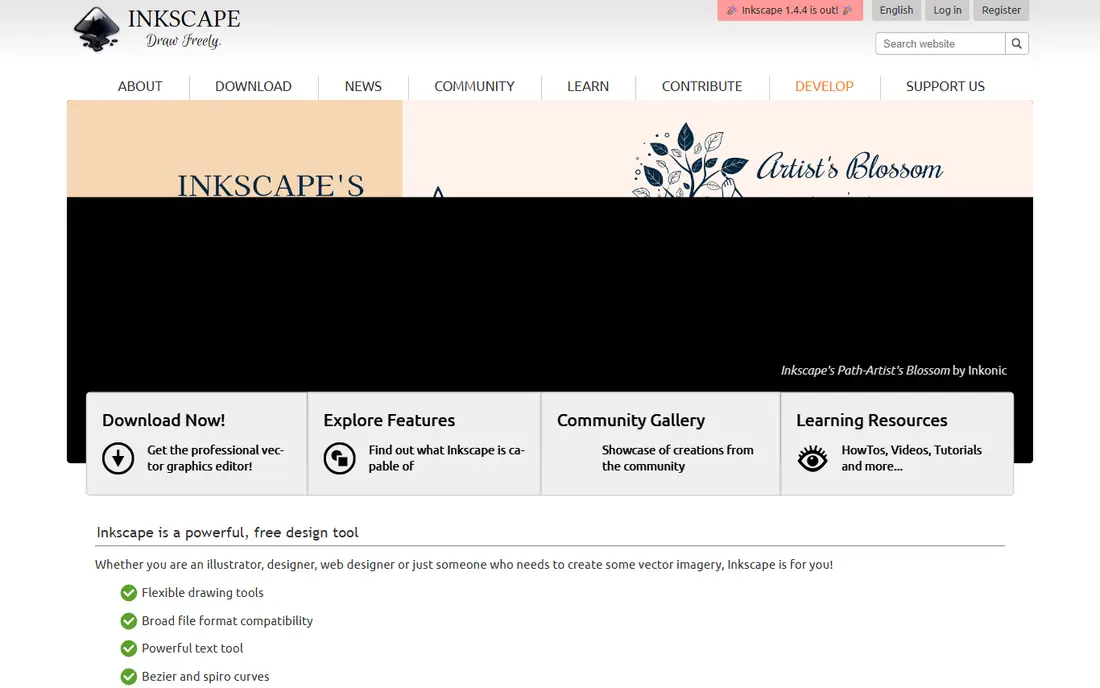
Inkscape gives students, hobbyists and small teams a free route into vector design. It covers paths, shapes, text on paths, gradients and SVG export, which is enough for logos, diagrams, stickers and web graphics. Because it is open source, there is no subscription, no account lock-in and no feature paywall.
The trade-off is polish. The interface is less refined than Illustrator or Affinity, and very complex files can slow down. Support comes from community documentation rather than a vendor help desk. For a tight budget or a first vector tool, Inkscape is a fair start, with a clear upgrade path to Affinity or Illustrator later.
What we like- Free and open source
- Runs on Windows, Mac and Linux
- Capable vector drawing tools
Watch out for- Interface feels dated
- Performance can lag on very large files
How we chose
We compared vendor pricing pages, product documentation and public reviews on G2, Capterra and Reddit, and checked each tool for fit with a specific job rather than general popularity. A tool stayed on the list only if it is still available, fits creative design work directly, and offers a clear reason to choose it over the others. Prices shown are starting prices for individuals or small teams, and buyers should confirm the current price at checkout because vendors change plans during the year. Note: Affinity is listed at affinity.serif.com, the design software maker's own domain; affinity.com belongs to an unrelated AdTech company and is not used here. Canva and Affinity pages load as browser-notice pages in this check, so they are counted on domain and title.
What to check before you commit
Start with the output you produce most often. Print work needs CMYK handling and precise layout, screen work needs components and prototyping, and social work needs templates and fast resizing. One tool rarely covers all three well, so a two tool setup is common and often cheaper than forcing one expensive suite to do everything.
Check file formats next. Ask what your printer, client or developer needs to receive, and test a real file in each shortlisted tool before you pay. Also check seat pricing for teams, because per editor pricing in Figma and per person pricing in Canva change the total fast. Finally, confirm export and data portability, so you can leave a tool without losing finished work.
Frequently asked questions
Do I need Adobe tools to be a professional designer?
No. Clients judge the finished file, not the logo on the app. Affinity, CorelDRAW and Inkscape all produce professional work, and many studios mix tools by job. Adobe helps when a client or printer requires its file formats, but it is not a requirement for good design.
Is Canva enough for a small business?
For social posts, flyers, presentations and simple ads, Canva is often enough, especially on Pro with brand kits. For a logo, packaging or anything that will be printed large, use a vector tool so the artwork stays sharp and can be edited later.
Which tool is best for beginners?
Canva is the easiest starting point for marketing graphics, and Inkscape is a free way to learn vector drawing. Figma is also approachable for interface design because it runs in the browser and has many free templates. Choose by the work you will do, not by which app looks simplest in general.
Can I use Affinity instead of Photoshop and Illustrator?
For many freelancers, yes. Affinity Photo, Designer and Publisher cover the same three jobs, and the free price removes the subscription barrier. Complex Adobe files, certain plugins and some advanced features may not transfer cleanly, so test your typical projects first.
Is Figma or Sketch better for app design?
Figma suits mixed platform teams and real time collaboration, while Sketch suits Mac only teams that value a native app and its plugins. New teams usually find Figma easier to share with clients and developers, while existing Sketch teams have little reason to move.
Sources we checked (8)
- https://www.adobe.com/pricing
- https://www.canva.com/pricing/
- https://www.figma.com/pricing/
- https://affinity.serif.com
- https://www.coreldraw.com
- https://www.sketch.com/pricing/
- https://procreate.com
- https://inkscape.org
Is your product missing or out of date?
We review this list regularly. Vendors can request a listing, send updated pricing or ask about featured placement.

Shihab Mia · Founder, Rankite
Shihab has 5+ years in B2B and SaaS SEO. He writes Rankite's software buying guides from pricing pages, documentation and public user reviews. More about Shihab.