How we make this list: we compare pricing pages, product documentation and public user reviews. Rankite is independent; if a vendor ever pays for a featured spot, that listing is clearly labeled Partner.
Key takeaways
- Most slow PCs are slowed by startup bloat and full disks, not by a lack of "optimization." Free tools like BleachBit and CCleaner's free tier fix the common causes.
- Paid suites (System Mechanic, Advanced SystemCare Pro) add automation and deeper repair, but no cleaner fixes failing hardware or malware.
- Back up before you clean. Registry cleaners and aggressive junk-file removal can break things; a restore point is cheap insurance.
- Avoid bundled "PC optimizer" downloads from ads. Stick to the established vendors on this list and download from their official sites.
- Annual subscriptions are the norm now. Compare the renewal price, not just the first-year discount.
Quick comparison
Is your product missing or out of date?
We review this list regularly. Vendors can request a listing, send updated pricing or ask about featured placement.
A three-year-old laptop that takes five minutes to boot is usually not dying. It is carrying two dozen startup programs, a disk full of temp files, and browser extensions nobody remembers installing. The tools below clean up that mess. None of them will turn a ten-year-old hard drive into an SSD, but the good ones buy real, measurable speed.
Starting priceSee website
Free planYes
CCleaner has been the default PC cleaner for over a decade, and the free version still does the job: it clears temp files, browser caches and broken shortcuts, manages startup programs, and includes a registry cleaner for those who want it. The startup manager alone is worth installing; disabling five auto-launching apps does more for boot time than any other single action.
The caveats are real. CCleaner had privacy missteps in the past (data collection in the free version), and the current product pushes the paid Professional tier hard with popups. Stick to the free version for basic cleanup, download only from ccleaner.com, and skip the registry cleaner unless you know what you are doing. For most users, the free tier plus Windows' own tools is enough.
What we like- Free tier cleans junk files and manages startup
- Familiar interface
- Huge user base and documentation
Watch out for- Past privacy controversies hurt trust
- Free version nags about upgrading

#2
Advanced SystemCare
Best for: All-in-one free optimization
Visit iobit.com
Starting priceSee website
Free planYes

IObit's Advanced SystemCare packs more into its free version than most competitors: junk cleaning, registry repair, startup optimization, privacy sweep, spyware removal and a driver updater, all behind one big "AI-powered" scan button. For a non-technical user who wants to press one button and have things handled, it is the most complete free option.
The business model shows through. The free version constantly advertises Pro features, and the installer has historically bundled additional IObit programs, so install carefully and uncheck extras. Choose the custom install path. If you can live with the upselling, the free tier genuinely covers the basics well.
What we like- Generous free version with one-click care
- Includes driver updater and malware scan
- Startup optimizer works well
Watch out for- Aggressive upselling to the Pro version
- Installer may bundle extra IObit software
Starting priceSee website
Free planYes
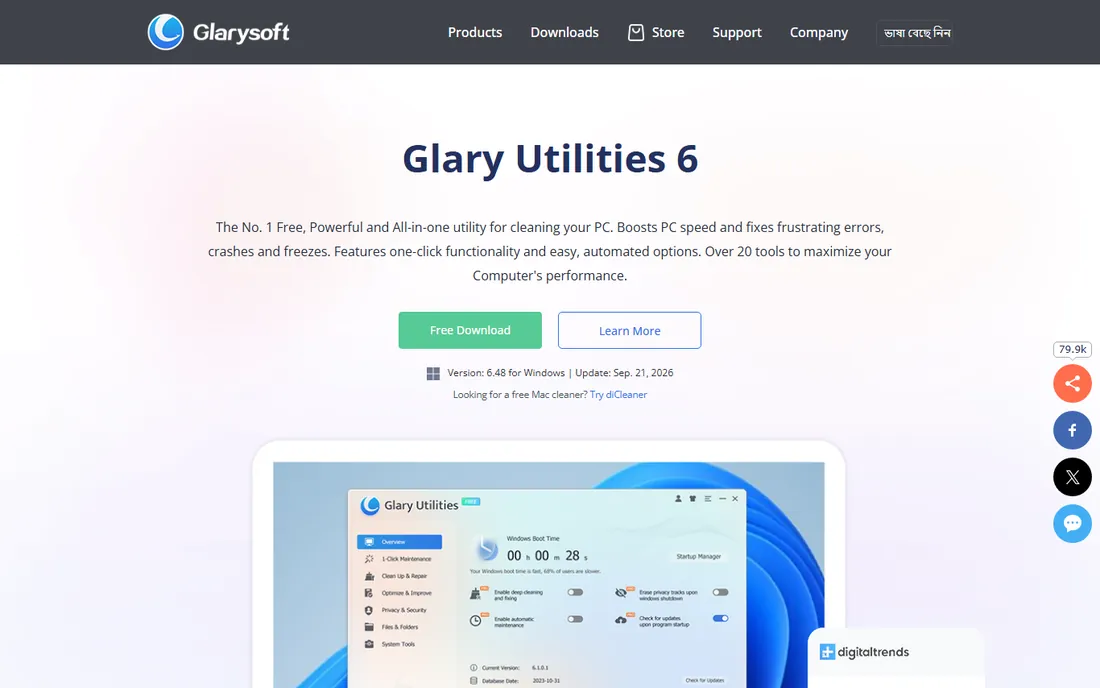
Glary Utilities is the quiet workhorse of this category. The free version includes disk cleanup, registry repair, startup management, file shredder, duplicate finder, context menu manager and more than a dozen other tools, all accessible through a one-click maintenance mode. It is less famous than CCleaner but just as capable for routine cleanup.
The interface looks like it was designed in 2010, because it largely was. That is cosmetic; the tools work. The Pro version adds automatic maintenance scheduling and deeper cleaning for a small fee. For users who want a broad toolkit without subscriptions, Glary Utilities is a solid, low-drama choice.
What we like- Over 20 tools in one package
- One-click maintenance is genuinely simple
- Lightweight
Watch out for- Dated interface
- Pro features locked behind a modest paywall
Starting priceSee website
Free planFree trial
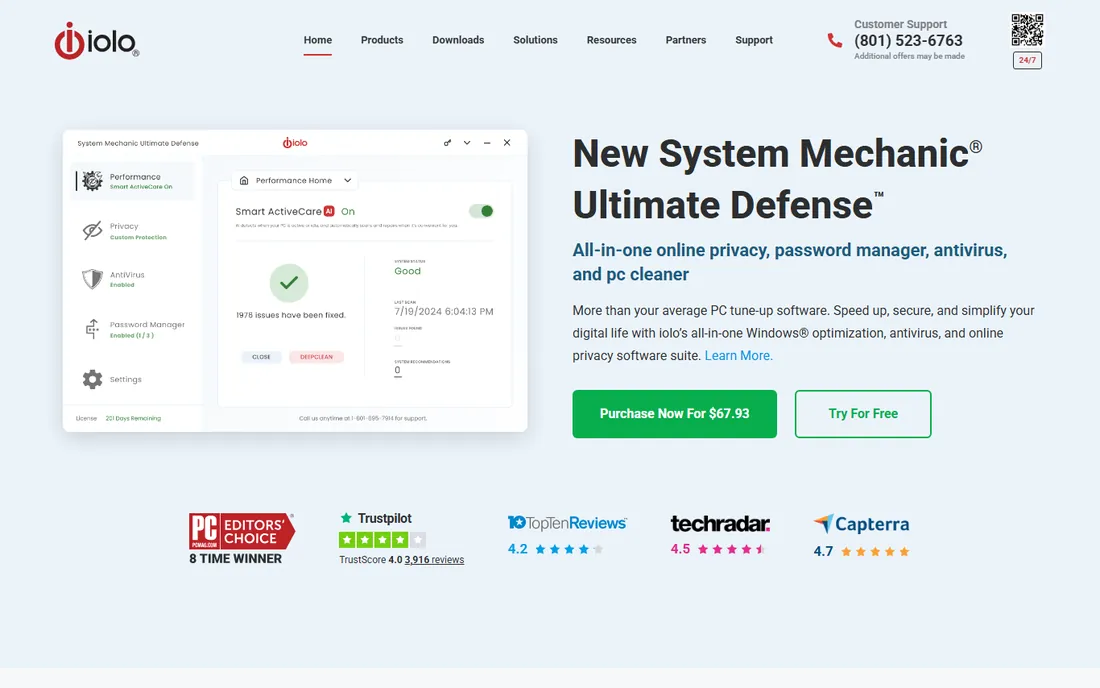
System Mechanic (by iolo) takes the automation angle further than the free tools. It scans for fragmented files, registry problems, startup bottlenecks, bloatware and security holes, then fixes them on a schedule. The bloatware remover is genuinely useful on new PCs that ship with pre-installed junk.
There is no free version, only a trial, and the subscription auto-renews, so watch the renewal price. It is also a US-based product with a long track record, which matters in a category full of sketchy fly-by-night optimizers. Download only from iolo.com; note that lookalike domains exist and should be avoided. Buy it if you want scheduled, hands-off maintenance and are willing to pay for it.
What we like- Automated repair of common Windows issues
- Removes bloatware
- Patented optimization technology
Watch out for- No free tier, trial only
- Subscription pricing with auto-renewal

#5
AVG TuneUp
Best for: Automatic background maintenance
Visit avg.com
Starting priceSee website
Free planFree trial
AVG TuneUp (formerly TuneUp Utilities) focuses on keeping the PC fast over time rather than one-time cleaning. Its standout feature puts resource-hungry background programs to sleep until you need them, which helps older laptops stay responsive. Automatic maintenance runs cleanup on a schedule without user intervention.
As an AVG product, it comes from an established security vendor, which is reassuring. The downside is the lack of a free tier; you get a trial, then a subscription. The renewal price is higher than the first-year offer, so check the pricing page before buying. It suits users who already trust AVG and want maintenance they never have to think about.
What we like- Sleep mode puts background apps to sleep
- Automatic maintenance
- From a known antivirus vendor
Watch out for- Trial only, no free tier
- Subscription model with renewal pricing
Starting priceSee website
Free planFree trial
Ashampoo WinOptimizer is the German-engineered entry in this list, with an emphasis on privacy: anti-spy tools, file encryption, secure deletion and telemetry blocking sit alongside the usual junk cleaning and startup management. The one-click optimizer handles routine maintenance, while the module view lets advanced users dig into specifics.
A free trial is available, but the full version is paid. Some of its features duplicate what Windows 11 already does (storage sense, startup management), so its value depends on how much you care about the privacy extras. European users who like buying from an EU vendor will appreciate the option.
What we like- Strong privacy and anti-spy tools
- One-click optimization
- Detailed system analysis
Watch out for- Trial only for the full version
- Some features overlap with free Windows tools
Starting priceFree
Free planYes
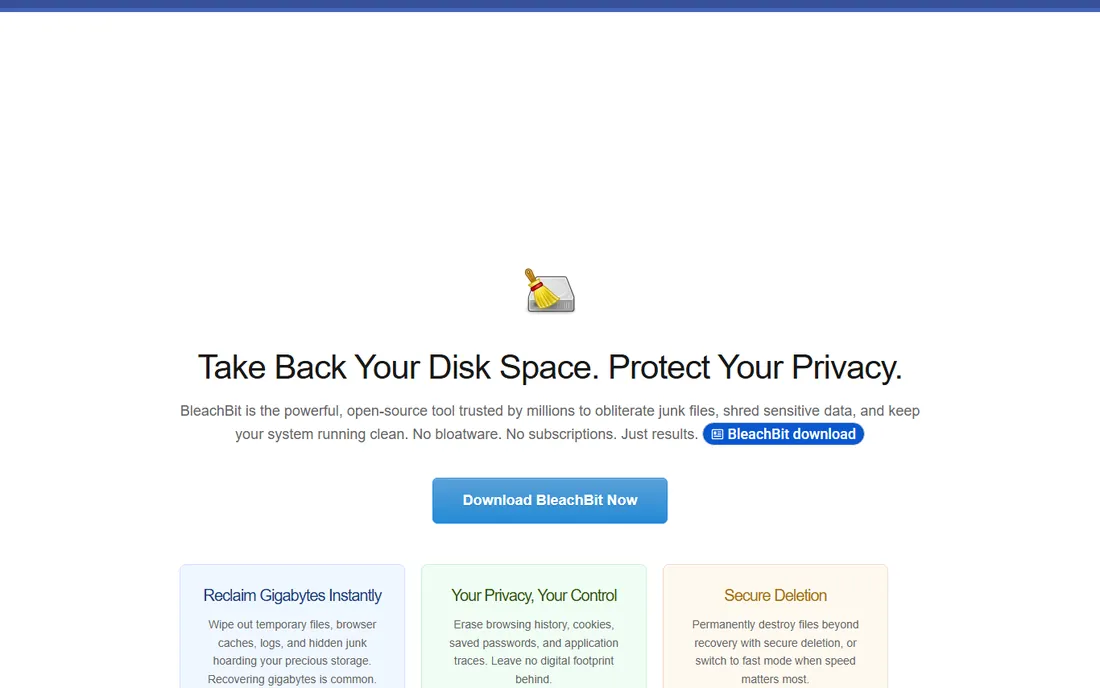
BleachBit is the open-source cleaner for people who distrust commercial optimizers. It deletes cache, temp files, cookies and logs for hundreds of applications, shreds files securely, and does it all without ads, accounts or upsells. It is completely free, and the code is public.
There is no hand-holding. The interface is a checklist of cleaning options, and checking the wrong box can delete things you wanted (like saved passwords). There is no scheduler, no one-click mode and no registry cleaner. For technical users who want a transparent, free tool and know what they are deleting, BleachBit is the honest choice.
What we like- Completely free and open source
- No ads or upselling
- Secure file shredding
Watch out for- Spartan interface
- No automation or scheduling
- Requires more user knowledge
Starting priceSee website
Free planYes
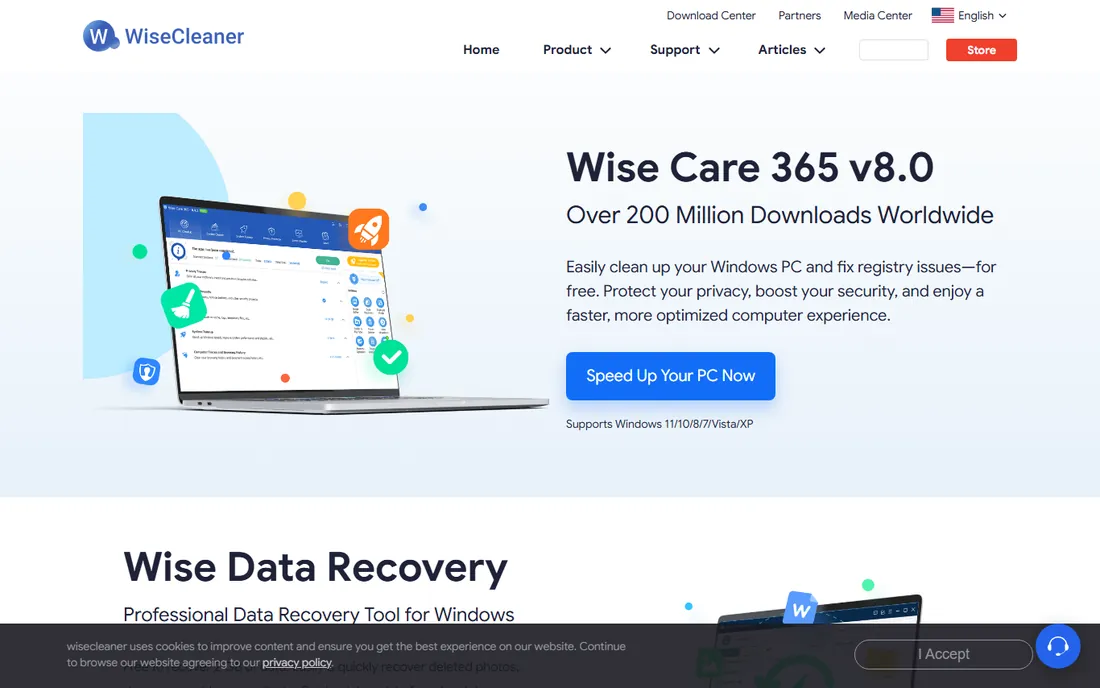
Wise Care 365 is the simplest tool on this list to actually use. The free version cleans junk files, manages startup, defrags the registry and checks privacy traces through a clean tabbed interface. Scans are fast, and the layout does not overwhelm.
The free version advertises the Pro upgrade, though less aggressively than some competitors. Feature-wise it sits between CCleaner and Advanced SystemCare: enough for daily maintenance, not a deep repair suite. For a family PC where the user just needs "make it faster" without learning anything, Wise Care 365 is an easy recommendation.
What we like- Clean, modern interface
- Free version covers the essentials
- Fast scanning
Watch out for- Pro upsells in the free version
- Smaller feature set than IObit
Before you buy any optimizer
Check the real cause first. Open Task Manager, look at the Startup tab, and disable everything you do not need. Check disk space; a drive over 90 percent full slows everything down. These two free steps fix most "slow PC" complaints without any software.
If the PC has a spinning hard drive, an SSD upgrade does more than any optimizer ever will. A $50 SSD transforms a slow laptop in a way no cleaning tool can match. Software optimizers are for maintenance, not resurrection.
And never download optimizers from ads or third-party download sites. The category is full of scareware that invents problems to sell solutions. Every tool on this list should be downloaded from its official site only.
How to use a PC cleaner safely
Always create a restore point before running deep cleaning or registry repair. Windows makes this easy, and it is your undo button if something breaks. The good tools offer to create one automatically; say yes.
Be conservative with the registry cleaner. Modern Windows rarely benefits from registry cleaning, and aggressive cleaning can break installed software. Junk file cleanup and startup management are safe and effective; registry cleaning is optional.
Run cleanup monthly, not daily. Daily aggressive cleaning wears SSDs with unnecessary writes and rarely finds anything new. A monthly junk cleanup plus ongoing startup management is the right cadence for most users.
How we chose
We evaluated the PC optimization market using vendor documentation, pricing pages, and user reviews on G2, Capterra, Reddit and tech forums. We included established cleaners with a track record, free open-source options, and full tune-up suites, while excluding scareware and bundled ad-supported optimizers. We did not perform hands-on benchmark testing.
Frequently asked questions
Do PC cleaners actually work?
They help with specific problems: full disks, bloated startup lists and accumulated temp files. They do not fix hardware failures, malware infections or fundamentally underpowered machines. Set expectations accordingly.
Is CCleaner safe to use?
The current CCleaner from ccleaner.com is safe for basic junk cleanup and startup management. Download only from the official site, skip the registry cleaner unless you are confident, and be aware the free version collects some usage data and promotes the paid tier.
What is the best free PC cleaner?
CCleaner Free, Advanced SystemCare Free and BleachBit are the top free options. BleachBit is fully free and open source; CCleaner and Advanced SystemCare have more features but upsell paid versions.
Will a PC optimizer remove viruses?
No. Optimizers clean junk files and settings; they do not remove malware. If you suspect an infection, run a proper antivirus scan (Windows Defender is a good start) before or instead of optimizing.
Should I use a registry cleaner?
Usually not necessary. Registry cleaning rarely improves performance on modern Windows and carries some risk of breaking software. Focus on startup management and disk cleanup instead.
How often should I clean my PC?
Monthly junk cleanup plus keeping startup programs trimmed is enough for most users. Daily cleaning provides no benefit and can cause unnecessary SSD wear.
Sources we checked (8)
- https://www.ccleaner.com
- https://www.iobit.com/en/advancedsystemcarefree.php
- https://www.glarysoft.com/
- https://www.iolo.com/products/system-mechanic/
- https://www.avg.com/en-us/avg-pctuneup
- https://www.ashampoo.com/en-us/winoptimizer
- https://www.bleachbit.org
- https://www.wisecleaner.com/wise-care-365.html
Is your product missing or out of date?
We review this list regularly. Vendors can request a listing, send updated pricing or ask about featured placement.

Shihab Mia · Founder, Rankite
Shihab has spent more than a decade helping SaaS and e-commerce brands grow through search. He writes Rankite's software buying guides from pricing pages, documentation and public user reviews. More about Shihab.
 CCleaner
 Glary Utilities
 System Mechanic
 Ashampoo WinOptimizer
 BleachBit
 Wise Care 365