How we make this list: we compare pricing pages, product documentation and public user reviews. Rankite is independent; if a vendor ever pays for a featured spot, that listing is clearly labeled Partner.
Key takeaways
- Aseprite remains the standard for serious sprite animation, with onion skinning, timeline tags and sprite sheet export.
- Piskel, Pixelorama and PixiEditor are free and cover most animation needs, so beginners can start without spending anything.
- Pyxel Edit is the pick for tile-based game art, while Pixaki owns the iPad and Pixel Studio owns mobile.
- Paid options are cheap here: Pyxel Edit costs $9 and Pro Motion NG costs $19, both one-time.
Quick comparison
| Tool | Best for | Starting price | Free plan |
|---|
 Aseprite Aseprite | Serious sprite animators who want the industry-standard tool | See website | Free trial available |
 Piskel Piskel | Beginners who want to animate sprites in a browser | Free | Yes |
 Pyxel Edit Pyxel Edit | Game developers building tilesets and level art | $9 | Yes (free version available) |
 GraphicsGale GraphicsGale | Windows users who want a free classic animation tool | Free | Yes |
 Pro Motion NG Pro Motion NG | Professional pixel artists who want deep control | $19 | Yes (free edition with limited features) |
 Pixaki Pixaki | iPad artists who draw with Apple Pencil | See website | Yes (Intro version free) |
 Pixelorama Pixelorama | Open-source fans who want a free full-featured editor | Free | Yes |
 Pixel Studio Pixel Studio | Mobile artists who want pixel art on phone or tablet | Free | Yes (free app; Pro upgrade $7.99) |
 PixiEditor PixiEditor | Artists who want pixel art plus painting and vector tools in one free app | Free | Yes |
Is your product missing or out of date?
We review this list regularly. Vendors can request a listing, send updated pricing or ask about featured placement.
The best software for pixel art animation
#1
Aseprite
Best for: Serious sprite animators who want the industry-standard tool
Visit aseprite.org
Starting priceSee website
Free planFree trial available
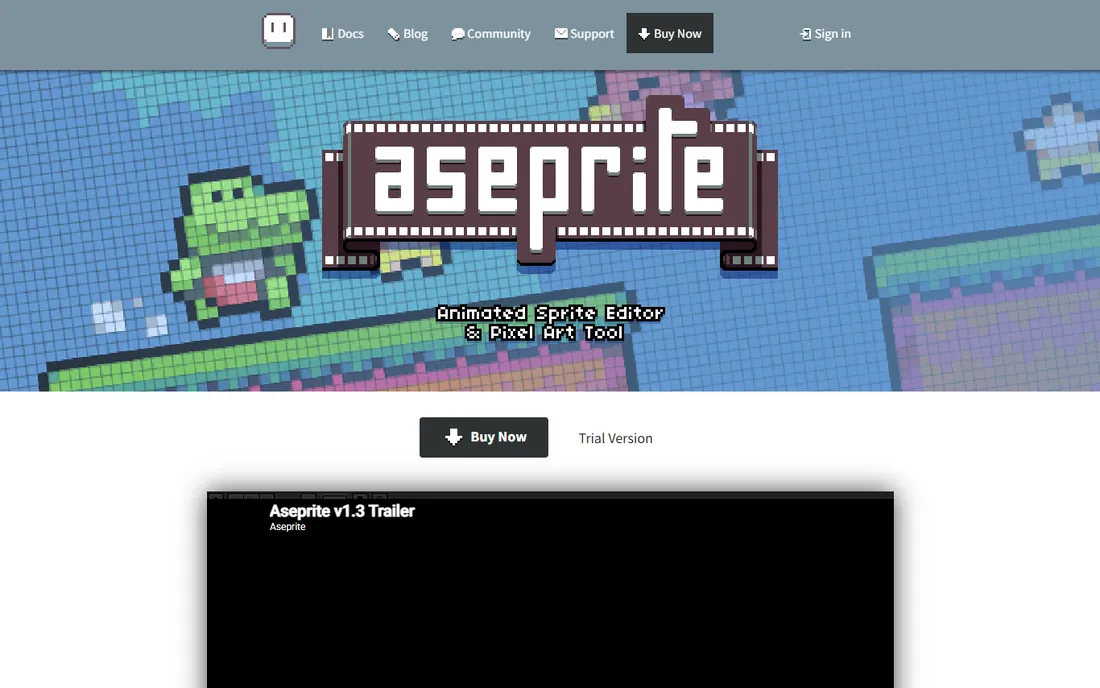
You want to animate a walk cycle, not fight your software. Aseprite is the tool most pixel artists reach for when the work gets serious, because every feature serves sprite animation: tag sections of the timeline for different actions, loop them in forward, reverse or ping-pong modes, and preview at any speed. Onion skinning shows neighboring frames as reference while you draw the in-betweens.
Export covers the game pipeline: animated GIFs for sharing, sprite sheets as PNG plus JSON for engines, and texture atlases for packing multiple animations. A free trial is available for evaluation, and the paid license is a one-time purchase rather than a subscription. The interface packs a lot in, so expect a learning curve, but for dedicated sprite work nothing else is as complete.
What we like- Purpose-built for pixel art with onion skinning, timeline tags and playback modes
- Sprite sheet and GIF export
- Runs on Windows, Mac and Linux
Watch out for- Paid license with no free full version
- The interface is dense for first-time users
Starting priceFree
Free planYes
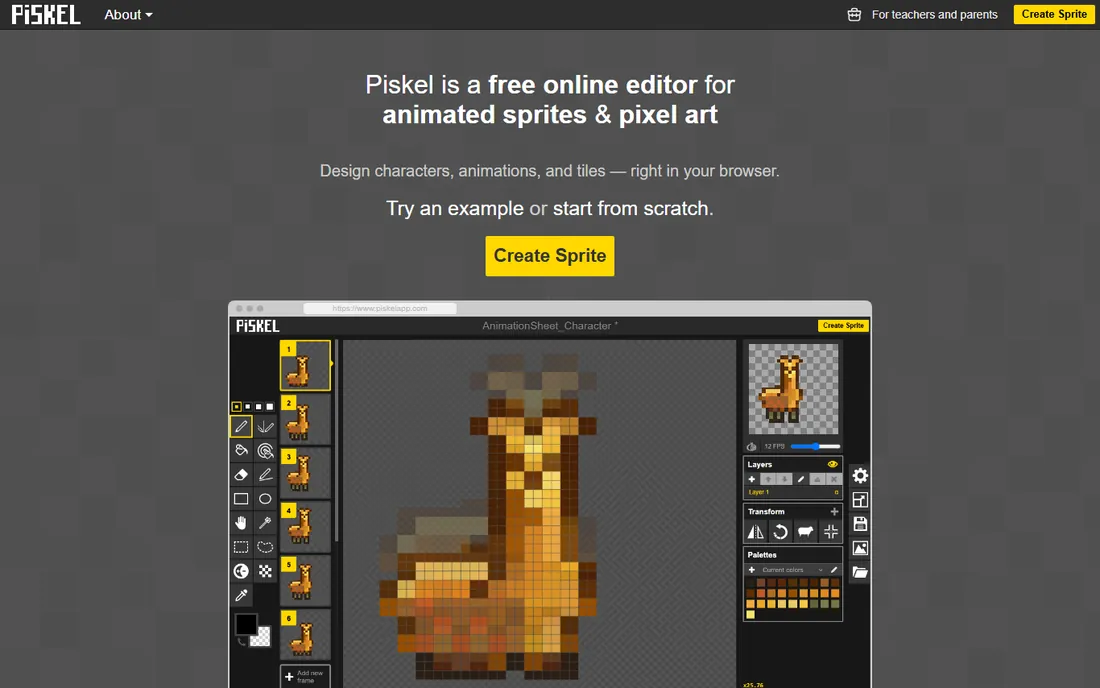
Piskel is the fastest way from zero to an animated sprite. Open the site, draw your frames, and watch the live preview loop as you work. There is no install, no account and no cost, which makes it the default recommendation for beginners, game jams and classrooms. Onion skinning, layers and a simple timeline cover the animation fundamentals.
When projects outgrow the browser, free desktop apps for Windows, Mac and Linux take over with the same interface. Export to animated GIF or sprite sheet PNG keeps the pipeline simple. Power users will eventually want Aseprite's deeper toolset, but Piskel handles a surprising amount of real work for a free tool.
What we like- Free online editor with live preview and onion skinning
- Exports GIF and sprite sheets
- Offline desktop apps for Windows, Mac and Linux
Watch out for- Fewer advanced painting tools than desktop editors
- Large projects can strain the browser version
Starting price$9
Free planYes (free version available)
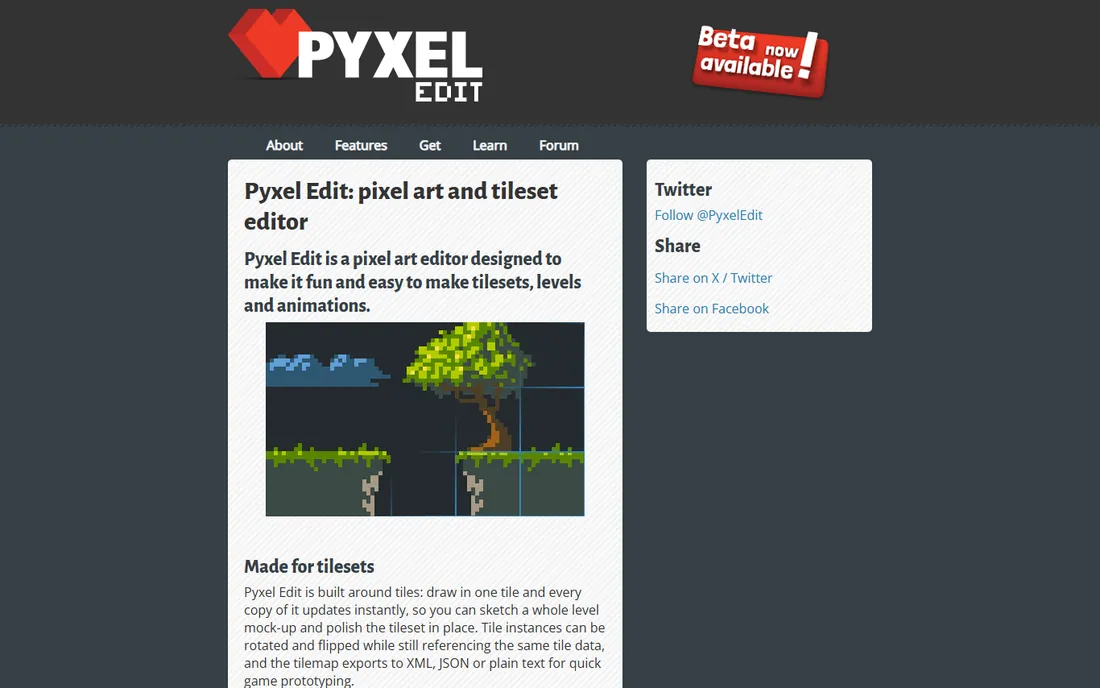
Pyxel Edit is built around one idea: tiles. Draw in a tile and every instance of that tile updates instantly, so you can sketch a whole level mock-up and polish the tileset in place. Tiles can be rotated and flipped while referencing the same data, and the tilemap exports to XML, JSON or plain text for quick game prototyping.
Animation is frame-by-frame with onion skinning, and sprite sheets and animated GIFs export cleanly. The beta costs a one-time $9, and a free version is available for trying it out. If your art is mostly characters and scenes rather than tilemaps, a general editor fits better, but for tile-based games the workflow is unmatched.
What we like- Tile-first workflow where editing one tile updates every copy
- Frame-by-frame animation with onion skinning
- Tilemap export to XML, JSON or plain text
Watch out for- Still labeled beta
- The toolset is narrower outside tilesets
Starting priceFree
Free planYes
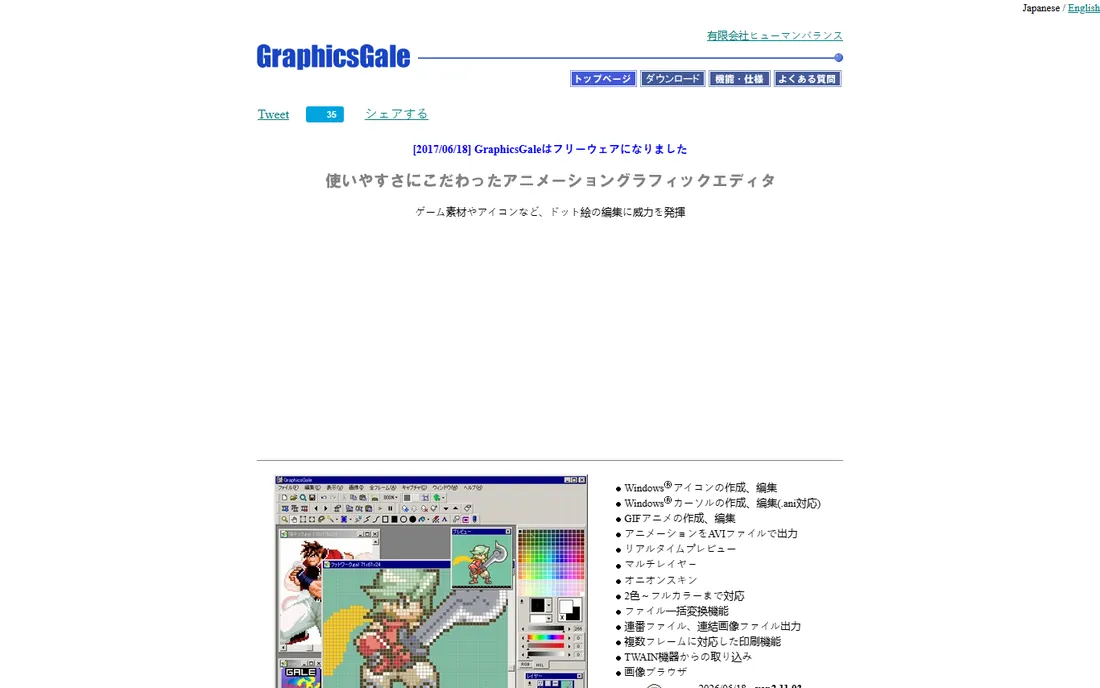
GraphicsGale has been animating pixels since long before pixel art was fashionable, and it became freeware years ago, which makes it one of the best free options on Windows. The animation workflow is straightforward: frames on a timeline, onion skinning for reference, real-time preview, and export to GIF or AVI. It handles the fundamentals without fuss.
The trade-offs are age and platform. It runs on Windows only, and both the interface and the website show their years. But the core animation tools work as well as ever, and for Windows users who want a free desktop animator without a browser, it remains a solid pick.
What we like- Free with full animation features
- GIF and AVI export
- Real-time preview while drawing
Watch out for- Windows only
- The interface and website feel dated
#5
Pro Motion NG
Best for: Professional pixel artists who want deep control
Visit cosmigo.com
Starting price$19
Free planYes (free edition with limited features)
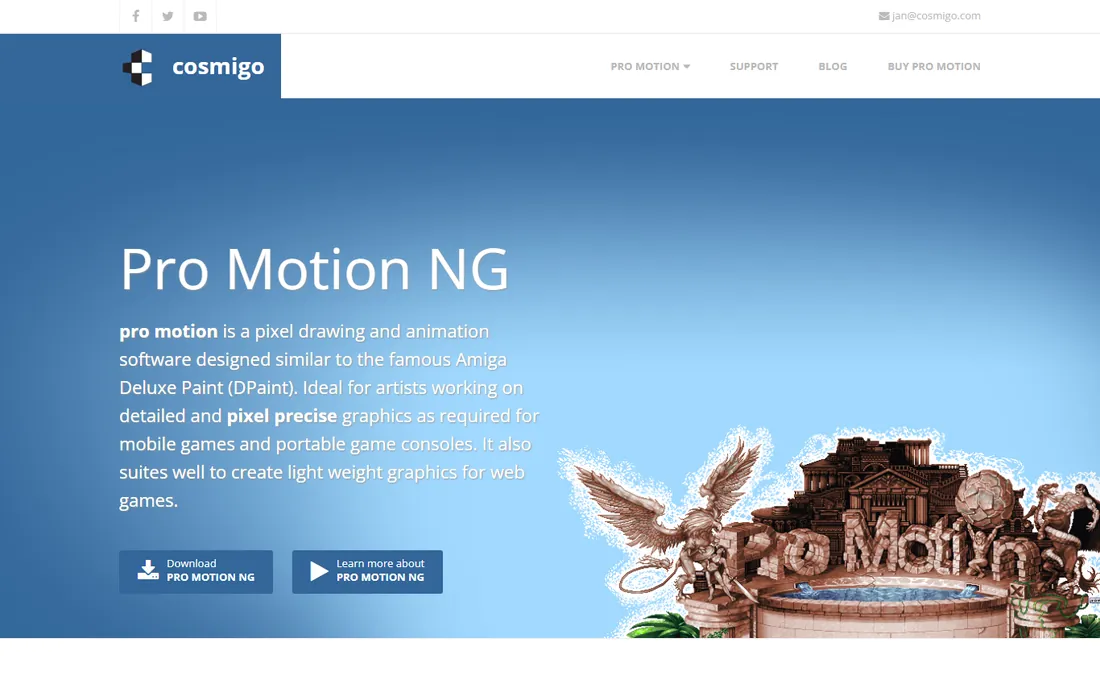
Pro Motion NG descends from the Amiga-era Deluxe Paint tradition, and it shows in the depth of the toolset: pixel-perfect drawing that cleans up stray pixels, a tile map engine for editing levels in place, animation layers, and onion skinning with a light-table view. Professional game artists have used it in production for years.
The pricing is unusually generous: a free edition with limited features allows commercial use, and the full license is a one-time $19 with free updates. There is no web or mobile version, so it is a desktop commitment. Artists who want maximum control over every pixel will find the learning curve worth it.
What we like- Pixel-perfect drawing, tile map engine and onion skinning
- Free edition allows commercial use
- $19 full license includes free updates
Watch out for- No browser or mobile version for working on the go
- The depth of features takes time to learn
Starting priceSee website
Free planYes (Intro version free)
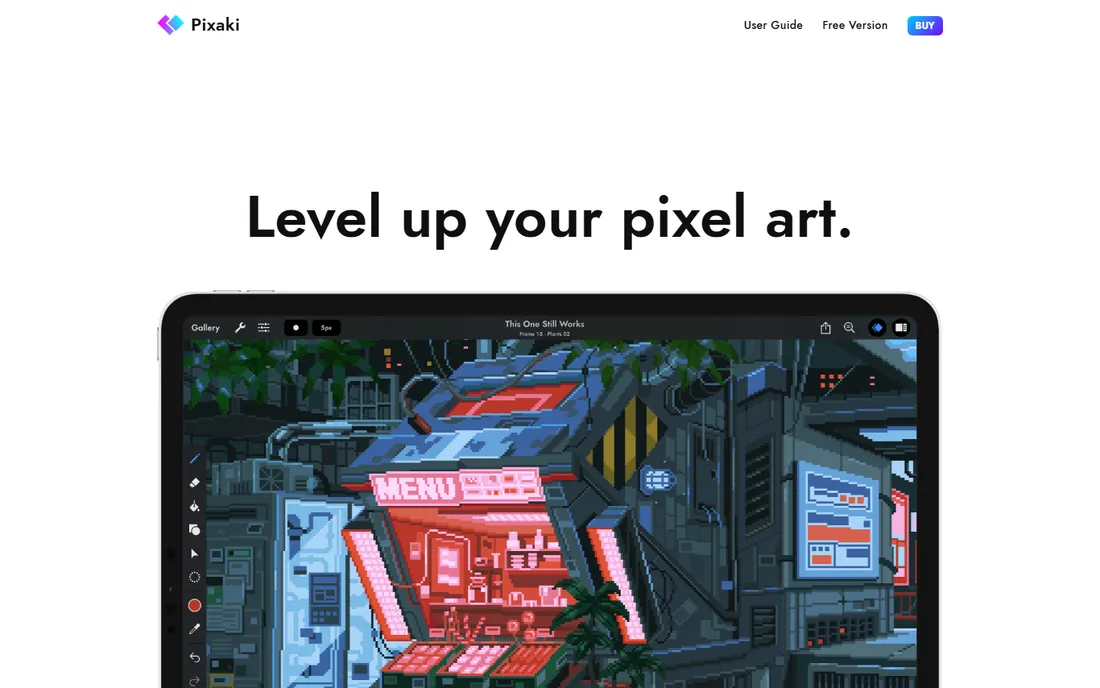
Pixaki is what happens when a pixel art tool is designed for one device instead of ported to five. Drawing with Apple Pencil on the iPad feels natural, layers each get their own timeline, onion skinning previews up to ten frames, and export covers GIF, sprite sheets, layered PSD and even Aseprite files for finishing on desktop.
The free Intro version caps you at 3 layers, 8 frames and a 160 by 160 canvas, which is enough to learn the app. The paid Pro version removes all limits. If you do your art on an iPad, nothing else on this list is as well adapted to the hardware.
What we like- Built exclusively for iPad with Apple Pencil support
- Onion skinning and per-layer timelines
- Exports GIF, sprite sheets, PSD and Aseprite files
Watch out for- IPad only, with no desktop version
- The free Intro version caps layers, frames and canvas size
Starting priceFree
Free planYes
Pixelorama is the open-source answer to Aseprite: a full sprite editor built with the Godot engine, free forever. The animation system covers frame-by-frame drawing with onion skinning and frame tags, plus tilemap layers for game art and non-destructive effects like outlines and gradient maps. It imports projects from Aseprite, Photoshop and Krita, which eases migration.
Being community-built means support comes from forums and Discord rather than a help desk, and the interface packs in enough features to intimidate newcomers. But the price is zero, the feature list keeps growing, and a web version means you can try it without installing anything.
What we like- Free and open source with onion skinning, frame tags and tilemaps
- Imports from Aseprite, Photoshop and Krita
- Runs on desktop and the web
Watch out for- The interface can overwhelm beginners
- Support is community-based rather than commercial
Starting priceFree
Free planYes (free app; Pro upgrade $7.99)
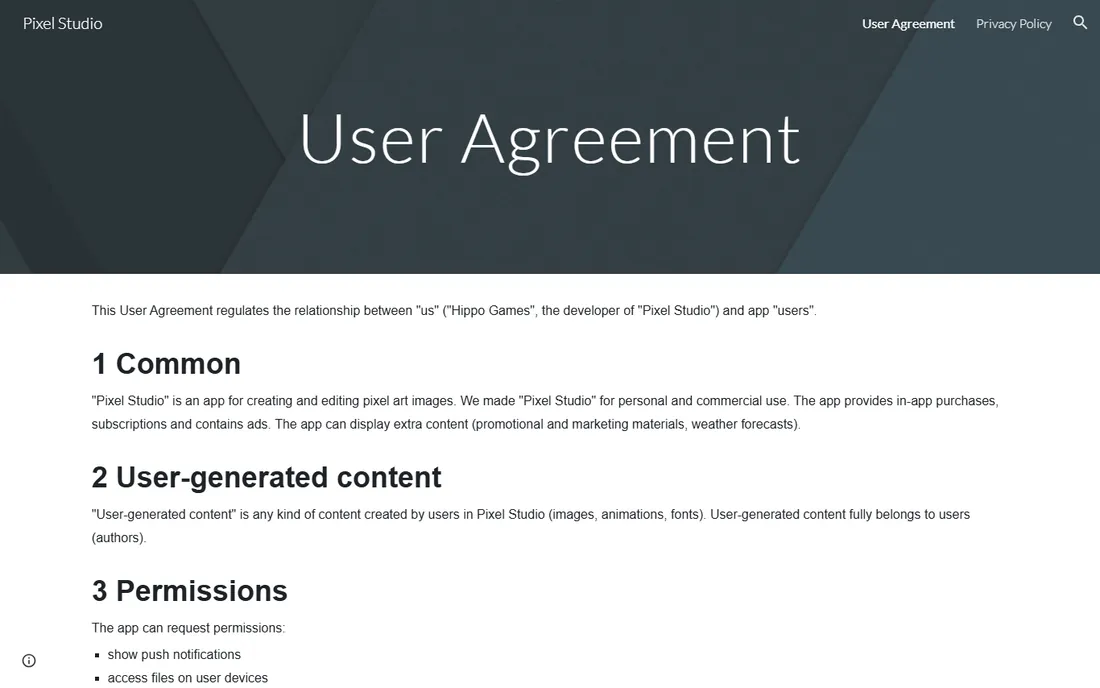
Pixel Studio brings real pixel art tools to phones and tablets, with over 5 million downloads to show for it. Layers, frame-by-frame animation, custom palettes and export to GIF and sprite sheets all work on a touchscreen, and Google Drive sync moves projects between mobile and desktop. A built-in community lets artists share work and join challenges.
The app is free with ads and in-app purchases, and the Pro upgrade costs $7.99. Some advanced features require the paid tier. It will not replace a desktop editor for production game art, but for sketching animations on the go or for artists whose only device is a phone, it is the most capable mobile option here.
What we like- Free mobile app with layers, animation and GIF export
- Syncs across devices with Google Drive
- Community features for sharing work
Watch out for- Some features sit behind paid upgrades
- The official web presence is minimal
#9
PixiEditor
Best for: Artists who want pixel art plus painting and vector tools in one free app
Visit pixieditor.net
Starting priceFree
Free planYes
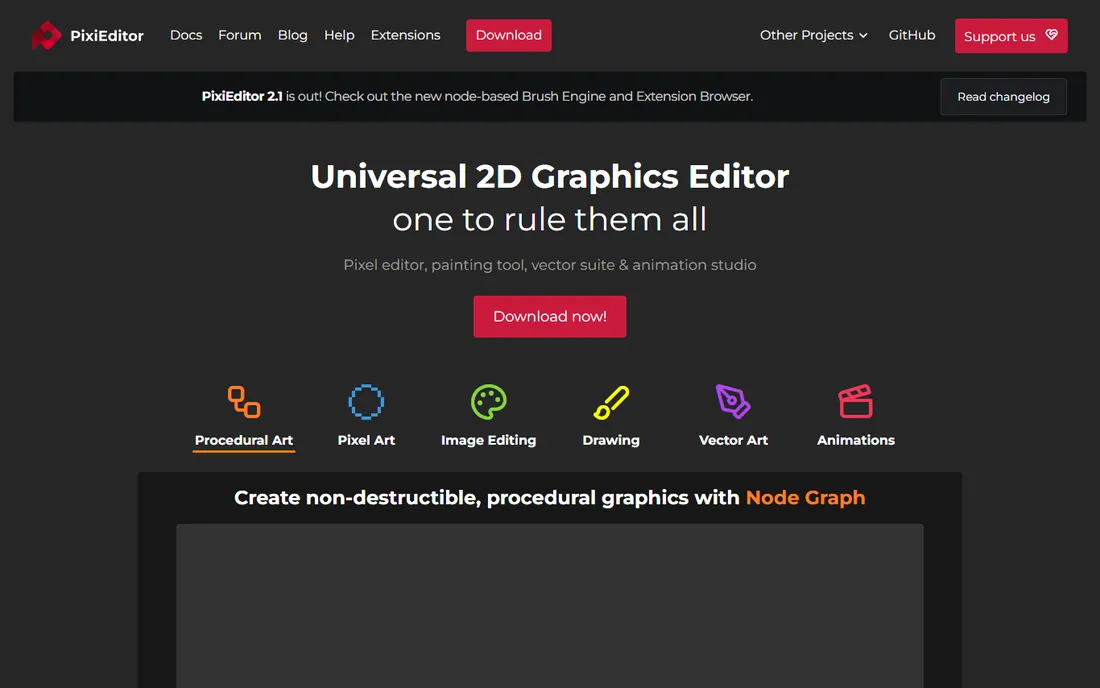
PixiEditor aims higher than pixel art alone: it is a universal 2D editor with a dedicated pixel toolset, painting tools, vector editing and frame-by-frame animation in one free, open-source package. The node-based brush engine and procedural tools go beyond what typical sprite editors offer, and it runs natively on desktop, offline.
The breadth is also the caveat. Version 2.x is still evolving, so the interface and features shift between releases, and pixel-specific workflows compete for attention with the general-purpose tools. For artists who want one free app for pixel art, illustration and animation experiments, it is the most ambitious option on this list.
What we like- Free and open source with frame-by-frame animation
- Node-based brushes and procedural tools
- Cross-platform desktop app that works offline
Watch out for- Version 2.x is still maturing, so expect changes
- The broad scope means pixel workflows share space with general tools
How we chose
We reviewed each vendor's current homepage, documentation and public feature lists in October 2026, checking which tools genuinely support frame-by-frame pixel art animation rather than just pixel drawing. We weighed animation features like onion skinning and timeline controls, export options for games and sharing, pricing transparency, and fit for beginners versus professionals. We did not test the software ourselves and cross-checked claims against public reviews and community sources such as Reddit and AlternativeTo.
What to check before you download
Start with your platform. Desktop editors like Aseprite, Pyxel Edit and Pro Motion NG offer the deepest animation tools, but they tie you to a computer. If you draw on an iPad, Pixaki is the clear pick; on a phone, Pixel Studio. Browser and web options like Piskel and Pixelorama work anywhere but with fewer advanced tools.
Check the animation features that matter to you: onion skinning for in-betweening, timeline tags for organizing actions, per-frame timing controls, and playback modes like ping-pong. Every tool here has onion skinning, but tagging and timing depth varies.
Then look at export. Game developers need sprite sheets with JSON data for their engine; social sharing needs GIF or video export; collaboration benefits from PSD or Aseprite file compatibility. Confirm your required format before investing hours in a tool.
Finally, consider the price model honestly. Most pixel art tools are free or cost under $20 once, so price should rarely decide. Pick the tool whose workflow matches your art: tile-first, animation-first, or mobile-first. The wrong workflow costs more in frustration than any license fee.
Frequently asked questions
What is the best software for pixel art animation?
Aseprite is the most widely used professional choice, with purpose-built animation tools like onion skinning, timeline tags and sprite sheet export. Beginners often start with the free Piskel, and open-source fans choose Pixelorama. The best tool depends on your platform and whether you need game-engine export.
Is Aseprite free?
Aseprite is paid software with a free trial available for evaluation. If you need a free alternative with similar animation features, Piskel and Pixelorama both offer onion skinning, timeline controls and GIF export at no cost.
What software do professional pixel artists use?
Many professionals use Aseprite for sprite animation, Pyxel Edit for tilesets, and Pro Motion NG for detailed production work. iPad artists tend toward Pixaki. Studios also mix tools, for example sketching in one app and finishing in another via Aseprite or PSD file exchange.
Can I animate pixel art on an iPad or phone?
Yes. Pixaki is built exclusively for iPad with Apple Pencil support, layers and per-layer timelines. Pixel Studio is a free mobile app for phones and tablets with layers, animation and GIF export. Both sync or export to desktop formats for finishing.
What is onion skinning?
Onion skinning overlays translucent previews of neighboring frames on your canvas, so you can see the previous and next positions while drawing the current frame. It is the standard technique for drawing smooth in-between frames, and every animation tool on this list includes it.
Which pixel art tool is best for game development?
Pyxel Edit is the strongest for tile-based games, with tile instancing and tilemap export to XML, JSON or plain text. Aseprite leads for character sprite animation with sprite sheet and JSON export for engines. Pixelorama adds tilemap layers and a command-line interface for bulk exporting.
Sources we checked (9)
- https://aseprite.org/
- https://piskelapp.com/
- https://www.pyxeledit.com
- https://graphicsgale.com/
- https://cosmigo.com/
- https://pixaki.com
- https://pixelorama.org/
- https://sites.google.com/view/pixel-studio-app/
- https://pixieditor.net/
Is your product missing or out of date?
We review this list regularly. Vendors can request a listing, send updated pricing or ask about featured placement.

Shihab Mia · Founder, Rankite
Shihab has spent more than a decade helping SaaS and e-commerce brands grow through search. He writes Rankite's software buying guides from pricing pages, documentation and public user reviews. More about Shihab.