How we make this list: we compare pricing pages, product documentation and public user reviews. Rankite is independent; if a vendor ever pays for a featured spot, that listing is clearly labeled Partner.
Key takeaways
- If you convert regularly, install HandBrake or Shutter Encoder. Both are free, both are excellent, and nothing you upload online beats local conversion for privacy.
- For a one-off file, CloudConvert in the browser is the fastest path, with a free tier of 10 conversions a day.
- Paid converters like UniConverter, Movavi and VideoProc earn their money with GPU speed, batch queues and device presets, not with better quality.
- Adobe Media Encoder only makes sense if you already pay for Creative Cloud, since it is not sold separately.
Quick comparison
Is your product missing or out of date?
We review this list regularly. Vendors can request a listing, send updated pricing or ask about featured placement.
The best software for MOV to MP4 conversion
Starting priceFree
Free planYes
Here is the blunt version: most people asking how to convert MOV to MP4 should just install HandBrake and be done with it. It is free, open source, runs on Windows, Mac and Linux, and it converts from nearly any format to modern MP4 with H.264 or H.265. Drag in your MOV, pick a preset like Fast 1080p, and the result plays everywhere. No account, no upload, no watermark.
The tradeoff for all that power is the interface. HandBrake exposes real encoding settings, which is great once you learn what a constant quality value does and intimidating before that. Stick to the presets and you will be fine. It will not trim your clips or upscale your footage, but for pure conversion it remains the benchmark every other tool is measured against.
What we like- Completely free and open source, no watermarks or limits
- Precise control over codecs, quality and file size
- Batch queues and presets for repeat jobs
Watch out for- Codec settings have a learning curve
- The interface looks dated
- No built-in editing or trimming extras
Starting priceFree
Free planYes
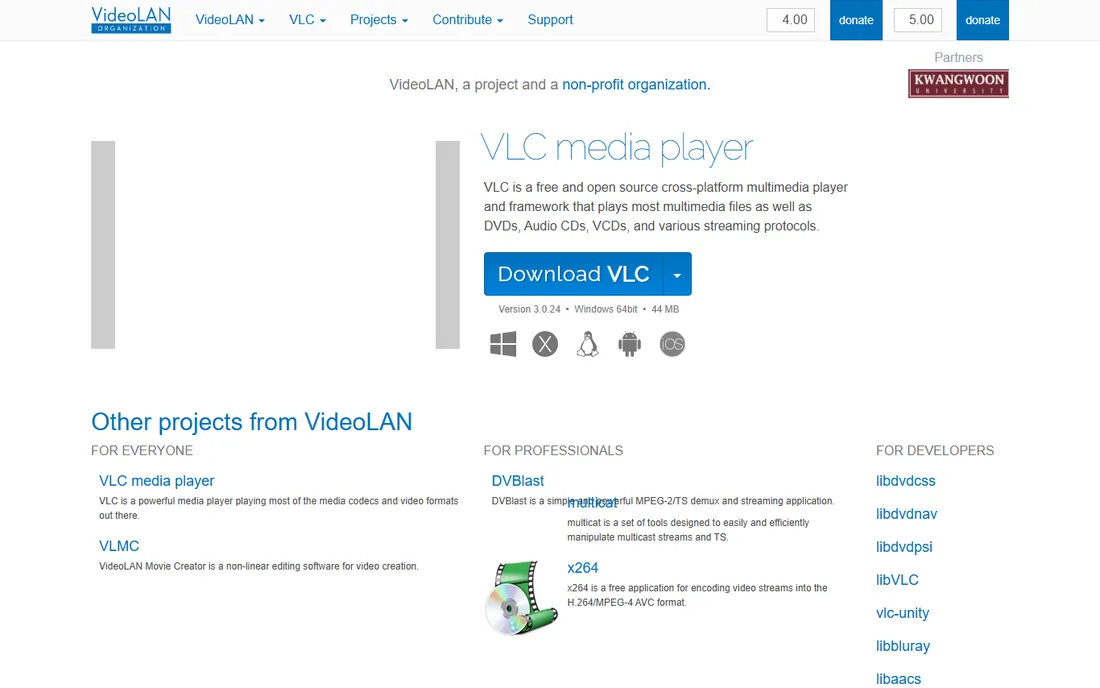
VLC is the media player that seems to do everything, and conversion is one of its quieter tricks. Open your MOV, go to Media and then Convert / Stream, choose a profile like Video H.264 + MP3 (MP4), pick a destination and start. For a single file you need in a hurry, it works, and you already trust the program.
That said, VLC is a player first and a converter a distant second. The dialog gives you limited control over quality settings, batch conversion is awkward, and the interface was clearly designed by people who expected you to be watching movies. Use it when you need one file converted right now and do not want to install anything new. For anything recurring, install HandBrake instead.
What we like- You may already have it installed
- Free and open source
- Converts through Media, Convert / Stream with no extra download
Watch out for- The conversion dialog is clunky
- Fewer encoding options than dedicated tools
- Not built for batch jobs
Starting priceSee website
Free planYes
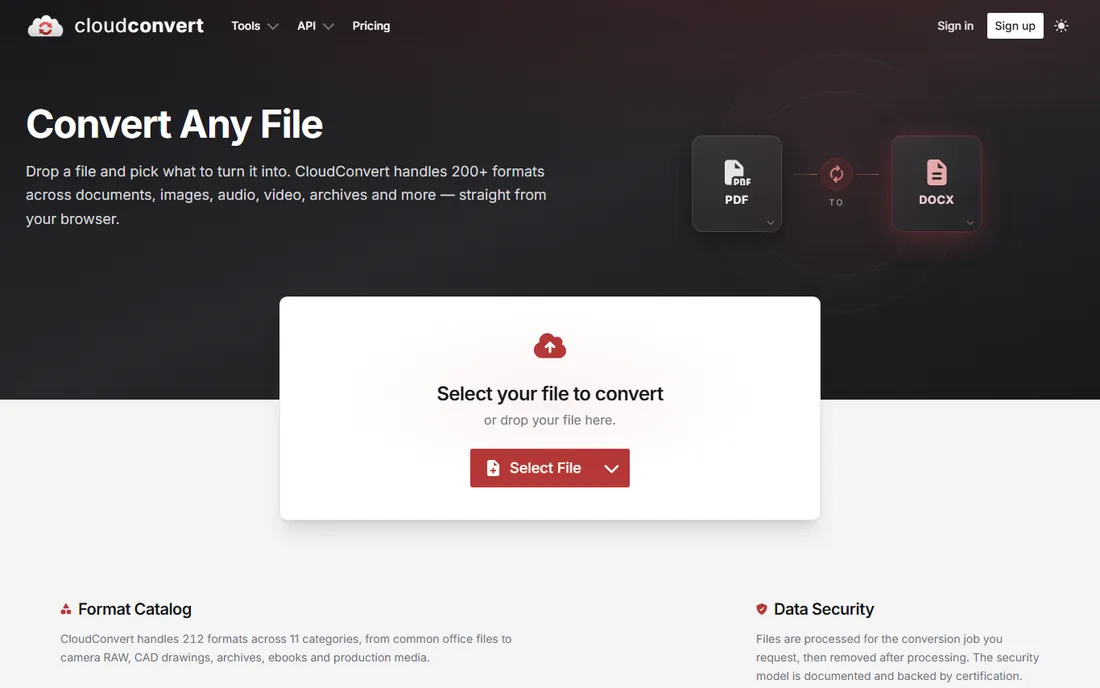
CloudConvert is the answer when you are on a borrowed computer or a Chromebook and need a MOV turned into an MP4. Drop the file on the homepage, pick MP4, convert, download. The free tier allows 10 conversions a day with no credit card, which covers most occasional use. It also handles documents, audio and images, so it doubles as a general file converter.
Two caveats. First, your video leaves your computer, so do not convert anything sensitive or private through it. Second, the paid model runs on conversion credits (packages or monthly subscriptions), and the free tier limits file size and processing priority. For a file or two a month it is perfect. For weekly conversions, a local tool will be faster and free forever.
What we like- Nothing to install, works in any browser
- Handles 200+ formats beyond video
- The free tier gives 10 conversions a day
Watch out for- You upload your files to someone else's server
- The free tier caps file size at 1 GB and processing time
- Paid pricing is credit-based and takes a minute to grasp
Starting priceFree
Free planYes
Shutter Encoder is what video editors install when HandBrake is not quite enough. Built on FFmpeg, it converts between an enormous range of formats and codecs, including professional editing codecs like Apple ProRes and DNxHR that most consumer converters skip. It also does clever things like cutting sections out of a video without re-encoding, which is instant and lossless.
This is a tool for people who know what a codec is, or want to learn. The interface packs in subtitle tools, color adjustments, loudness analysis and dozens of functions, which can bury the simple convert button for a beginner. But the price is right (free, donation-supported), and for creators moving footage between editing apps, it fills a gap nothing else free quite covers.
What we like- Free and open source with no restrictions
- Professional codecs like ProRes, DNxHR and H.265
- Lossless cut and rewrap without re-encoding
Watch out for- The dense interface overwhelms casual users
- Overkill for converting a single phone clip
- Documentation is thinner than HandBrake's
Starting priceFrom $49.99/year
Free planFree trial
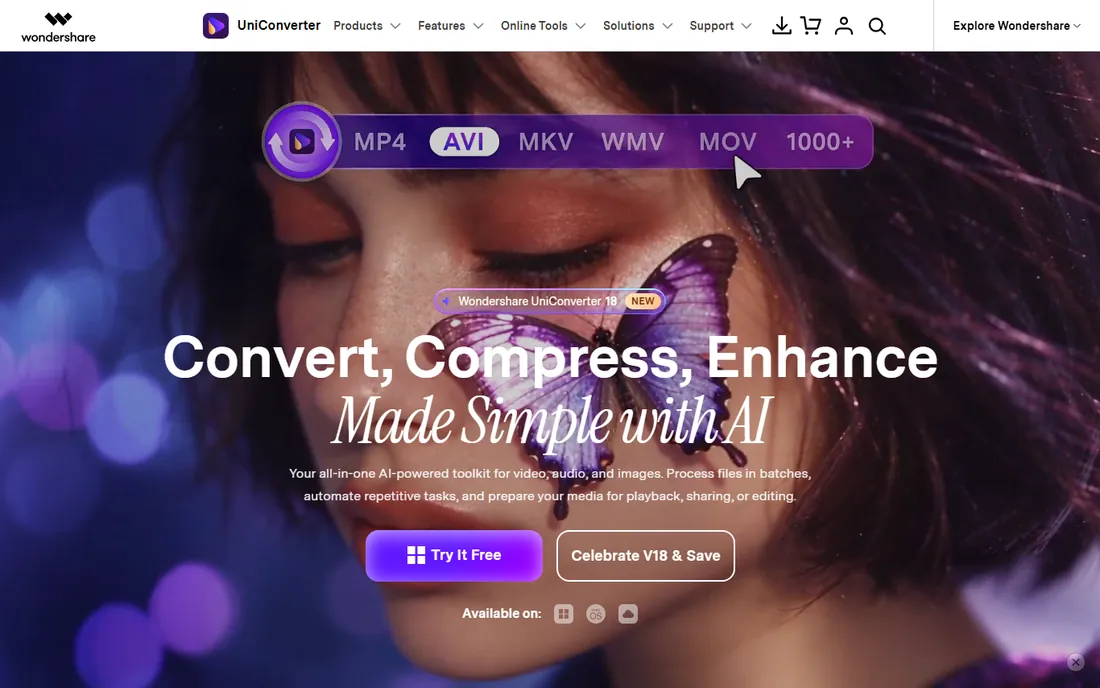
UniConverter is the kitchen-sink option: conversion plus compression, screen recording, DVD tools, downloading and AI features like upscaling and noise reduction, all in one Windows or Mac app. It claims conversion speeds up to 130 times faster with GPU acceleration, and in practice it is genuinely quick on supported hardware.
The pricing is where you should pay attention. Plans start around $49.99 a year, with two-year and perpetual licenses available, and Wondershare runs frequent promotions that change the numbers. There is no monthly plan, so this is a commitment. The free trial also limits conversions to a fraction of each file's length. Try the trial on your actual files before buying, and decide if you need the AI extras or just the converter.
What we like- Very fast conversion with GPU acceleration across 1,000+ formats
- Batch conversion with device presets
- Extras like compression, recording and AI enhancement in one app
Watch out for- Subscription pricing with no monthly option
- The installer and app push upsells
- The free trial limits how much of each file converts

#6
Movavi Video Converter
Best for: Beginners wanting fast drag-and-drop conversion
Visit movavi.com
Starting priceFrom $19.95/month (1-month plan)
Free planFree trial
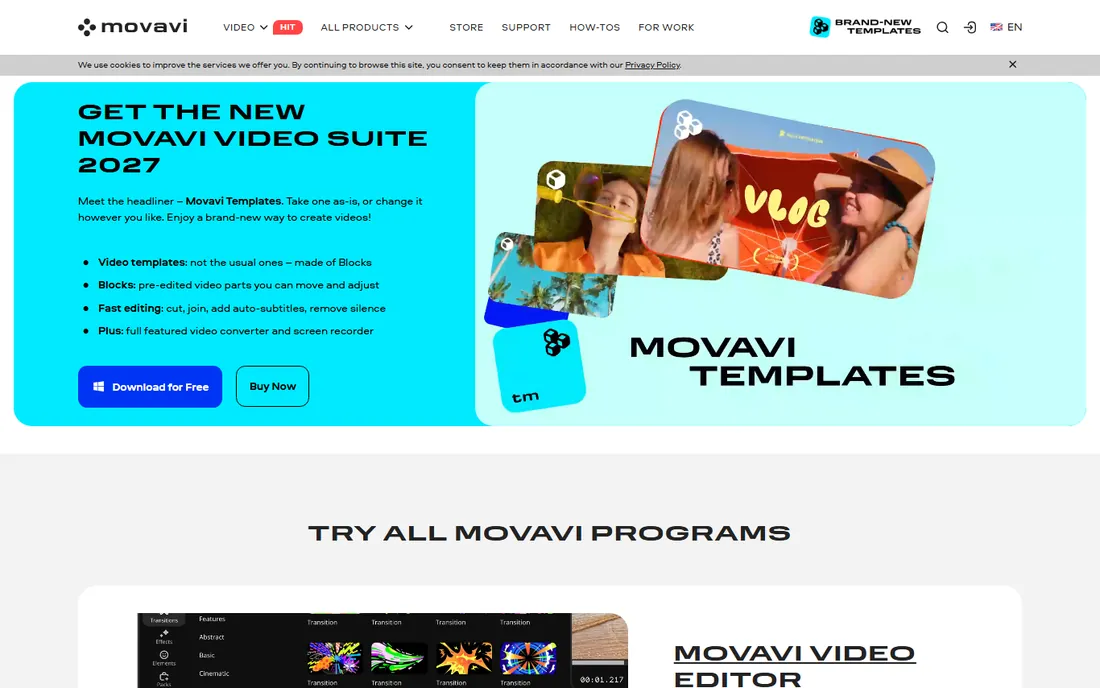
Movavi's whole pitch is that video conversion should not require a manual. You drop in a MOV, pick MP4 or a device preset, and it converts, with a SuperSpeed mode that skips re-encoding when the codec already matches. It also compresses, trims and applies basic effects, plus AI upscaling on the current version. For someone who finds HandBrake intimidating, this is the friendliest paid alternative.
Pricing is tiered by term: $19.95 for a month, around $79.95 for a year (often discounted), or $99.95 lifetime, with a 7-day free trial. The monthly option is actually useful if you have one project and then you are done. The honest downside is value: if all you do is convert MOV to MP4 a few times a month, the free tools above do the same job for nothing. Movavi earns its price on convenience and speed, not capability.
What we like- Extremely easy to use with drag-and-drop workflow
- SuperSpeed mode converts without re-encoding where possible
- 180+ formats and 200+ device presets
Watch out for- The cheapest entry is a monthly plan
- The trial watermarks output and limits features
- The 1-year price is higher than some rivals
Starting priceFrom $34.95/year (Premium 365)
Free planFree trial
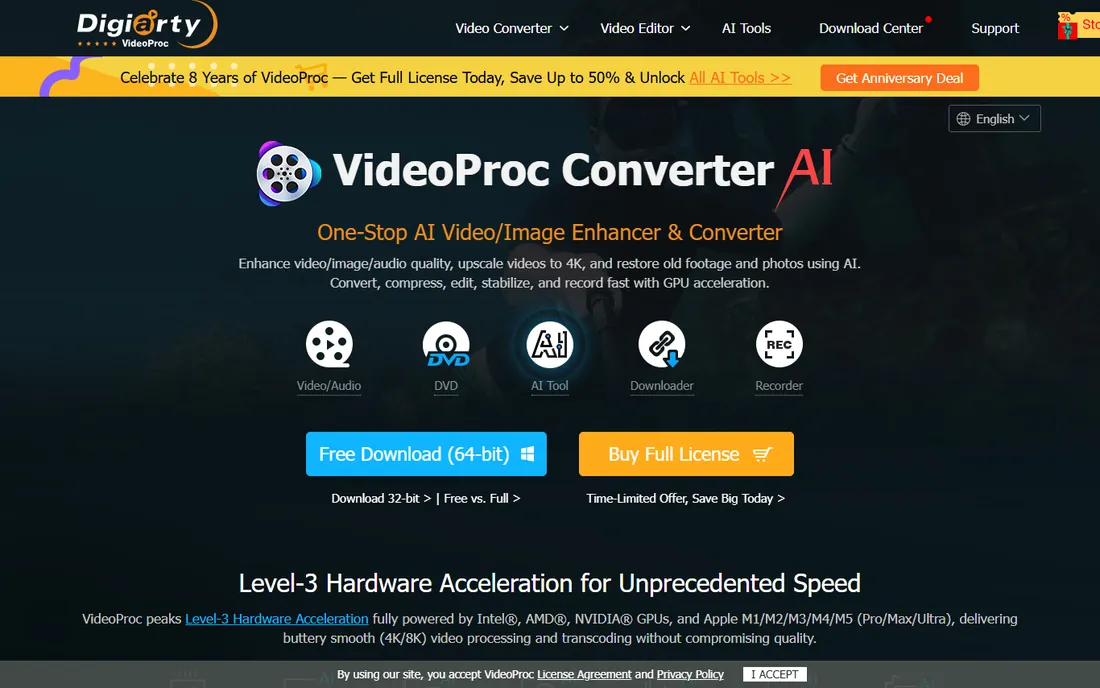
VideoProc comes from Digiarty and targets people with demanding footage: GoPro, DJI drones, DSLRs and phones shooting 4K HEVC. It handles 370 input codecs and 420+ output formats, with full GPU acceleration and a standout auto-copy mode that can remux formats like MKV to MP4 at over 1,000 FPS without re-encoding. The AI extras (super resolution, frame interpolation, stabilization) are genuinely useful for rescuing old or shaky footage.
Pricing starts at $34.95 a year for Premium 365 (three computers), with a $54.95 lifetime license for one machine and a family license for more. The free trial converts only the first 5 minutes of each file, so test with a short clip. The interface tries to do a lot and shows it. If your source material is a phone recording, this is more than you need; if it is 4K drone footage, it is one of the best fits here.
What we like- Excellent handling of 4K, HEVC and HDR camera footage
- Auto-copy mode for lossless passthrough
- AI tools for upscaling, stabilization and denoising
- Lifetime license available
Watch out for- No monthly plan for short projects
- The interface is crowded with features
- AI tools demand a strong GPU

#8
Freemake Video Converter
Best for: Windows users doing simple conversions
Visit freemake.com
Starting priceSee website
Free planYes
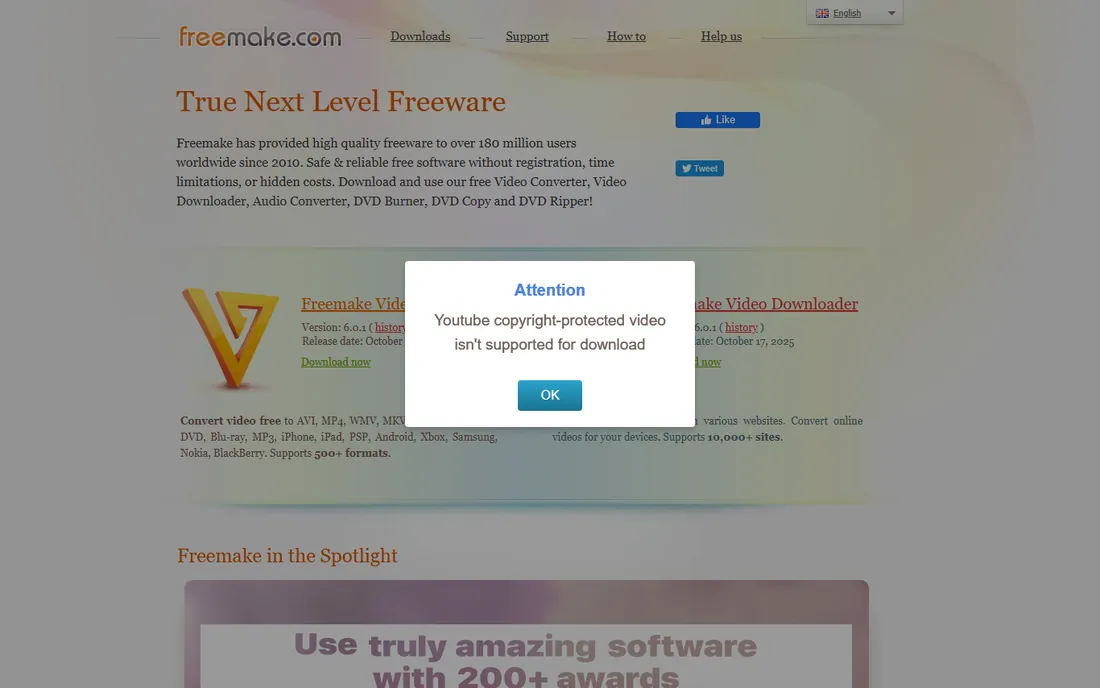
Freemake has been around for years as the simple free converter for Windows users who want the job done without learning about codecs. You add your MOV, choose MP4, and convert, with basic options to trim clips, join files and add subtitles. For straightforward conversions on a Windows PC, it is approachable and quick to learn.
The free version comes with limits that push toward the paid Mega Pack, and the program is Windows-only, which rules out Mac users entirely. It also offers far less control than the free open-source tools: no fine codec tuning, no batch power features. It still has an audience, namely people who want the simplest possible path and do not care about the details. Everyone else will outgrow it fast.
What we like- Very simple interface aimed at beginners
- Free version covers basic conversion
- Basic trim, join and subtitle support
Watch out for- Windows only
- The free version has usage limits
- Far fewer codec controls than HandBrake or Shutter Encoder
Starting priceSee website
Free planYes
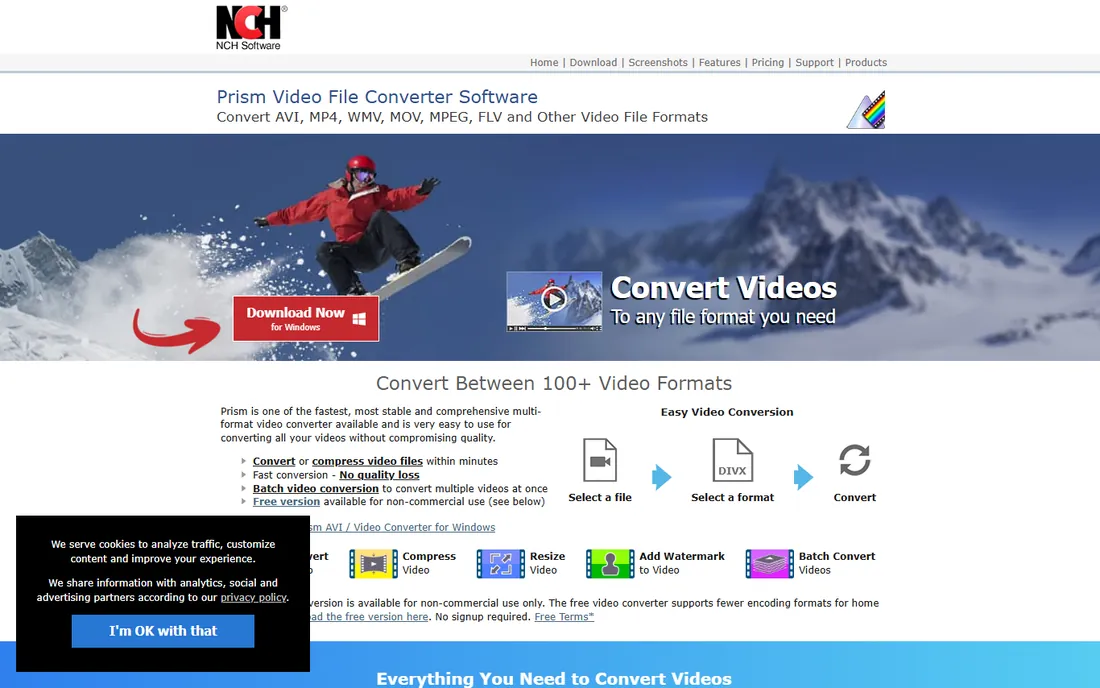
Prism from NCH Software is the no-frills pick: select a file, select a format, convert. It handles 100+ video formats, converts or compresses within minutes, and supports batch conversion for folders of files. The free version for non-commercial use covers basic needs with no signup required, which makes it easy to try.
NCH does not publish pricing clearly on the product page, so expect to see the price at checkout or in the app; third parties cite around $40 for a personal license. The interface has not changed much in years, and power users will miss the codec control of HandBrake. But for someone who wants the simplest possible batch converter and does not mind dated looks, it gets the job done.
What we like- Very simple three-step workflow
- Batch conversion of multiple files at once
- Free version available for non-commercial use
Watch out for- The interface looks dated
- Fewer professional features than rivals
- Paid pricing is not clearly published on the site

#10
Adobe Media Encoder
Best for: Video pros already in Adobe's ecosystem
Visit adobe.com
Starting priceFrom $22.99/month (via single-app plan, not sold separately)
Free planFree trial (7 days)
Media Encoder is Adobe's dedicated encoding app: ingest, transcode, create proxies and output to almost any format, with watch folders that automatically convert anything dropped into them. If you edit in Premiere Pro, sending sequences straight to the encoder queue and continuing to work is a workflow nothing else here matches.
The catch is access. Adobe does not sell Media Encoder on its own; it comes with a Premiere Pro or After Effects single-app plan (from about $22.99 a month on an annual plan) or a full Creative Cloud subscription. Nobody should subscribe just to convert MOV files. But if you already pay for Creative Cloud, Media Encoder is sitting in your app list, and it is the most capable converter you own.
What we like- Deep preset control and watch folders that automate conversions
- Background encoding while you keep working
- Tight integration with Premiere Pro and After Effects
Watch out for- Requires an ongoing Adobe subscription
- Heavyweight for converting a single file
- Users report occasional bugs and performance quirks
How we chose
We verified every homepage by opening it directly and checked pricing on each vendor's own site or store page, using current third-party trackers only where the vendor does not publish prices. We compared format support, batch capability, speed features like GPU acceleration, output quality controls and the real limits of free versions and trials. We also read user reviews on G2, Capterra, Reddit and tech publications to see where people praise reliability or complain about watermarks, upsells and bugs. We did not convert test files on each tool ourselves, so treat this as research-based comparison rather than hands-on testing.
What actually matters when converting MOV to MP4
Most of the time, converting MOV to MP4 does not require re-encoding the video at all. Both are containers, and if the video inside is already H.264, a tool can simply rewrap it into an MP4 container in seconds with zero quality loss. HandBrake, Shutter Encoder and VideoProc all handle this well. If a converter takes twenty minutes for a two-minute clip, it is re-encoding, which is slower and can reduce quality.
Quality, speed and file size
For maximum quality, match the source resolution and use a sensible quality setting rather than cranking every slider. For smallest files, H.265 (HEVC) compresses better than H.264 but plays on fewer old devices. GPU acceleration, offered by UniConverter, Movavi and VideoProc, speeds up re-encoding substantially on supported hardware. If you only need the file to play on a phone or upload to YouTube, the default MP4 presets in any tool here are fine.
Free versus paid
Free tools convert just as well as paid ones; you pay for convenience, speed and extras. HandBrake, VLC, Shutter Encoder and CloudConvert's free tier cover the conversion itself completely. Paid tools make sense when you convert in bulk, need device presets and watch folders, or want extras like compression, editing and AI enhancement in the same app. Never pay just to remove a watermark without checking the free alternatives first.
Common mistakes to avoid
The biggest mistake is uploading sensitive video to a free online converter without thinking about it. Anything private, client work or unreleased content should be converted locally with HandBrake, Shutter Encoder or VLC. The second mistake is converting the same file multiple times through different tools, since every re-encode loses a little quality; convert once from the original. And do not assume MP4 always means small: an MP4 with a high bitrate can be larger than the MOV you started with, so check the output settings if file size matters.
Frequently asked questions
Is it better to convert MOV to MP4 online or with desktop software?
Desktop software is better for anything regular, large or private: it is faster, has no file size caps and never uploads your video. Online converters like CloudConvert are better for a quick one-off on a computer where you cannot install software. For anything sensitive, always convert locally.
Will converting MOV to MP4 reduce quality?
Not necessarily. If the video stream is already H.264, many tools can rewrap it into an MP4 container with zero quality loss. Quality drops only when the video is re-encoded, which happens when you change the codec, resolution or bitrate. Convert from the original file once rather than re-converting an already converted file.
What is the best free MOV to MP4 converter?
HandBrake is the best free option for most people: free, open source, no watermarks and full control over quality. Shutter Encoder is the best free pick for creators who need professional codecs. VLC works for a quick one-off, and CloudConvert handles occasional conversions without installing anything.
Why is my converted MP4 file so large?
The container change does not shrink anything by itself. File size comes from the bitrate, resolution and codec settings. If the converter kept a high bitrate, the MP4 can be as large as or larger than the MOV. Re-encode with H.265 or lower the bitrate or resolution if you need a smaller file.
Can I convert MOV to MP4 on a Mac without extra software?
macOS does not include a one-click MOV to MP4 converter, though some workflows through iMovie or QuickTime exports can produce MP4-compatible output. Installing HandBrake or Shutter Encoder, both free, is simpler and gives you proper control over the result.
Sources we checked (9)
- https://handbrake.fr/
- https://www.videolan.org/
- https://cloudconvert.com/pricing
- https://www.shutterencoder.com/en/
- https://uniconverter.wondershare.com/
- https://www.movavi.com/videoconverter/buynow.html
- https://www.videoproc.com/
- https://www.nchsoftware.com/prism/index.html
- https://www.adobe.com/products/media-encoder.html
Is your product missing or out of date?
We review this list regularly. Vendors can request a listing, send updated pricing or ask about featured placement.

Shihab Mia · Founder, Rankite
Shihab has spent more than a decade helping SaaS and e-commerce brands grow through search. He writes Rankite's software buying guides from pricing pages, documentation and public user reviews. More about Shihab.
 HandBrake
 VLC
VLC CloudConvert
 Shutter Encoder
 Wondershare UniConverter
 VideoProc Converter AI
 Prism Video Converter