How we make this list: we compare pricing pages, product documentation and public user reviews. Rankite is independent; if a vendor ever pays for a featured spot, that listing is clearly labeled Partner.
Key takeaways
- Chrome Remote Desktop is the simplest free option for occasional personal access.
- AnyDesk and TeamViewer offer free personal tiers with more features.
- RustDesk is the open-source pick for users who want control over their data.
- Splashtop and RemotePC are affordable when free tiers are not enough.
Quick comparison
| Tool | Best for | Starting price | Free plan |
|---|
 Chrome Remote Desktop Chrome Remote Desktop | simplest free remote access | Free | Yes |
 AnyDesk AnyDesk | fast free personal remote desktop | Free for personal use | Yes |
 TeamViewer TeamViewer | feature-rich free personal use | Free for personal use | Yes |
 RustDesk RustDesk | open-source self-hosted access | Free | Yes |
 Splashtop Splashtop | affordable personal remote access | See website | No |
 RemotePC RemotePC | cheap always-on access | See website | No |
 RealVNC RealVNC | VNC-based remote access | See website | Yes |
 UltraViewer UltraViewer | simple free remote support | Free | Yes |
Is your product missing or out of date?
We review this list regularly. Vendors can request a listing, send updated pricing or ask about featured placement.
What personal remote desktop means
Remote desktop software for personal use is about accessing your own computers or helping family: reaching your home PC from a laptop, fixing a parent's computer from across town, grabbing a file from your desktop while traveling. The tools here all offer free or cheap personal tiers, unlike enterprise remote access platforms. Security matters most: you are opening a door into your computer, so encryption and authentication are non-negotiable.
Starting priceFree
Free planYes
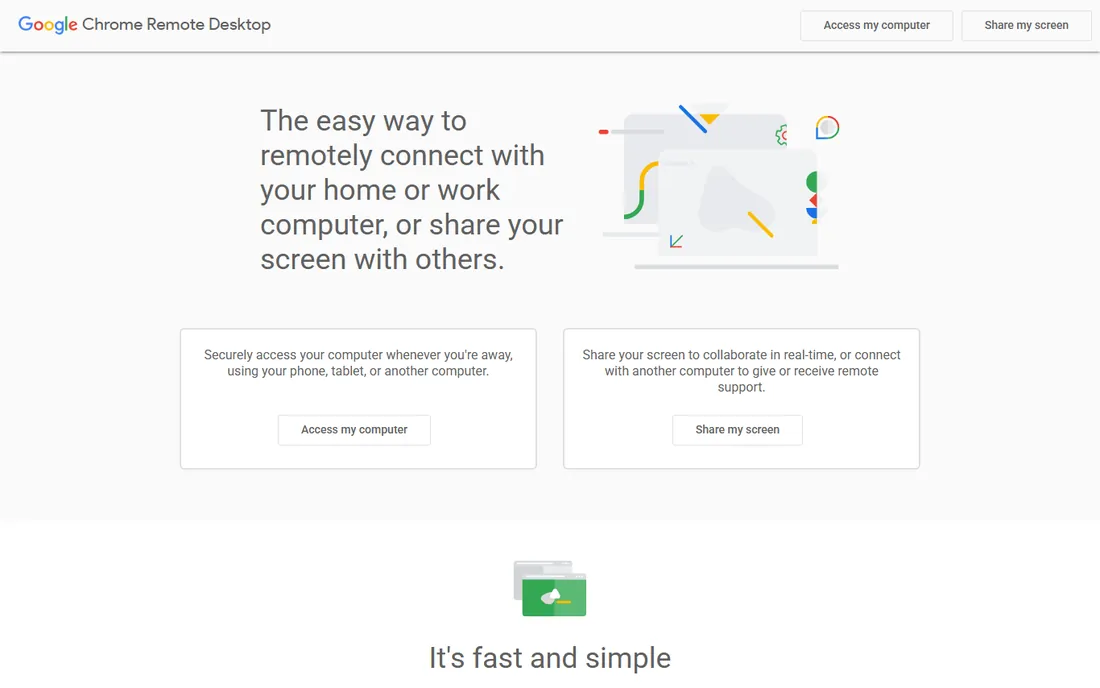
Chrome Remote Desktop is Google's free remote access tool: install the extension, set a PIN, and access your computers from any browser or the mobile app. There is no cost, no time limit and no feature gate.
It is deliberately basic: remote control, that is about it. No built-in file transfer, no multi-monitor finesse, no session recording. For the core job of reaching your home computer from elsewhere, its simplicity is the feature. If you need more, the tools below add it.
What we like- Completely free
- Dead simple setup
- Works in the browser
Watch out for- Few advanced features
- Requires a Google account
- No file transfer in some flows
Starting priceFree for personal use
Free planYes
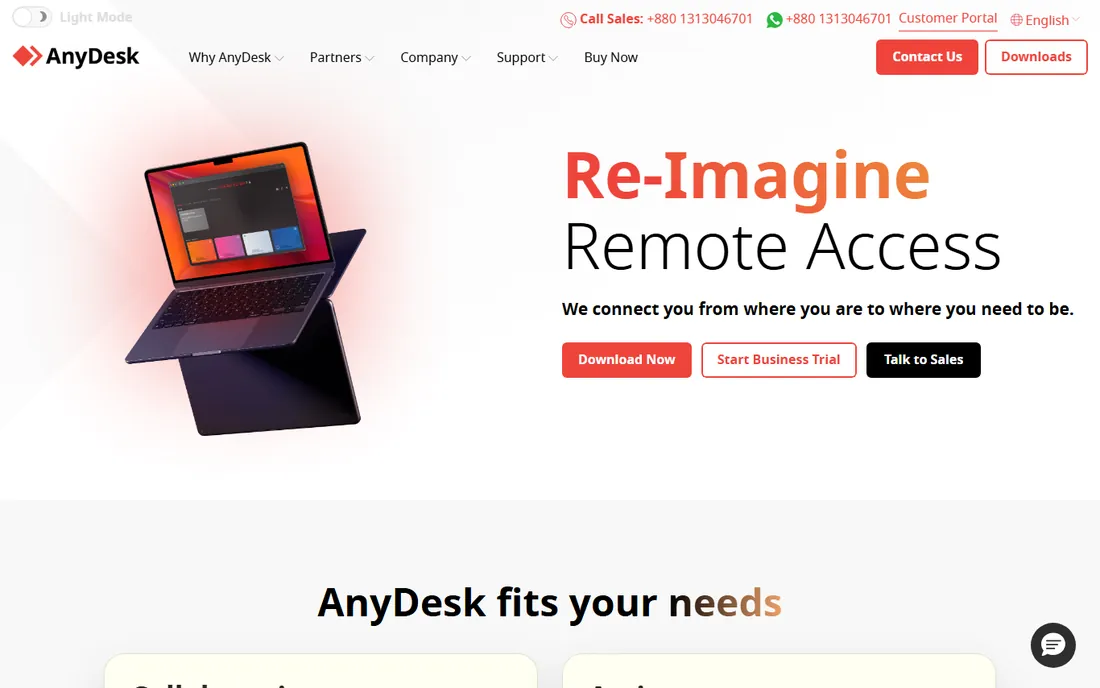
AnyDesk built its reputation on speed: its proprietary codec delivers fluid remote sessions even on modest connections. The free license covers personal use with the core remote desktop features, and the client is a tiny download that runs without installation.
The annoyance is commercial-use detection; some personal users report being flagged and throttled. If that happens, the other free options here are the fallback. For fast, free, no-fuss remote access, it remains excellent.
What we like- Very fast connections
- Free for personal use
- Lightweight client
Watch out for- Commercial-use detection can flag personal users
- Interface is utilitarian
- Advanced features are paid
Starting priceFree for personal use
Free planYes
TeamViewer is the best-known remote desktop brand, and its free personal license includes file transfer, chat, multi-monitor support and mobile apps. It works across Windows, Mac, Linux, ChromeOS and mobile, which matters in mixed-device households.
Like AnyDesk, it polices the personal-use boundary enthusiastically, and wrongly flagged users face session timeouts. Paid plans are priced for business. Used within its personal terms, it is the most capable free option.
What we like- Full-featured free personal tier
- File transfer and chat
- Huge compatibility
Watch out for- Aggressive commercial-use detection
- Heavier client
- Paid plans are expensive
Starting priceFree
Free planYes
RustDesk is the open-source TeamViewer alternative: free remote desktop with the option to self-host the rendezvous and relay servers, so your connection metadata never touches a vendor's infrastructure. No account is required.
For privacy-conscious and technical users, that control is the whole point. The tradeoff is polish and convenience: setup is more involved, especially self-hosted, and the interface is functional rather than beautiful. If you can run a server, it is the most independent option here.
What we like- Open source
- Self-host the relay server
- No account required
Watch out for- Self-hosting needs technical skill
- Smaller community
- UI less polished
Starting priceSee website
Free planNo
Splashtop Personal offers high-performance remote access at a price individuals can justify, with particularly good streaming quality for media and creative work. Setup is straightforward and mobile apps are solid.
There is no permanent free tier, which puts it behind the free options for casual use. But when free tiers throttle you or flag your usage, Splashtop's personal pricing is among the cheapest paid escapes. Gamers and video editors accessing home rigs remotely like it best.
What we like- Excellent streaming performance
- Affordable personal plans
- Good mobile apps
Watch out for- No free tier for ongoing use
- Personal plans limit computers
- Business upsell is constant
Starting priceSee website
Free planNo
RemotePC's pitch is price: inexpensive plans covering many computers with always-on access, file transfer and remote printing. For someone managing several home computers and family machines, the per-computer cost is the lowest here.
The interface shows its age and it lacks the polish of TeamViewer or AnyDesk. But for unattended access to your own machines, where you set it up once and forget it, value beats beauty.
What we like- Very cheap for unlimited computers
- Always-on remote access
- Decent performance
Watch out for- Interface is dated
- Fewer collaboration features
- Support is limited
Starting priceSee website
Free planYes
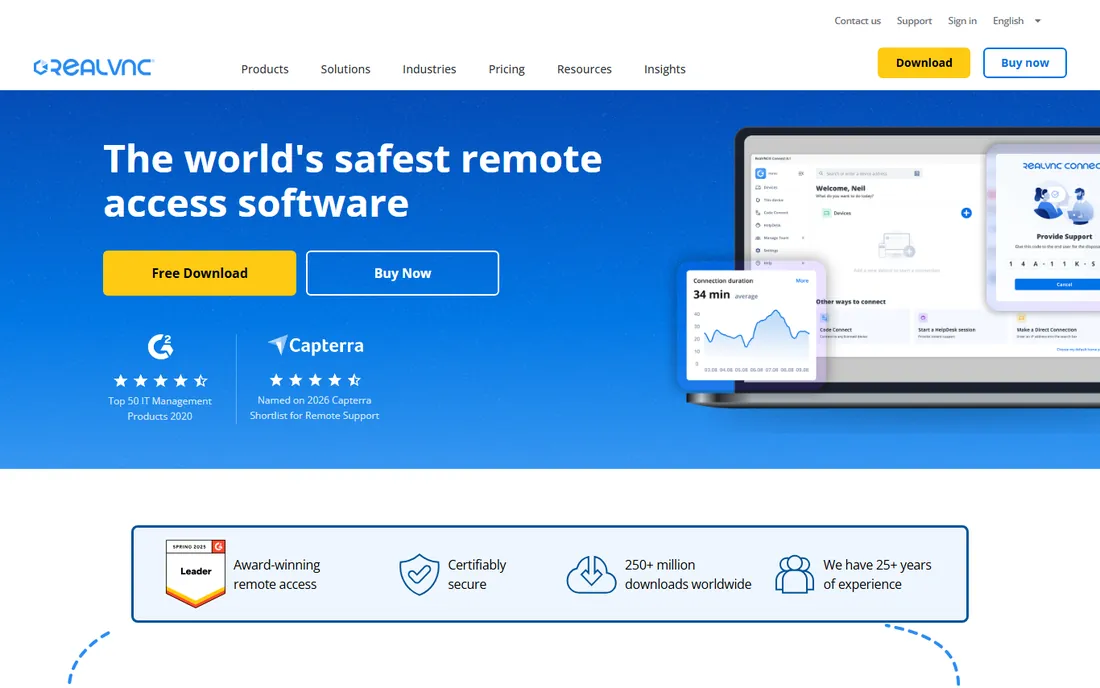
RealVNC Connect implements the VNC standard with a free tier for personal use covering a few computers. Its standout trait is breadth: Windows, Mac, Linux and Raspberry Pi, making it the choice for Pi hobbyists and mixed-OS tinkerers.
Setup involves more networking knowledge than the plug-and-play tools, and performance is merely adequate. But VNC's openness means no vendor lock-in, and for Raspberry Pi remote access it is the natural fit.
What we like- Open VNC standard
- Free tier for personal use
- Cross-platform including Raspberry Pi
Watch out for- Setup is more technical
- Free tier limited
- Performance trails modern codecs
Starting priceFree
Free planYes
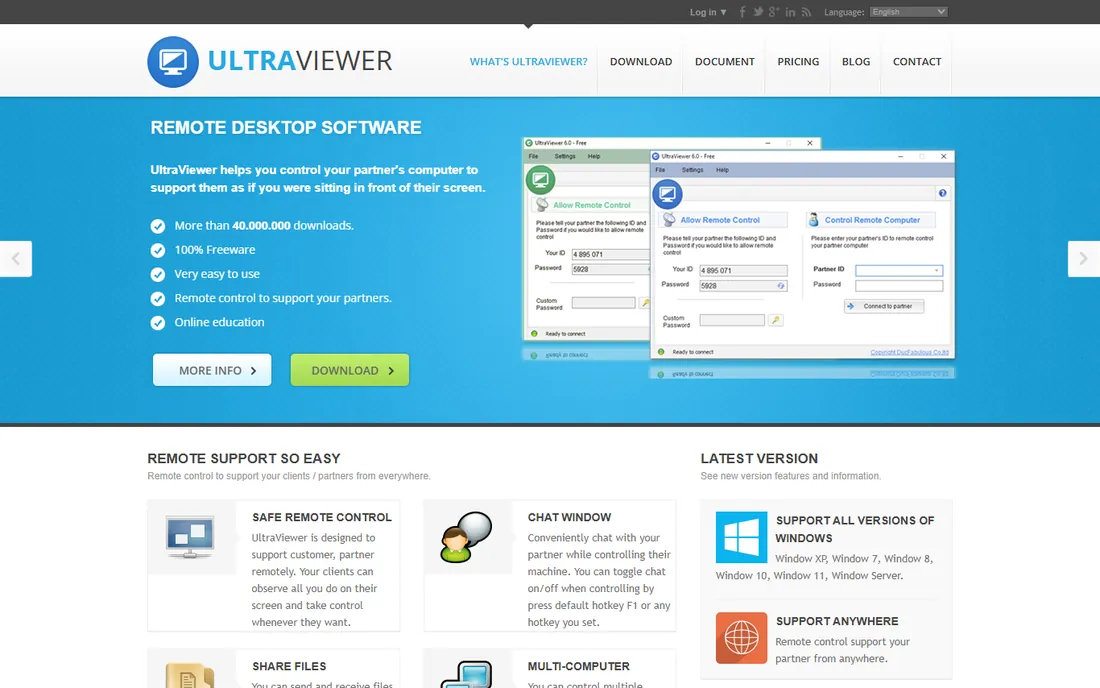
UltraViewer is a straightforward free remote desktop for Windows, popular with people who provide informal tech support to family and friends. Give someone your ID and password, and they connect; no accounts, no configuration.
It is Windows-only and from a smaller vendor, so security-conscious users should weigh that. For the specific job of "help my parents with their PC," its simplicity is hard to beat.
What we like- Free and simple
- Popular for helping family
- Lightweight
Watch out for- Windows only
- Smaller vendor
- Fewer security certifications
How we chose
We reviewed vendor product pages, pricing and documentation, plus user communities. We compared personal-use licensing terms, connection performance, security features, platform coverage, file transfer, mobile apps and ease of setup. We excluded business-only platforms without personal tiers. We did not claim hands-on testing.
Staying safe with remote access
Every tool here encrypts sessions, but your habits matter more. Use strong unique passwords or PINs, enable two-factor authentication where offered, and keep the software updated. Disable unattended access when you do not need it, and never share your access codes publicly or with strangers.
Beware of support scams: criminals cold-call claiming to be tech support and ask you to install remote desktop software. No legitimate company does this. Only use these tools with people you know and trust.
Free vs paid for personal use
Free tiers from Chrome Remote Desktop, AnyDesk, TeamViewer, RustDesk, RealVNC and UltraViewer cover most personal needs: occasional access to your own computers and helping family. Paid plans from Splashtop and RemotePC make sense when you hit free-tier limits, manage many computers, or get flagged by commercial-use detection.
Watch the personal-use terms. AnyDesk and TeamViewer actively detect suspected commercial use and restrict sessions. If your "personal" use looks like a business, perhaps because you support many machines, a cheap paid plan avoids the headache.
Helping family without the headache
Remote support for relatives works best with preparation. Install your chosen tool during a visit, set up unattended access with a strong password, and show them the one button to click if something breaks. Write down the steps in plain language and leave it by their computer. Schedule a monthly check-in call to install updates and clear clutter before small issues become emergencies. Patience matters more than software: narrate what you are doing so they learn instead of just watching.
Remote desktop for small business side use
Personal-tier tools sometimes serve micro-business needs: accessing the office PC from home, or supporting a handful of client machines. Respect licensing boundaries; vendors actively detect commercial patterns and will restrict accounts. If remote access becomes daily business infrastructure, upgrade to a business plan for reliability, audit trails and support. For freelancers, a cheap paid plan like Splashtop or RemotePC often costs less than one hour of downtime. Keep business and personal access separate where possible to avoid mixing credentials and data.
Frequently asked questions
What is the best free remote desktop software for personal use?
Chrome Remote Desktop for simplicity, AnyDesk or TeamViewer for features, RustDesk for open-source control. All are free for genuine personal use.
Is TeamViewer really free?
Yes, for personal non-commercial use. Business use requires a paid license, and TeamViewer actively detects suspected commercial use.
Can I access my home computer from my phone?
Yes. All the tools here offer mobile apps for iOS and Android, letting you control your computers from your phone.
Is remote desktop software safe?
Reputable tools encrypt sessions end to end. The main risks are weak passwords and social engineering scams. Use strong credentials and two-factor authentication.
What is the best remote desktop for helping elderly parents?
UltraViewer or Chrome Remote Desktop for simplicity; TeamViewer or AnyDesk if you need file transfer and more features. Choose whatever your parents can operate.
Why does TeamViewer say commercial use suspected?
Its detection algorithms flag patterns like many managed computers or business-hours usage. If you believe it is an error, you can submit a declaration form; otherwise consider a paid plan or an alternative.
Can I use RustDesk without their servers?
Yes. RustDesk is open source and you can self-host the rendezvous and relay servers, keeping all connection metadata on your own infrastructure.
Can I wake a sleeping computer remotely?
Wake-on-LAN can wake computers on the same network, but not reliably over the internet. For dependable remote access, configure the computer to stay awake or use scheduled wake timers.
Which is faster: AnyDesk or TeamViewer?
Both are fast on good connections; AnyDesk's codec has an edge on low bandwidth. Real-world speed depends more on your internet than the software choice.
Is it safe to leave remote access always on?
It is reasonably safe with strong passwords and two-factor authentication, but disable unattended access when you will not need it for a while to reduce exposure.
Can I print remotely?
Most tools support remote printing to your local printer. Setup varies; test before you need it urgently.
Does remote desktop work over mobile data?
Yes, though speed depends on your connection. Lower the remote resolution for smoother performance on slow links.
Can I transfer files during remote sessions?
Yes, TeamViewer, AnyDesk, RustDesk and most tools here include file transfer. Chrome Remote Desktop's file transfer is more limited.
Can I use remote desktop on a Chromebook?
Yes, Chrome Remote Desktop works well on Chromebooks, and most vendors offer web clients or Android apps.
Sources we checked (8)
- https://remotedesktop.google.com
- https://www.anydesk.com
- https://www.teamviewer.com
- https://www.rustdesk.com
- https://www.splashtop.com
- https://www.remotepc.com
- https://www.realvnc.com
- https://www.ultraviewer.net
Is your product missing or out of date?
We review this list regularly. Vendors can request a listing, send updated pricing or ask about featured placement.

Shihab Mia · Founder, Rankite
Shihab has spent more than a decade helping SaaS and e-commerce brands grow through search. He writes Rankite's software buying guides from pricing pages, documentation and public user reviews. More about Shihab.